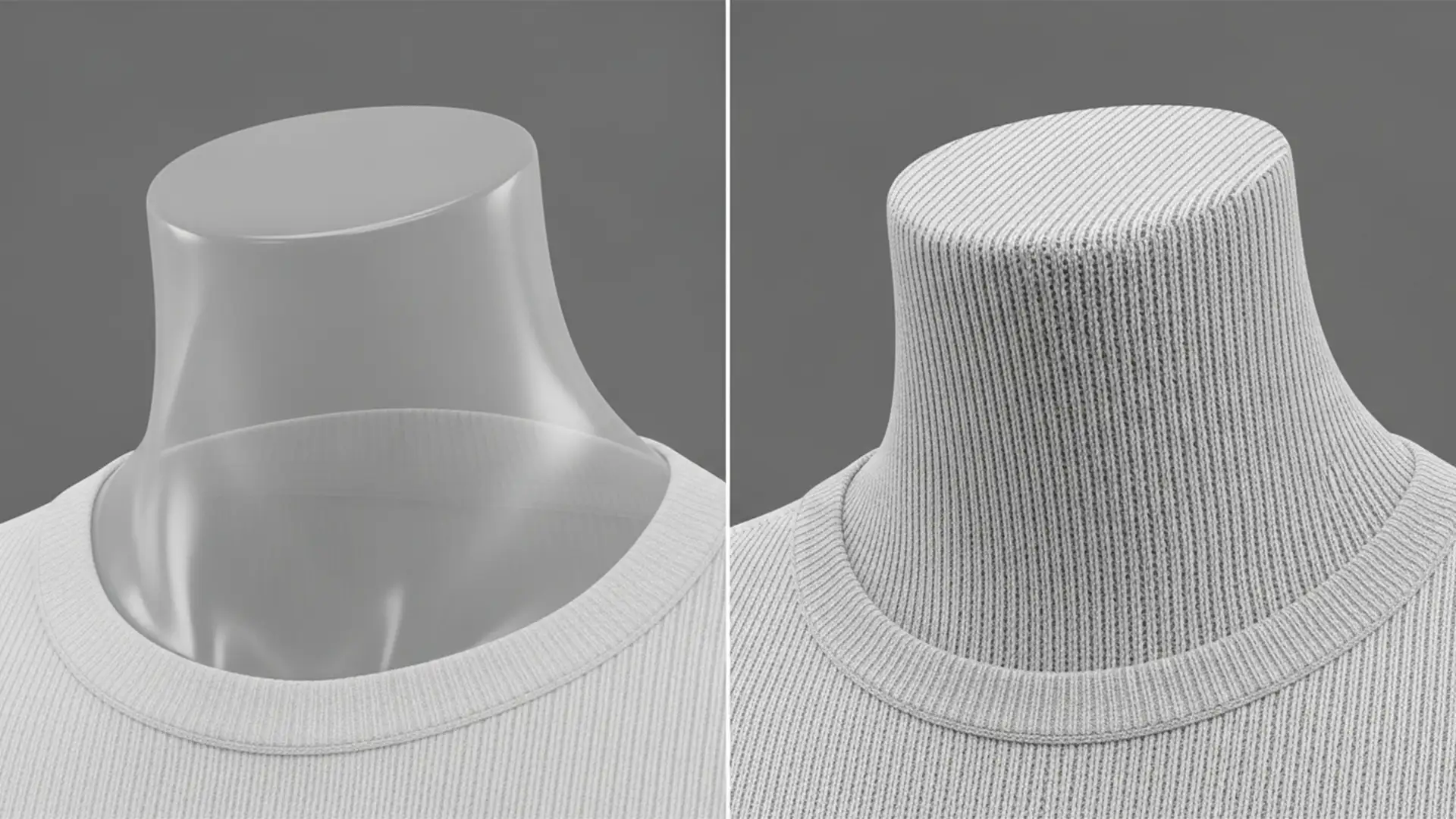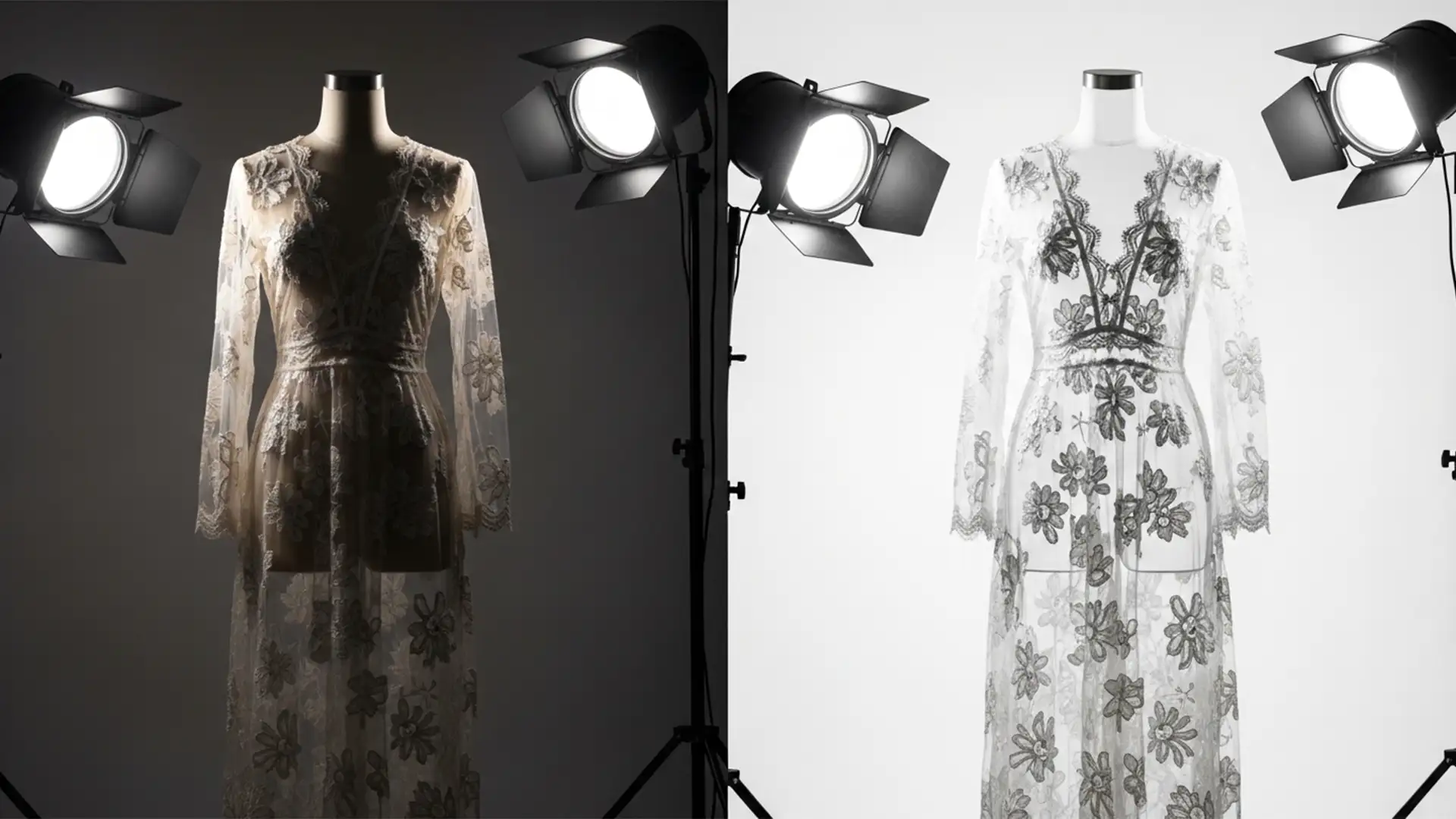

Standard ghost mannequin techniques ruin sheer and lace clothing. When editing translucent fabrics like chiffon or delicate mesh, standard methods either make the material look completely solid or awkwardly leave parts of the plastic mannequin visible beneath the weave. If you rely solely on a basic clipping path, you are actively destroying the delicate details of your high-end apparel.
In this guide, we dive deep into Adobe Photoshop v24.x and v25.x to show you exactly how to execute a flawless ghost mannequin for sheer and lace clothing. Discover how to preserve natural transparency, seamlessly merge your neck joint, and maintain intricate patterns without losing hours of your time.
Why Standard Clipping Paths Fail on Translucent Fabrics
When dealing with standard cotton t-shirts or heavy jackets, a simple Pen Tool path is all you need. However, sheer and lace garments present a unique challenge. The background or the mannequin body inevitably shows through the translucent material.
Using a standard clipping path here results in two disastrous outcomes: you either spend hours manually cutting out hundreds of tiny holes in the lace (which looks jagged and unnatural), or you bypass the holes entirely, rendering a sheer fabric as a solid, heavy block of color. To achieve professional ecommerce standards, the core requirement is retaining semi-transparency while seamlessly comping the inner neck and back label shots without muddying the pixels.
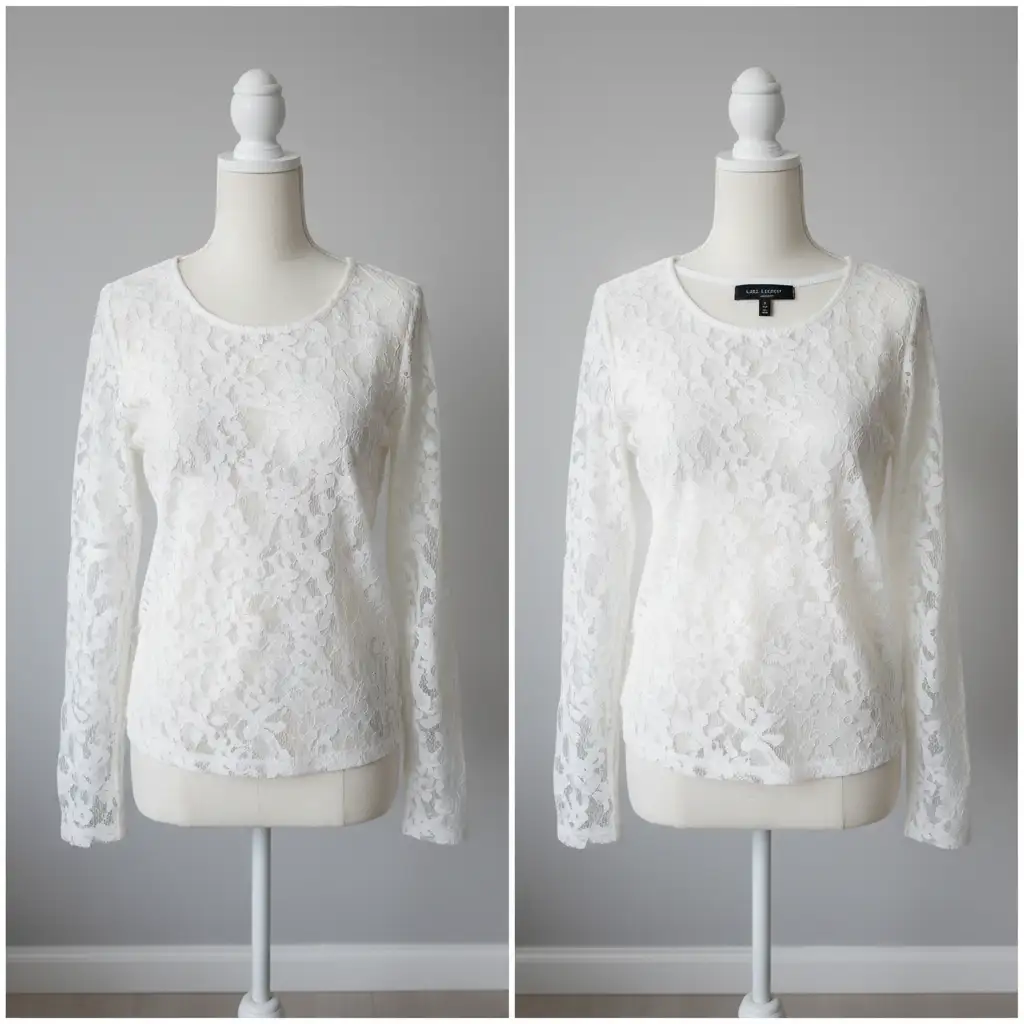
How to Create a Ghost Mannequin for Sheer and Lace Clothing
Depending on the complexity of the garment and the version of Photoshop you are using, there are three primary methods to separate intricate lace patterns and preserve the natural transparency of sheer fabrics.
Method 1: The Quick Fix Using Select and Mask
For simpler mesh garments or lightly frayed edges, Photoshop’s built-in AI tools can do the heavy lifting.
- Import your front garment shot and your inner neck shot into Photoshop.
- Align the layers so the collar and shoulders match perfectly.
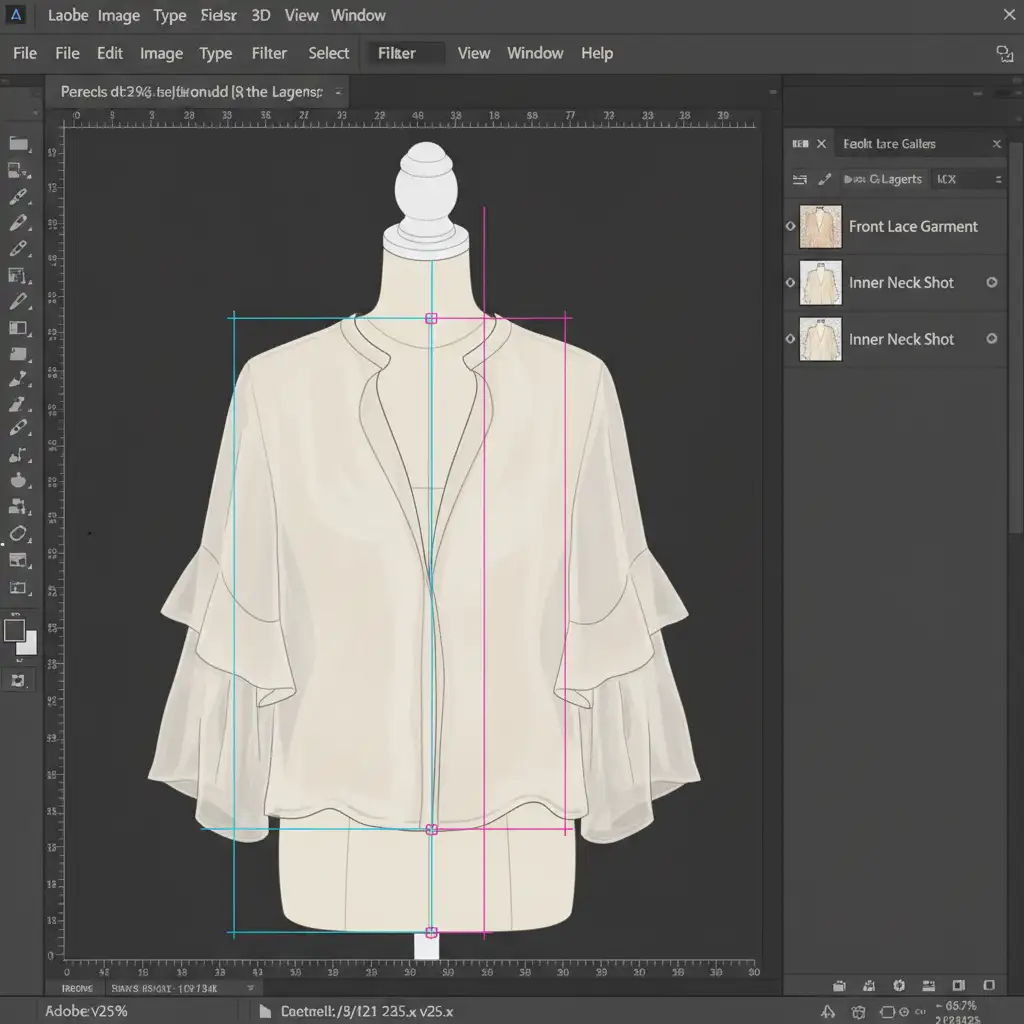
Make a rough selection of the garment and open the Select and Mask workspace.
- Select the Refine Edge Brush Tool. Carefully paint over the sheer edges and lace areas. This allows Photoshop to calculate the transparency and remove the mannequin’s plastic sheen from the gaps in the fabric.
- Output to a New Layer with Layer Mask.
Method 2: The Pro Workaround with Alpha Channels
When dealing with highly detailed lace where the Refine Edge tool leaves a “halo” effect, Alpha Channels are the industry standard for precise isolation.
- Open the Channels panel and click through the Red, Green, and Blue channels. Look for the channel that provides the highest contrast between the lace garment and the mannequin.
- Duplicate this high-contrast channel.
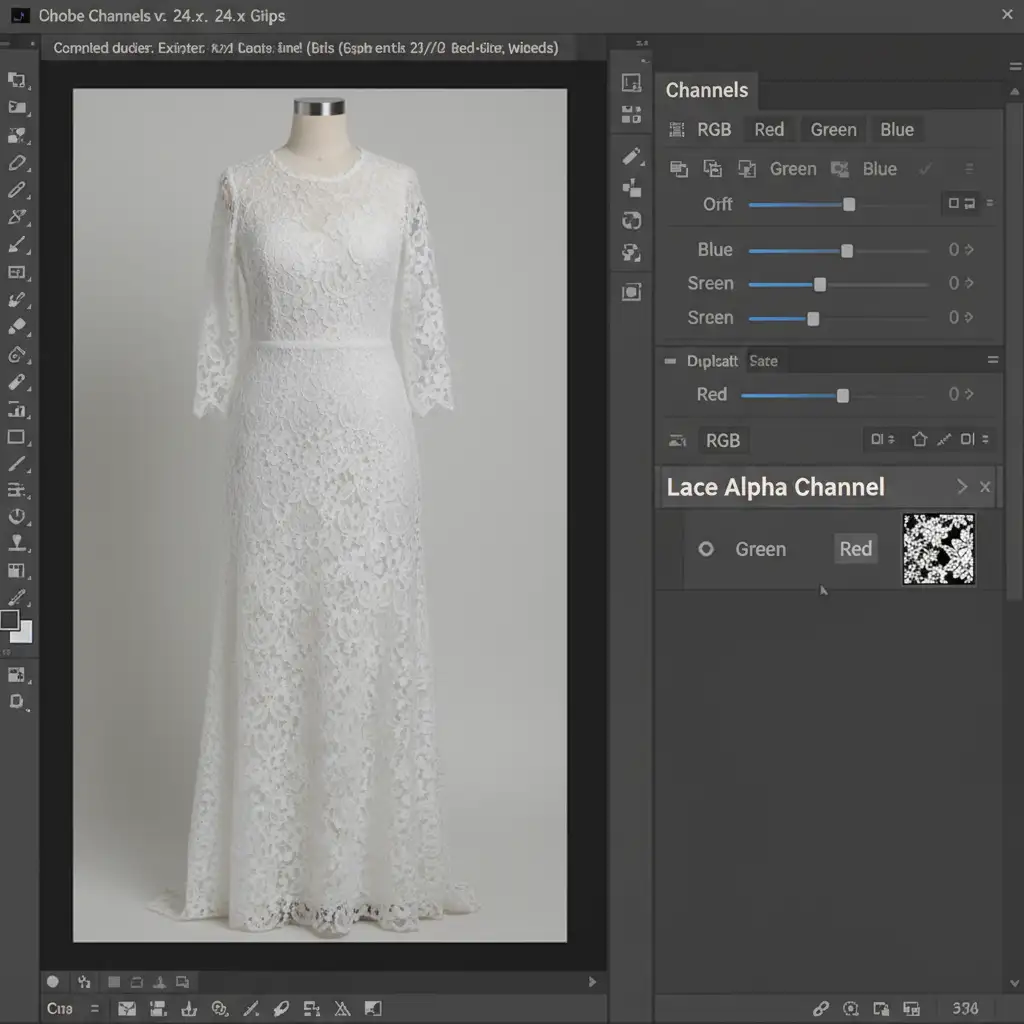
Press Ctrl+L (Windows) or Cmd+L (Mac) to bring up the Levels adjustment dialog.
- Tweak the black and white points to push the mannequin to pure white and the lace to pure black (or vice versa).
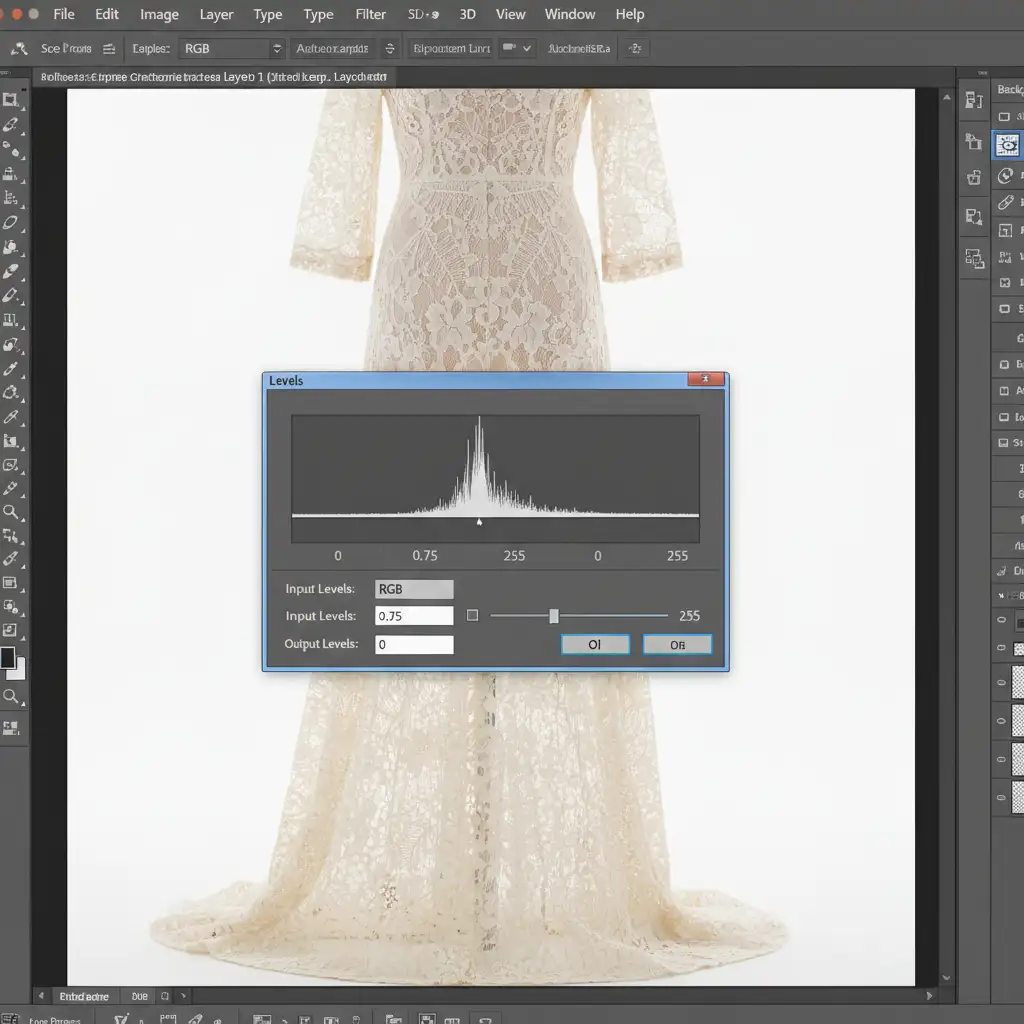
- Ctrl+Click (or Cmd+Click) the duplicated channel thumbnail to load it as a selection.
- Return to your RGB layers and apply this selection as a Layer Masking technique to perfectly cut out the intricate lace.
Method 3: The Technical Deep-Dive into Composite Blending
For ultra-sheer fabrics like chiffon, you must control exact opacity levels to allow the inner neck background to show naturally through the front of the shirt. This requires advanced composite blending.
- Use the Pen Tool to cut out the solid edges of the garment (collars, solid hems).
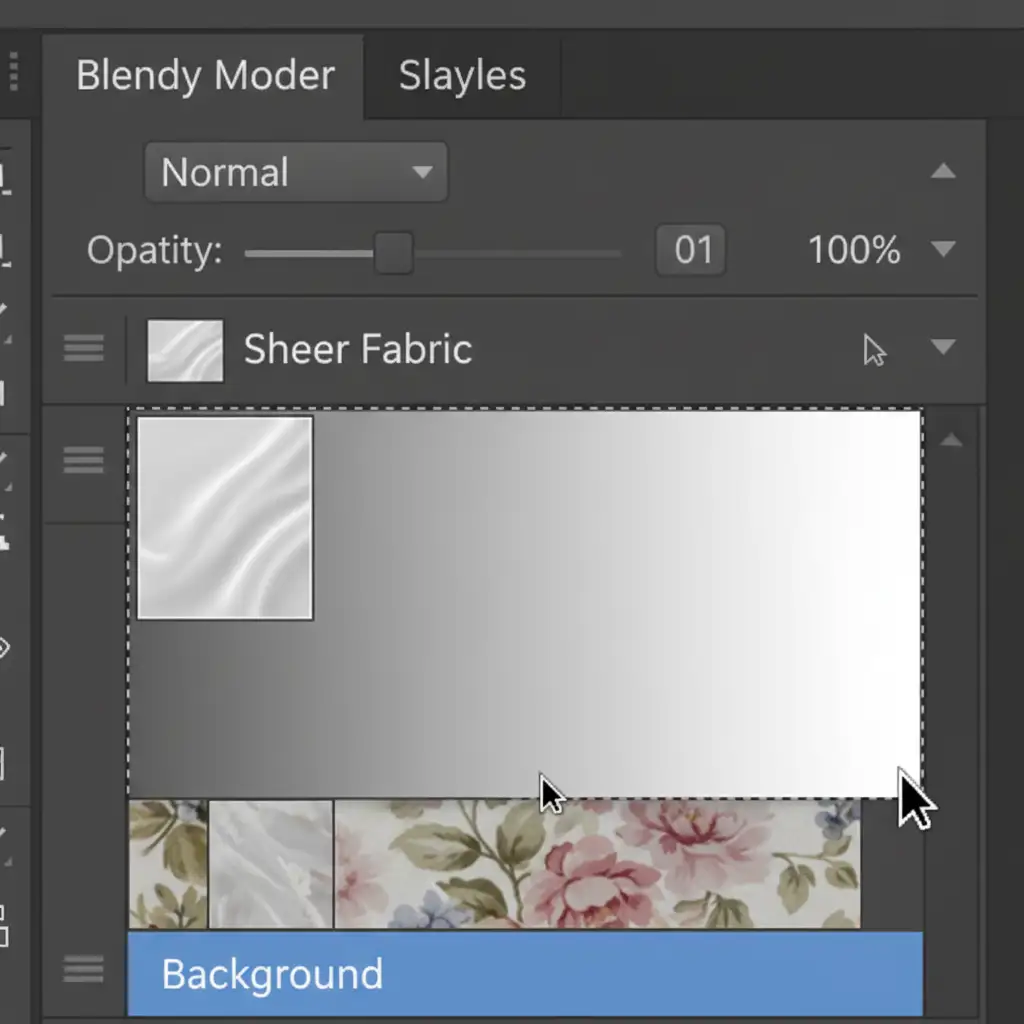
- For the sheer areas, change the garment layer’s blending mode to Multiply. This drops out the lighter colors (the mannequin) and keeps the darker fabric details.
- To prevent the fabric from looking completely see-through, create a custom layer mask.
- Fill the sheer areas of the mask with a specific gray tone. A 50% gray brush on the layer mask will retain exactly 50% opacity for the sheer areas. Adjust between 30 to 50 percent opacity depending on the physical garment’s thickness.
Scale Your High-Volume Apparel Retouching
Executing a flawless ghost mannequin for sheer and lace clothing is a highly technical, incredibly time-consuming process. When you are managing an ecommerce catalog with hundreds or thousands of delicate SKUs, spending 30 minutes per image adjusting Alpha Channels and Blending Modes simply isn’t scalable.
You don’t have to do this yourself. Scale your ecommerce production by partnering with the experts. Image Work India and Cloud Retouch specialize in flawless, high-volume ghost mannequin services. Our dedicated teams of professional retouchers are masters of composite blending, masking, and complex neck joints. We ensure every piece of lace, mesh, and chiffon in your catalog retains its natural beauty and transparency, delivered on time and within budget.
Contact Image Work India or Cloud Retouch today to elevate your ecommerce imagery and let us handle the invisible details.