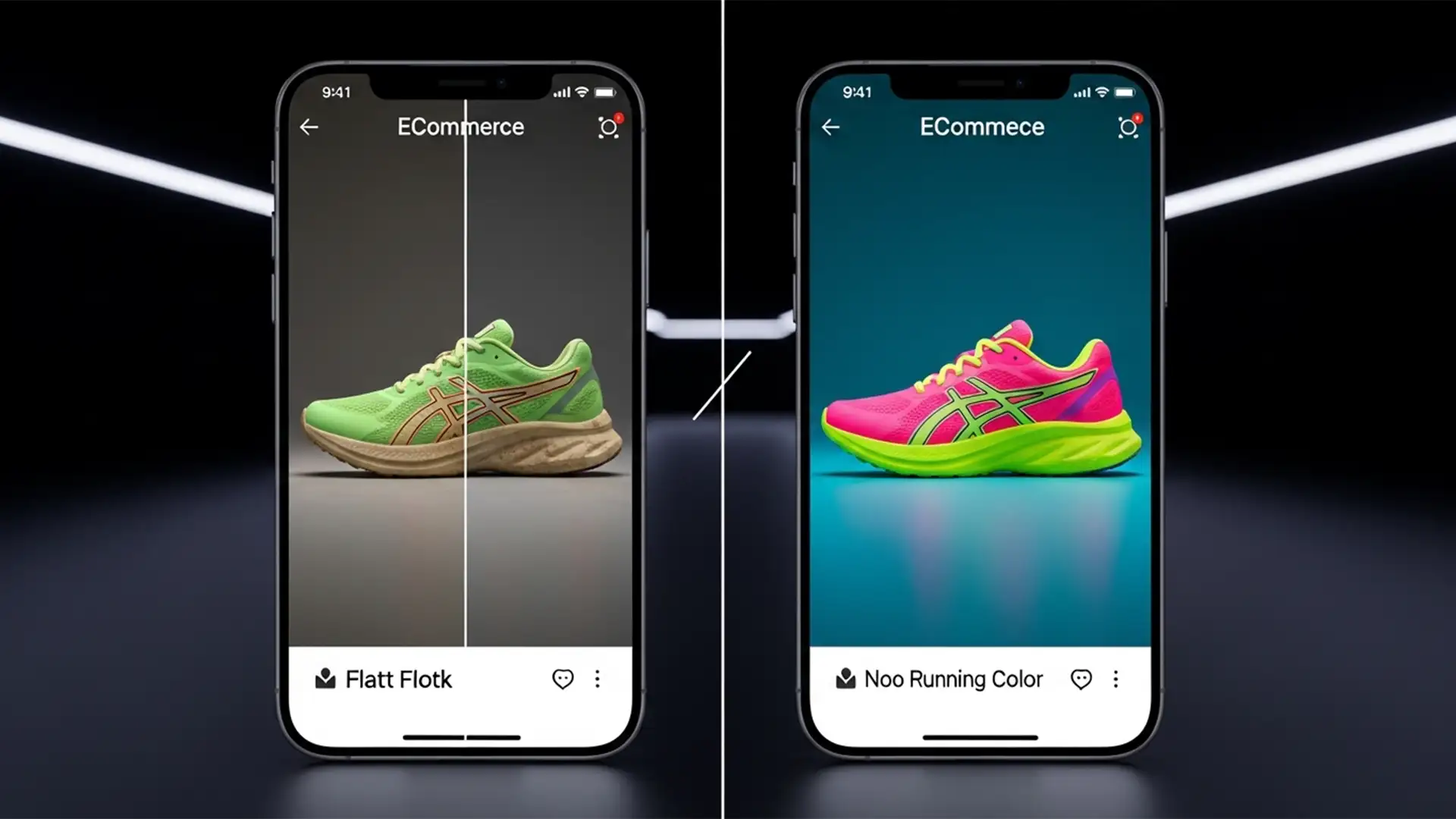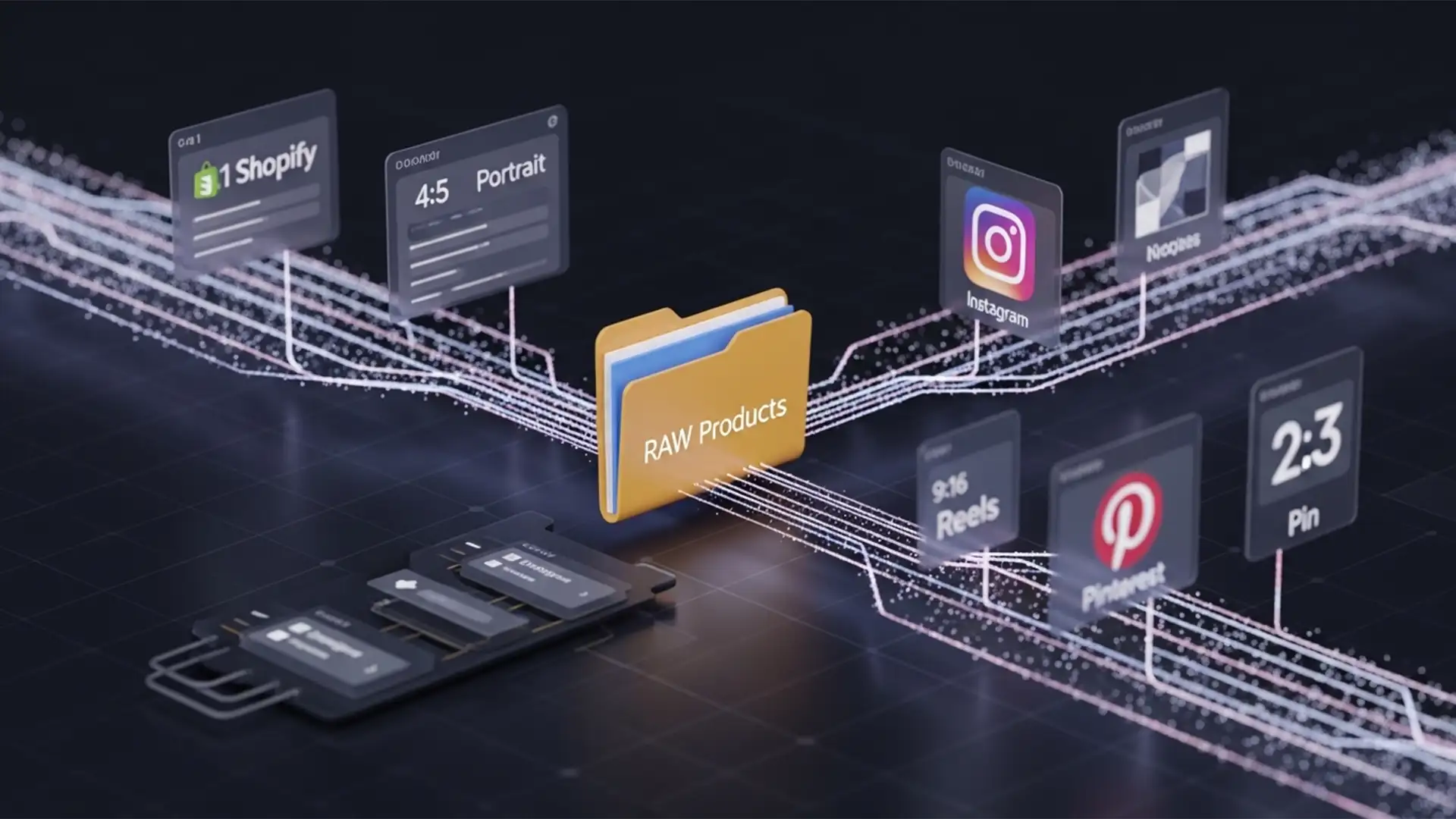

You just finished a flawless product photoshoot. Now comes the nightmare: spending the next six hours manually resizing hundreds of high-resolution images into 1:1 for Shopify, 4:5 for Instagram, 9:16 for Reels, and 2:3 for Pinterest. Manual cropping doesn’t just drain your time—it often leads to destructive edits that cut off vital product details or stretch pixels.
If you are still resizing e-commerce assets one by one, you are severely bottlenecking your launch pipeline. In Photoshop 2026 (v27.x), there is a vastly superior method. Let’s break down the ultimate multi-channel batch workflow to fully automate your Batch Resizing for Shopify Instagram and Pinterest 2026, allowing you to reclaim your day and scale your brand.
The Omnichannel E-commerce Image Bottleneck
Modern e-commerce sellers face a massive technical challenge: delivering high-fidelity resolution across a fragmented landscape of aspect ratios. Manually adjusting the canvas size for hundreds of images leads to inconsistent brand presentation and wasted hours.
This modern Photoshop v27.x workflow resolves the bottleneck by leveraging automated scripts, Artboard ecosystems, and AI-driven background expansion. Here are the three best methods to implement Batch Automation for your product catalog.
Method A: The Quick Fix Using Actions and Image Processor
If your product photos are already shot on a clean, solid background, the fastest way to unify them for platforms like Shopify is through automated Canvas Size Padding.
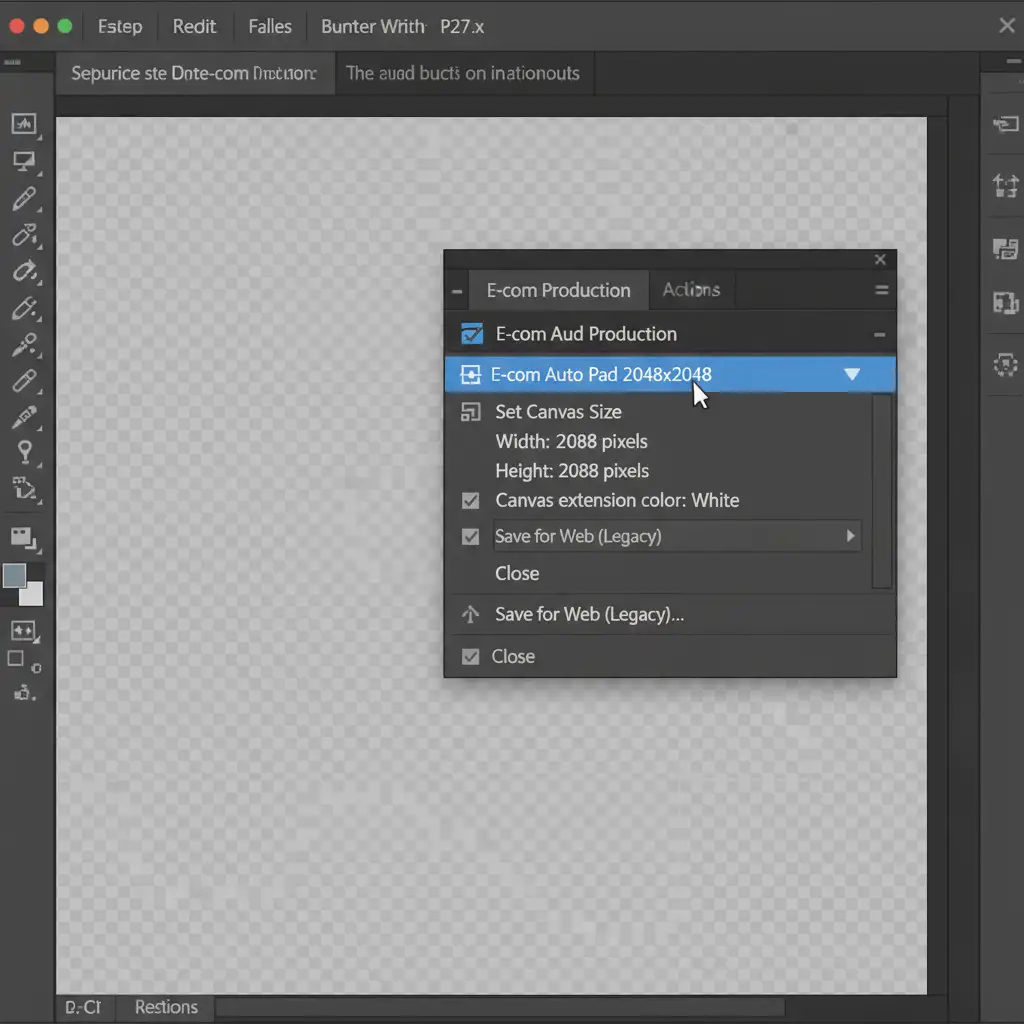
Step 1: Record the Padding Action
First, open a master product image. Open your Actions panel, create a new Action, and hit record. Navigate to Image > Canvas Size and set your dimensions to the maximum needed (e.g., 2048px by 2048px for a standard Shopify zoom). Set the canvas extension color to white (or your brand’s background color) to apply non-destructive padding without stretching the actual product pixels. Stop the recording.
Step 2: Trigger the Image Processor
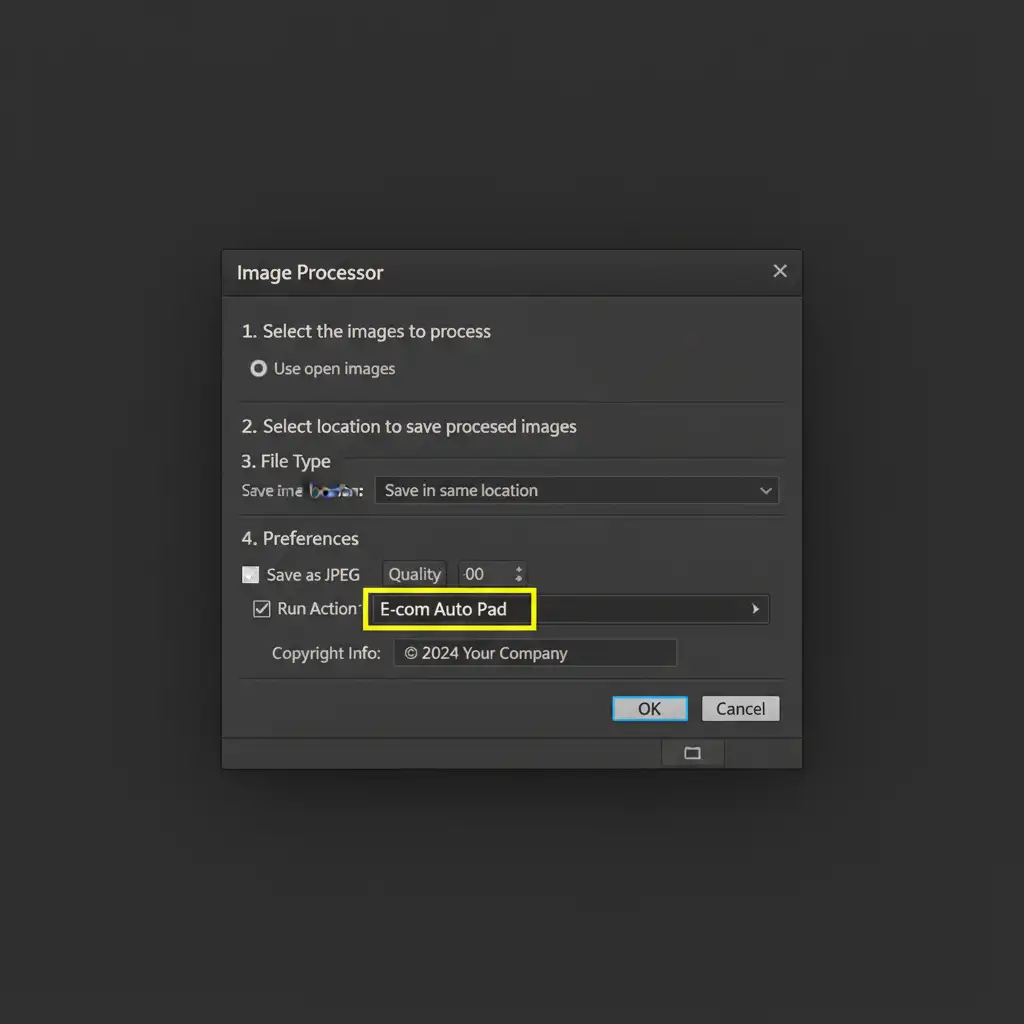
Instead of running this action manually, use Photoshop’s built-in batching script.
- Go to
File > Scripts > Image Processor. - Select your source folder containing the raw product images.
- Choose your destination folder.
- Under ‘Preferences’ at the bottom, check Run Action and select the padding action you just created.
- Hit ‘Run’ to batch export standard web-ready JPEGs.
Method B: The Pro Workaround with Artboard Multi-Export
When you need to visualize how a single product will look across Shopify, Instagram, and Pinterest simultaneously, the Artboard ecosystem paired with Linked Smart Objects is your best asset.
Setting Up Linked Smart Objects
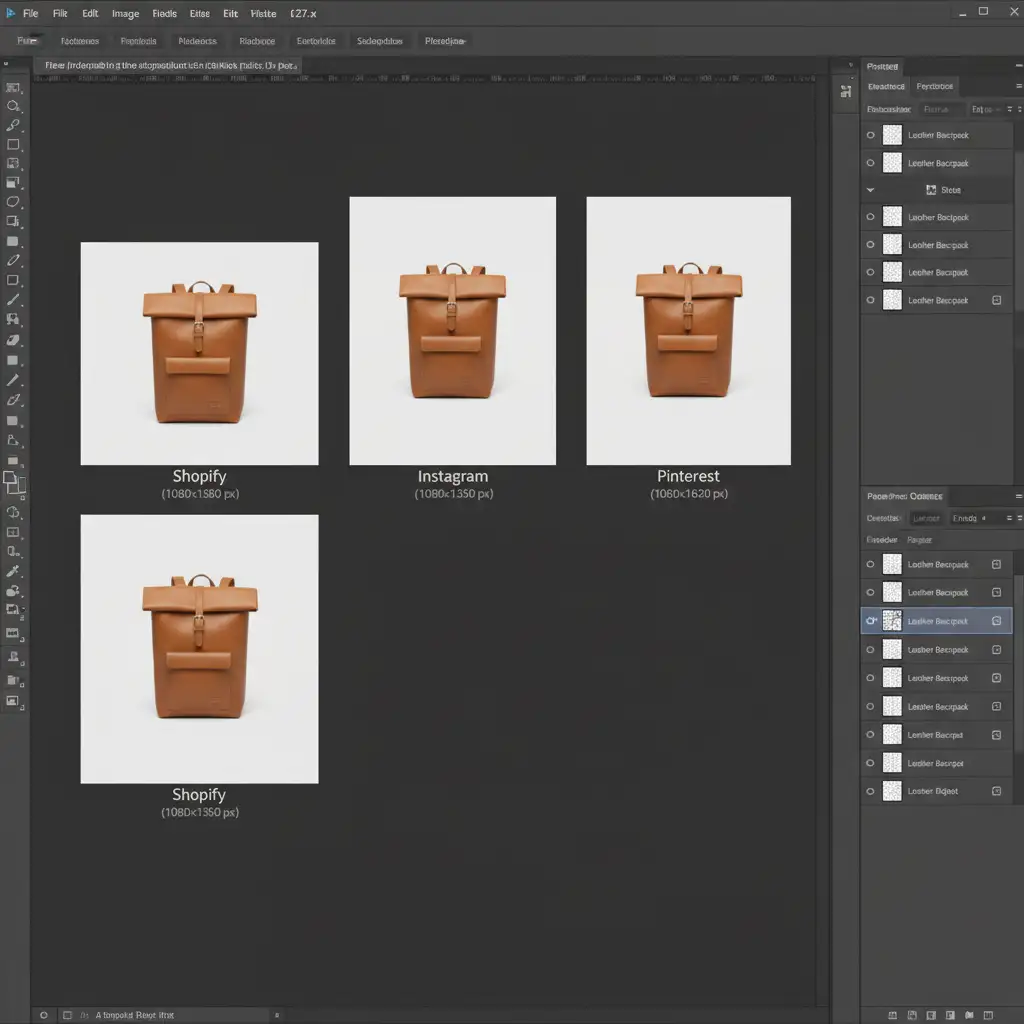
Create a new Photoshop document and set up multiple pre-sized Artboards side-by-side:
- Shopify: 2048×2048 (1:1 Aspect Ratio)
- Instagram Feed: 1080×1350 (4:5 Aspect Ratio)
- Pinterest: 1000×1500 (2:3 Aspect Ratio)
Convert your master product image into a Linked Smart Object. Place this single Smart Object into each Artboard, scaling it appropriately for the frame. Because the object is linked, updating the master file will instantly update the product across all three social media aspect ratios.
One-Click Export As
Once your layout is perfect, go to File > Export > Export As. The dialog box will display all your Artboards on the left. Select them all, apply your desired JPEG compression settings, and click export. Photoshop will instantly render all platforms simultaneously into your designated folder.

Method C: The Technical Deep-Dive Using Generative Expand Droplets
What happens when you have a horizontal lifestyle product photo that needs to fit a 9:16 vertical format for Instagram Reels or Pinterest, but zooming in ruins the composition? In Photoshop 2026, we solve this with Generative Expand and an Executable Droplet.
Automating AI Background Expansion
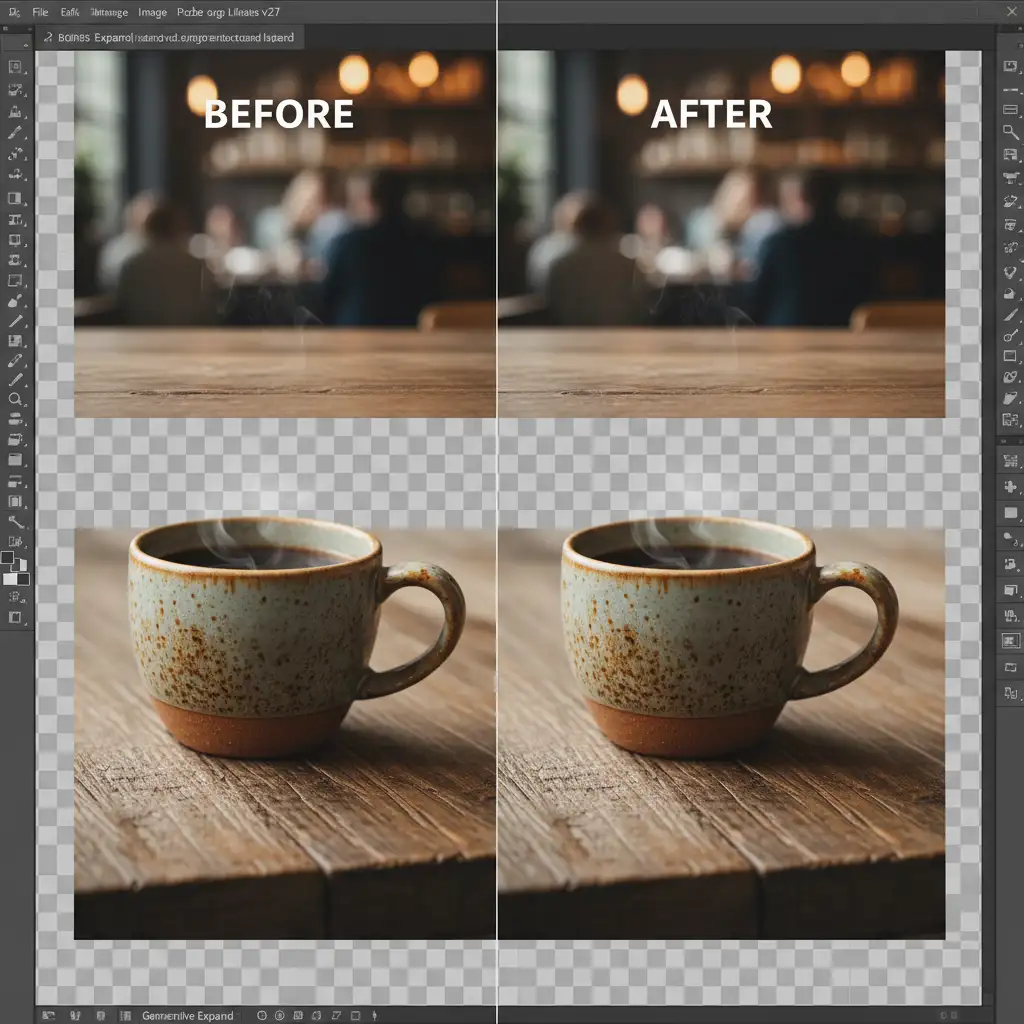
Open a lifestyle image. Create a new Photoshop Action. Use the Crop Tool, set the ratio to 9:16, and drag the handles outward to create empty canvas space. Hit ‘Enter’. Because Photoshop v27.x integrates AI natively, Generative Expand will automatically analyze the image and fill the empty canvas space with context-aware background elements, preventing stretched pixels and destructive cropping. Stop recording your actions.
Creating Executable Droplets
To turn this AI workflow into a true batch automation powerhouse:
- Navigate to File > Automate > Create Droplet.
- Choose where to save the Droplet on your computer (e.g., your Desktop).
- Select the Generative Expand Action you just recorded.
- Set your destination folder for the final 9:16 images.
Now, you can simply drag and drop an entire folder of raw horizontal product photos directly onto the Droplet icon on your desktop. Photoshop will open in the background, automatically resize, expand the backgrounds using AI, and save the platform-ready versions seamlessly.
Stop Wasting Time on Manual Edits
Mastering Batch Resizing for Shopify Instagram and Pinterest 2026 is essential for maintaining a high-volume e-commerce pipeline. By utilizing Image Processor scripts, Linked Smart Objects, and Generative Expand Droplets, you eliminate human error and ensure pixel-perfect brand consistency across every channel.
However, setting up and maintaining these technical workflows still requires dedicated time and Photoshop expertise.
Struggling to keep up with hundreds of daily product uploads? Let the experts at Image Work India and Cloud Retouch handle your bulk image editing, retouching, and resizing. Our specialized teams manage the entire post-production pipeline—from complex clipping paths to omnichannel batch formatting—so you can stop worrying about aspect ratios and focus entirely on scaling your brand. Contact us today to streamline your e-commerce visuals.