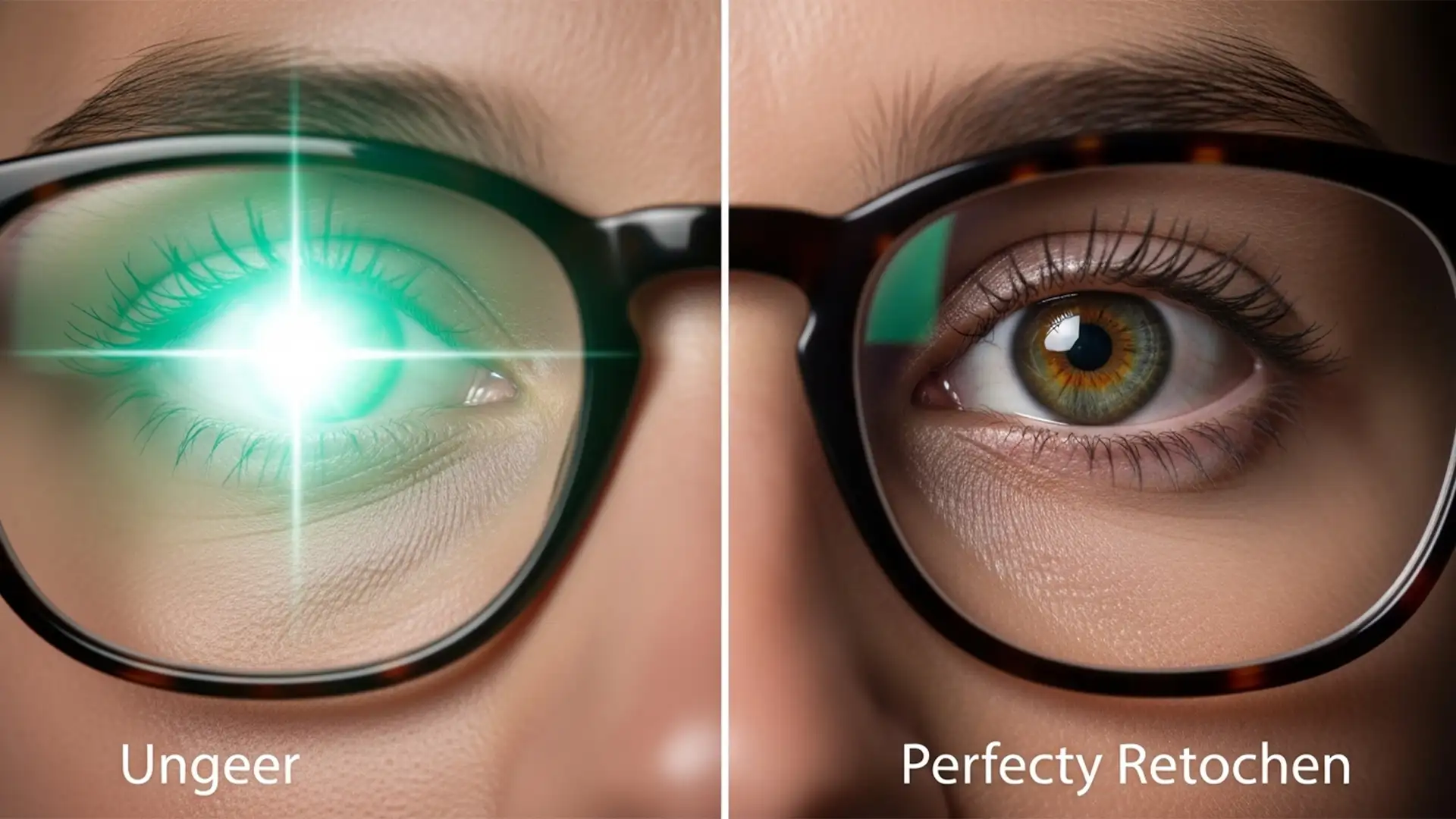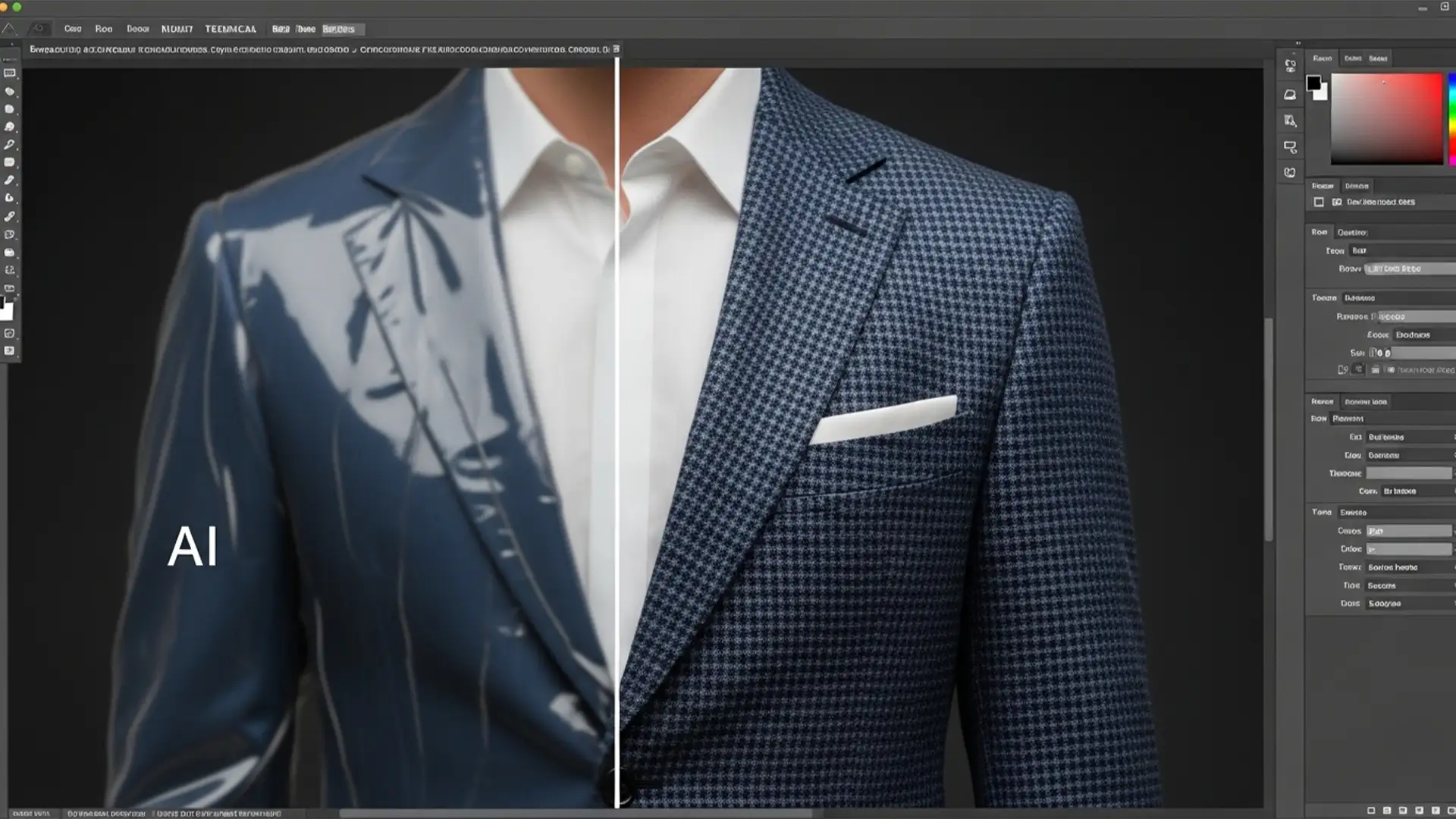

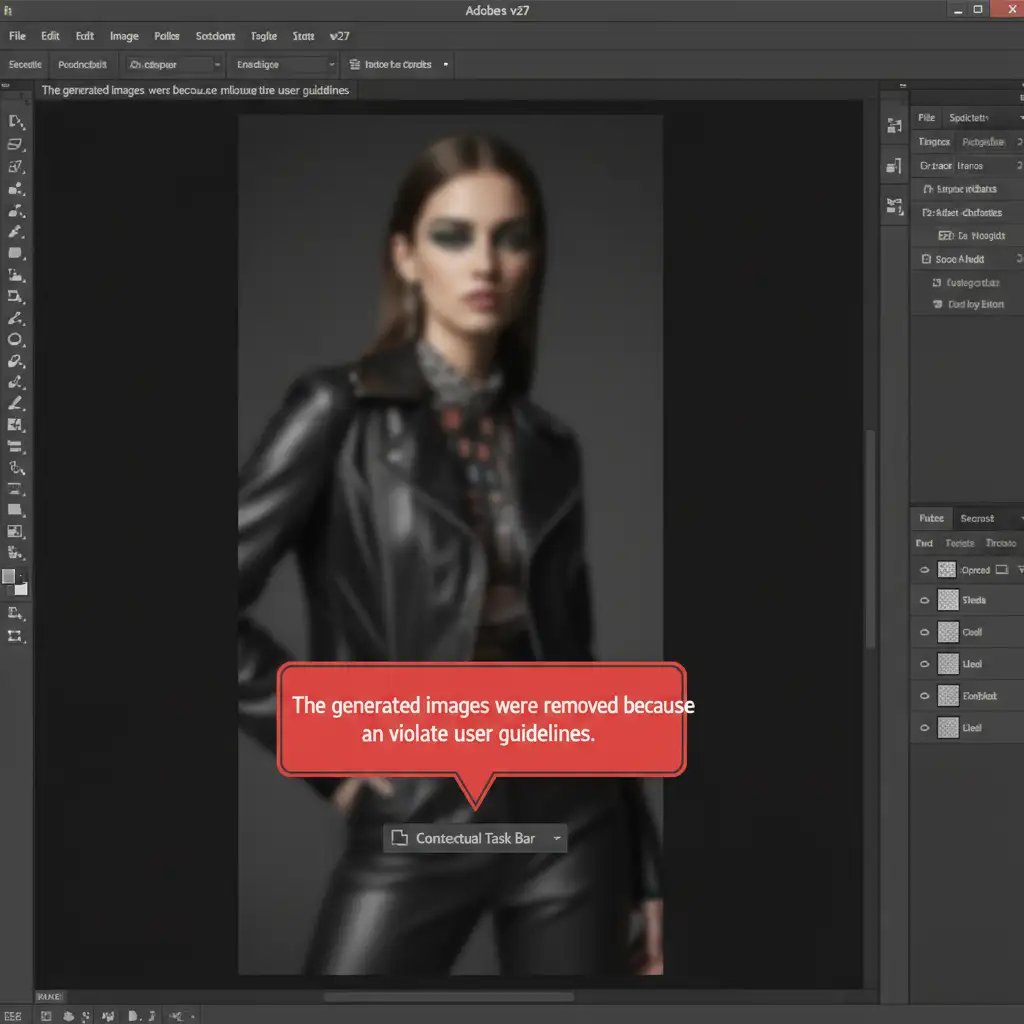
You are on a tight deadline editing a high-fashion editorial, swimwear, or lingerie shoot. You make a quick selection, click Generative Fill, and instead of a seamless repair, you are hit with a glaring red error: “The generated images were removed because they violate user guidelines.”
If Adobe Generative Fill is suddenly blocking your perfectly safe fashion edits, you are dealing with a frustrating false positive. When strict automated filters clash with the realities of commercial photography, your workflow grinds to a halt. Here is exactly why the Photoshop Generative Fill guideline violation in fashion retouching happens-and the professional workarounds you need to bypass it immediately.
Why Does Photoshop Flag Fashion Photos?
In Photoshop v25.0 and later, the Generative Fill feature is powered by Adobe Firefly. To prevent the generation of inappropriate content, Firefly employs a highly aggressive NSFW safety filter.
While this makes sense for public AI tools, it creates massive headaches for professional retouchers. The AI evaluates two things before generating pixels:
- Your Text Prompt: Words that could be interpreted as suggestive.
- The Active Pixel Selection: The actual image data inside your bounding box.
In fashion retouching-especially with swimwear, lingerie, or dynamic editorial poses-the image recognition algorithm frequently triggers a false positive. If the base pixels contain high ratios of skin tones or specific anatomical contours, the system blocks the generation regardless of how innocent your text prompt is.
3 Ways to Fix the Generative Fill Guideline Violation
If you are tired of fighting the Generative AI guidelines, here are three proven methods to outsmart the safety filter and get your edits done.
Method 1: The Quick Fix – Blank Prompts and Clinical Terms
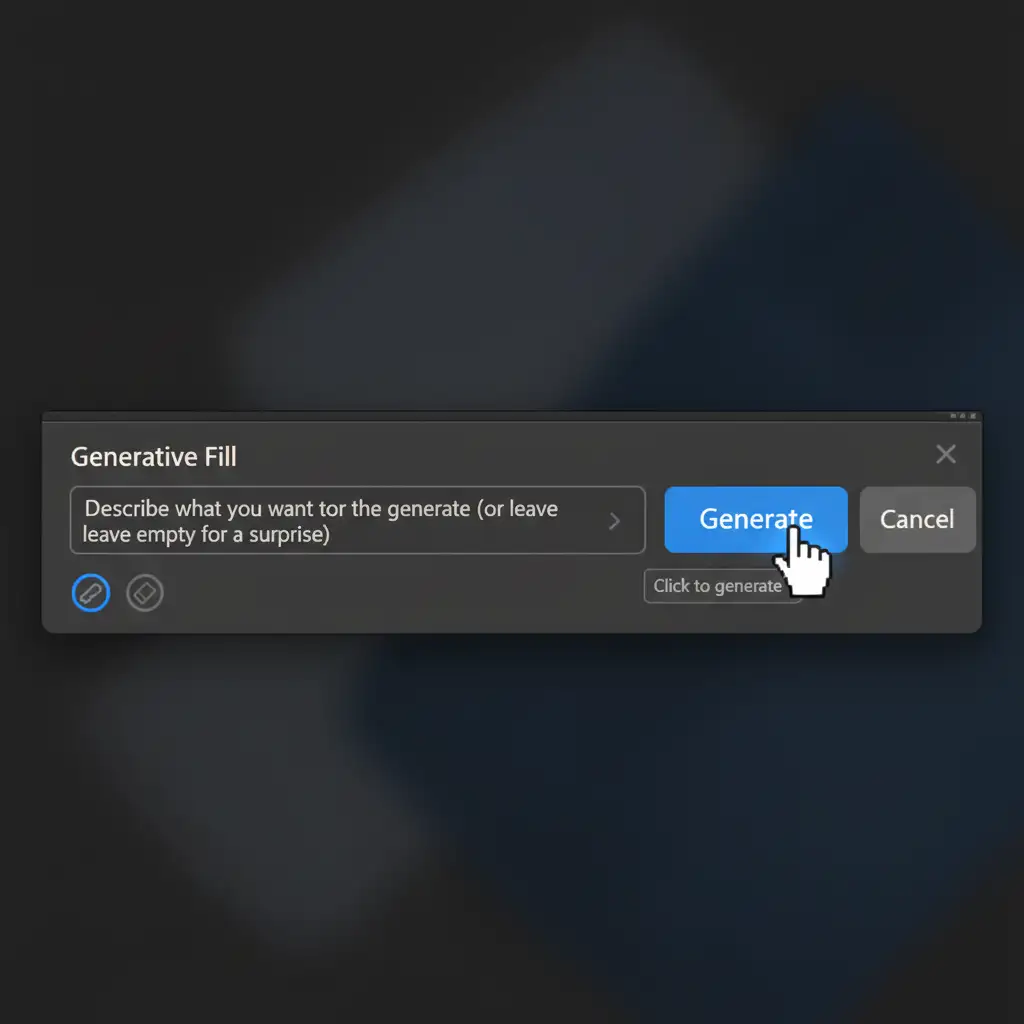
The easiest way to trigger a guideline violation is through poor prompt engineering. If your selection includes a high ratio of skin, using descriptive clothing terms (like “bikini top” or “lace”) will almost certainly result in a block.
The Fix: Leave the prompt entirely blank. By submitting an empty prompt via the Contextual Task Bar, you force Adobe Firefly to rely solely on the surrounding pixels to execute a seamless blend, removing the text-evaluation step from the safety filter. If you absolutely must use text to guide the AI, use highly clinical, non-descriptive terms like ‘fabric repair’ or ‘seamless textile’.
Method 2: The Pro Workaround – The 50% Grey Overlay
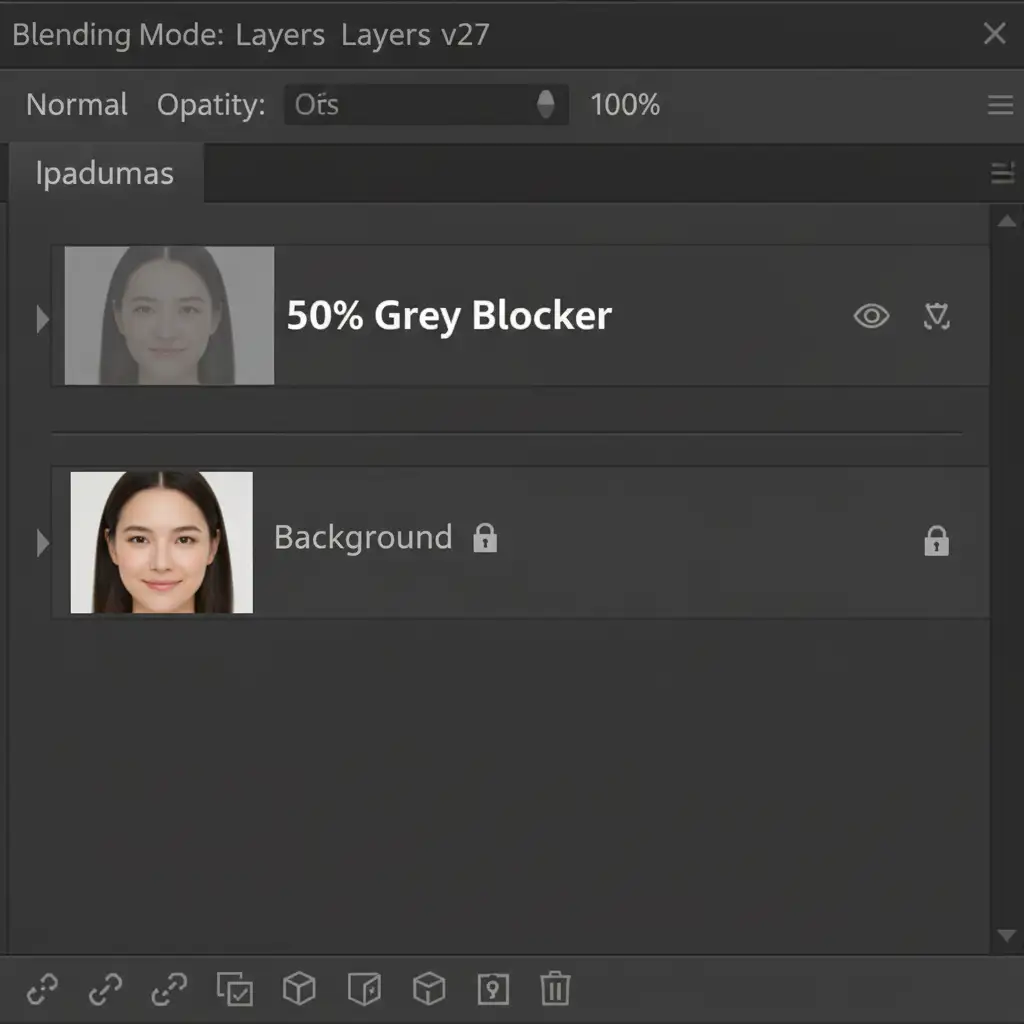
When a blank prompt still results in a violation, it means the AI’s image recognition is flagging the underlying pixels (the skin-to-fabric ratio). You need to break the AI’s contextual awareness of the “flagged” anatomy.
The Fix:
- Create a new layer above your working image.
- Select the sensitive area (the skin or contour causing the issue).
- Fill this selection with 50% Grey (Edit > Fill > 50% Gray).
- Merge or stamp this layer down (Ctrl+Alt+Shift+E / Cmd+Opt+Shift+E).
- Make your Generative Fill selection over the grey area.
Because the AI no longer sees the skin tones or anatomical contours, the safety filter is bypassed. This allows the fill to process normally, maintaining your non-destructive editing workflow once you mask the generated result back into your original layer stack.
Method 3: The Technical Deep-Dive – Progressive Micro-Selections
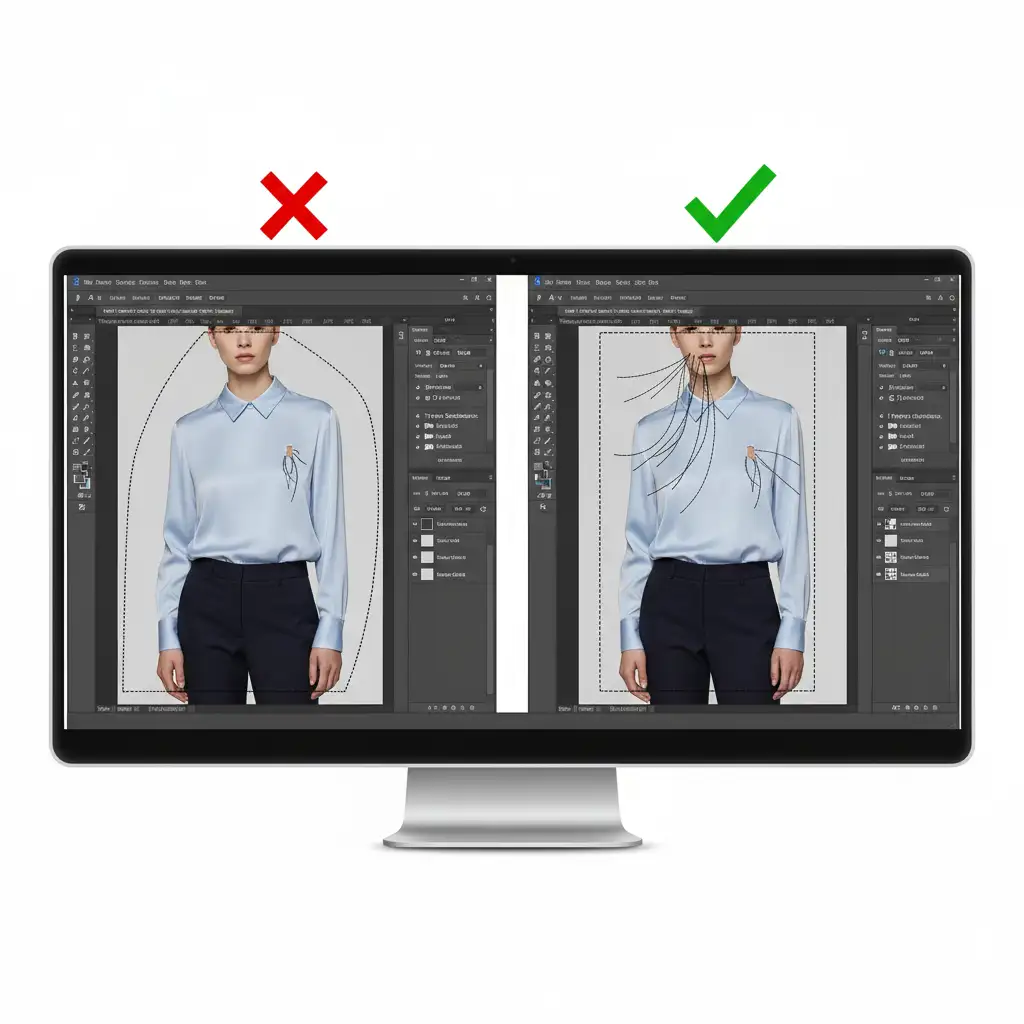
Adobe Firefly scans the entire bounding box of your selection. If you use the Marquee tool to grab a large chunk of an image that includes the model’s face, torso, and the garment defect, the AI calculates a high skin-to-fabric ratio and blocks the action.
The Fix: Stop making large selections. Instead, use the Lasso tool to make progressive micro-selections strictly around the garment defect. By keeping your selection borders incredibly tight to the fabric, you exclude the model’s skin from the AI’s bounding box calculation. Generated in small, piecemeal patches to keep the skin ratio well below the safety filter’s threshold. Combine this with careful Layer Masking to blend the patches flawlessly.
Stop Fighting AI-Let the Experts Handle Your Retouching
Generative AI is a powerful tool, but strict automated guidelines and false positives can easily derail your project deadlines. When you spend more time fighting the Photoshop Generative Fill guideline violation than actually editing, it is time to rethink your workflow.
AI simply cannot match the nuanced, context-aware precision of a human expert. If you need flawless, high-end fashion, swimwear, or editorial retouching without the headache of automated censorship, Image Work India and Cloud Retouch are here to help.
Our team of professional retouchers provides reliable, pixel-perfect manual retouching that respects your creative vision and your deadlines. Contact Image Work India and Cloud Retouch today to elevate your fashion imagery with uncompromising quality.