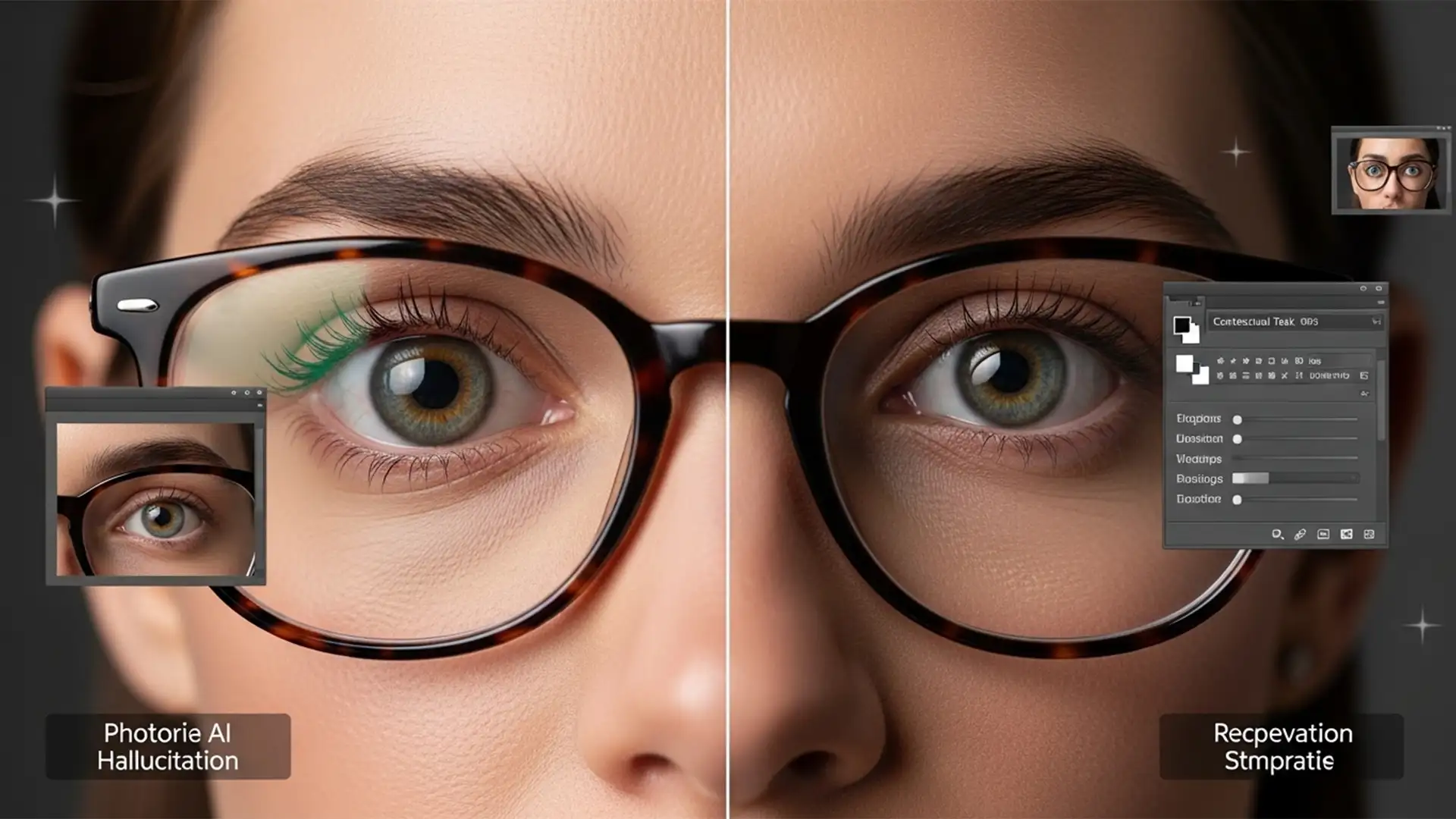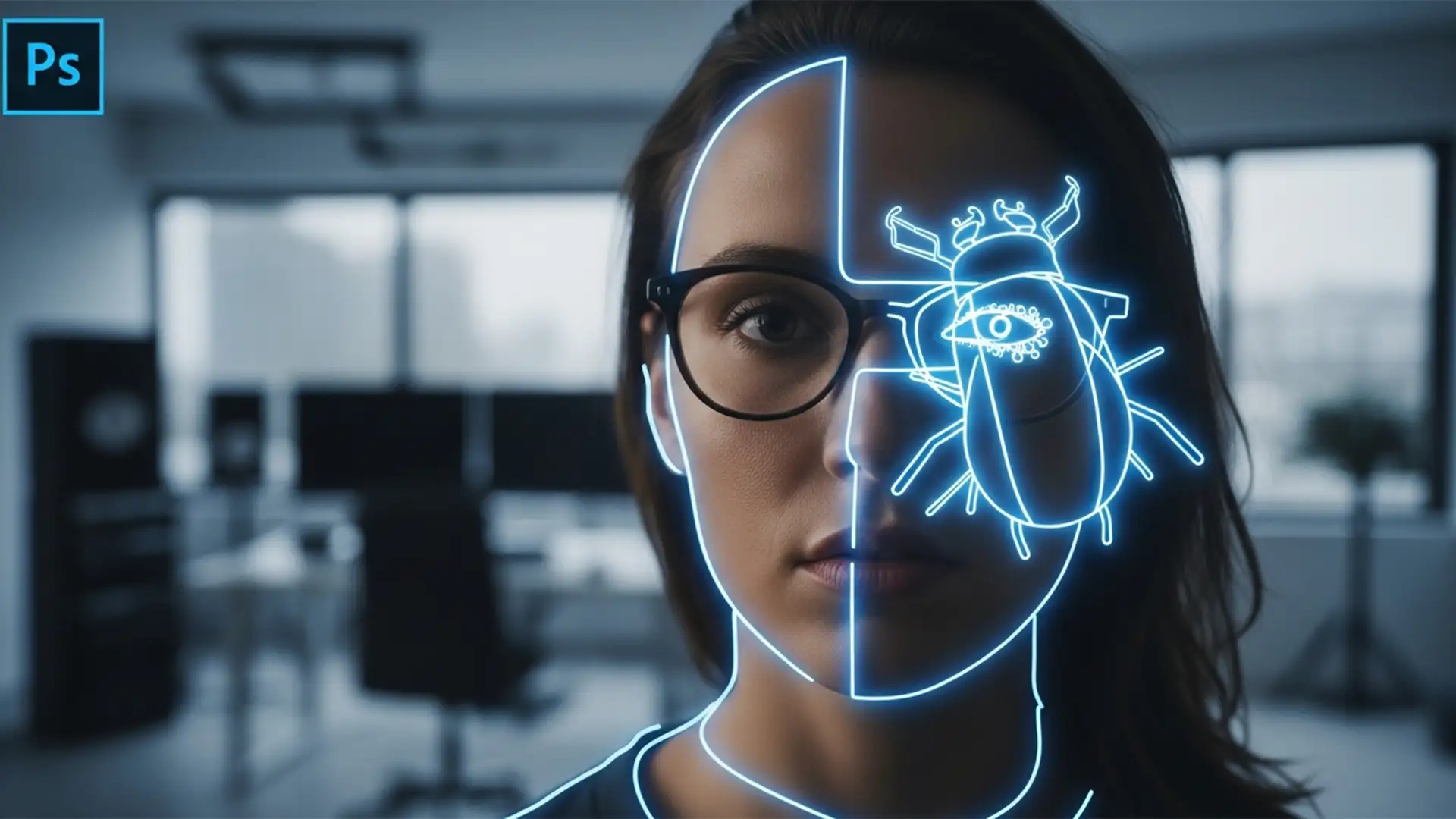

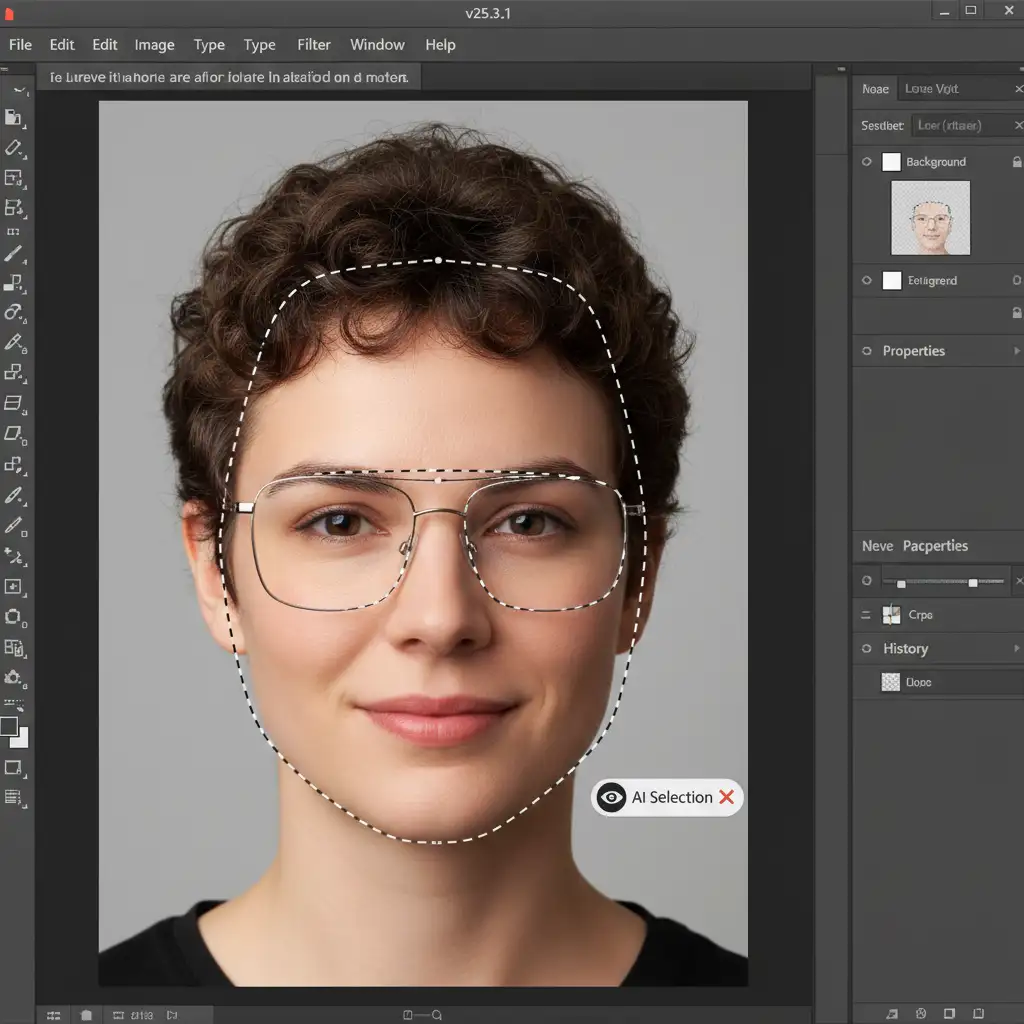
You click “Select Subject” expecting instant magic. The silhouette is perfect, the hair looks decent, but then you notice the problem: the glasses are completely ignored. The marching ants cut directly through the lenses, leaving your subject looking like they have broken frames.
If you are dealing with the photoshop select people tool not including glasses issue, you are not alone. While highly advanced, Photoshop’s automated selection features frequently struggle with thin, transparent, or reflective materials.
In this guide, we will break down exactly why this happens in Photoshop v24.x and v25.x, and show you three professional workarounds to ensure your glasses selections are pixel-perfect every time.
Why Adobe Sensei Misses Glasses Frames
The Select Subject and Object Selection Tool rely heavily on Adobe Sensei AI. This machine learning model is trained to recognize human anatomy, clothing, and distinct background separations. However, it has a known blind spot: low edge contrast.
Because glasses frames are thin, and lenses are often semi-transparent or reflective, the AI cannot easily distinguish the frames from the skin behind them or the background behind the lenses. As a result, the marching ants either bypass the frames entirely or create jagged, partial masks.
3 Ways to Fix the Photoshop Selection Bug for Glasses
Depending on the complexity of the background and the thickness of the frames, you can use one of these three methods to force Photoshop to include the glasses.
Method 1: The Quick Fix (Object Selection Tool + Lasso Mode)
If the glasses have decent contrast but the AI simply missed them, you can manually augment the selection using additive tools.
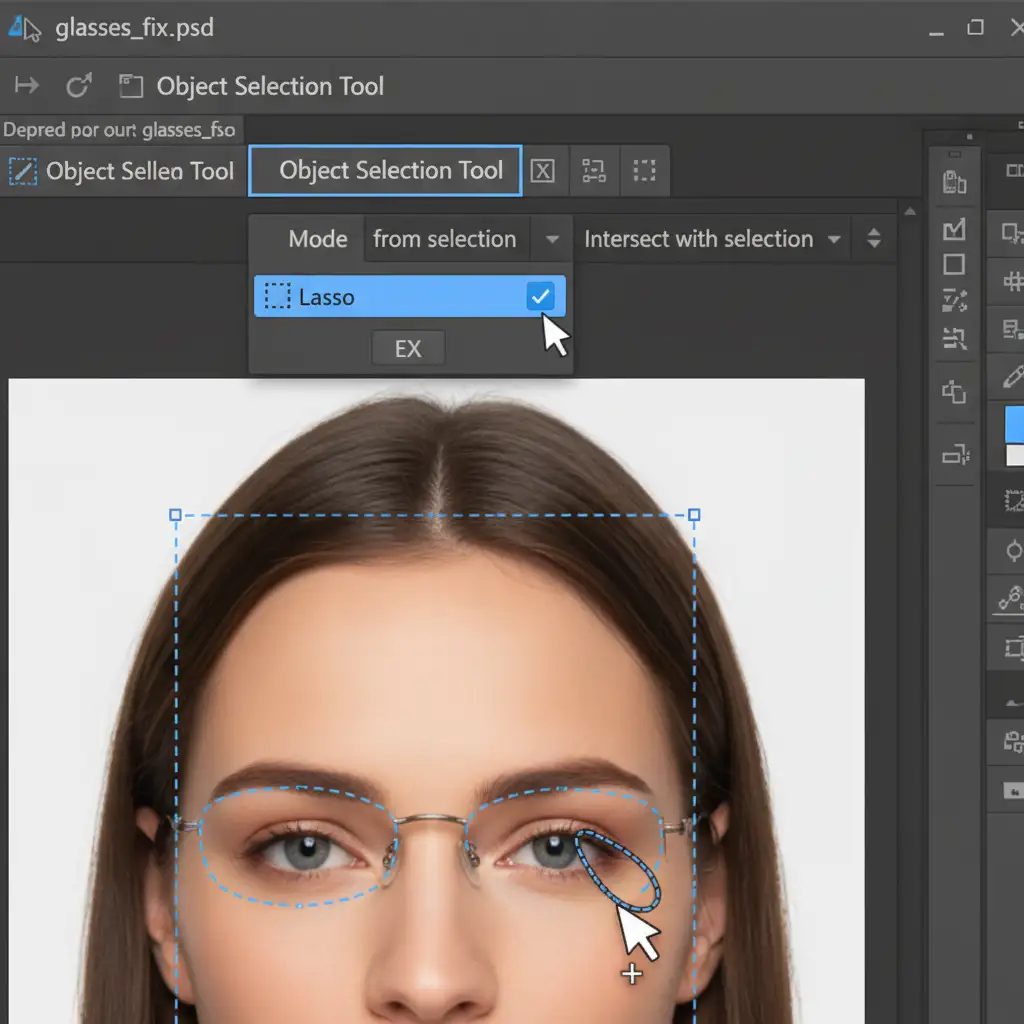
- Run your initial Select Subject command.
- Select the Object Selection Tool from your toolbar.
- In the top options bar, change the Mode dropdown to Lasso Tool.
- Hold down the Shift key (you will see a small + icon appear next to your cursor).
- Draw a rough lasso around the missing glasses frames.
- Release the mouse. Adobe Sensei will recalculate the specific area you highlighted and snap the selection to the frames.
Method 2: The Pro Workaround (Pen Tool & Layer Masking)
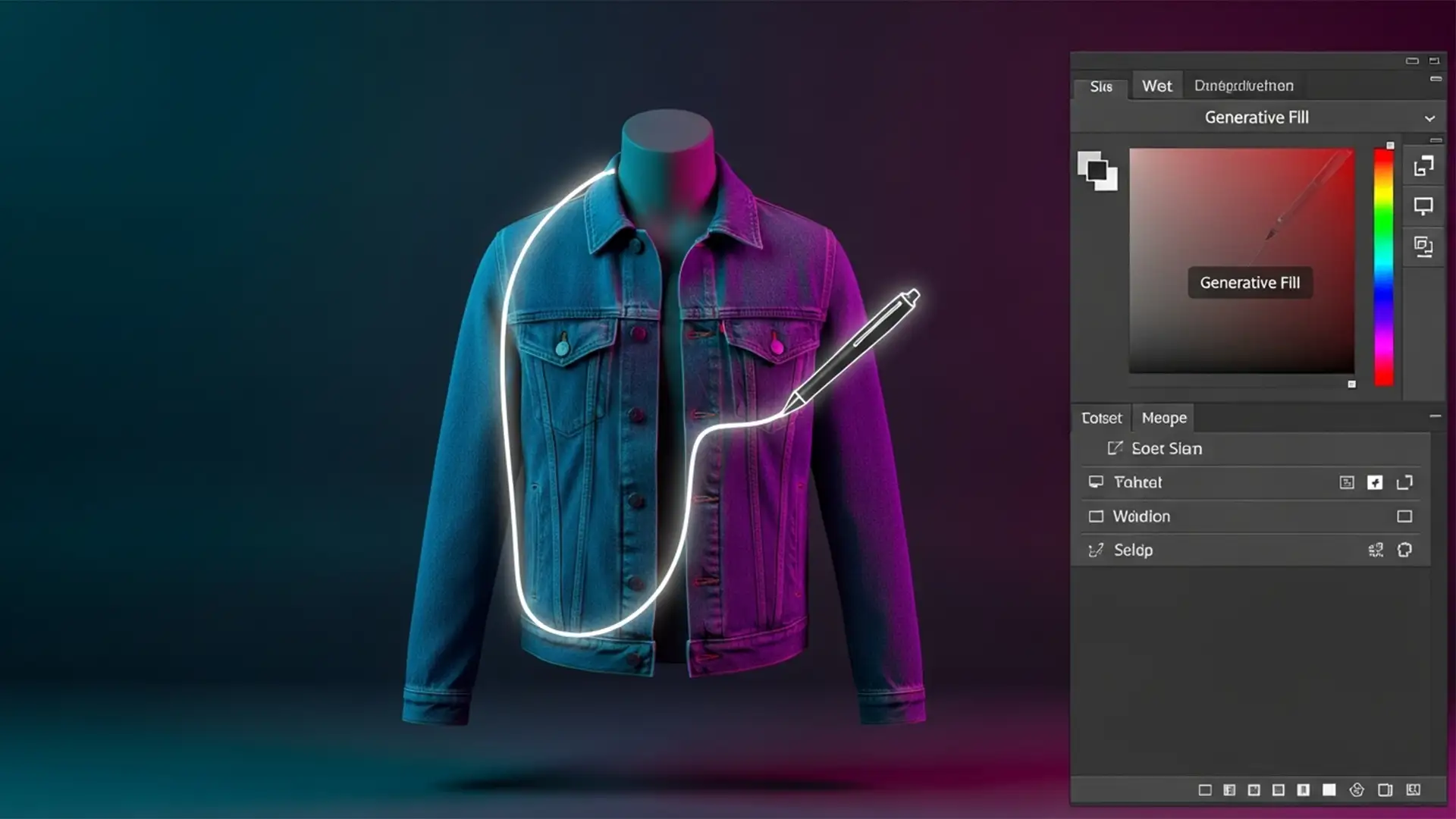
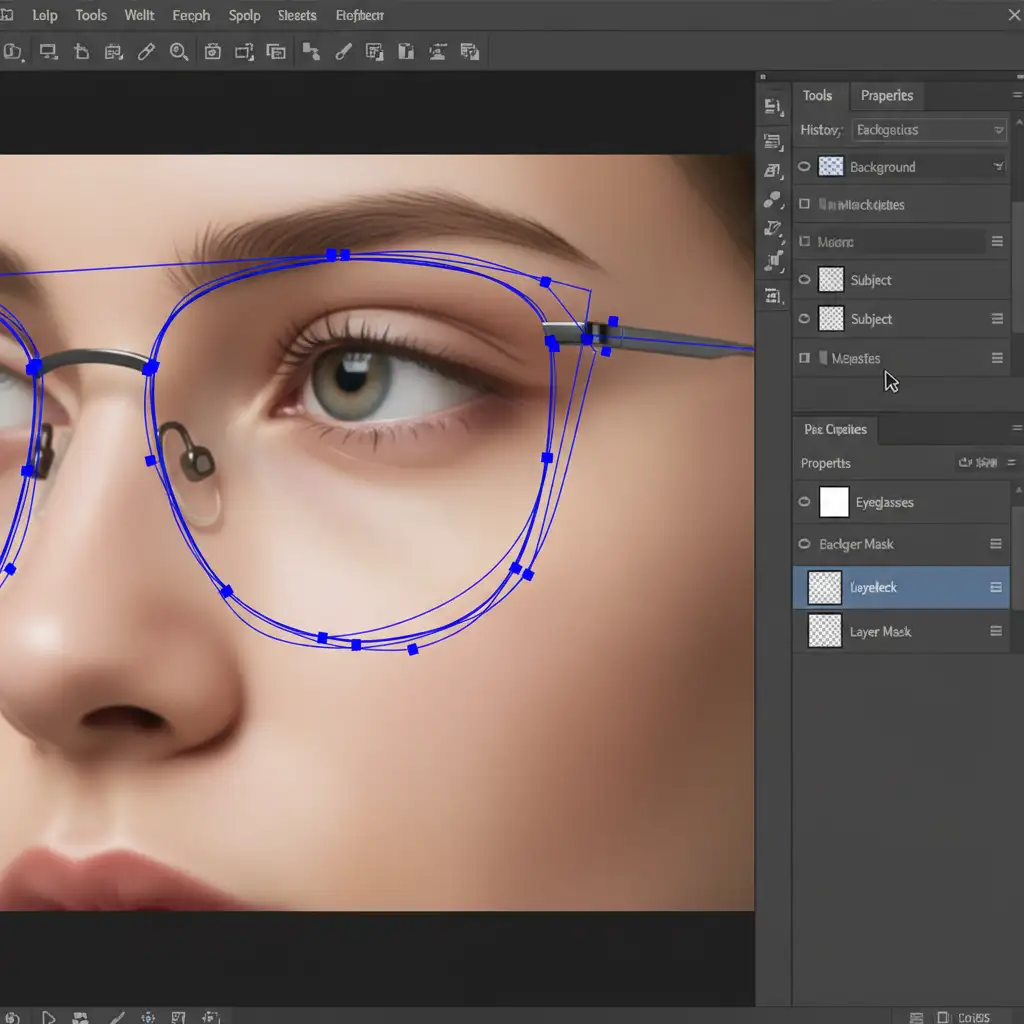
For high-end e-commerce, fashion portraits, or complex backgrounds, relying on AI is a gamble. The most reliable way to achieve flawless, pixel-perfect edges is manual pathing.
- Zoom in closely on the glasses (at least 200%).
- Select the Pen Tool (P).
- Carefully trace a vector path along the outer and inner edges of the glasses frames.
- Once your path is closed, right-click inside the path and choose Make Selection (set feathering to 0.5 pixels for a natural edge).
- Switch to your Layers panel, select your existing Layer Masking, and fill the new selection with white to reveal the frames.
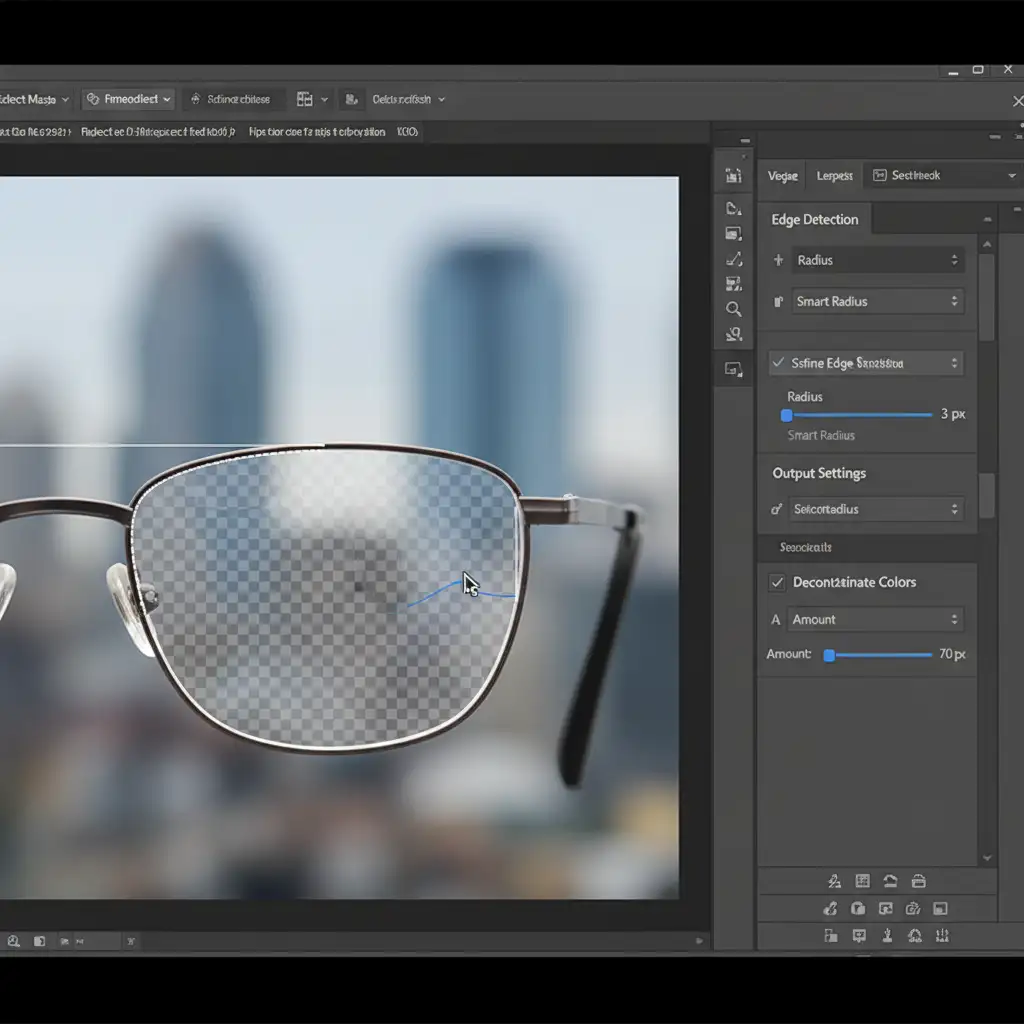
Method 3: The Technical Deep-Dive (Select and Mask Workspace)
If the glasses lenses are semi-transparent and reflecting the background, you need to refine the edges and remove the color cast.
- With your base selection active, click Select and Mask in the top toolbar.
- Select the Refine Edge Brush Tool from the left panel.
- Carefully brush over the semi-transparent lenses and the edges of the frames.
- In the right-hand Properties panel, adjust the Edge Detection radius slightly (1-2 pixels).
- Scroll down to Output Settings and check the Decontaminate Colors box. This will automatically replace background color reflections in the lenses with the color of the surrounding frames/skin.
- Output to a New Layer with Layer Mask.
Scale Your E-Commerce Editing with Image Work India
Fixing the “photoshop select people tool not including glasses” bug takes time. If you are editing a single headshot, spending five minutes with the Pen Tool is manageable. But what if you have a catalog of 500 e-commerce portraits that need flawless subject isolation by tomorrow morning?
AI tools simply aren’t reliable enough for bulk, high-end commercial work involving complex edges like glasses frames, flying hair, and transparent fabrics.
That is where Image Work India and Cloud Retouch step in. Our team of expert retouchers specializes in providing 100% hand-drawn, pixel-perfect clipping paths and complex masking services. We don’t rely on automated tools that cut corners; we ensure every frame, lens, and strand of hair is perfectly isolated, ready for your next campaign.
Stop fighting with the marching ants. Contact Image Work India today and let us handle your complex image masking and high-volume retouching needs with absolute precision.