
If you edit a lot of portraits in Photoshop, you already know how much time basic retouching can steal from your day. Softening skin, brightening eyes, cleaning up blemishes, adding a bit of glow-doing all of that manually for every single portrait can be exhausting. That’s exactly why Portrait Retouching Actions are so valuable in 2025. They let you turn a long series of repetitive steps into a one-click solution, while still leaving room for your own taste and creativity.
In this guide, we’ll walk through what Portrait Retouching Actions actually do, how to choose the right ones, and then compare some of the best options you can download right now. You’ll see both free and paid choices, with direct links to their websites so you can try them yourself.
By the end, you’ll have a clear shortlist of Portrait Retouching Actions to test in Photoshop, plus a smarter workflow for your portrait editing overall.
What Are Portrait Retouching Actions (And Why They Matter in 2025)?
Portrait Retouching Actions are pre-recorded steps in Photoshop that automatically apply a series of edits to your image. Instead of manually creating layers, masks, curves, frequency separation setups, and dodge & burn layers, you just click a single action and Photoshop builds the entire stack for you.
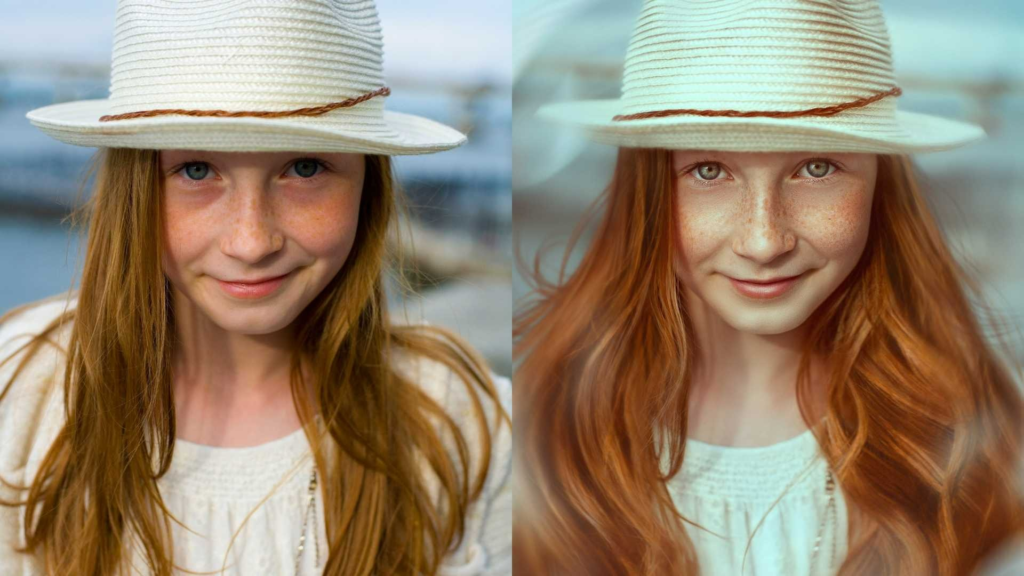
For portrait work, that usually includes things like skin smoothing, eye enhancement, teeth whitening, color grading, contrast shaping, and subtle sharpening. The power of Portrait Retouching Actions is that they can give you a professional-looking base retouch in seconds. You can then fine-tune the layers with brushes and masks to match your style.
In 2025, when clients expect fast delivery and high quality at the same time, Portrait Retouching Actions are almost essential. They help:
- Speed up bulk portrait projects
- Keep your style consistent across a shoot
- Reduce repetitive, boring manual work
- Free you up to focus on creative decisions instead of tiny technical steps
The key is choosing good Portrait Retouching Actions that respect skin texture and don’t make your models look plastic or over-smoothed. That’s where this comparison really helps.
How to Choose the Best Portrait Retouching Actions for Your Workflow
Not all Portrait Retouching Actions are created equal. Some are very “Instagram-style” and dramatic, while others focus on clean, natural beauty. Before downloading everything you see, think about these points.
First, consider your style. Do you prefer clean, commercial portraits with natural skin, or more stylized, dreamy edits? High-end Portrait Retouching Actions usually separate “technical retouch” (frequency separation, dodge & burn) from “creative look” (color grading and tones). That lets you keep skin realistic while still giving your images a strong mood.
Second, think about control. Good Portrait Retouching Actions don’t flatten everything into one layer. They build an organized layer structure-curves, dodging, burning, texture layers-so you can tweak opacity and paint on layer masks. If an action does everything and leaves you no control, you’ll struggle to adapt it to different faces and lighting conditions.
Third, check how flexible they are across different skin tones and lighting setups. Some Portrait Retouching Actions look good only on fair skin or bright, soft-light portraits. Ideally, you want actions that can handle a range of skin tones and are easy to adjust for warm, cool, indoor, and outdoor lighting.
Finally, think about support and documentation. Paid Portrait Retouching Actions often come with tutorials, sample files, or written guides. Free actions can be amazing, but they sometimes assume you already know how to use them. If you’re still growing your Photoshop skills, a little guidance can make a big difference.
Free vs Paid Portrait Retouching Actions: Which Should You Use?
Free Portrait Retouching Actions are perfect if you’re just getting started, experimenting with your style, or working on personal projects. Many free packs offer surprisingly high quality and cover essentials like basic skin smoothing, contrast, and eye enhancement.
Paid Portrait Retouching Actions usually offer:
- More polished layer setups
- Better organization and naming
- Smoother, more natural results
- Extra tools like advanced frequency separation, dodge & burn helpers, skin color correction, and special beauty effects
If your portrait work is for paying clients, a combination of both is ideal. You can use free actions to explore looks quickly, and invest in a few reliable paid Portrait Retouching Actions that will support your professional workflow consistently.
Now let’s look at some of the best Portrait Retouching Actions for Photoshop in 2025, with direct links so you can check them out.

Top Portrait Retouching Actions for Photoshop 2025: Compared
In this section, we’ll go through ten solid resources that provide Portrait Retouching Actions. Some give you direct .ATN files, others are curated collections of portrait actions from multiple creators. You can mix and match them depending on what you need.
1. Free Photoshop Portrait Actions by FixThePhoto
FixThePhoto offers one of the most popular free collections of Portrait Retouching Actions online. Their pack includes skin smoothing, soft glow, contrast boosts, eye brightening, teeth whitening, and various toning options.
These actions are great if you want a quick way to enhance many portraits in one go without paying anything upfront. The set is especially useful for beginner and intermediate photographers who are still learning how to retouch but want professional-looking results as a starting point.
You can download their Portrait Retouching Actions from:
fixthephoto.com/free-photoshop-actions-for-portraits
2. Magic Retouch Pack by Shazim Creations
Shazim Creations is well known on YouTube and in retouching communities, and their Magic Retouch Packs are built specifically for portrait and beauty work. These Portrait Retouching Actions often include:
- Skin smoothing while preserving pores
- Eye and lip enhancement
- Teeth whitening
- Skin tone and color balance
- Highlight and shadow shaping
The results can be quite polished and “beauty-editorial” if you use them carefully. These are better suited for users who already understand layers and masking, because you’ll often need to adjust opacity and paint on different areas of the face.
You can explore the Magic Retouch Photoshop actions at:
shazimcreations.com/2021/03/top-10-premium-magic-retouch-photoshop.html
3. “5 Skin Retouching Actions” Pack by Brusheezy
Brusheezy hosts a lot of design resources, and their “5 Skin Retouching Actions” pack is a nice, simple option if you just want essential skin work. These Portrait Retouching Actions focus on:
- Smoothing and airbrushing skin
- Reducing redness and blemishes
- Enhancing contrast and clarity
- Slightly brightening facial features
Because the pack is small, it’s easy to test each action and decide which one fits your style. For photographers who want a straightforward, no-frills approach to portrait retouching, this is a good starting point.
You can find the pack here:
brusheezy.com/actions/48843-5-skin-retouching-actions
4. Free Portrait Actions Panel by Luminance Presets
Luminance Presets offers a free panel designed specifically for portrait workflows. Instead of just individual actions, you get a more organized system with tools like “Magic Skin,” “Perfect Face Light,” eye and teeth retouch options, and subtle skin tone adjustments.
This is ideal if you want your Portrait Retouching Actions to feel more like a mini-retouching toolkit inside Photoshop. The tools usually create multiple layers that you can control and mask yourself, which is perfect for maintaining a natural look.
Check it out here:
luminancepresets.com/free-photoshop-actions-for-portraits/
5. High End Retouching Photoshop Actions (MockupTemplate)
The High End Retouching Photoshop Actions available from MockupTemplate aim at more advanced users who want a professional touch. These Portrait Retouching Actions are designed to emulate high-end beauty retouching with a focus on:
- Clean skin smoothing
- Subtle glow effects
- Balanced contrast and color
- Preserving natural texture
If you already know how to do manual frequency separation and dodge & burn, you can use these actions as a base and then refine the image further. For commercial beauty, fashion, or close-up portraits, they can save you a lot of setup time.
You can search for “High End Retouching Photoshop Actions” on:
mockuptemplate.net
6. CreativePadMedia – 4 Free High-End Retouch Actions
CreativePadMedia offers a small but powerful set of four Portrait Retouching Actions: Frequency Separation, Dodge & Burn, Hair Grooming, and Sharpening. Unlike “auto-retouch” actions that try to do everything at once, these are more like structured workflows that set up layers for you.
These actions are perfect if you want complete control but don’t want to manually build all the layers every time. You still paint and refine the image yourself, but the boring technical setup is done by the action. This is how many high-end retouchers prefer to work.
You can download them from:
creativepadmedia.com/4-free-high-end-retouching-photoshop-actions/
7. Top-10 Magic Retouch Actions List by Shazim
Besides the individual Magic Retouch Pack, Shazim Creations also presents a full list of premium Magic Retouch actions that cover different looks and intensities. This list is useful if you want to compare several Portrait Retouching Actions from the same creator and pick the ones that match your style.
You’ll find variations aimed at stronger glamour looks, softer beauty tones, and more neutral, realistic edits. This makes it easy to build a mini “library” of Portrait Retouching Actions that you can mix and match depending on the job.
You can review the full list at:
shazimcreations.com/2021/03/top-10-premium-magic-retouch-photoshop.html
8. Free Photoshop Actions for Portraits by Freedesignfile
Freedesignfile offers a free set of portrait actions that are simple and accessible for beginners. These Portrait Retouching Actions usually include base skin smoothing, contrast adjustments, and light toning.
While they may not be as advanced as some premium options, they’re a good way to quickly enhance casual portraits, social media photos, or client previews. You can always start with these actions and then add your own manual retouching on top.
You can find them here:
freedesignfile.com/463901-free-photoshop-actions-for-portraits/
9. Free Skin Retouching & Smoothing Actions (CSSAuthor List)
CSSAuthor has curated a collection of free skin-retouching and smoothing actions from different creators. Instead of a single pack, you get a variety of Portrait Retouching Actions that target blemish reduction, skin tone evening, and gentle smoothing.
This is helpful if you want to test a lot of looks quickly. Some actions are very soft and natural, while others push the smoothing further. You can install a few, see which ones are too strong, and keep only the actions that align with your brand.
You can browse the list at:
cssauthor.com/free-skin-retouching-smoothing-photoshop-actions/
10. Best Free and Paid Portrait Actions (PhotoDiva Collection)
PhotoDiva provides another curated list that mixes free and paid options. These Portrait Retouching Actions include everything from classic beauty retouching to more creative toning and stylized color looks.
What makes this resource useful is the comparison aspect. You can discover different creators and buy only the packs that fit your taste, instead of guessing blindly. For a photographer seriously building a long-term portrait style, this kind of overview is very helpful.
You can explore the collection at:
photodiva.net/free-photoshop-actions-for-portraits.php
How to Install Portrait Retouching Actions in Photoshop (Quick Overview)
Once you download your chosen Portrait Retouching Actions, installing them in Photoshop is straightforward. In the latest versions of Photoshop, you can open the Actions panel, click the menu icon, and use the “Load Actions” option, or simply double-click the .ATN file and Photoshop will load it automatically.
After installation, your new Portrait Retouching Actions will appear in the Actions panel, usually inside a folder named after the pack. Open a portrait, select the action you want, and hit “Play.” The action will build layers and apply the retouch. From there, you can gently lower layer opacity or use soft brushes on layer masks to fine-tune the effect.
Always remember: actions are a starting point, not a final result. The best Portrait Retouching Actions build a strong base but still require your creative judgment to finish the image in a way that looks natural and flattering.
Common Mistakes When Using Portrait Retouching Actions
Because Portrait Retouching Actions are so fast, it’s easy to go too far. One of the most common mistakes is over-smoothing skin. If you lose pores and texture, the face starts to look like plastic. Always zoom in, check the details, and keep some natural imperfection.
Another mistake is applying the same Portrait Retouching Actions at full strength on every image. Different faces, ages, and lighting conditions need different levels of retouching. Learn to control opacity and masks so the effect feels tailored, not copy-pasted.
Color and tone can also get out of control. Some Portrait Retouching Actions add strong warmth, coolness, or contrast. That may look good on one portrait but terrible on another. Use adjustment layers to gently correct any color shifts the actions introduce.
Finally, don’t rely on actions to fix everything. If the lighting or posing is very bad, even the best Portrait Retouching Actions can only do so much. Good capture plus smart retouching always beats trying to “save” a poor original with heavy actions.
When to Use a Professional Service Instead of Only Actions
Portrait Retouching Actions are powerful, but there are situations where hiring a professional team makes more sense. If you have hundreds or thousands of portraits to deliver, or if you’re working for a serious brand, agency, or studio, quality and consistency become critical.
This is where a dedicated retouching team like Image Work India can be a big advantage. Instead of endlessly tweaking different Portrait Retouching Actions and still feeling unsure, you can pass the heavy lifting to specialists who retouch portraits all day, every day.
Image Work India provides professional image editing and portrait retouching services for photographers, studios, and brands worldwide. You can send them your RAW or high-resolution files and get back clean, natural-looking portraits with:
- Balanced skin tones and texture
- Thoughtful dodge & burn and contouring
- Precise eye, hair, and teeth enhancement
- Consistent color and style across entire projects
If you’re serious about delivering high-quality portraits to clients on time, combining good Portrait Retouching Actions for your own quick edits with a reliable partner like Image Work India for large or premium jobs is often the smartest workflow.
You can learn more about their services and contact them directly at:
https://imageworkindia.com
Final Thoughts: Building Your 2025 Portrait Retouching Workflow
To summarize, Portrait Retouching Actions are one of the easiest ways to speed up and standardize your portrait editing in Photoshop. In 2025, there are plenty of excellent free and paid options that cover everything from simple skin smoothing to full high-end beauty workflows.
Start by downloading a few of the resources above-like the free Portrait Retouching Actions from FixThePhoto, CreativePadMedia’s high-end set, and the Magic Retouch Packs from Shazim Creations. Test them on different portraits, compare and combine them, and keep only the actions that support your personal style.
At the same time, remember that no action can replace good taste, careful masking, and a sensitivity to the person in the photo. Use Portrait Retouching Actions as a tool, not a crutch. And when a project is too big or too important to risk inconsistency, don’t hesitate to bring in professionals.
If you ever feel overwhelmed by the amount of editing you have to do, you can partner with Image Work India, let them handle the retouching while you focus on shooting, marketing, and growing your brand. Visit https://imageworkindia.com to explore their portrait retouching and other image editing services today.