
You’ve just spent three hours meticulously dodging, burning, and color-grading a high-end editorial portrait. You upload it, expecting praise for your professional edits, but instead, the platform slaps a glaring “Made with AI” label right under your username. Frustrating, isn’t it?
This annoying tag undermines your manual labor, makes clients question your authenticity, and hurts your engagement. Why is this happening? Instagram’s algorithmic detection is reading hidden metadata embedded by your editing software, flagging even minor automated adjustments as fully synthetic.
In this guide, we’ll show you exactly how to remove the “Made with AI” tag on Instagram professional edits, strip the hidden data causing the issue, and protect the integrity of your photography.
Why Instagram Adds the “Made with AI” Tag to Manual Edits
Instagram relies heavily on C2PA metadata (Coalition for Content Provenance and Authenticity). Specifically, it scans for Content Credentials embedded by modern editing software like Adobe Photoshop v25.0 and above.
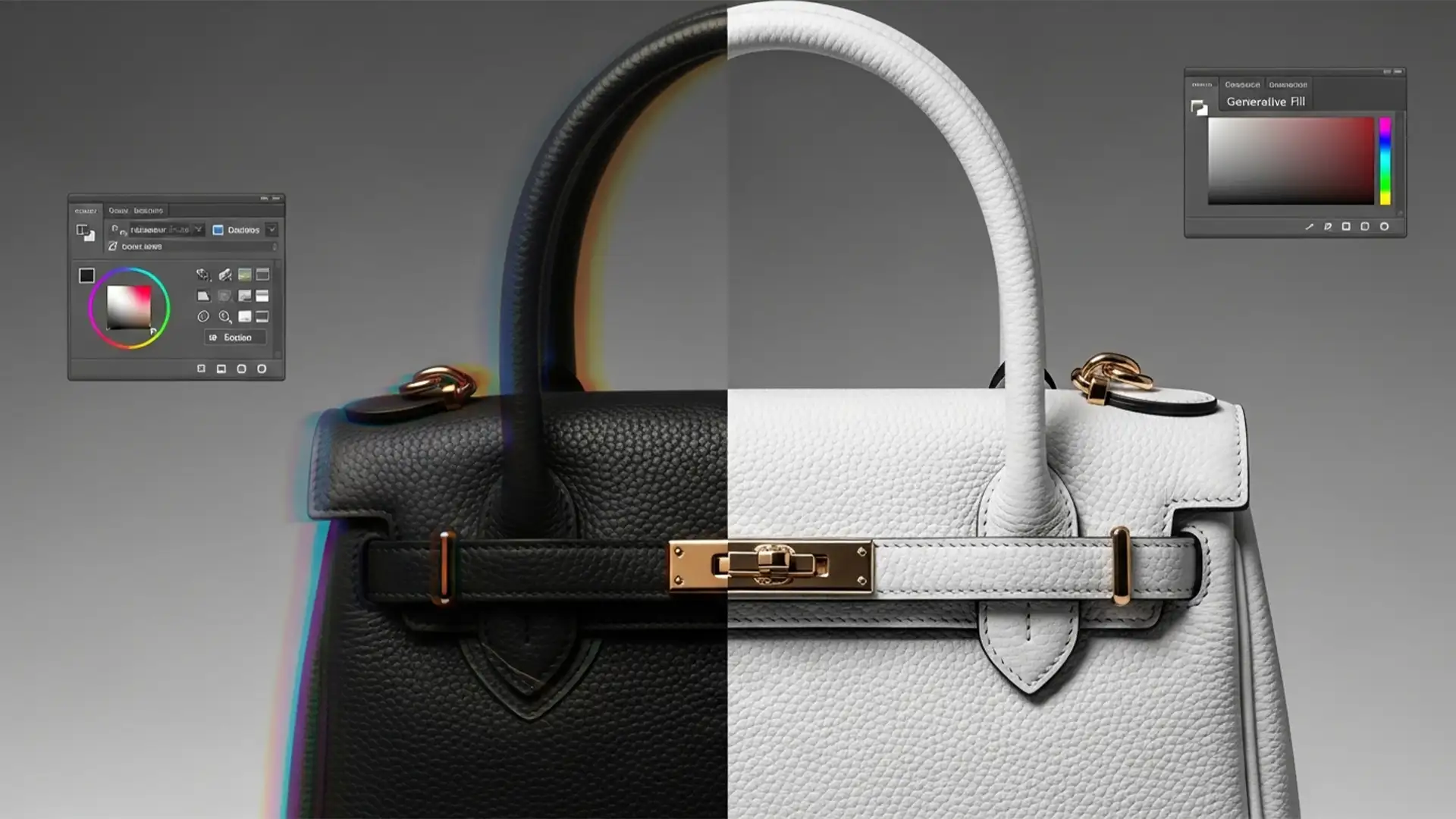
When you use features like Generative Fill, Generative Expand, or even certain advanced Neural Filters for minor blemish removal, Photoshop permanently writes an AI tag into the file’s EXIF data. Furthermore, third-party AI-powered plugins (like Retouch4me or Topaz Photo AI) can inadvertently trigger algorithmic flags due to specific smoothing patterns.
When Instagram’s automated ingestion system reads this C2PA node, it forcibly applies the ‘Made with AI’ label-even if 99% of your workflow was manual retouching. The core technical hurdle is executing proper EXIF data stripping without degrading the image quality before uploading to Meta’s servers.
How to Remove the “Made with AI” Tag: 3 Proven Methods
To prevent Instagram from mislabeling your work, you need to break the metadata chain. Here are three effective ways to do it.
Method 1: The Quick Fix Using Save for Web (Legacy)
The easiest way to bypass the tag is to change how you export your final files. Standard export methods retain the C2PA tags, but Photoshop’s older export engine does not.
- Finish your retouching workflow in Photoshop.
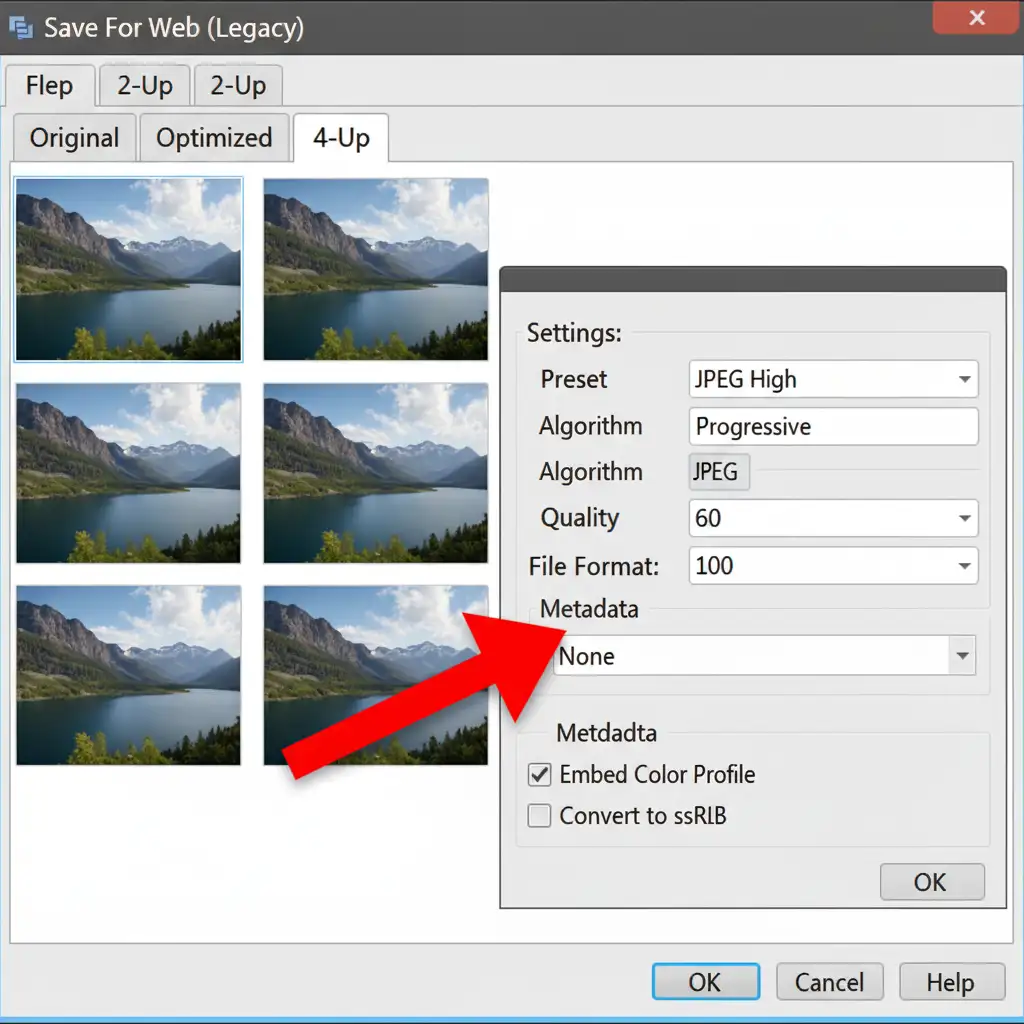
- Navigate to File > Export > Save for Web (Legacy).
- In the right-hand panel of the dialog box, locate the Metadata dropdown menu.
- Change this setting from ‘All’ or ‘Copyright’ to ‘None’.
- Save your image.
This method strips all EXIF data, including the problematic C2PA tags and IPTC Core data, ensuring a clean upload.
Method 2: The Pro Workaround – The Fresh Canvas Transfer
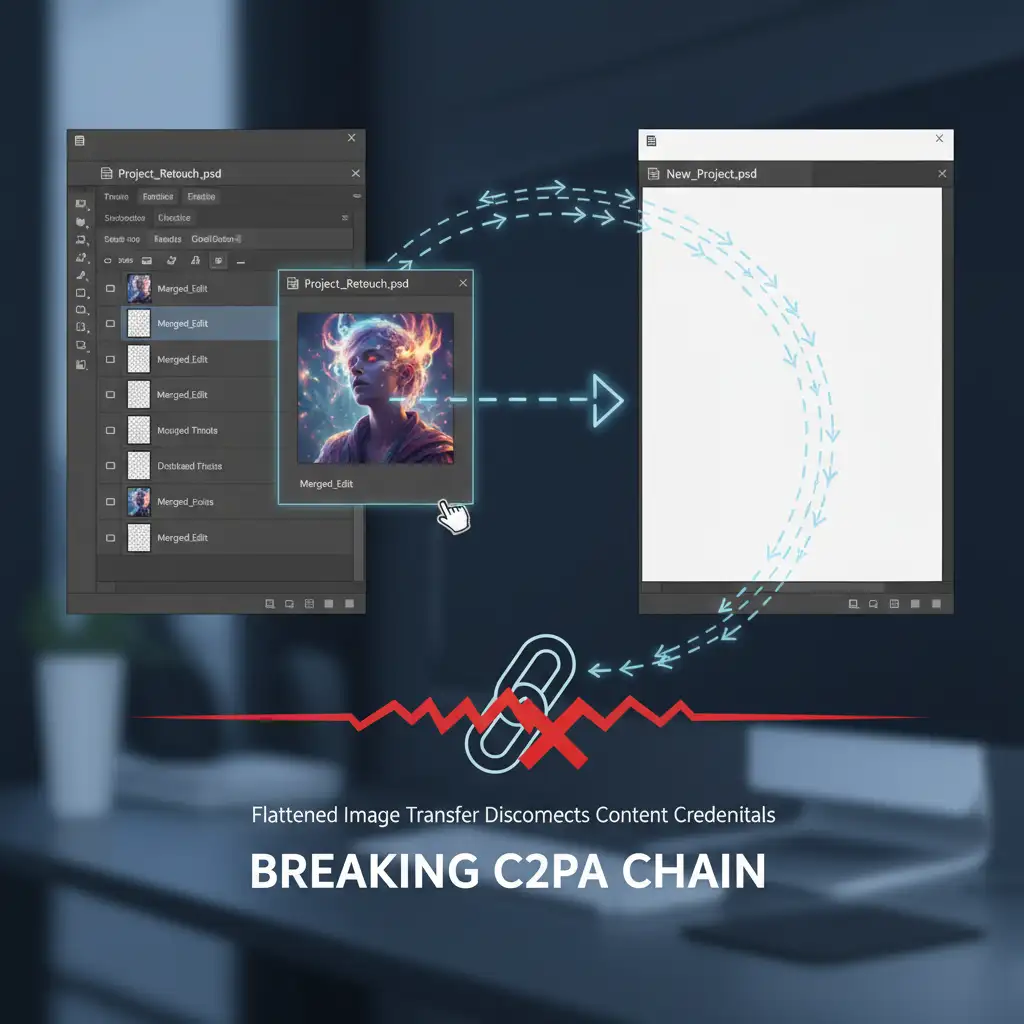
Sometimes, metadata persists through export settings, especially if you’ve heavily utilized AI plugins. The “Fresh Canvas Transfer” breaks the metadata chain entirely.
- Open your finished, edited image in Photoshop.
- Flatten your image (Layer > Flatten Image) or rasterize layer groups so you are working with a single, finalized visual.
- Select All (Ctrl/Cmd + A) and Copy (Ctrl/Cmd + C).
- Create a completely new, blank document (File > New).
- Paste (Ctrl/Cmd + V) your flattened image into the new canvas.
- Export this new document normally.
Because the new document has no history of Generative Fill or AI tools, the Content Credentials reset to zero.
Method 3: The Technical Deep-Dive – Disabling Content Credentials
If you want to stop the problem at the source, you can prevent Photoshop from attaching this metadata altogether, or use a dedicated metadata inspector to wipe existing files.
In Photoshop:
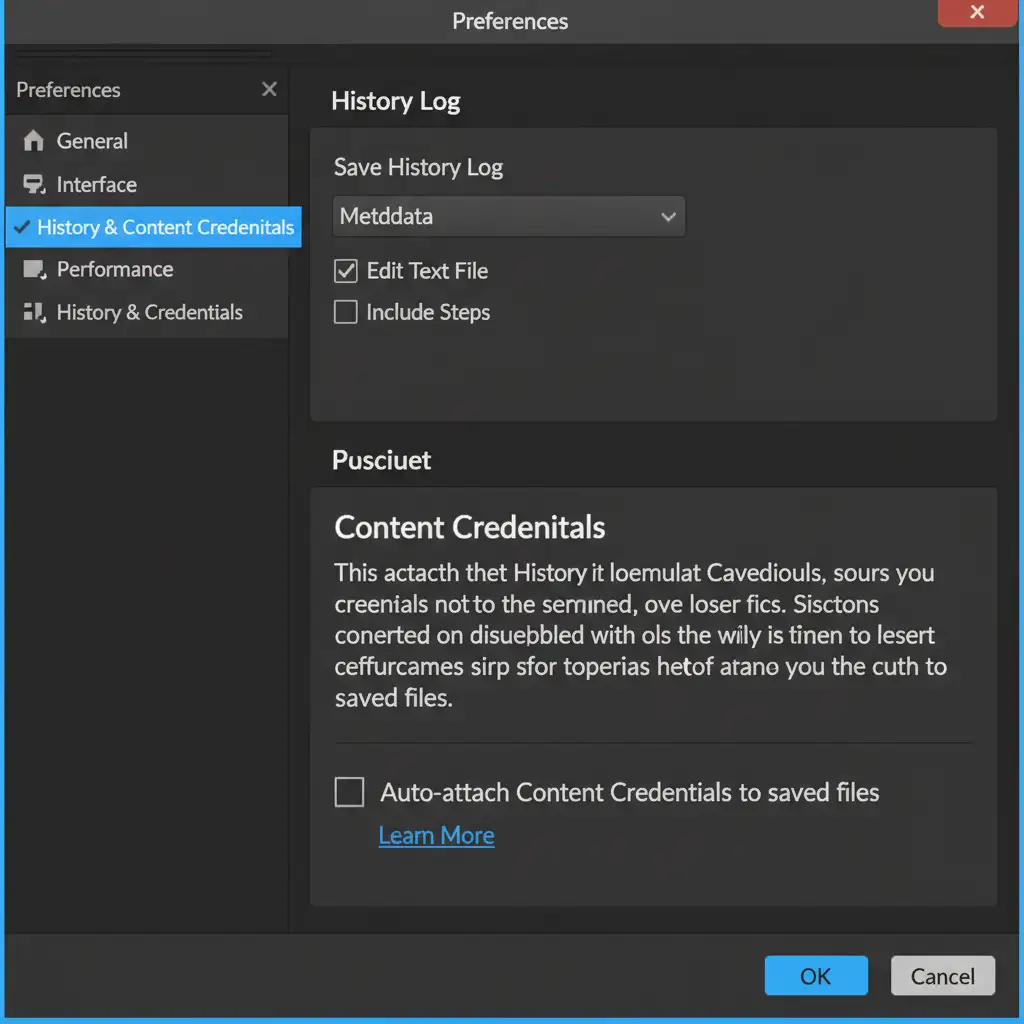
- Go to Photoshop Preferences > History & Content Credentials.
- Under the Content Credentials section, ensure the auto-attach feature is turned off.
For Existing Files: If you already have a folder of exported JPEGs with AI tags, use a dedicated stripping tool like ExifTool or a secure web-based EXIF scrubber. You will need to manually delete the ‘Digital Source Type’ and C2PA nodes from the file before transferring it to your mobile device for upload.
Best Practices for Clean Instagram Uploads
Beyond metadata, Instagram’s compression algorithms can sometimes misinterpret heavy noise reduction as AI generation. To ensure your manual edits stay pristine:
- Focus on Artifact Reduction: Avoid pushing clarity or smoothing sliders to their absolute maximums.
- Add Grain: Adding a subtle layer of organic film grain (1-2%) before your final export can trick automated scanners into recognizing the image as traditional photography.
- Transfer Cleanly: Avoid sending photos to your phone via messaging apps that alter metadata. Use AirDrop, Google Drive, or Dropbox to maintain your newly scrubbed files.
Stop Fighting Algorithms: Let the Experts Handle Your Retouching
Learning how to remove the Made with AI tag on Instagram professional edits is just one more tedious task piled onto a photographer’s plate. Between managing C2PA metadata, dodging algorithmic detection, and actually editing your photos, scaling your business becomes nearly impossible.
Tired of dealing with algorithm changes and metadata headaches? Let the experts at Image Work India and Cloud Retouch handle your high-volume manual retouching. Our professional editing teams utilize traditional, high-end retouching techniques that guarantee stunning, authentic results-without triggering false AI flags.
Focus on shooting and scaling your business. Contact Cloud Retouch today to outsource your retouching workflow to the professionals.