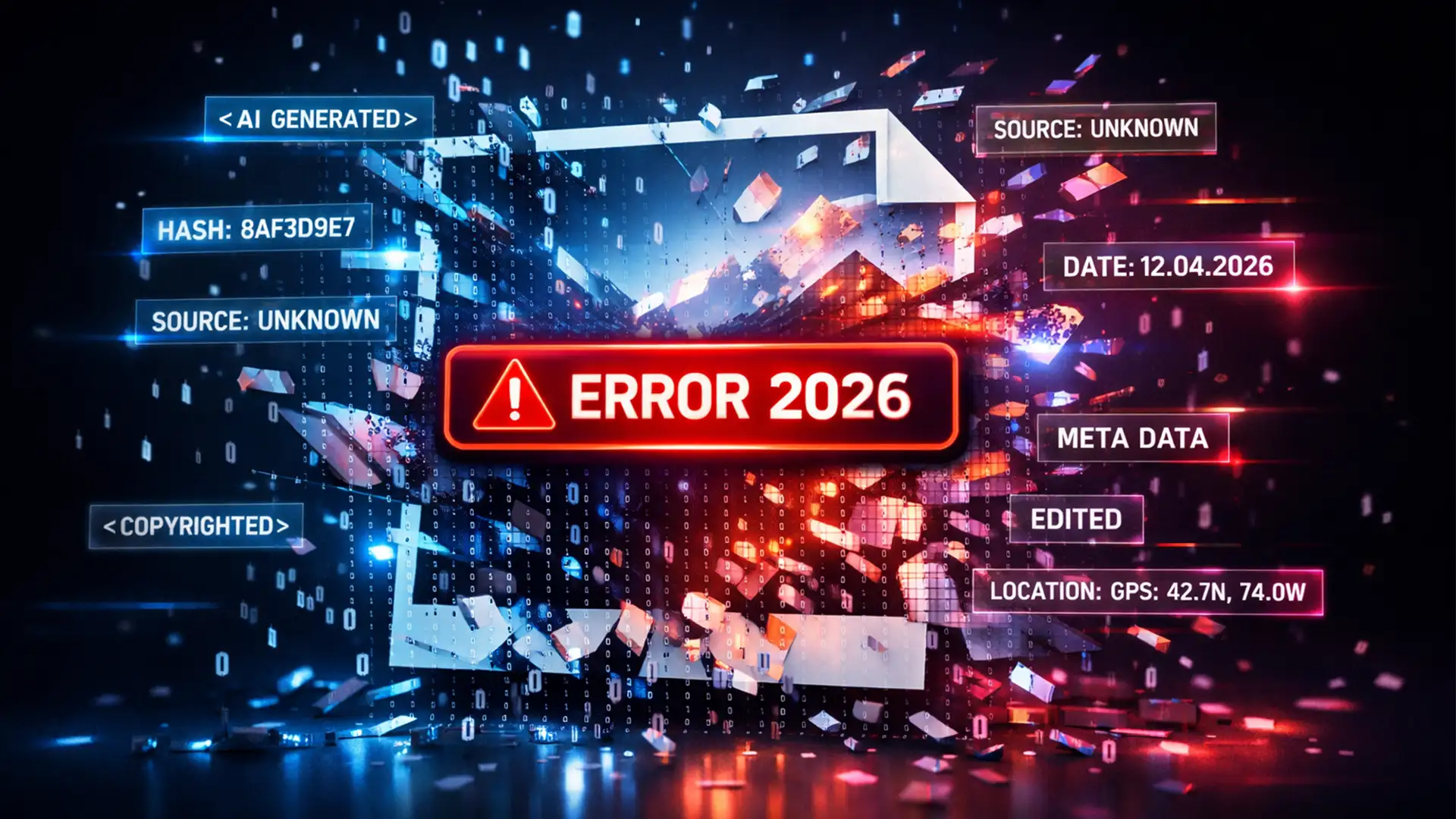

You have just finished a complex, multi-layered composition in Photoshop v25.0+. You hit export, expecting a crisp final file, but instead, the progress bar freezes or the software throws a frustrating “Error 2026.”
The culprit? Photoshop’s Content Authenticity Initiative (CAI) features. When exporting files with complex layer structures and generative AI elements, the metadata compiler can time out or crash if your Content Credentials are set to “Publish to CAI cloud” or “Attach to file.”
While generative AI transparency is crucial for modern digital provenance, it shouldn’t hold your workflow hostage. Here is the definitive guide to fixing photoshop content credentials export error 2026 so you can get back to creating.
Understanding Photoshop Content Credentials Export Error 2026
Introduced to comply with the C2PA standard, Content Credentials act as a digital “nutrition label” for your images, tracking edits, AI generation, and creator details.
However, every time you use a generative tool on a new layer, Photoshop logs that data. When you open the Export As dialog or select “Save a Copy,” the software attempts to compile this massive, complex metadata tree. If the file is too heavy, or if there is a network latency issue while trying to sync with the CAI cloud, the compiler times out, resulting in Error 2026.
Here are three tested methods to bypass or resolve this bottleneck.
Method 1: The Quick Fix (Disable Content Credentials)
If you are working on a project that does not strictly require embedded digital provenance, the fastest way to resolve the export freeze is to simply disable the feature.
Step-by-Step:
- Navigate to Window > Content Credentials in your top menu bar.
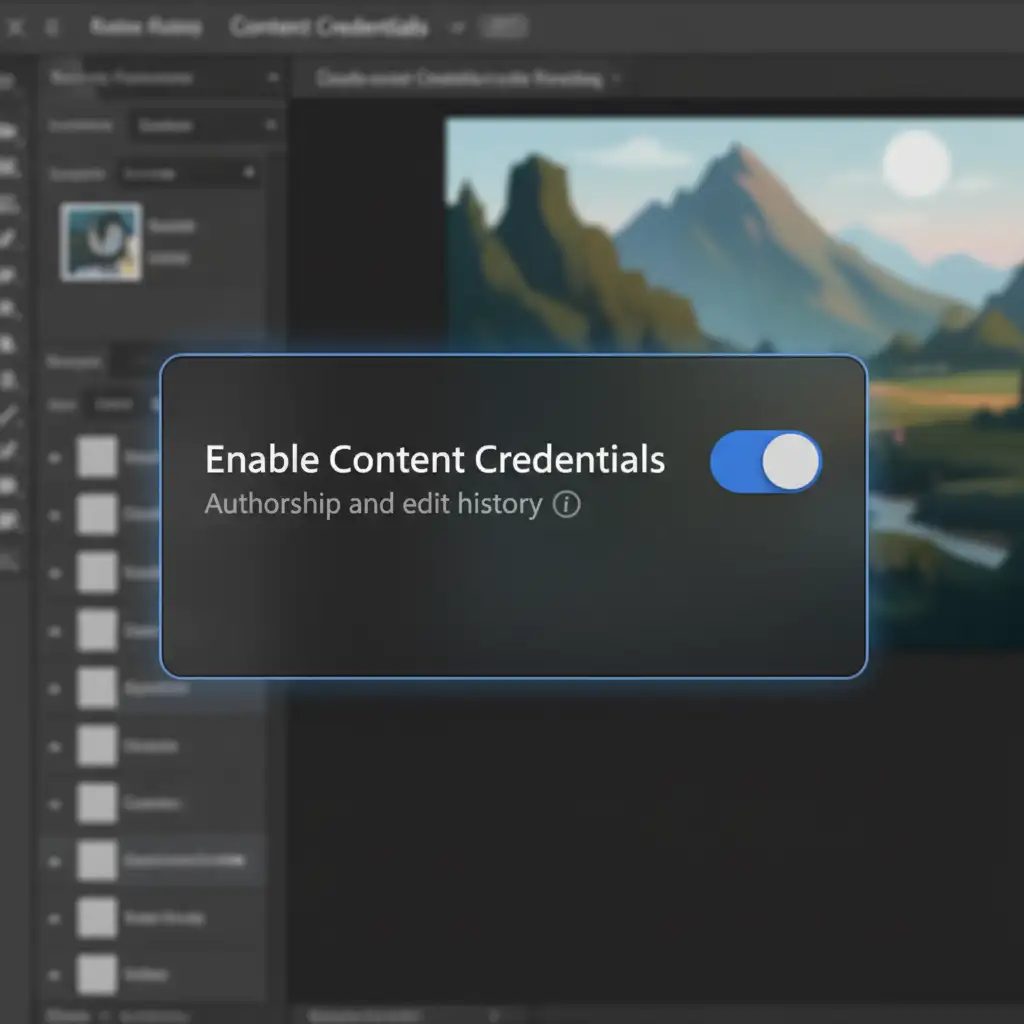
- Toggle the Enable Content Credentials switch to the Off position.
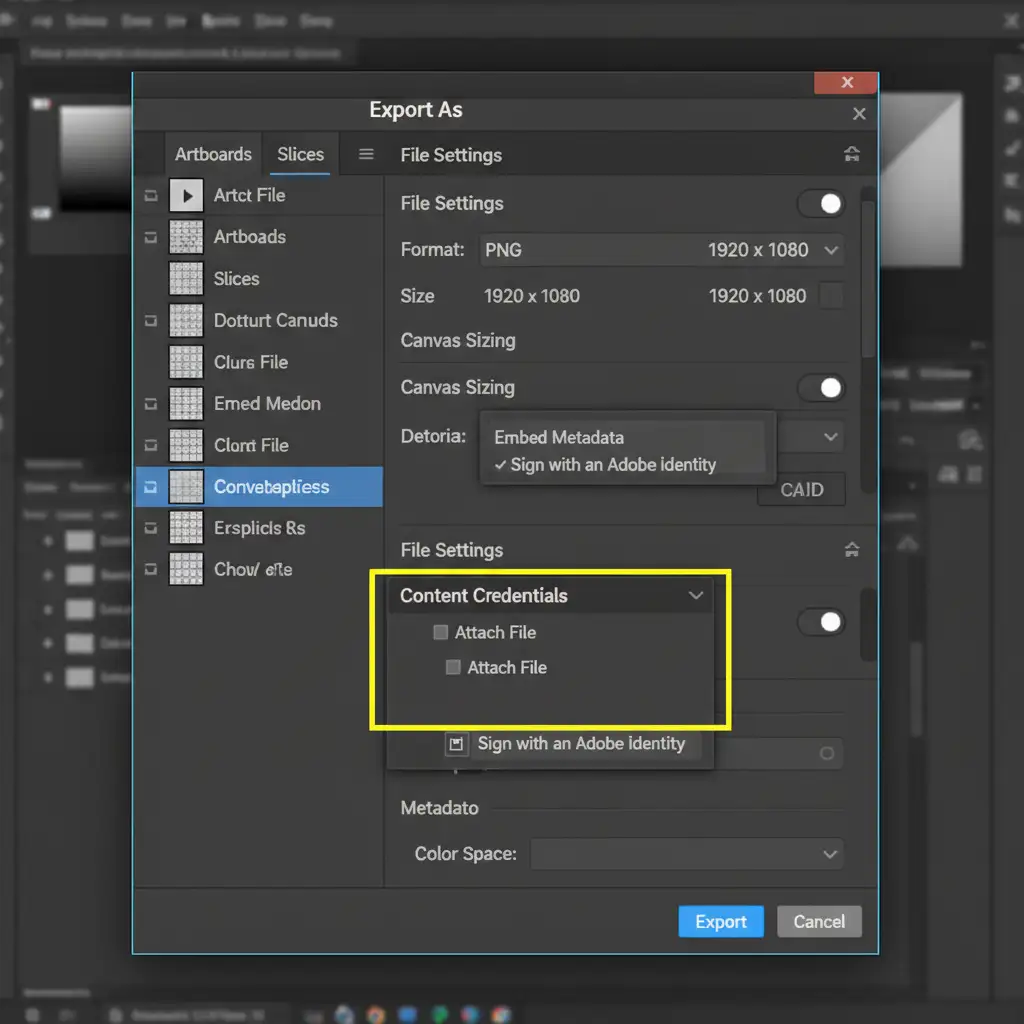
- Alternatively, when you are in the Export As dialog, look at the right-hand settings panel. Under the “Content Credentials” dropdown, select None.
Method 2: The Pro Workaround (Simplify the Metadata Tree)
If you must retain your Content Credentials for client compliance but are still hitting Error 2026, you need to reduce the workload on the metadata compiler.
When you have dozens of generative AI layers, the metadata becomes incredibly dense. By simplifying the document structure before exporting, you allow the compiler to process the file smoothly.
Step-by-Step:
- Save your working PSD file (so you don’t lose your layers).
- To simplify the document, either flatten image (Layer > Flatten Image) or select all layers containing generative AI elements and convert them into a single Smart Object (Right-Click > Convert to Smart Object).
- Proceed to export the file.
By flattening or using smart objects, you condense the metadata tree, making it much easier for Photoshop to attach the C2PA data without crashing.
Method 3: The Technical Deep-Dive (Preferences & Cache)
If you are still experiencing software freezes, the issue might lie within a corrupted CAI cache or a network timeout caused by cloud syncing.
Step-by-Step:
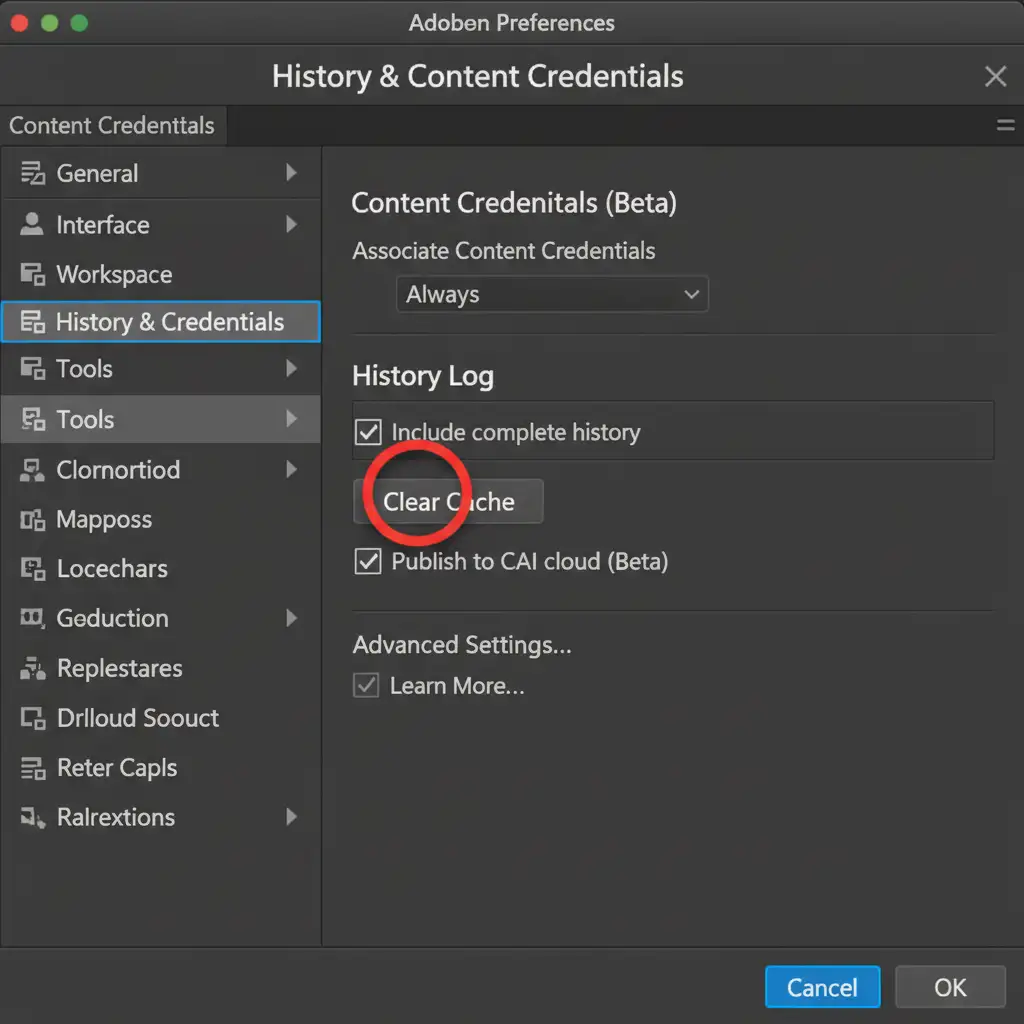
- Go to Edit > Preferences > History & Content Credentials (on Mac: Photoshop > Settings > History & Content Credentials).
- Locate the Content Credentials section and click the button to execute cache clearing.
- Uncheck the box that says Publish to CAI cloud. This forces Photoshop to only attach the metadata locally, preventing network-related timeouts.
- Finally, ensure your GPU acceleration is functioning correctly by updating your graphics drivers, as UI rendering during heavy exports relies heavily on the GPU.
Need Bulk Image Processing? Let the Experts Handle It
Dealing with metadata compilers, software errors, and complex layer structures drains valuable hours from your day. If you are managing e-commerce catalogs, real estate photography, or high-volume studio shoots, you need your images exported flawlessly and on time.
Image Work India and Cloud Retouch provide world-class, high-speed professional retouching and export management. We handle the heavy lifting-from intricate masking and generative AI edits to strict metadata compliance-so you don’t have to troubleshoot software glitches.
Ready to scale your image production without the technical headaches? Contact Image Work India today and let our expert team streamline your post-production workflow.