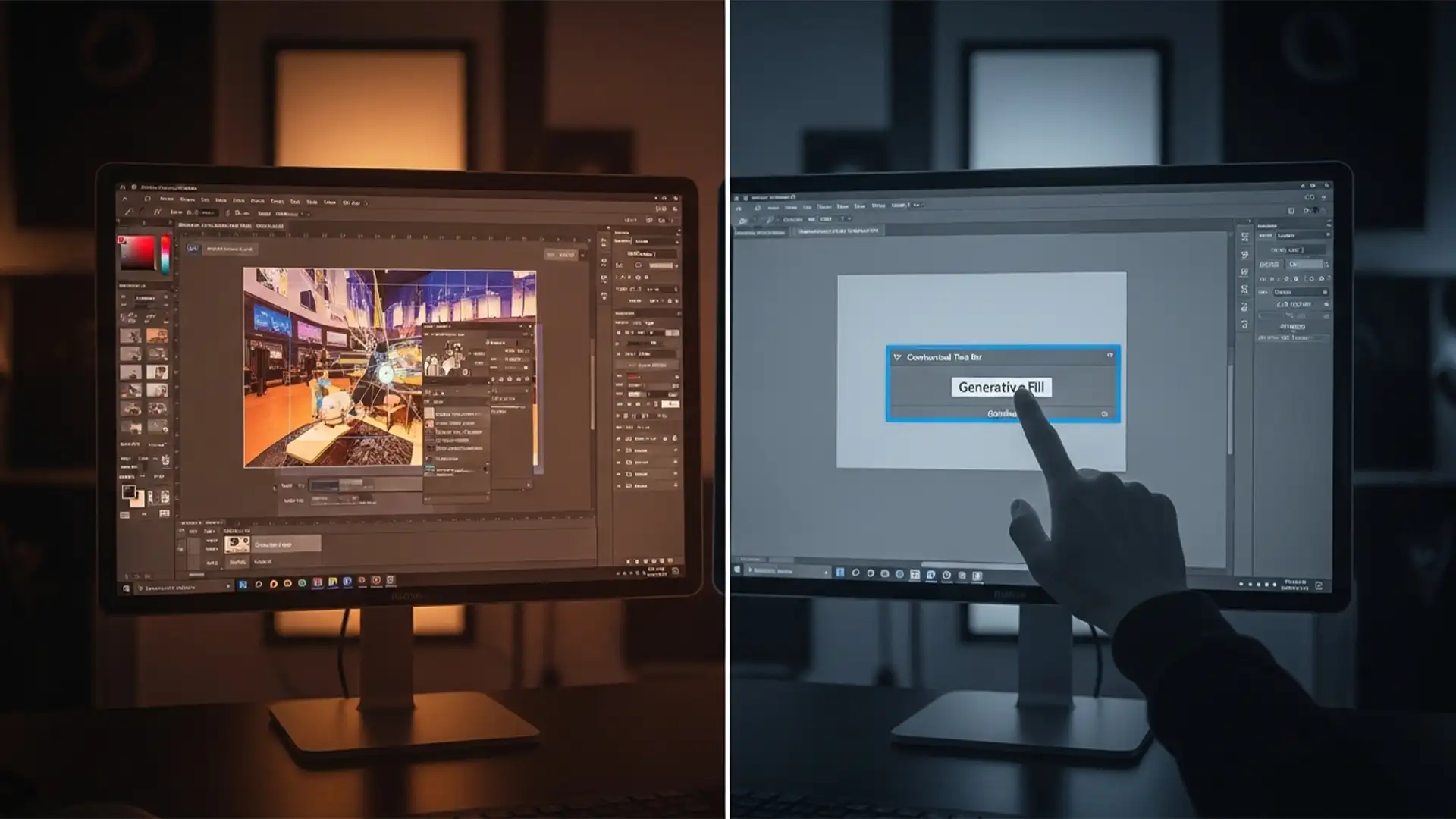

You just updated to Photoshop v25.5 or v25.6, ready to speed up your retouching workflow, only to hit a wall: the Generative Fill button on your Contextual Task Bar is completely disabled. If you are actively searching for a reliable Photoshop Generative Fill grayed out fix March 2024, you are not alone.
The recent March 2024 patch introduced stricter DRM and age-gating for the Adobe Firefly API, leaving thousands of professional editors locked out of essential AI image generation tools. Whether the culprit is an age verification glitch, an empty Generative Credits balance, or a region-locked firewall, this guide provides the exact technical steps to get your AI tools back online today.
Why is Generative Fill Grayed Out in Photoshop v25.5 and v25.6?
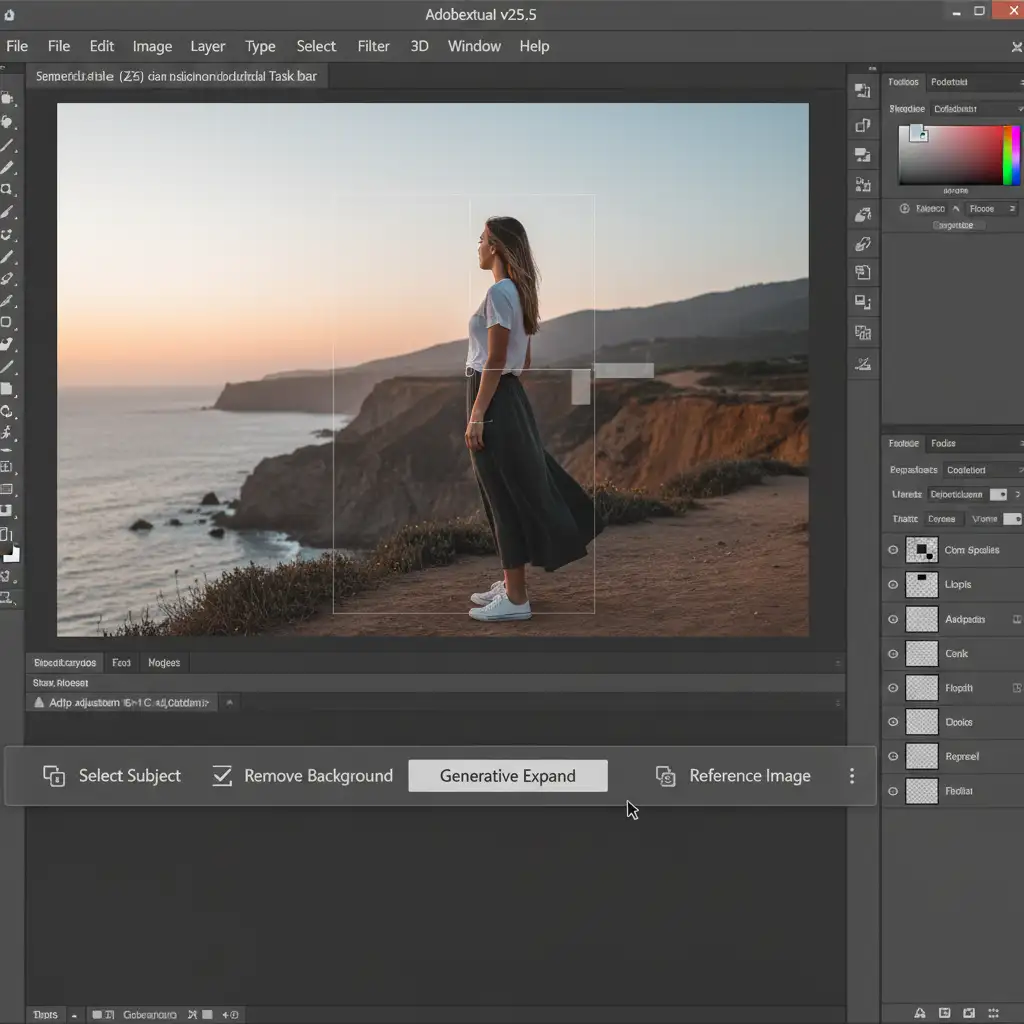
Before diving into the solutions, it helps to understand what broke. The March 2024 update overhauled how Photoshop communicates with Adobe’s servers. The tools rely entirely on cloud processing. When Generative Fill or Generative Expand is grayed out, it means Photoshop cannot establish a secure, verified connection to the Adobe Firefly API.
The most common triggers include:
- Age Verification Restrictions: Adobe now strictly enforces an 18+ policy for AI tools. If your Adobe account Date of Birth (DOB) is missing or under 18, the feature is disabled.
- Token Desync: The Creative Cloud Desktop App occasionally drops its authorization token, resulting in a silent offline network state.
- Region-Locked Features: Certain geographical firewalls block access to Adobe’s AI servers.
- Corrupted Cloud Sync Cache: Outdated temporary files in your system’s OOBE folder prevent a clean server handshake.
How to Fix Photoshop Generative Fill Grayed Out (March 2024 Solutions)
Here are the proven methods to restore your AI image generation capabilities, ranging from quick token refreshes to advanced directory clears.
Method A: The Quick Fix – Refresh Your Creative Cloud Session
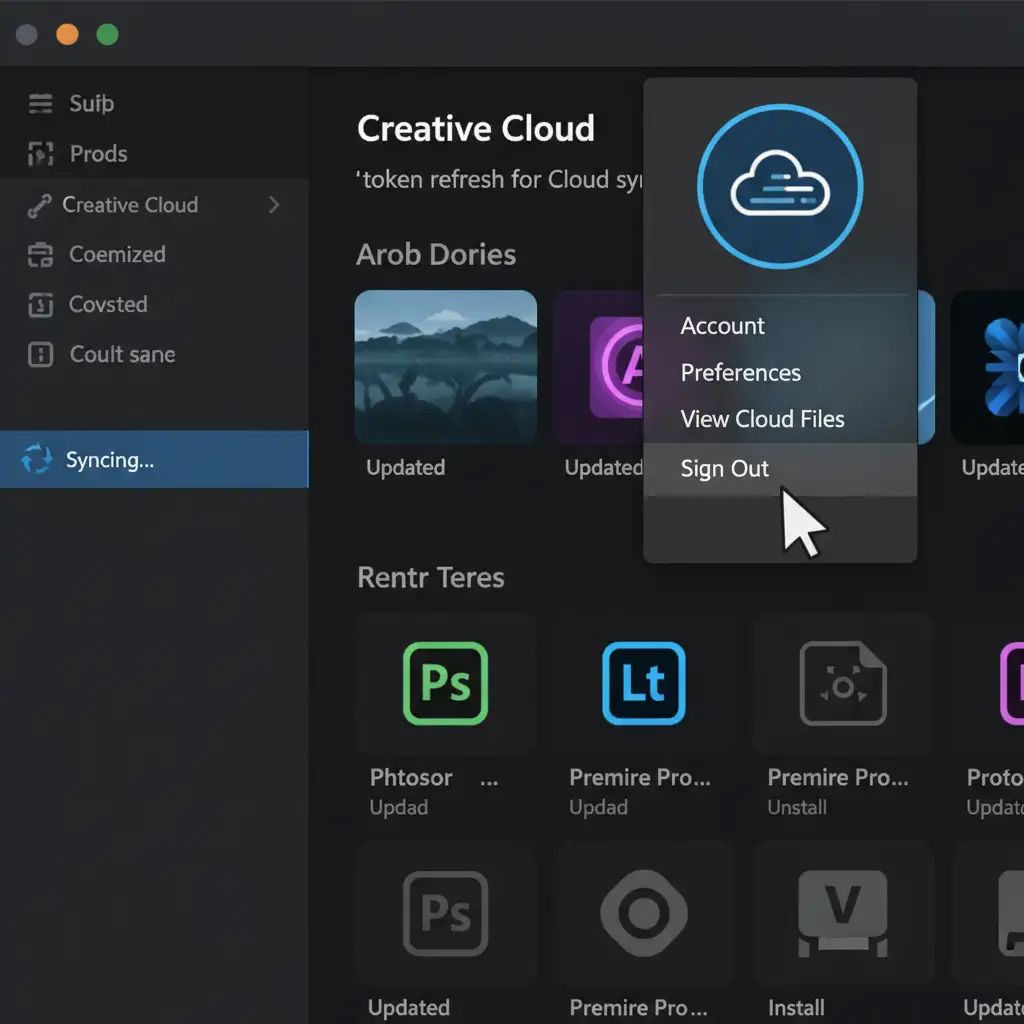
The easiest solution to a broken Adobe Firefly API connection is forcing a token refresh. A simple restart of Photoshop won’t work; you must reset the Creative Cloud Desktop App itself.
- Save your work and close Photoshop entirely.
- Open the Creative Cloud Desktop App.
- Click on your profile picture in the top right corner.
- Select Sign Out.
- Restart your computer to clear the active system memory.
- Open the Creative Cloud app, sign back in, and launch Photoshop.
[Image Placeholder: Screenshot of the Creative Cloud Desktop App showing the profile picture dropdown menu and the Sign Out button] Alt-Text: How to sign out of the Creative Cloud Desktop App to force an API token refresh.
Method B: The Pro Workaround – Age Verification via Behance
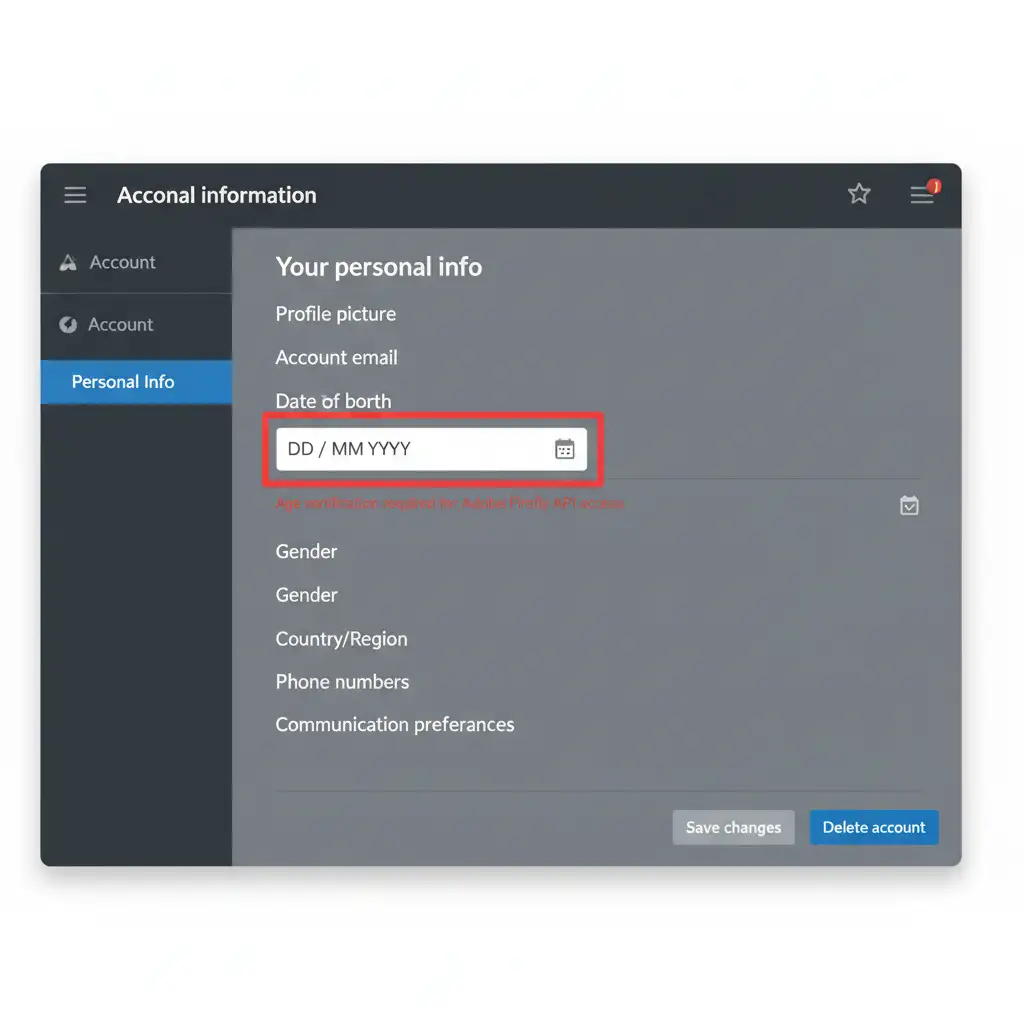
With the new DRM and age-gating rules, an incomplete profile is the number one reason Generative Fill is disabled. You must prove you are over 18.
- Go to the Adobe Account Management page online (account.adobe.com) and log in.
- Navigate to Edit Profile > Personal Information.
- Check your Date of Birth. Ensure it reflects an age of 18 or older.
The Behance Workaround: If your DOB field is grayed out and locked on the Adobe site, do not panic.
- Open a new tab and go to Behance.net.
- Log in using your Adobe ID.
- Behance will often prompt you to complete your profile, including your Date of Birth. Updating it here will automatically force a manual DOB update across your entire Adobe ecosystem.
- Restart Photoshop.
Method C: The Technical Deep-Dive – Clear the OOBE Folder
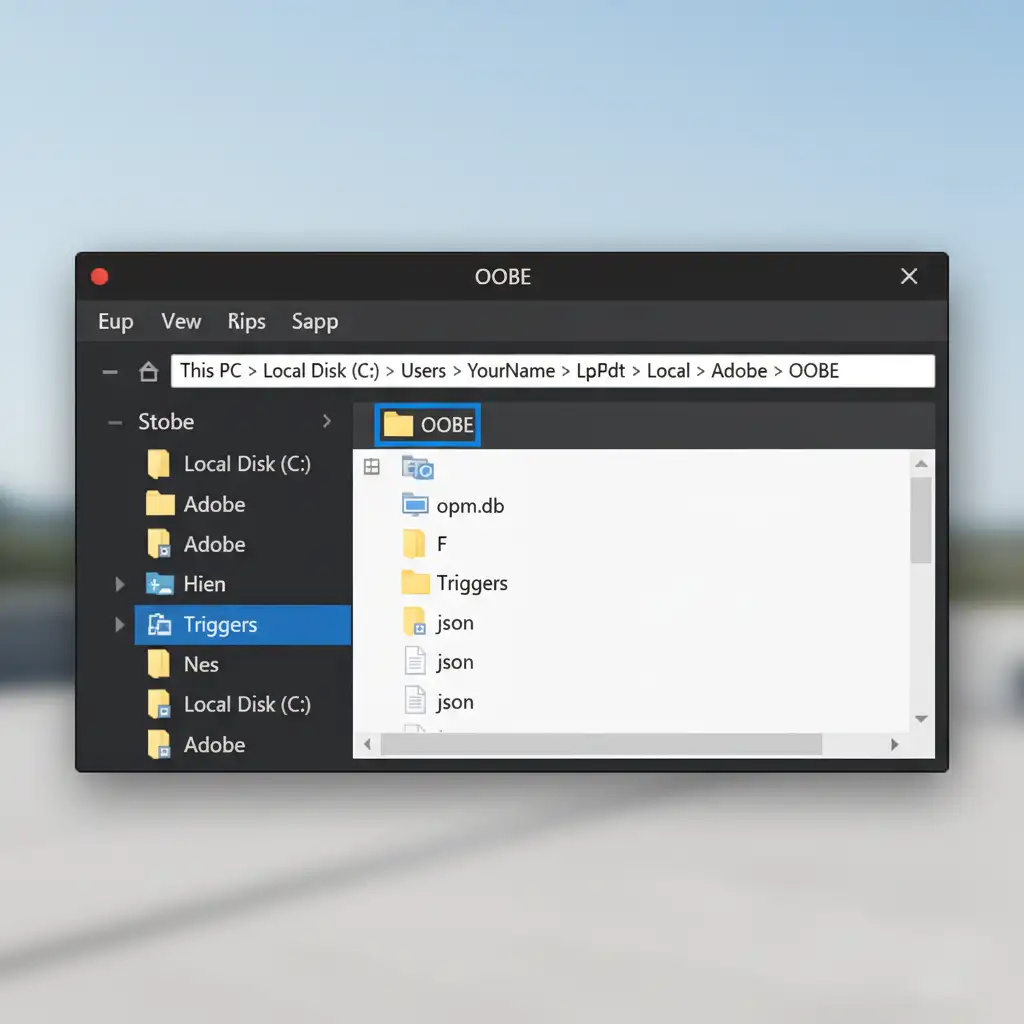
If you are experiencing severe cloud sync errors, your Creative Cloud cache is likely corrupted. Deleting the contents of the OOBE folder forces Adobe to rebuild your licensing and login data from scratch, ensuring a clean server handshake.
For Windows Users:
- Close all Adobe applications.
- Open File Explorer and navigate to: C:\Users\[Your Username]\AppData\Local\Adobe\OOBE (Note: AppData is a hidden folder. You may need to check “Hidden items” in the View tab).
- Delete all files and folders inside the OOBE folder.
- Empty your Recycle Bin and restart your PC.
For Mac Users:
- Quit all Adobe apps.
- Open Finder, click Go in the top menu, hold down the Option key, and click Library.
- Navigate to Application Support > Adobe > OOBE.
- Delete the contents of the OOBE folder, empty the trash, and restart your Mac.
Method D: Bypass Region-Locked Features
Adobe Firefly is not available globally. If you live in or are traveling through a restricted region (such as parts of China or Russia), the Generative Fill tool will automatically gray out due to regional firewall restrictions affecting Adobe servers.
The Fix: Use a reliable, premium VPN. Route your connection through a supported country (like the United States or the UK) before launching the Creative Cloud Desktop App.
Method E: Check Your Generative Credits
While less common for causing a completely disabled button, exhausting your monthly Generative Credits can severely throttle or halt your AI image generation capabilities depending on your subscription tier. Log into your Adobe account online to check your current credit balance. If you are at zero, you will need to wait for your billing cycle to reset or purchase an add-on pack.
Stop Fighting Software Updates. Let the Experts Handle Your Edits.
Troubleshooting a Photoshop Generative Fill grayed out fix March 2024 takes valuable time away from what you do best: capturing incredible images. When software bugs, API restrictions, and cloud sync errors disrupt your post-production workflow, your client deadlines are put at risk.
You don’t have to manage high-volume editing alone. Image Work India and Cloud Retouch provide world-class, pixel-perfect photo editing services tailored for professional photographers, e-commerce brands, and creative agencies. From complex masking and high-end skin retouching to bulk color correction, our expert team delivers flawless results with rapid turnaround times.
Struggling with Adobe updates slowing down your post-production workflow? Hire Image Work India or Cloud Retouch today to handle your heavy lifting, so you can get back behind the camera. Contact us now for a custom quote!