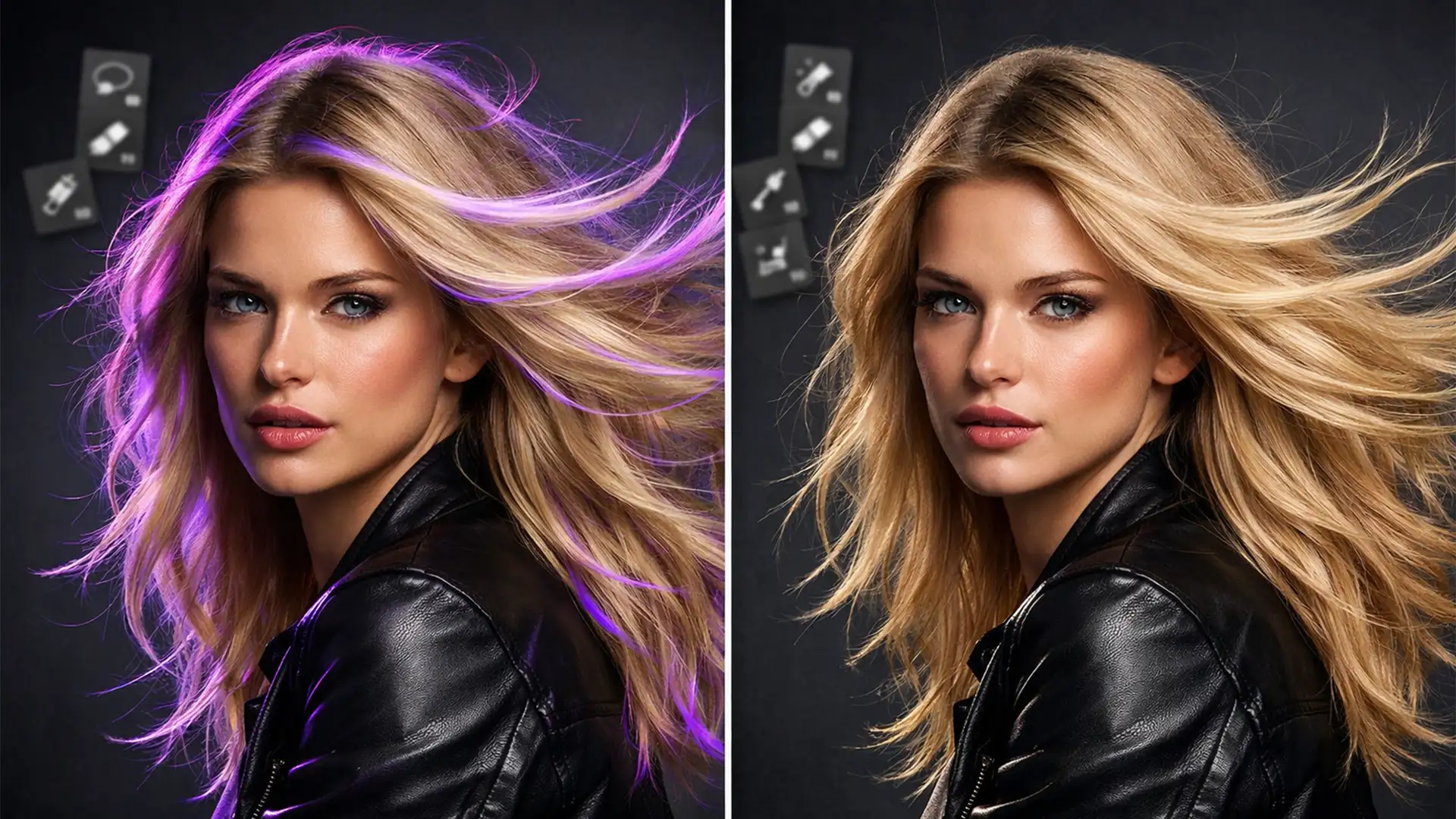

You hit ‘Select Subject’ or ‘Remove Background’ in Photoshop v25.x, expecting magic. Instead, you are left with glowing halos and severe purple fringing ruining the delicate edges of your subject’s hair. This specific type of chromatic aberration happens when AI masking algorithms improperly average the background and foreground pixels, especially in backlit or high-contrast scenes. If you are tired of these edge artifacts destroying your high-end retouching workflow, you are in the right place.
Let’s explore exactly how to fix purple fringing on AI hair masks using three professional techniques that guarantee a flawless finish.
Why AI Masking Struggles with Hair Extraction
Modern AI auto-masking tools are incredible for isolating solid objects and general shapes. However, fine hair extraction remains one of the most complex challenges in digital retouching.
When a subject is photographed against a backlit or contrasting background, the camera sensor often captures a mix of hair color and background light in a single pixel. When Photoshop’s AI tries to separate these elements, it struggles to decide which color belongs to the subject. The result is color bleed—often manifesting as unnatural colored borders, glowing halos, or distinct purple fringing along the mask’s edge.
To achieve commercial-grade results, you need to step in and apply precise edge color correction.
3 Ways to Fix Purple Fringing on AI Hair Masks
Depending on the severity of the color bleed and your specific workflow, you can use one of these three targeted methods to clean up your selections.
Method 1: The Quick Fix Using the Camera Raw Filter
If the purple fringing is uniform across the entire hair edge, the Camera Raw Filter offers the fastest automated solution.
- Select your masked hair layer in the Layers panel.
- Navigate to Filter > Camera Raw Filter.
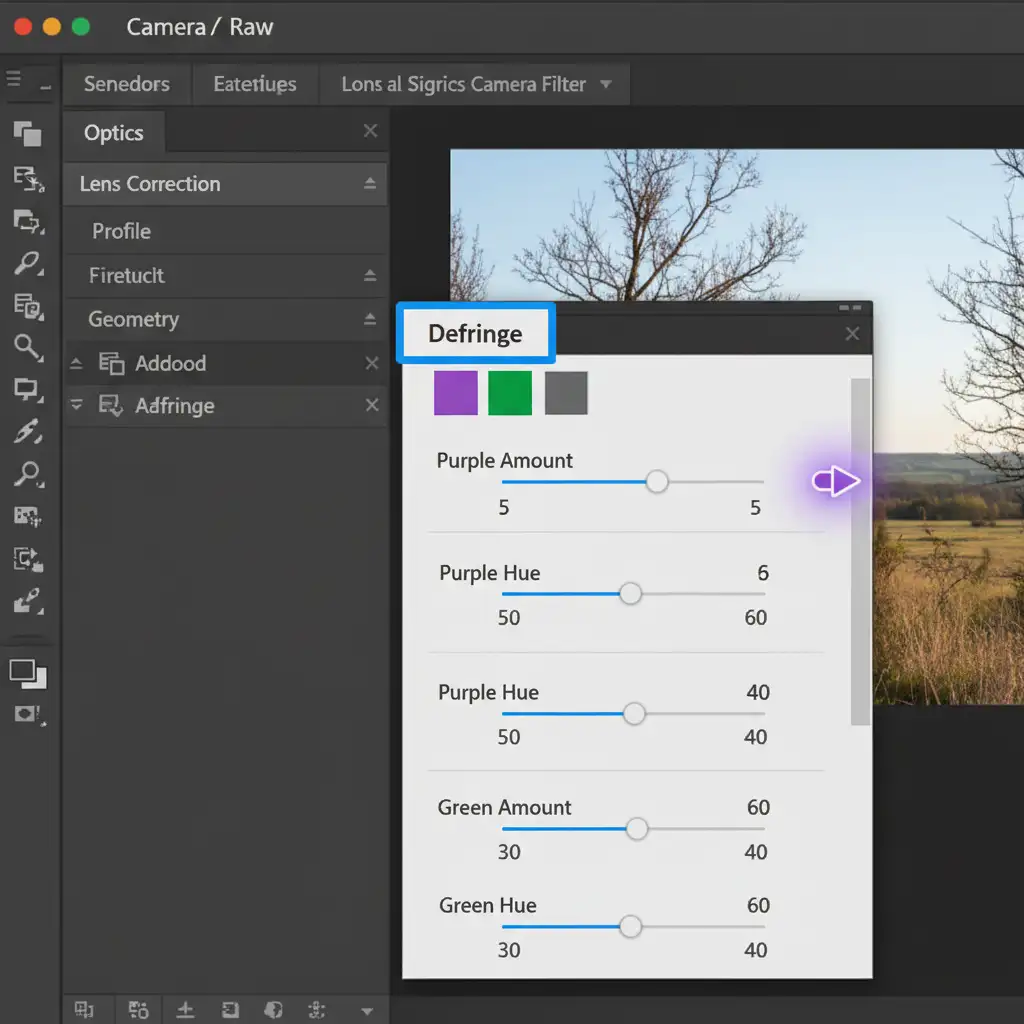
- On the right-hand panel, open the Optics dropdown.
- Expand the Defringe section.
- Select the purple eyedropper tool and click directly on the purple halo on the hair’s edge.
- Alternatively, manually adjust the Purple Amount and Purple Hue sliders until the edge artifacts disappear.
Method 2: The Pro Workaround with Color Blend Modes
For high-end retouching where you need absolute manual control over the hair color, a clipping mask is the industry standard.
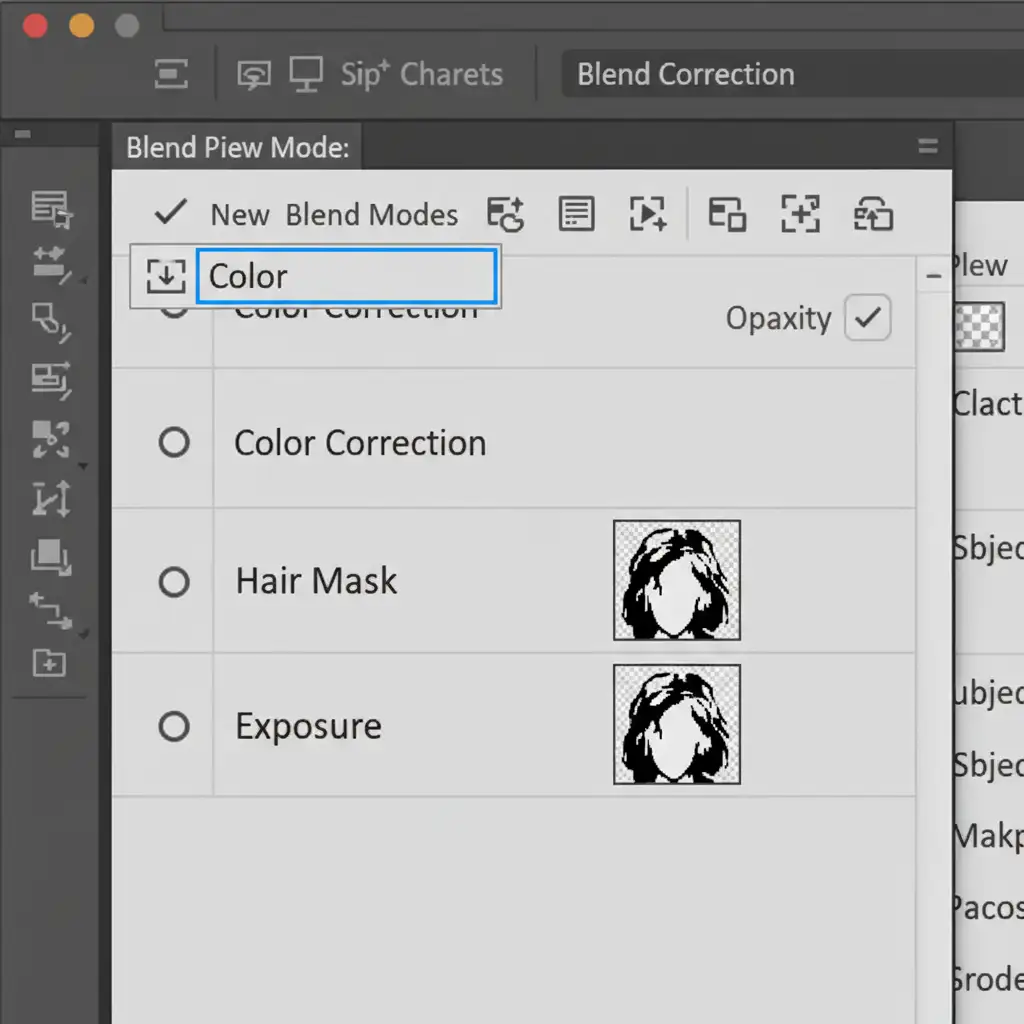
- Create a New Layer directly above your masked hair layer.
- Hold down the Alt key (Option on Mac) and click on the line between the two layers to create a clipping mask.
- Change the new layer’s Blend Mode from ‘Normal’ to Color.
- Select the Brush Tool (B) with a soft edge.
- Hold Alt/Option to sample the natural, true hair color just inside the fringed edge.
- Gently paint over the purple edges. The color blend mode will mathematically replace the purple fringe with the natural hair color without affecting the luminosity or texture of the hair strands.
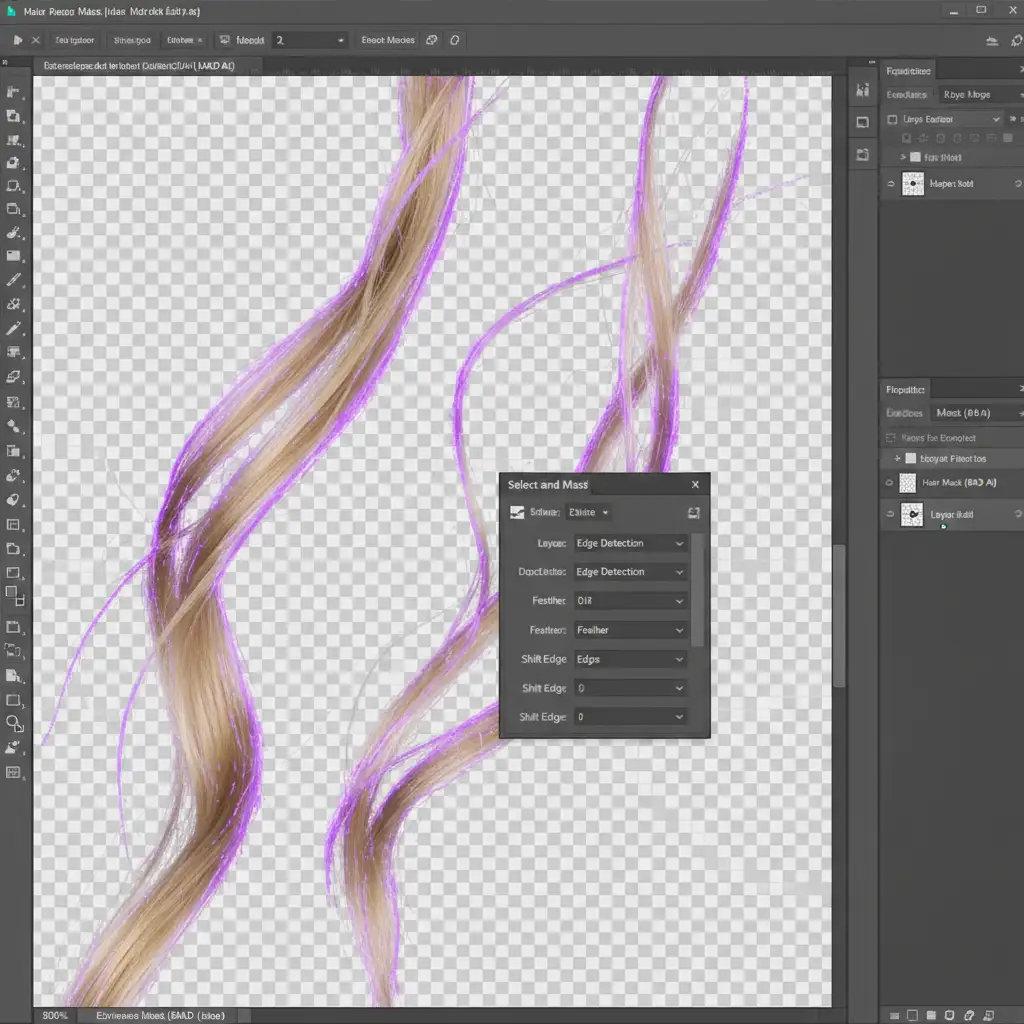
Method 3: The Technical Deep-Dive in Select and Mask
If you are already inside the Select and Mask workspace refining your AI selection, you can fix the color bleed before you even output the layer.
- With your initial selection active, open the Select and Mask workspace.
- Use the Refine Edge Brush Tool to paint over the complex hair areas, telling the algorithm to recalculate the edges.
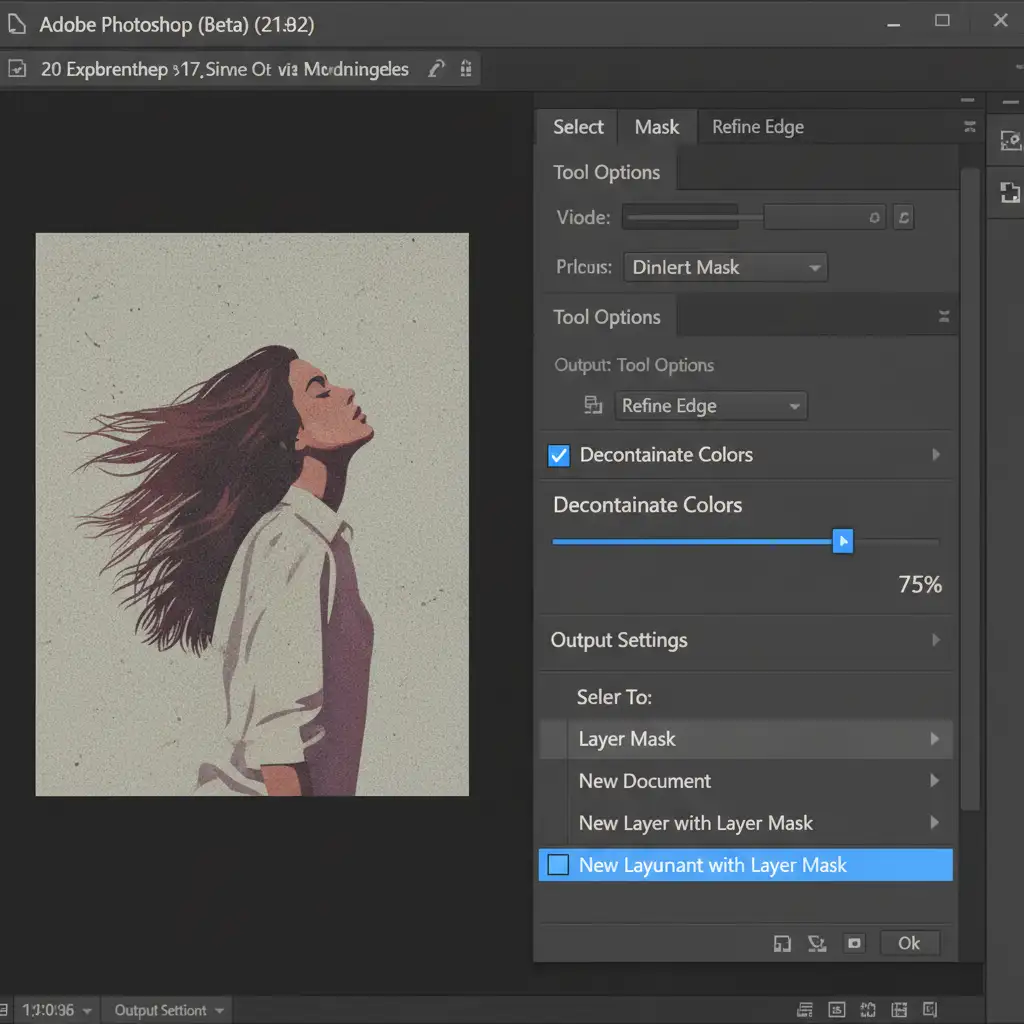
- Scroll down the right-hand Properties panel to Output Settings.
- Check the box labeled Decontaminate Colors.
- Adjust the Amount slider. This forces Photoshop to mathematically replace the purple fringe with surrounding true hair pixels.
- Ensure your “Output To” dropdown is set to New Layer with Layer Mask (Decontaminate Colors modifies pixels destructively, so outputting to a new layer protects your original image).
Skip the Masking Headaches
Fixing purple fringing on AI hair masks requires patience, technical knowledge, and a sharp eye for detail. While AI masking tools have come a long way, achieving a truly flawless, commercial-ready extraction still demands manual intervention.
If you are spending hours battling edge artifacts, defringing, and painting color blend modes, it’s time to reclaim your workflow. Let Image Work India and Cloud Retouch handle your high-end hair masking and photo retouching. Our team of expert retouchers delivers pixel-perfect accuracy, ensuring your subjects are perfectly isolated without a single halo or color bleed in sight.
Contact us today to streamline your post-production and elevate the quality of your imagery.