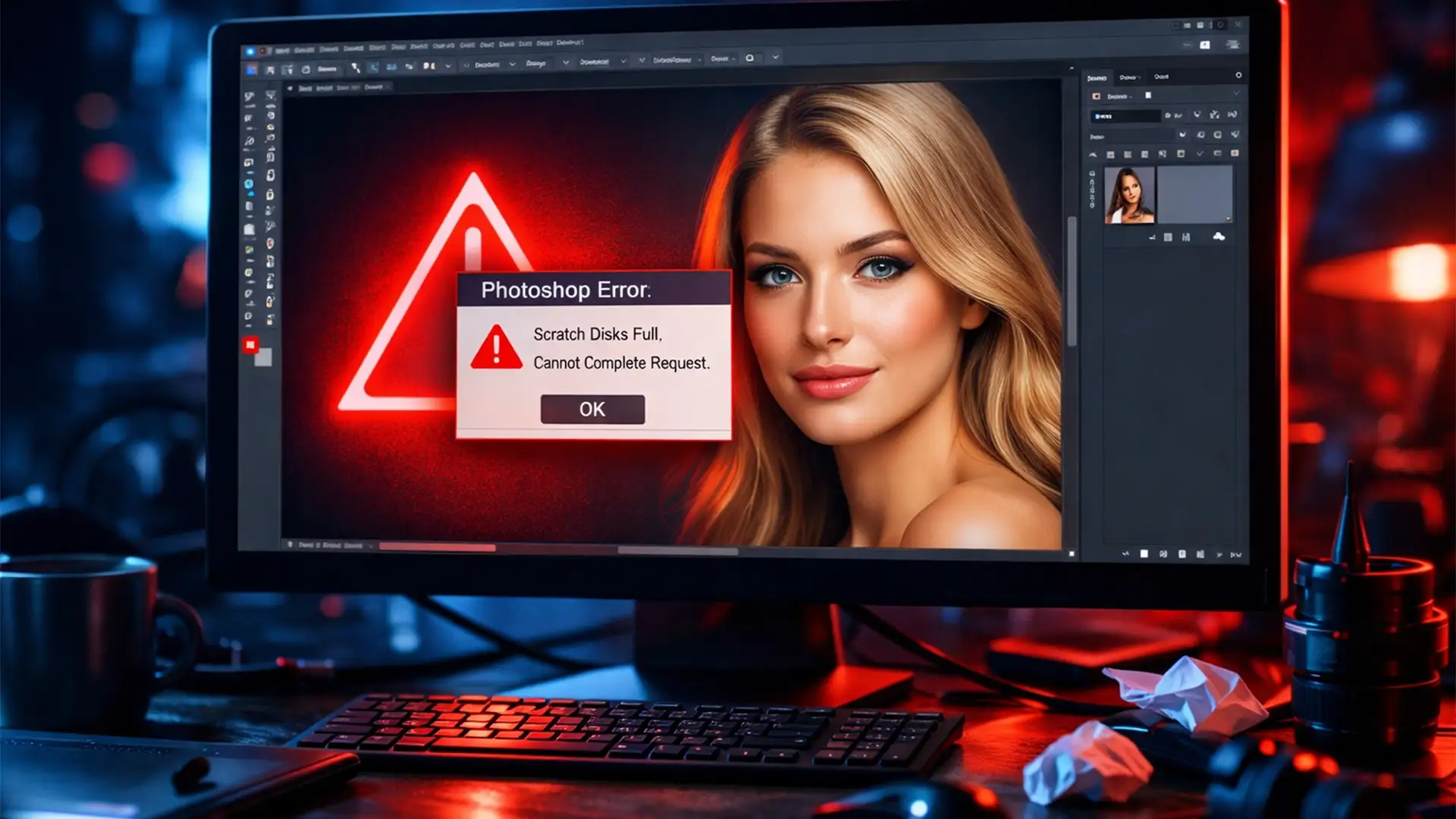

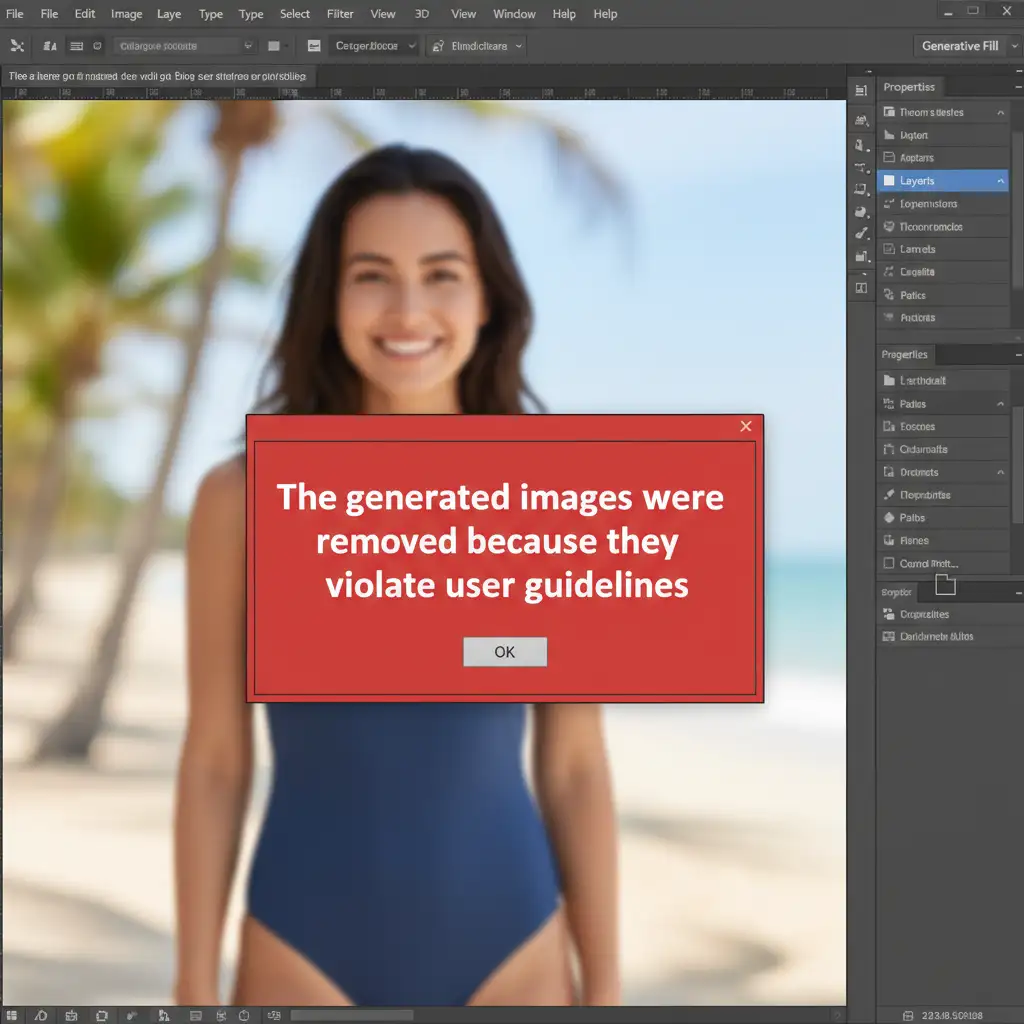
You are on a tight deadline, retouching a simple portrait, and suddenly Photoshop throws a red wall in your face: “The generated images were removed because they violate user guidelines.”
You haven’t done anything wrong, yet your workflow is completely paralyzed. Because Adobe relies on highly sensitive automated moderation, completely harmless edits-like removing a stray hair from a shoulder or typing “remove the shooting star”-often trigger an immediate block.
If you need a reliable Photoshop Generative Fill guidelines violation error fix, you are in the right place. In this guide, we will break down exactly why this happens and show you how to bypass these overzealous AI safety filters so you can get back to work.
Why You Are Getting False Positives in Photoshop v25.0+
When Adobe introduced Generative AI natively into Photoshop v25.0, they integrated Adobe Firefly as the core engine. To comply with global safety standards, Adobe implemented rigorous automated Safety Filters.
The problem? These filters lack human context, resulting in a False Positive. The error triggers in two primary ways:
- Textual Triggers: The AI detects restricted terms in your text prompt. Words like skin, bare, shoot, blood, or anything vaguely violent or NSFW will instantly flag your prompt.
- Visual Triggers: The AI scans the pixels inside your bounding box. If it visually identifies prohibited elements-such as too much exposed skin (like editing a swimsuit model), weapons, or recognizable political figures-it shuts down the generation, regardless of your text prompt.
3 Proven Methods to Fix the Guidelines Violation Error
To overcome these roadblocks and successfully generate your Generative Layer, you need to adjust how you interact with the AI. Here are the three best methods to resolve the issue.
Method 1: Master Prompt Engineering (The Quick Fix)
Because the Adobe Firefly filter is hyper-sensitive to specific words, Prompt Engineering is your first line of defense. You must learn to speak to the AI without triggering its alarms.
- Avoid trigger words: Never use words like “shoot,” “kill,” “bare,” “naked,” or “blood.”
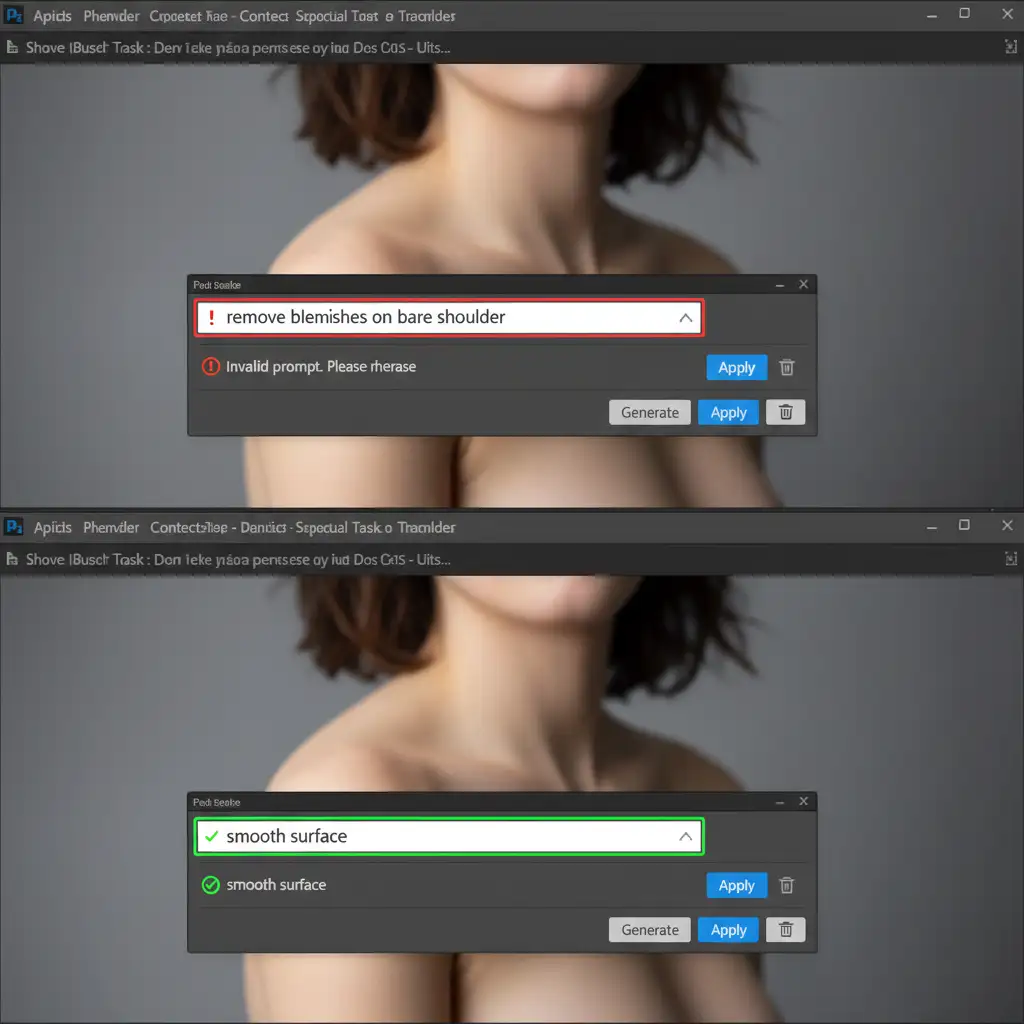
- Rephrase for safety: Instead of typing “remove blemishes on bare shoulder,” change your prompt to “smooth surface.”
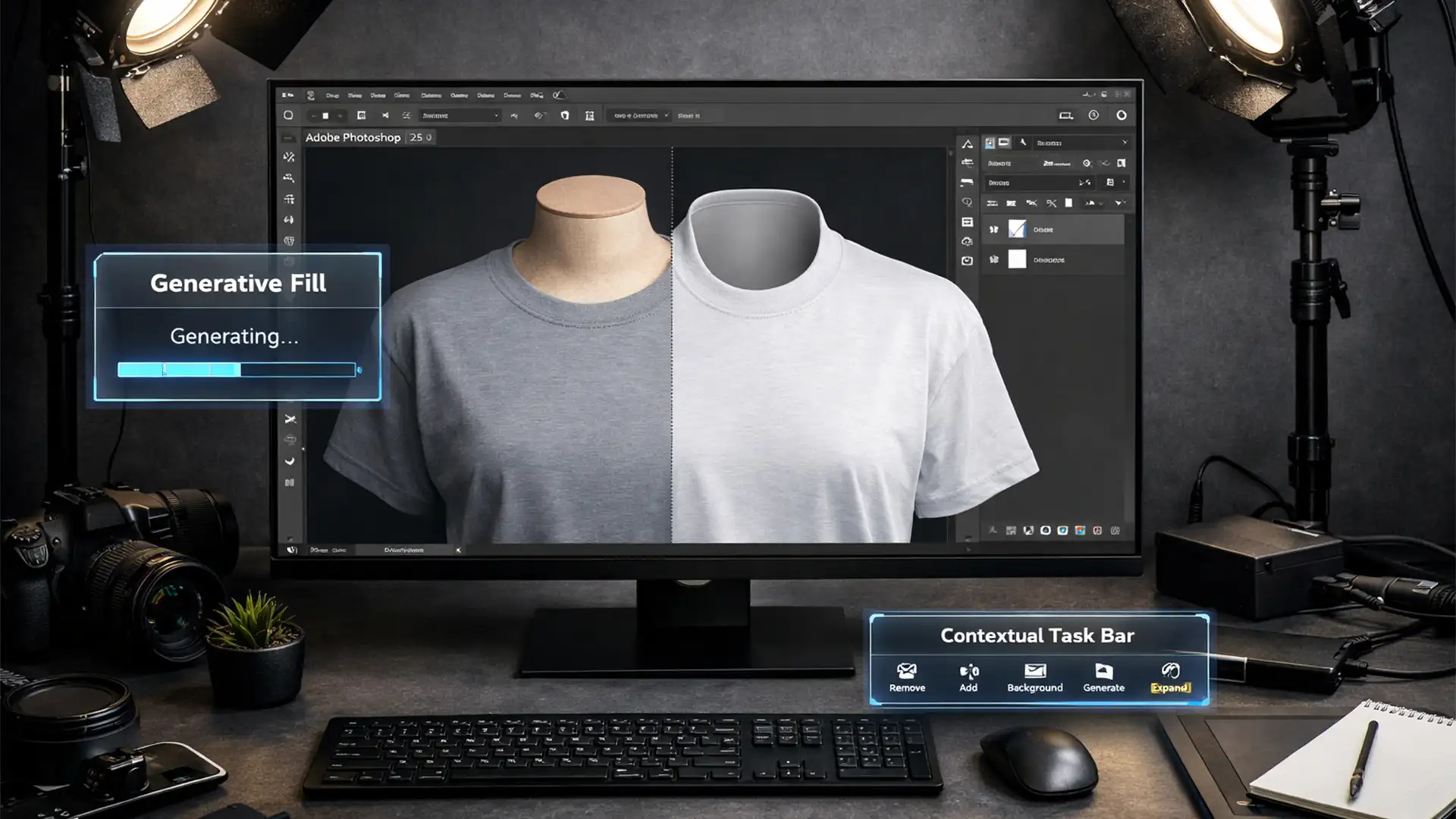
- The Blank Prompt Trick: If you are simply trying to remove an object, leave the text box inside the Contextual Task Bar completely blank. Hitting “Generate” with no text forces the AI to infer the fill based on surrounding pixels, entirely bypassing the text-based safety filter.
Method 2: Micro-Selections via the Lasso Tool (The Pro Workaround)
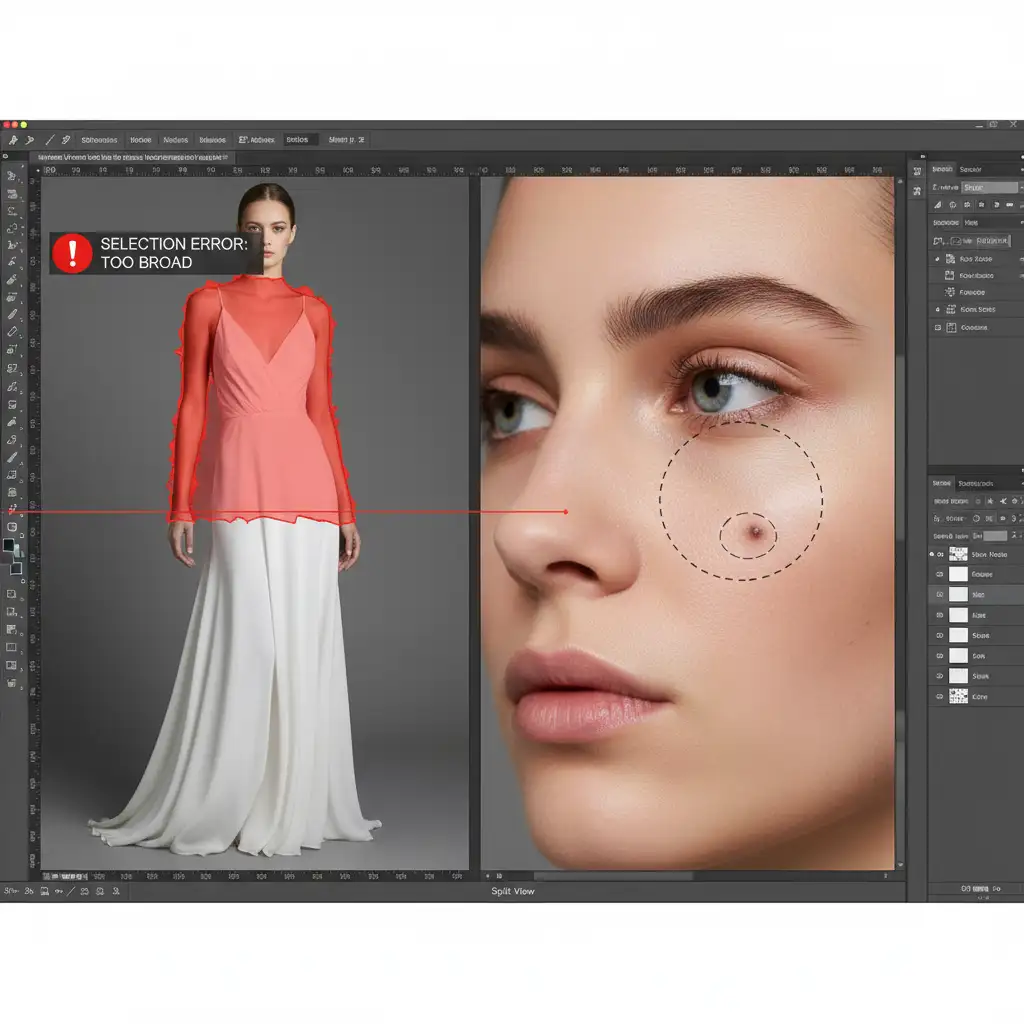
If your text prompt is perfectly safe but you are still getting the error, the issue is visual. The AI scans the context of your selection. If you select a large area of exposed skin on a model, the NSFW filter triggers automatically.
The fix is to minimize the AI’s visual scanning area. Instead of using a broad selection, use the Lasso Tool to create a highly targeted micro-selection. Select only the exact micro-area needing repair. By restricting the bounding box to a few pixels of skin rather than an entire arm or torso, the AI no longer flags the image as inappropriate..
Method 3: Account Verification & Technical Resets (The Deep-Dive)
Sometimes, the error isn’t your prompt or your selection-it is an account restriction or a software glitch.
- Age Verification: Generative AI features are heavily restricted for minors. Ensure the date of birth on your Adobe Account proves you are over 18.
- Software Updates: Ensure you are running Photoshop v25.0 or newer. Beta builds are notoriously buggy and can throw false errors.
- Reset Preferences: If the error is a persistent glitch on obviously safe images, reset your Photoshop Preferences. Hold Ctrl+Alt+Shift (Windows) or Cmd+Option+Shift (Mac) while booting the application.
- Use the Web App: Try bypassing the local app entirely by running your image and prompt directly in the Adobe Firefly Web Application.
The Ultimate Fallback: Legacy Content-Aware Fill
If you are working on a highly sensitive image-such as medical photography or boudoir retouching-Generative Fill might simply refuse to cooperate, no matter how much you tweak your workflow.
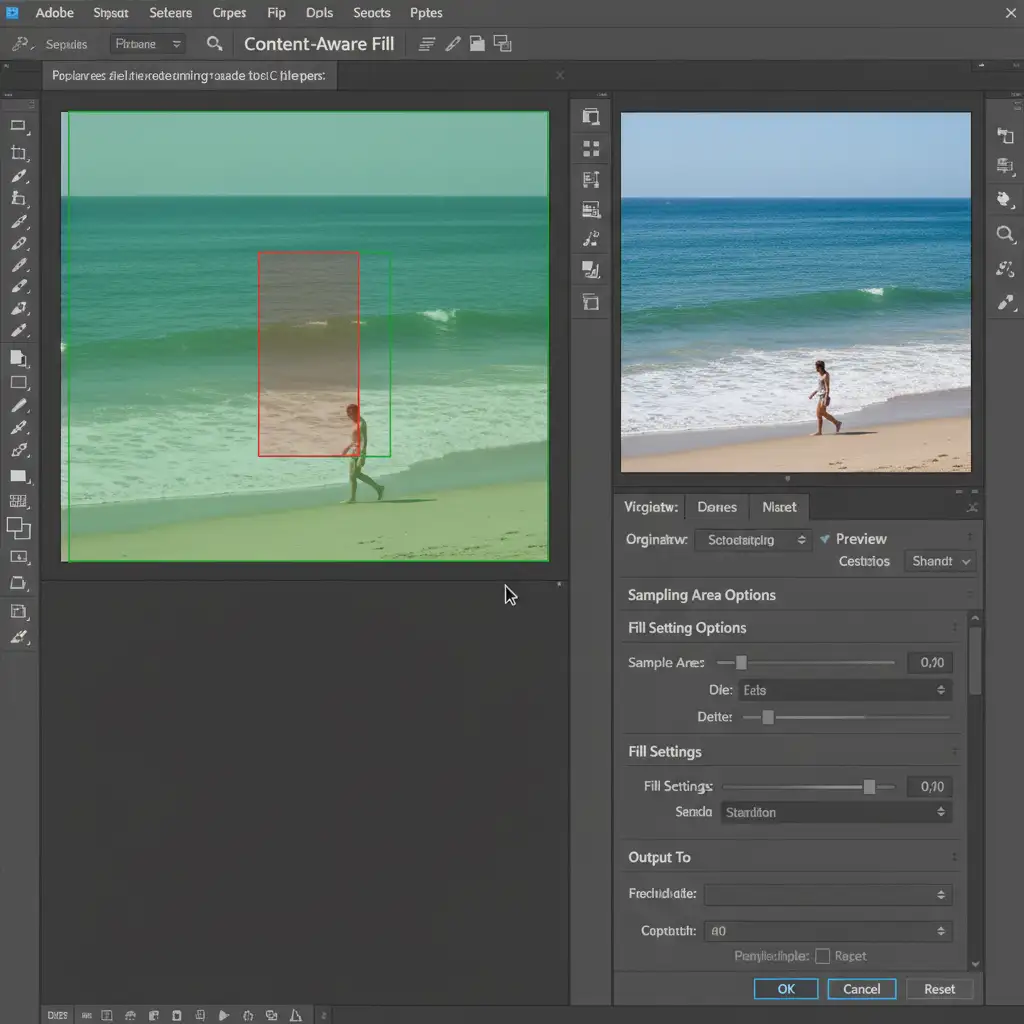
When the AI fails, rely on the industry-standard fallback: Content-Aware Fill.
By pressing Shift+F5 (or navigating to Edit > Content-Aware Fill), you activate Photoshop’s legacy algorithmic fill. Unlike Generative Fill, Content-Aware Fill operates completely offline, relies on the pixels already present in your document, and has absolutely zero safety filters or Content Credentials tracking.
Stop Guessing. Let the Experts at Image Work India Handle It
AI tools like Generative Fill are incredibly powerful, but they can be frustratingly limited by automated safety filters, false positives, and unpredictable results. When you are on a strict client deadline, you don’t have time to wrestle with prompt engineering or restricted algorithms.
For unrestricted, high-end, pixel-perfect professional retouching without the guesswork, trust the human experts. Image Work India and Cloud Retouch provide top-tier, manual photo editing services tailored to your exact specifications. From complex skin retouching to intricate object removal, our seasoned professionals deliver flawless results that AI simply cannot match.