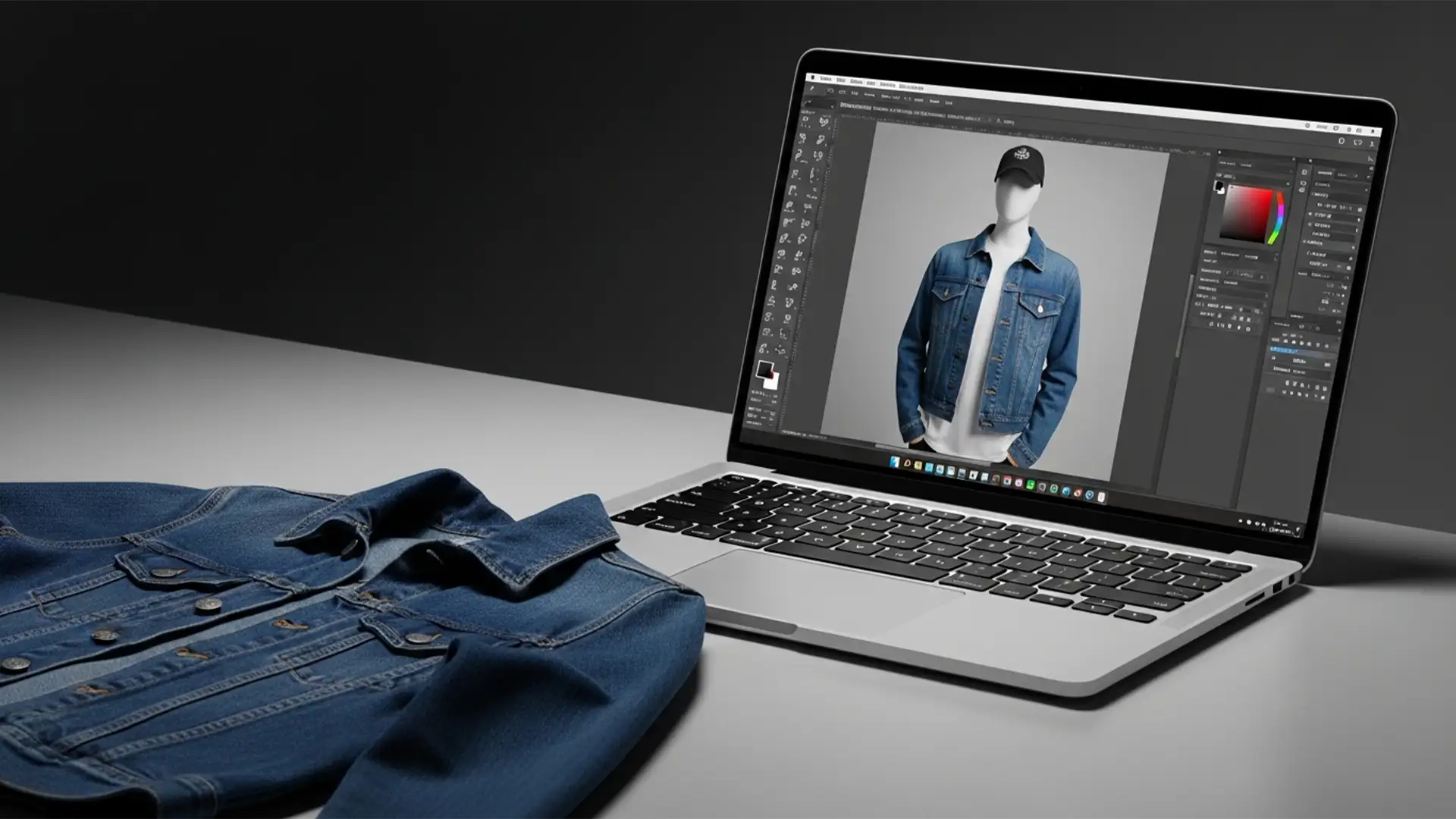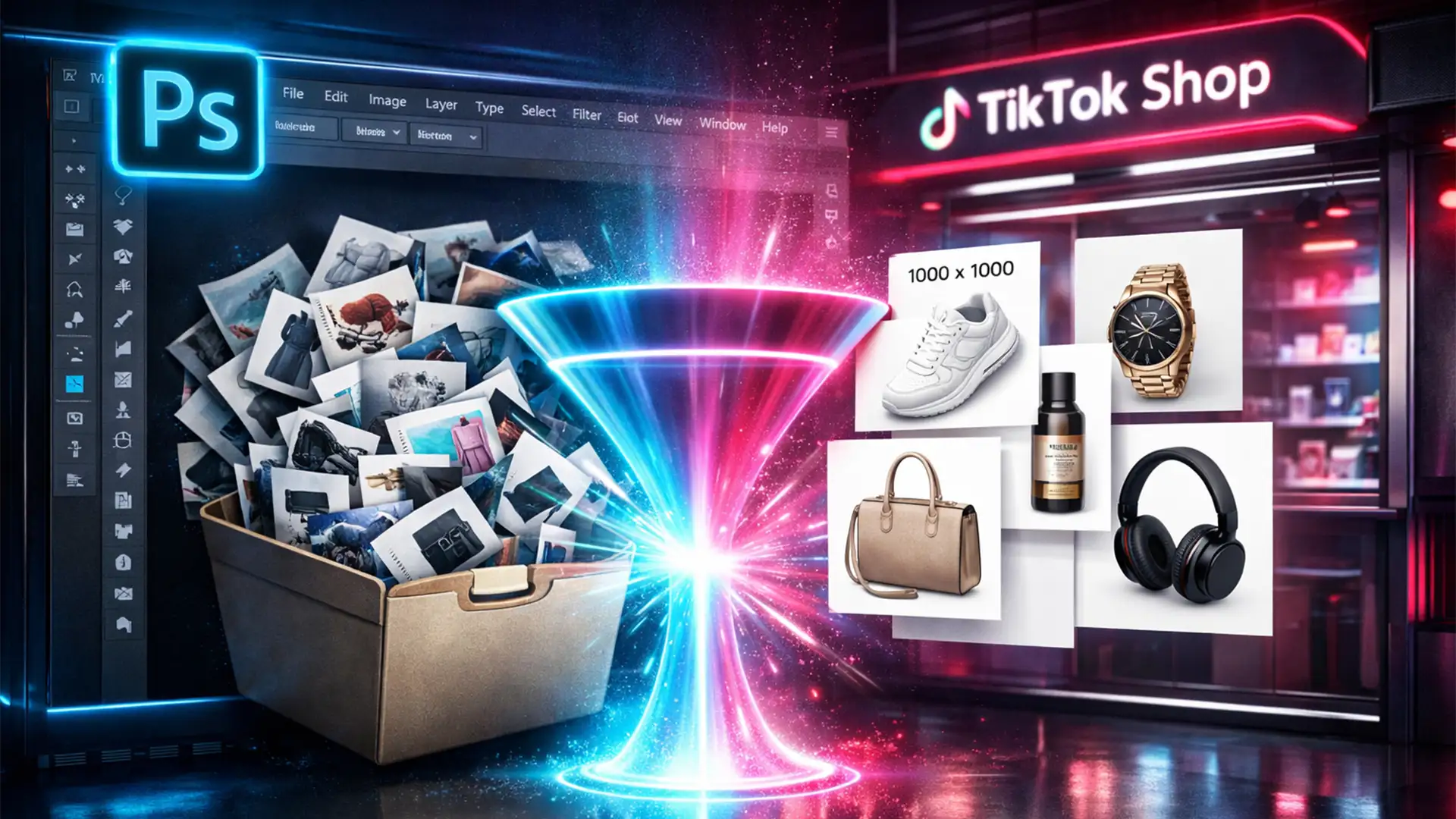

If you are selling on TikTok Shop in 2024, you already know the nightmare: strict image requirements. Every single product photo must be a perfect 1:1 aspect ratio, exactly 1000x1000px, under 5MB, and sitting on a flawless solid white or transparent background. When you have hundreds of SKUs, manually cropping, removing backgrounds, and saving each file will completely bottleneck your e-commerce workflow. Stop wasting hours on repetitive edits. In this guide, we will show you how to batch edit product photos for TikTok Shop in Photoshop using automated Actions, the Image Processor, and Droplets to process entire folders in seconds.
Why TikTok Shop Image Requirements Matter (and Cost You Time)
TikTok Shop’s algorithm favors listings that look professional, uniform, and load quickly. Failing to meet their exact specifications-specifically the 1:1 Aspect Ratio, sRGB Color Profile, and white background-can result in your listings being suppressed or rejected entirely.
For high-volume sellers, SKU Optimization is a massive drain on resources. Manually opening every image, using the Select Subject tool, masking out the background, resizing the canvas, and exporting takes roughly 3 to 5 minutes per photo. Multiply that by 500 products, and you have lost over 40 hours of productivity.
The solution is Batch Processing. By leveraging Adobe Photoshop CC (v24.0+), you can automate this entire sequence using AI-driven background removal and legacy automation scripts.
How to Batch Edit Product Photos for TikTok Shop in Photoshop
Below are three distinct methods to automate your workflow, ranging from a simple batch command to a fully automated desktop application.
Method 1: The Quick Fix (Photoshop Actions & Batch Automation)
The foundational step to any automation in Photoshop is recording a macro of your actions. Photoshop Actions allow you to record a sequence of edits on one photo and apply them to thousands of others.
Step-by-Step Instructions:
- Open a single raw product image in Photoshop.
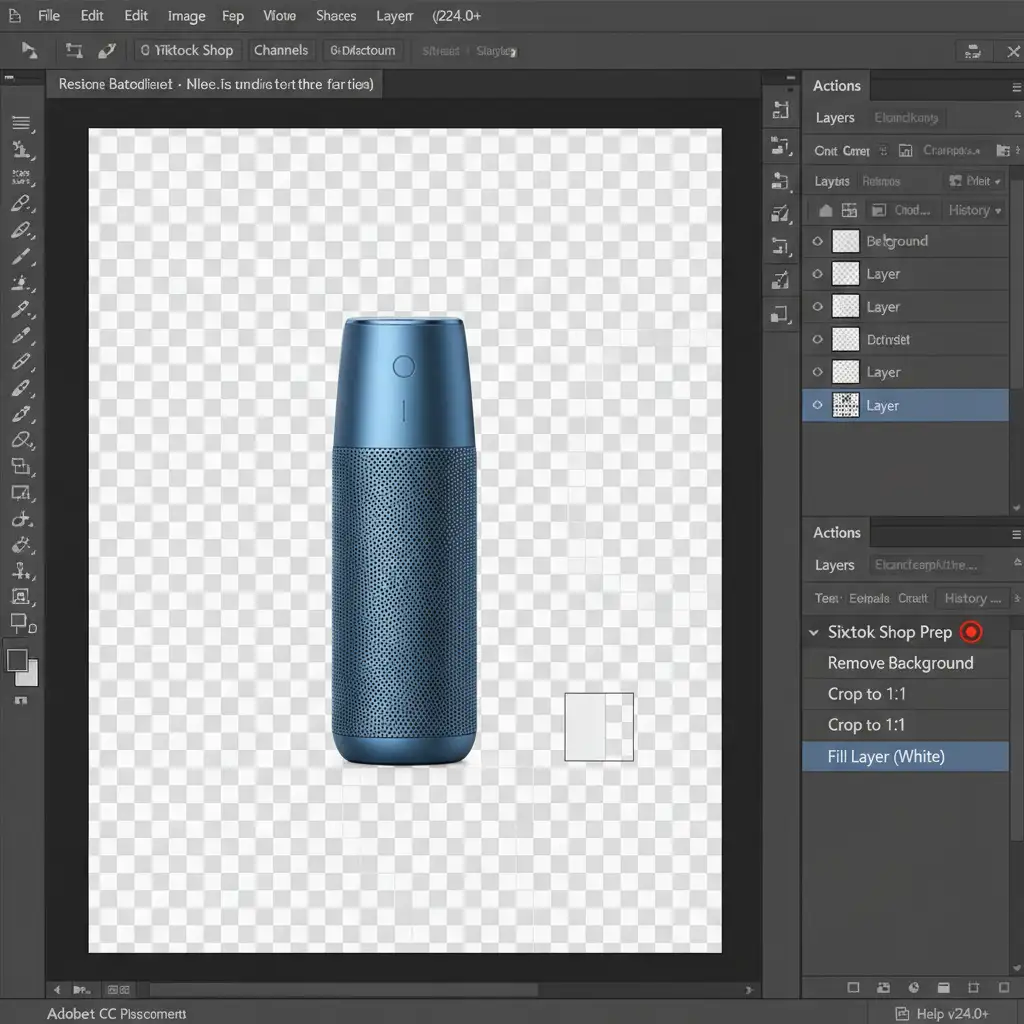
- Open the Actions panel (Window > Actions), create a new set, and click Record.
- Go to the Properties panel and click Remove Background (this utilizes Photoshop’s AI to create a clean Layer Mask).
- Crop the image to a 1:1 ratio.
- Add a Solid Color fill layer (White) and drag it beneath your product layer for Non-destructive Editing.
- Go to Image > Image Size and resize to 1000x1000px.
- Stop recording.
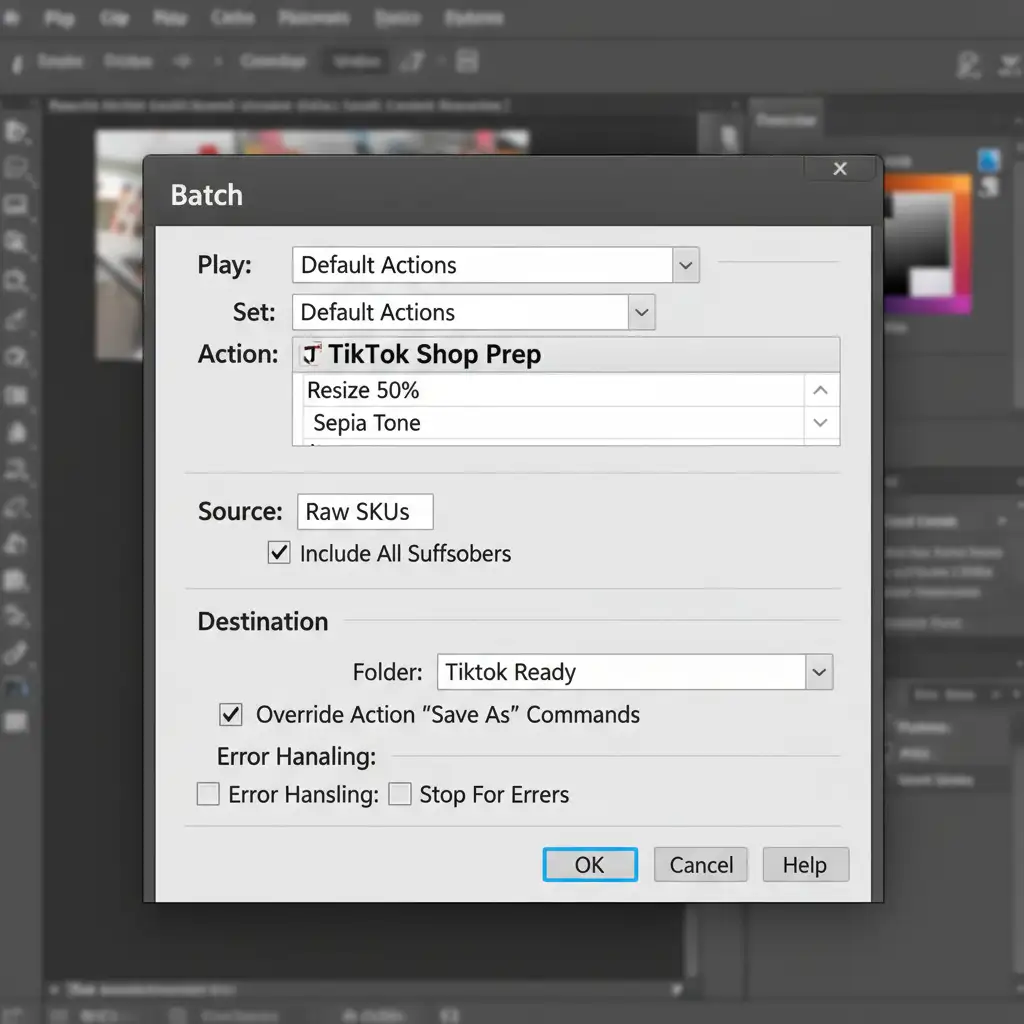
- Go to File > Automate > Batch. Select your newly created Action, choose your source folder of raw photos, set your destination folder, and click OK.
Method 2: The Pro Workaround (Photoshop Image Processor)
If you have images of varying sizes and formats, the standard Batch tool can sometimes struggle with save dialogs. The Image Processor is a built-in script designed specifically for handling bulk resizing and format conversion while simultaneously running an Action.
Step-by-Step Instructions:
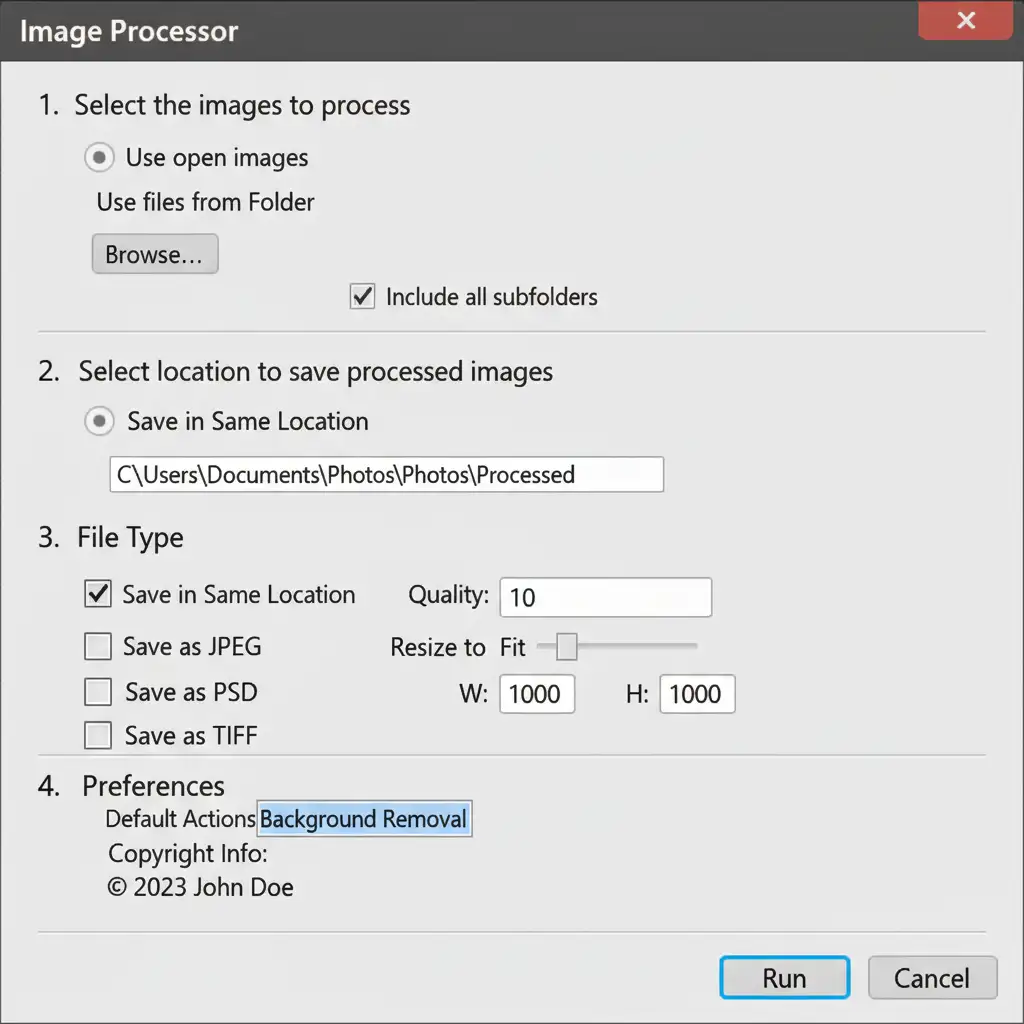
- Go to File > Scripts > Image Processor.
- Step 1: Select the folder containing your raw product images.
- Step 2: Choose where you want the optimized files saved.
- Step 3: Under ‘File Type’, select ‘Save as JPEG’, set Quality to 10 (to ensure files stay under the 5MB limit). Check ‘Resize to Fit’ and enter W: 1000, H: 1000.
- Step 4: At the bottom, check ‘Run Action’ and select the background removal action you created in Method 1.
- Click Run.
Method 3: The Technical Deep-Dive (Automated Droplets)
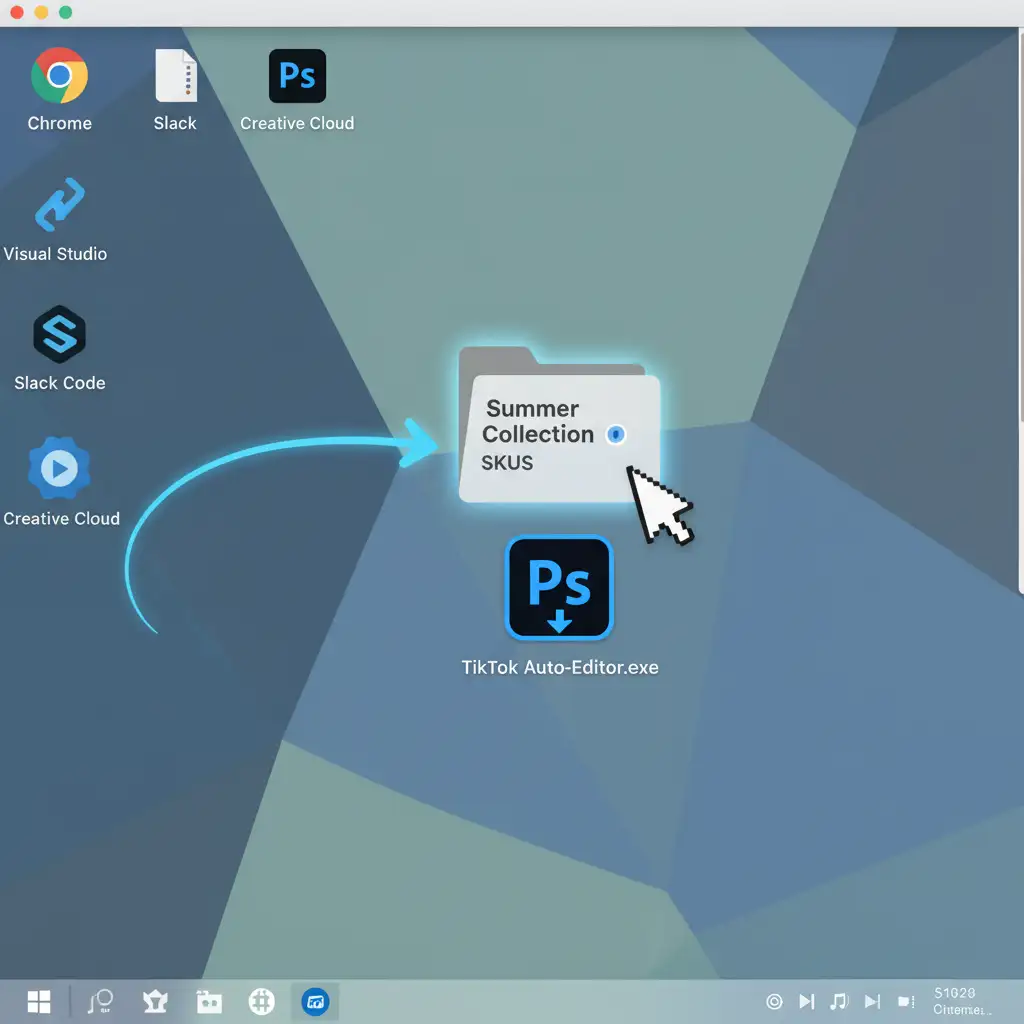
For the ultimate time-saver, you can turn your Photoshop Action into a standalone desktop application called a Photoshop Droplet. This allows you to process images at the operating system level without even needing to manually open Photoshop first.
Step-by-Step Instructions:
- Go to File > Automate > Create Droplet.
- Choose a save destination for the application (e.g., your Desktop) and name it “TikTok Auto-Editor”.
- Under the ‘Play’ section, select the Action you created in Method 1.
- Set the ‘Destination’ to a dedicated output folder.
- Click OK. An executable icon will appear on your desktop.
- Simply drag and drop folders of raw product photos directly onto the droplet icon. Photoshop will launch in the background and process every image automatically.
Scale Your TikTok Shop with Image Work India & Cloud Retouch
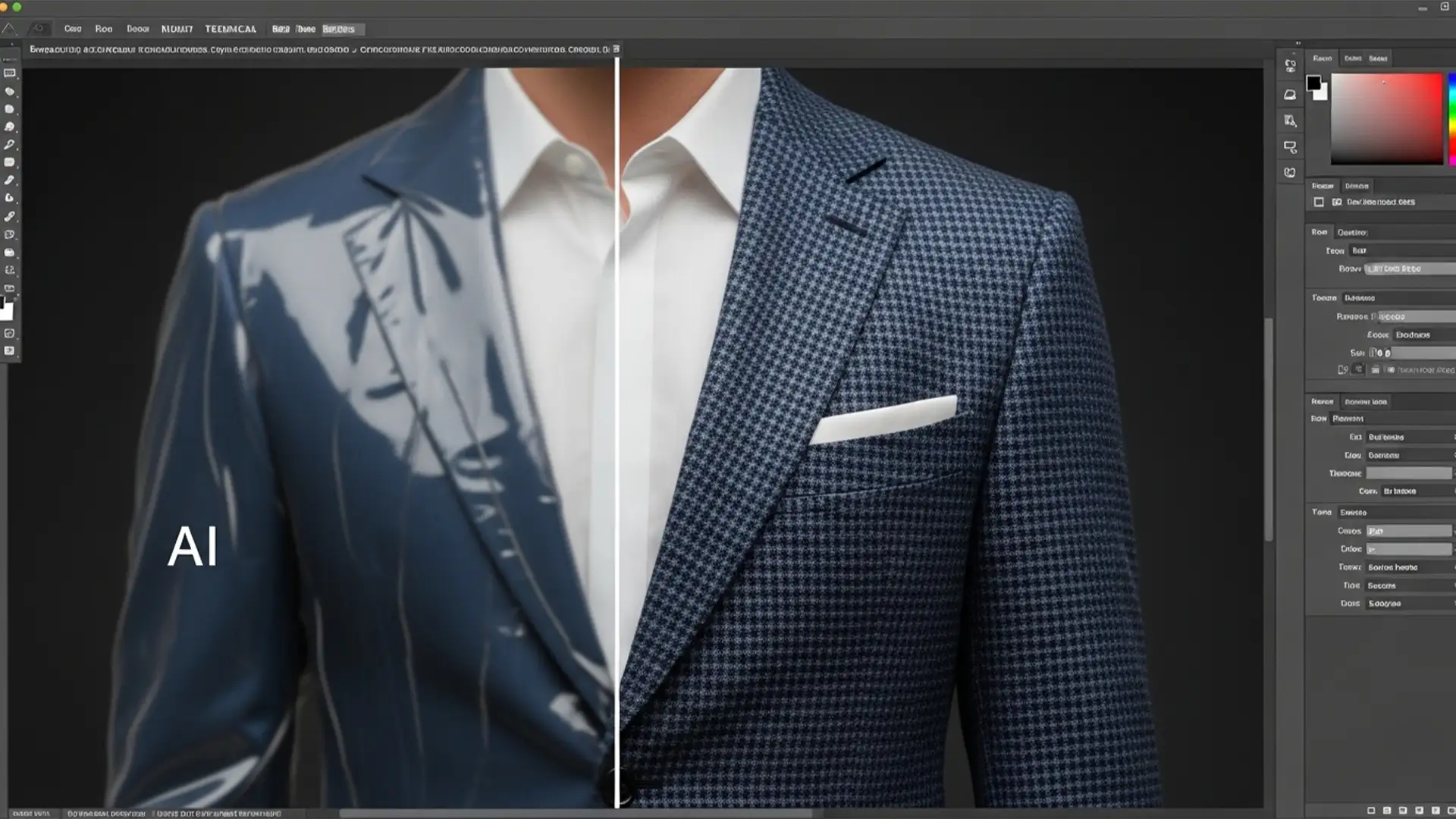
Learning how to batch edit product photos for TikTok Shop in Photoshop is a game-changer, but AI background removal isn’t always perfect. Transparent products, complex jewelry, flyaway hairs, and harsh shadows often require a human touch to look premium. If your automated actions are leaving jagged edges on your products, it will hurt your conversion rates.
Why spend your valuable time troubleshooting Photoshop scripts when you can outsource your entire catalog?
Image Work India and Cloud Retouch specialize in high-volume, pixel-perfect e-commerce image editing. Whether you have 50 SKUs or 50,000, our expert retouchers will manually ensure every single product photo meets strict TikTok Shop guidelines-complete with flawless clipping paths, natural shadow creation, and perfect color correction.
Stop fighting with software and start selling. Contact Image Work India today for a free trial, and let us handle your product photography retouching so you can focus on growing your brand.