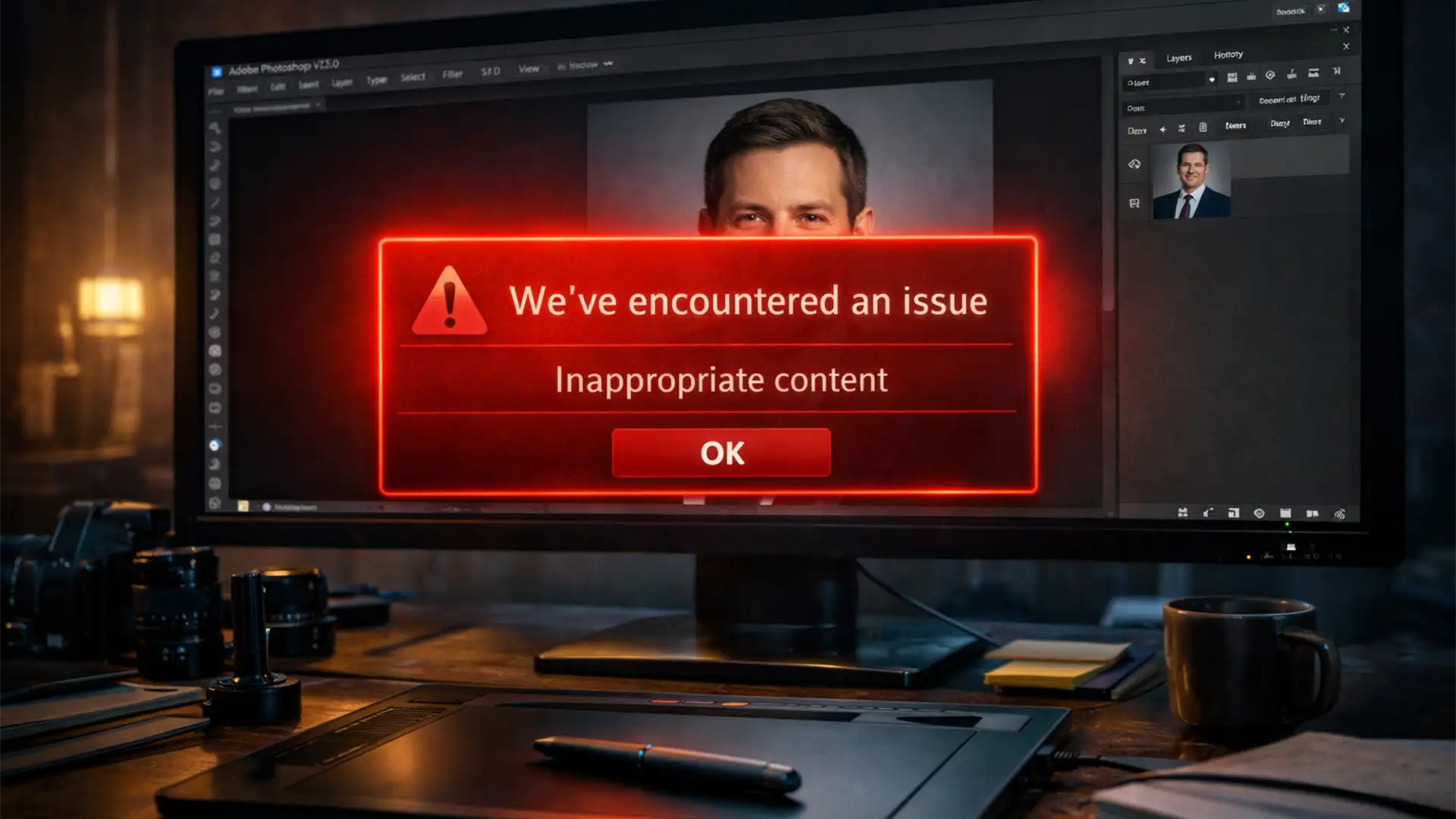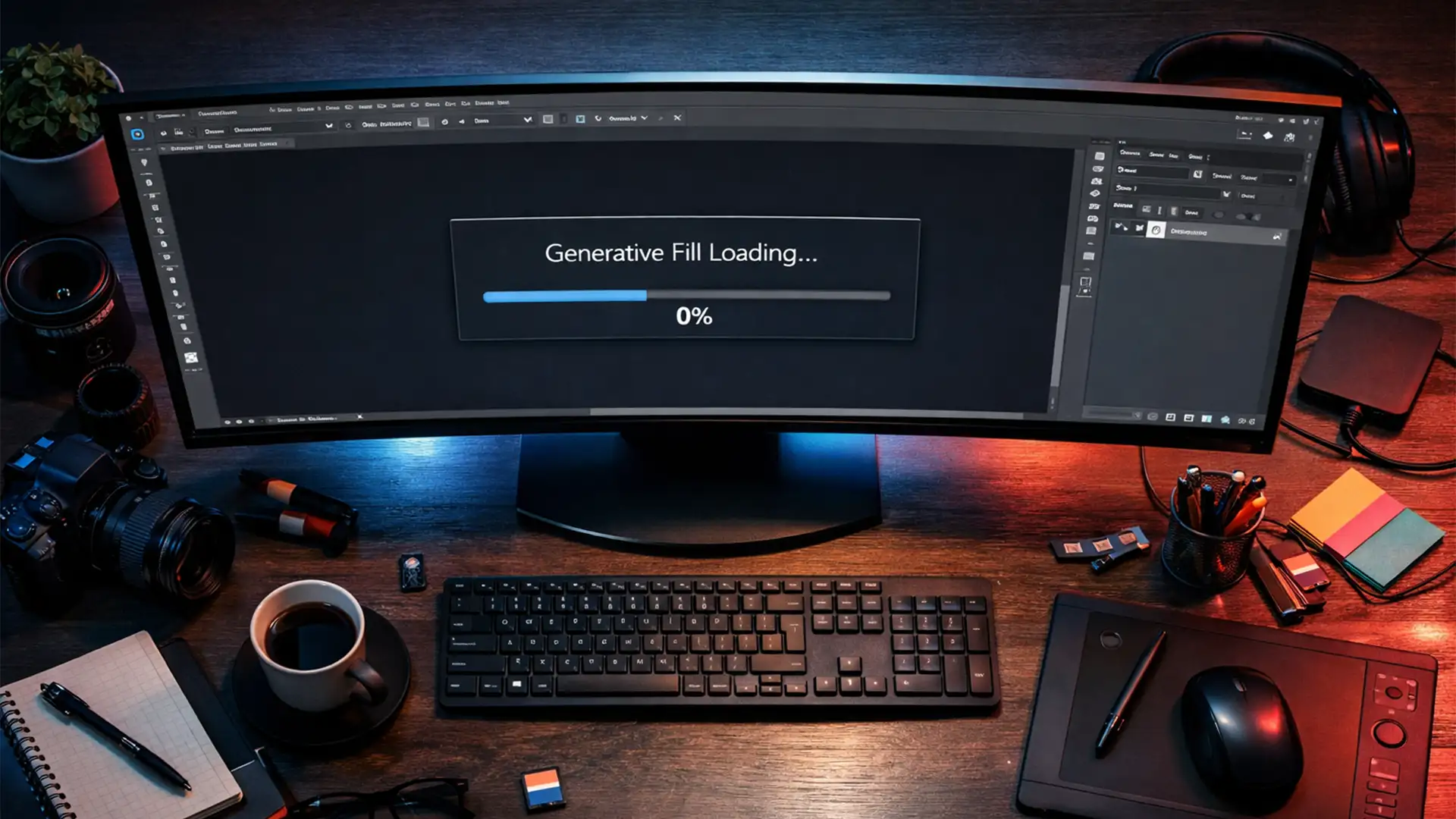

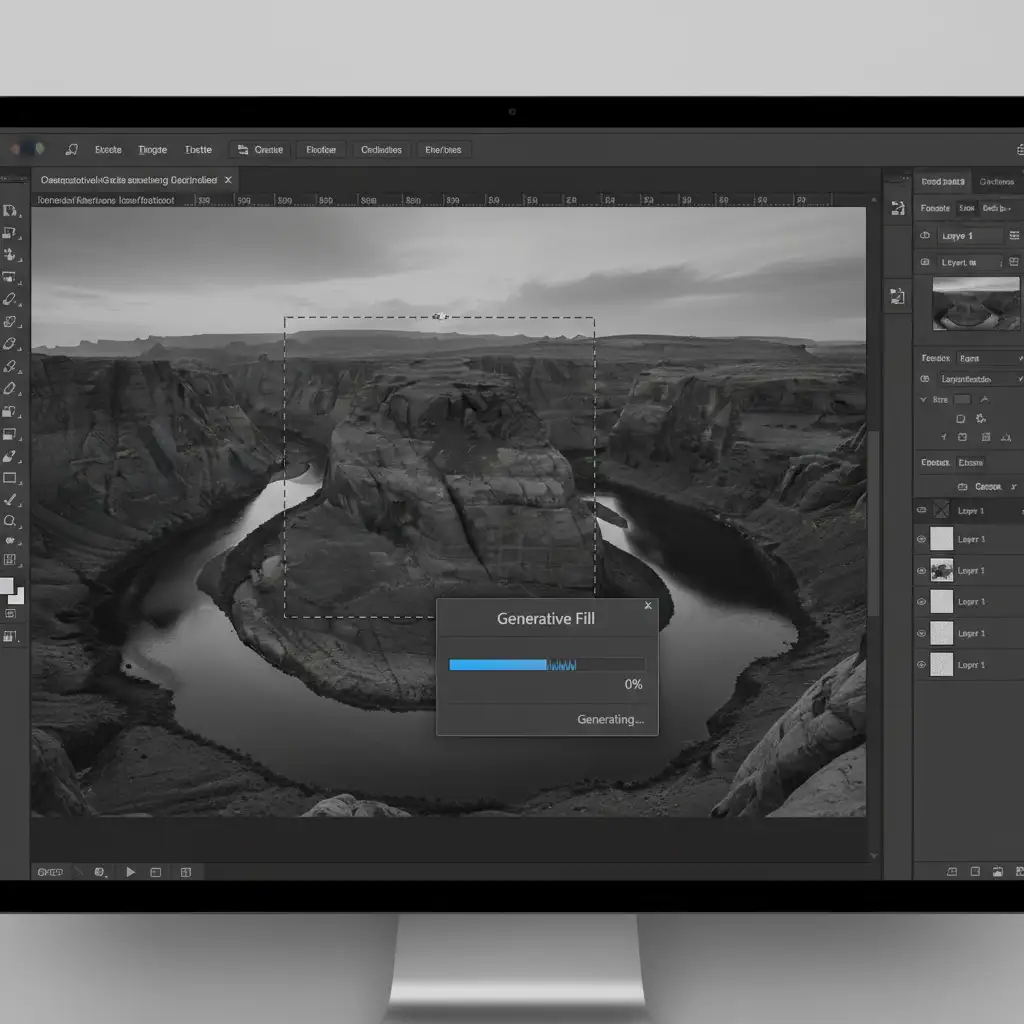
You are on a tight production deadline. You make a precise lasso selection, type your prompt into the Contextual Task Bar, hit “Generate,” and… nothing happens. The progress bar hangs indefinitely.
If you are dealing with Photoshop Generative Fill stuck at 0% 2024 editions (v25.x and v26.x), you are not alone. This frustrating freeze is rarely a hardware issue. Instead, it indicates a broken connection between your local software and Adobe’s cloud servers.
In this comprehensive troubleshooting guide, we will break down exactly why this error occurs and provide step-by-step solutions to unblock your Generative AI tools so you can get back to editing.
Why is Generative Fill Hanging at 0%?
Unlike traditional Photoshop tools that rely on your computer’s local CPU and GPU acceleration, Generative Fill relies entirely on cloud-based processing. Every time you submit a prompt, Photoshop sends a request to the Adobe Firefly server network.
When the loading bar stalls at 0 percent, it signifies a failure in the API handshake between your local Photoshop client and the generative AI servers. Based on our technical research, the most common culprits include:
- Cloud Sync Token Desync: Your Creative Cloud authentication token has silently expired in the background.
- Local Firewall Blocks: Windows Defender or third-party antivirus software is blocking background processes like Adobe Desktop Service.exe or the Adobe CEF Helper.
- Corrupted Cache Partitions: Outdated temporary files are preventing new server requests from executing.
- Regional Server Outages: The Adobe Firefly network is experiencing temporary downtime.
Here is how to troubleshoot and fix these issues systematically.
4 Methods to Fix Photoshop Generative Fill Stuck at 0%
Method 1: The Quick Fix (Reset Your Cloud Sync Token)
Often, the background process that verifies your Adobe subscription loses its connection, causing the API handshake to fail immediately. Forcing a refresh of your cloud sync token is the fastest way to resolve this.
- Save your work and close Photoshop completely.
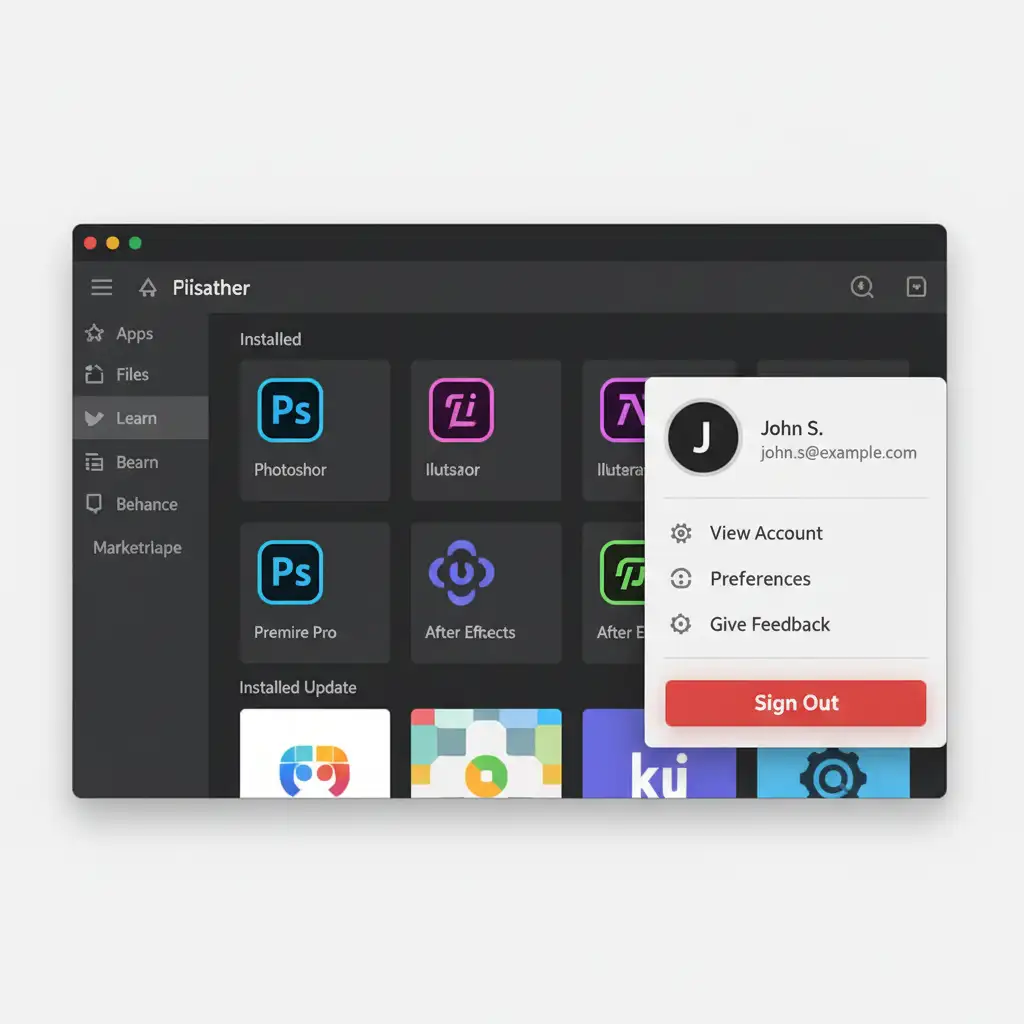
- Open the Creative Cloud Desktop application.
- Click on your profile picture in the top right corner.
- Select Sign Out.
- Restart your computer to clear any lingering background Node.js sync processes.
- Open Creative Cloud Desktop, sign back in, and launch Photoshop.
Method 2: The Network Check (Verify Adobe Firefly Servers)
If resetting your token didn’t work, the issue might not be on your end. Because Generative Fill requires the Generative AI cloud infrastructure, an Adobe server outage will instantly break the feature.
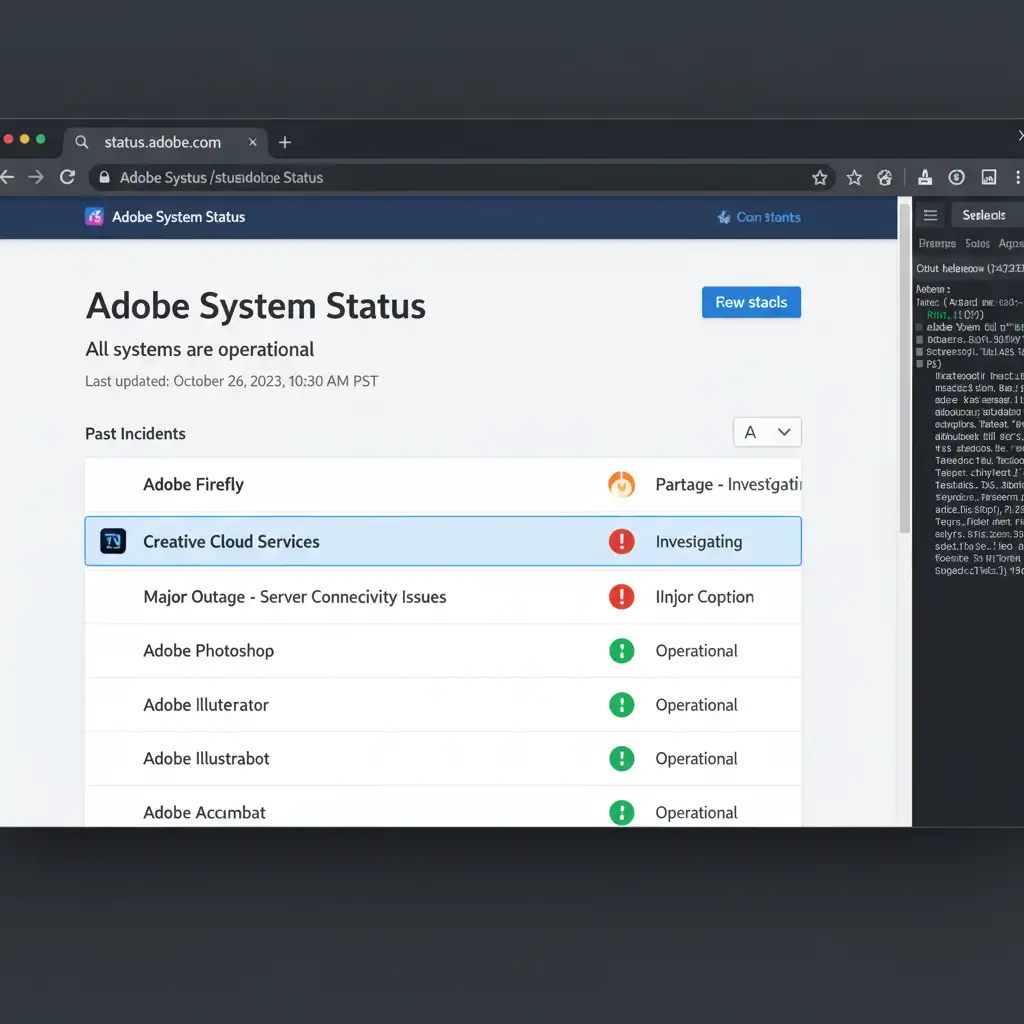
- Open your web browser and navigate to the official Adobe System Status webpage.
- Look for the Adobe Firefly and Creative Cloud Cloud Documents services.
- If there is a yellow or red indicator next to these services, you must wait for Adobe to resolve the regional outage.
Method 3: The Technical Deep-Dive (Firewall Exceptions & Cache Clear)
Sometimes, aggressive local security settings block the specific sub-processes Photoshop uses to communicate with the cloud. You need to ensure your firewall allows these connections and clear out any corrupted cache partition data.
Step A: Update Windows Defender Firewall
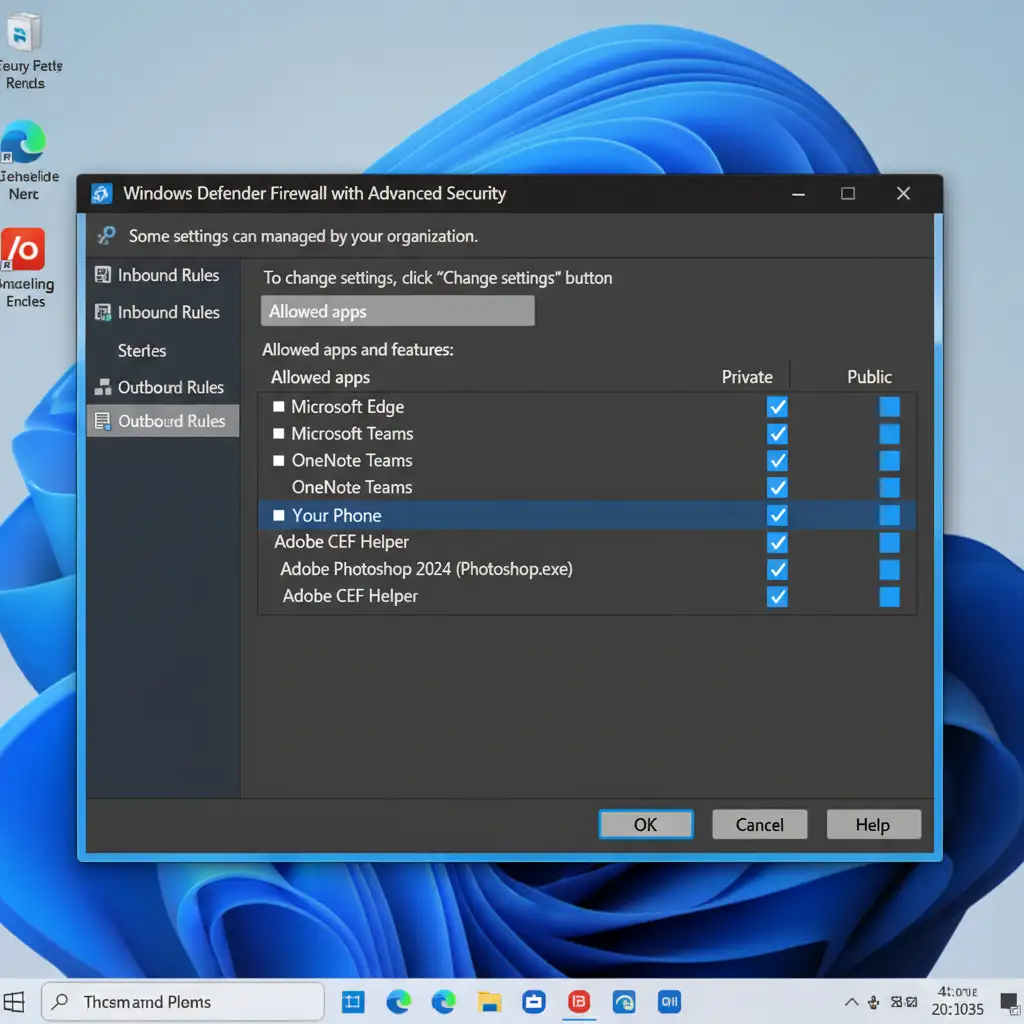
- Open your Windows Start menu and type “Windows Defender Firewall.”
- Click on Allow an app or feature through Windows Defender Firewall.
- Click Change settings (you may need administrator privileges).
- Scroll through the list and ensure both Photoshop.exe and Adobe CEF Helper are checked for both Private and Public networks. If they are missing, click “Allow another app” and locate them in your Adobe installation folder.
- Save your changes.
Step B: Purge Photoshop Cache
- Open Photoshop and open any document.
- Navigate to the top menu bar and select Edit > Purge > All.
- This clears out legacy temporary files that might be causing conflicts with the generative engine.
Method 4: The Pro Workaround (Use the Firefly Web Portal)
If the desktop app remains hard-locked and your production deadline is looming, you can bypass the local software entirely.
- Export the layer or image you are working on as a high-resolution JPEG or PNG.
- Open your web browser and log into the Adobe Firefly web portal.
- Upload your image and use the Generative Fill tool directly in the browser.
- Download the generated result.
- Drag the new image back into your Photoshop document. Convert it to a Smart Object so you can scale and mask it non-destructively to match your original composition.
Still Stuck? Let the Professionals Handle Your Retouching
Troubleshooting API errors and firewall blocks takes valuable time-time you should be spending on creative direction and client management. When AI tools like Generative Fill fail, glitch, or produce unnatural results, you need a reliable backup plan.
That is where Image Work India and Cloud Retouch step in.
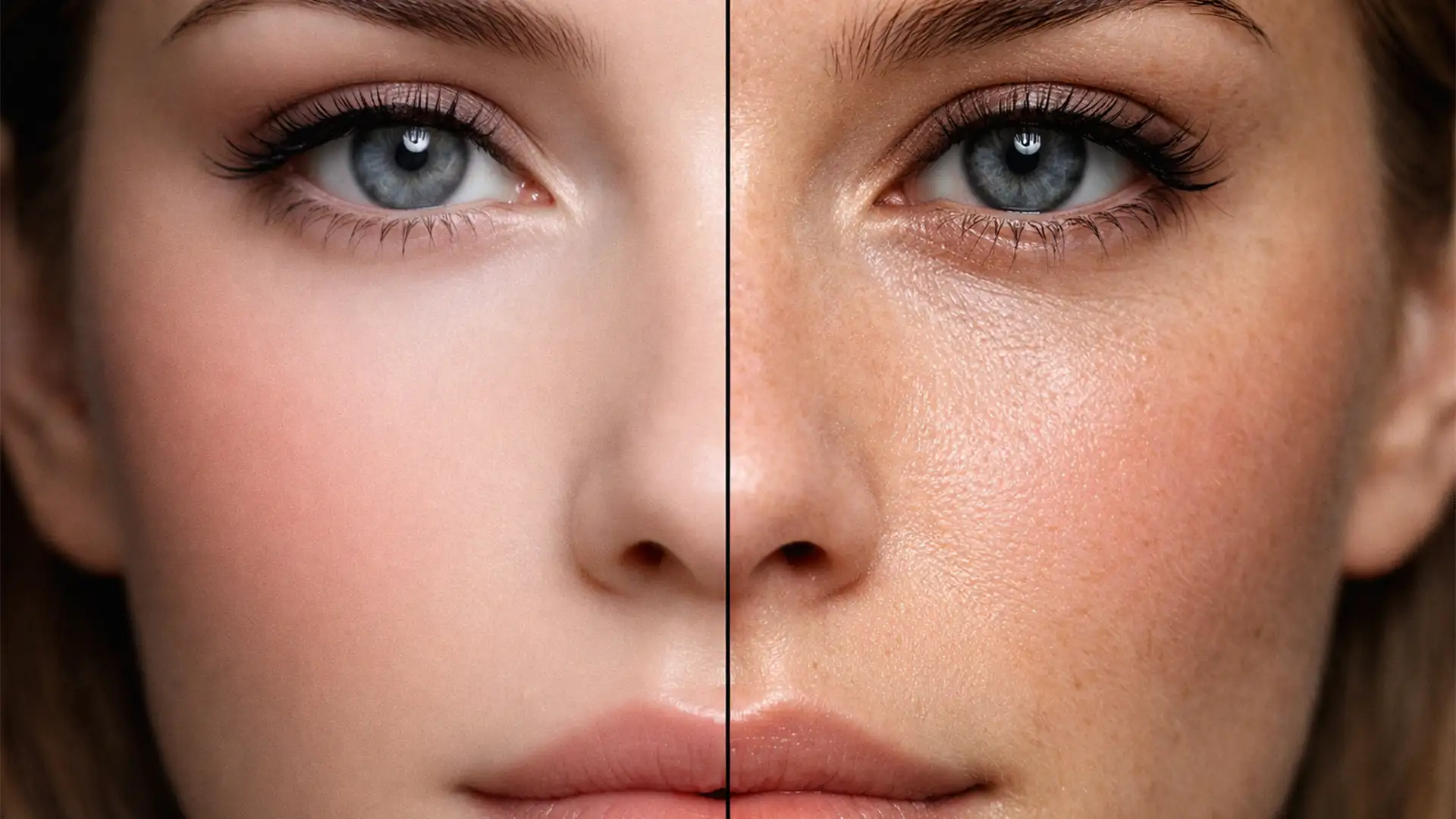
We provide pixel-perfect, human-crafted photo retouching services tailored for professional photographers, e-commerce brands, and creative agencies. Whether you need complex background removals, high-end skin retouching, or seamless composite work, our expert team delivers flawless results on time, every time-no API handshakes required.
Don’t let software bugs ruin your deadline. [Contact Image Work India today] to outsource your complex edits to our professional retouching team!