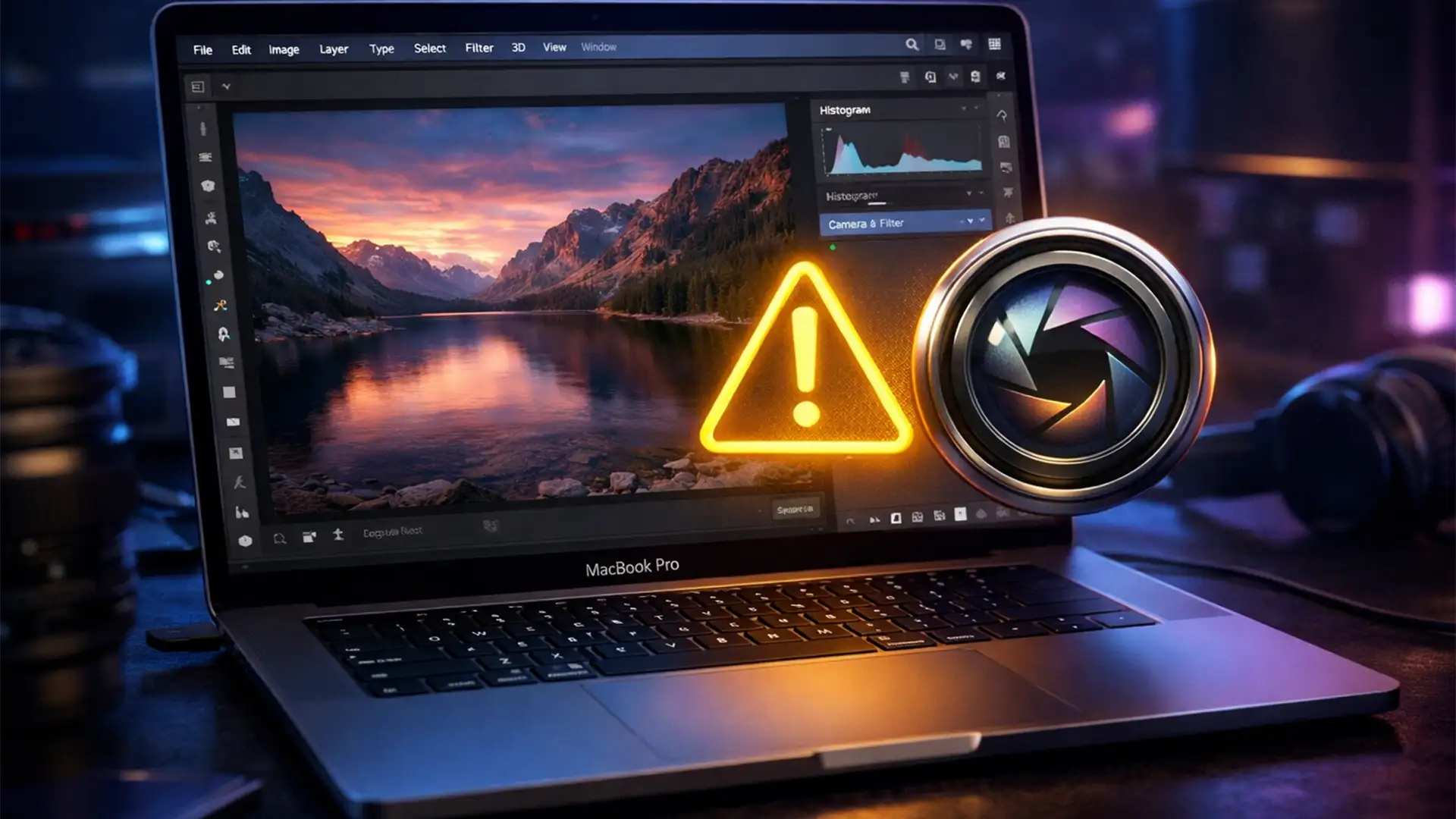

There is nothing more frustrating than being in the middle of a tight retouching deadline, hitting Cmd+Shift+A to open the Camera Raw Filter, and watching Photoshop instantly freeze. If you recently upgraded your Mac, you are likely dealing with the notorious Camera Raw Filter crash macOS Sequoia bug.
This immediate application crash-which also happens when opening raw formats like .CR3, .ARW, or .NEF-is tied to how the new operating system handles graphical rendering. Fortunately, you do not need to downgrade your OS to get back to work.
In this guide, we will walk you through exactly why this is happening and provide three proven methods to restore stability to your photo editing workflow.
Why is Adobe Camera Raw Crashing on macOS 15 Sequoia?
macOS 15 Sequoia introduced significant under-the-hood changes to the Metal API and how the system allocates memory. Unfortunately, these changes created a severe conflict with Adobe Camera Raw (ACR) versions prior to 16.5, as well as early builds of Photoshop v25 and v26.
The core issue is a GPU acceleration bottleneck. When Photoshop attempts to hand off the heavy lifting of the Camera Raw Filter to your Mac’s graphics processor, the new OS environment mishandles the driver request, resulting in an immediate crash or freeze.
Here is how to bypass this bottleneck and fix the issue.
Step-by-Step Solutions to Fix Camera Raw Crashes
Method 1: The Quick Fix (Disable GPU Acceleration)
The fastest way to stop the crashing is to prevent Camera Raw from attempting to use the conflicting GPU drivers altogether.
- Open Photoshop (do not open a document yet to prevent an immediate crash).
- Navigate to the top menu bar: Photoshop > Settings > Camera Raw.
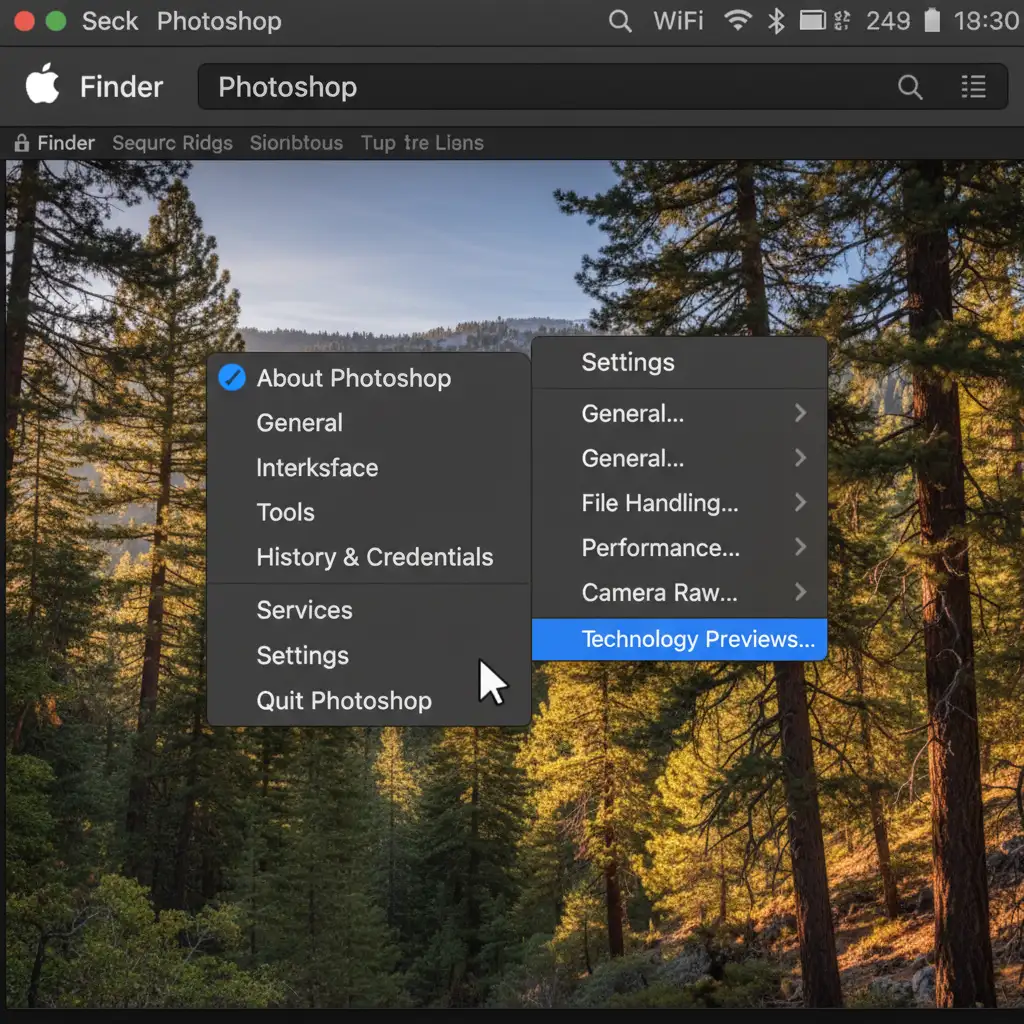
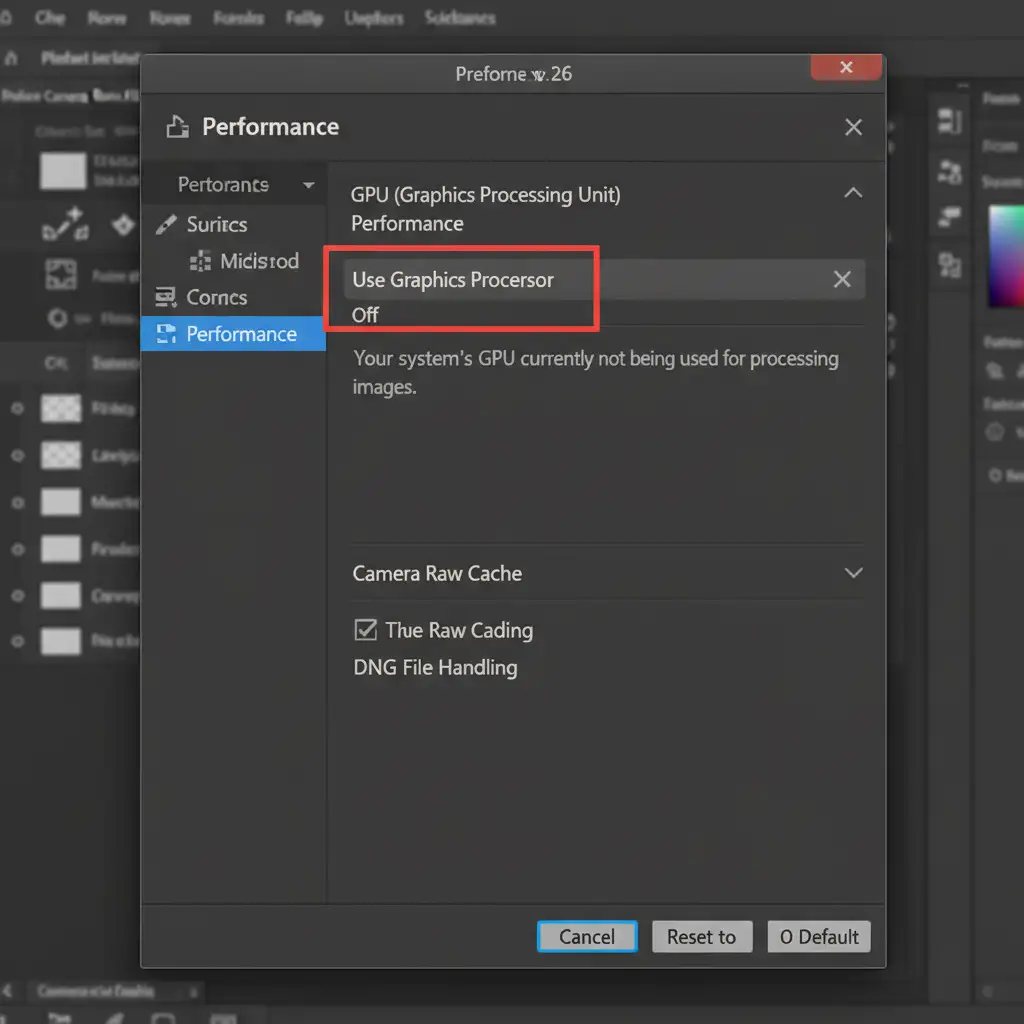
- In the Camera Raw Preferences window, locate the Performance section.
- Find the Use Graphics Processor dropdown menu.
- Change this setting from “Auto” to Off.
- Click OK and restart Photoshop.
Method 2: The Pro Workaround (Managing VRAM Limits)
If you absolutely need GPU acceleration for other tasks and only experience crashes when applying the filter to massive, complex layers, you might be hitting strict VRAM limits imposed by the OS. Try this workflow adjustment:
- Use Smart Objects: Before applying the filter, right-click your layer and select Convert to Smart Object. This encapsulates the data and sometimes bypasses the rendering crash.
- Work in Sections: If the Smart Object still crashes, apply your basic edits via standard adjustment layers, rasterize the layer, and use the Camera Raw Filter selectively on smaller, marquee-selected sections of the image to keep VRAM usage low.
Method 3: The Technical Deep-Dive (Permissions & Cache)
If tweaking the GPU settings doesn’t fully resolve the freezing, the issue may stem from corrupted temporary files or macOS Sequoia aggressively blocking Photoshop’s read/write permissions.
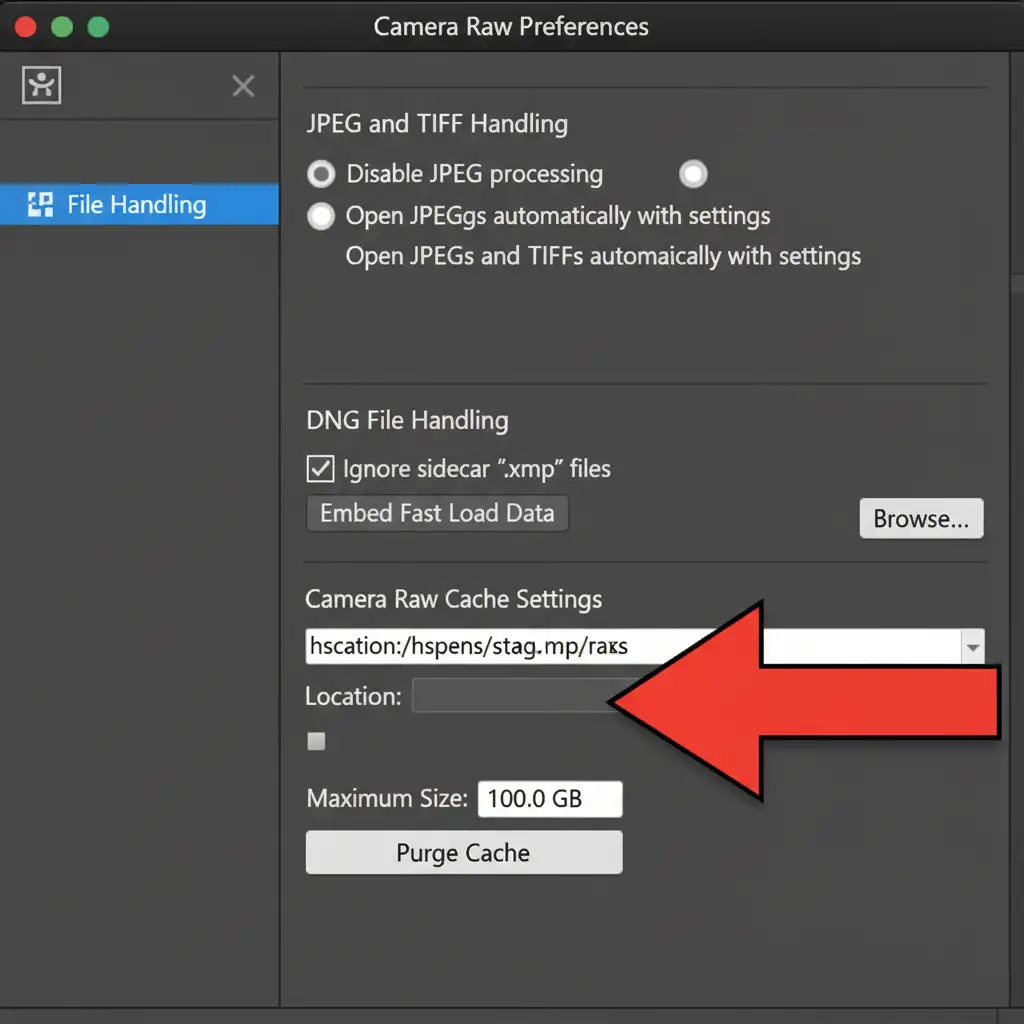
Step A: Purge the ACR Cache Corrupted cache files from a previous OS version can trigger instability.
- Go to Settings > Camera Raw > File Handling.
- Click the Purge Cache button to clear out old data. (Note: If the application is entirely unresponsive, a full Photoshop Preferences reset upon launch might be necessary).
Step B: Grant Full Disk Access macOS 15 Sequoia has stricter security protocols. If Photoshop cannot write temporary scratch files, it will halt.
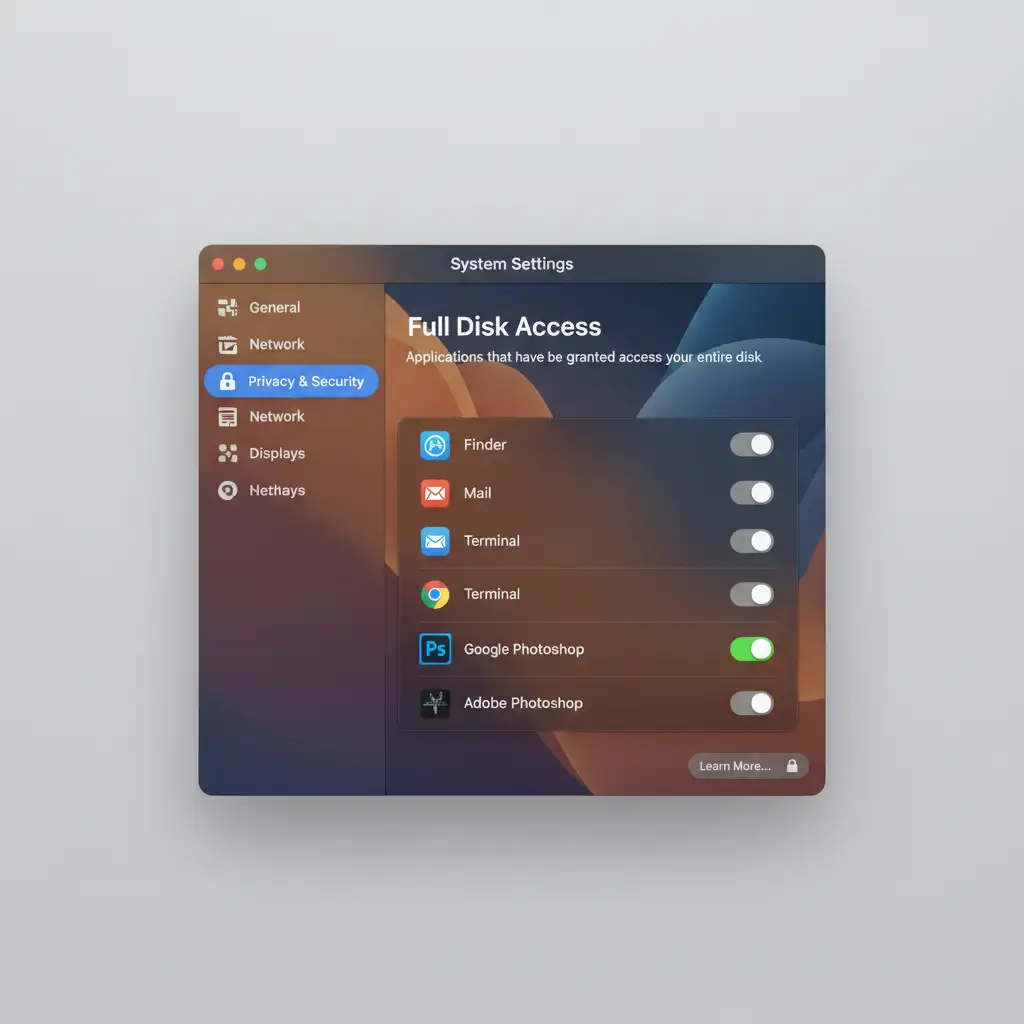
- Open your Mac’s System Settings.
- Navigate to Privacy & Security > Full Disk Access.
- Scroll down the list, locate Adobe Photoshop, and ensure the toggle switch is turned ON.
Step C: Update Your Software Finally, ensure you are running the latest patches. Adobe has actively addressed these Metal API conflicts. Update Photoshop to v26.0 or higher and Adobe Camera Raw to 17.0 or higher via the Creative Cloud Desktop app.
Still Struggling with Post-Production Bottlenecks?
Software bugs like the Camera Raw Filter crash on macOS Sequoia can derail your productivity, costing you valuable time and money. When you are fighting with your software, you aren’t focusing on growing your photography business or delivering stunning results to your clients.
You don’t have to do it all yourself.
At Image Work India and Cloud Retouch, we specialize in high-volume, professional photo editing. From advanced color correction and complex compositing to meticulous high-end retouching, our expert team handles the technical heavy lifting so you don’t have to.
Stop wrestling with crashes and VRAM limits. Contact Image Work India today to outsource your post-production and get back to doing what you do best-capturing incredible images.