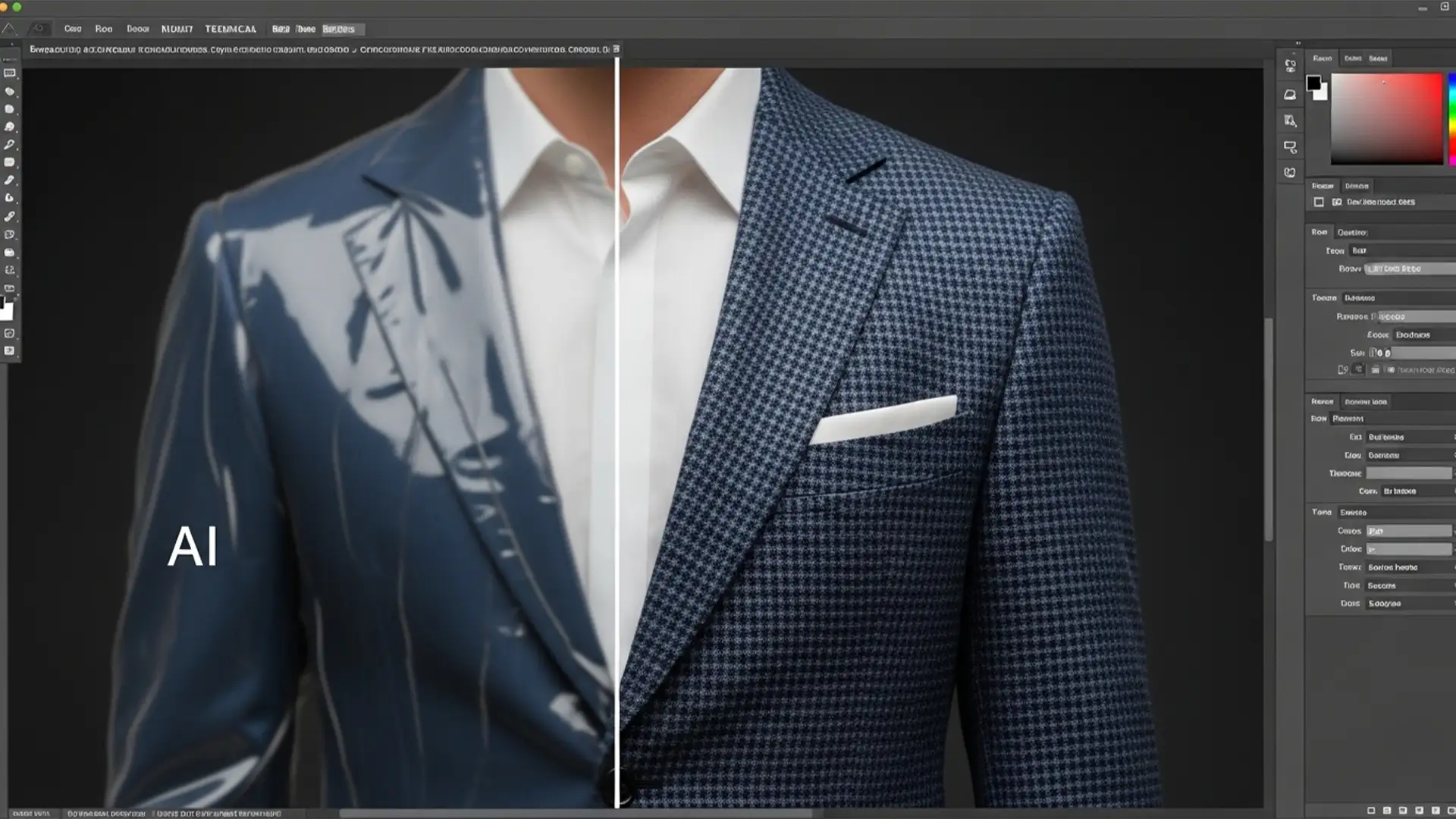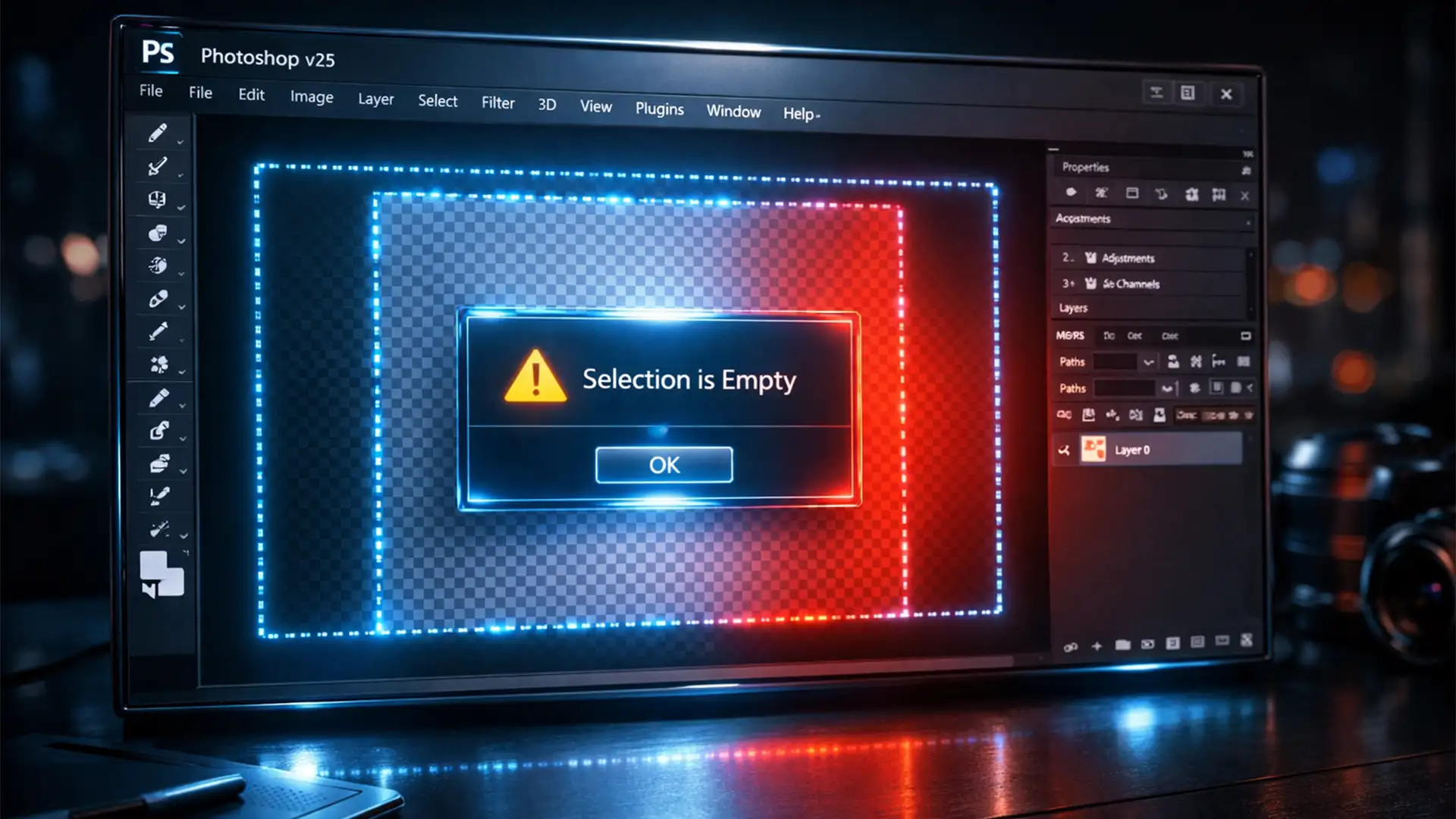

You are deep into a complex edit, you draw the perfect outline with the Lasso tool, click Generate, and boom-you are hit with an error. It is incredibly frustrating to see the marching ants clearly active on your screen, yet the software refuses to cooperate. This specific glitch in Photoshop v25.0 and newer brings professional workflows to a grinding halt.
But don’t panic. The issue almost always boils down to hidden transparency settings or aggressive feathering that drops pixel data below a critical 50 percent opacity threshold. In this guide, we will break down exactly how to apply the Photoshop Generative Fill selection is empty fix so you can get your AI-powered edits back on track in seconds.
Why You Keep Getting the “Selection is Empty” Error
To understand the fix, you first need to understand how Adobe’s Firefly AI engine processes data. When you use Generative Fill, the AI engine scans the pixels inside your selection to understand the context, lighting, and texture of your image.
If it detects zero active pixels within your selection boundaries, it throws the “Selection is Empty” error. This typically happens for two reasons:
- Working on a Blank Layer: You are trying to make a selection on a transparent, empty layer without telling Photoshop to look at the image layers underneath.
- Excessive Feathering: You are using a selection tool with a Feather radius that is too large. If the feathering causes the selection’s maximum opacity to drop below the 50 percent opacity threshold, the marching ants become invisible, and Photoshop registers the selection as too weak to process.
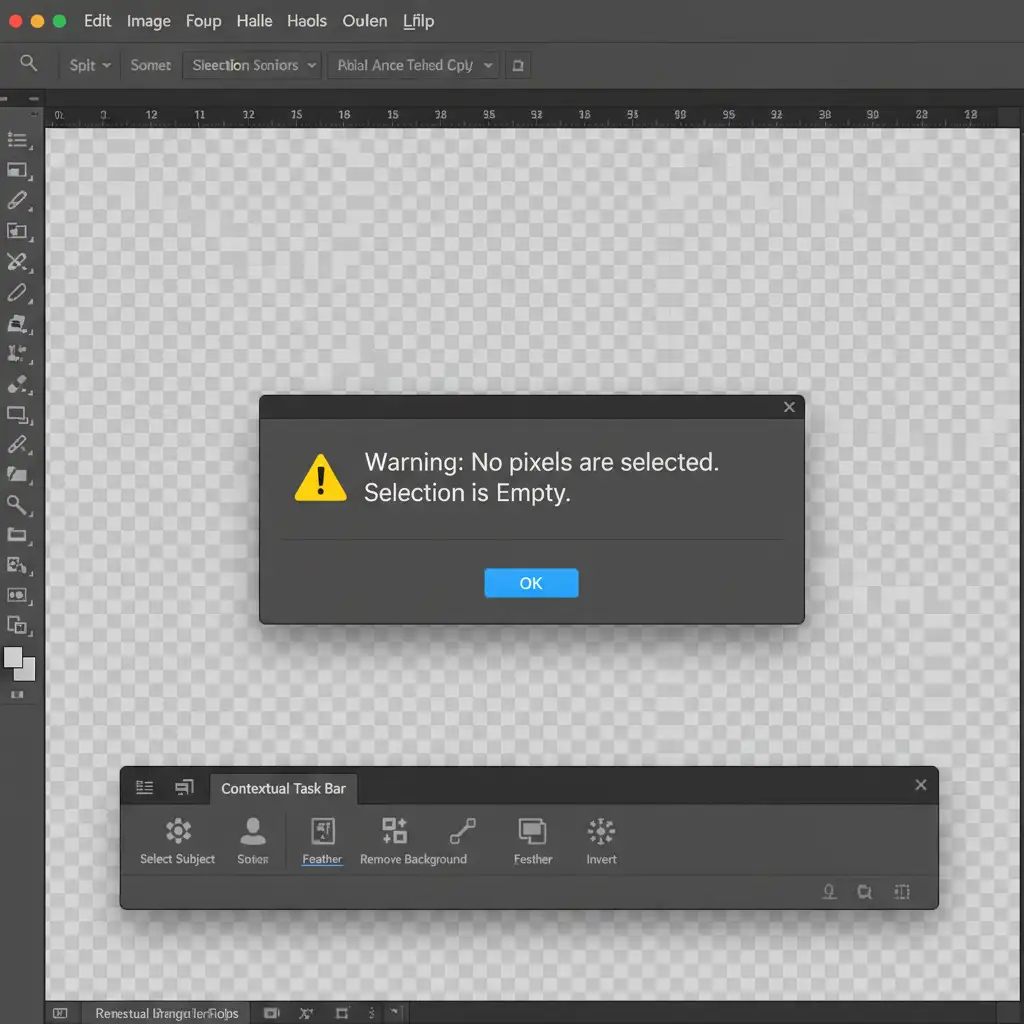
How to Fix the Photoshop Generative Fill Selection is Empty Error
Whether you are dealing with a simple layer mistake or a deeper software glitch, here are the three proven methods to resolve this issue.
Method 1: The Quick Fix (Enable “Sample All Layers”)
The most common culprit behind this error is attempting to use Generative Fill on a brand-new, non-destructive blank layer. By default, your selection tools only look at the currently selected layer. If that layer has no pixels, Photoshop sees nothing.
The Fix:
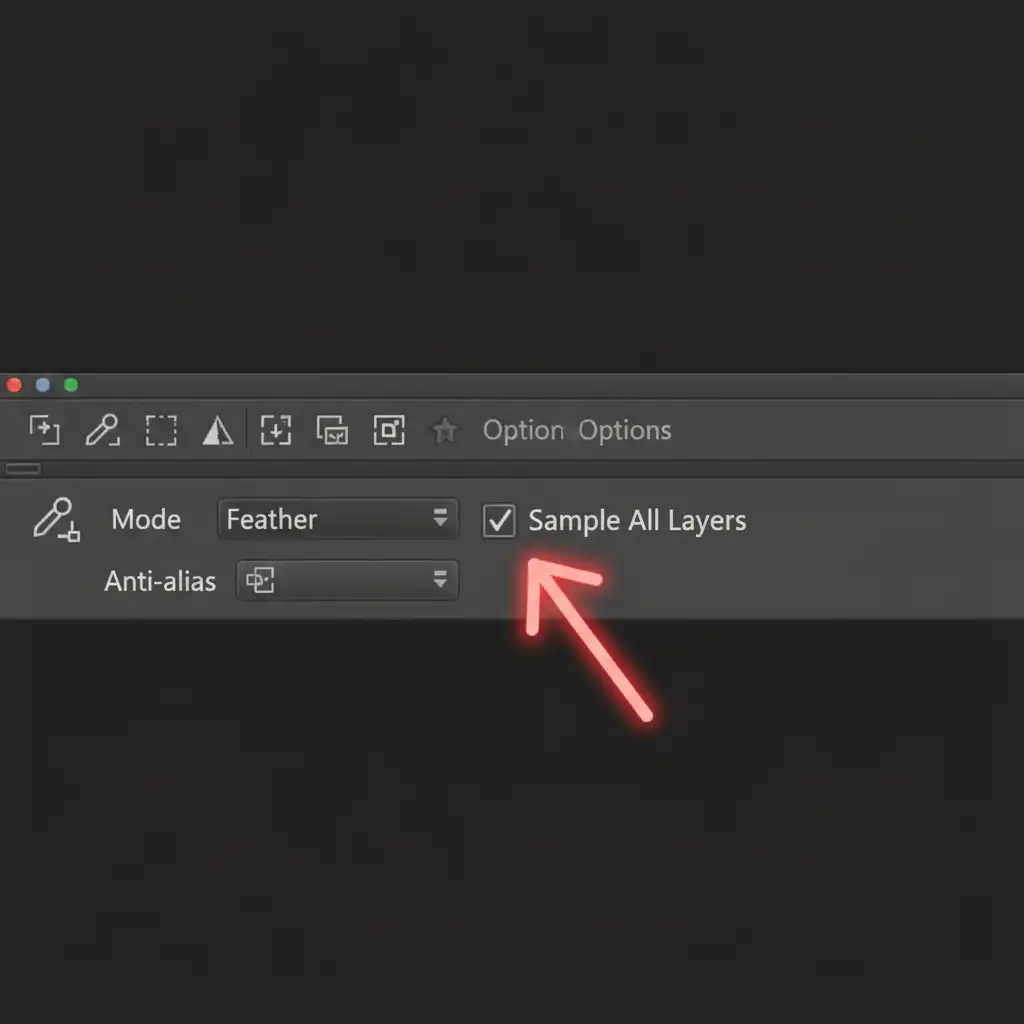
- Select your preferred tool (like the Lasso tool or Magic Wand).
- Look at the top Options Bar.
- Check the box that says Sample All Layers.
Now, even if you are on an empty layer, Photoshop will read the pixel data from the active pixel layer directly beneath it, feeding the necessary information to the Firefly AI engine.
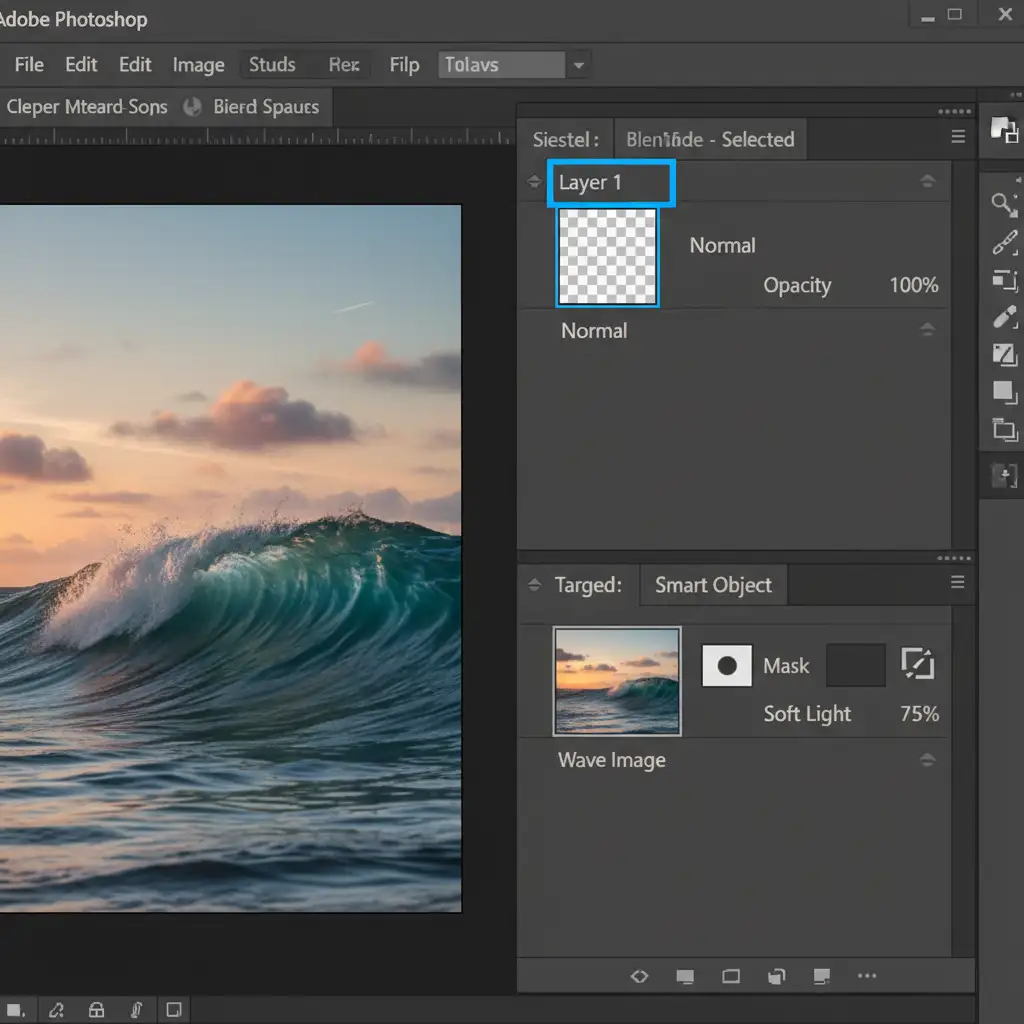
Alternatively, simply click on your active pixel layer in the Layers Panel before drawing your selection.
Method 2: The Pro Workaround (Verify with Quick Mask Mode)
If you have selected a layer with pixels but are still getting the error, your Feather radius is likely the problem. High feathering creates soft edges, but if the core of your selection drops below 50% opacity, Photoshop ignores it.
The Fix:
- Draw your selection as you normally would.
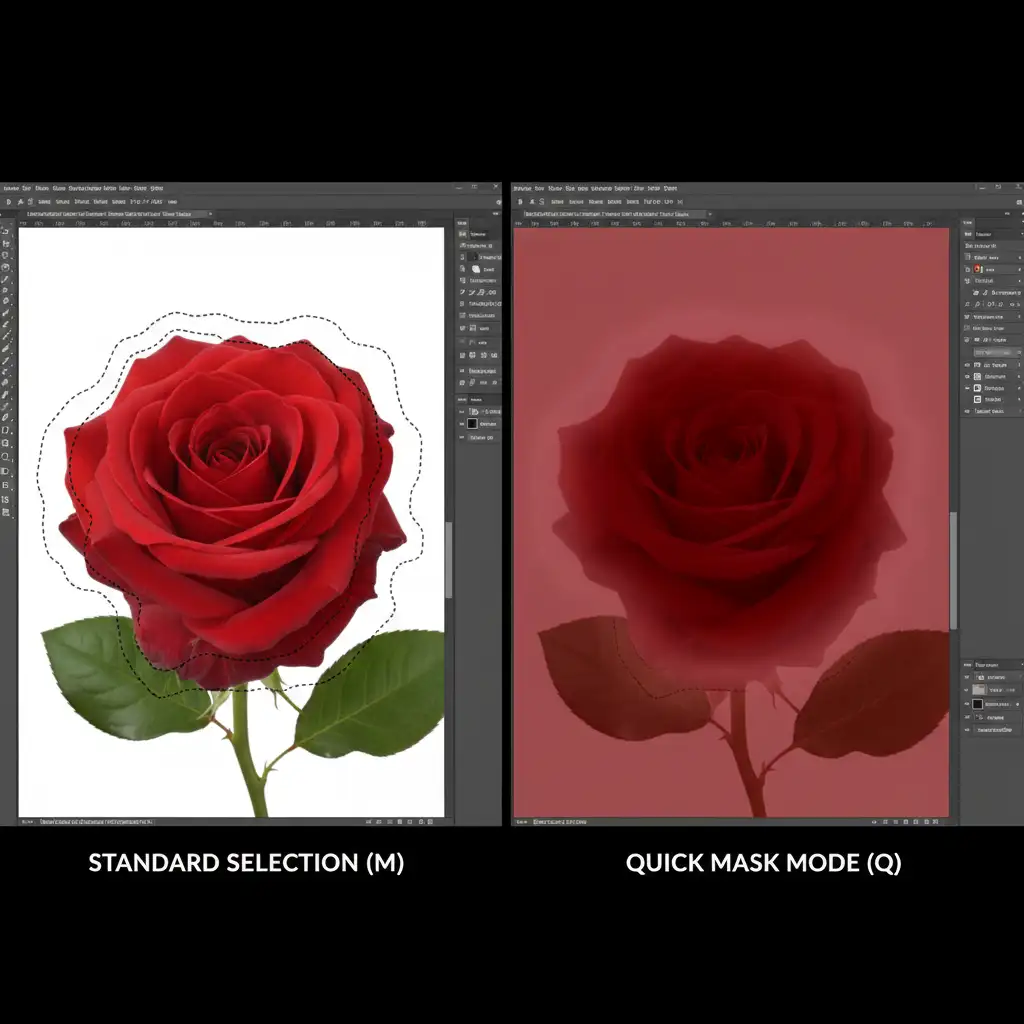
- Press ‘Q’ on your keyboard to enter Quick Mask Mode.
- Look at the red overlay on your screen. This overlay represents the true opacity and feathering of your selection.
- If the red overlay is extremely faint or barely visible, your Feather setting is too high.
- Press ‘Q’ again to exit Quick Mask Mode.
- Go to your top Options Bar, lower your Feather radius to 0px, and redraw the selection.
Method 3: The Technical Deep-Dive (Clear Cache and Reset Tools)
If your active layer has pixels, your feathering is set to zero, and the “Sample All Layers” box is checked, you are likely experiencing a Contextual Task Bar or cache glitch. Early releases of Photoshop v25 had known Firefly API syncing bugs that caused false empty selection warnings.
The Fix:
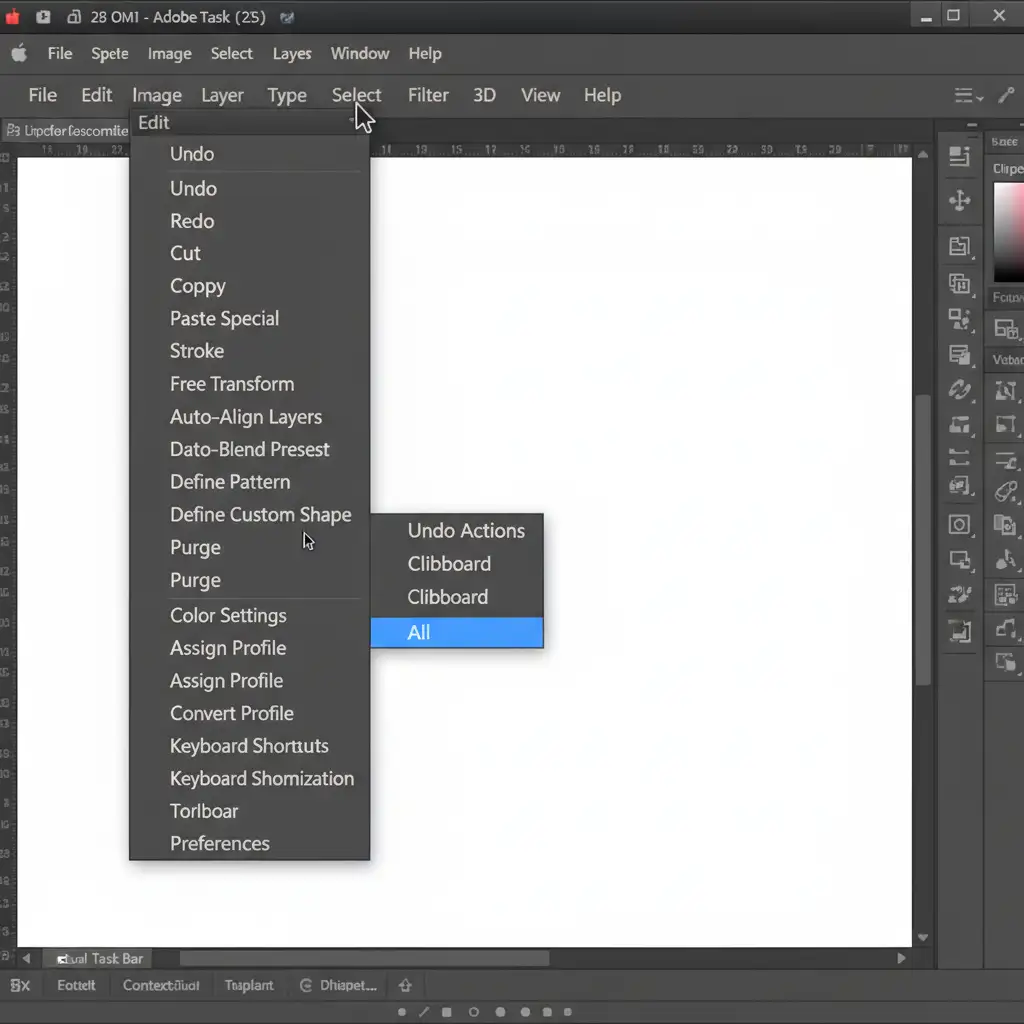
- Purge the Cache: Go to Edit > Purge > All. This clears your clipboard and software cache, forcing Photoshop to dump any corrupted temporary data.
- Reset Your Tools: Right-click the tool icon (e.g., the Lasso tool) in the top-left corner of the Options Bar and select Reset Tool. This restores factory default settings, clearing out invisible bugs.
- Update Photoshop: Open your Creative Cloud desktop app and ensure you are running the absolute latest build of Photoshop. Adobe frequently patches Firefly API syncing bugs in minor point updates.
Scale Your Image Editing with Image Work India & Cloud Retouch
Troubleshooting a Photoshop Generative Fill selection is an empty fix that takes time-time that you could be spending shooting new campaigns, acquiring clients, or scaling your creative agency. When AI tools fail or require constant hand-holding, your production pipeline suffers.
Spend less time debugging AI errors and more time growing your business. Partner with Image Work India and Cloud Retouch for flawless, high-volume professional image editing. From complex clipping paths and high-end retouching to seamless composite work, our expert team delivers pixel-perfect results without the software headaches.
Ready to streamline your workflow? Contact us today to see how we can elevate your post-production process.