
If you’ve tried to automate Adobe Firefly AI in Photoshop v25.0 or newer, you’ve likely hit a frustrating wall. Standard Photoshop Actions (.atn) are practically useless for this specific task. Why? Because they record exact selection coordinates and static text prompts. If you run a standard action across a folder of differently sized images, you end up with misplaced fills, distorted crops, or the exact same generated pixels on every single photo.
To truly execute a batch process Generative Fill Photoshop script, you must bypass these hardcoded limitations. In this technical guide, we will show you how to leverage ExtendScript and UXP plugins to calculate dynamic selections and pass string prompts to the Generative Fill API programmatically, saving you hundreds of hours of manual editing.
Why Standard Photoshop Actions Fail with Generative Fill
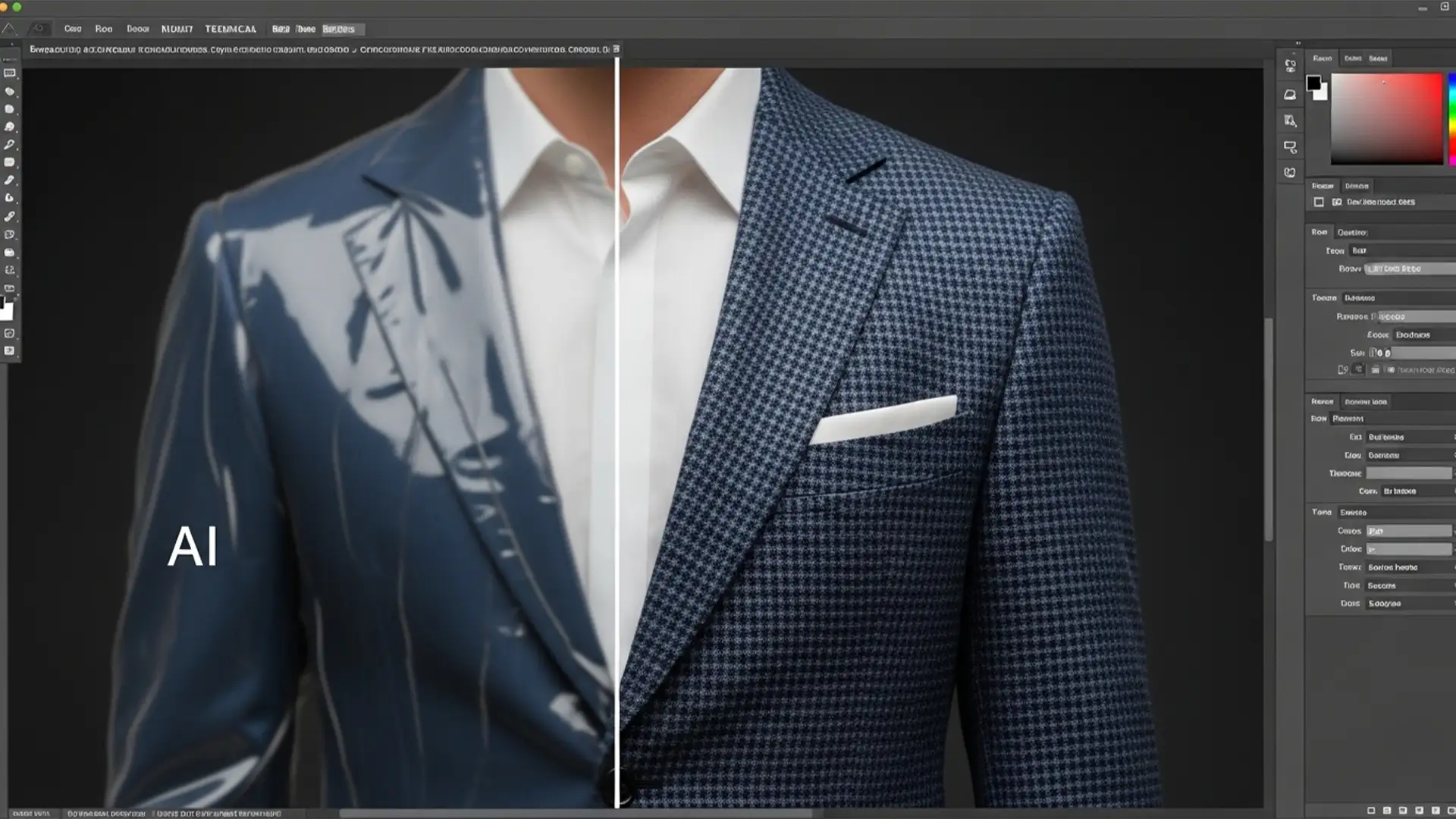
When you use the Contextual Task Bar to apply Generative Fill, Photoshop records the exact pixel dimensions of your marquee or lasso tool. When applied via standard batch processing, a 4000x3000px coordinate applied to a 1080x1080px image results in catastrophic errors. Furthermore, the AI prompt automation fails because standard Actions cannot dynamically adapt their text inputs based on the image content.
To solve this, we must move beyond basic Actions and utilize scripting. Here are three methods, ranging from a quick interactive workaround to a fully automated technical solution.
3 Ways to Batch Process Generative Fill in Photoshop
Method 1: The Quick Fix (Interactive Action)
If you don’t want to write code, you can create a semi-automated workflow by forcing your Photoshop Action to pause for user input. This won’t run completely unattended, but it drastically speeds up repetitive tasks.
- Create a new Action and record a dynamic selection (e.g., Select > Subject, followed by Select > Inverse).
- Apply Generative Fill and type your prompt. Stop recording.
- In the Actions panel, locate the square box next to the Generative Fill step and click it to Toggle Dialog On.
- Run this via File > Automate > Batch.
The batch process will open each image, make the selection automatically, and pause at the Generative Fill step. You can rapidly hit “Enter” to accept the default prompt or quickly type a new one without having to manually select the background every time.
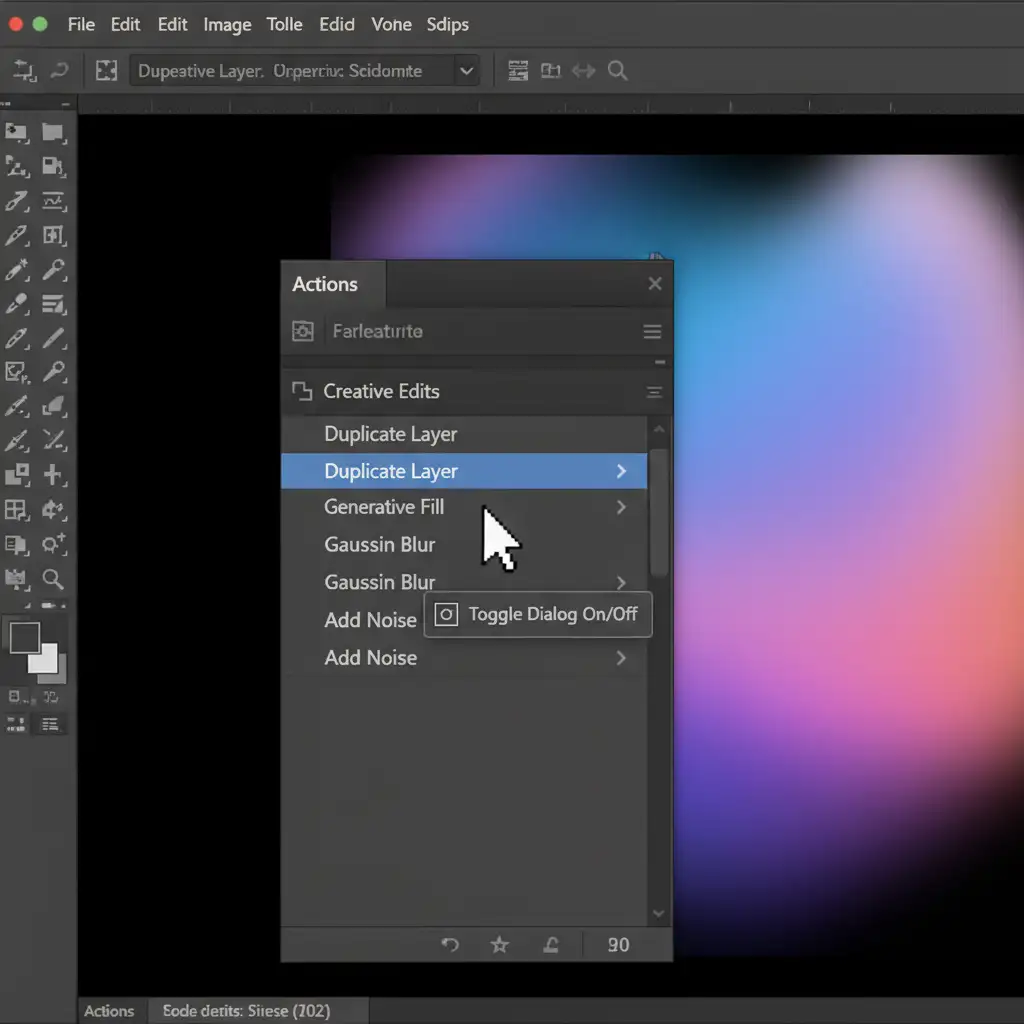
Method 2: The Pro Workaround (ExtendScript JSX Loop)
For true unattended automation, you need to use a custom JavaScript (.jsx) file. ExtendScript allows you to mathematically calculate the canvas size and pass dynamic commands to the AI engine.
To do this, developers rely on ScriptingListenerJS, a plugin that records the raw charID and stringID of Photoshop commands-including the Generative Fill executeAction command.
You can write a JSX script that:
- Loops through a designated source folder.
- Opens each file and automatically selects the transparent or background areas.
- Executes the Generative Fill command with a hardcoded text prompt passed programmatically.
- Flattens the image and saves it to an output folder.
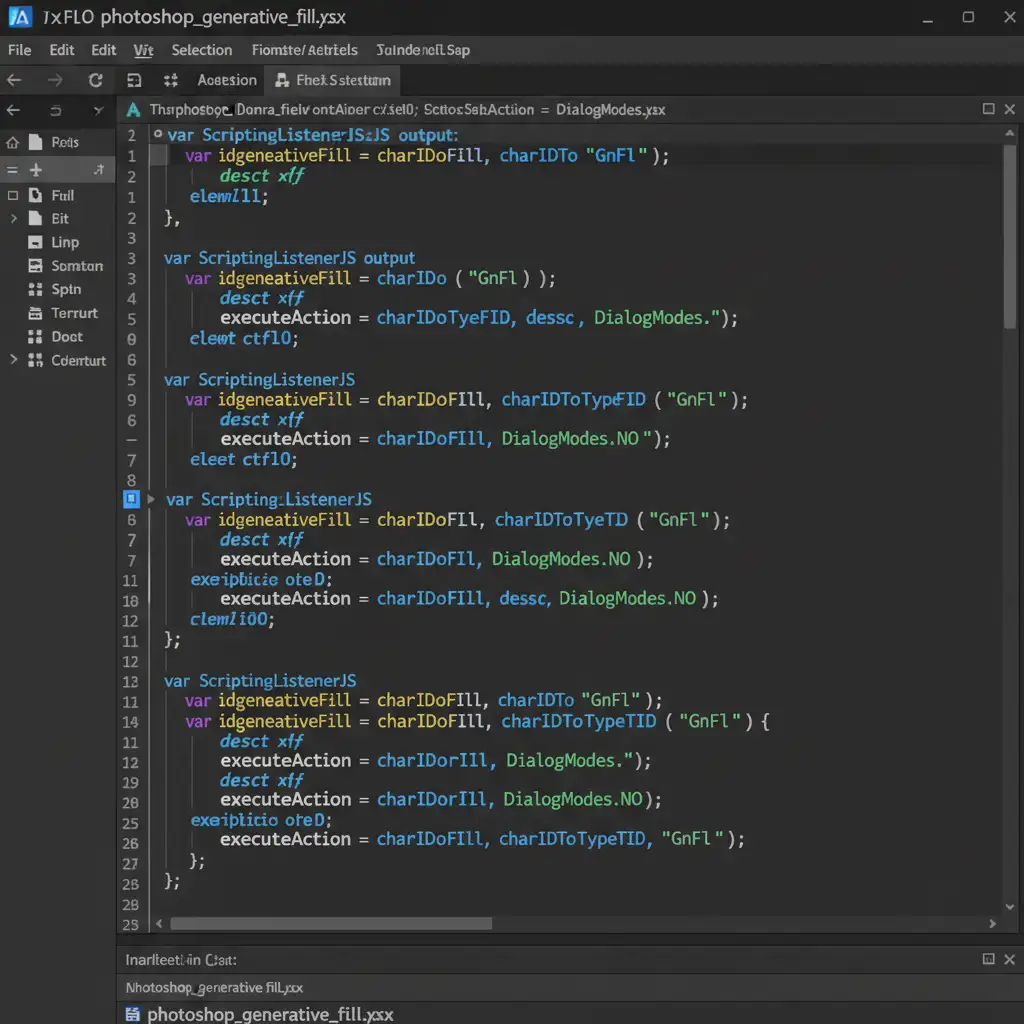
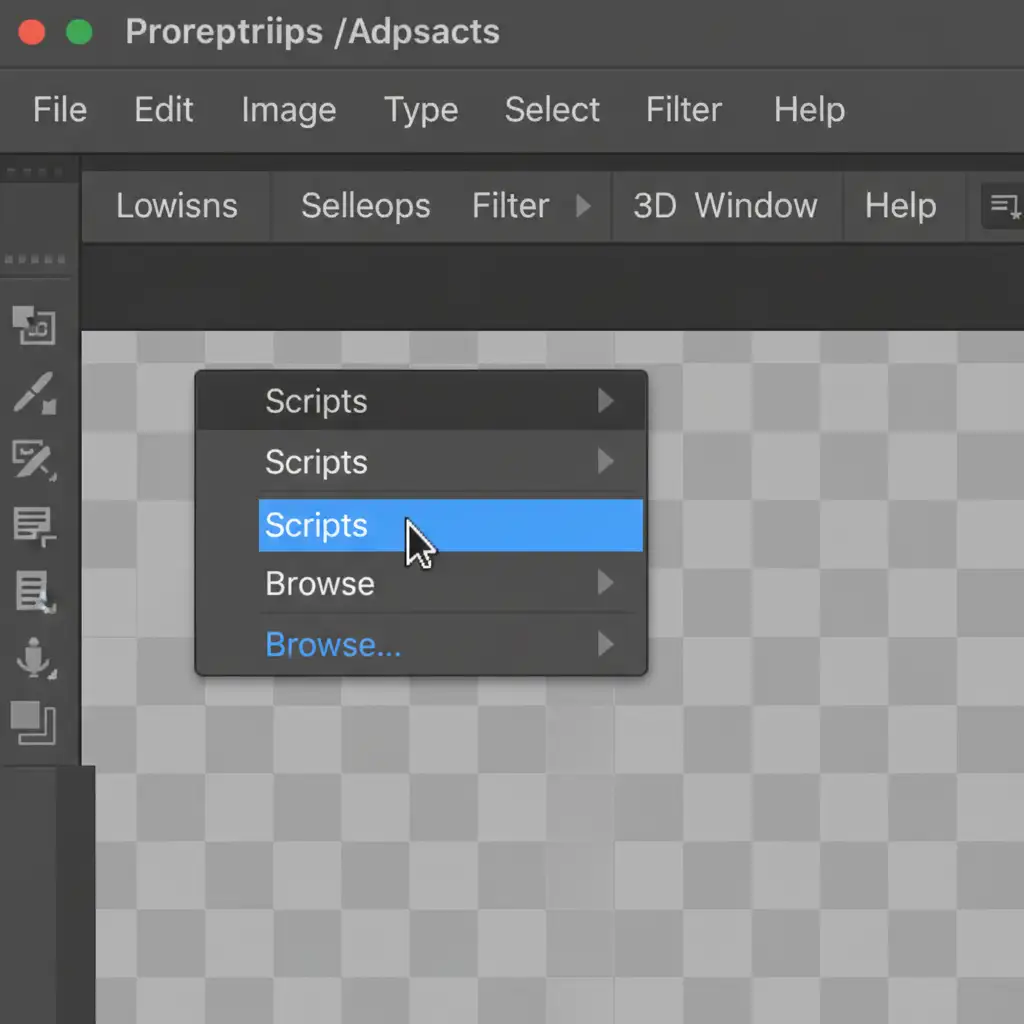
To run this script, simply navigate to File > Scripts > Browse in Photoshop and select your newly created .jsx file.
Method 3: The Technical Deep-Dive (UXP Plugin for Asynchronous Batching)
While Method 2 works, it has a fatal flaw at high volumes: ExtendScript can timeout.
Generative Fill relies on Adobe Firefly AI, which requires cloud processing. Because ExtendScript is synchronous, it waits for the cloud server to respond. If the server takes too long, Photoshop freezes or the script crashes.
The ultimate solution is building a UXP Plugin. The Unified Extensibility Platform (UXP) supports modern JavaScript and asynchronous operations. By using require(‘photoshop’).core.executeAsModal, you can handle the asynchronous nature of the Firefly API.
This method allows the UXP plugin to:
- Await the cloud response without freezing the Photoshop UI.
- Run complex logic-based batch generation overnight.
- Handle API errors gracefully and move on to the next image if a generation fails.
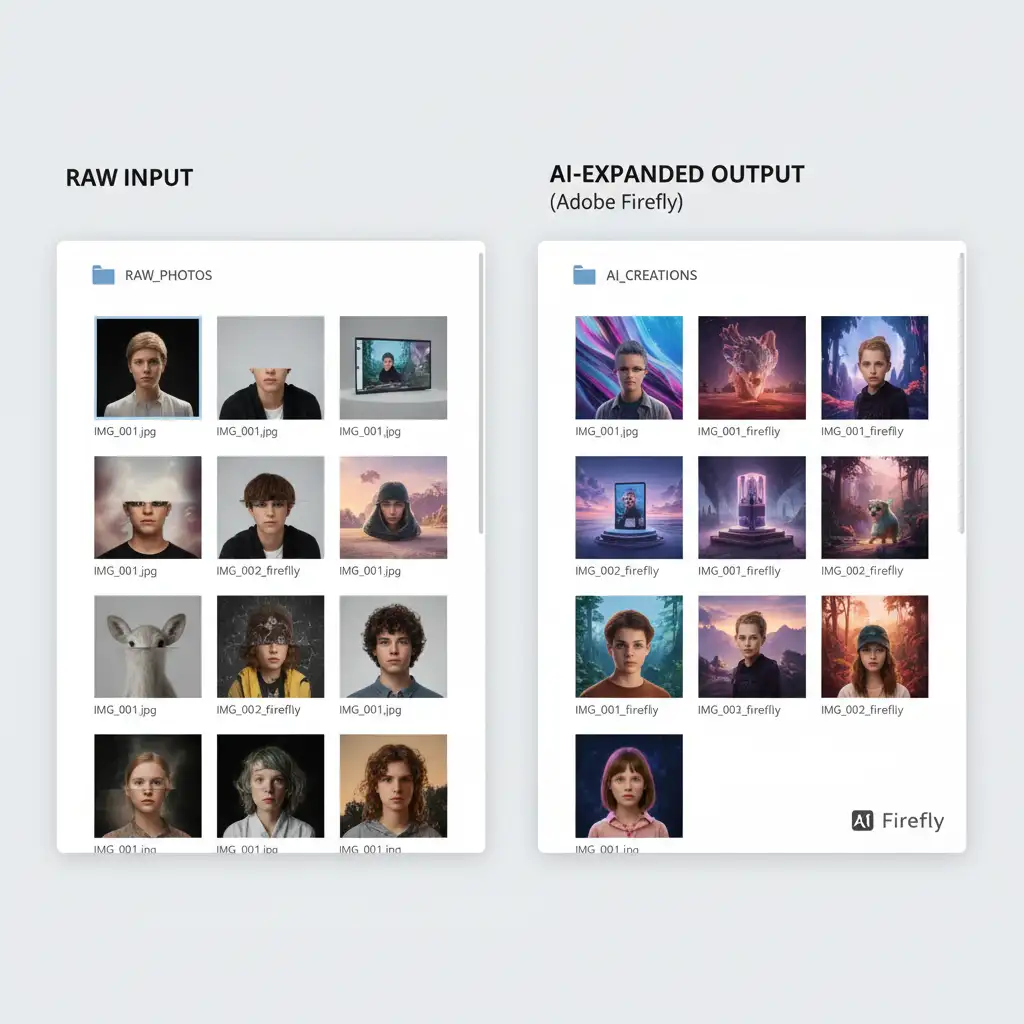
Automate Your High-Volume Retouching with the Pros
Figuring out how to write a custom batch process Generative Fill Photoshop script using UXP and executeAsModal commands requires significant development time and coding expertise. If a single line of your JSX script is off, your entire overnight batch process could fail.
Struggling to scale your AI photo editing? Save hundreds of hours by letting the experts at Image Work India and Cloud Retouch handle it. We specialize in building custom automation workflows and executing high-volume, pixel-perfect retouching for e-commerce, real estate, and commercial photography.
Don’t let software limitations slow your business down. Contact Image Work India and Cloud Retouch today, and let us streamline your post-production pipeline.