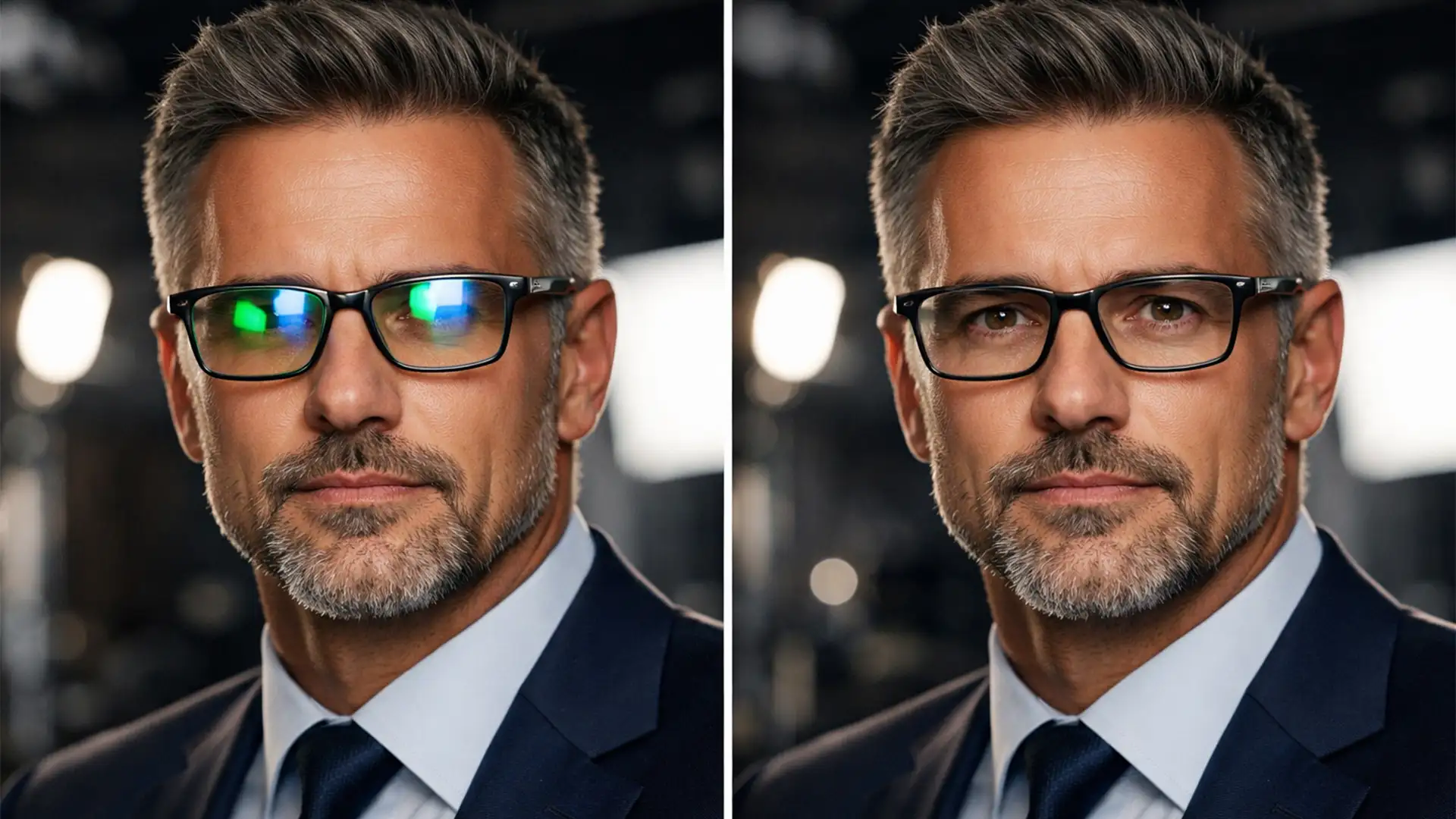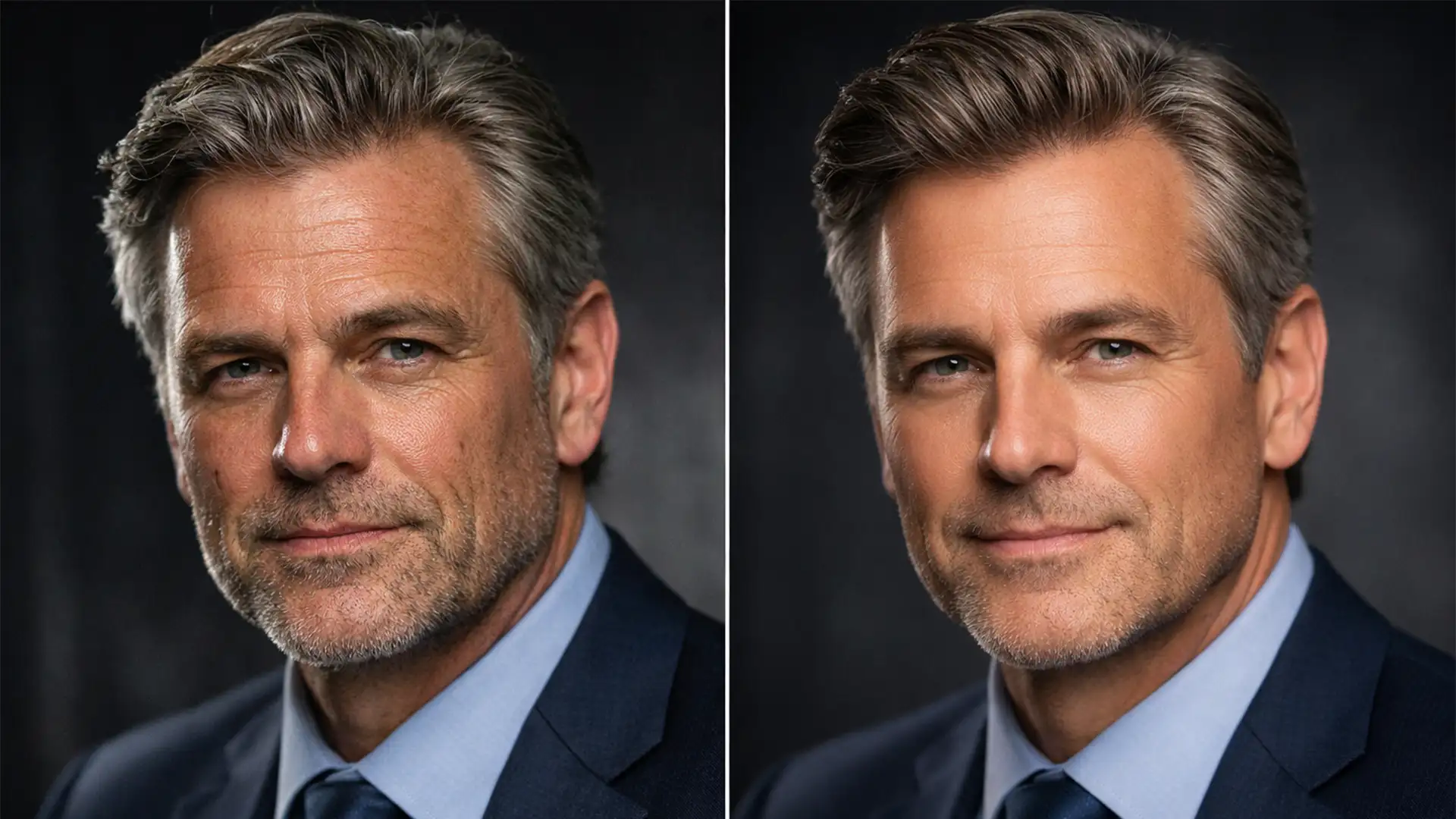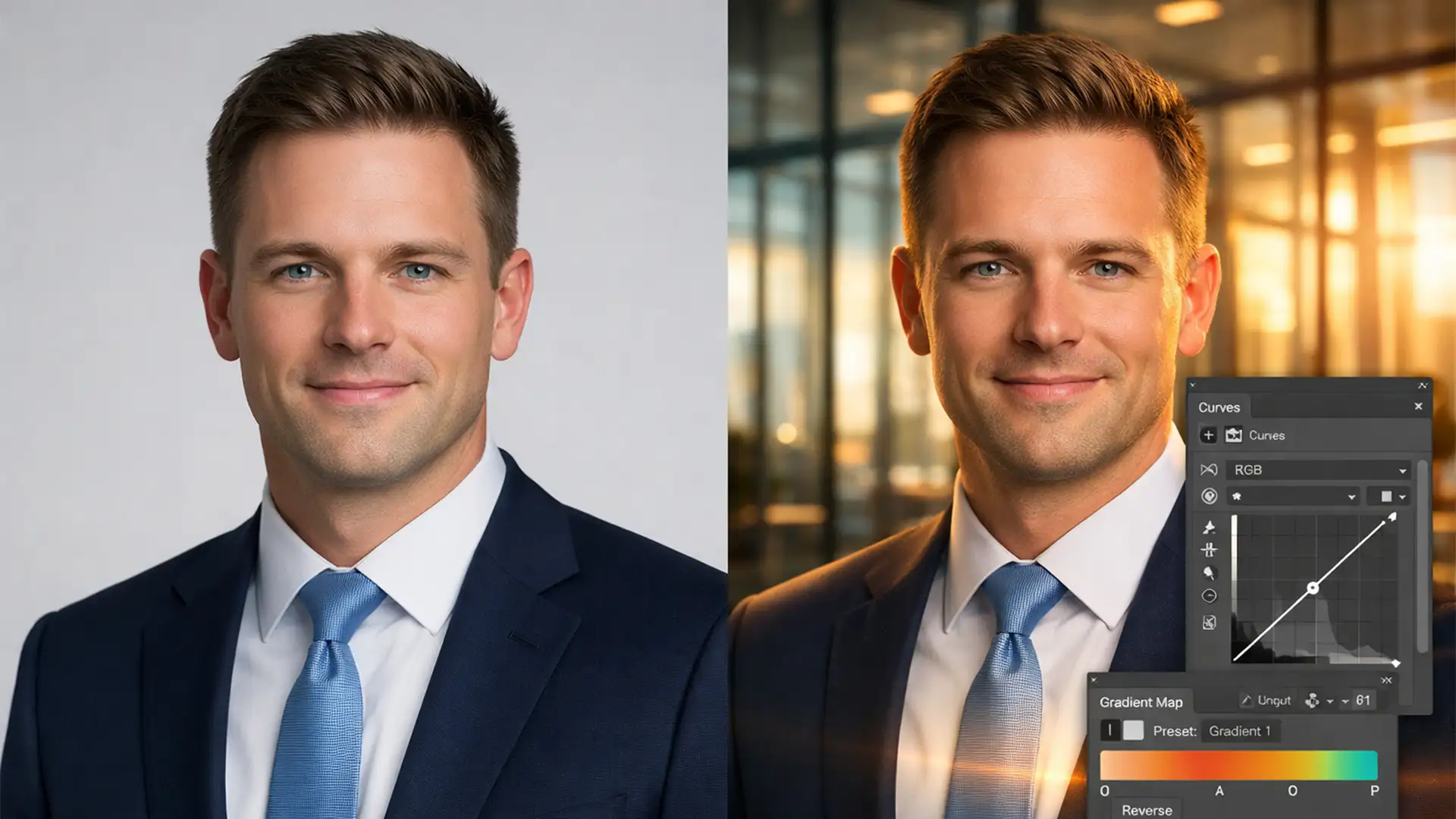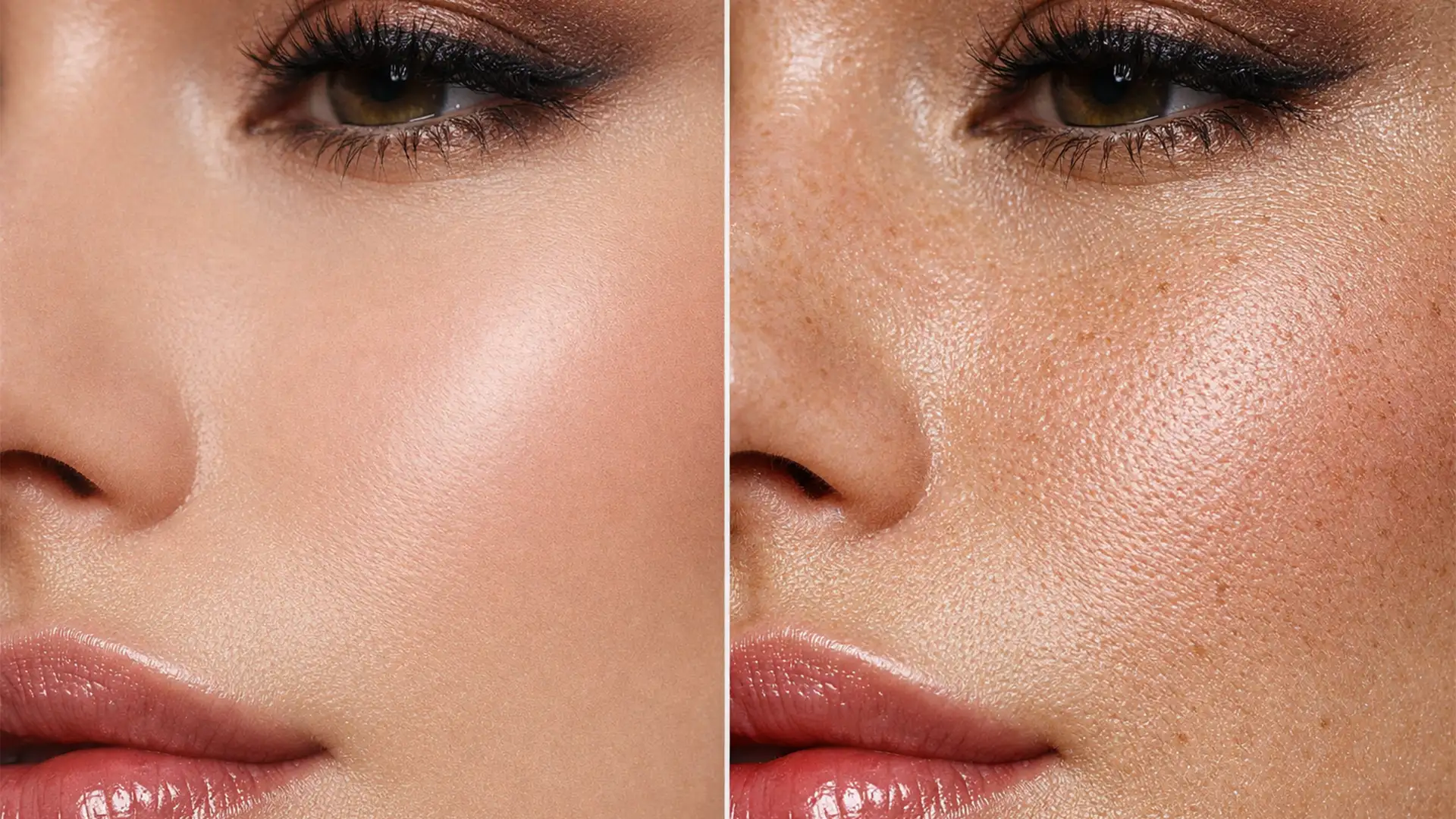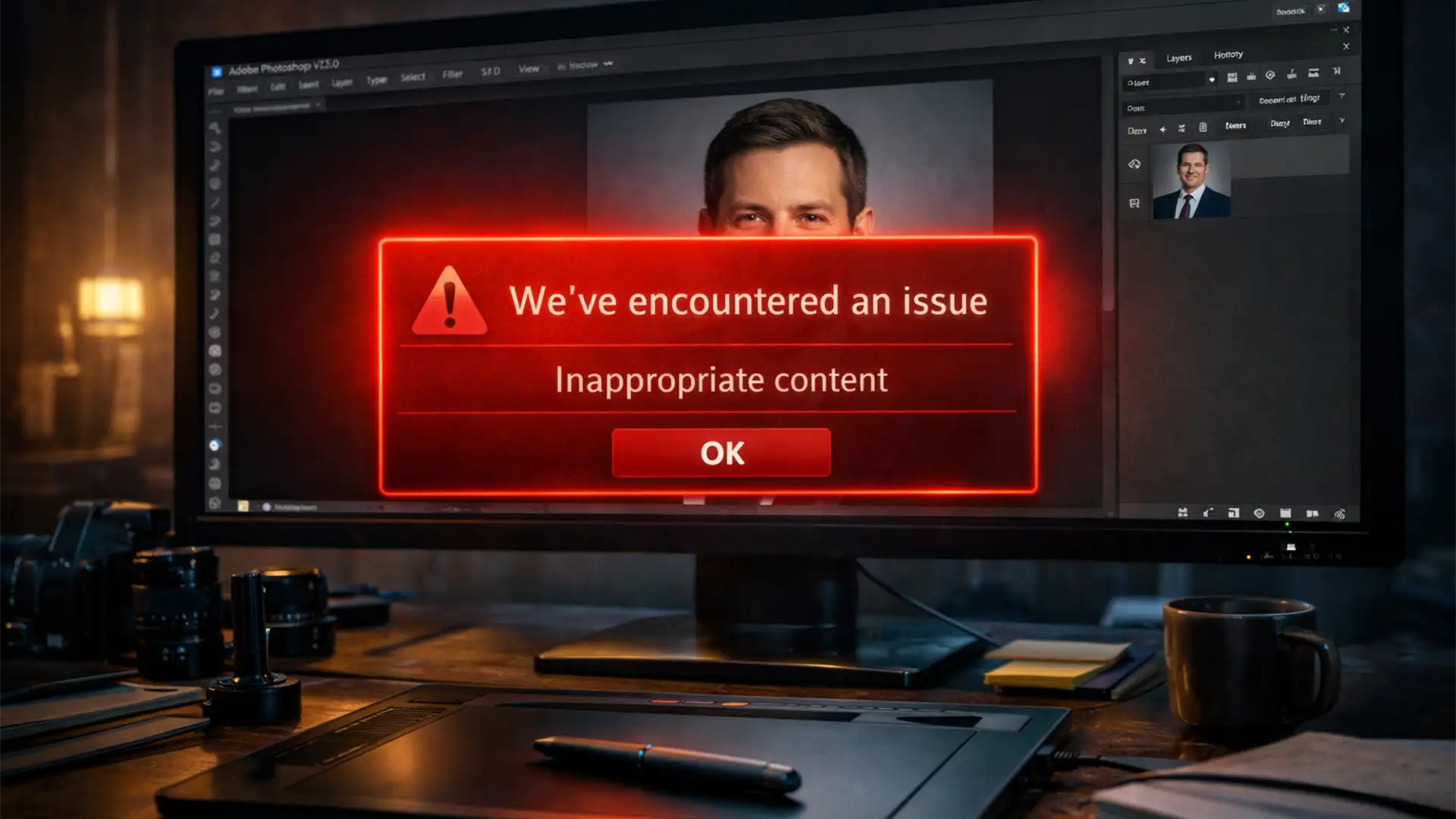

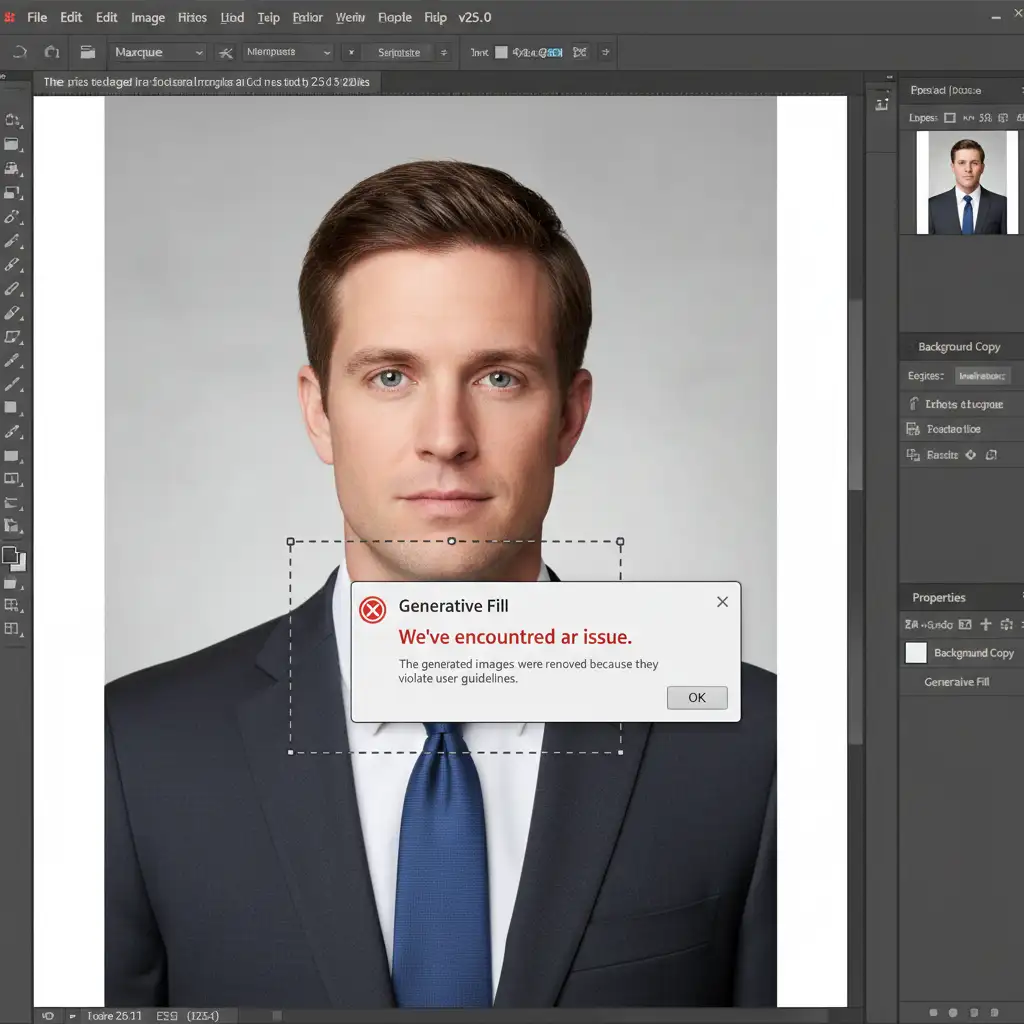
You are finalizing a high-end corporate portrait, and you select a small area near the subject’s collarbone to remove a distracting shadow. You click Generative Fill, but instead of a clean edit, you are hit with a glaring red warning: “We’ve encountered an issue.”
If you do professional skin retouching in Photoshop v25.0 or newer, you have likely run into this exact wall. Adobe Firefly’s aggressive safety guidelines often trigger false positives on bare skin, necklines, and shoulders, halting your workflow entirely.
Fortunately, you do not have to abandon modern tools. In this guide, we will show you exactly how to bypass generative fill inappropriate content for headshots using proven workarounds, clever prompt engineering, and reliable legacy fallback techniques.
Why Does Photoshop Flag Normal Headshots?
The core of the issue lies in Adobe Firefly, the engine powering Photoshop’s Generative AI features. To prevent the creation of NSFW material, Adobe implemented strict, hardcoded safety guidelines.
However, the AI lacks contextual nuance. It frequently misinterprets natural skin tones, shadows, or benign text prompts (like “smooth skin” or “fix collar”) as violations. This results in a false positive, effectively locking you out of using the tool on perfectly safe, professional portraits.
How to Bypass Generative Fill Inappropriate Content for Headshots
When the AI filter becomes overly aggressive, you need reliable methods to sidestep the cloud censorship. Here are three professional techniques to keep your non-destructive editing workflow moving.
Method 1: The “Silent” Approach (Blank Prompts)
The easiest way to trigger a false positive is by using anatomical words in your text prompt. Words like “skin,” “neck,” or “chest” will almost immediately flag the system.
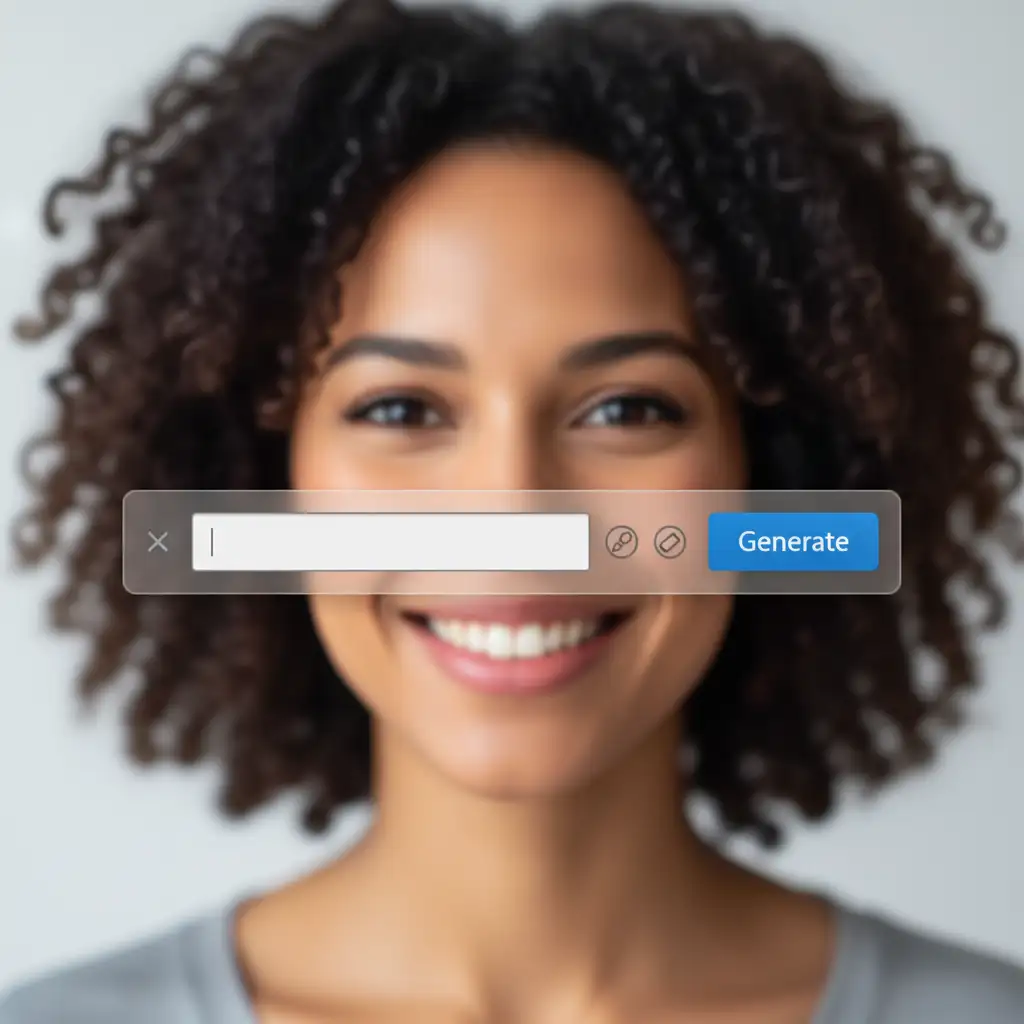
The Fix: Leave the prompt completely blank.
Photoshop’s contextual AI is highly adept at analyzing surrounding pixels. By leaving the text field empty and simply clicking “Generate,” the software will often accurately guess the required fill without running your request through the text-based censorship filter.
If you absolutely must use text to guide the generation, practice clinical prompt engineering. Use non-anatomical terms. Instead of “fix shirt on shoulder,” use “fabric texture.”
Method 2: The “Divide and Conquer” Micro-Selection Technique
Firefly analyzes the total area of your selection. Selecting a large portion of the neck or chest at once gives the AI more “skin” to analyze, increasing the likelihood of an error.
The Fix: Shrink your selection boundaries.
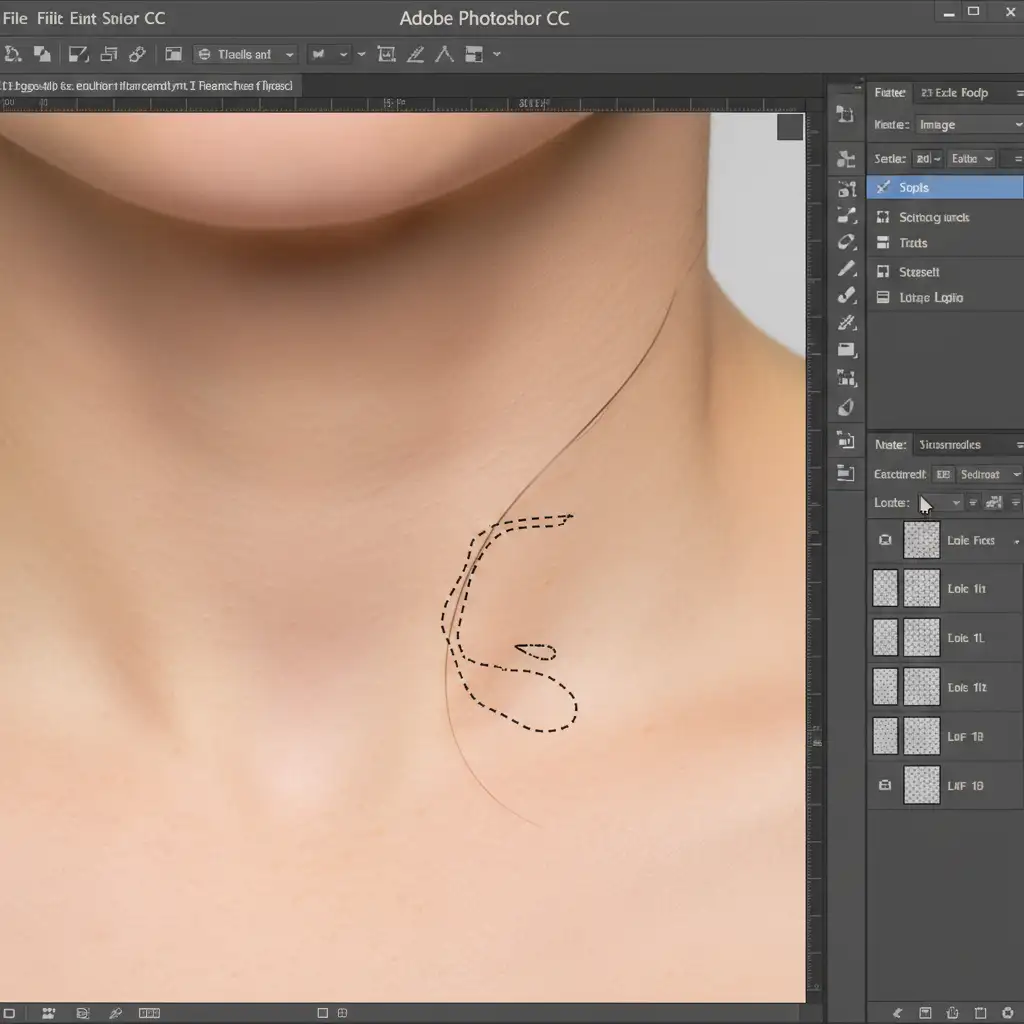
Instead of using the Marquee Tool to grab a large area, switch to the Lasso Tool. Make micro-selections that cover less than 10% of the image at a time. Apply Generative Fill to these small patches individually. The AI filter is significantly less likely to flag these smaller, less recognizable segments of pixels.
Method 3: The Local Processing Fallback
When Firefly absolutely refuses to cooperate-or if you are working offline-you must bypass Adobe’s cloud entirely. Generative Fill relies on cloud servers to process data, which is where the censorship filter lives.
The Fix: Revert to legacy, local-processing tools.
- Create a new blank layer to ensure non-destructive editing.
- Make your selection over the problem area.
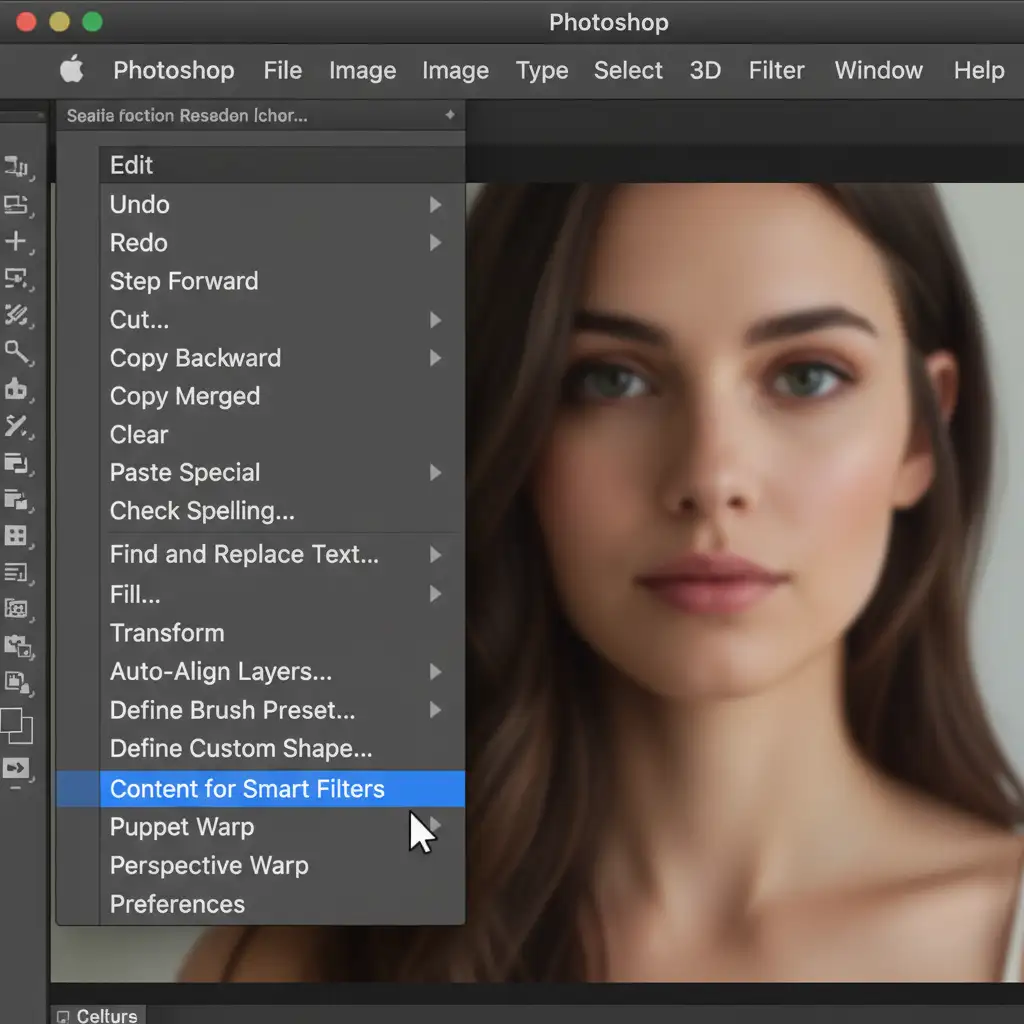
- Navigate to Edit > Content-Aware Fill.
- Use the sampling brush to tell Photoshop exactly which pixels to pull from.
Because Content-Aware Fill processes locally on your machine’s hardware, it completely bypasses Adobe’s AI censorship filters. Once the base fill is complete, you can use layer masking, the Healing Brush, and the Clone Stamp tool to manually refine the texture.
Stop Fighting the AI: Let the Experts Handle Your Headshots
Navigating false positives, micro-managing selections, and falling back on manual tools takes time-time you could be spending shooting new clients or growing your business. While knowing how to bypass generative fill inappropriate content for headshots is a valuable technical skill, high-volume retouching requires absolute efficiency.
If you need flawless, professional corporate headshots without the hassle of AI errors and censorship roadblocks, outsource your post-production to the experts.
At Image Work India and Cloud Retouch, our team of professional human retouchers specializes in pixel-perfect, censorship-free skin retouching. We utilize advanced, non-destructive techniques to deliver natural, high-end results that automated AI simply cannot match.
Ready to streamline your workflow? Contact Image Work India and Cloud Retouch today to get a custom quote for your portrait and headshot retouching needs.