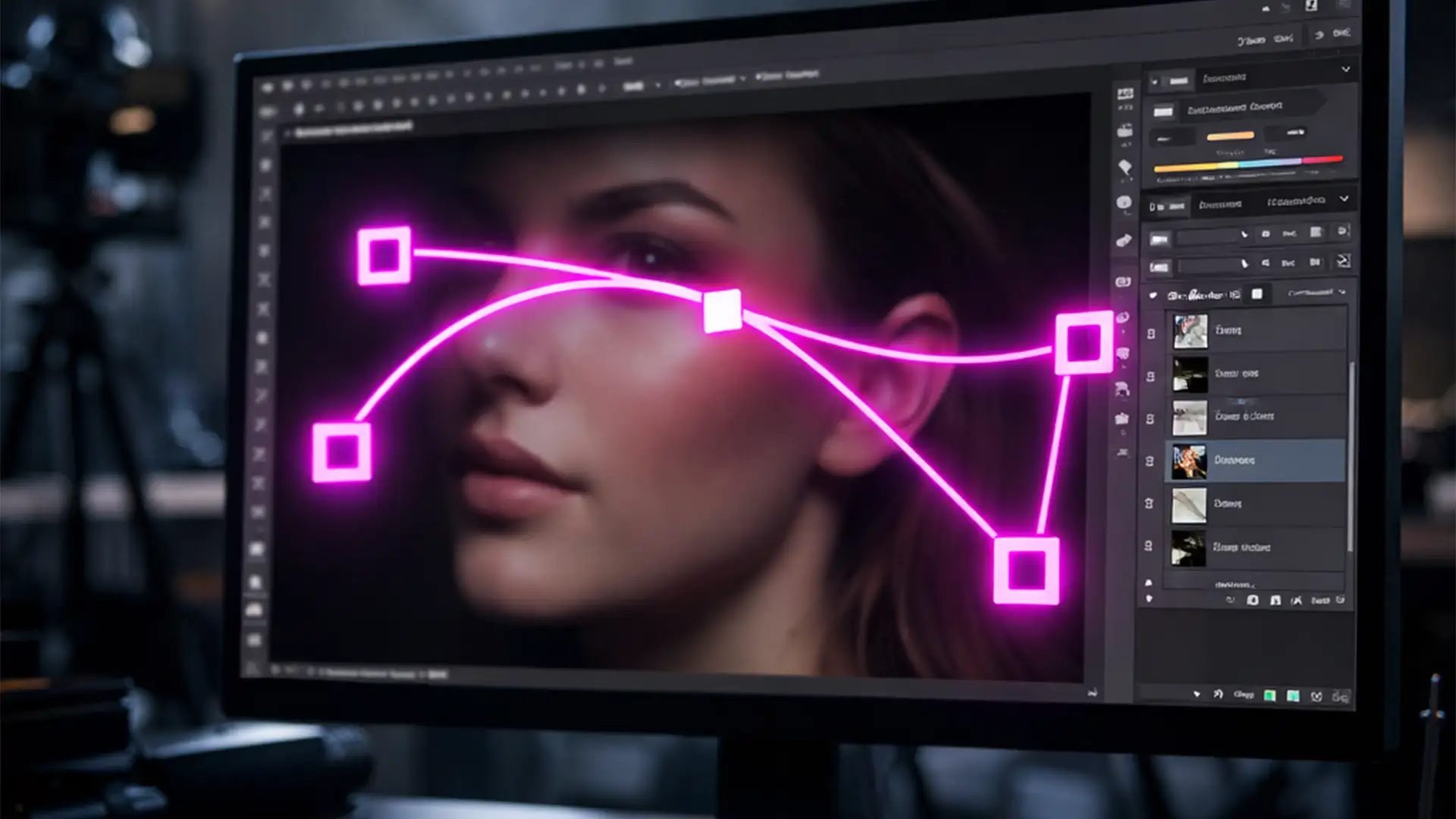

You have just spent twenty minutes meticulously tracing a complex product outline with the Pen Tool. You zoom in to adjust a tricky Bézier curve, and suddenly-your entire clipping path and all anchor points vanish from the canvas.
You haven’t deleted your work, but the path visibility is completely gone. If you are using recent builds of Photoshop (v25.x to v26.x, specifically the 2024 and 2025 releases), you are not alone. This rendering glitch is a widely documented issue that severely interrupts precision photo editing workflows.
Fortunately, applying a reliable Photoshop clipping path disappearing on zoom fix is straightforward once you understand how the software manages your computer’s hardware. Here is the definitive guide to getting your paths back on screen.
Why Are My Vector Paths Disappearing?
When you draw vector paths in Photoshop, the software relies on your system’s Graphics Processing Unit (GPU) to render those crisp lines and anchor points on your screen.
In recent updates, Adobe introduced new rendering technologies, including a feature called Native Canvas. While this improves overall performance, it occasionally creates a conflict between Photoshop’s compositing engine and your system’s GPU acceleration. When you zoom in or out, the hardware acceleration fails to redraw the path overlay, causing it to visually cull (or hide) the path even though the data is still perfectly intact.
Here are three proven methods to resolve this glitch, ranging from a quick shortcut to a permanent settings configuration.
Step-by-Step Solutions to Restore Path Visibility
Method 1: The Quick Screen Refresh
If you are in the middle of a tight deadline and just need your path back instantly, you can force the compositing engine to refresh the canvas.
- Toggle Extras: Press Ctrl+Shift+H (Windows) or Cmd+Shift+H (Mac) twice. This turns Photoshop’s “Extras” (which includes paths, grids, and guides) off and immediately back on, forcing the software to redraw your anchor points.
- The Zoom Reset: Alternatively, double-tap the Zoom tool shortcut (Z). Resetting the magnification state often bypasses the rendering hiccup.
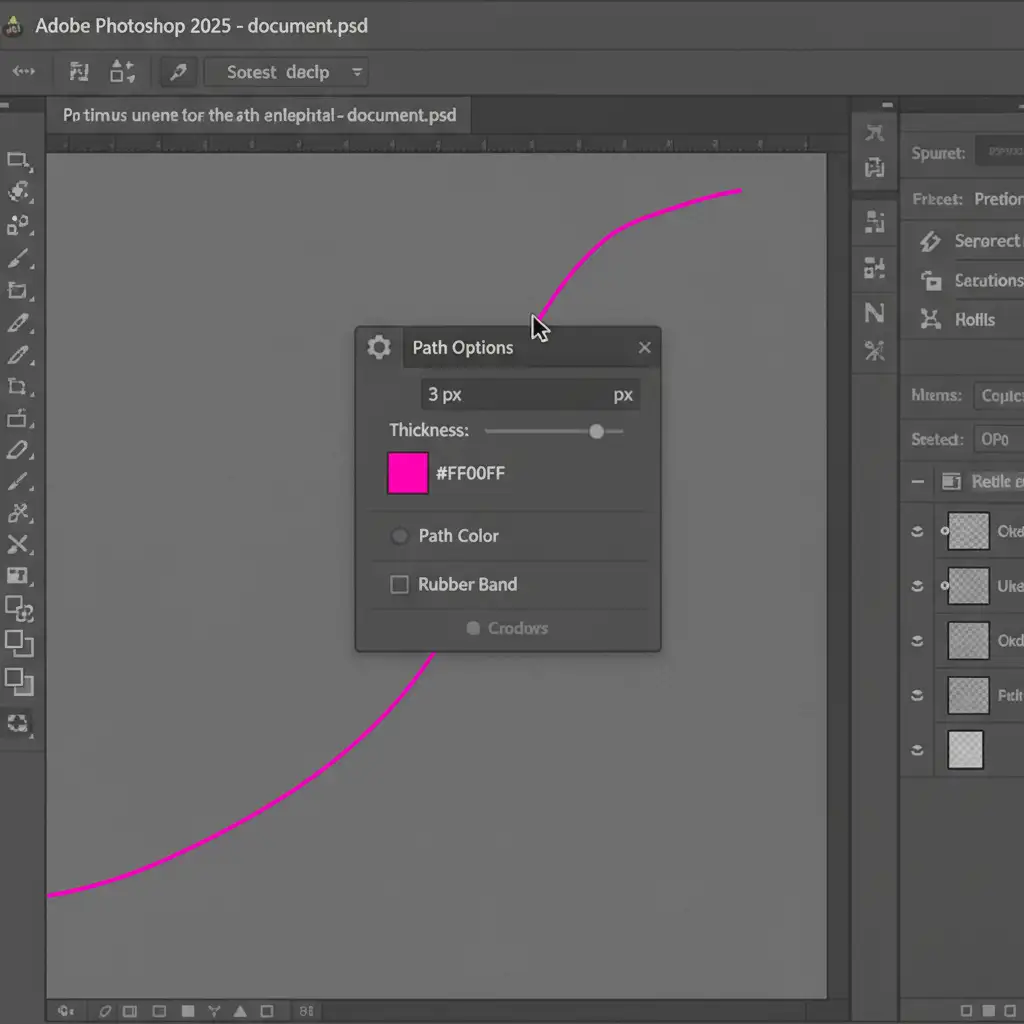
Method 2: The Pro Workaround (Adjust Path Appearance)
If the quick refresh is too tedious to repeat, you can force the rendering engine to prioritize your path by making it thicker and more visible. A thicker stroke demands more rendering priority, often bypassing the culling glitch entirely.
- Select the Pen Tool from your toolbar.
- Look at the top options bar and click the Gear icon to open the Path Options.
- Change the path thickness from the default 1px to 3px.
- Change the path color to a highly contrasting color, such as Magenta.
Method 3: The Permanent Technical Fix
To stop the “Photoshop clipping path disappearing on zoom” bug from happening permanently, you need to adjust how Photoshop utilizes your GPU and hardware acceleration.
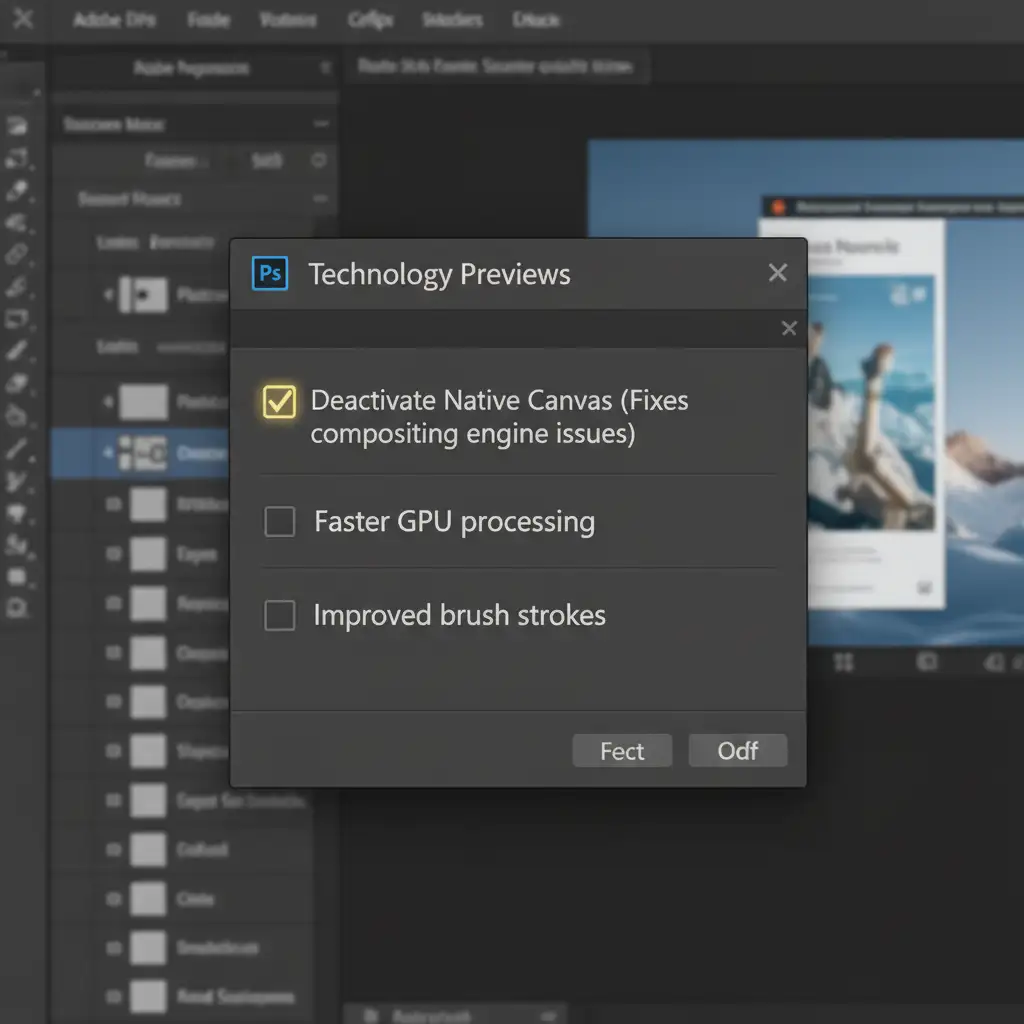
Step A: Deactivate Native Canvas
The most common culprit is the Native Canvas feature.
- Navigate to Edit > Preferences > Technology Previews (on Mac, go to Photoshop > Settings > Technology Previews).
- Locate the checkbox labeled Deactivate Native Canvas and check it.
- Click OK and restart Photoshop.
Step B: Revert to Older GPU Mode
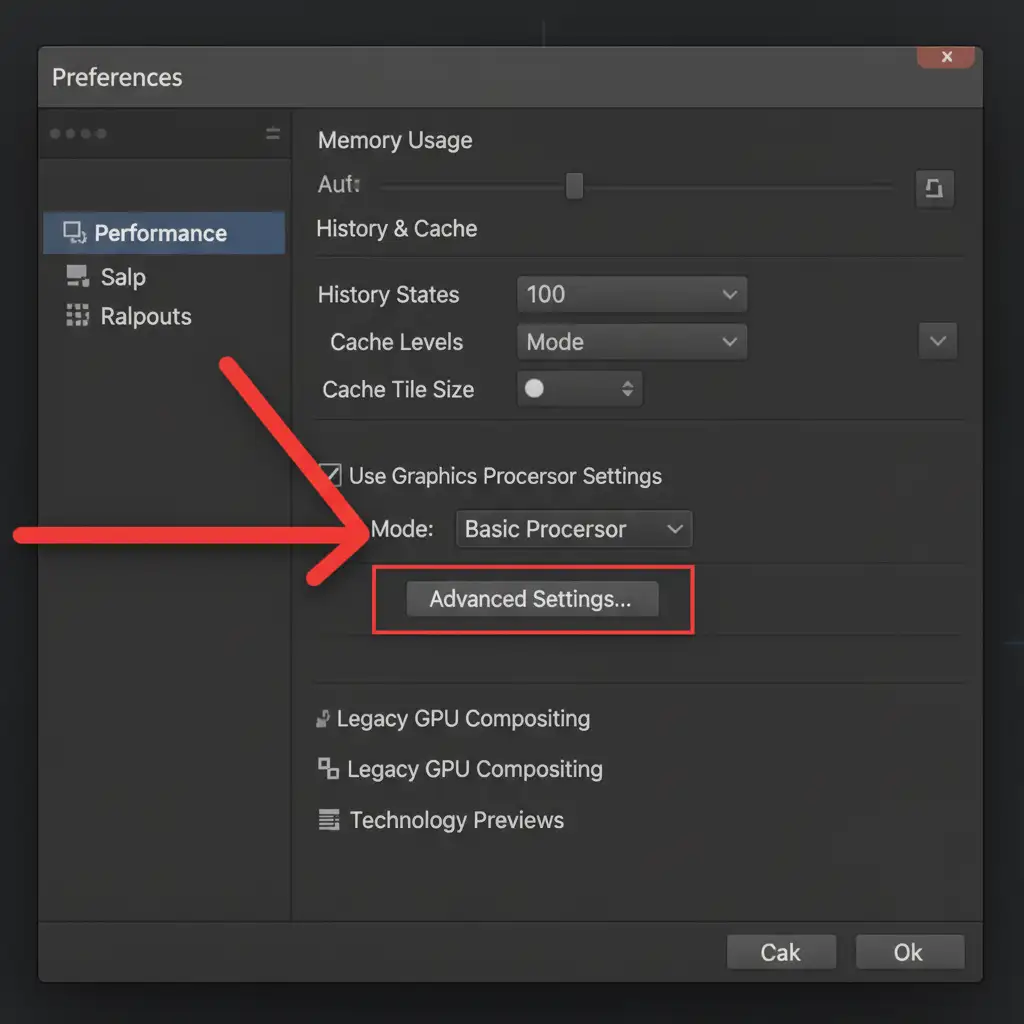
If deactivating Native Canvas doesn’t resolve the issue, your specific graphics card may be struggling with Photoshop’s modern rendering API.
- Navigate to Edit > Preferences > Performance.
- Under the Graphics Processor Settings section, click the Advanced Settings button.
- Select Older GPU mode (pre-2016) from the dropdown or settings list.
- Click OK and restart your software to stabilize display rendering.
Don’t Let Software Bugs Slow Down Your Workflow
Troubleshooting rendering glitches, managing GPU acceleration settings, and fighting with vanishing anchor points consumes valuable time that you could be spending on creative direction or scaling your business.
If you are tired of Photoshop bugs slowing down your high-volume e-commerce workflows, let the experts handle the heavy lifting. At Image Work India and Cloud Retouch, our dedicated team of professional retouchers delivers flawless, 100% hand-drawn clipping paths-delivered on time, every time.
Whether you need complex multi-clipping paths, precise masking, or high-end product retouching, we ensure your images are pixel-perfect so you never have to fight with the Pen Tool again. Contact us today to streamline your post-production workflow!