Altering skin tone in photographs has never been simpler. Advanced photo editing skills or expensive software to take your look into your own hands are no longer required. Thanks to online tools available today, anyone can change the color of skin online free and get immediate results. Whether you want to reduce your skin’s melanin production, give your face an overall brighter appearance, or address blotchy areas, or simply try new makeup and props without causing any adverse effects, these free editors offer you ease and convenience.
This article will break down the top free skin color changer tools for the Web that work instantly and show you how to use them, along with some tricks to help you colorize skin naturally. At the end of it, you’ll know exactly which platforms to use and how to get the best out of them.
Why Change Skin Color Online Free?
There are countless reasons why one would want to change skin tones in their pictures. Some people are just looking for a polished finish for social media; others might want to fix lighting that caused them to appear too pale or too shiny. Here’s how that can happen, and some common reasons why:
- Fix uneven tones: Harsh lighting will make your skin appear patchy.
- Attempts different styles: Want to know how you’d look with a different color?
- Editing pro photos: Models, influencers and photographers typically airbrush portraits.
- Fixing old photos: In older or low-quality images, skin tones can sometimes look washed out.
For that, you can experiment with free online editors to your heart’s content without spending any money. The following tools are best if you want to change skin colour online free without any issue.
How Do Skin Color Changing Tools Work?
Most online tools that allow you to change skin color online free rely on two main methods:
- AI-powered face detection – The software automatically detects faces and applies adjustments only to skin areas.
- Manual editing brushes – You choose where to apply color changes, giving you more control.
Many platforms combine these methods, offering preset filters along with customizable sliders for brightness, warmth, contrast, and color balance. This makes it easy to find a natural look without over-editing.
Best Free Tools to Change Skin Color Online Instantly
Now, let’s dive into the most effective tools available today. All of these options are free, browser-based, and beginner-friendly.
1. Fotor
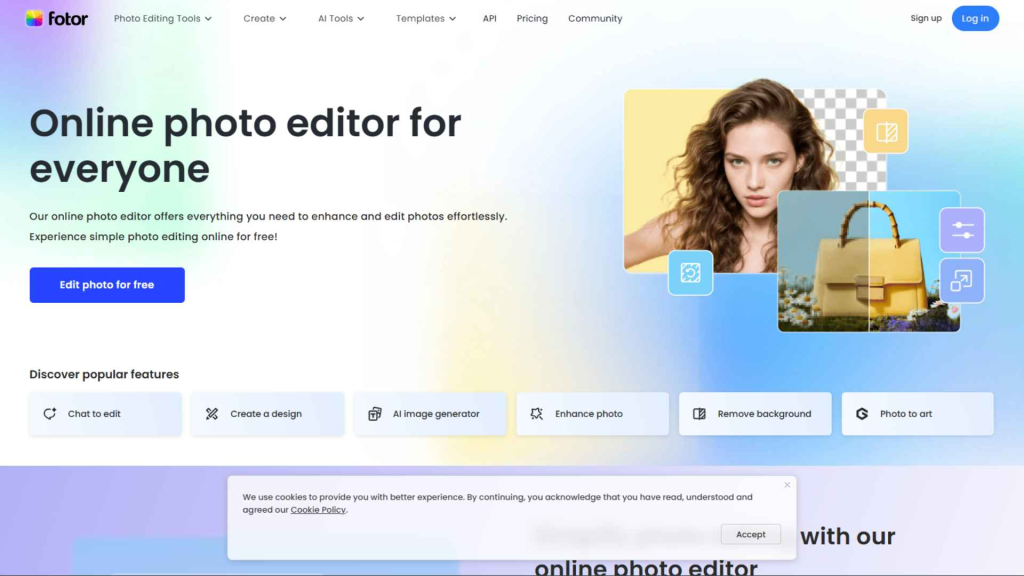
Fotor is one of the most popular online photo editing platforms, and for good reason. It combines AI-powered retouching with easy manual tools, making it beginner-friendly while still powerful enough for more advanced users.
Why It’s Great for Skin Color Editing:
- Offers a dedicated “Skin Tone” tool that allows subtle or dramatic changes.
- AI automatically detects the face, so you don’t have to worry about painting over background areas.
- Preset filters like “Natural” and “Smooth” make quick edits possible in one click.
Step-by-Step to Change Skin Color Online Free with Fotor:
- Visit Fotor.com.
- Upload your portrait photo.
- Navigate to the Beauty tab and select Skin Tone.
- Adjust sliders to lighten, darken, or shift warmth.
- Use the “Compare” option to check before/after.
- Download the finished photo in JPG or PNG format.
Pros:
- User-friendly interface.
- AI-driven results that look natural.
- Extra features like blemish remover, teeth whitener, and makeup tools.
Cons:
- Free version includes ads and limited HD exports.
- Some advanced features require a Pro subscription.
Best For: Beginners who want natural-looking results fast.
2. BeFunky
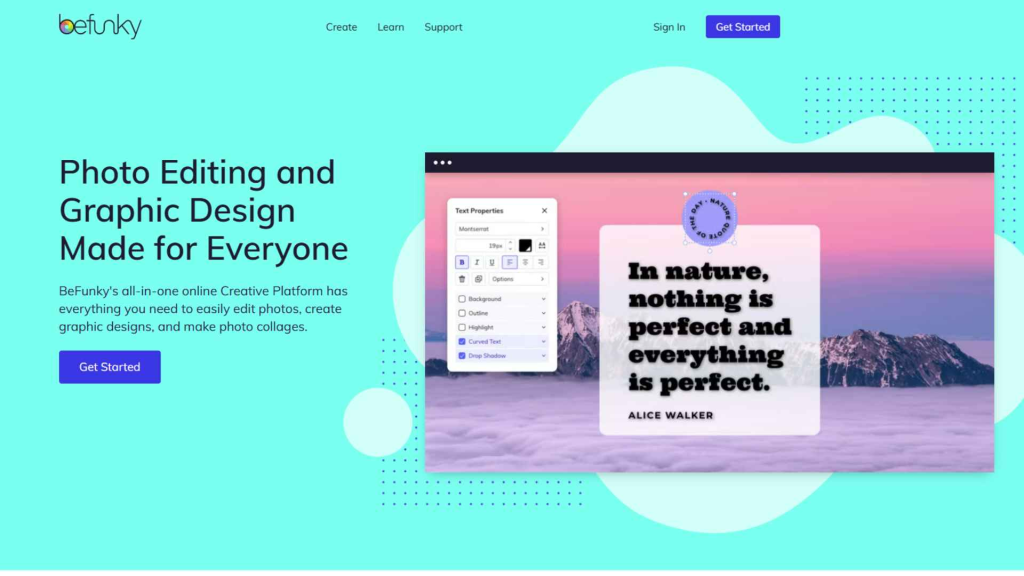
BeFunky is known for its playful interface but don’t underestimate its editing power. It offers one of the most flexible skin tone brush tools, giving you total control over exactly where to apply edits.
Why It Stands Out:
- The brush tool lets you select only skin areas while avoiding hair, clothes, and background.
- You can adjust intensity and color to fine-tune edits.
- Works great for correcting uneven tones caused by bad lighting.
Steps to Change Skin Color Online Free with BeFunky:
- Open BeFunky.com.
- Upload your image and go to the Touch Up section.
- Select Skin Tone.
- Use the brush to paint over skin areas.
- Adjust sliders for smoothness and tone.
- Save and download your new photo.
Pros:
- Precise manual control.
- Works well on group photos or areas with tricky lighting.
- Offers additional tools like airbrush, blush, and eye enhancer.
Cons:
- Some features locked in premium plan.
- Manual brushing can take time for beginners.
Best For: Users who want full control over edits instead of relying only on AI.
3. Pixlr (X & E)
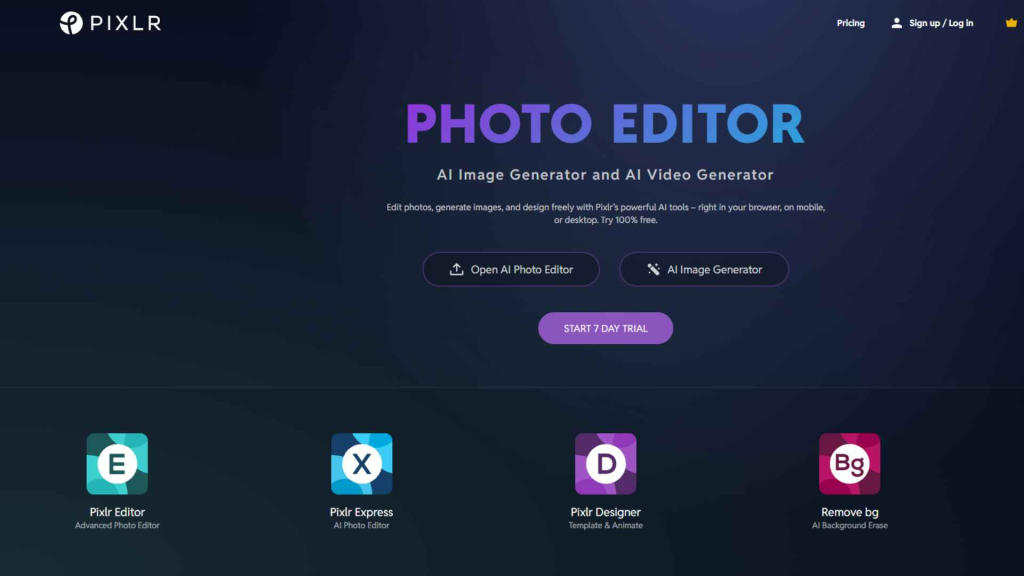
Pixlr is often called the “free Photoshop alternative.” It’s web-based, requires no downloads, and provides advanced features like layer editing, color balance, and selective adjustments.
Why It’s Powerful:
- You can change skin tone naturally with hue, saturation, and brightness controls.
- Offers masking tools, so you can isolate skin without affecting other areas.
- Two versions: Pixlr X for beginners and Pixlr E for advanced users.
How to Change Skin Color Online Free with Pixlr:
- Open Pixlr.com.
- Choose Pixlr X (easy) or Pixlr E (advanced).
- Upload your portrait photo.
- Use Adjustment → Color Balance or Hue & Saturation.
- Apply edits only on the skin with the brush/mask tool.
- Save the photo in high resolution.
Pros:
- Professional-level editing without cost.
- Supports layers for complex retouching.
- Works directly in browser, no installation.
Cons:
- Learning curve for beginners.
- Interface can be overwhelming.
Best For: Photographers, designers, or advanced users who want Photoshop-like editing for free.
4. Lunapic
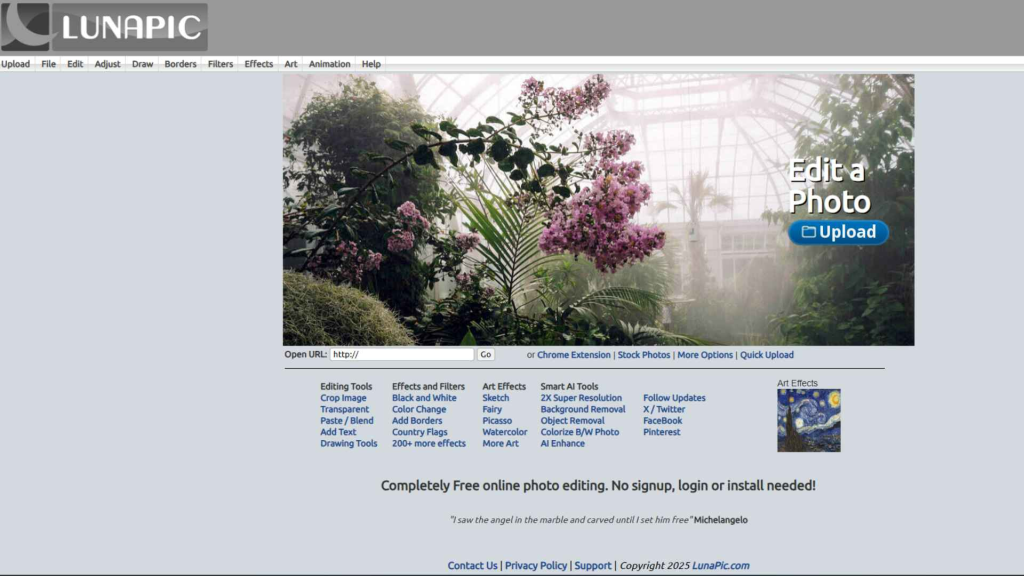
Lunapic has been around for years, offering free, no-login-required photo editing. It looks old-school, but its color balance and filter tools make it surprisingly good for adjusting skin tones.
Why People Use It:
- 100% free with no premium plans.
- Works instantly with just a few clicks.
- Lets you experiment with artistic effects as well.
Steps to Change Skin Color Online Free with Lunapic:
- Go to Lunapic.com.
- Upload your image.
- Open Adjust → Color Balance.
- Shift red, yellow, or blue tones until the skin looks natural.
- Save the edited file.
Pros:
- Totally free, no account required.
- Great for quick, simple edits.
- Offers unusual creative filters for fun.
Cons:
- Interface looks outdated.
- Less precise than modern AI-powered tools.
Best For: Casual users who want a fast, no-frills solution.
5. Makeup.Pho.to
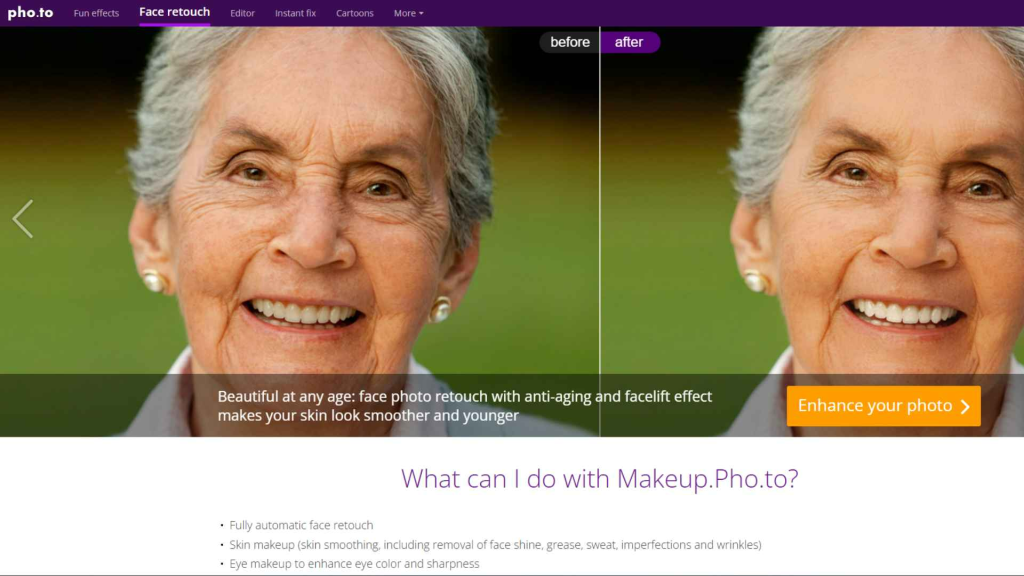
This tool is designed specifically for face editing and automates nearly everything. If you want the fastest way to retouch skin without doing much yourself, this is it.
Why It’s Special:
- Automatic face detection saves time.
- Instantly adjusts skin color, smoothness, and blemishes.
- Requires zero editing skills.
How to Use Makeup.Pho.to to Change Skin Color Online Free:
- Visit Makeup.Pho.to.
- Upload your portrait photo.
- The AI automatically edits skin color, tone, and imperfections.
- Download the new version instantly.
Pros:
- Extremely fast and beginner-friendly.
- Works on portraits of all types.
- No manual effort needed.
Cons:
- Less control – results may feel too “airbrushed.”
- Doesn’t work well for artistic edits.
Best For: Social media users or beginners who want instant improvements.
6. iPiccy
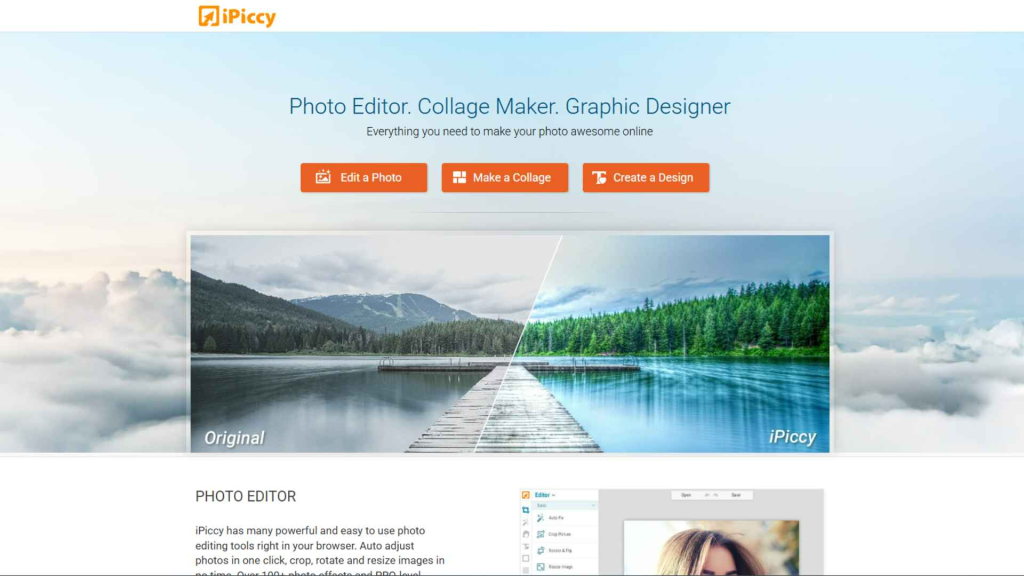
iPiccy offers a mix of automatic retouching and manual tools. Its Retouch section includes skin tone adjustments, airbrushing, and other cosmetic edits.
Why It’s Worth Trying:
- Balance of automation and control.
- Clean interface that’s easy to navigate.
- Lets you adjust warmth, brightness, and smoothness all at once.
Steps to Change Skin Color Online Free with iPiccy:
- Visit iPiccy.com.
- Upload your portrait photo.
- Open Retouch → Skin Tone.
- Adjust tone using presets or sliders.
- Save the edited image.
Pros:
- Easy for beginners.
- Good for selfies and casual photos.
- Free to use, no installation.
Cons:
- Fewer advanced options than Pixlr.
- Internet connection required.
Best For: Everyday users who want simple yet flexible edits.
7. Canva
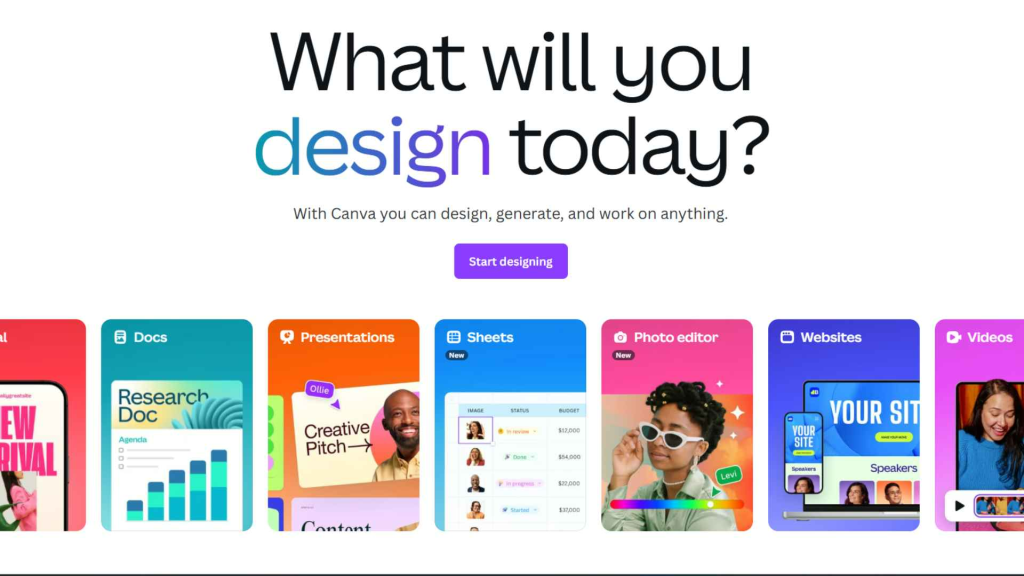
While Canva is known for graphic design, its built-in photo editor has grown powerful enough for light retouching. It’s not as advanced as Pixlr, but great if you’re already using Canva for social media posts.
Why It’s Useful:
- Edit and design in one place.
- Quick sliders for brightness, warmth, and contrast.
- Ideal for social media-ready edits.
Steps to Change Skin Color Online Free with Canva:
- Open Canva.com.
- Upload your image into a blank project.
- Select the photo and choose Edit Photo.
- Adjust warmth, brightness, and color to refine skin tone.
- Download in your preferred size.
Pros:
- Simple, beginner-friendly.
- Great for creating posts after editing.
- Free plan is very useful.
Cons:
- No advanced skin-specific tools.
- Limited compared to dedicated photo editors.
Best For: Content creators who want quick edits plus design features.
Tips for Natural Skin Color Editing
When editing photos, it’s easy to go overboard. Here are some tips to make sure your results look natural:
- Avoid extreme changes – Drastic color shifts often look unrealistic.
- Match lighting – Adjust skin tones to match the photo’s light environment.
- Use small adjustments – Subtle edits create professional results.
- Don’t forget texture – Smooth skin looks better with natural pores.
- Preview before saving – Always compare before and after.
Following these steps ensures your skin edits enhance the photo rather than distract from it.
Frequently Asked Questions (FAQ)
1. Can I really change skin color online free without downloading software?
Yes. Tools like Fotor, BeFunky, and Makeup.Pho.to let you edit directly in your browser.
2. Which tool is best for beginners?
Makeup.Pho.to is the easiest since it does everything automatically.
3. Do these tools work on mobile?
Yes, most are mobile-friendly or have apps.
4. Will changing skin color lower image quality?
Not if you use high-resolution uploads and export properly.
5. Can I use these tools for professional photos?
Yes, but for commercial use, advanced editors like Pixlr or Fotor are better.
6. Is there a limit to how many photos I can edit for free?
Some tools allow unlimited edits, while others may limit features in free versions.
7. Can I darken and lighten skin tones?
Yes. All the tools mentioned allow both.
8. Is this the same as face filters on apps like Snapchat?
Not exactly. These editors give you more precise control.
9. Do I need editing skills?
Not at all. Most tools are beginner-friendly.
10. Can I restore natural skin color in old photos?
Yes, using tools like Pixlr or Fotor, you can correct faded tones.
11. Are these tools completely safe?
Yes, but always use trusted platforms to protect your images.
12. Which tool gives the most natural results?
Fotor and BeFunky are known for realistic skin tone adjustments.
Final Thoughts
Editing portraits no longer requires expensive software or professional skills. With the right free tools, you can change skin color online free in just minutes. Whether you prefer automatic AI-based editors like Makeup.Pho.to or more customizable platforms like Pixlr, there’s a solution for every need.
The next time you want to correct lighting, experiment with looks, or retouch a photo for social media, try one of these tools. They’re fast, free, and surprisingly effective.
By following the tips shared in this guide, you’ll achieve natural, professional-quality results without overspending-or over-editing.