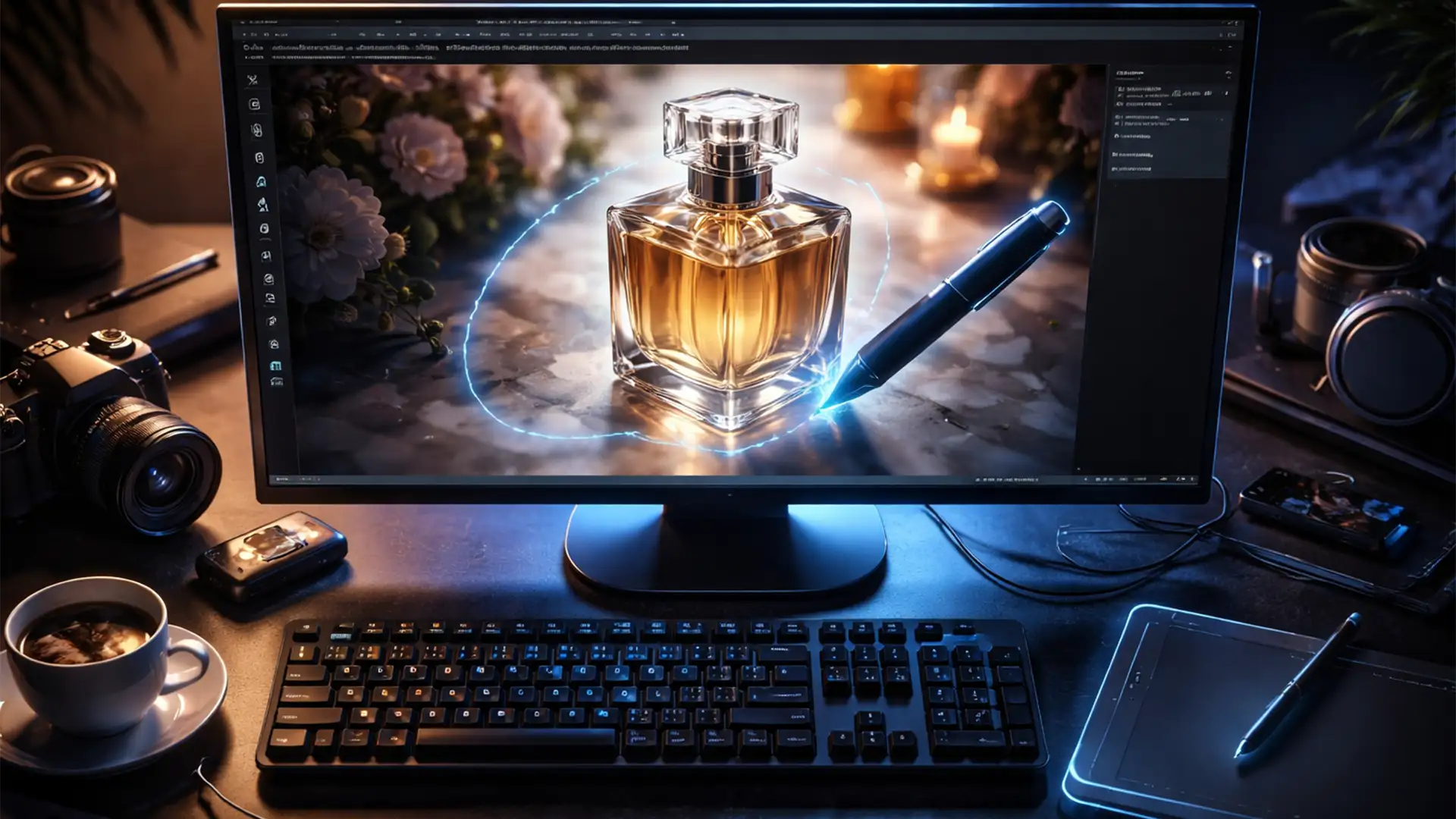

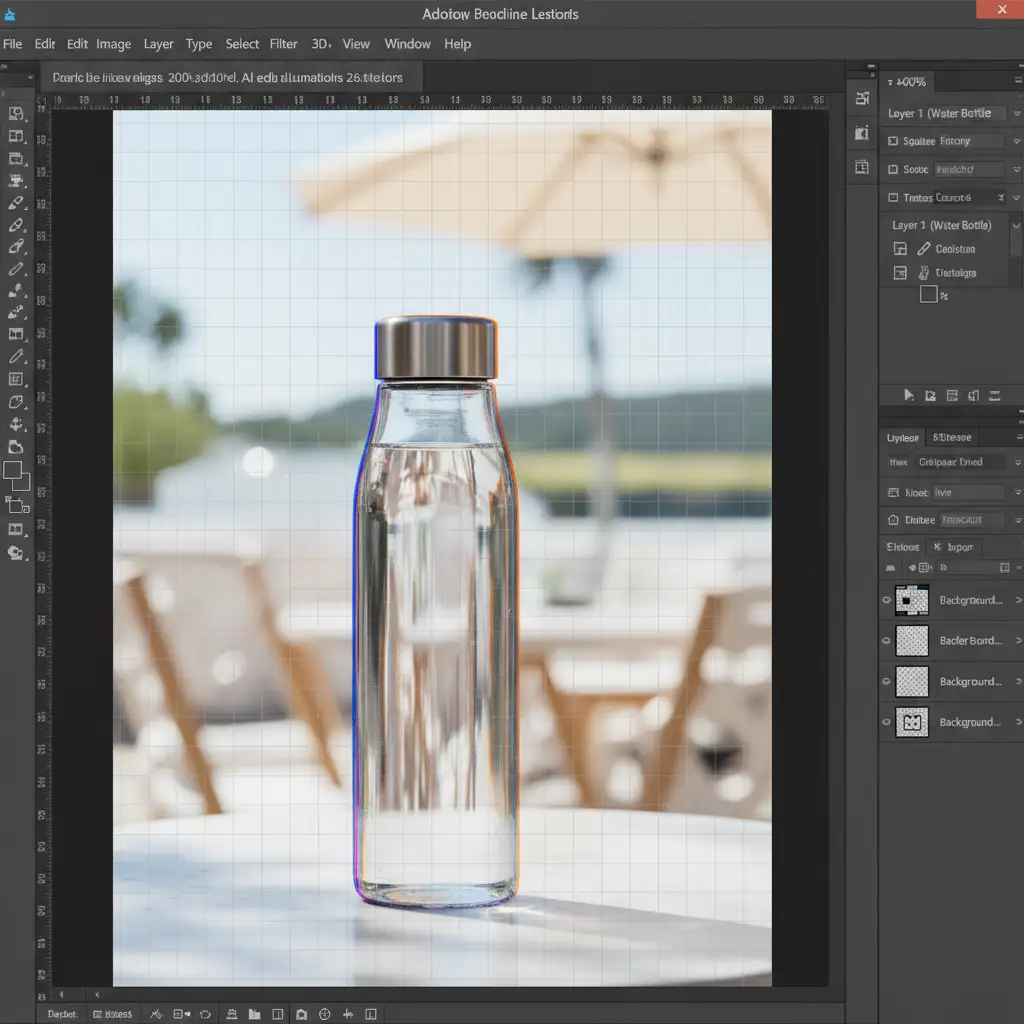
You finally nailed the perfect Midjourney v6 prompt. The lighting is flawless, the background is stunning, and your product looks incredible-until you zoom in. At 300%, the nightmare reveals itself: melted product edges, chromatic bleeding, and messy AI edge hallucination.
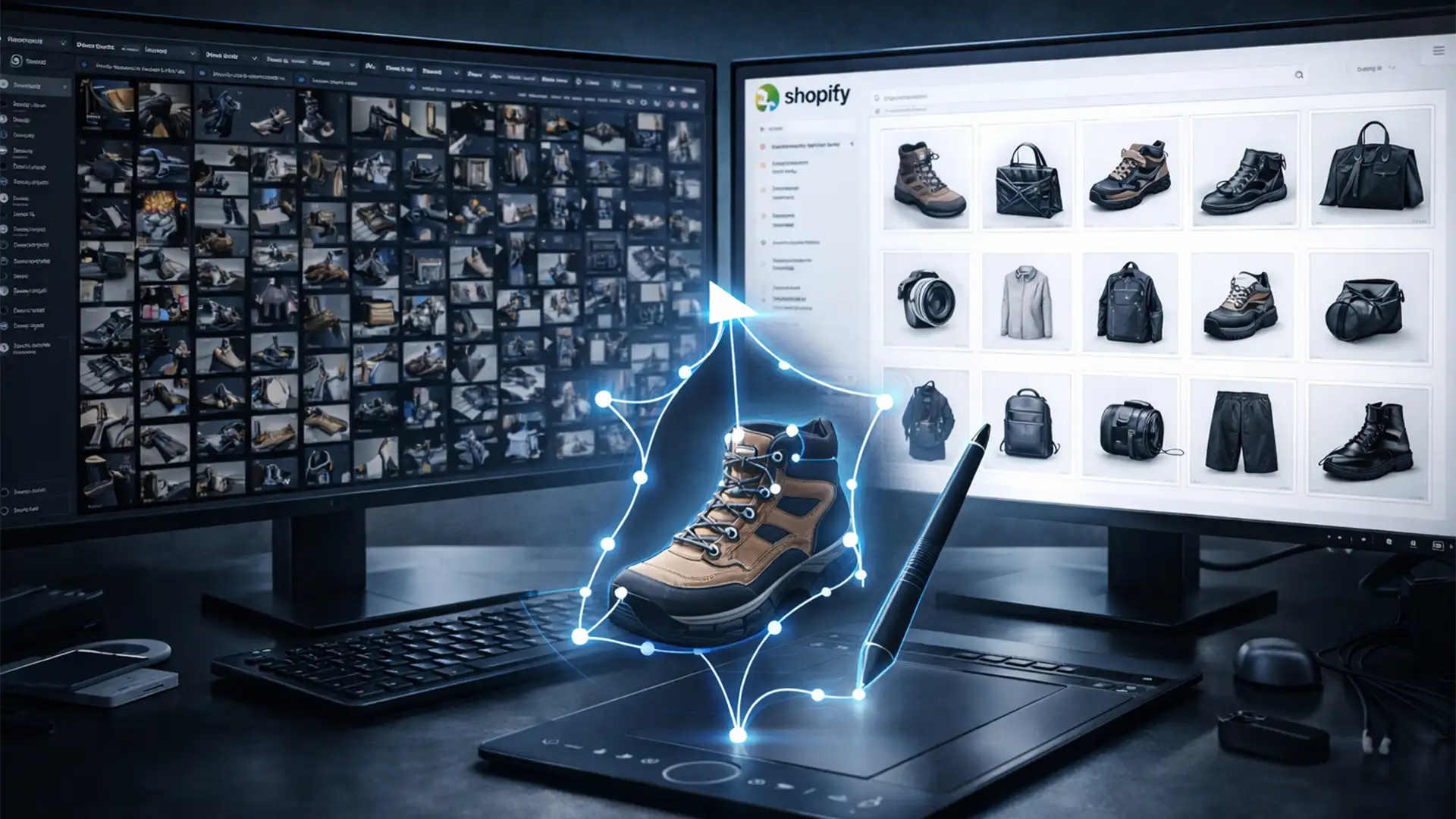
Automated background removal tools and Photoshop’s AI selection features often fail here because AI generators bake the lighting directly into the pixels, leaving no inherent depth data for the software to read. If you are using generative AI for e-commerce, automated selections simply aren’t enough.
To meet strict commercial printing and e-commerce standards, you need a high-precision clipping path for AI lifestyle image generation. Here is exactly why manual intervention is the only way to achieve professional compositing, and how to execute it perfectly.
The Hidden Flaw in AI Product Photography
When using Stable Diffusion SDXL or Midjourney to generate hyper-realistic lifestyle backgrounds, the AI doesn’t understand your product as a separate 3D object. It generates the image as a single flat layer.
Because of this, the transition between your product and the generated environment often suffers from anti-aliasing issues and color casts. When you try to use Photoshop 2024 or 2025 (v26.x) AI selection tools-even advanced features like Generative Fill-the software frequently fails to distinguish where the generated product ends and the generated background begins.
How to Fix AI Edge Hallucinations: 3 Professional Workflows
To extract your product cleanly for e-commerce use, you must override the AI’s guesswork with mathematical precision. Here are the three methods to rescue your lifestyle composites.
Method A: The Quick Fix (Photoshop Object Selection)
If you are working with a forgiving background and need a rapid turnaround, you can attempt to force Photoshop’s AI to work harder.
- Select the Object Selection Tool from the toolbar.
- In the top Options bar, ensure Cloud Detailed processing is enabled (this forces Photoshop to use Adobe’s cloud servers for a more refined calculation).
- Click your product.
- Open the Select and Mask workspace to manually smooth the jagged AI edges using the refine edge brush.
Note: This method often still leaves minor chromatic bleeding and is not recommended for high-end commercial use.
Method B: The Pro Workaround (Manual Vector Clipping Path)
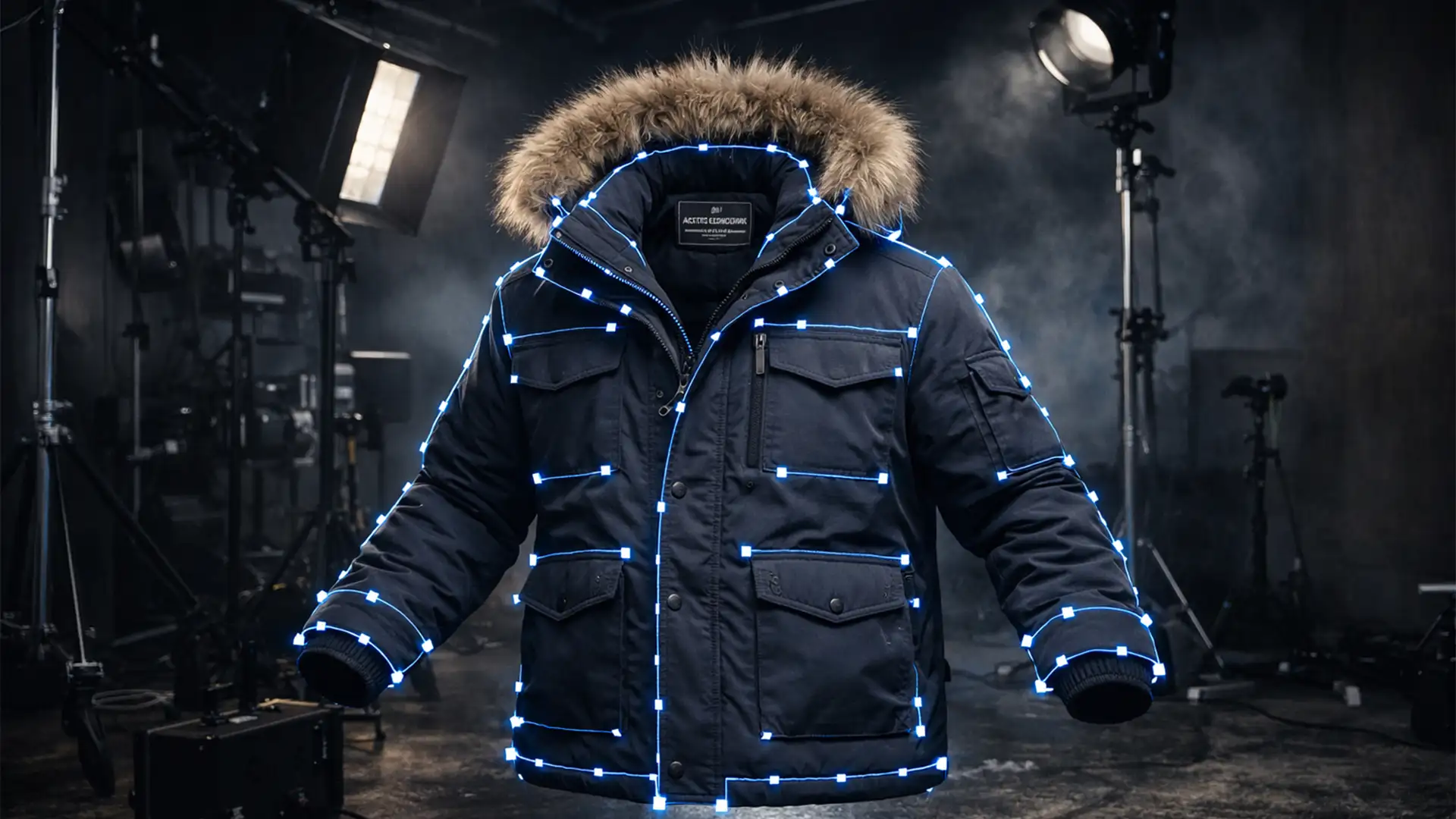
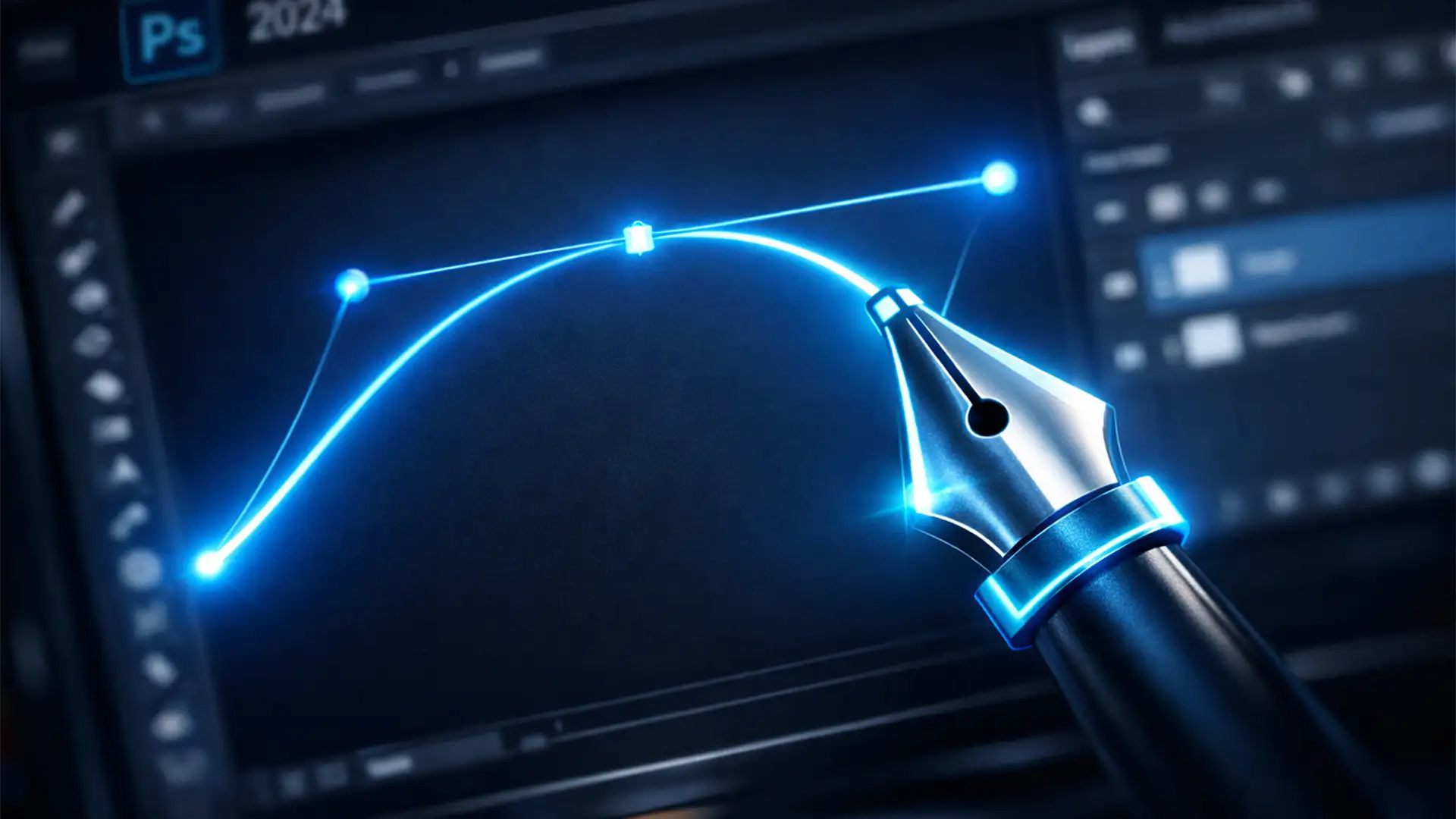
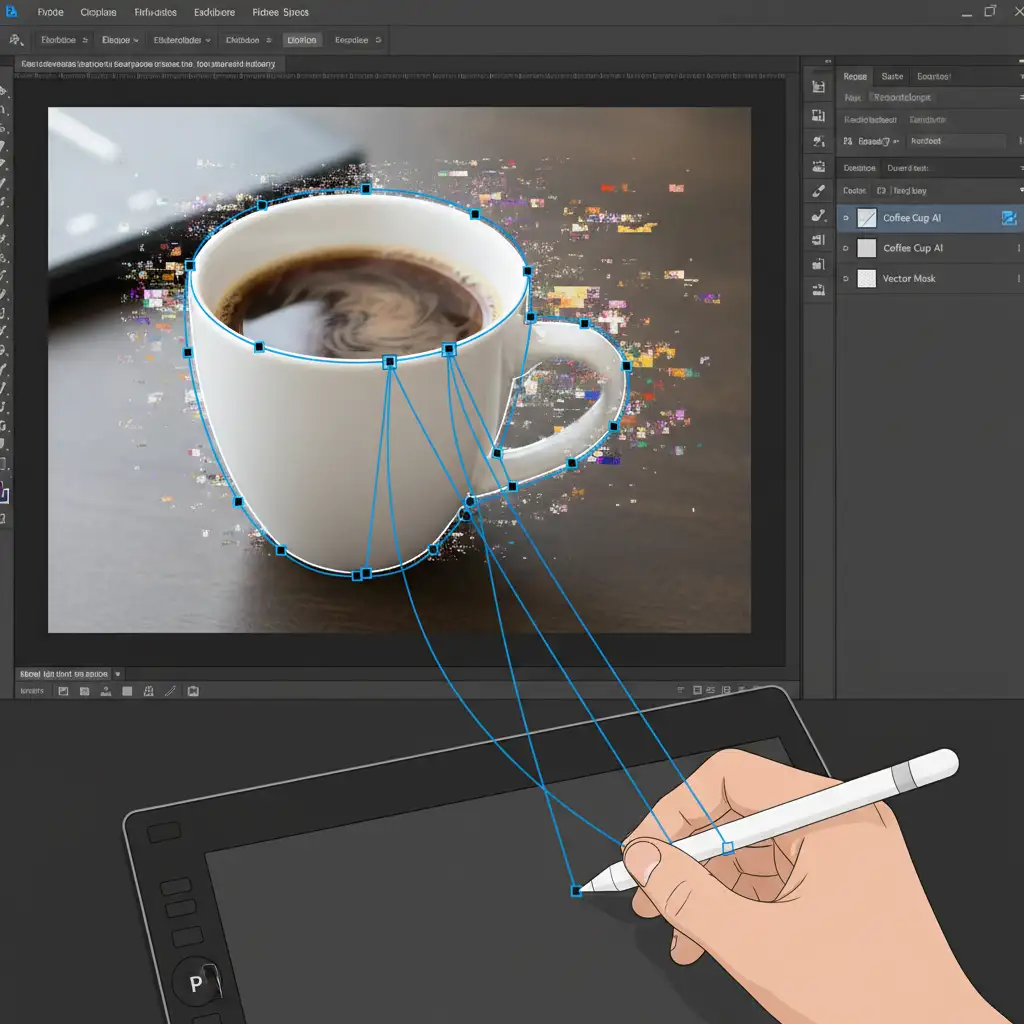
For flawless, commercial-grade compositing, nothing beats the human eye combined with the Pen Tool (P). Creating a manual vector clipping path allows you to dictate the exact boundary of your product, completely bypassing hallucinated background pixels.
- Select the Pen Tool (P).
- Carefully draw a path around the true edge of your product. Cut about 1-2 pixels inside the visible edge to avoid capturing any of the AI-generated background bleed.
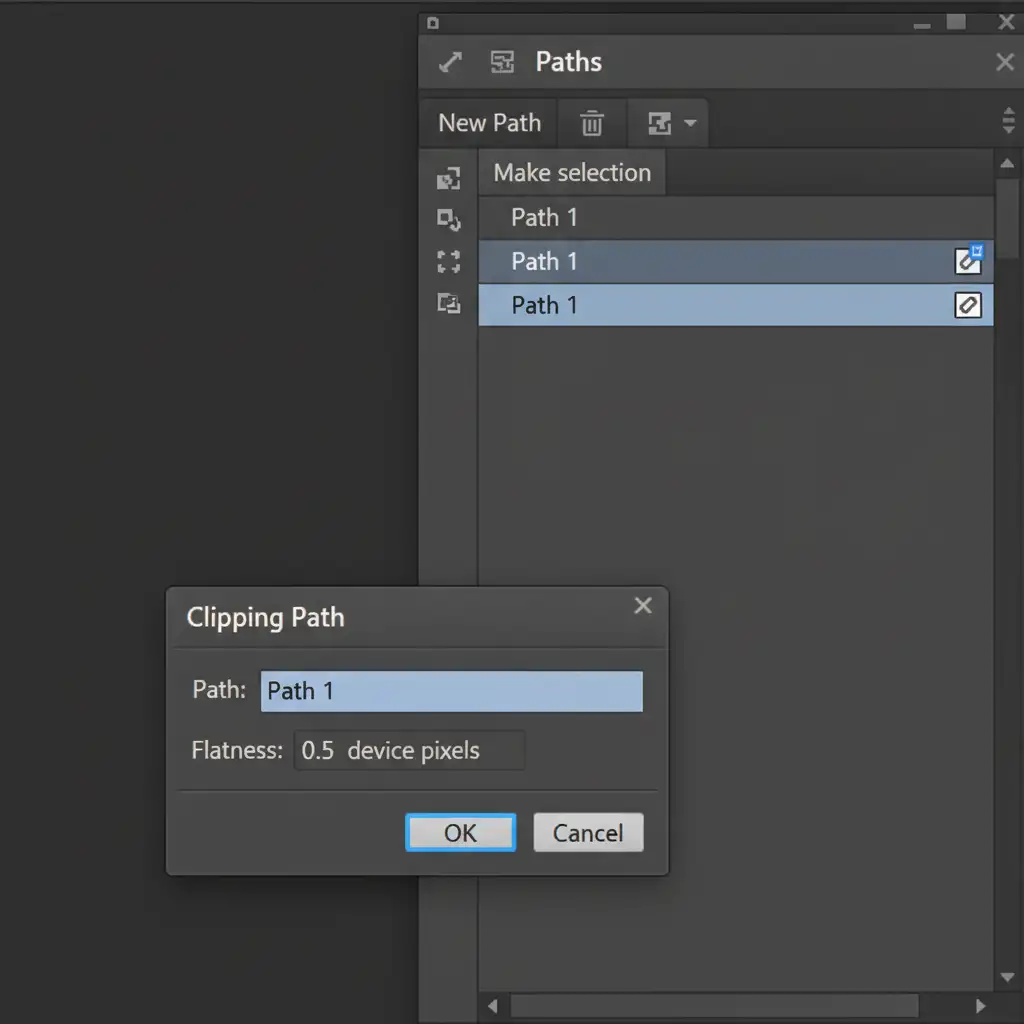
- In the Paths Panel, double-click your Work Path to save it.
- From the panel menu, select Clipping Path and set the path flatness/tolerance to 0.5 pixels. This ensures the curve perfectly hugs the product without geometric blockiness.
Method C: The Technical Deep-Dive (Layer Matting & Defringing)
Even with a perfect vector clipping path, AI images often bake environmental color directly into the edge pixels of your product. To remove this, we use advanced Layer Matting.
- Load your saved manual path as a selection and extract it to an Alpha Channel.
- Apply a Layer Mask to your product layer to isolate it.
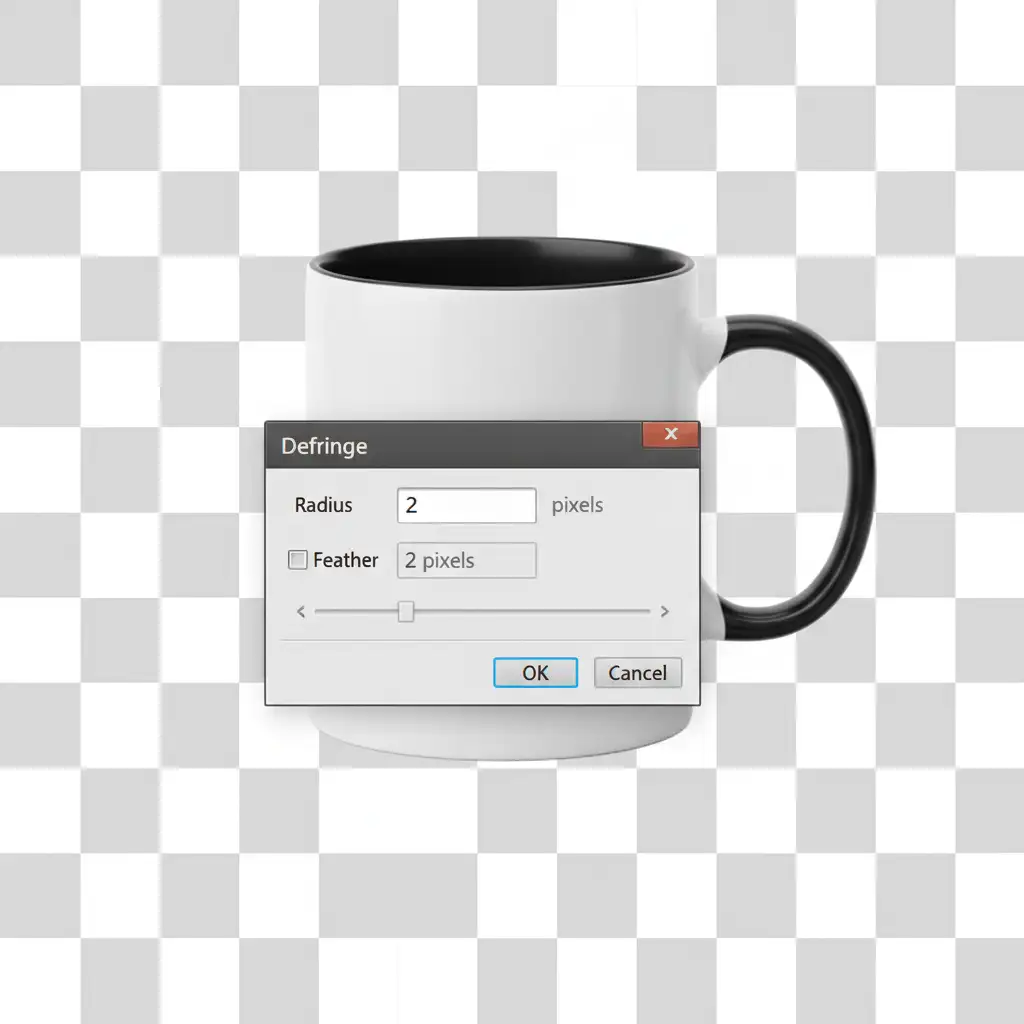
- Notice a glowing halo or color cast? Go to Layer > Matting > Defringe.
- Enter a value of 1-2px in the Defringe dialogue box. This commands Photoshop to replace the contaminated edge pixels with the pure colors from slightly further inside the product.
- Finally, convert the isolated layer to Smart Objects. This retains non-destructive scaling for your final e-commerce layout.
The Difference is Clear: AI vs. Human Precision
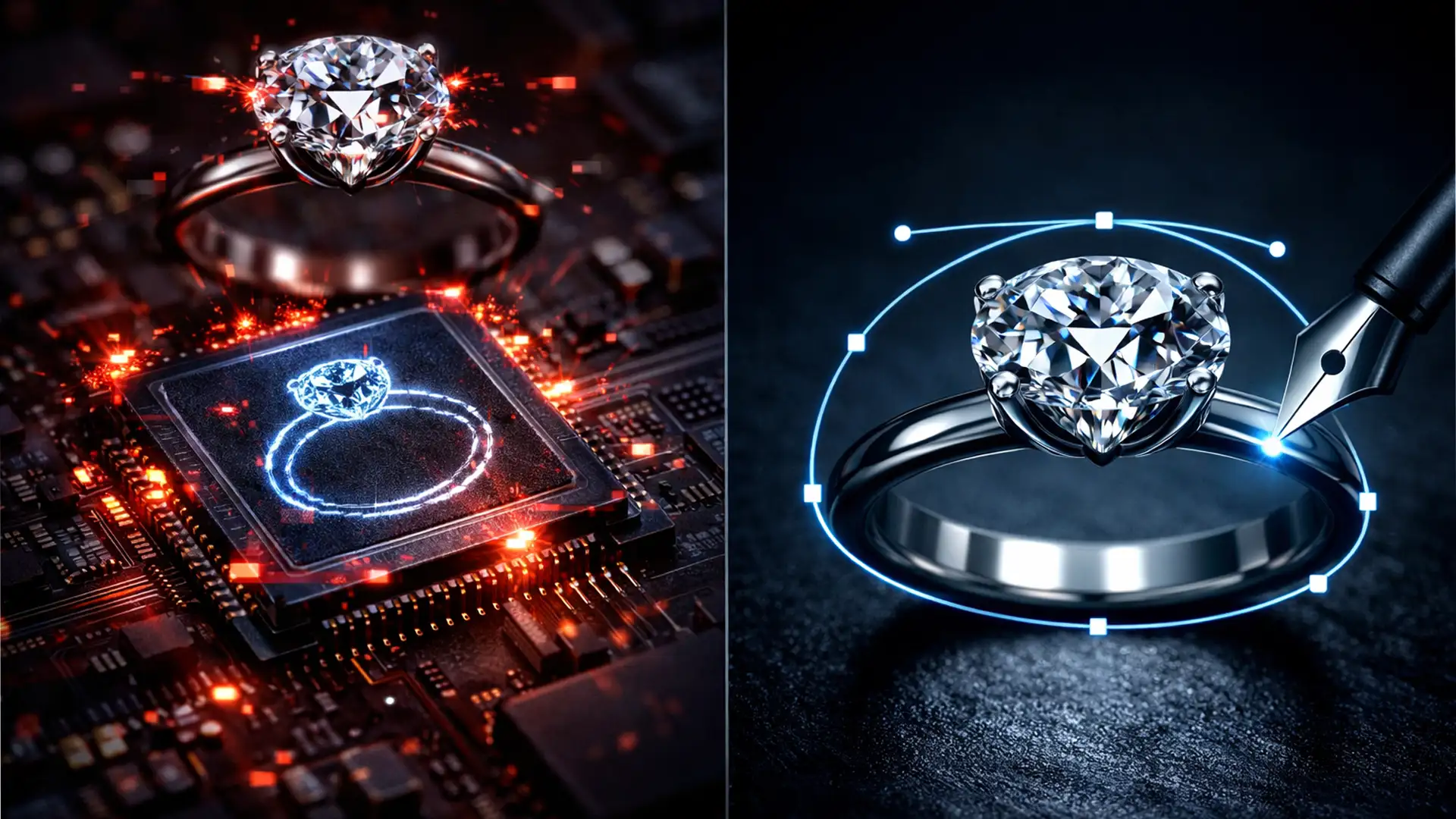
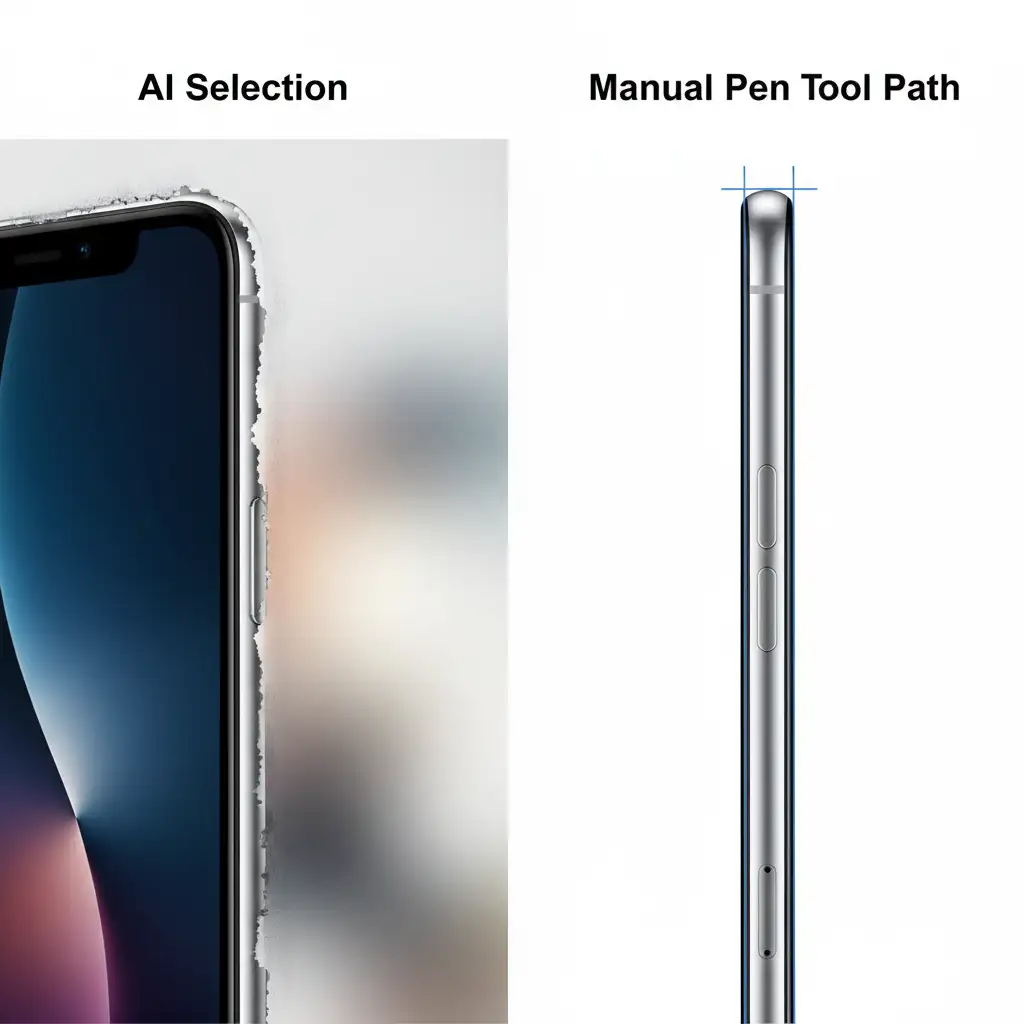
When you compare an automated AI selection to a manual vector clipping path, the difference is night and day. Automated tools leave crunchy, unpredictable borders. A manual path yields a razor-sharp, mathematically perfect edge that looks completely natural when placed on a clean white background or a new composite environment.
Stop Fighting AI Artifacts: Let the Pros Handle It
AI generation is incredibly fast for ideation, but commercial precision still requires human expertise. Spending hours wrestling with the Pen Tool and layer matting defeats the purpose of using AI to speed up your workflow.
Don’t let blurry AI edges ruin your brand’s reputation. If you need a flawless clipping path for AI lifestyle image generation, let the experts do the heavy lifting.
Hire Image Work India and Cloud Retouch today. Our team of professional photo editors specializes in pixel-perfect clipping paths, advanced compositing, and defringing. We transform messy, hallucinated AI outputs into flawless, commercial-grade assets ready for your e-commerce store. Focus on generating brilliant concepts, and let us perfect the final pixels.