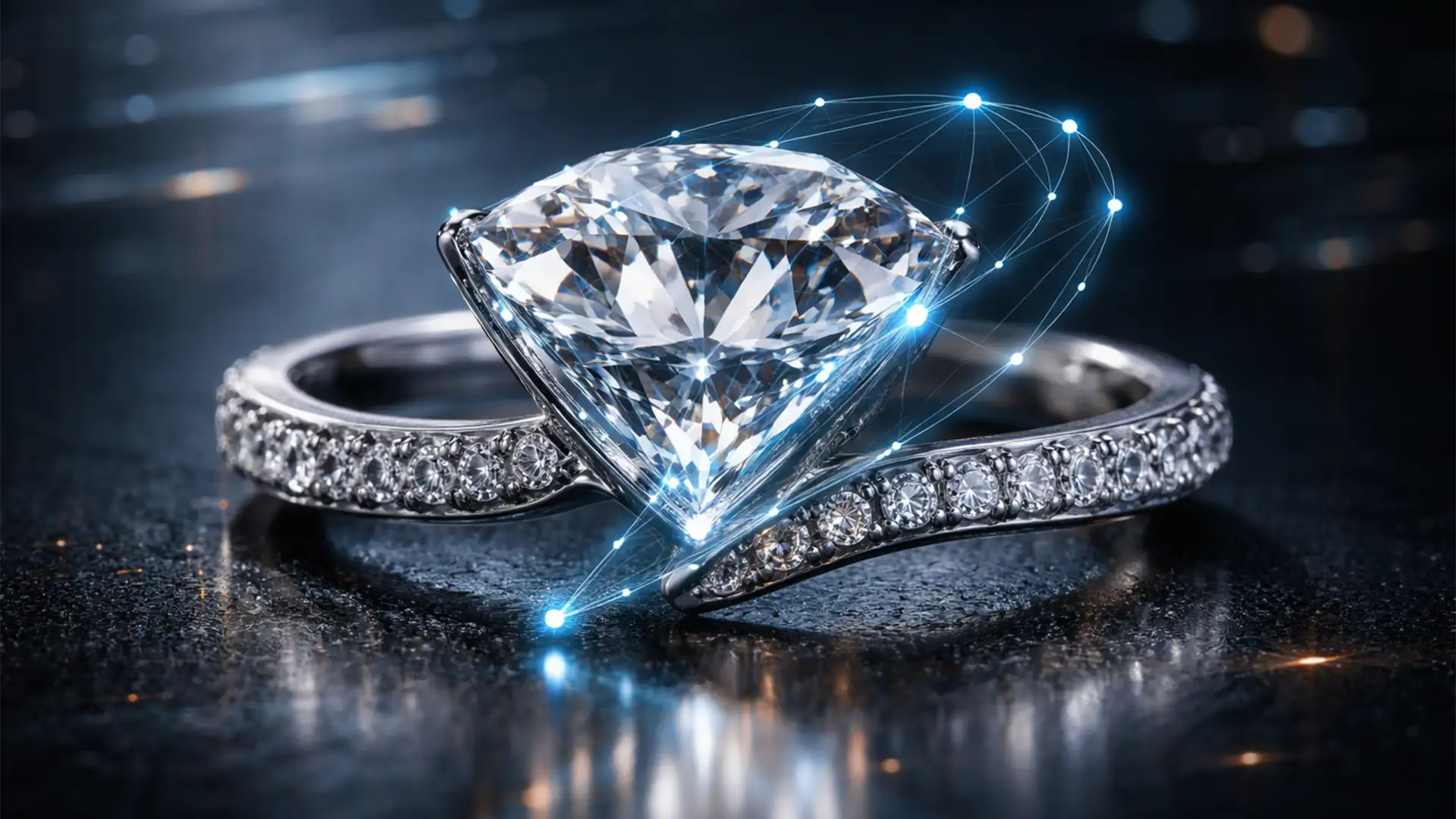

You’ve just photographed a stunning diamond ring, but when you use Photoshop’s AI tools to remove the background, disaster strikes. Automated features like Object Selection and Select Subject in Photoshop v25.x and v27.x completely fail when dealing with transparent and semi-transparent gemstones.
Why? Because artificial intelligence cannot differentiate between the background color bleeding through the gemstone and the stone’s actual internal refractions. This confusion leaves you with harsh, jagged edges or a dull, plastic-looking gem stripped of its natural luminosity. If you want your high-end e-commerce products to sell, you cannot rely on one-click magic. You need to master the clipping path for transparent stones in jewelry to preserve those critical light reflections and maintain a premium brand image.
Here is the definitive guide to isolating transparent gemstones manually for flawless e-commerce photography.
Why AI Fails at Jewelry Background Removal
When you place a diamond on a pure white or new background using automated tools, the software simply deletes the pixels it deems “background.” By doing this, it removes the critical light data required for high-end e-commerce standards. The result is a flat, lifeless image. Professional jewelry retouching requires a delicate balance of retaining highlights, shadows, and internal reflections while completely eliminating the original backdrop.
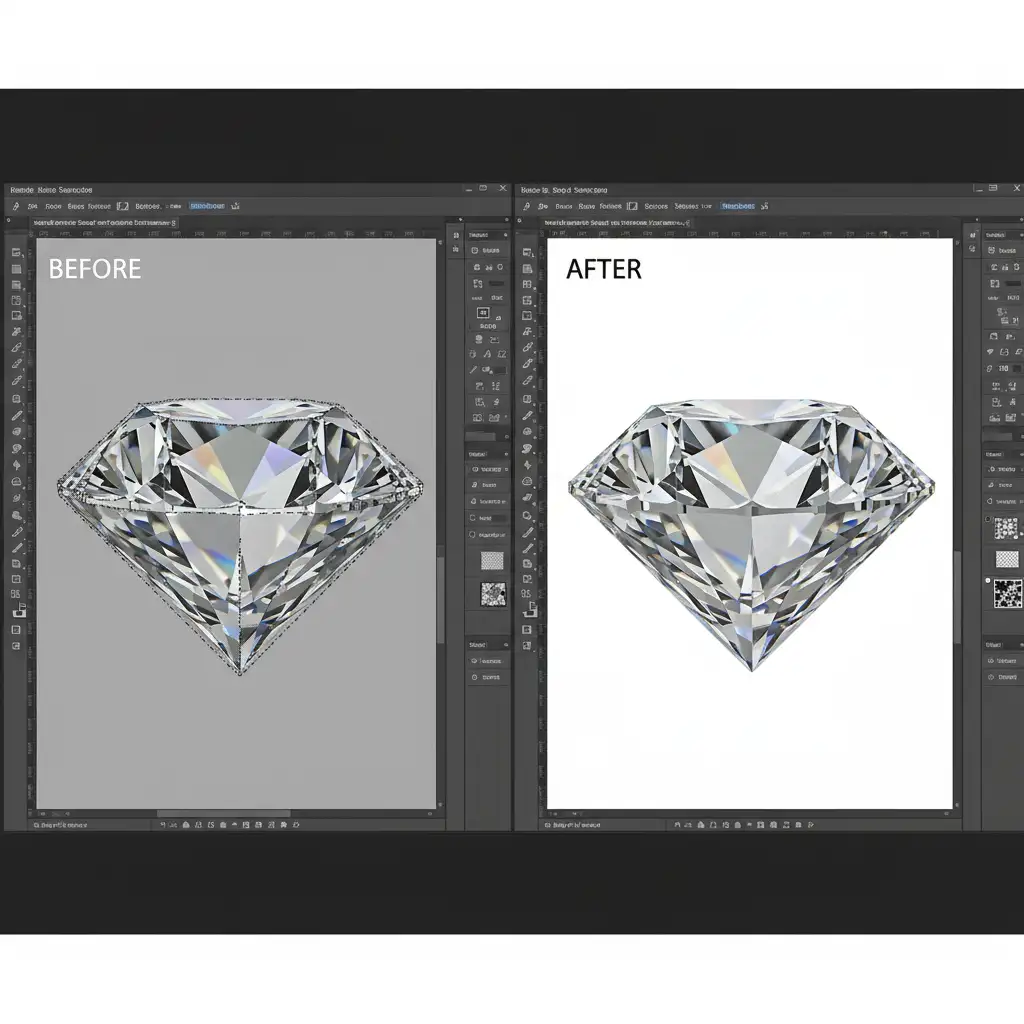
3 Professional Methods for Perfect Gemstone Extraction
Depending on your time constraints and the required quality level, there are three distinct ways to handle transparency in Photoshop.
Method A: The Quick Fix (Vector Masks & Opacity)
If you need a rapid turnaround for lower-tier catalog work, you can fake transparency using basic vector tools.
- Select the Pen Tool (P).
- Carefully draw a hard-edge vector path around the perimeter of the gemstone.
- Convert this path into a selection and apply a vector mask.
- Lower the layer opacity to roughly 85 percent.
While this allows the new background to show through slightly, it is a rudimentary fix. It uniformly drops the opacity, meaning you lose the intense, opaque highlights that make a gemstone look authentic.
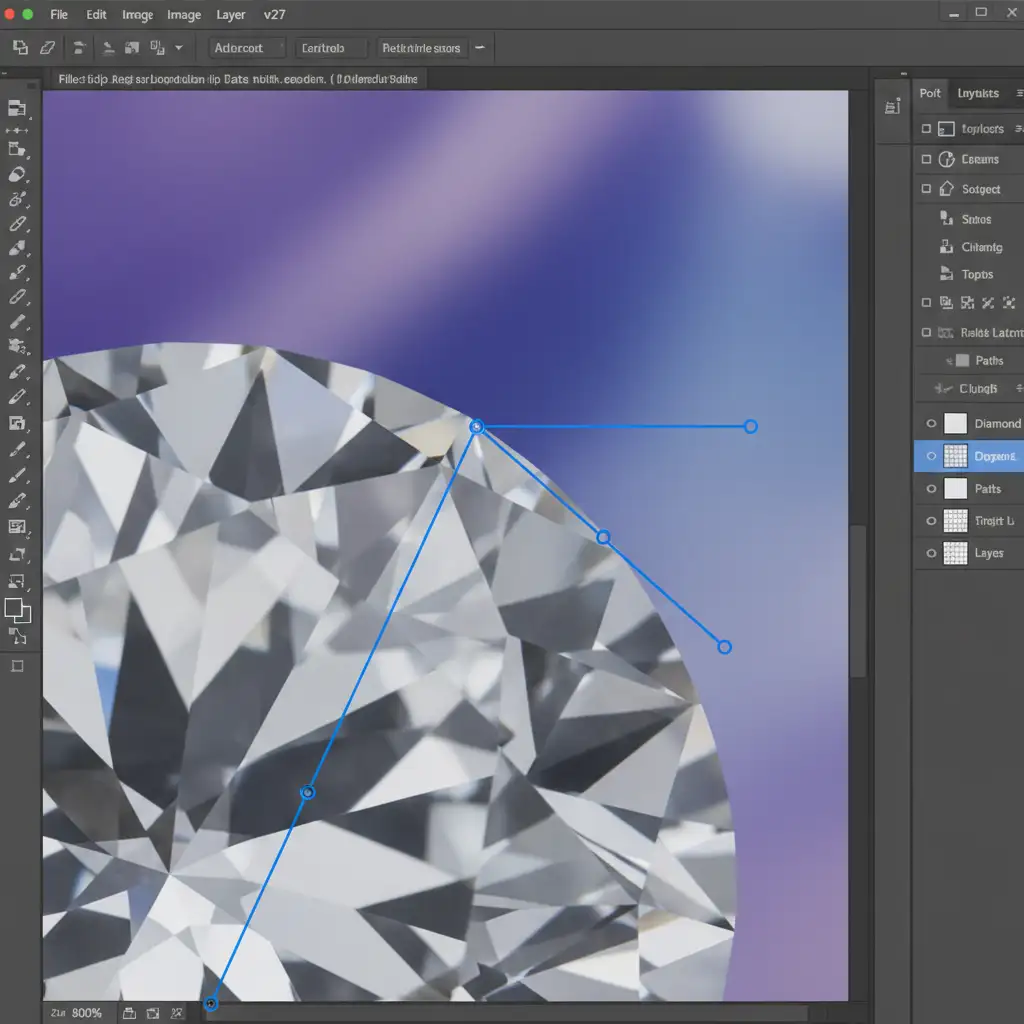
Method B: The Pro Workaround (Multi-Clipping Paths & Blending Modes)
For high-end e-commerce, treating the metal band and the gemstone as a single object is a critical error. You must isolate them using a multi-clipping path.
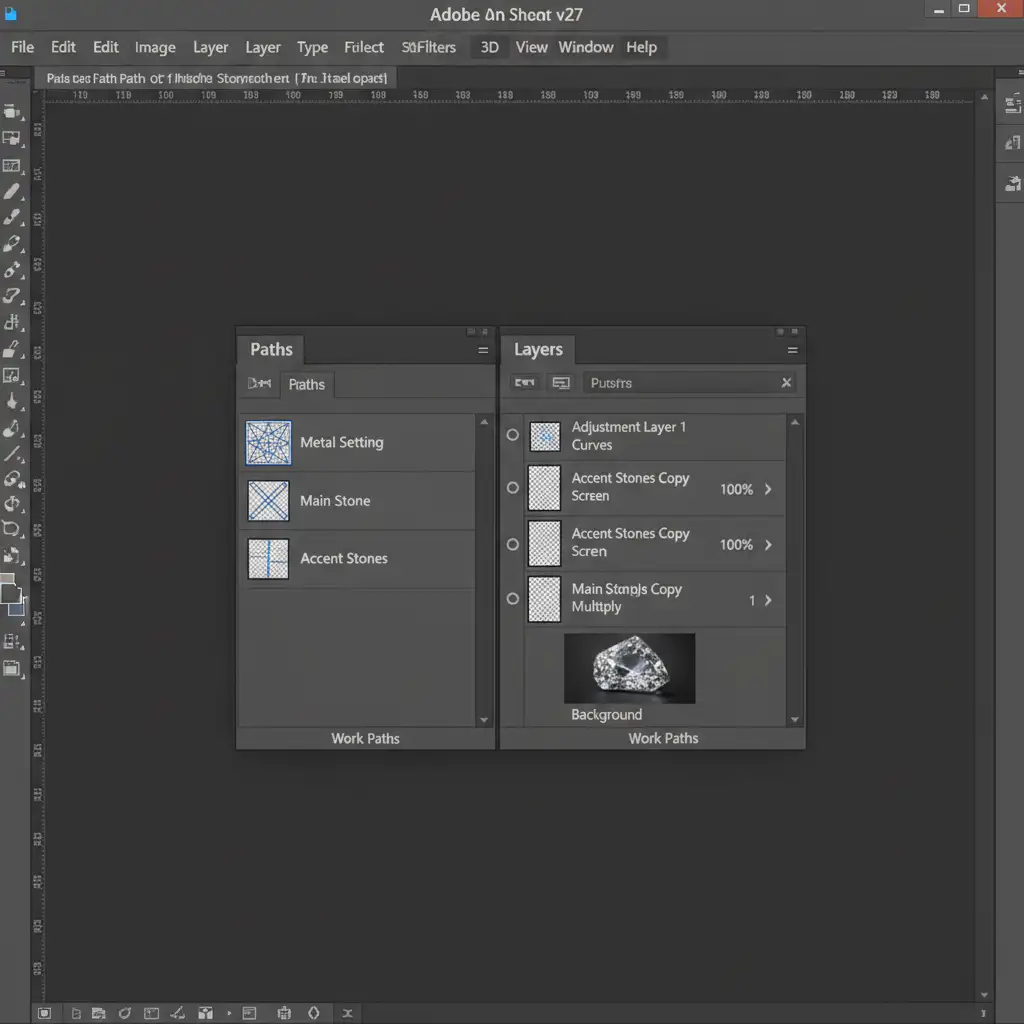
- Open the Paths panel and create separate paths for the different materials. Name them clearly (e.g., “Metal Setting”, “Main Stone”, “Accent Stones”).
- Isolate the main transparent stone onto its own layer.
- Duplicate this stone layer so you have two identical layers stacked on top of each other.
- Set the bottom layer’s blending mode to Multiply. This darkens the image, perfectly retaining the shadows and the deep internal refraction of the gem.
- Set the top layer’s blending mode to Screen. This lightens the image, isolating and boosting the bright highlights and sparkles.
By utilizing these blending modes, you rebuild the gemstone’s transparency artificially, allowing the new background to interact naturally with the stone’s light data.
Method C: The Technical Deep-Dive (Advanced Channel Masking)
When you need absolute perfection-retaining pristine, photorealistic refractions without a single pixel of background color contamination-you must combine precise Pen Tool paths with advanced channel masking.
- Use the Pen Tool to draw a path just 1px inside the stone’s outer edge. This prevents any background haloing.
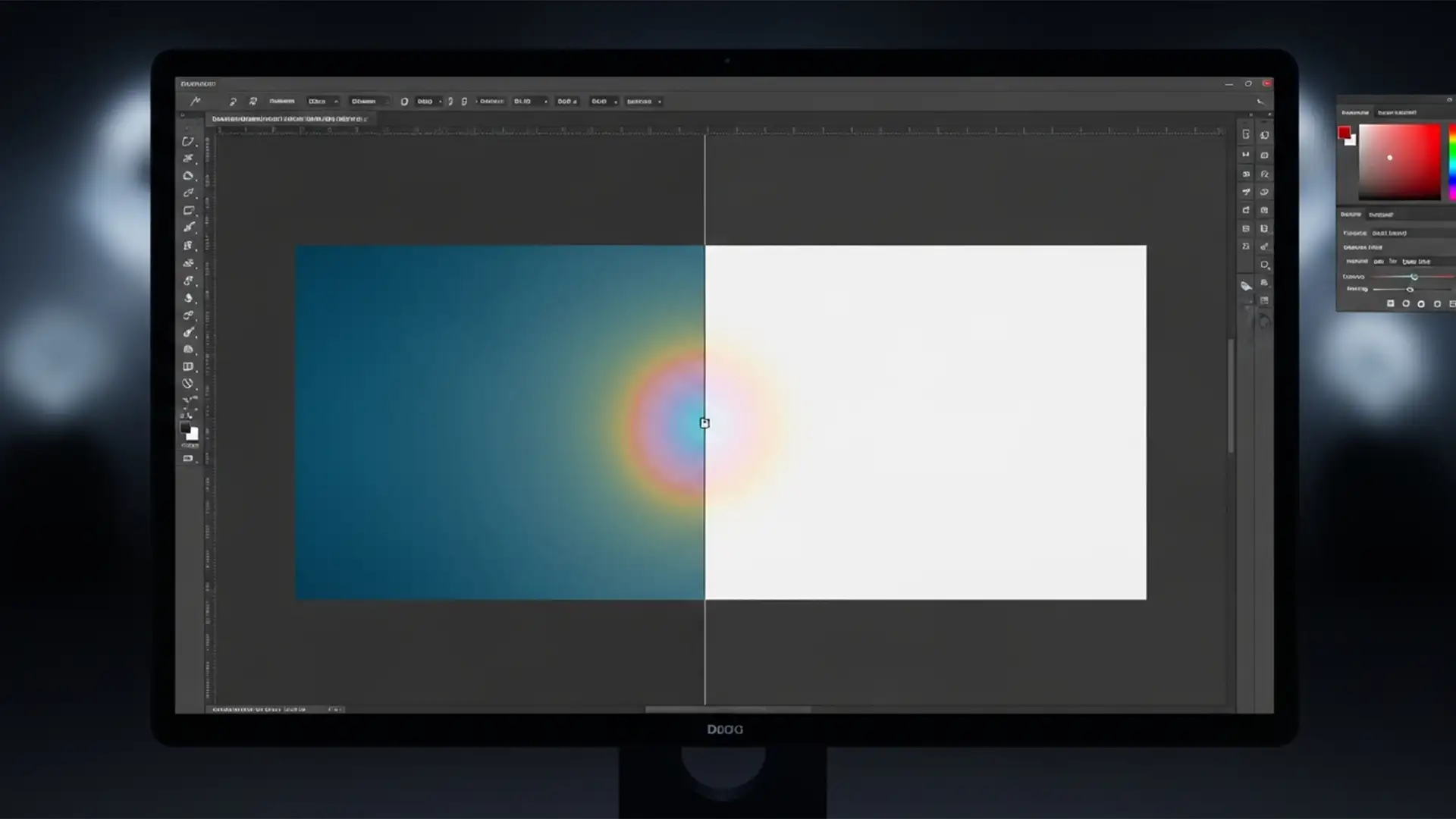
- Navigate to the Channels panel. Click through the Red, Green, and Blue channels to find the one with the highest contrast between the gemstone’s highlights and the background.
- Duplicate that high-contrast channel.
- Press Ctrl+L (or Cmd+L on Mac) to open the Levels adjustment. Push the black and white sliders to extreme values to isolate only the brightest highlights of the stone.
- Ctrl+Click (or Cmd+Click) the duplicated channel’s thumbnail to load it as a selection. You will see the marching ants appear only around the complex internal reflections.
- Intersect this luminosity selection with your original vector path.
- Apply a 0.5px feathering to the final mask. This softens the mathematical harshness of the bezier curve, resulting in a flawless, natural extraction that preserves maximum luminosity.
Outsource Your High-End Jewelry Retouching
Executing a flawless clipping path for transparent stones in jewelry is incredibly time-consuming. While Method C yields world-class results, doing this for hundreds of catalog images will bottleneck your production pipeline and drain your resources.
You don’t have to fight with Photoshop’s failing AI tools or spend hours tweaking channel masks. Image Work India and Cloud Retouch specialize in high-volume, high-end jewelry retouching. Our expert editing teams manually draw pixel-perfect multi-clipping paths, ensuring every diamond, sapphire, and emerald retains its natural brilliance, refraction, and luminosity.
Stop letting automated tools make your expensive jewelry look cheap. Contact Image Work India and Cloud Retouch today to scale your e-commerce imagery with uncompromising quality.