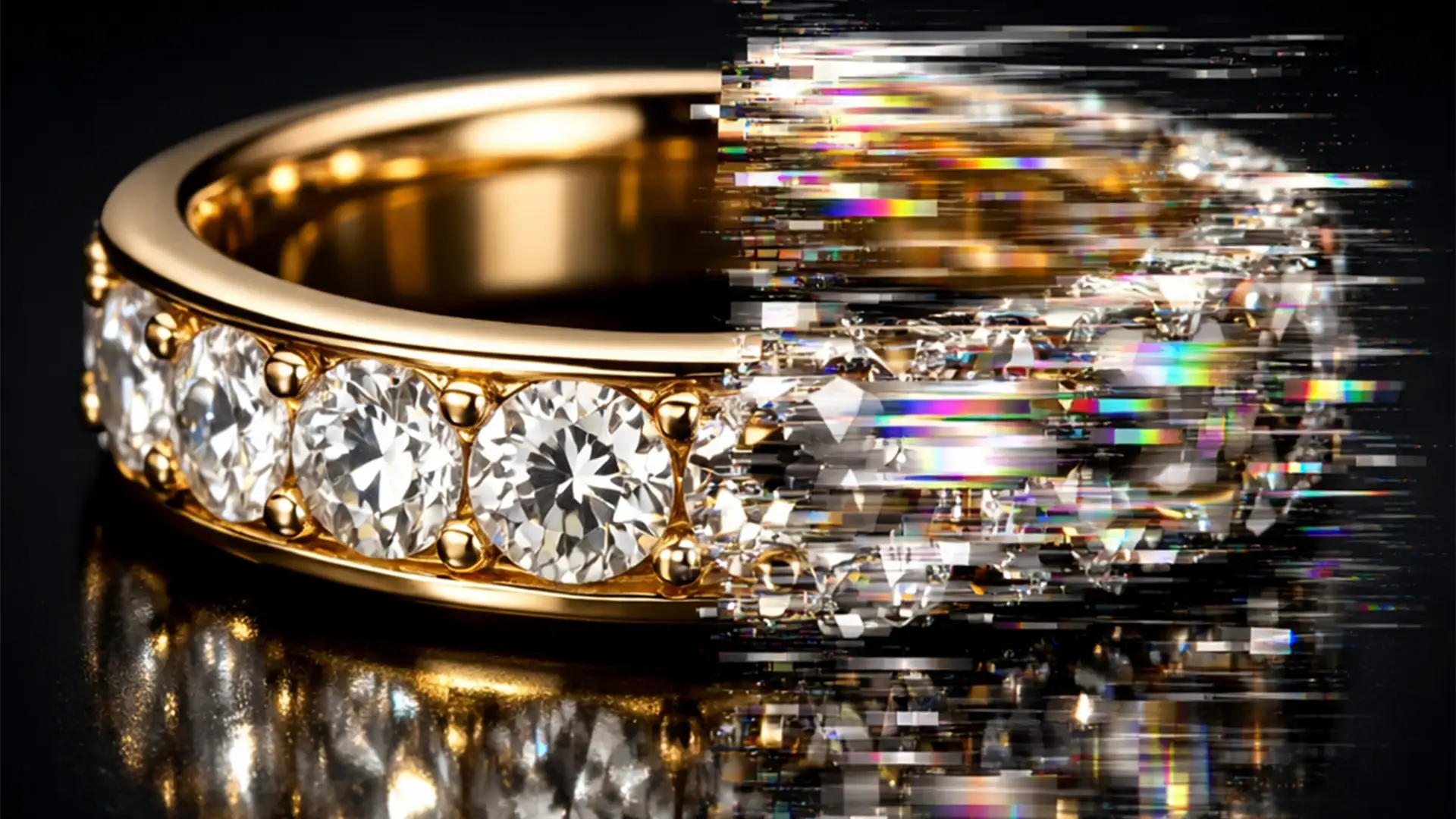

You just ran Adobe Photoshop’s Generative Fill on a stunning gold ring, expecting a flawless cleanup. Instead, you are staring at a smeared, warped mess. When Reflection retouching metallic jewelry, AI tools in Photoshop v25.x and v26.x frequently misinterpret complex specular highlights and bounce light. These diffusion models prioritize blending over strict geometric light physics, ultimately destroying the structural integrity of your metals. If you are tired of battling Generative Fill artifacts that make expensive rhodium and gold look like melted plastic, you are not alone. Here is how to fix jewelry retouching AI reflection artifacts and restore perfect realism to your product photography.
Why AI Fails at Metallic Jewelry Retouching
Highly polished surfaces like gold, silver, and platinum do not behave like standard textures. They act as mirrors, reflecting the surrounding environment, studio strobes, and camera lenses.
When you use automated tools to remove dust, scratches, or reflections, the AI attempts to mathematically guess the missing pixels based on surrounding data. Because diffusion models lack an inherent understanding of physical light properties, they blend contrasting pixels together. This results in smeared textures, warped reflection lines, and a complete loss of micro-contrast.
To achieve high-end, commercial-grade results, you must step in and guide-or completely override-the AI.
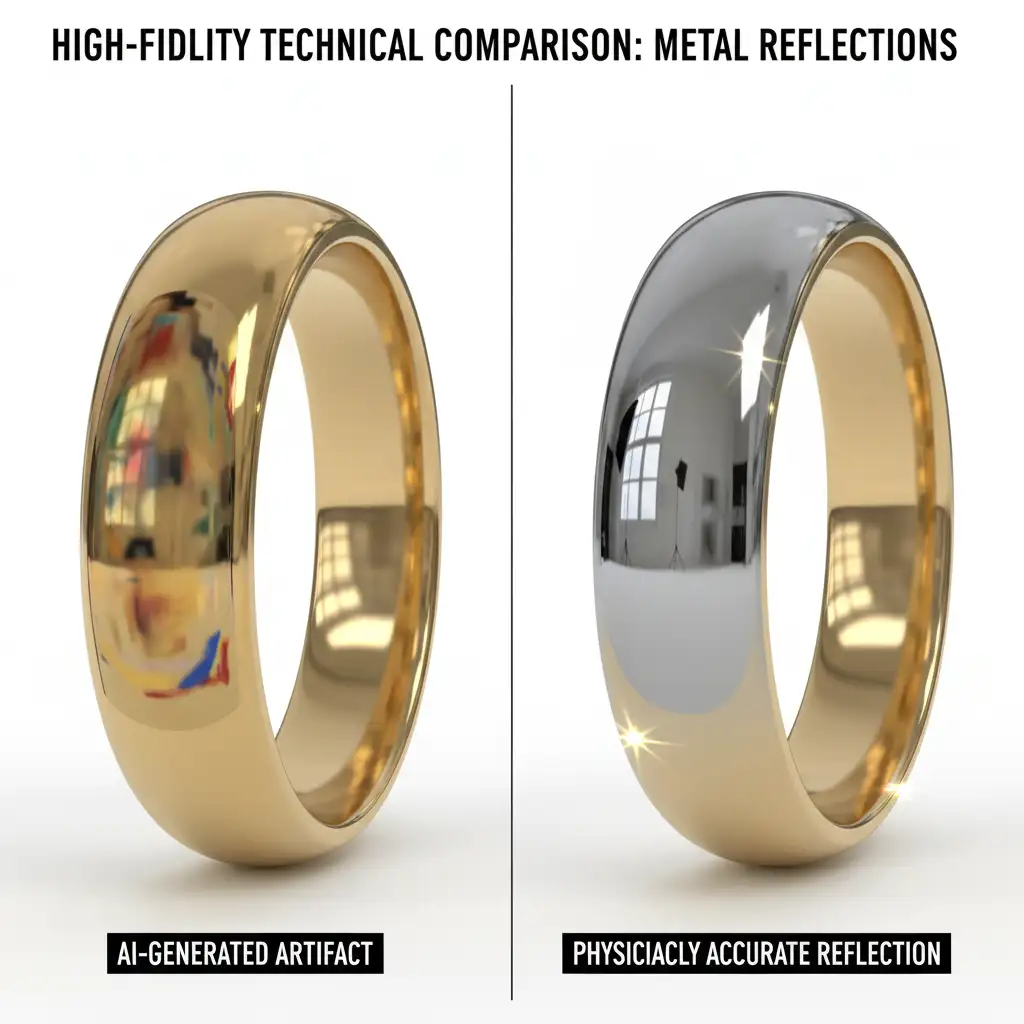
How to Fix Jewelry Retouching AI Reflection Artifacts
Depending on the severity of the AI failure, you can use one of three professional workflows to restore the metallic surface.
Method 1: The Micro-Stroke Technique (The Quick Fix)
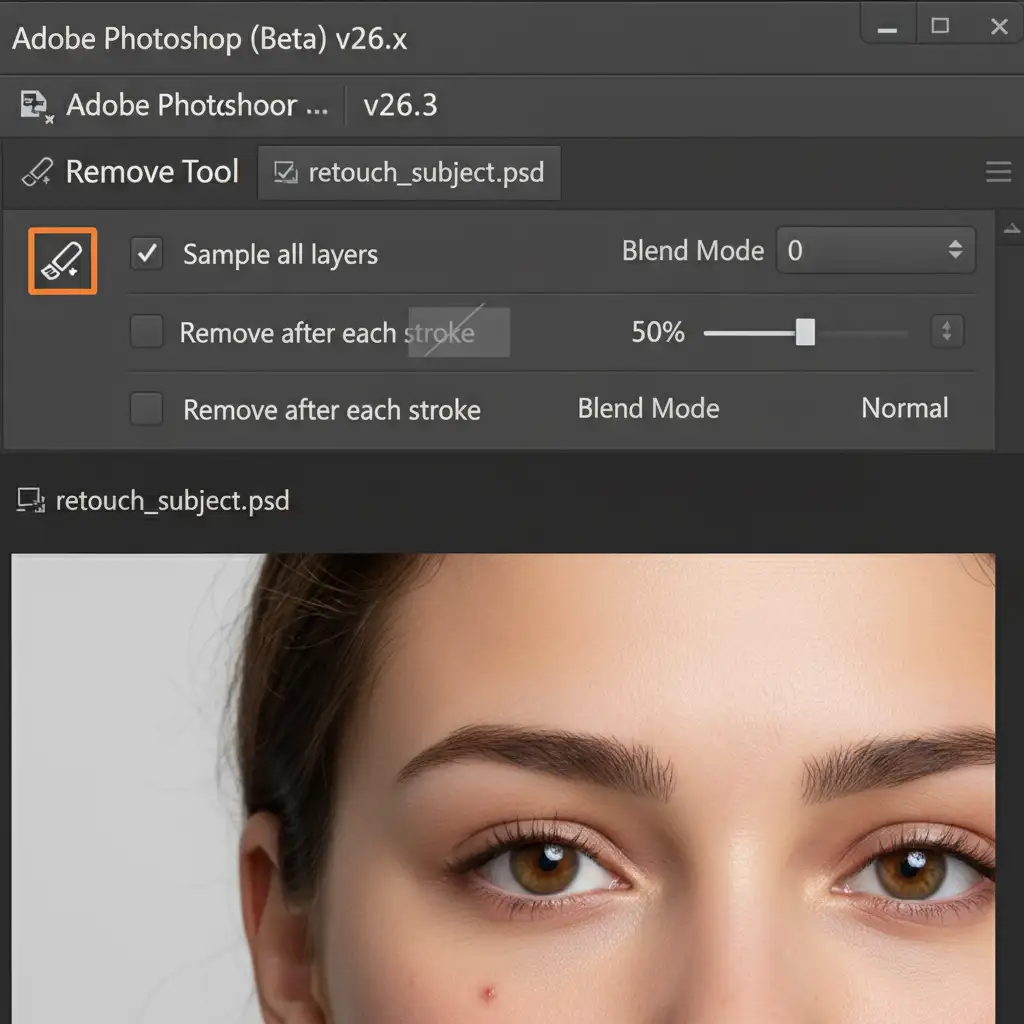
For minor blemishes and small reflection warps, avoid Generative Fill entirely. Instead, leverage the Remove Tool algorithm, but with highly specific settings to prevent over-blending.
- Select the Remove Tool.
- In the top options bar, check Sample all layers.
- Crucial Step: Uncheck/disable Remove after each stroke.
- Instead of making one large selection over the artifact, make multiple micro-strokes along the exact directional line of the reflection.
- Hit Enter to apply.
By feeding the AI smaller, directionally accurate inputs, you force it to respect the linear geometry of the metal rather than blending it into a muddy gradient.
Method 2: Frequency Separation Integration (The Pro Workaround)
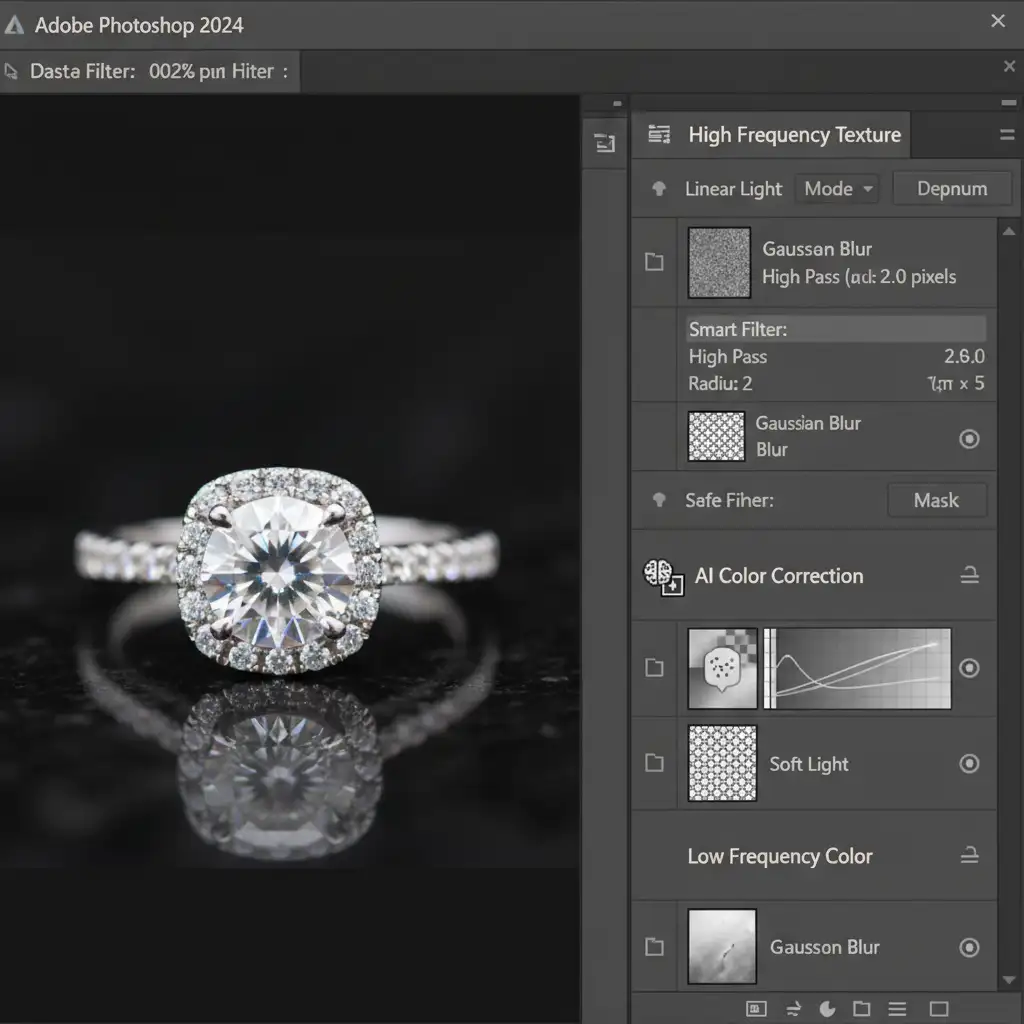
When the AI successfully corrects a color issue but destroys the metallic grain, you need to separate the image data. Frequency separation allows you to keep the AI’s low-frequency color corrections while restoring the high-frequency texture of the authentic metal.
- Create a standard Frequency Separation stack from your original image.
- Apply a High-Pass filter to your high-frequency layer to extract the authentic metal grain, sensor noise, and micro-contrast.
- Place your AI-generated fix (the layer containing the Generative Fill artifacts) between the low-frequency and high-frequency layers.
- Mask the AI layer so it only affects the low-frequency color data.
This technique effectively hides the smeared AI texture underneath the original, crisp metallic grain, instantly restoring realism.
Method 3: Manual Metallic Gradient Reconstruction (The Technical Deep-Dive)
When the AI completely ruins the structural integrity of a facet or band, the only solution is to manually rebuild the light physics from scratch.
- Select the Pen Tool and carefully trace the exact edges of the damaged jewelry facet.
- Convert the path into a Shape Layer.
- Open the Gradient Editor and create a Custom Metallic Gradient. You will need to plot alternating stops of pure white (specular highlights), dark gray/black (environment reflections), and mid-tones to simulate cylindrical or flat metal bouncing light.
- Apply this gradient to your shape.
- Use a Clipping Mask to constrain the new metallic gradient to the exact shape of the band.
- To blend this mathematically perfect gradient into a photographic environment, apply a slight Gaussian Blur to soften the harsh digital edges.
- Finally, add monochromatic Noise to perfectly match the original camera sensor grain.
(Pro Tip: You can further refine this by using luminosity masking to blend the new gradient exclusively into the highlight regions of the original metal).
Stop Fighting AI: Let the Experts Handle Your Jewelry Catalog
Fixing jewelry retouching AI reflection artifacts requires a deep understanding of light physics, advanced Photoshop masking, and meticulous attention to detail. While the workflows above will save your images, they are incredibly time-consuming to execute across an entire e-commerce catalog or editorial spread.
Struggling with inconsistent AI results on your high-end jewelry catalogs? Partner with Image Work India and Cloud Retouch.
Our expert retouchers combine the efficiency of modern AI tools with pixel-perfect manual techniques. Whether it is rebuilding complex metallic gradients, executing flawless frequency separation, or restoring lost micro-contrast, we guarantee physics-accurate reflections every single time. Stop wasting hours fixing generative errors—send your raw files to Image Work India and Cloud Retouch, and let us deliver flawless, ready-to-publish jewelry photography.