![Fix Photoshop M3 Max Batch Export Crash [2024 Guide]](https://imageworkindia.com/wp-content/uploads/2026/03/Fix-Photoshop-M3-Max-Batch-Export-Crash-2024-Guide-Featured-Image.webp)

You just invested heavily in the Apple Silicon M3 Max, expecting unparalleled speeds for your high-volume retouching workflow. Instead, you’re staring at a frozen progress bar. Experiencing a Photoshop M3 Max batch export crash is one of the most frustrating bottlenecks for professional retouchers running v25.x or v26.x builds.
Despite the massive power of Apple’s newest chips, Photoshop’s default memory allocation limits are actively clashing with the M3 Max’s hardware logic. The result? Silent force-quit errors during your high-res exports. Don’t panic—you don’t have a defective logic board. Here is exactly how to optimize your application settings to fix the crashes and restore your workflow.
Why Does Photoshop Crash on the Apple Silicon M3 Max?
The Apple Silicon M3 Max chip introduces a heavily modified Unified Memory Architecture and advanced Dynamic Caching. While this makes the Mac incredibly efficient for most tasks, it creates a unique bottleneck when running Photoshop (specifically 2024+ builds).
When you run an Image Processor Script or trigger rapid read/write cycles on high-res TIFF/RAW files, Photoshop attempts to hoard memory. This default behavior conflicts with Apple’s dynamic GPU caching. Because macOS aggressively protects system stability, it will silently terminate the Photoshop process to prevent a system-wide freeze or Scratch Disk Overflow.
To fix this, we need to adjust how Photoshop addresses the Mac’s logic board through a combination of Memory Allocation Throttling and GPU adjustments.
Step-by-Step Fixes for M3 Max Batch Export Crashes
Method 1: The Quick Fix – Memory Allocation Throttling
The fastest way to stop macOS from forcefully closing Photoshop during an intensive batch run is to limit how much RAM the software is allowed to claim.
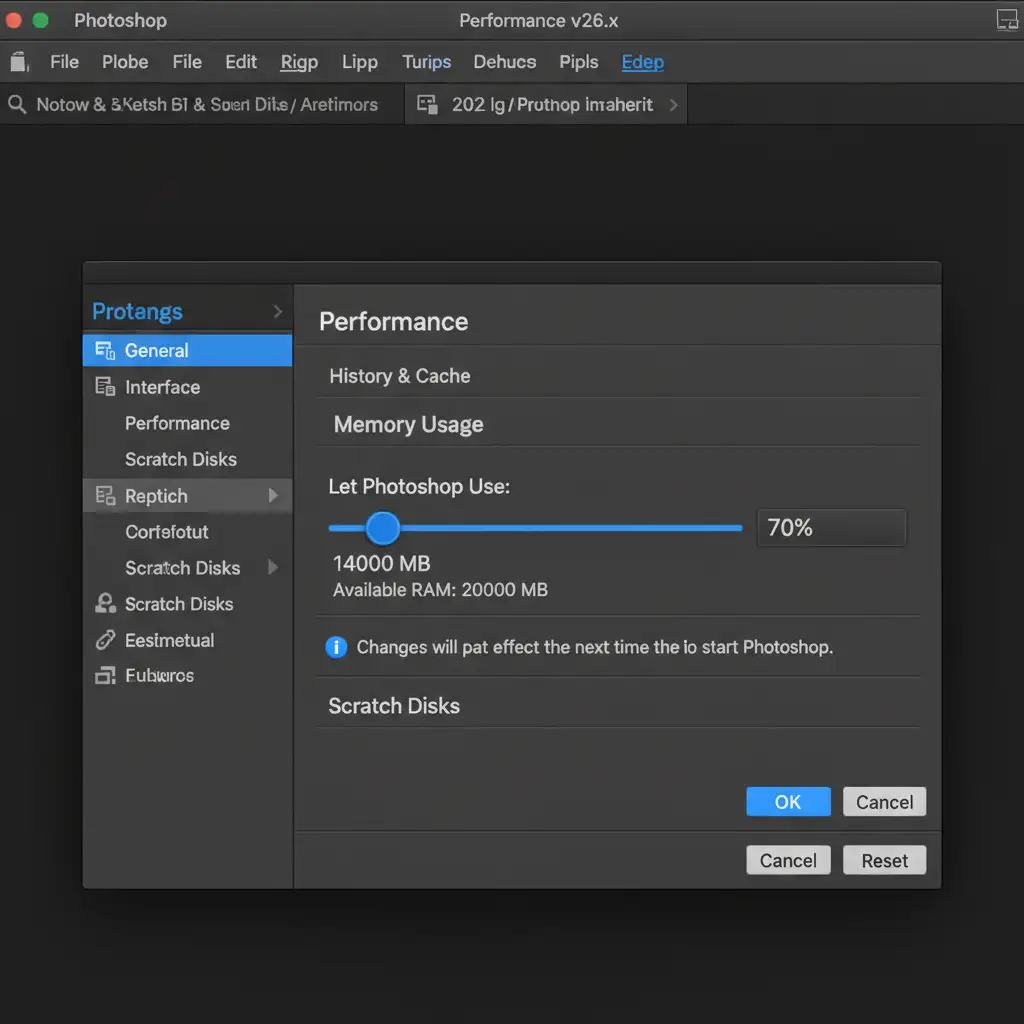
- Open Photoshop and navigate to Settings > Performance.
- Locate the Memory Usage section.
- Reduce the ‘Let Photoshop Use’ slider from the default 85% down to 70%.
By leaving 30% of your unified memory strictly for macOS and dynamic caching overhead, you prevent the operating system from flagging Photoshop as a rogue, memory-hogging application.
Method 2: The Pro Workaround – Purge History States
If you are running complex Batch Action Sequencing, Photoshop saves the history and clipboard data for every single image it processes. Over a batch of hundreds of photos, this creates a massive cache overflow.
You can fix this by adding an automated cleaning step to your action loop:
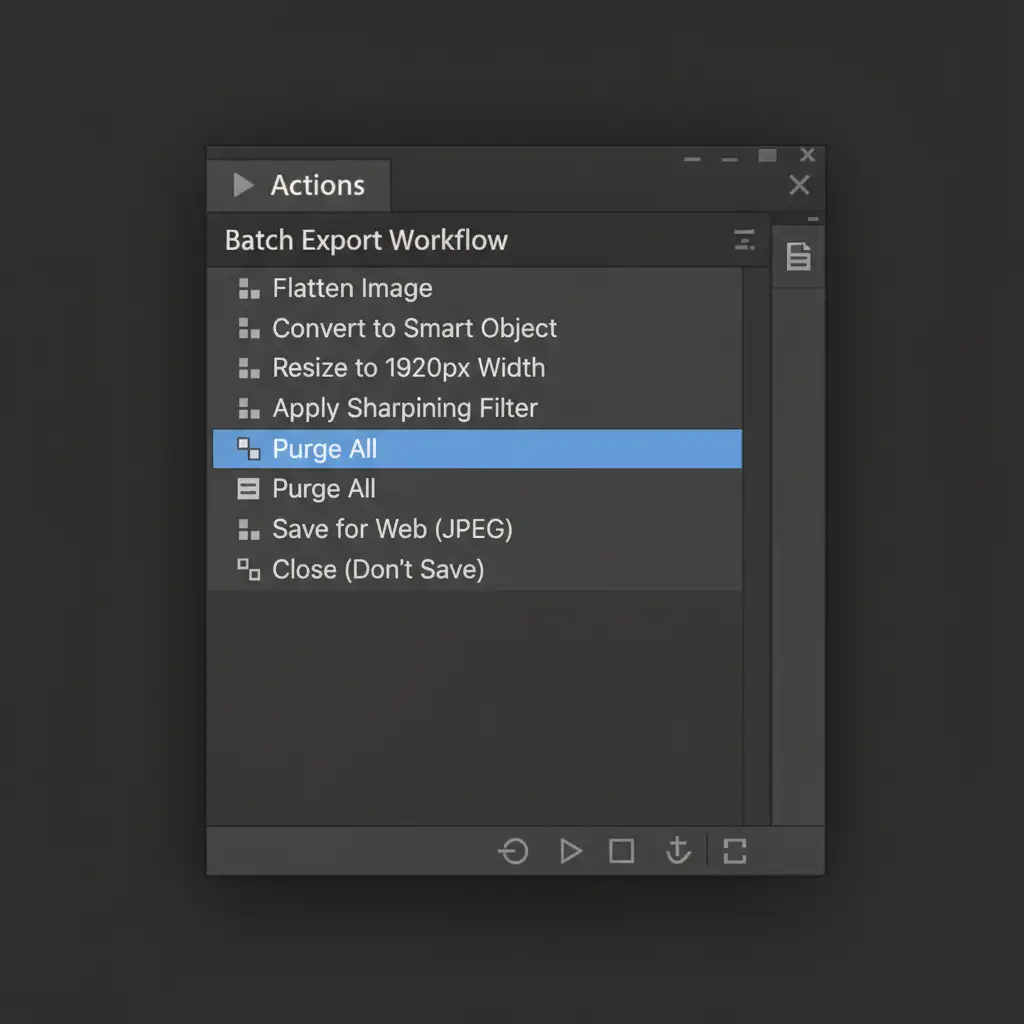
- Open your Actions Panel.
- Select the batch action you use for exporting.
- Click the ‘Record’ button.
- Go to the top menu bar and select Edit > Purge > All.
- Stop recording.
Inserting this Purge History States command forces Photoshop to dump its clipboard and history cache after every single image, keeping your memory footprint incredibly light.
Method 3: The Technical Deep-Dive – GPU and AI Settings
If the first two methods don’t entirely resolve the Photoshop M3 Max batch export crash, the issue lies in how Photoshop handles graphical rendering and AI-driven background tasks. We need to tweak GPU Compositing and multi-threaded rendering.
Part A: Disable GPU Compositing
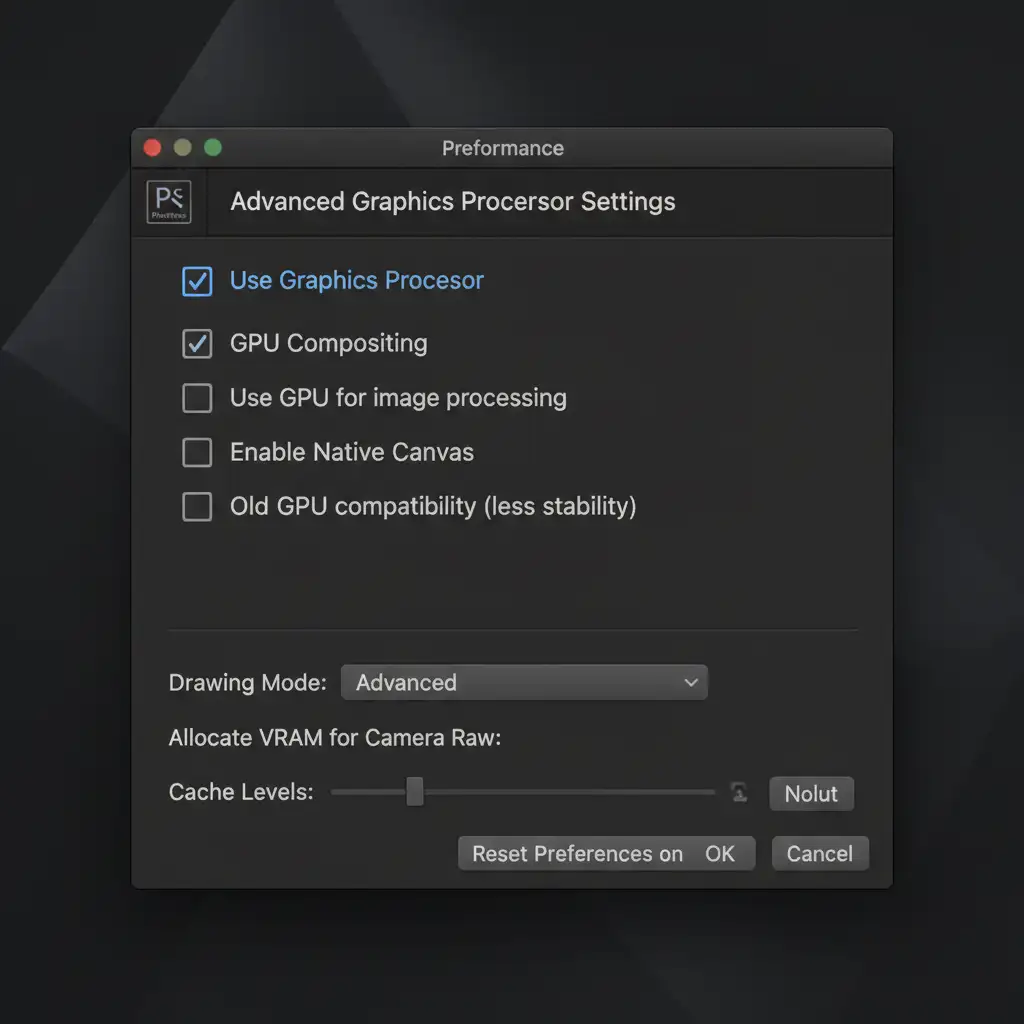
- Go to Settings > Performance > Advanced Settings.
- Uncheck ‘GPU Compositing’. (Ensure ‘Use Graphics Processor’ remains checked).
- Disabling this specific compositing feature stops the software from clashing with the M3 Max’s hardware-accelerated Multi-threaded Compositing during rapid file saving.
Part B: Localize AI Processing If your batch actions include AI commands, network latency can cause the Image Processor to freeze.
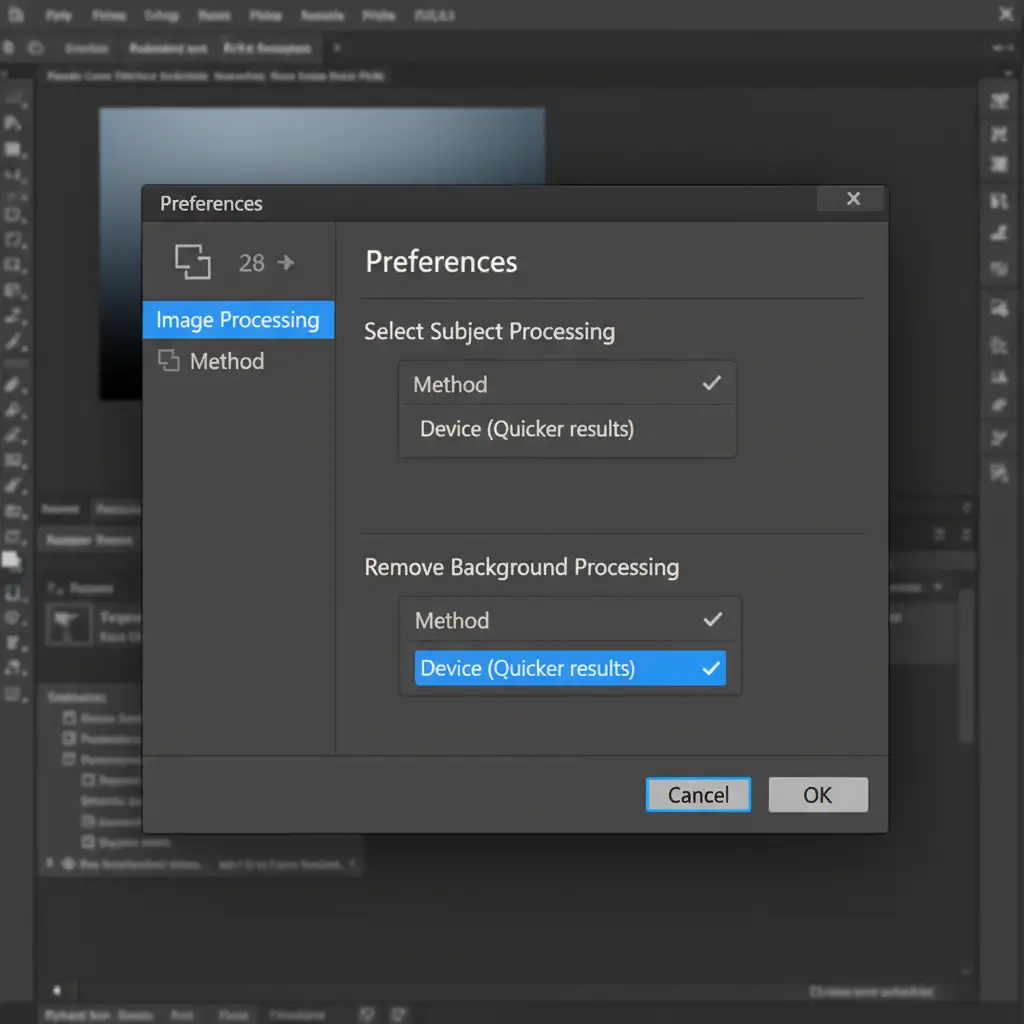
- Navigate to Settings > Image Processing.
- Look for the settings regarding ‘Remove Background’ and ‘Select Subject’.
- Change the processing dropdown from ‘Cloud’ to ‘Device’.
- This forces the M3 Max’s Neural Engine to handle the processing locally, eliminating network-timeout crashes.
Skip the Troubleshooting: Outsource Your Batch Retouching
Fixing a Photoshop M3 Max batch export crash takes time, and constantly managing your hardware settings can pull you away from what actually matters: growing your photography business and delivering stunning images to your clients.
Need high-volume batch processing without the hardware headaches? Let the experts handle the heavy lifting.
At Image Work India and Cloud Retouch, we specialize in flawless, high-speed, and crash-free retouching services. Whether you need bulk background removal, high-end fashion retouching, or massive e-commerce batch processing, our dedicated infrastructure and expert team guarantee perfect results delivered on time.
Stop fighting with your software. Contact Image Work India and Cloud Retouch today and scale your post-production effortlessly!