
You are on a tight deadline, you double-click a standard image file, and suddenly-Photoshop freezes, stutters, and closes. If you are experiencing a Photoshop v25.5 crash on opening jpg files, you are not alone.
This infuriating 2024 bug is tied directly to Adobe’s new rendering engine clashing with specific graphics drivers. Instead of reinstalling your entire operating system or rolling back to an older version of the software, you can resolve this conflict in just a few clicks.
In this guide, we will show you exactly how to bypass the broken JPEG decoder, tweak your settings, and get your workspace running smoothly again.
Why is Photoshop 2024 (v25.5) Crashing?
The core technical conflict causing this crash stems from Adobe’s Native Canvas rendering engine interacting poorly with specific display drivers. This is most common for users running older Nvidia Game Ready drivers or integrated Intel graphics.
When you attempt to open a standard JPEG, the software initializes the JPEG decoder. If there is a miscommunication with your GPU acceleration, or if the preference files within the Adobe UXP process (Unified Extensibility Platform) directory are corrupted, the application will instantly force-close to protect system memory.
Here are the three proven methods to bypass this bug and fix the crash permanently.
Method 1: The Quick Fix – Disable Native Canvas
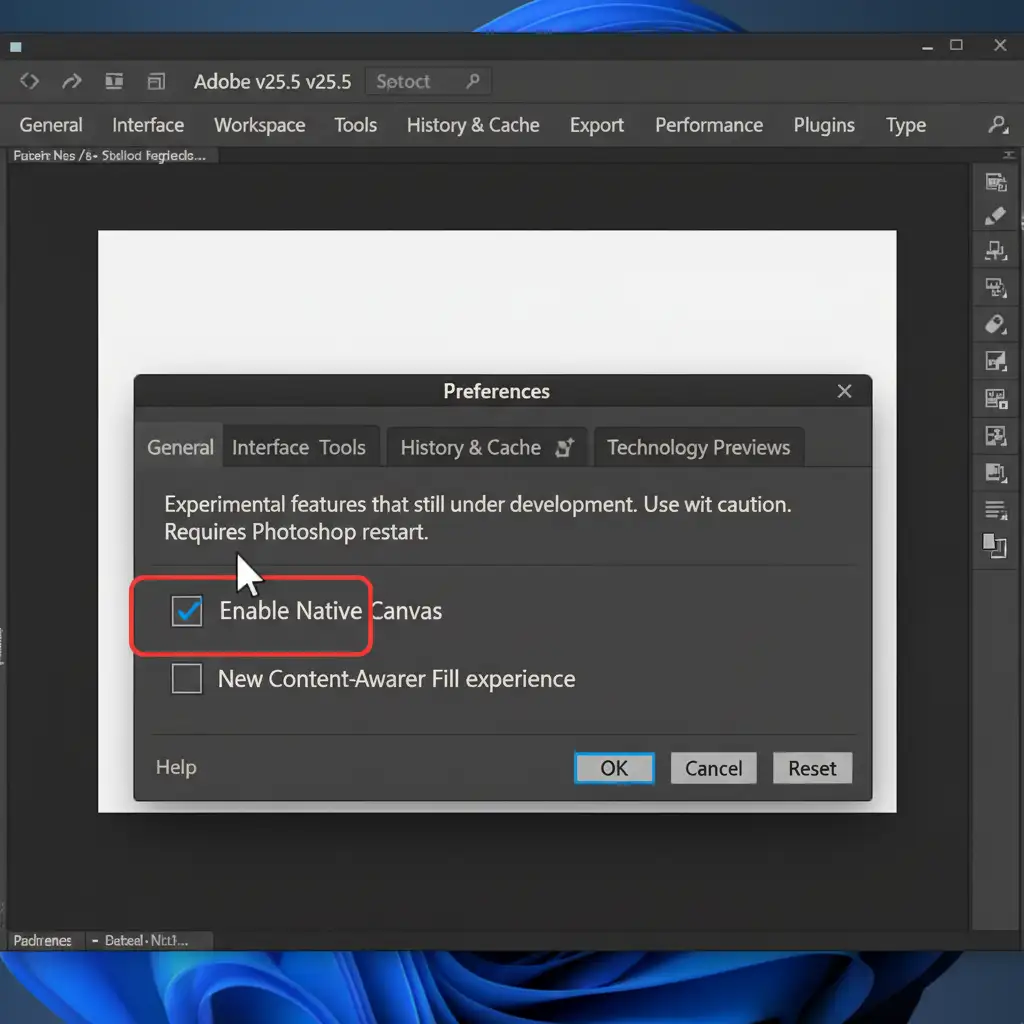
The fastest way to stop the crashing is to turn off the Native Canvas feature. This forces Photoshop to use its legacy rendering engine, which is highly stable.
Step-by-Step Instructions:
- Open Photoshop (do not open an image yet).
- Navigate to Edit > Preferences > Technology Previews (Windows) or Photoshop > Settings > Technology Previews (Mac).
- Locate the checkbox labeled Enable Native Canvas.
- Uncheck the box.
- Click OK and restart Photoshop.
Method 2: The Pro Workaround – Route Through Camera Raw
If you need Native Canvas enabled for other workflows, you can bypass the standard JPEG decoder entirely by forcing your JPGs to open through Adobe Camera Raw.
Step-by-Step Instructions:
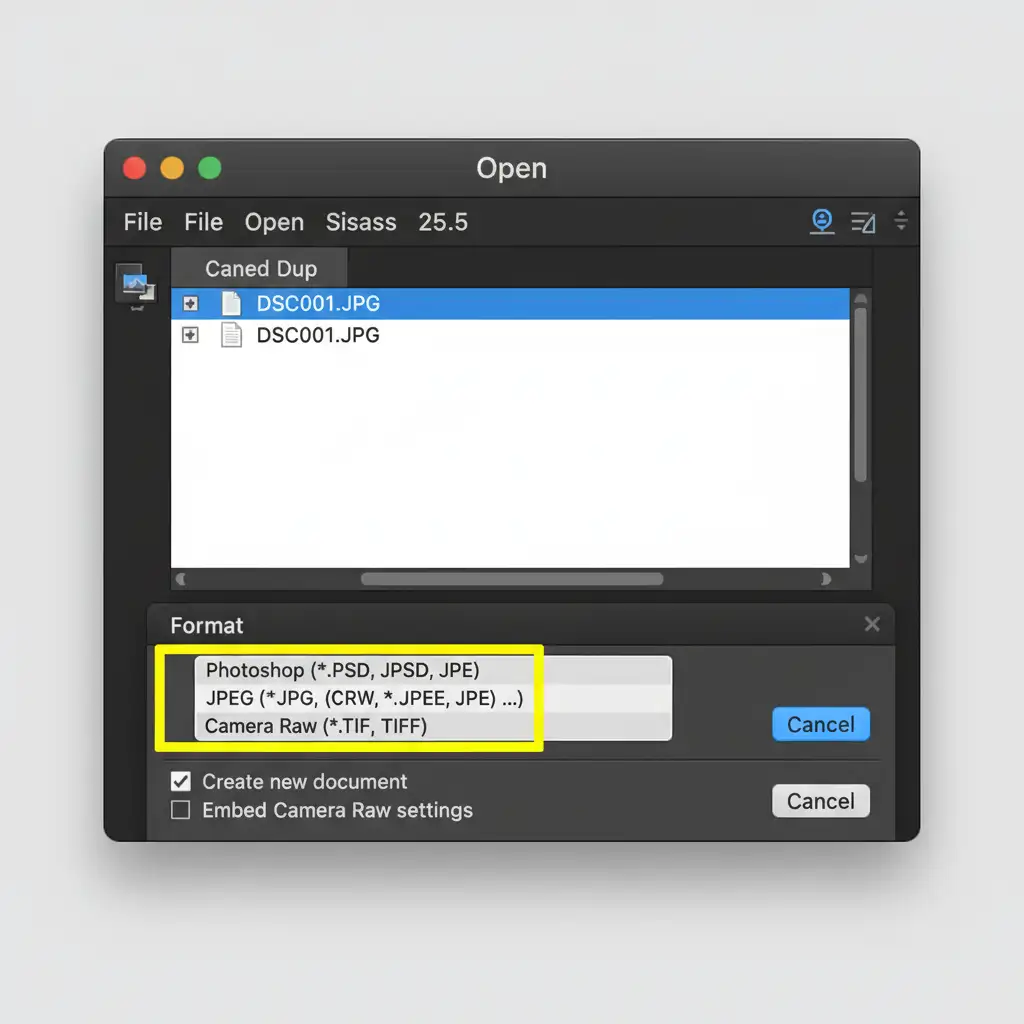
- Go to File > Open (do not drag and drop the image into the workspace).
- Select your JPG file in the dialog box.
- At the bottom of the window, locate the Format dropdown menu.
- Change the format from “JPEG” to Camera Raw.
- Click Open.
- Once the image opens in the Adobe Camera Raw interface, hold the Shift key. The “Open” button at the bottom right will change to Open Object. Click it to bring the image into Photoshop as a Smart Object.
Method 3: Technical Deep-Dive – GPU and Preferences Reset
If the application is still freezing, the issue lies deeper within your system’s Graphics Processor settings or a corrupted preference file. A full Preferences reset followed by a driver update will clear out the bad data.
Step 1: Force-Reset Preferences
- Close Photoshop completely.
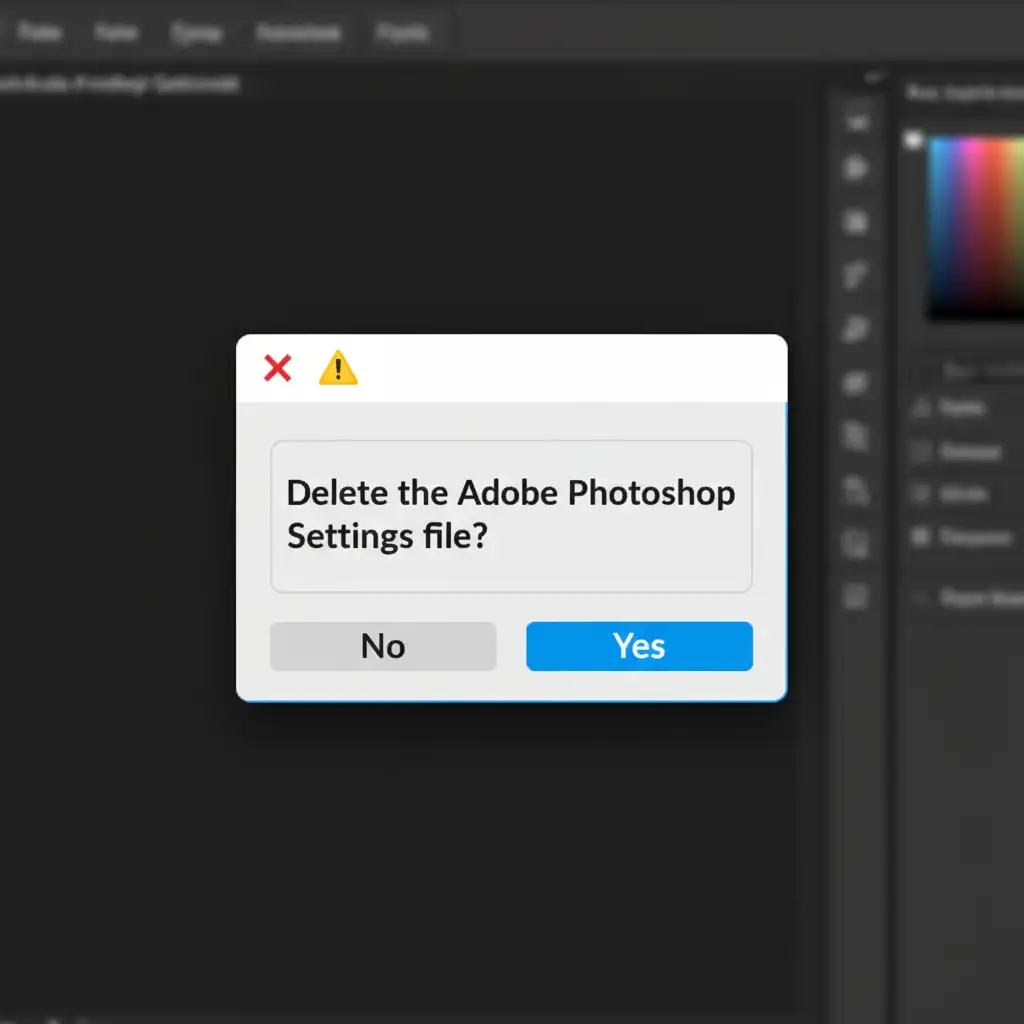
- Hold down Ctrl + Alt + Shift (Windows) or Cmd + Option + Shift (Mac).
- While holding the keys, launch Photoshop.
- A prompt will appear asking: “Delete the Adobe Photoshop Settings file?” Click Yes.
Step 2: Disable GPU Acceleration Temporarily
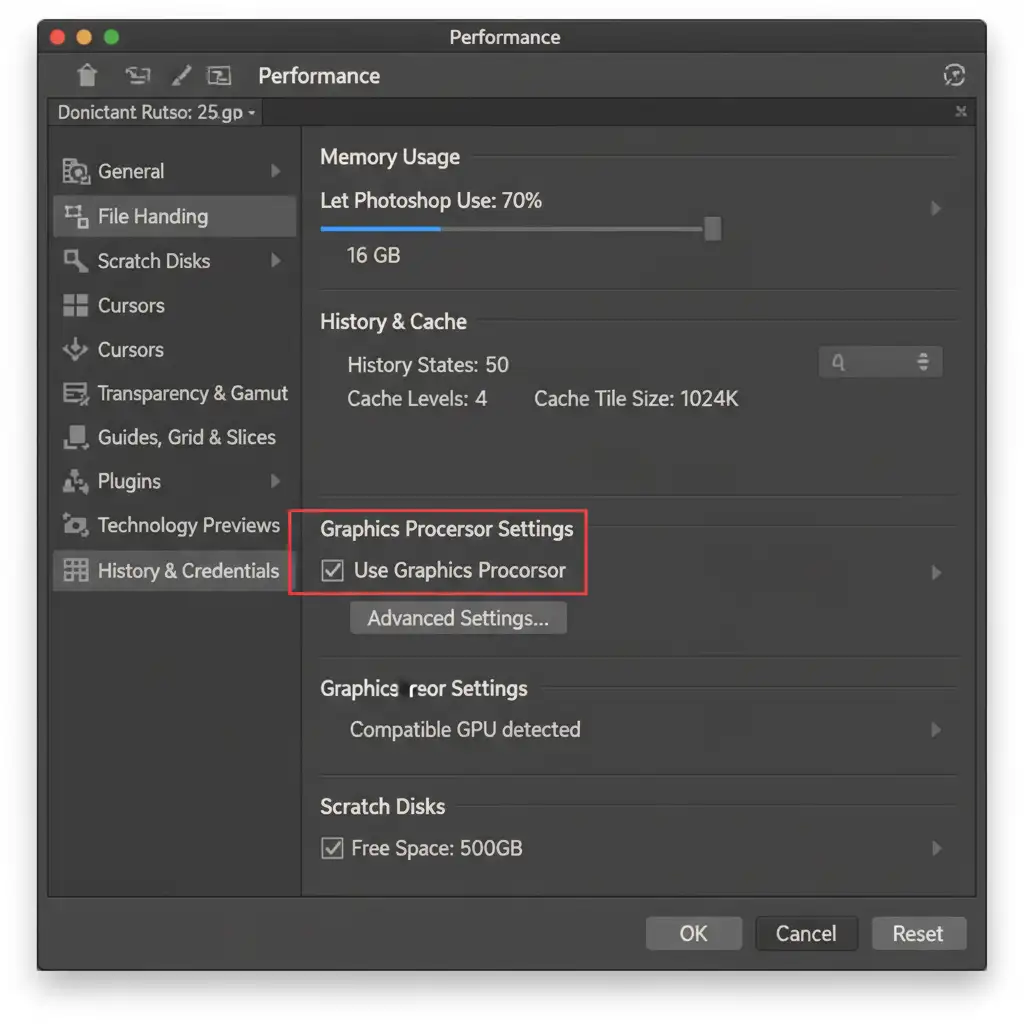
- Go to Edit > Preferences > Performance.
- Under the Graphics Processor Settings section, uncheck Use Graphics Processor.
- Click OK and restart the app. Test opening a JPG.
Step 3: Update to a Studio Driver
If disabling the GPU fixes the crash, your graphics driver is the culprit. We highly recommend switching from Game Ready drivers to a Studio Driver. Studio Drivers are specifically optimized for creative applications like Photoshop, providing significantly better stability for the UXP process and canvas rendering. Visit the Nvidia or AMD website to download the latest Studio Driver for your specific graphics card.
Stop Fighting Software Bugs: Outsource to the Experts
Troubleshooting a Photoshop v25.5 crash on opening jpg files eats into your valuable time. When you are managing high-volume e-commerce shoots, real estate batches, or complex editorial composites, you cannot afford to have software bugs grind your workflow to a halt.
Let the experts handle the heavy lifting. At Image Work India and Cloud Retouch, we provide flawless, uninterrupted, professional-grade photo editing and retouching services. From bulk clipping paths and color correction to high-end beauty retouching, our dedicated team ensures your images are delivered perfectly-no crashes, no bugs, no delays.
Focus on growing your business, and leave the pixels to us. Contact Image Work India today to get a free trial and see how seamless your post-production workflow can truly be.