If you’ve ever tried to post something on Instagram and thought, “Hmm, this background looks boring,” you’re in the right place. Learning How to Change Background Color on Instagram Story is one of those small tricks that instantly makes your content look more polished, more aesthetic, and more “you.” The good news? It’s not difficult at all – you just need to know where everything is and how the tools work.
In this guide, I’m going to walk you through everything step by step, like a friend sitting next to you with the phone in hand. We’ll talk about basic color fills, transparent overlays, using photos as backgrounds, using brand colors, and even some creative ways to match your background to your content. By the time you’re done reading, you’ll be able to confidently say you know How to Change Background Color on Instagram Story in multiple different styles.
I’ll also show you where image editing can take things even further, and how you can use a professional service like Image Work India to make your visuals look premium and consistent.
Why Changing the Background Color Matters
Before jumping into the how-to part, it helps to understand why this tiny feature is so powerful.
When you learn How to Change Background Color on Instagram Story, you gain control over the mood and style of your post. A plain white or random blurry background might not match your brand or your personality at all. But a carefully chosen color can make:
- Your text easier to read
- Your product or selfie stand out more
- Your Stories look more cohesive and professional
- Your audience feel a certain emotion (calm, excitement, luxury, etc.)
Think of your Story background as a mini canvas. Even if your main content is just a screenshot, a quote, or a quick announcement, the background color frames everything. This is especially important for creators, small business owners, and brands who want their Stories to look consistent.
When you truly understand How to Change Background Color on Instagram Story, you stop relying on default looks and start designing your own visual style.

Getting Started: Opening the Instagram Story Editor
Let’s start from the very beginning, in case you’re new to Stories or haven’t explored all the options yet.
Open the Instagram app and swipe right from your home feed, or tap the “+” icon and choose “Story.” This opens the Story camera. From here, you can:
- Take a new photo or video
- Upload something from your gallery
- Use the “Create” mode for text-based stories or other templates
No matter which option you choose, you’ll end up in the Story editing screen, where you can add text, stickers, GIFs, drawings, and of course, change the background color. To master How to Change Background Color on Instagram Story, you’ll mostly use the drawing tools and some smart tricks with photos.
The Classic Trick: Solid Color Background with the Pen Tool
One of the easiest ways to change the background is to fill the entire screen with a solid color. This is perfect when you want a clean background for text, quotes, or announcements.
Here’s the general workflow you’ll follow every time you want a solid color:
- Open the Story editor and either take a random photo or upload any image (it doesn’t really matter what it is, because we’ll cover it).
- Tap the drawing (pen) icon at the top of the screen.
- Choose a color from the palette at the bottom.
- Press and hold anywhere on the screen for about a second.
The whole screen will instantly fill with that color. Just like that, you’ve completed the simplest version of How to Change Background Color on Instagram Story.
Now you can tap “Done,” add text, GIFs, stickers, or even erase parts of the color to reveal bits of the original image beneath. This method is amazing for creating quick background color stories that still look intentional and professional.

Transparent Overlays: Letting the Image Show Through
Sometimes you don’t want to completely hide your photo. You might want your original image to stay visible, but with a colored tint on top for mood and readability. Learning How to Change Background Color on Instagram Story in a more subtle way involves using transparent overlays.
Here’s the basic idea:
- Choose your photo or design in the Story editor.
- Tap the drawing icon.
- Instead of the normal pen, choose the marker or highlighter tool (the one that gives a semi-transparent effect).
- Choose a color and then press and hold on the screen.
Now you’ll see a tinted color over your photo instead of a solid block. This is super useful when you have a busy photo but you still want to write text on top. The transparent overlay softens the background so your text pops.
Once you get comfortable with overlays, you’ll realize that How to Change Background Color on Instagram Story isn’t just about solid colors. It’s also about adjusting how strong or soft the color feels.
Using the Eraser for Creative Cutout Effects
One of the most fun parts of controlling your Story background is combining solid colors with the eraser. This creates a kind of “window” effect.
Here’s how it works in a simple way:
- Start with a photo in your Story editor.
- Use the pen tool and long-press to fill the screen with a solid color.
- Tap the eraser tool.
- Gently erase in specific areas to bring back parts of your original photo.
Now you’ve basically created a custom shape or frame where your photo shows through. You can use this to highlight a face, a product, or any detail. When people ask you How to Change Background Color on Instagram Story in a more advanced way, this is one of the tricks that makes your Stories look like they were edited in a professional app.
If you ever feel limited by what you can erase by hand, that’s where a service like Image Work India can help. You can pre-edit your photos with clean cutouts, transparent backgrounds, and color-corrected images at www.imageworkindia.com, so when you bring them into Instagram, everything already looks polished.
Matching Backgrounds to Brand or Aesthetic Colors
If you’re using Instagram to grow a brand or a visual identity, you probably have certain colors you use everywhere – in your logo, website, or feed. Knowing How to Change Background Color on Instagram Story to match those exact colors makes your Stories feel much more professional.
Here are a few ways to stay consistent with your brand colors:
Use the Color Picker
When you have a photo or graphic that already contains your brand color, use the eyedropper tool (color picker) in the Story editor. This allows you to tap on the color in your image and set it as your background color. This is one of the easiest ways to keep everything aligned visually.
Use a Pre-Designed Background Image
Another approach is to create custom background images with your brand colors and upload them to your phone. Then, inside Instagram Stories, you just select those images as your base. After that, you can add text, stickers, or even extra color overlays.
Changing Background Color Behind Shared Posts or Reels
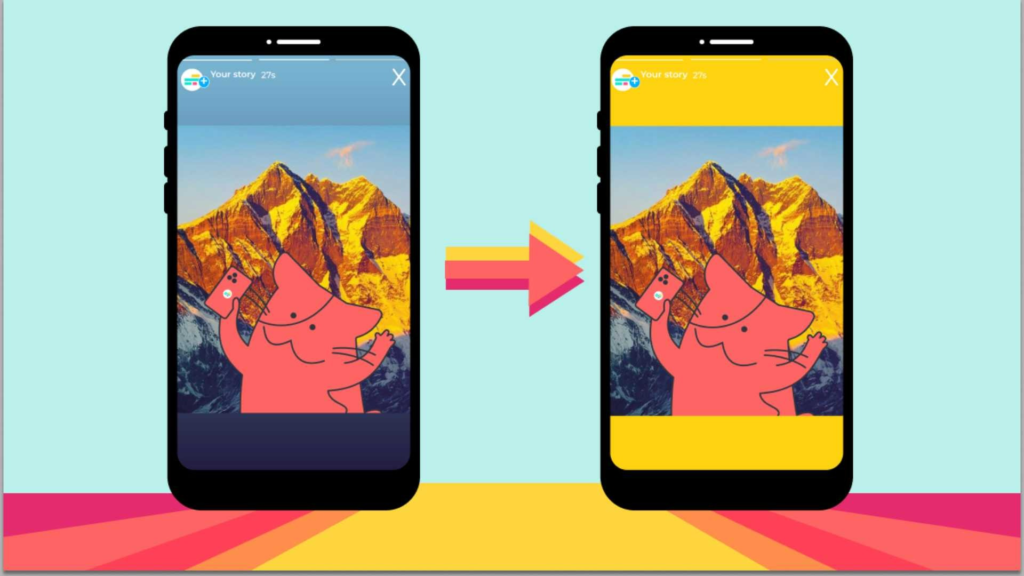
Another common situation where people search for How to Change Background Color on Instagram Story is when they share a feed post, reel, or someone else’s content to their Story. By default, Instagram picks a gradient or color from the post, but you’re not stuck with that.
When you share a post or reel to your Story:
- Tap the drawing icon at the top.
- Choose a color from the palette or use the eyedropper to select a color from the post itself.
- Long-press the screen to change the background.
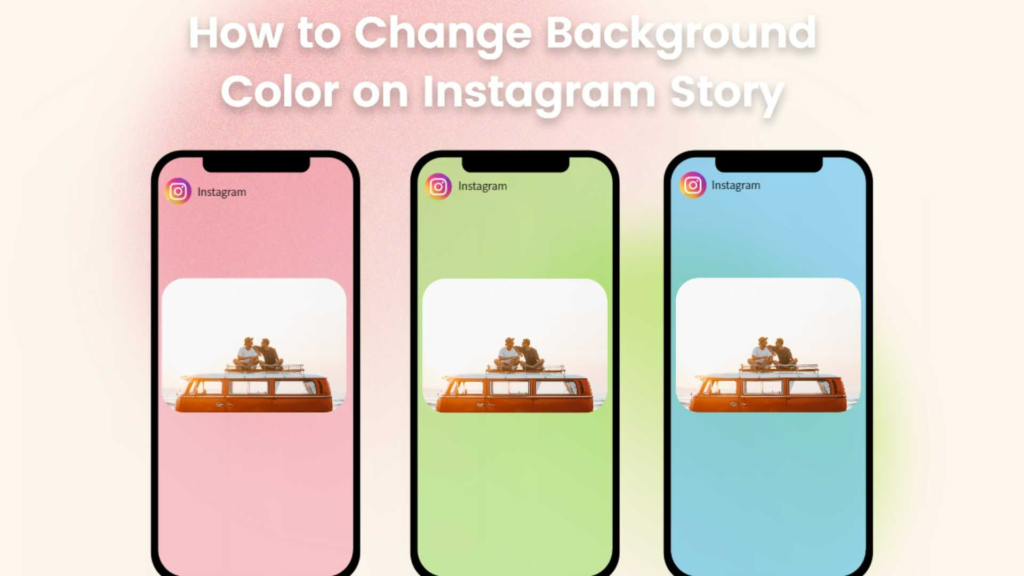
The post preview will stay in the center, but the area around it will change to your chosen color. This makes a big difference when you want your Stories to match your overall feed style or campaign colors.
If you’re highlighting multiple posts in a single day, choosing consistent colors helps keep your Stories cohesive and recognizable, especially for brands and creators who care deeply about aesthetics.

Dark Mode vs Light Mode and Readability
You might not think about it often, but many of your viewers could be browsing Instagram in different lighting conditions, or on screens with different brightness. When you understand How to Change Background Color on Instagram Story, readability should always be in the back of your mind.
For example:
- Light backgrounds with dark text are usually easier to read in bright environments.
- Dark backgrounds with light text can look more dramatic and are often easier on the eyes at night.
If your background color is too similar to your text color, your message will get lost. It’s a good habit to always double-check contrast before posting. You can quickly tap through different text styles and add shadows or outlines to make the words stand out.
You can even create test versions of your Stories, save them to your gallery, and check them on different devices before posting. If something feels off, you can fine-tune it in a professional editor or get help from a service like Image Work India, where experts can correct colors and improve contrast so your visuals stay easy to read and visually appealing.
Using Gradients and Backgrounds from the “Create” Mode
Not every Story needs a photo. Sometimes you just want to write something – a thought, a quote, an announcement, or a quick update for your followers. This is where the “Create” mode is very handy, especially if you’re exploring more creative ways of How to Change Background Color on Instagram Story.
When you swipe to the “Create” option in Stories, Instagram shows you different styles and gradient backgrounds. You can tap the color circle at the top to cycle through multiple options. These are ready-made combinations that already look good, so they’re a great starting point if you don’t want a plain solid background.
You can treat these gradients as your base and still customize further. Add text, GIFs, emojis, and even stickers like question boxes, polls, or sliders. Over time, you’ll start recognizing which gradient backgrounds match your personality or brand best, and you’ll naturally choose them more often.
Combining Instagram Tools with External Editing
Instagram gives you a lot of flexibility, but there are still limits. If you want multi-color gradients, complex patterns, or perfectly branded layouts, sometimes it’s easier to design your background outside of Instagram and then import it.
For example, you could:
- Create a clean background with your logo and signature colors.
- Add subtle patterns or textures that match your niche (like soft clouds for wellness, sleek lines for tech, or warm tones for lifestyle).
- Save them as high-quality images and keep them in a Story template folder on your phone.
Once you’ve done that, the process of How to Change Background Color on Instagram Story becomes as simple as selecting the desired template from your gallery and adding overlays, text, or stickers directly in Instagram.
If you don’t have the design skills or software for this, you can outsource the heavy lifting. At Image Work India, professional editors and designers can create consistent Story backgrounds and templates for you, along with editing your photos to match your social media style. You can learn more and contact them through their website at https://imageworkindia.com.
When Simple Background Changes Aren’t Enough
Sometimes, what you really want isn’t just a color change, but a full visual upgrade. You might be dealing with product photos that look dull, selfies that need retouching, or backgrounds that are distracting or cluttered.
In those cases, learning How to Change Background Color on Instagram Story is just the first step. To really make your Story content pop, you might also want:
- Clean background removal for product images
- Color correction to make your photos look more vibrant and professional
- Consistent lighting across a series of images
- Retouching for portraits or brand shoots
This is where a professional image editing team can save you hours and give you a huge quality boost. Instead of trying to fix everything inside Instagram, you can get properly edited images and then simply choose the perfect Story background color to complete the look.
How Changing Story Backgrounds Improves Engagement
Even though learning How to Change Background Color on Instagram Story might seem like a small detail, it has a surprisingly strong impact on engagement. Stories are fast and visual, and people decide within seconds whether they’ll continue watching or swipe away.
A well-designed background captures attention immediately. It helps emphasize your message and keeps your audience focused. Clear, appealing stories also encourage more replies, reactions, and interactions. If you run a business, this can make a huge difference in how your audience connects with your brand.
Using consistent or visually pleasing backgrounds also makes your stories more shareable. When your stories look polished, others are more likely to repost them or engage with them. This increases your reach and helps your account grow naturally.
So even though the topic seems simple, mastering How to Change Background Color on Instagram Story can improve your overall Instagram presence and make your content more memorable.

Final Thoughts and a Friendly Wrap-Up
By now, you’ve explored multiple ways to learn How to Change Background Color on Instagram Story, from solid fills to gradients, overlays, eyedropper tricks, text backgrounds, and custom designs. With these techniques, you can transform even the simplest story into something eye-catching, creative, and completely your style.
The more you experiment, the easier it becomes to express yourself visually. Instagram Stories offer endless ways to play with color and creativity, and once you master the tools, you’ll never feel limited again. Whether you’re sharing personal moments, brand content, or creative projects, changing your background color can help your stories shine with personality and clarity.
If you ever need help creating high-quality images, customized backgrounds, or professionally edited visuals for your Instagram content, Image Work India is here for you. We specialize in Image Editing Services that make your photos and designs look polished, aesthetic, and ready for your audience. Visit us anytime at https://imageworkindia.com — we’d love to help bring your creative vision to life.