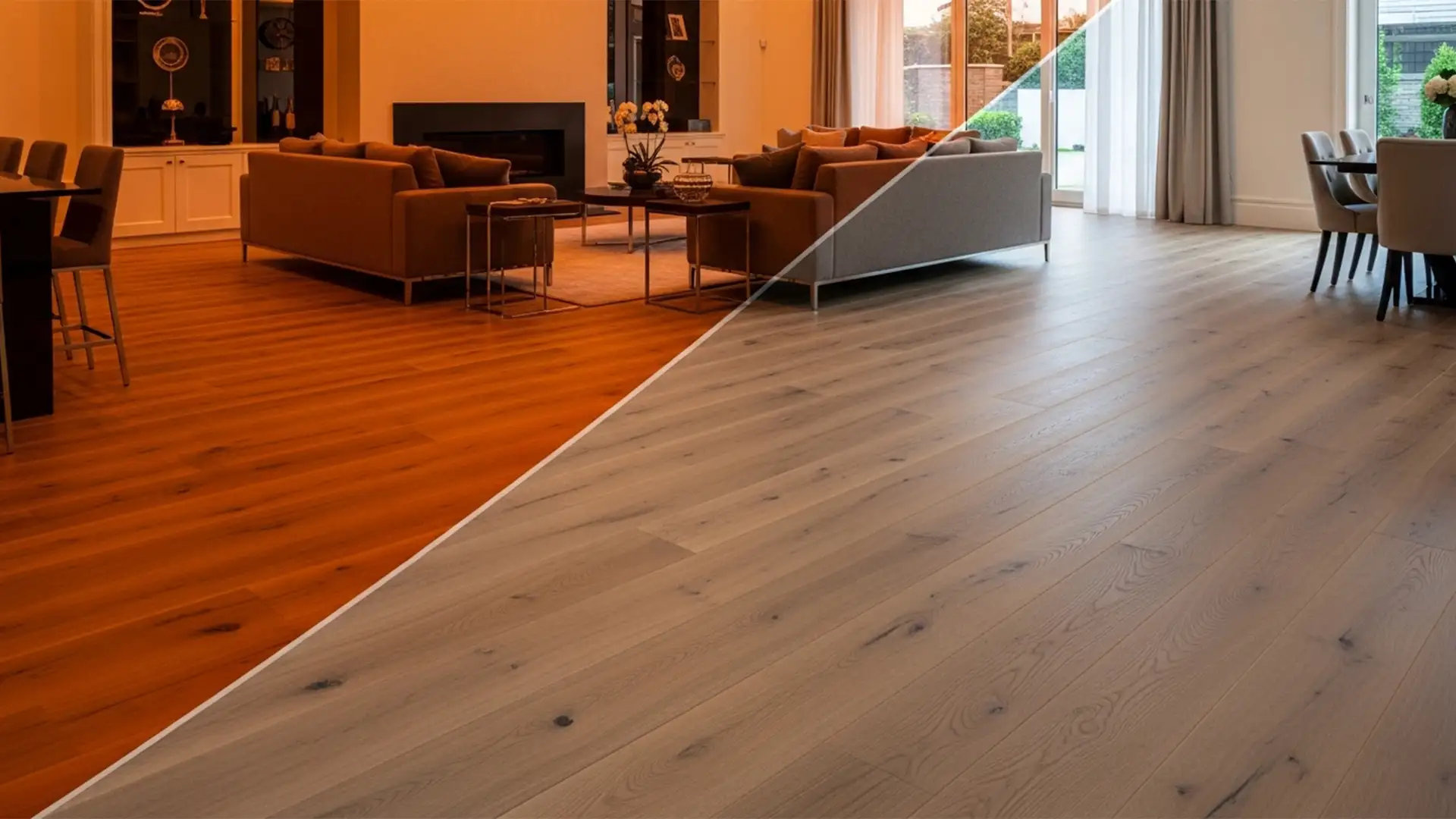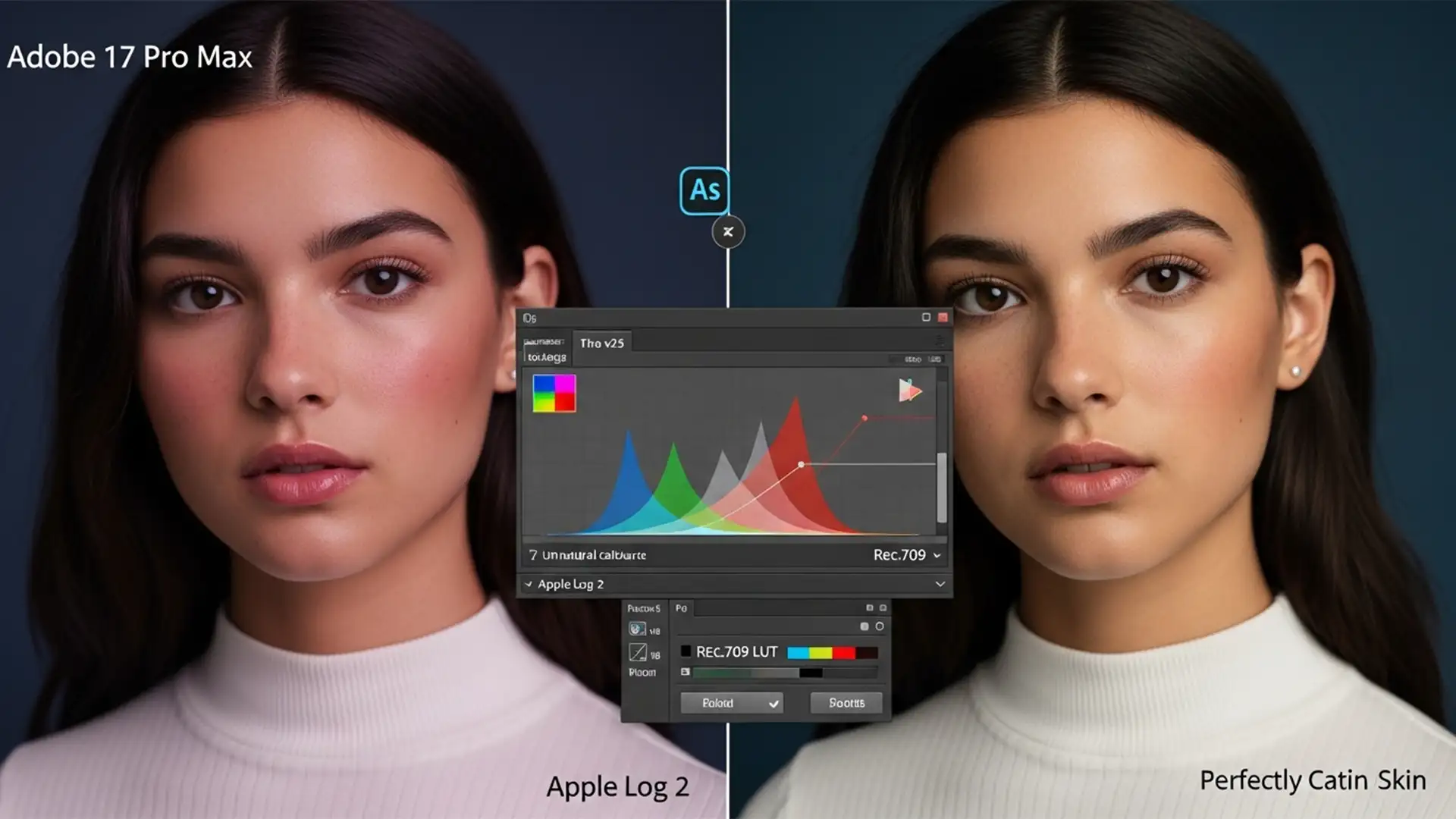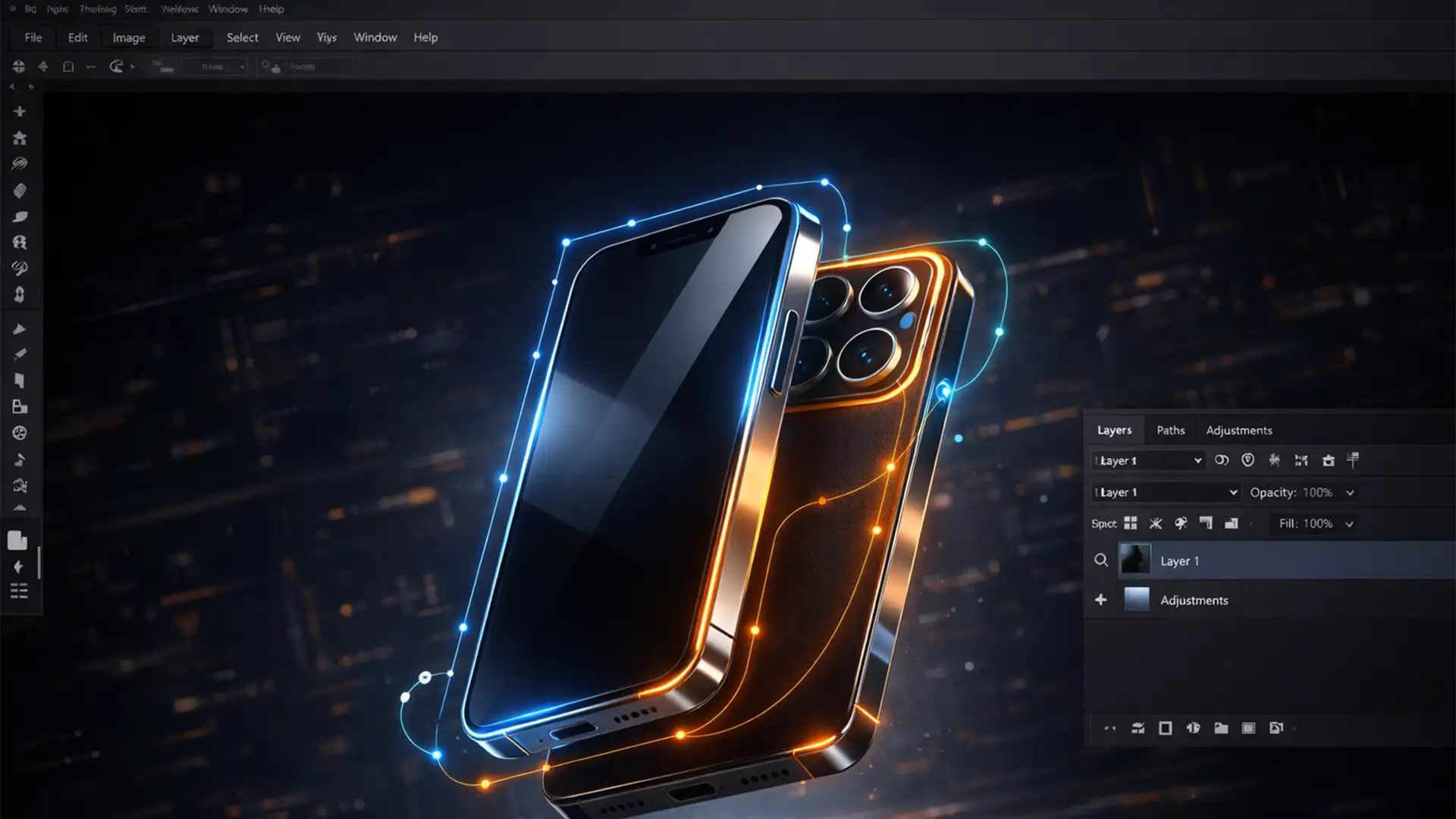

If you edit product photos in Adobe Photoshop, you know the frustration: you brighten the glare on a device’s screen, and suddenly the metallic casing loses its color accuracy. A standard background-removal cutout just isn’t enough when dealing with mixed materials like matte plastics, glass screens, and aluminum buttons. To prevent pixelation halos and manage specular highlights correctly, you need a multi-clipping path for electronics and gadgets. By isolating every individual component, you gain absolute control over your color grading and retouching workflow.
Here is the definitive guide to executing pixel-perfect multi-clipping paths in Adobe Photoshop (v24.x – v25.x).
Why Single Paths Fail for Complex Gadgets
Electronic devices are composite products. A single clipping mask is excellent for removing a background, but it treats the entire product as one flat image. When adjusting the contrast on a dark matte plastic body, you inadvertently blow out the specular highlights on the glass display.
Creating a multi-clipping path solves this by segmenting the product into logical, isolated vector components. This allows for non-destructive, targeted adjustments, ensuring perfect anti-aliasing and true-to-life material textures across the entire device.
How to Create a Multi-Clipping Path for Electronics and Gadgets
Achieving flawless results requires strict adherence to technical pathing workflows. Below are the three core methods to master this process.
Method A: The Core Setup – Drafting and Naming Paths
The foundation of a multi-clipping path is precise segmentation using the Pen Tool.
- Select the Pen Tool (P) and ensure the tool mode is set to Path (not Shape) in the top options bar.
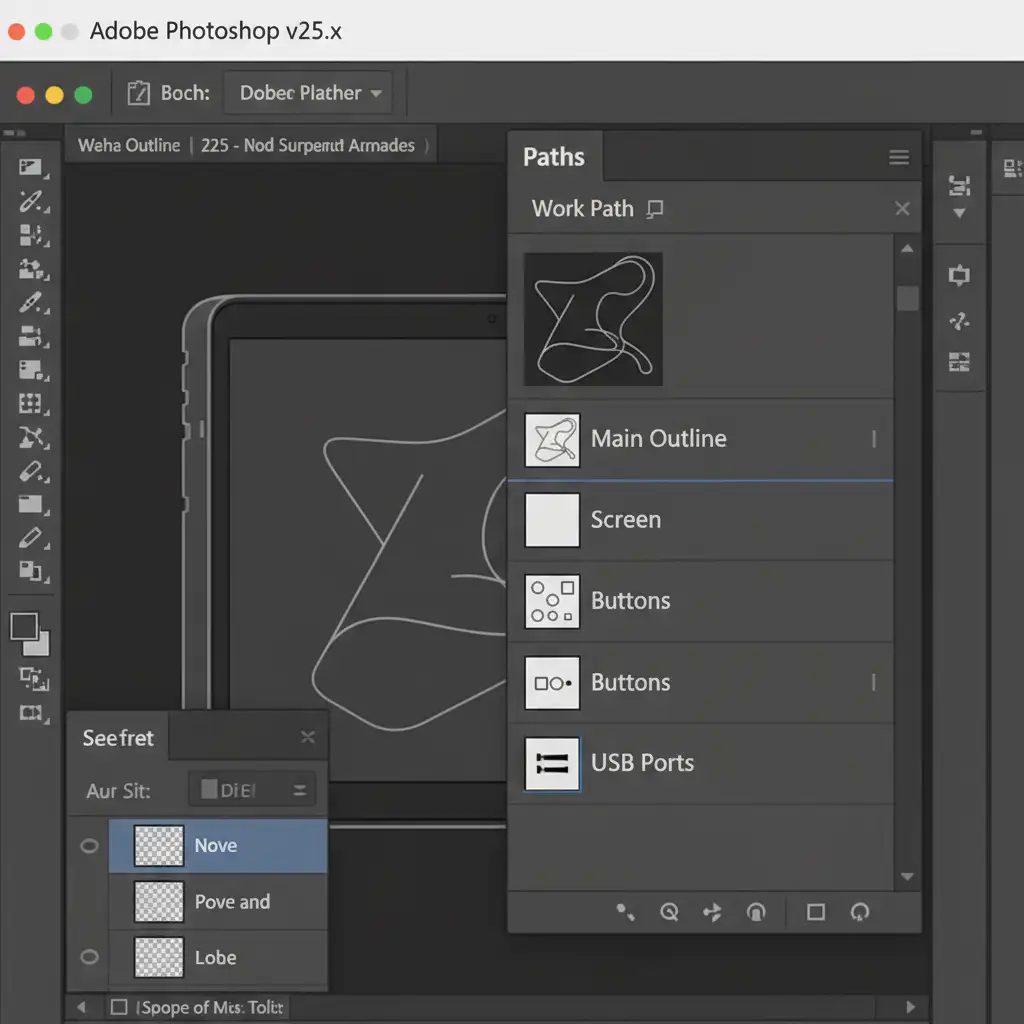
- Outline the entire exterior of the product. Once complete, double-click the Work Path in the Paths panel and name it “Main Cutout”.
- Deselect the main path. Use the Pen Tool to draft a new path exclusively around the device’s screen. Save and name this path “Screen”.
- Repeat this process for all distinct materials: “Buttons”, “Ports”, and “Chassis”.
Method B: The Pro Workaround – Vector Masks and Isolated Adjustments
Having paths is only half the battle; utilizing them for independent color grading is where the magic happens.
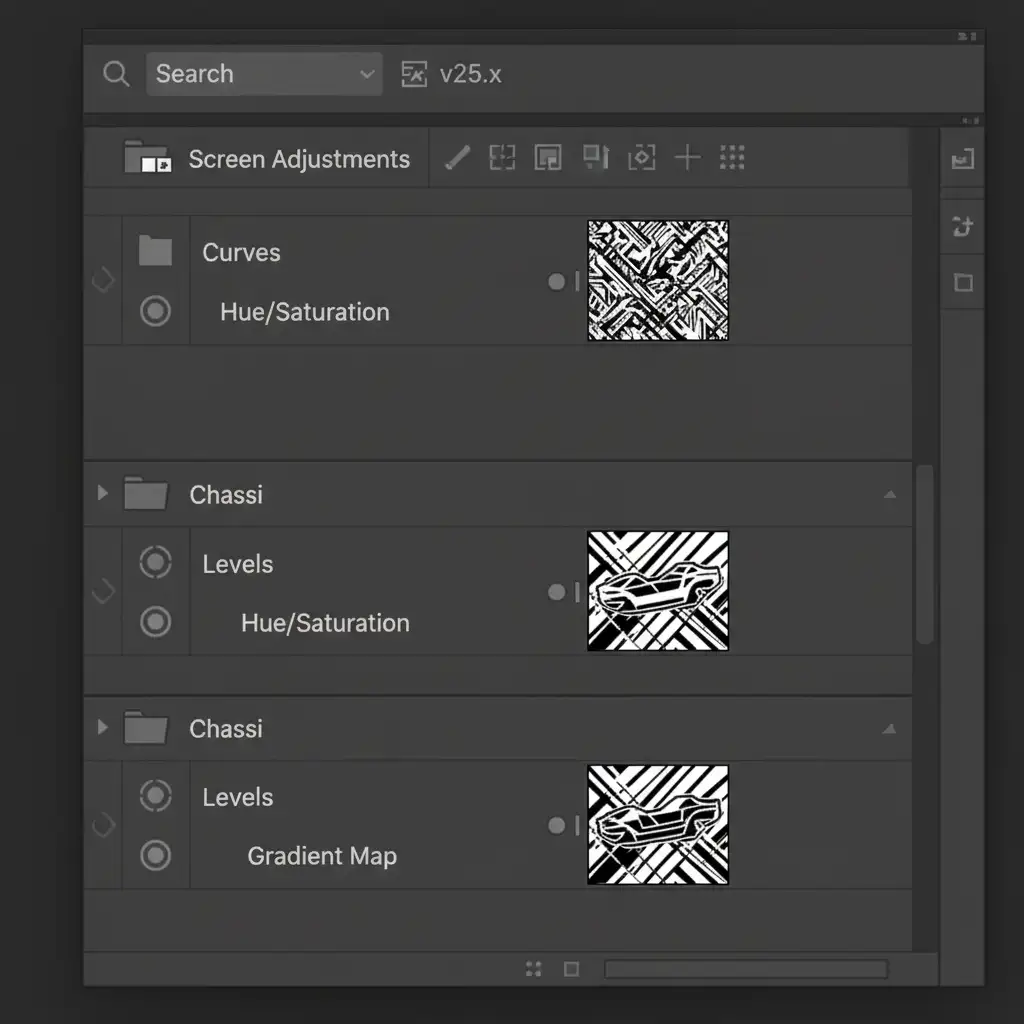
- In the Layers panel, create a new Group (folder icon) and name it “Screen Adjustments”.
- Go to your Paths panel, hold Ctrl (Windows) or Cmd (Mac), and click the “Screen” path to load it as a selection. Alternatively, keep the path active and go to Layer > Vector Mask > Current Path.
- Apply this Vector mask to the “Screen Adjustments” group.
- Place Adjustment Layers (such as Curves or Hue/Saturation) inside this group.
Any color grading or contrast adjustments made here will now only affect the screen, utilizing the alpha channel of your vector mask to protect the device’s chassis perfectly.
Method C: The Technical Deep-Dive – Precision Curves and Export Settings
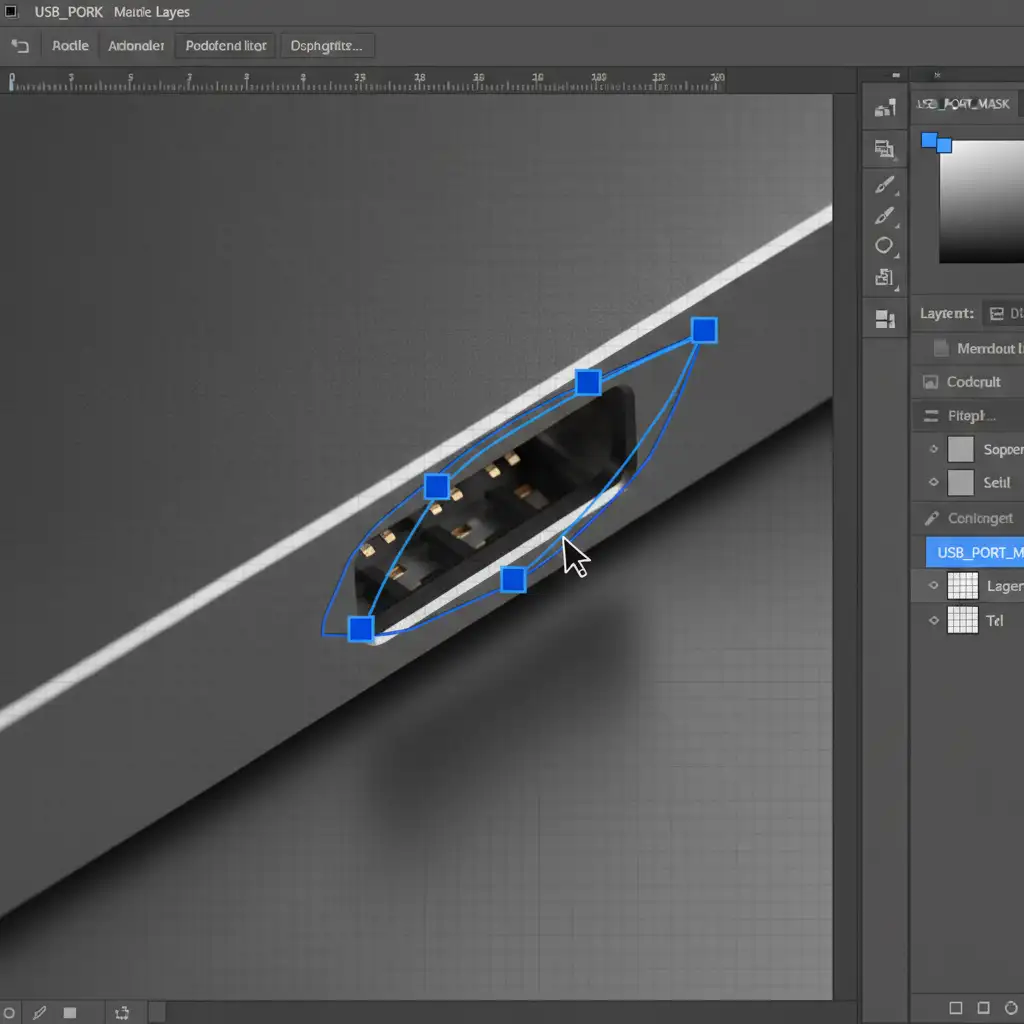
Electronics feature intricate details like circular dials, speaker grills, and USB-C ports. Sloppy pathing here ruins the illusion of realism.
- Optimize Tool Settings: Click the gear icon in the Pen Tool options bar and enable the Rubber Band setting. This previews your next Bezier curve before you drop the anchor point, ensuring flawless arcs around circular buttons.
- Zoom for Precision: Never path complex electronics at 100% zoom. Zoom in to at least 300% to 400% to accurately plot anchor points along the true edge of the pixels, avoiding background color bleed.
- Exporting for Print/Web: When saving your final clipping paths for EPS or TIFF export, set the Flatness to 0.2 device pixels. This ensures perfectly smooth curves on high-resolution prints, eliminating any jagged edges around complex components.
Scale Your E-Commerce Editing with the Experts
Creating a precise multi-clipping path for electronics and gadgets is highly technical, labor-intensive, and time-consuming. When you are dealing with hundreds of product SKUs, spending hours zooming in at 400% to outline USB ports simply isn’t a scalable use of your time.
Struggling with high-volume, complex electronic cutouts? Outsource the heavy lifting to the experts at Image Work India and Cloud Retouch. Our dedicated retouching teams specialize in pixel-perfect multi-clipping paths, precise material masking, and high-end e-commerce color grading. We deliver flawless, print-ready files with meticulously named paths, allowing you to focus on growing your business while we handle the pixels. Contact Cloud Retouch today to streamline your post-production workflow.