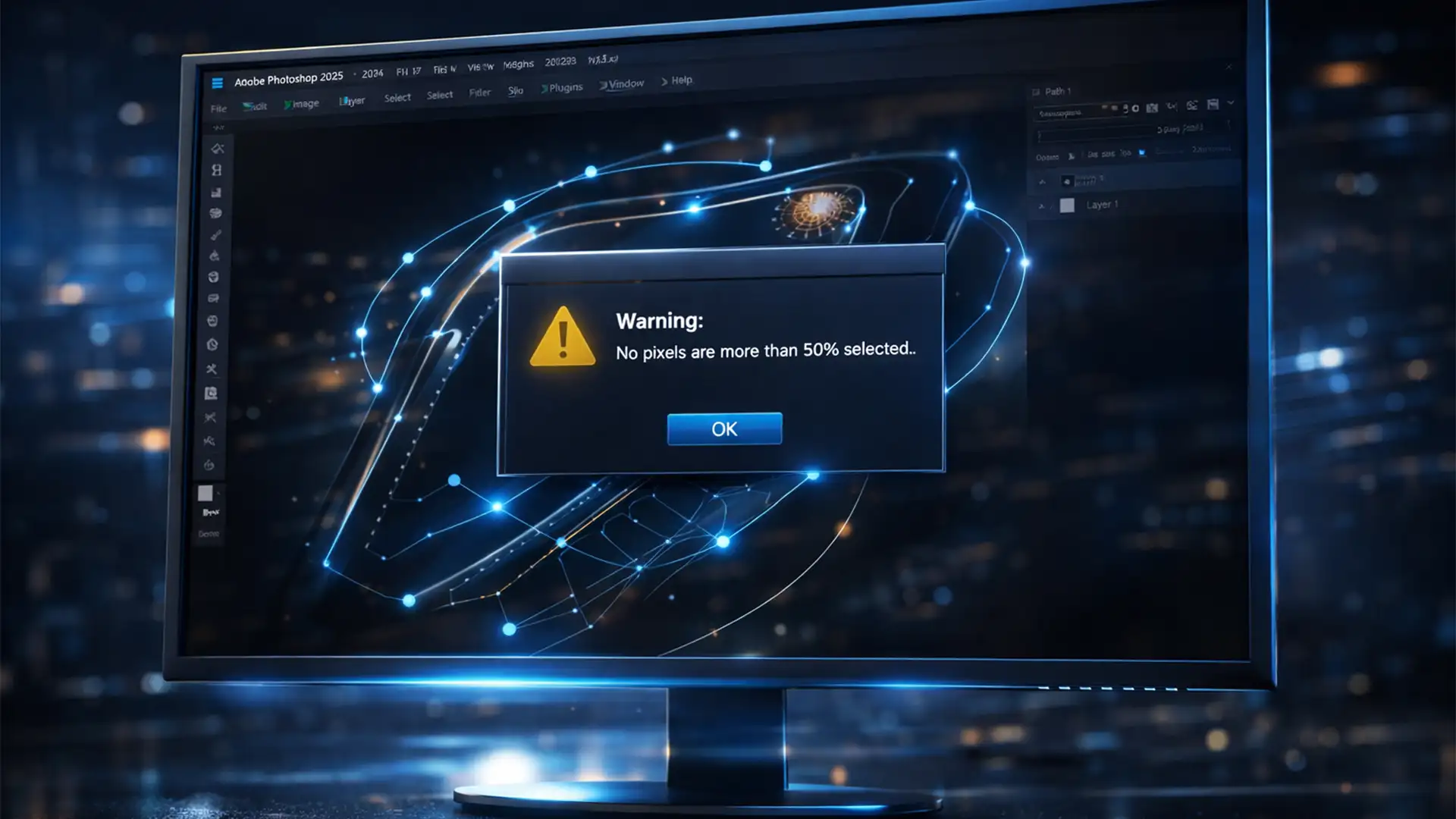

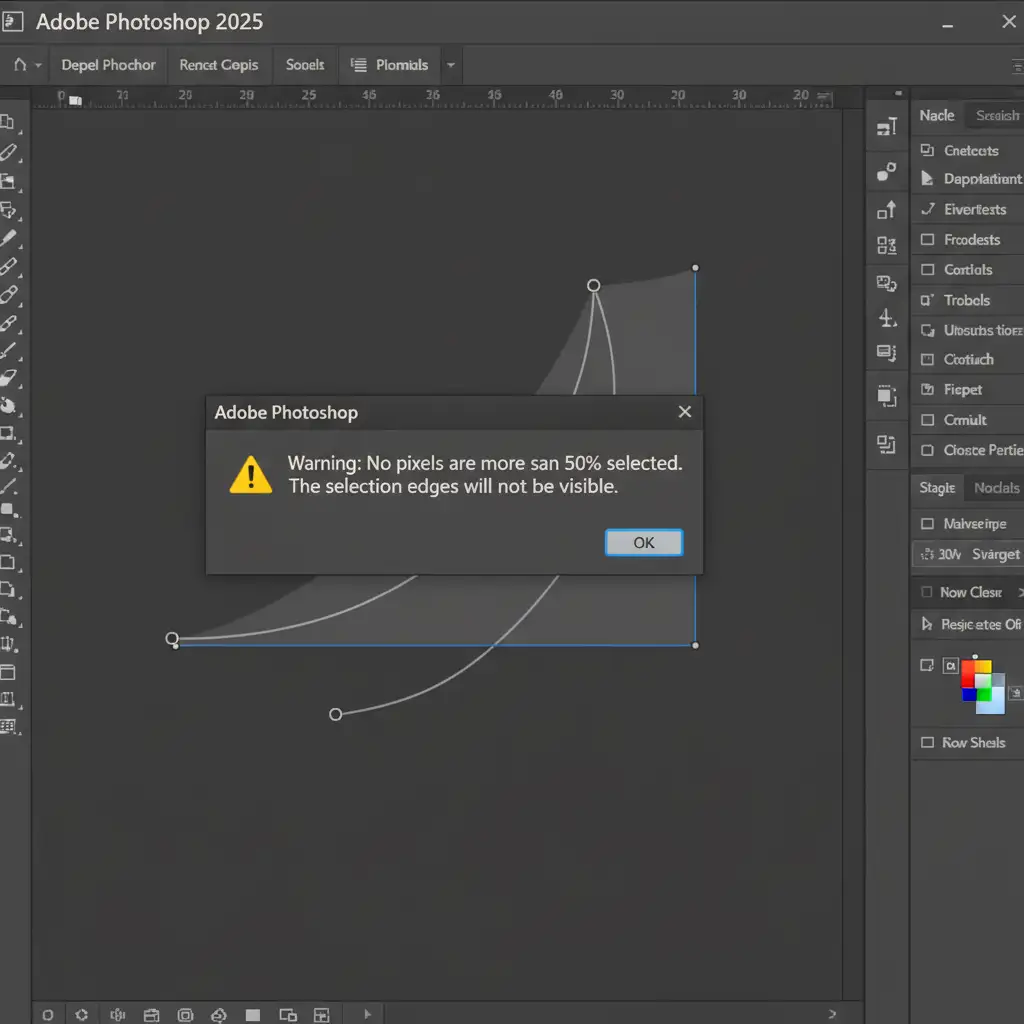
You just spent 20 minutes meticulously tracing an object with the Pen Tool. You right-click, choose “Make Selection,” and instead of seeing the familiar marching ants, you are hit with a frustrating error: “Warning: No pixels are more than 50% selected” or simply “No pixels were selected.”
If you are dealing with the Photoshop 2025 make selection from path no pixels selected issue, you aren’t alone. This common hurdle in Photoshop v26.x usually stems from a hidden setting in your path operations or an overly aggressive feathering radius.
Here is exactly how to troubleshoot and fix this error so you can get back to editing.
Why Does the “No Pixels Selected” Error Happen in Photoshop 2025?
Before jumping into the fixes, it helps to understand why Photoshop is refusing to convert your Work Path into a selection. In most cases, the software is doing exactly what it was told to do—it’s just that the default tool settings have been accidentally changed.
The three most common culprits are:
- Incorrect Path Operations: Your path is set to “Subtract Front Shape” or “Intersect” instead of combining. This tells Photoshop to select nothing inside the path.
- Excessive Feather Radius: You are trying to select a very small area, but your feathering is set too high. The soft edge bleeds out completely, leaving no pixels that are more than 50% opaque.
- Empty or Hidden Layers: You are attempting to load a selection onto a layer that contains no pixel data.
Step-by-Step Fixes for the Photoshop 2025 Path Selection Bug
Method 1: The Quick Fix – Change Your Path Operations (Most Common)
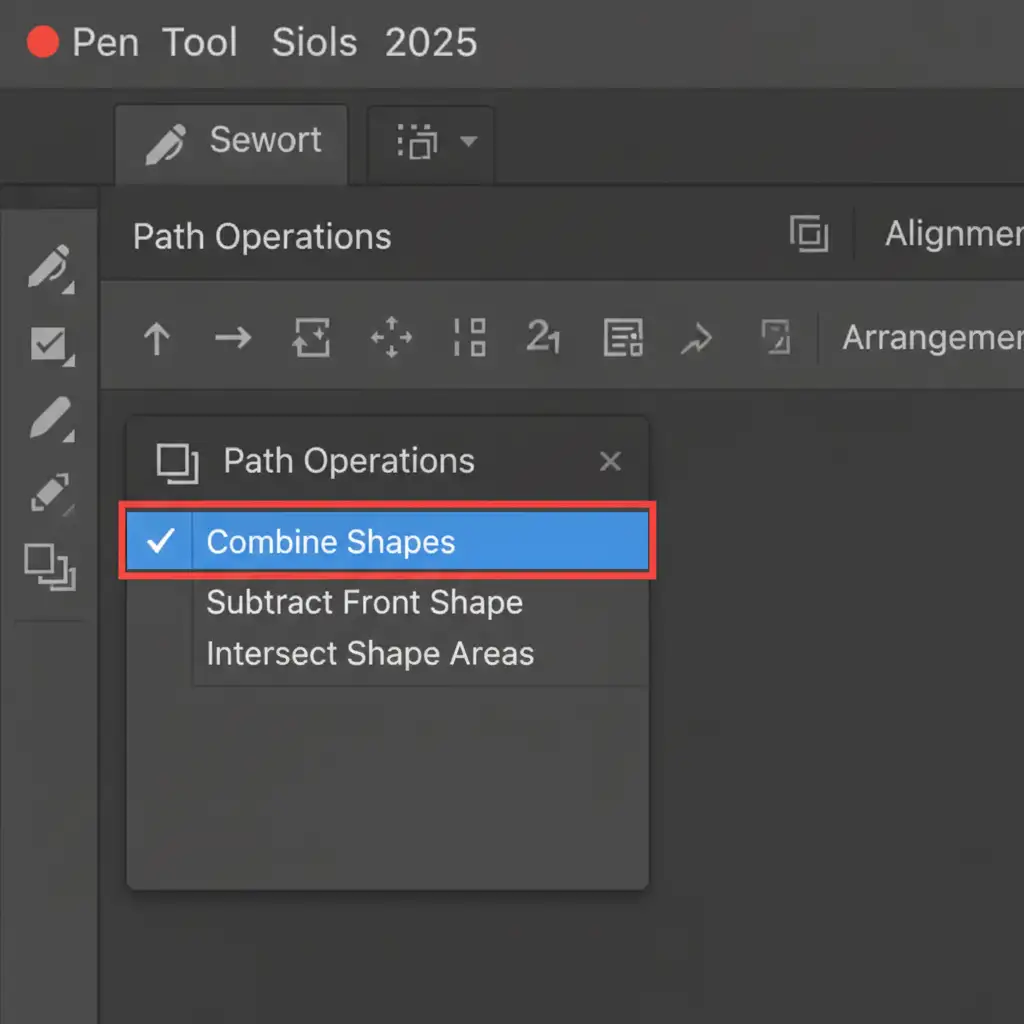
If your selection is coming up empty, the first place to look is your Path Operations dropdown. This is the root cause for 90% of users experiencing this issue.
- Select the Pen Tool (P) or the Path Selection Tool (A).
- Look at the top Options bar (just below the main menu).
- Find the Path Operations icon, which looks like two overlapping squares.
- Click the dropdown and ensure Combine Shapes is checked. If it is set to Subtract Front Shape, your selection will inherently be empty or inverted.
Method 2: The Pro Workaround – Paths Panel Shortcut
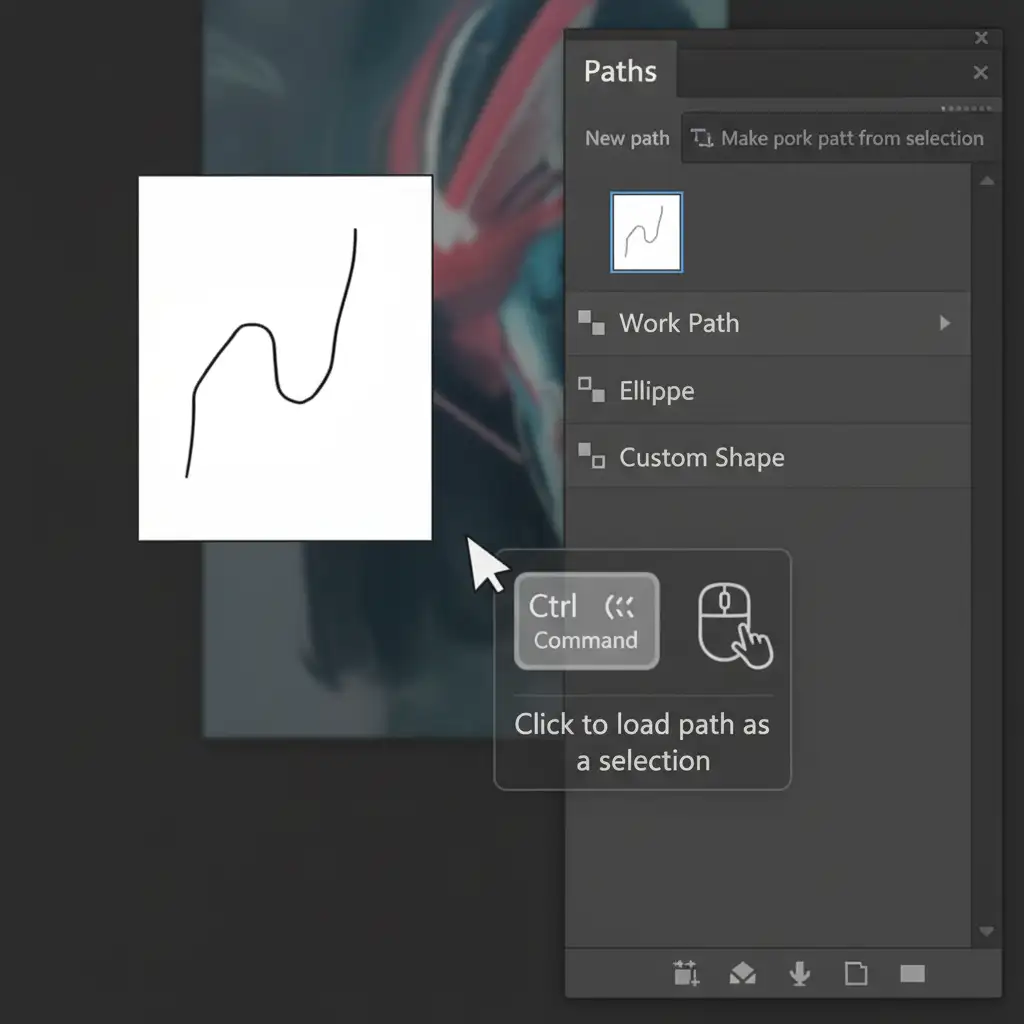
If right-clicking and choosing “Make Selection” is consistently giving you errors or a selection inversion, bypass the canvas menu entirely by using the Paths Panel.
- Open the Paths Panel (Window > Paths).
- Locate your active Work Path (or saved path).
- Hold Ctrl (Windows) or Command (Mac) and click directly on the path thumbnail.
- This forces Photoshop to load the path as a selection.
- Note: If the marching ants appear around the edges of your canvas instead of your object, your selection is inverted. Simply press Ctrl+Shift+I (Cmd+Shift+I on Mac) to fix the selection inversion.
Method 3: The Technical Deep-Dive – Reset Tool Preferences & Feathering
If you are working with tight corners or small details and still getting the error, your Feather Radius is likely the problem. If a path is 10 pixels wide but your feather is set to 20 pixels, Photoshop cannot mathematically create a solid selection.
- Right-click the Pen Tool icon in the very top-left corner of the Options bar.
- Select Reset Tool to clear any glitchy saved parameters.
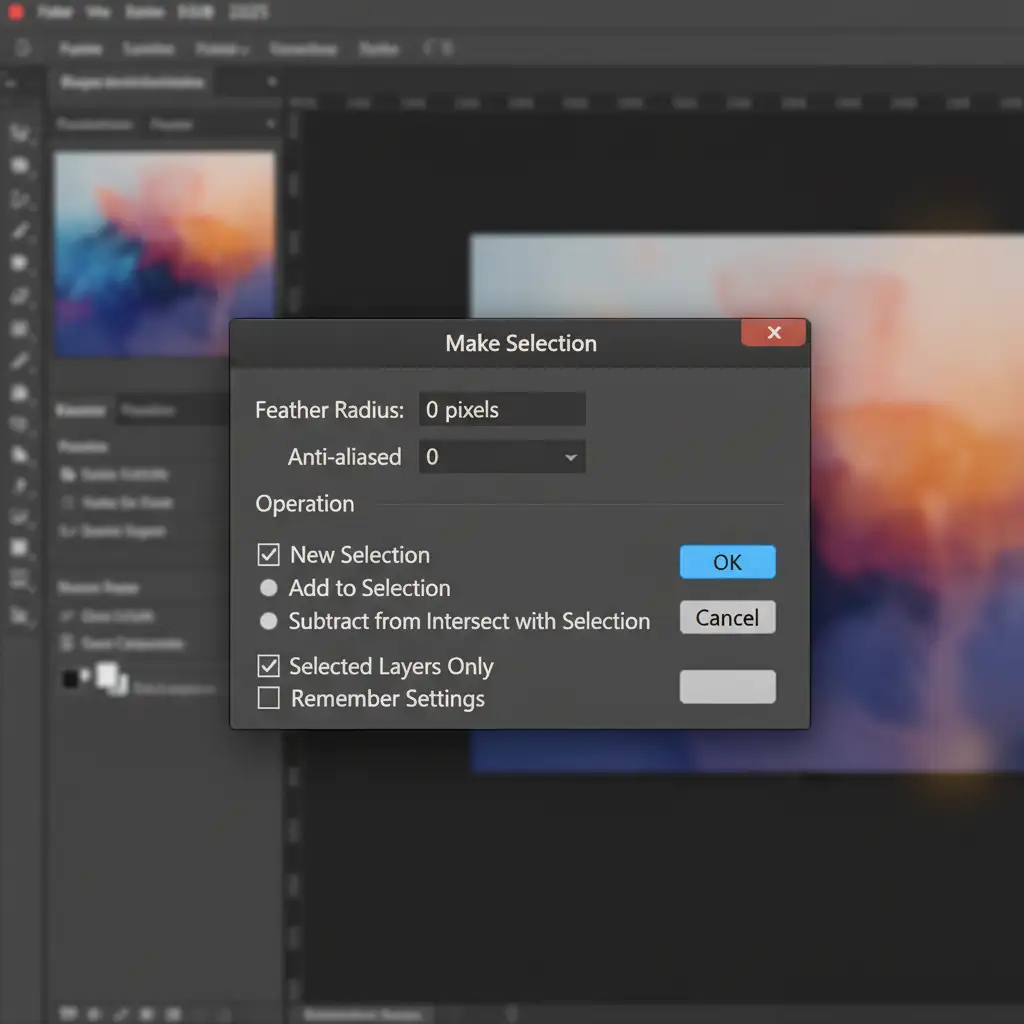
- Draw a quick test path, right-click the canvas, and select Make Selection.
- In the dialog box that appears, ensure the Feather Radius is set to exactly 0 pixels.
- Click OK. Your marching ants should now appear perfectly aligned with your vector mask.
Still Struggling with Complex Cutouts? Let the Experts Handle It
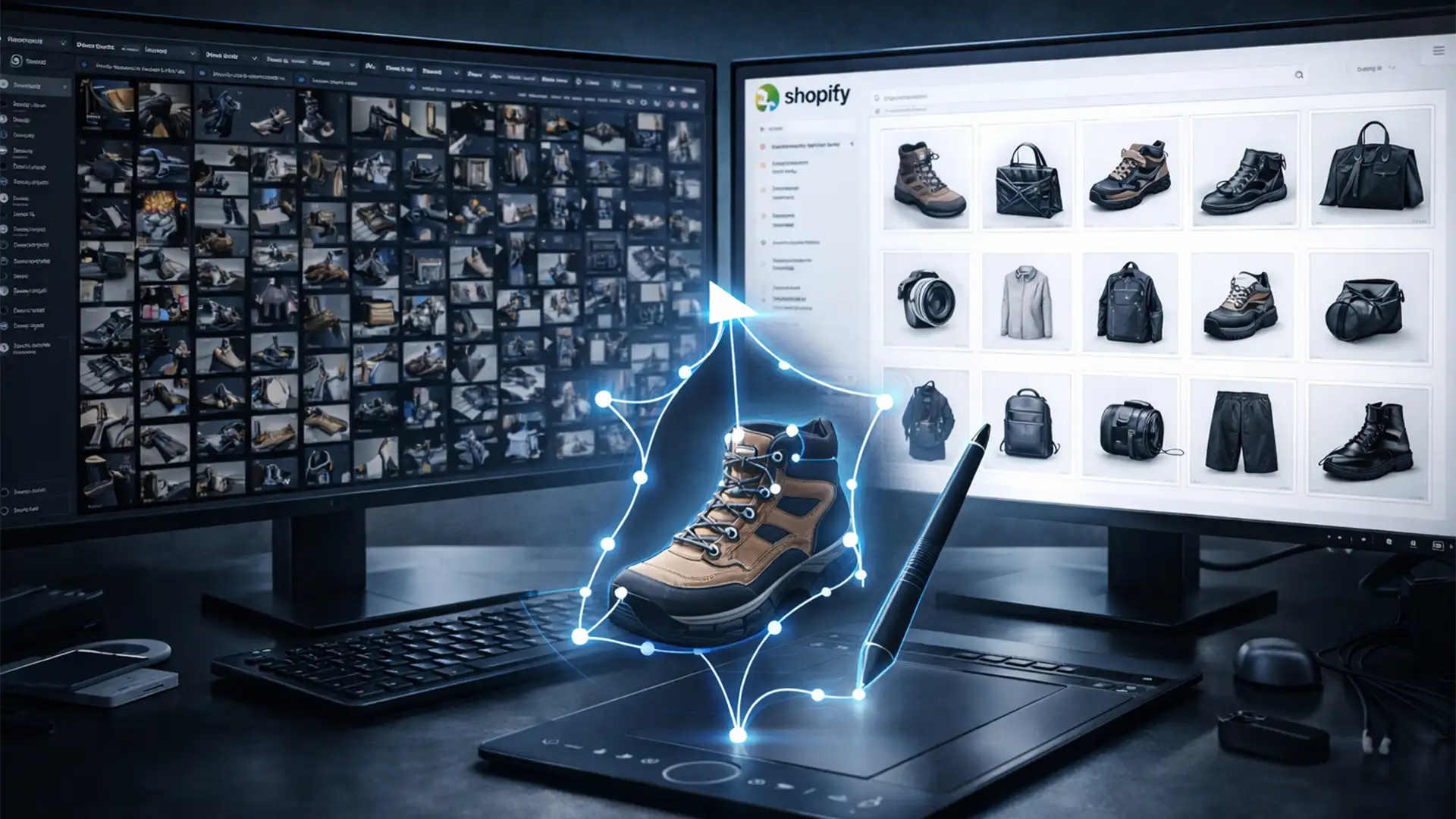
Troubleshooting the Photoshop 2025 make selection from path no pixels selected error is frustrating, especially when you have strict deadlines and hundreds of product photos to process. Perfecting vector paths, managing feathering, and dealing with software bugs drains valuable time that you could be spending on high-level creative work or growing your business.
You don’t have to do it alone.
At Image Work India and Cloud Retouch, we specialize in pixel-perfect clipping path services and complex image masking. Whether you need precise cutouts for an e-commerce catalog, intricate hair masking, or flawless vector paths, our team of professional retouchers delivers flawless results with rapid turnaround times.
Stop fighting with Photoshop bugs. Contact Image Work India today or visit Cloud Retouch to outsource your image editing and get your time back.