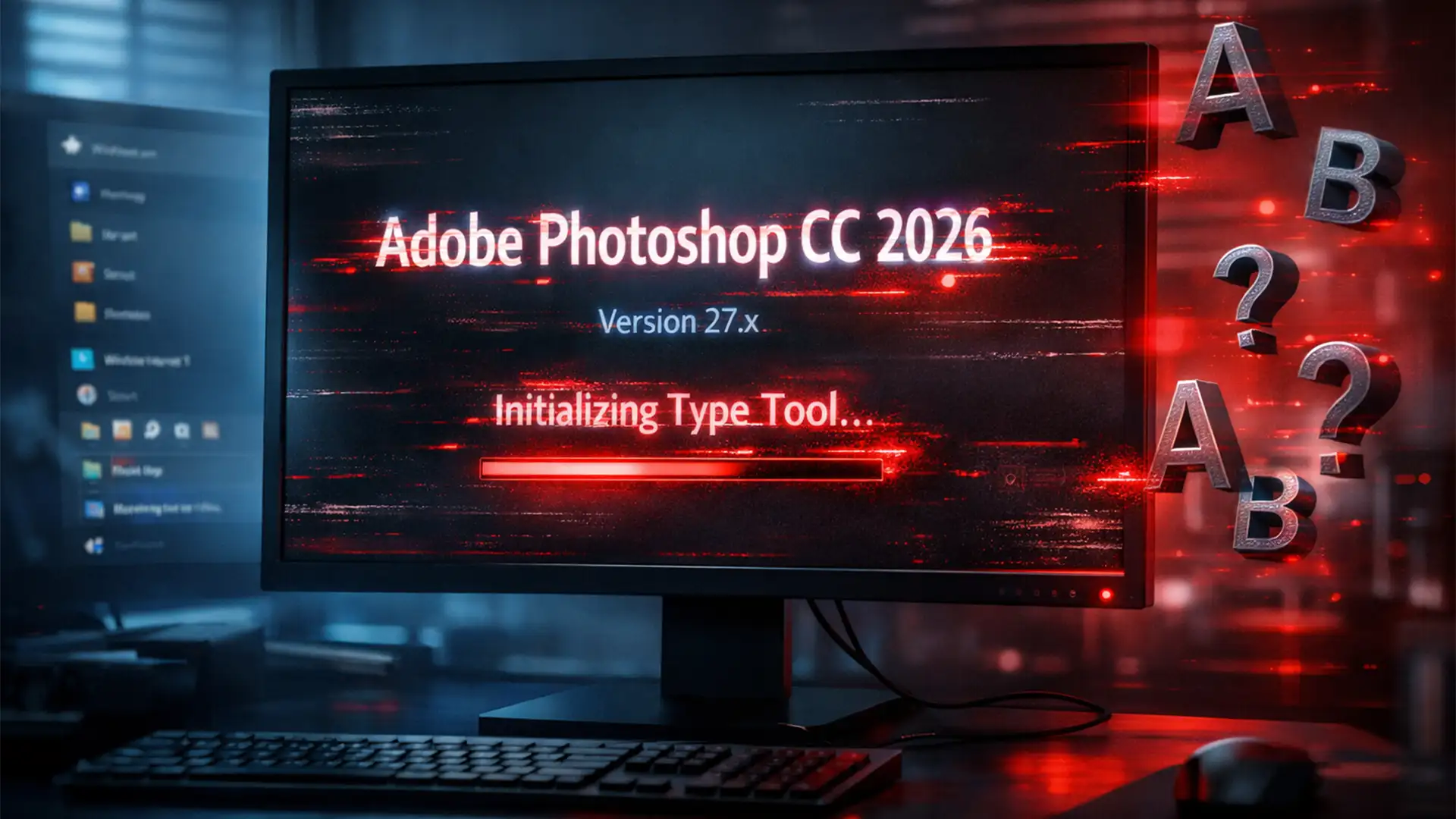

There is nothing more frustrating for a UI/UX designer than staring at a frozen Adobe splash screen right before a major deadline. If your system is locking up and crashing to the desktop during the “Initializing Type Tool” phase, you are likely experiencing a critical Type Engine conflict.
This specific infinite memory loop happens when Windows 11 attempts to parse macOS-specific variable fonts inside Adobe’s ecosystem. Fortunately, the Photoshop CC 2026 SF Pro font crash fix is straightforward once you understand what is happening under the hood. Let’s walk through exactly how to resolve this CoolType engine error so you can get back to designing.
Why is Photoshop CC 2026 Freezing on the Splash Screen?
In Adobe Photoshop CC 2026 (v27.x and v28.x), the Adobe CT (CoolType) FontManager is responsible for loading your system’s typography libraries upon launch. However, a known conflict occurs on Windows 11 when the software attempts to read Apple’s SF Pro (San Francisco) variable font family.
Because Windows handles dynamic font axes differently than macOS, the Type Engine struggles to render these specific variable OTF (OpenType) fonts. This triggers an infinite memory loop during the startup phase, causing the application to freeze entirely.
How to Apply the Photoshop CC 2026 SF Pro Font Crash Fix
Depending on how integrated the SF Pro font is into your current workflow, you can choose from three different solutions to bypass this Type Engine failure.
Method 1: The Quick Fix – Force a Font Cache Rebuild
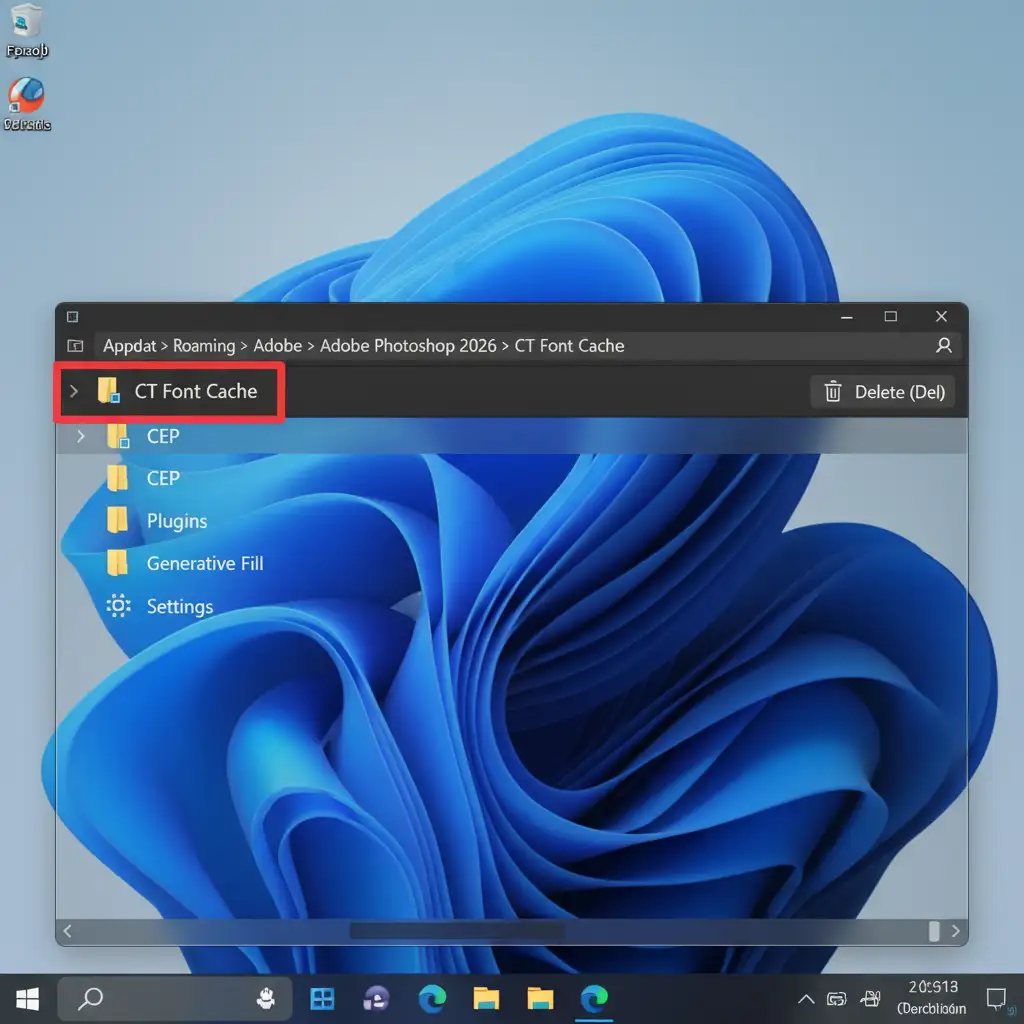
The fastest way to resolve the crash is to clear Adobe’s temporary font data, forcing the software to perform a clean Font Cache Rebuild on its next launch.
- Close Photoshop completely (use Task Manager if it is currently frozen).
- Open Windows File Explorer.
- Navigate to your AppData Directory using this exact path: C:\Users\[YourUsername]\AppData\Roaming\Adobe\Adobe Photoshop 2026\CT Font Cache
- Delete the entire “CT Font Cache” folder.
- Relaunch Photoshop.
Method 2: The Pro Workaround – Swap OTF for TTF
If you actively need the SF Pro font for your UI/UX design projects, you must replace the dynamic variable fonts with static alternatives. The OTF vs TTF distinction is the root cause of the CoolType failure here.
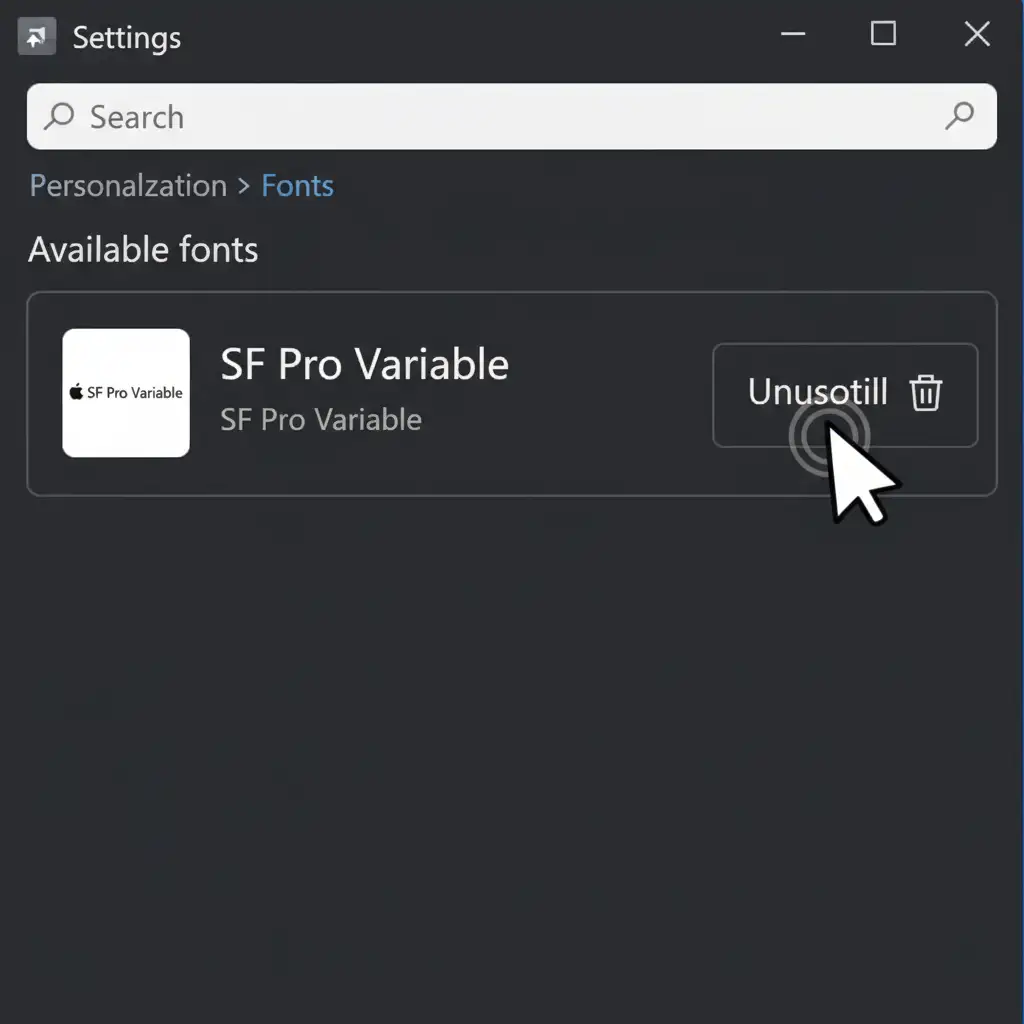
- Open your Windows 11 Settings app.
- Navigate to Personalization > Fonts.
- Use the search bar to find the SF Pro Variable font family.
- Click into the font profile and hit Uninstall.
- Download and install the static TTF (TrueType) versions of the SF Pro font family instead.
Method 3: The Technical Deep-Dive – Safe Mode and Typography Preferences
If the first two methods fail, your system-level font services or Photoshop’s internal Typography Preferences may be corrupted.
- Boot in Safe Mode: Hold the Shift key while clicking the Photoshop CC 2026 icon. Click “Yes” when prompted to skip loading optional and third-party plugins/fonts.
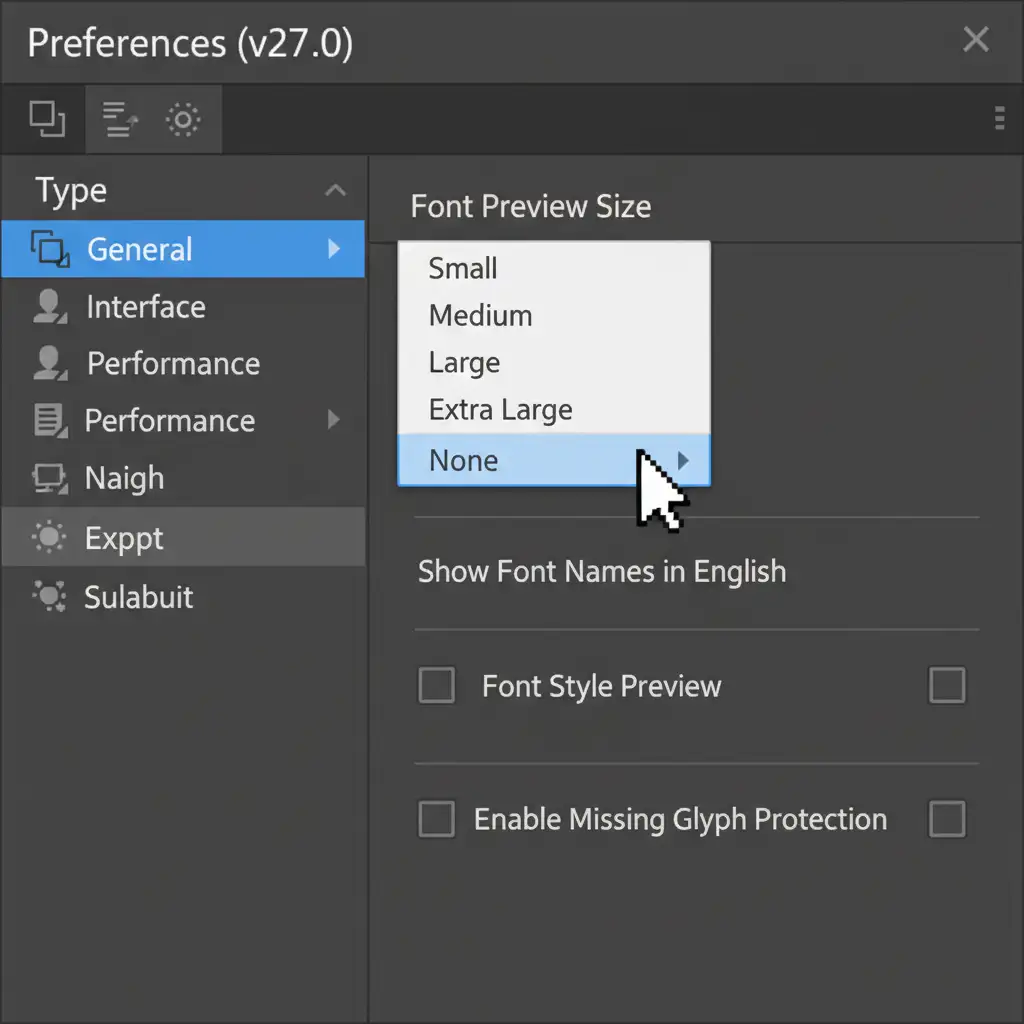
- Adjust Typography Preferences: Once Photoshop opens, navigate to Edit > Preferences > Type.
- Set the Font Preview Size dropdown to None.
- Uncheck the box for Show Font Names in English. Click OK.
- Reset System Services: Press Win + R, type services.msc, and hit Enter. Scroll down to the Windows Font Cache Service, right-click it, and select Restart.
Stop Wasting Time on Technical Headaches
Troubleshooting software crashes, managing font libraries, and dealing with infinite memory loops drains the time you should be spending on creative execution and scaling your agency.
Tired of Photoshop crashes delaying your client projects? Outsource your high-volume photo editing, clipping paths, and complex retouching to the experts at Image Work India and Cloud Retouch. We deliver flawless, print-ready images with rapid turnaround times, allowing you to focus on your business while we handle the heavy technical lifting.
[Contact Image Work India and Cloud Retouch today for a free trial on your next bulk editing project!]