
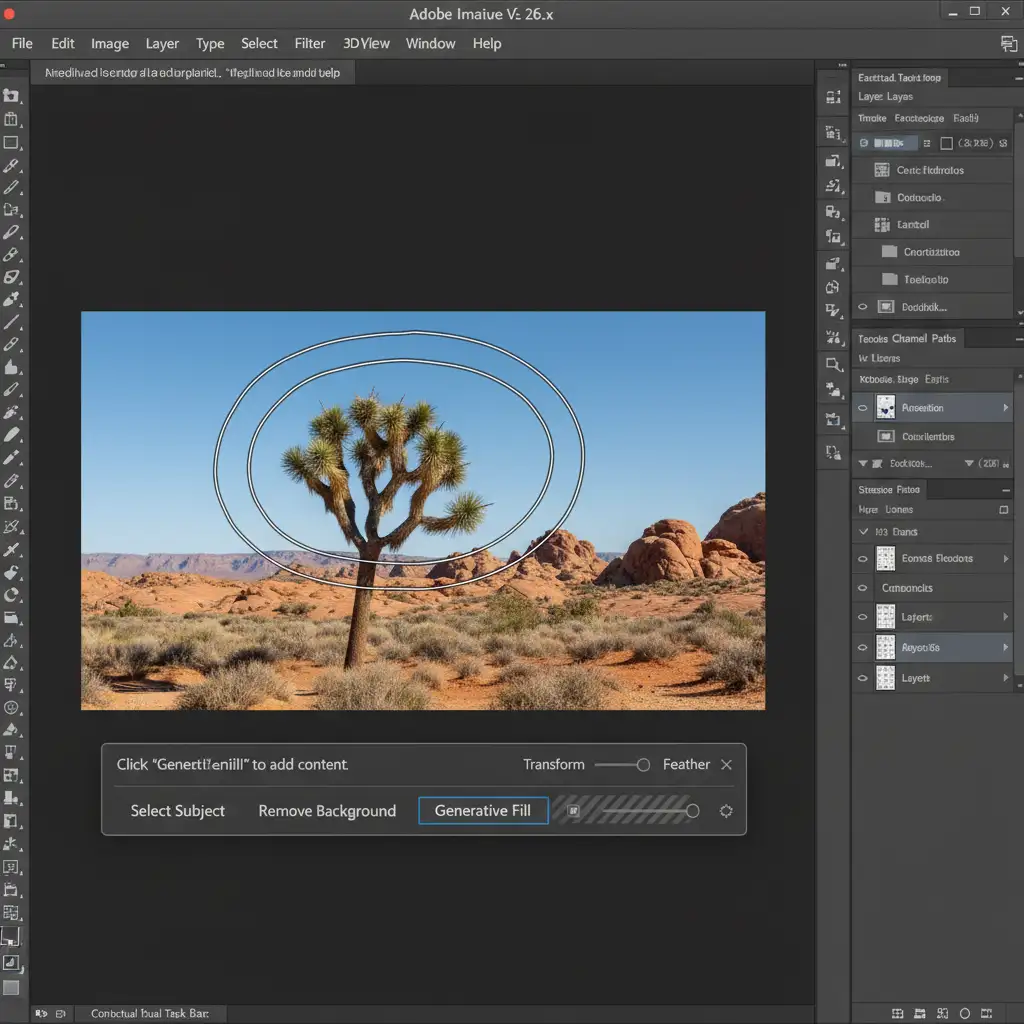
You’ve updated to Photoshop v26.x, made a precise selection, and looked down at your workspace-only to find the Generative Fill button completely grayed out. It is an immediate workflow killer.
In the 2026 release, Adobe significantly tightened its Firefly AI integration. Continuous cloud authentication, strict generative credit token validation, and mandatory age verification are now hardcoded into the software. If your system fails any of these backend checks, your AI tools are instantly locked.
Whether you are dealing with a simple token desync or a strict regional firewall block, this guide covers the exact steps for the Photoshop Generative Fill grayed out 2026 fix so you can get back to editing.
Why is Generative Fill Locked in Photoshop v26.x?
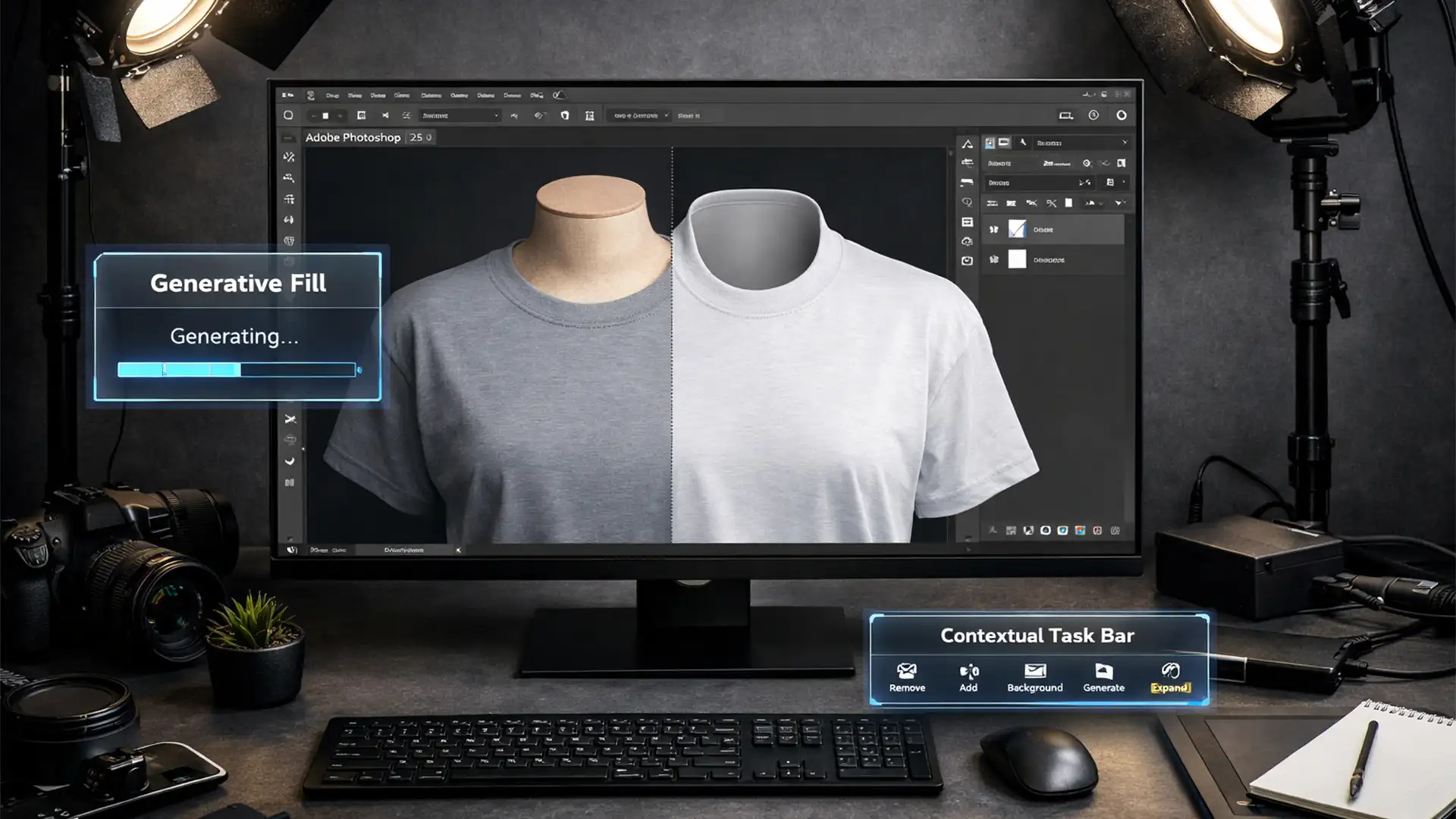
When the Generative Fill feature is disabled on your Contextual Task Bar or under the Edit menu, it almost always points to an API block. The 2026 version relies heavily on live cloud sync to verify your eligibility. The three most common culprits are:
- Token Desync: The Creative Cloud app fails to fetch your current generative credits balance.
- Age Verification: Your Adobe profile does not explicitly state that you are 18 years of age or older.
- Connection Blocks: A regional firewall or corrupted cache file is blocking the Adobe Desktop Service from pinging the AI servers.
How to Fix the Grayed-Out Generative Fill Button
Follow these three methods in order, from the quickest reset to the deepest technical fix.
Method 1: The Quick Fix – Force a Token Resync
Often, the connection between your desktop software and your cloud-based generative credits simply times out. Forcing a token resync is the fastest way to restore functionality.
- Save your work and close Photoshop.
- Open the Creative Cloud desktop application.
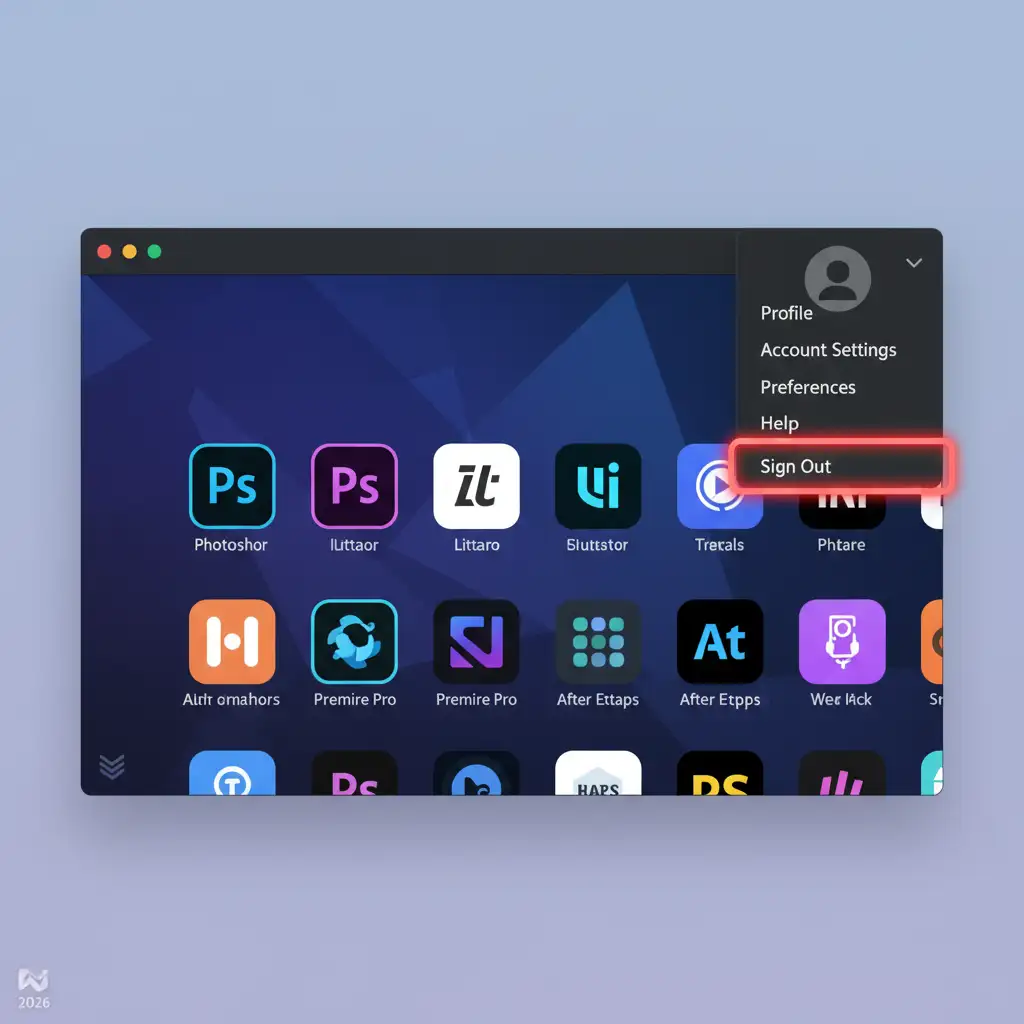
- Click on your profile picture in the top right corner.
- Select Sign Out.
- Restart your computer to clear any lingering temporary background processes.
- Open the Creative Cloud app and sign back in. Launch Photoshop to see if the button is restored.
Method 2: The Pro Workaround – Adobe Profile Age Verification
Because Firefly AI generates synthetic imagery, Adobe legally requires all users to be 18 or older. If your Date of Birth is missing from your account, Photoshop v26.x will automatically gray out the Generative Fill button.
- Open your web browser and navigate to the Adobe Account web portal.
- Log in with the exact Adobe ID you use for Photoshop.
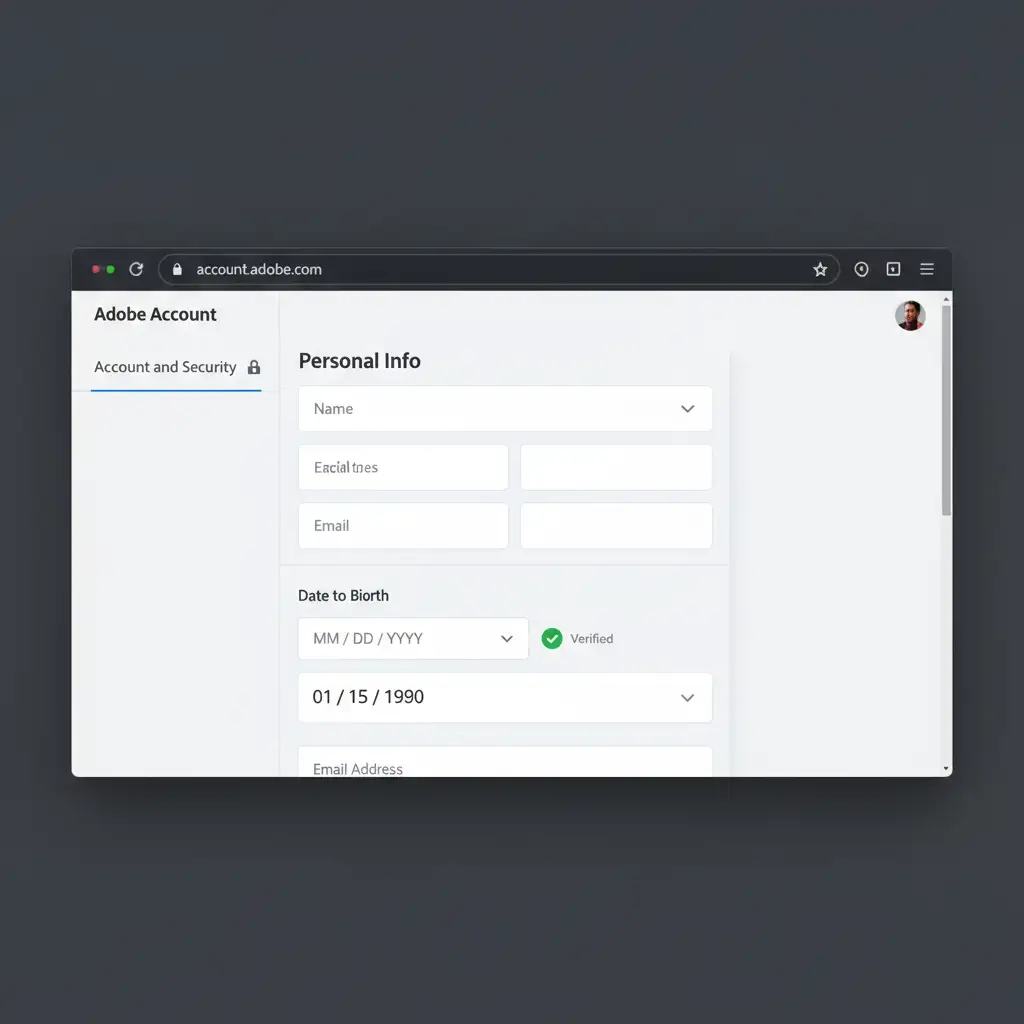
- Navigate to Account and Security (or Account Details).
- Locate the Date of Birth field.
- Ensure your birthdate is entered correctly and proves you are 18+. Save your changes.
- Restart Photoshop. The cloud sync should immediately lift the restriction.
Method 3: The Technical Deep-Dive – Clear the OOBE Folder Cache
If you have verified your age and refreshed your tokens but the button remains locked, your local authentication database is likely corrupted. Clearing the OOBE folder forces Photoshop to rebuild its connection to Adobe’s servers, bypassing regional firewall glitches.
- Close all Adobe applications completely (including background tasks via Task Manager or Activity Monitor).
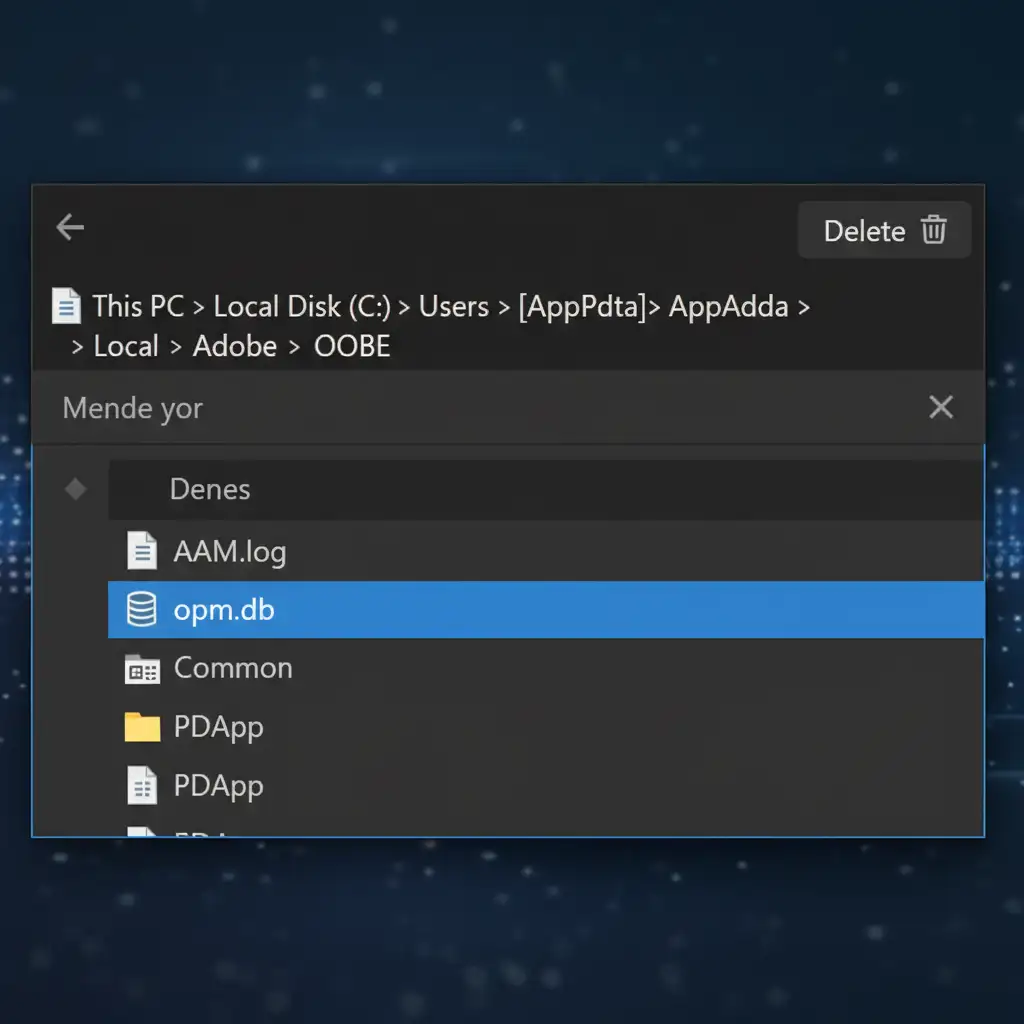
- On Windows: Press Win + R, type %localappdata%\Adobe\OOBE, and press Enter.
- On Mac: Open Finder, hold Option, click Go > Library, then navigate to Application Support/Adobe/OOBE.
- Inside the OOBE folder, locate the file named opm.db.
- Delete the opm.db file. (Do not worry, Adobe will automatically generate a clean version upon restart).
- Optional Firewall Check: Open your system firewall settings and ensure Adobe Desktop Service.exe is allowed through both private and public networks.
- Relaunch the Creative Cloud desktop app, log in, and open Photoshop.
When AI Fails: Why High-End Retouching Still Requires a Human Touch
Fixing a grayed-out AI button is a relief, but relying entirely on Generative Fill for commercial projects is risky. While AI is excellent for quick mockups, it still struggles with high-end commercial precision, complex texture matching, and maintaining brand-accurate lighting.
When your project demands absolute perfection, algorithmic guesswork isn’t enough.
Image Work India and Cloud Retouch provide flawless, manual photo retouching and bulk image editing that AI simply cannot match. From high-fashion editorial retouching to high-volume e-commerce clipping paths, our expert team delivers pixel-perfect results without the headache of software glitches or generative credits running dry.
Stop fighting with your software. Let our experts handle the heavy lifting. Contact Image Work India and Cloud Retouch today for a custom quote on your next post-production project.