
You are in the zone, tracing a complex product image, when suddenly it happens. You click to place your next anchor point, and the software freezes for a split second. The cursor stutters. The path delays.
If you execute professional clipping path work daily, this rendering delay isn’t just annoying-it is actively destroying your productivity and costing you money. The good news? Finding a reliable Photoshop Pen Tool lag fix 2024 edition comes down to adjusting a few specific rendering settings.
In Photoshop 2024 (v25.x), Pen Tool lag is a well-documented rendering bottleneck. It is primarily linked to GPU acceleration misconfigurations, high-resolution monitor scaling (like 4K or 5K displays), and visual feedback features that overload your graphics card.
Here is the definitive guide to eliminating stuttering and restoring your vector drawing speed.
Why is the Pen Tool Stuttering in Photoshop 2024?
When creating complex paths with multiple anchor points, Photoshop dynamically redraws the vector points in real-time. On modern high-resolution displays, this continuous redrawing process can overwhelm your VRAM allocation or clash with outdated graphic drivers.
Visual calculation overlays-specifically features like the Rubber Band preview or active workspace rulers-force the software to constantly calculate measurements and predictive bezier curves. Disabling these visual overlays and forcing basic hardware acceleration modes drastically reduces API overhead on the graphics card, resulting in a buttery-smooth workflow.
Step-by-Step: The Ultimate Photoshop Pen Tool Lag Fix (2024)
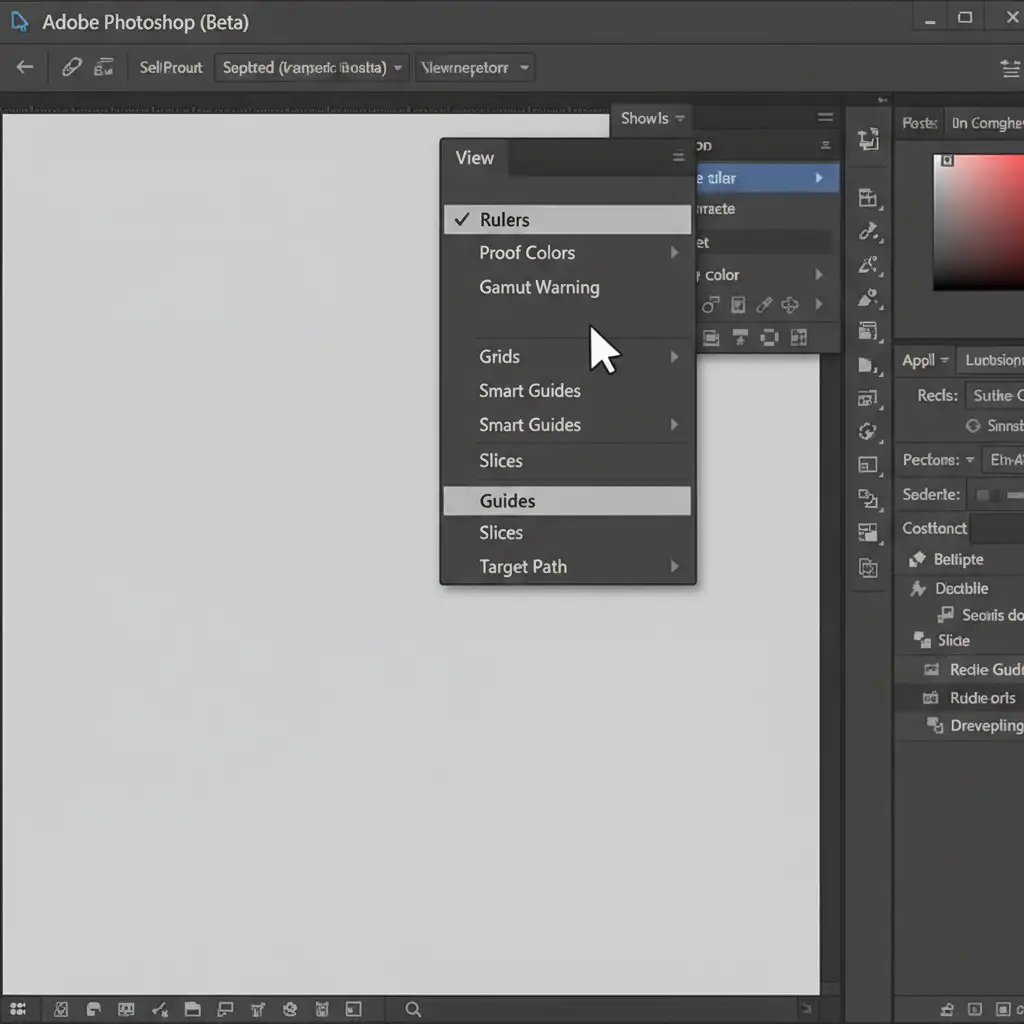
Fix 1: The Quick Fix – Hide Rulers and Guides
Photoshop often struggles to render vector paths simultaneously with measurement overlays. Turning these off is the fastest way to reclaim processing power.
- Press Ctrl + R (Windows) or Cmd + R (Mac) to disable Rulers.
- Press Ctrl + ; (Windows) or Cmd + ; (Mac) to hide active Guides.
Fix 2: The Pro Workaround – Disable Rubber Band Mode
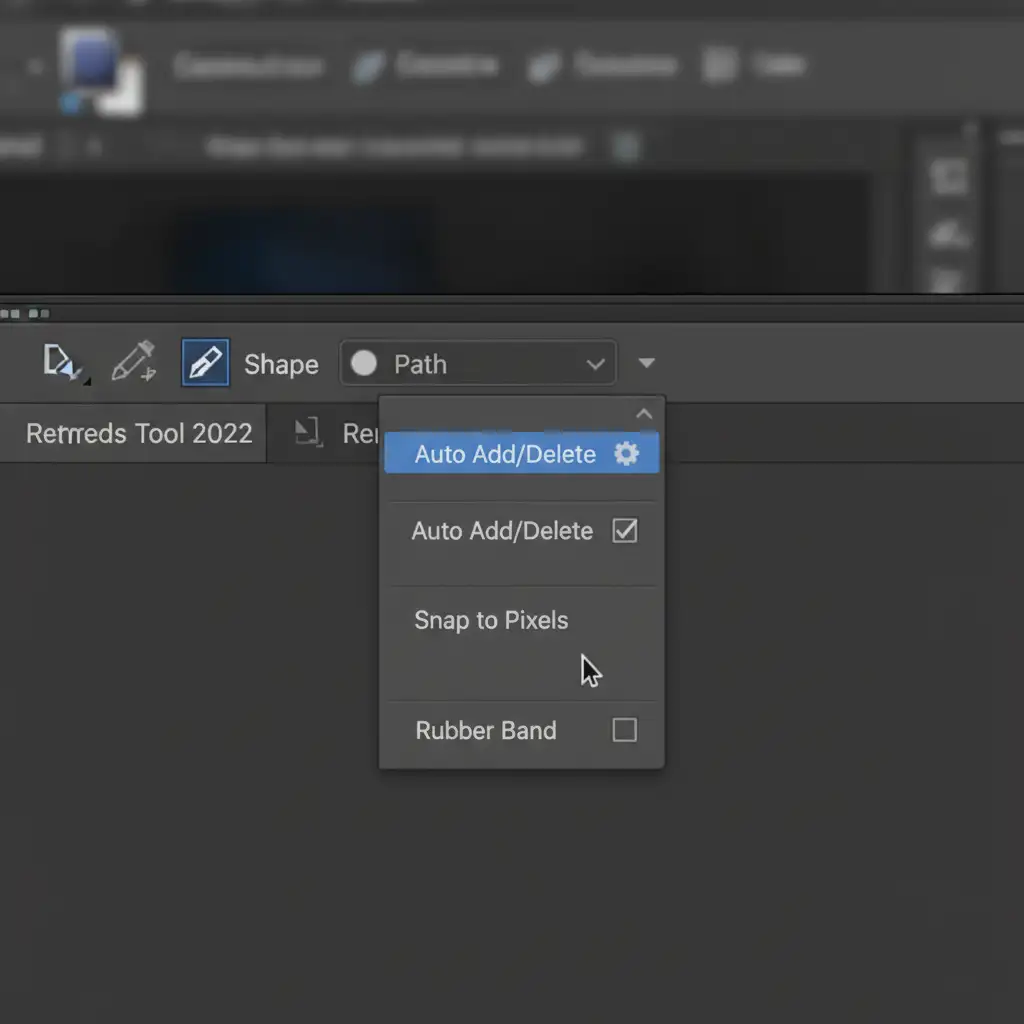
The “Rubber Band” feature gives you a live preview of where your next path segment will fall. While helpful for beginners, it forces Photoshop to constantly calculate and render a predictive path preview, which is a massive drain on system resources.
- Select the Pen Tool (P).
- Look at the top Options Bar and click the Gear icon.
- Uncheck the Rubber Band box.
This instantly stops the predictive rendering, allowing you to draw paths and create a vector mask without the stutter.
Fix 3: The Technical Deep-Dive – Optimize Performance Preferences
If UI tweaks don’t solve the issue, you need to adjust how Photoshop interacts with your computer’s hardware.
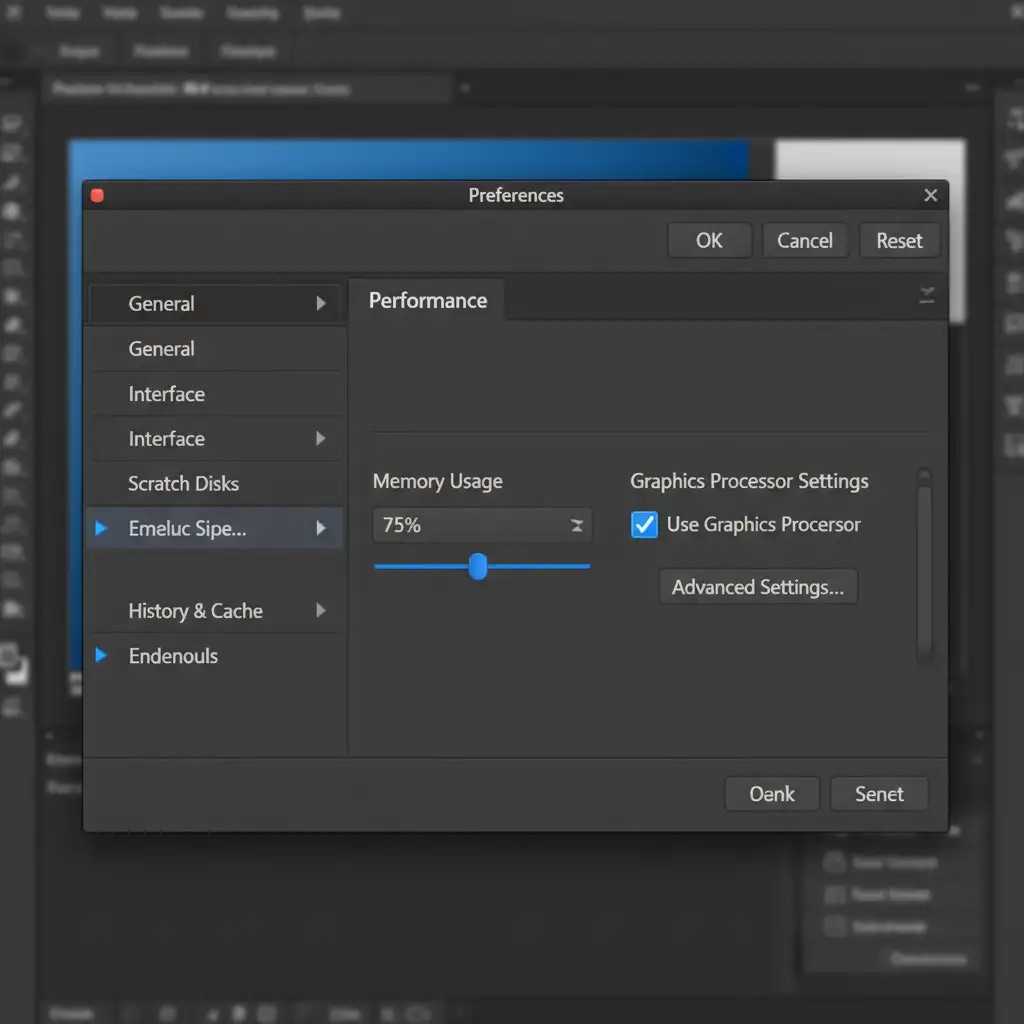
Navigate to Edit > Preferences > Performance (or Photoshop > Settings > Performance on macOS) and make the following adjustments:
- Memory Usage: Increase your RAM allocation to 70-80%. This gives Photoshop the breathing room it needs to store complex path data.
- Cache Levels: Lower your cache levels to 2 or 3. High cache levels are great for massive files with dozens of layers, but for document types with fewer layers and complex paths, a lower cache level speeds up tool responsiveness.
- Use Graphics Processor: Ensure this box is checked to enable GPU acceleration.
Fix 4: Force “Basic” Drawing Mode
Inside that same Performance window, you can further optimize how your GPU handles vector rendering.
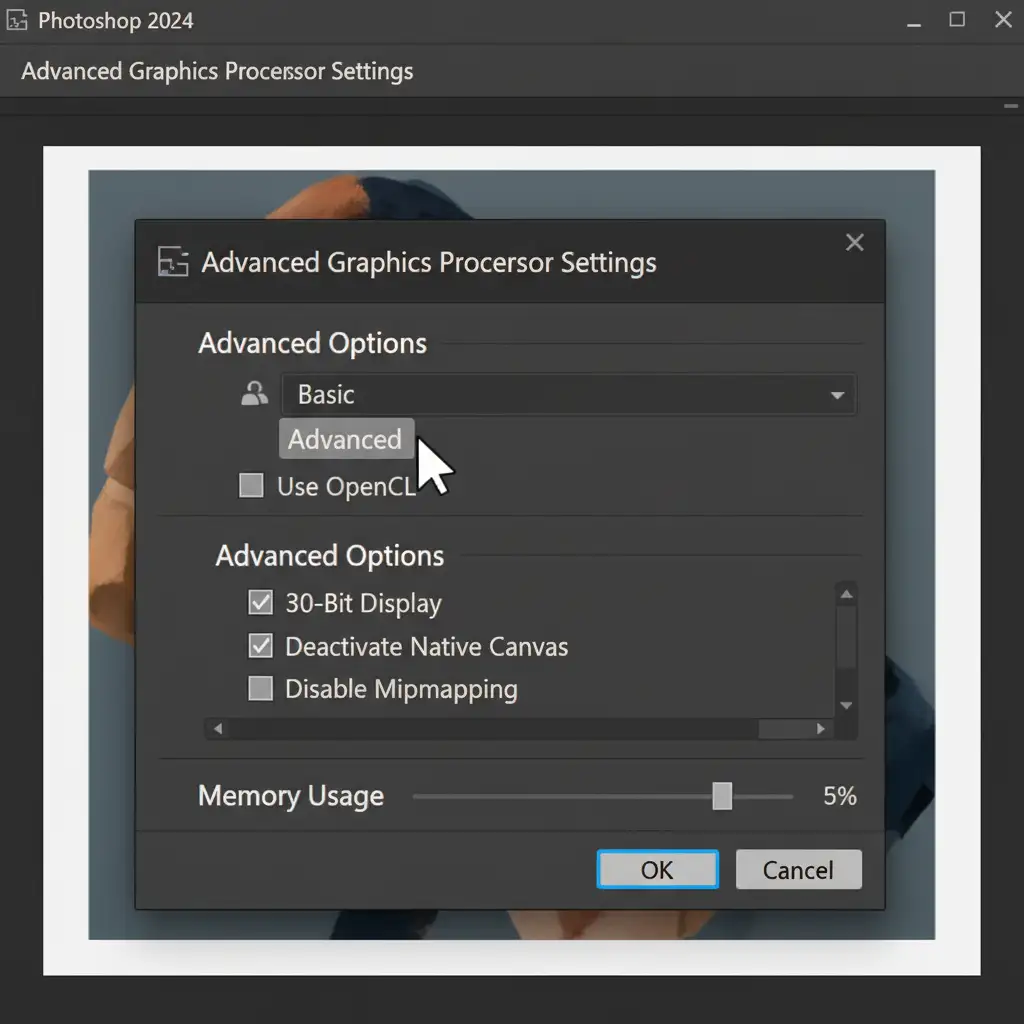
- Click the Advanced Settings button under the Graphics Processor section.
- Change the Drawing Mode dropdown from Advanced or Normal to Basic.
- Click OK and restart Photoshop.
Basic mode uses the least amount of graphics card memory and disables complex GPU smoothing, which is often the exact root cause of cursor lag.
Fix 5: Update Your Peripherals and Drivers
Finally, ensure your hardware isn’t the bottleneck. Outdated graphic drivers (NVIDIA/AMD) or tablet drivers can cause input lag that mimics software stuttering.
- Update your GPU drivers to the latest “Studio” or “Creator” ready versions.
- Open your Wacom Desktop Center (or equivalent tablet software) and install the latest firmware updates.
Stop Tinkering and Start Scaling Your Production
Applying this Photoshop Pen Tool lag fix 2024 workflow should instantly restore your software’s responsiveness. However, even with perfectly optimized hardware, manually drawing hundreds of complex paths is a massive drain on your time and resources.
Struggling with sluggish software, high-volume image batches, and looming deadlines? Outsource your complex clipping paths and image masking to Image Work India and Cloud Retouch.
Our dedicated teams of professional retouchers use fully optimized workstations to deliver flawless, hand-drawn cutouts and vector masks overnight. Stop fighting your software and let us handle the heavy lifting. Contact Image Work India today to get a free trial and see how we can save you time, frustration, and money.