
You’ve just spent hours prepping your product catalog for TikTok Shop, only to hit a brick wall: the dreaded “Product Image Undefined” error. Your sales are blocked, and your listing is stuck in limbo. This silent failure in the TikTok Seller Center usually happens when the platform’s image processor chokes on corrupted EXIF metadata, wrong color profiles, or blocked background upload scripts.
Don’t panic. In this step-by-step guide, we will walk you through exactly how to troubleshoot this error, bypass the web dashboard glitches, and get your products live instantly.
Why Does the ‘Undefined’ Error Happen?
TikTok Shop’s backend validation is notoriously strict. While the platform publicly states that images must be under 5MB and fit specific dimensions, there are hidden technical requirements.
When a file is uploaded, the system evaluates the network payload and attempts image rasterization. If the image contains a CMYK color profile instead of the required sRGB color space, or if it carries bloated, corrupted header data from your camera, the upload fails. Add in the fact that aggressive browser extensions can block the CDN sync between your computer and TikTok’s AWS servers, and you have a recipe for the “Undefined” error.
Here are the three proven methods to fix it.
Method A: The Quick Fix (Browser & Network Troubleshooting)
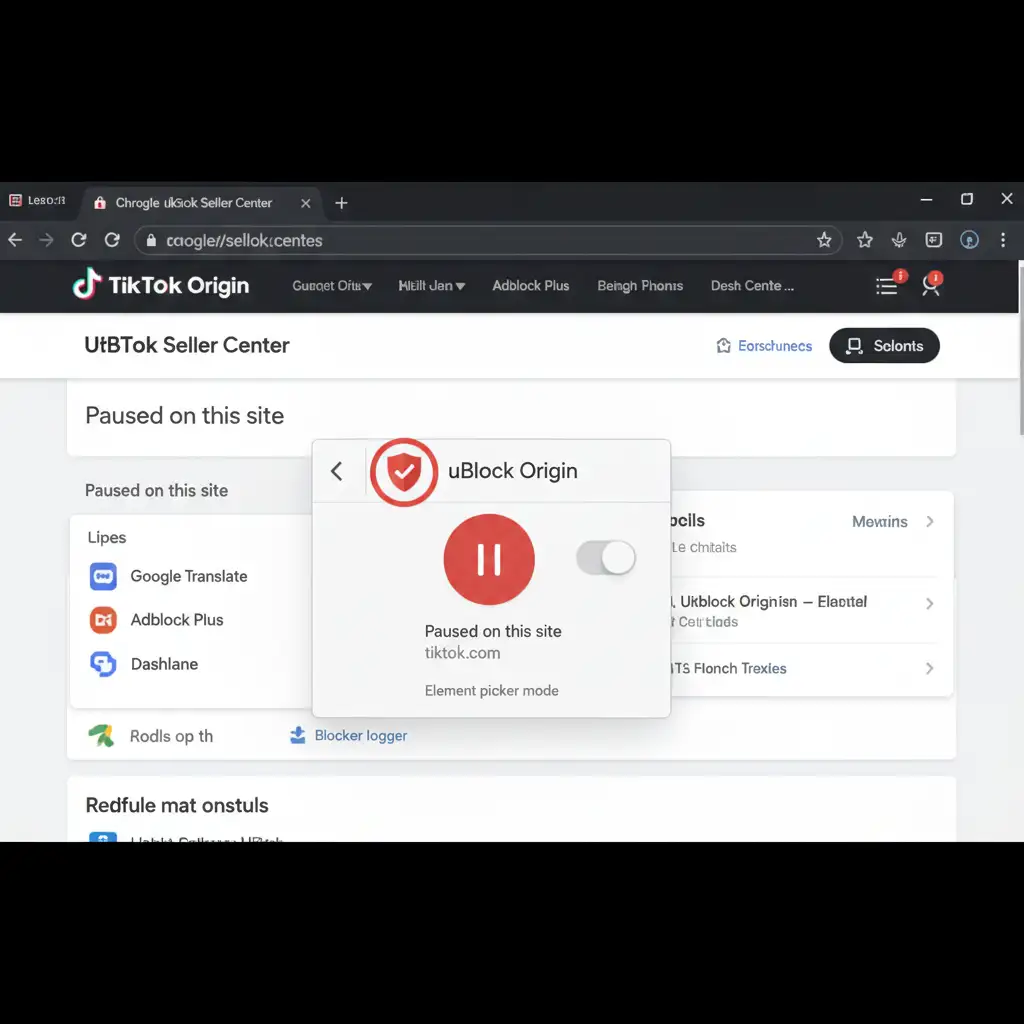
Often, the issue isn’t your image at all; it’s your browser preventing the image from reaching TikTok’s servers. AdBlockers, privacy extensions (like uBlock Origin or Brave Shields), and outdated cache data can block the upload scripts.
Step 1: Disable AdBlockers
Pause all tracking and ad-blocking extensions specifically for the TikTok Seller Center domain.
Step 2: Perform a Cache Clearance
A standard page reload isn’t enough. You need to clear the local browser cache to ensure you are loading the most recent version of the Seller Center dashboard.
- Windows: Press Ctrl + F5 or Ctrl + Shift + R.
- Mac: Press Cmd + Shift + R.
Step 3: Re-Upload the Image
Attempt to upload your product photo again. If you still see the error popup, the problem lies within the image file’s technical makeup. Move on to Method B.
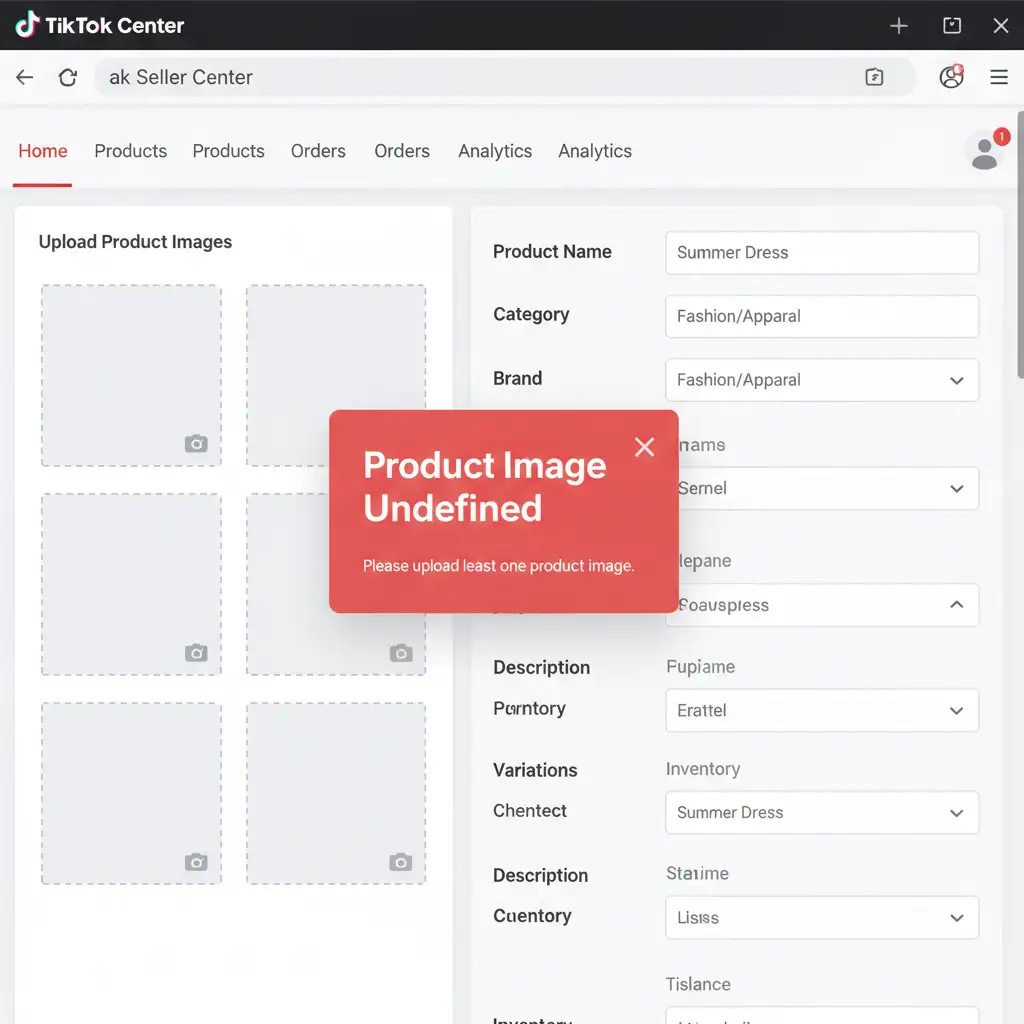
Method B: The Pro Workaround (Fixing EXIF Metadata & Color Profiles)
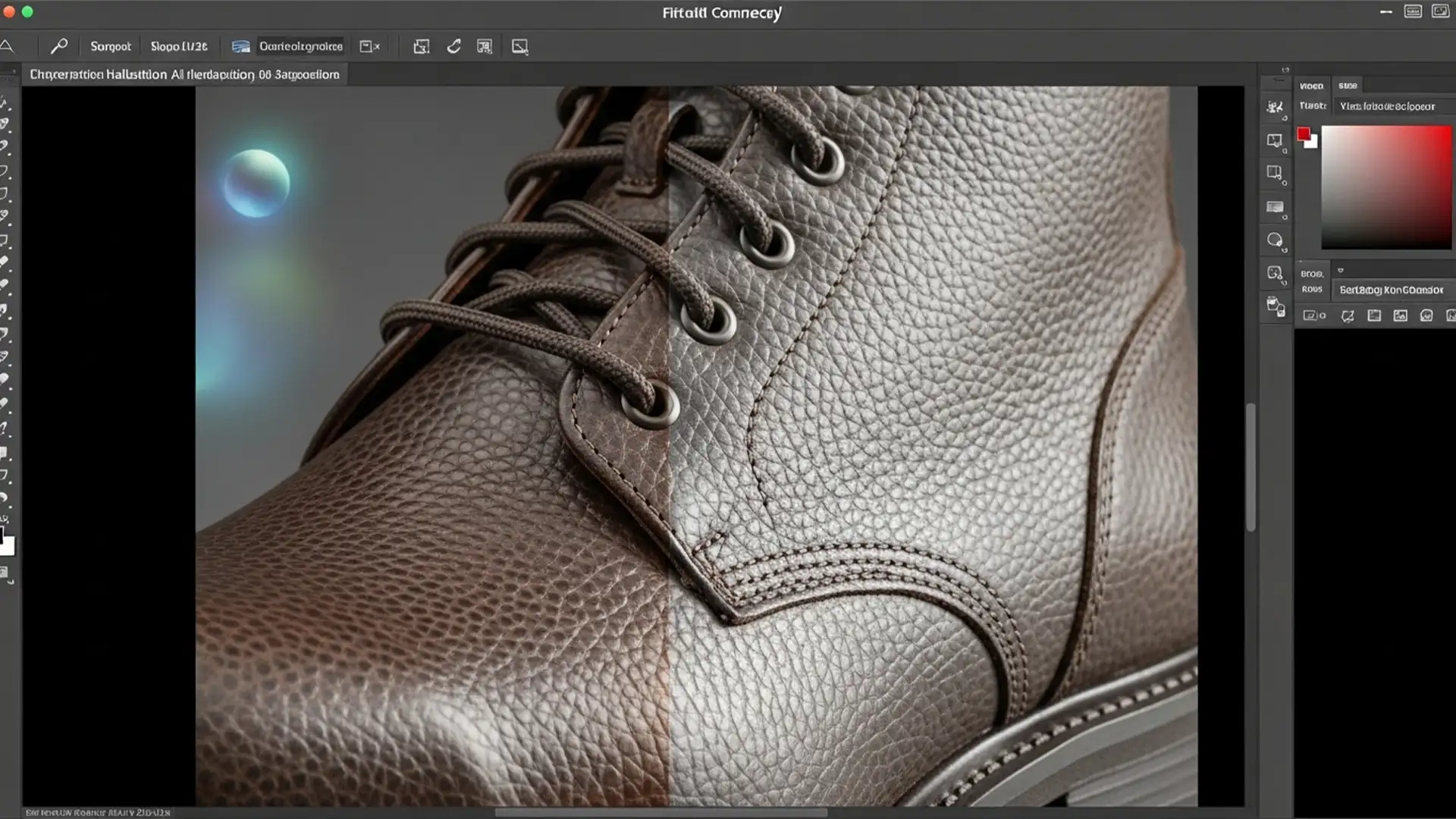
If the quick fix fails, your image likely contains a CMYK conversion issue or corrupted EXIF metadata (the hidden data your camera saves regarding exposure, location, and device type). Stripping this data and forcing the correct color profile guarantees a successful upload.
Step 1: Open the Image in Photoshop
Launch Adobe Photoshop and open the problematic product image. Ensure your canvas is cropped to a perfect 1:1 aspect ratio (e.g., 1000x1000px), which is the optimal dimension for TikTok Shop.
Step 2: Export via ‘Save for Web (Legacy)’
Do not use the standard “Save As” function. Instead:
- Navigate to File > Export > Save for Web (Legacy).
- Select JPEG as the file format.
- Check the box that says Convert to sRGB.
- In the Metadata dropdown menu, select None.
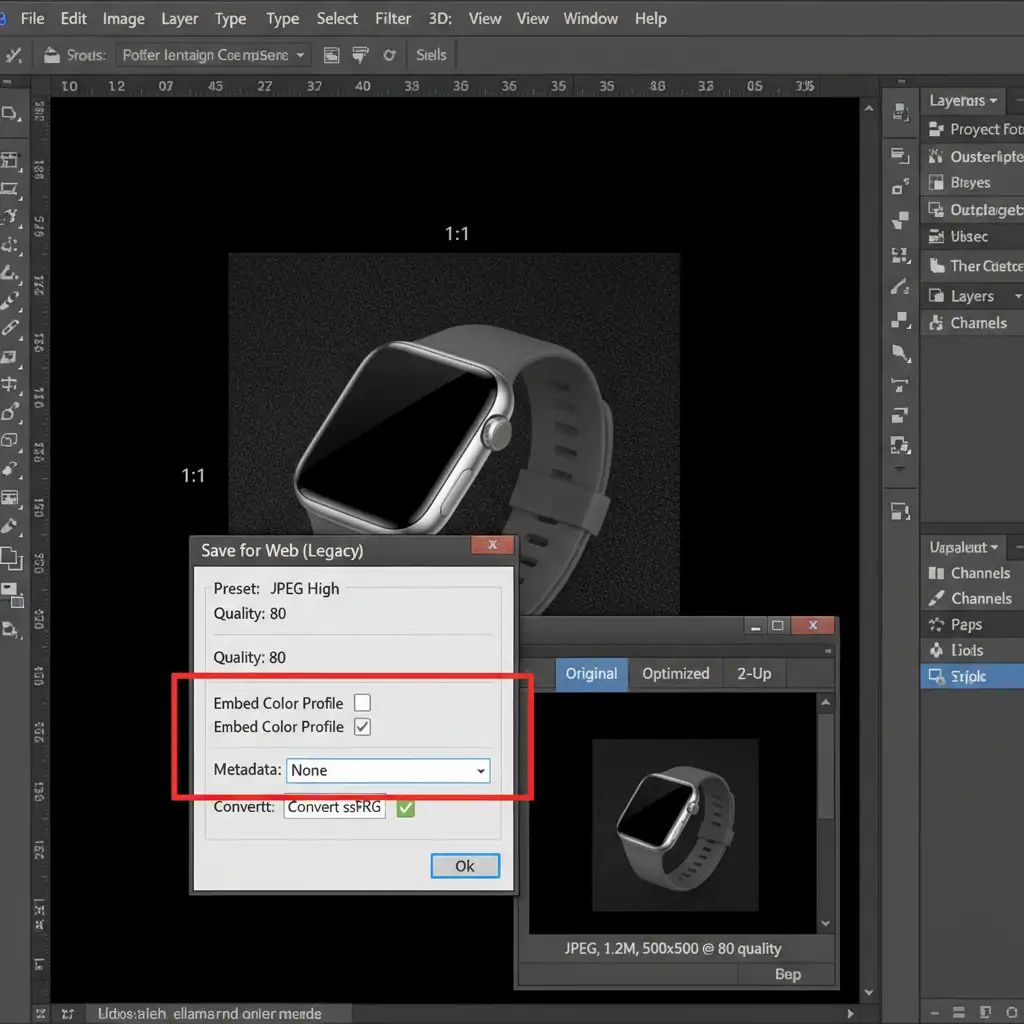
By stripping the metadata and forcing the sRGB profile, you provide TikTok’s image processor with a clean, lightweight file it can easily parse.
Method C: The Technical Deep-Dive (Bypassing the Web UI)
If the Seller Center web dashboard is experiencing a widespread glitch and refusing all uploads, you can bypass the front-end interface entirely using the bulk upload template and the Seller Center API.
Step 1: Host Your Images Externally
Upload your optimized product images to a reliable cloud hosting service (like AWS S3, Imgur, or your own Shopify/WordPress media library). You need direct, publicly accessible HTTPS links ending in .jpg.
Step 2: Use the Bulk Upload Template
- In the TikTok Seller Center, navigate to Products > Batch Tool > Bulk Upload.
- Download the official TikTok Shop Excel template for your product category.
- Open the spreadsheet and locate the image columns.
- Paste your direct image URLs into the appropriate cells.
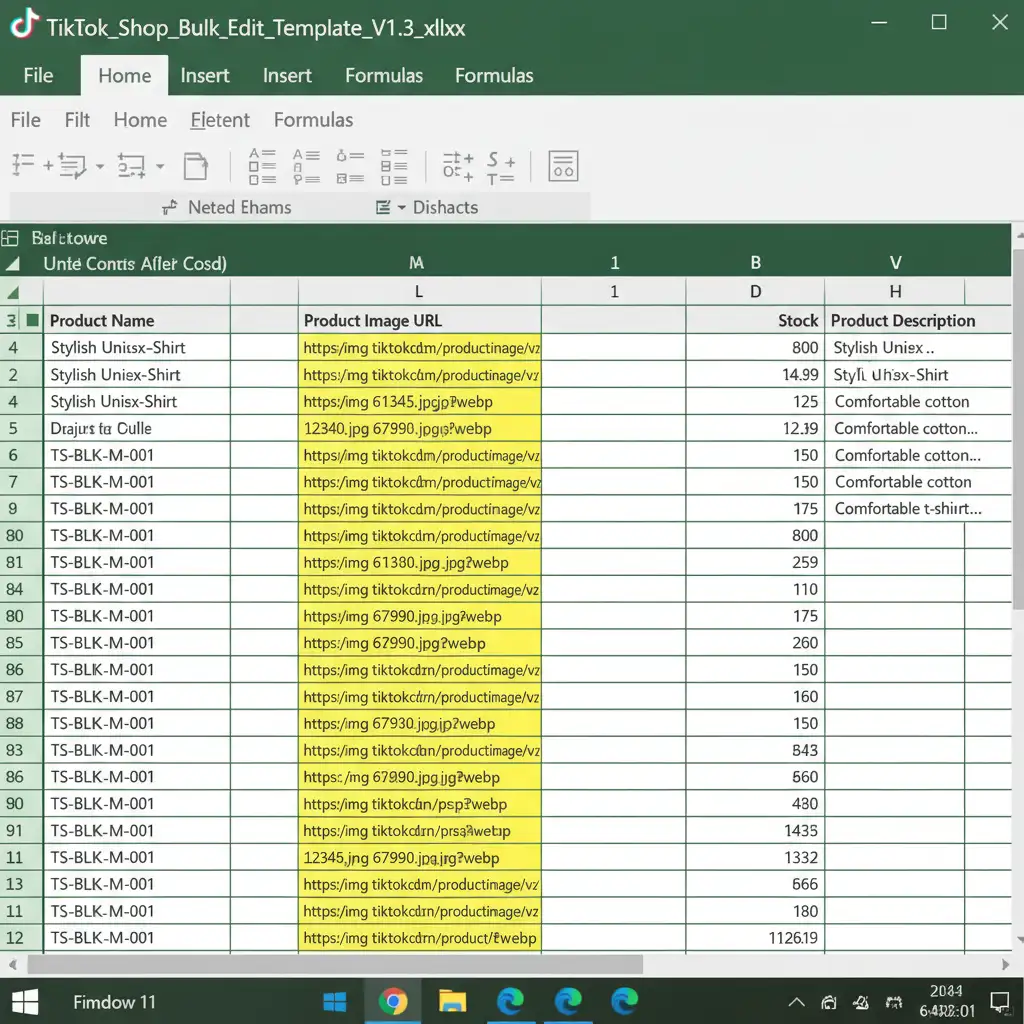
Step 3: Import via API
Upload the completed Excel file back into the Seller Center. The system will use its backend API to pull the images directly from your hosted URLs, completely bypassing the browser-based upload scripts that trigger the “Undefined” error.
See the Photoshop Fix in Action
If you are a visual learner, watch this quick breakdown of how to strip EXIF data and correct color profiles in seconds.
Stop Fighting Marketplace Errors. Let the Experts Handle It.
Navigating strict marketplace requirements, stripping image headers, and ensuring perfect pixel dimensions takes time away from what you do best: growing your brand.
If you are tired of dealing with the “TikTok Shop Product Image Undefined” error, Image Work India and Cloud Retouch are here to help. We specialize in bulk product photo editing, background removal, and marketplace formatting. Our expert retouching team ensures every single image in your catalog is perfectly optimized, color-corrected to sRGB, and formatted to meet TikTok Shop’s exact specifications.
Ready for pixel-perfect, platform-compliant product images? [Contact Image Work India and Cloud Retouch today] to streamline your e-commerce visuals and never face a marketplace rejection again.