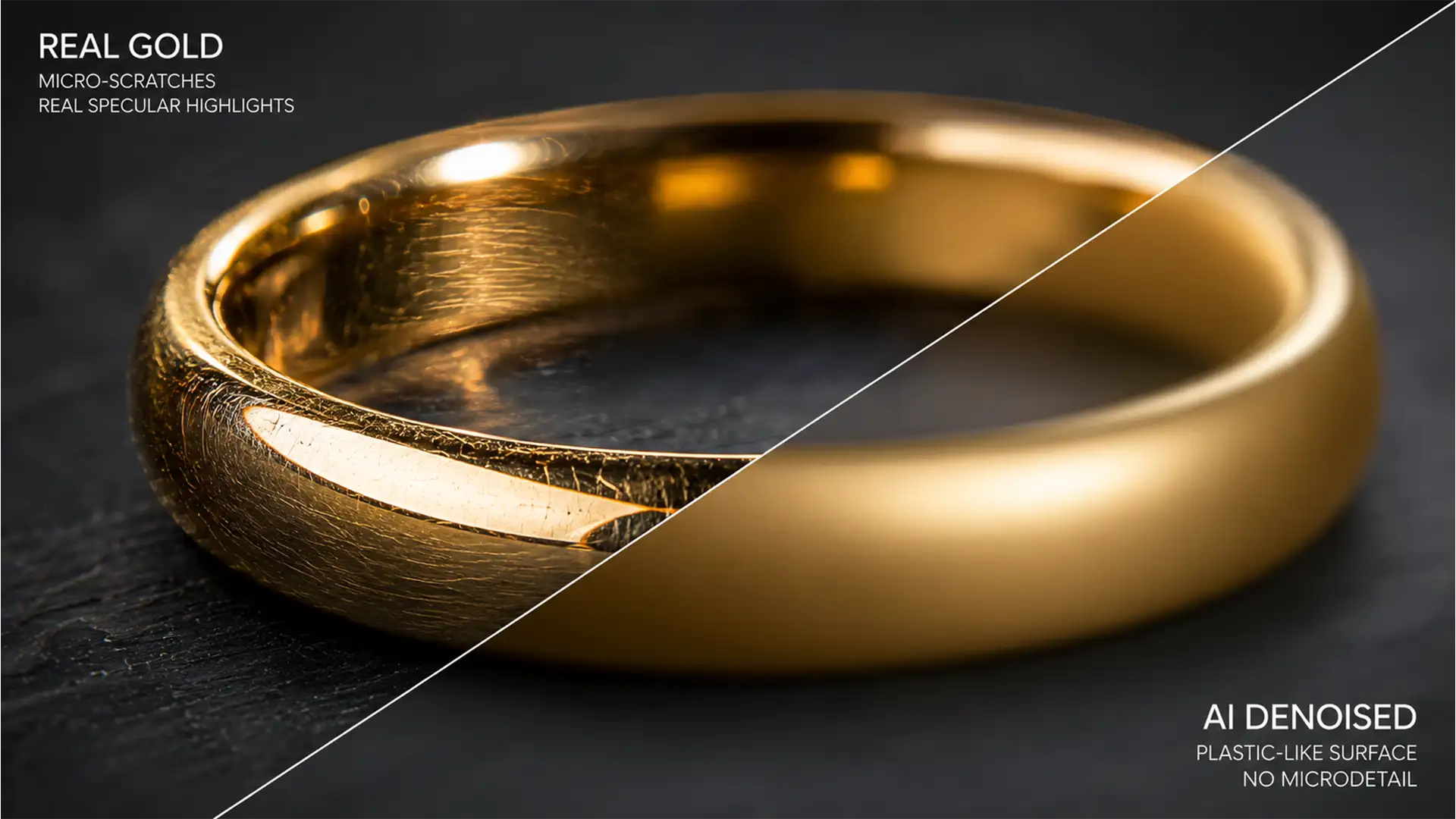

You shoot a stunning macro jewelry piece, load it into Adobe Photoshop v25.x or Lightroom Classic v13.x, and hit the denoise button to clean up the background. But when you zoom in on the metal, disaster strikes. The brilliant surface looks like cheap plastic. The crisp micro-scratches, brushed textures, and bright specular highlights are completely gone, replaced by a smudged, artificial mess.
If you are battling AI denoise artifacts on polished gold, you are not alone. Machine learning algorithms frequently misinterpret fine metallic details for digital grain. Here is exactly how to fix this issue, bypass the algorithmic smudging, and restore the high-end luxury feel to your macro photography.
Why AI Algorithms Misunderstand Metallic Textures
The AI Denoise features in modern editing software are trained to aggressively target and eliminate luminance noise and chroma noise. While this works wonders for skies, skin, and soft backgrounds, macro photography of jewelry presents a unique challenge.
Polished gold relies heavily on micro-contrast to look authentic. The tiny surface imperfections, directional brushed strokes, and sharp specular highlights are what tell the human eye, “This is real metal.” Unfortunately, the AI cannot always differentiate between unwanted digital noise and these critical textural details. When applied globally, the software simply smooths everything out, stripping the metal of its natural luster and resulting in severe AI denoise artifacts on polished gold.
How to Fix AI Denoise Artifacts on Polished Gold
To retain the realism of your jewelry, you must control where and how heavily the noise reduction is applied. Here are three proven methods, ranging from a quick adjustment to a high-end retouching workflow.
Method A: The Quick Fix (Adjusting ACR Thresholds)
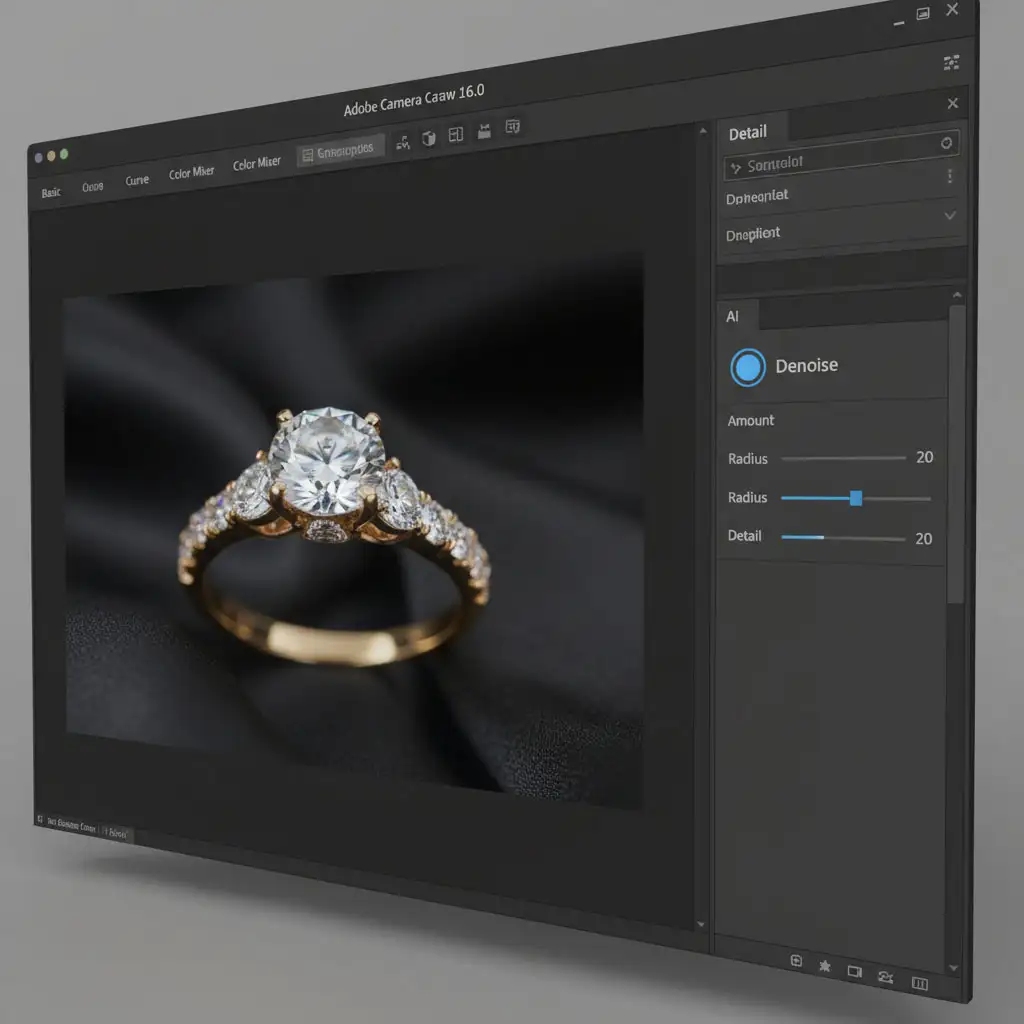
The simplest way to avoid the plastic look is to stop relying on Adobe’s default settings. By default, Adobe Camera Raw (ACR) applies an AI Denoise amount of 50. For high-end jewelry, this is almost always too aggressive.
- Open your RAW file in Adobe Camera Raw or Lightroom Classic.
- Navigate to the Detail panel.
- Click the Denoise button, but immediately lower the Amount slider from 50 to a range of 15-25.
This lower threshold retains enough organic grain to preserve the gold’s micro-contrast while successfully reducing the most distracting color noise in the shadows.
Method B: The Pro Workaround (Smart Objects & Masking)
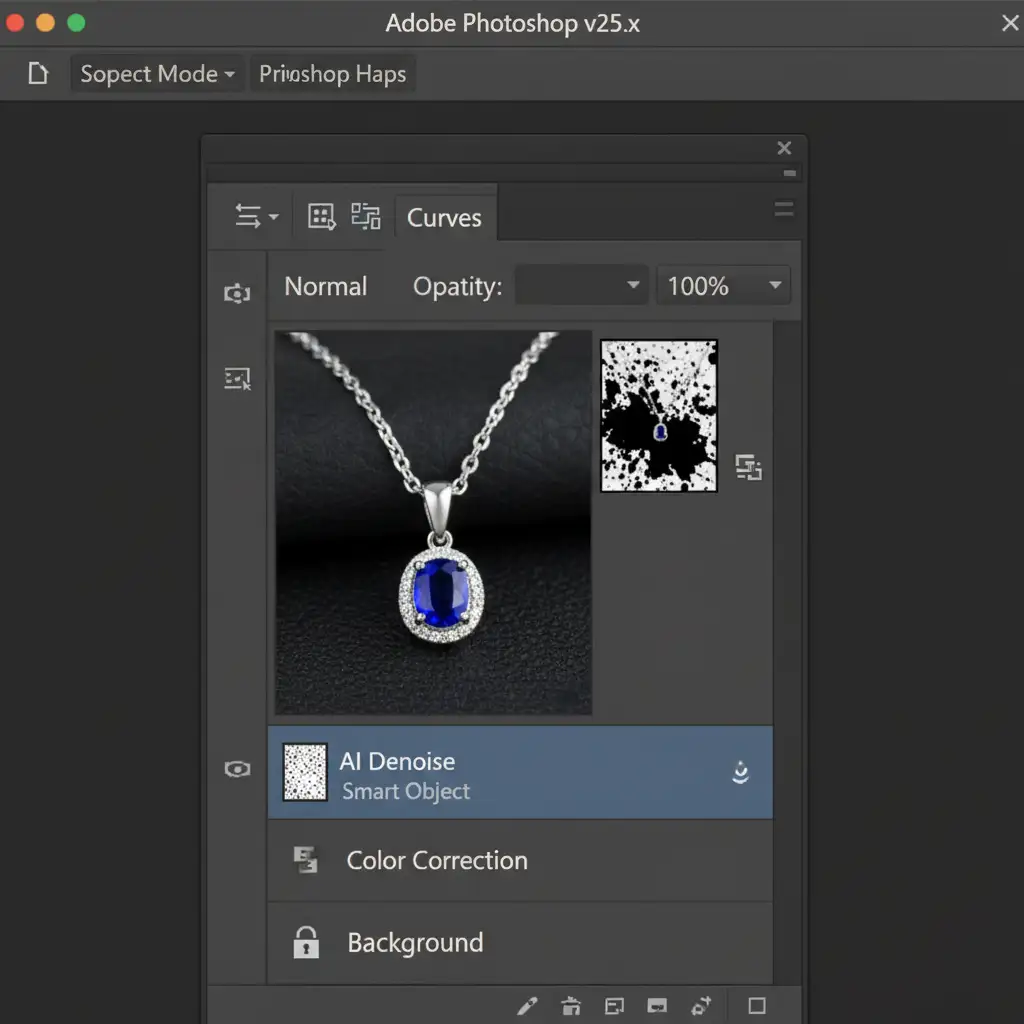
If your background requires heavy noise reduction but your jewelry cannot afford any loss of detail, you need to isolate the effect using a Smart Object and targeted masking.
- Duplicate your background layer in Photoshop.
- Right-click the duplicated layer and select Convert to Smart Object.
- Go to Filter > Camera Raw Filter and apply a stronger AI Denoise (e.g., 50-60) to clean up the background.
- Back in the Layers panel, add a black Layer Mask to your Smart Object to hide the effect entirely.
- Select a soft white brush and manually paint the denoise effect only onto the background and deep shadows. Leave the polished gold completely untouched.
(Note: For highly complex pieces, you can generate luminosity masks to automatically target the shadows without painting over the bright specular highlights).
Method C: The Technical Deep-Dive (Frequency Separation)
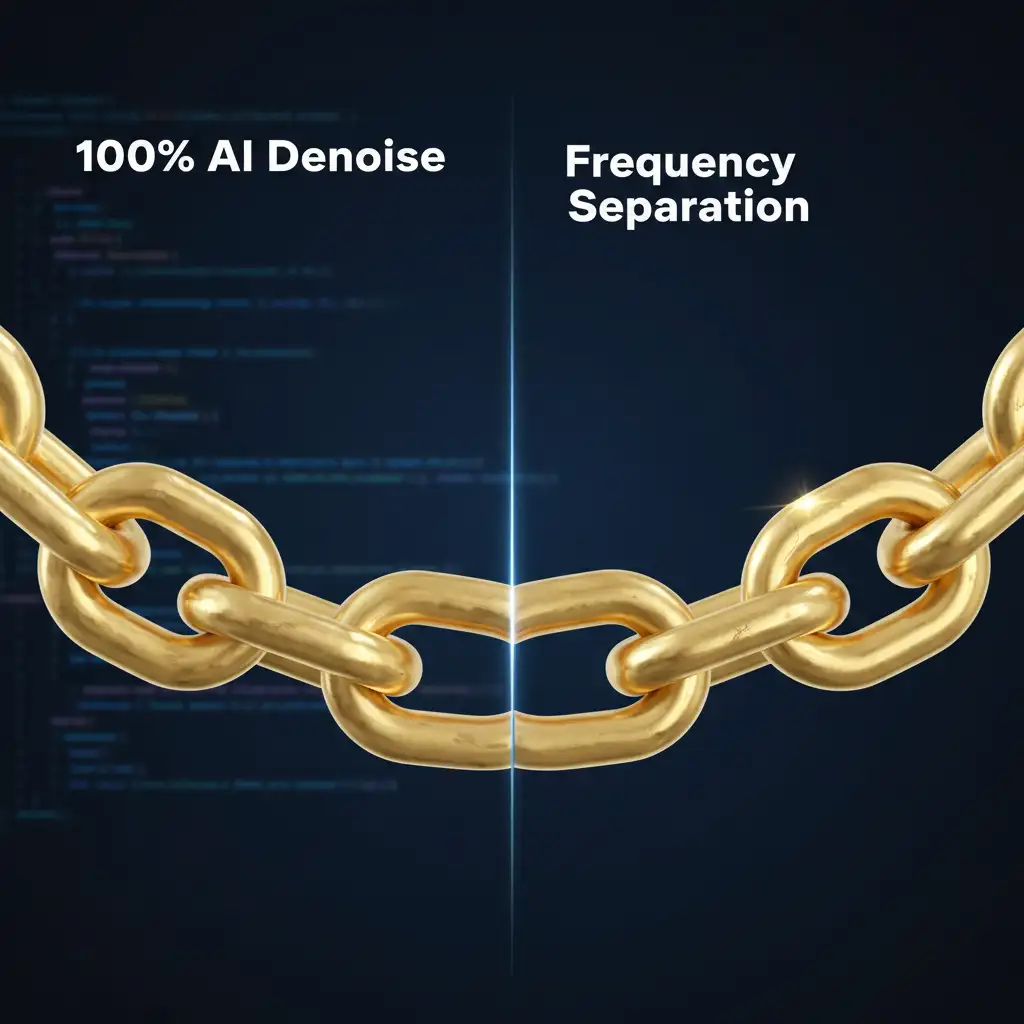
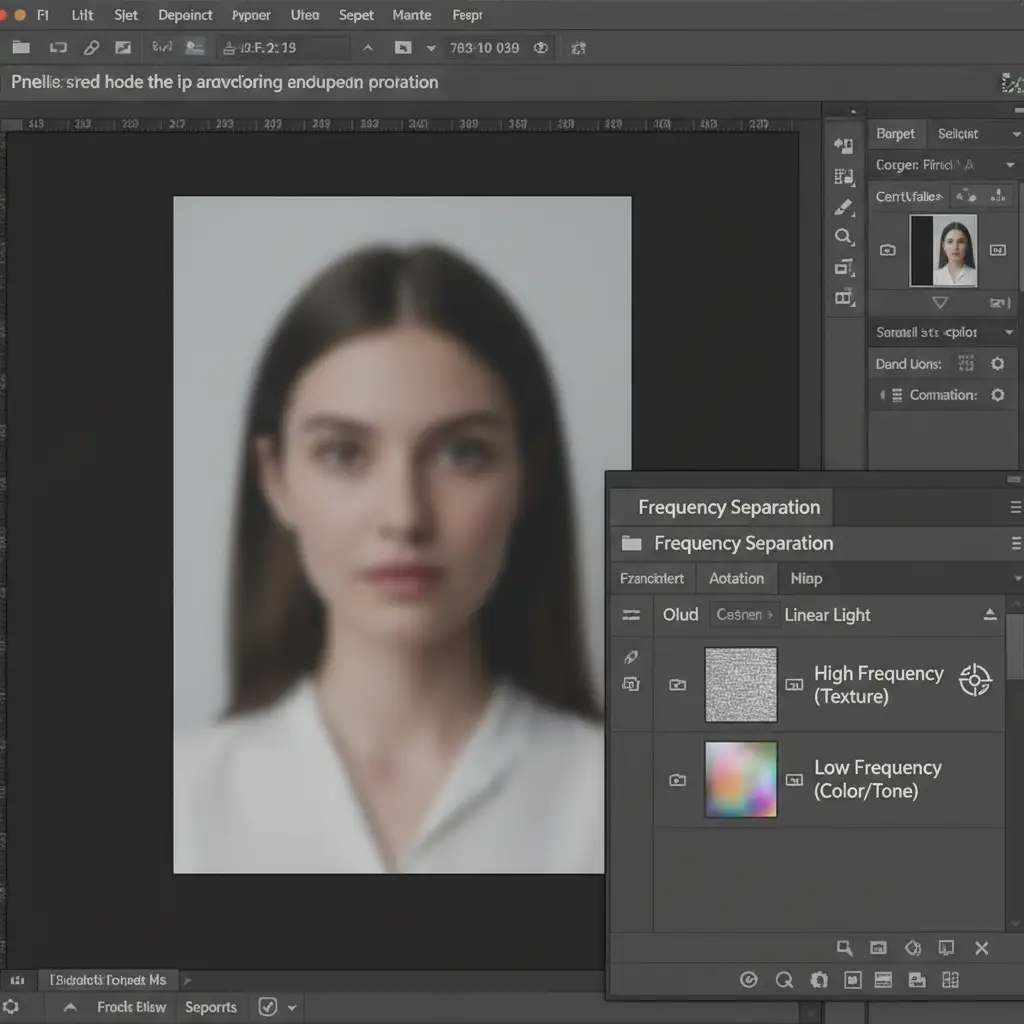
For the ultimate control in high-end jewelry retouching, Frequency Separation is the industry standard. This technique splits your image data into two distinct layers: color/tone (low frequency) and texture (high frequency).
By separating these elements, you can completely smooth out the color noise and tonal transitions in the gold without ever touching the micro-scratches or metallic sharpness.
- Duplicate your base layer twice. Name the top layer “High Frequency” and the bottom layer “Low Frequency”.
- Apply a Gaussian Blur to the Low Frequency layer just until the fine texture disappears.
- Select the High Frequency layer. Go to Image > Apply Image. Subtract the Low Frequency layer (using standard Frequency Separation settings based on your bit depth), then change the blending mode to Linear Light. Alternatively, use a High-pass filter for a simpler texture extraction.
- Now, apply traditional surface blur or mild noise reduction only to the Low Frequency layer.
Because the crisp details of the polished gold are safely isolated on the High Frequency layer, the metal retains 100% of its natural luster while the underlying color noise is eliminated.
Elevate Your Jewelry Retouching with Image Work India
Fixing AI denoise artifacts on polished gold requires a meticulous eye for detail. While masking and frequency separation yield flawless results, they are incredibly time-consuming—especially when you are processing hundreds of macro photography shots for an e-commerce catalog or an editorial campaign.
Struggling to keep your jewelry photos looking crisp and natural? Let the expert retouchers at Image Work India and Cloud Retouch handle the heavy lifting. Our specialized teams master the intricate masking, frequency separation, and texture preservation required for flawless, high-end jewelry imagery. Focus on shooting stunning pieces, and let us deliver the perfect, luxurious polish your clients demand. Contact us today to streamline your post-production workflow.




