
You are in the middle of a tight deadline, cleaning up a portrait in Photoshop 2024. You grab the Clone Stamp or Healing Brush, Alt-click to sample, and suddenly-disaster. Instead of a localized brush preview, your cursor drags a massive, ghosted copy of your entire image across the canvas.
This Photoshop 2024 retouching tool creates copy of image bug is incredibly frustrating, killing your workflow and precision. Fortunately, your file isn’t corrupted. It is a known issue tied to the Clone Source panel’s overlay settings and v25.x GPU rendering conflicts. Here is exactly how to fix it in seconds.
Understanding the Photoshop 2024 Retouching Tool Bug
In Adobe Photoshop 2024 (v25.x), users frequently encounter a visual glitch where retouching tools display an opaque overlay of the entire sampled layer. Rather than seeing a helpful, brush-sized preview of the pixels you are about to stamp, the software attempts to show the entire source image relative to your cursor.
This happens for two primary reasons:
- Clone Source Panel Settings: The ‘Show Overlay’ feature is enabled, but the ‘Clipped’ setting has been accidentally disabled.
- GPU Acceleration & Native Canvas Conflicts: Graphics Processing Unit (GPU) rendering conflicts with the updated Native Canvas feature in v25.x. This causes the overlay buffer to freeze, duplicating the canvas space onto the cursor, or failing to refresh the clipping mask entirely.
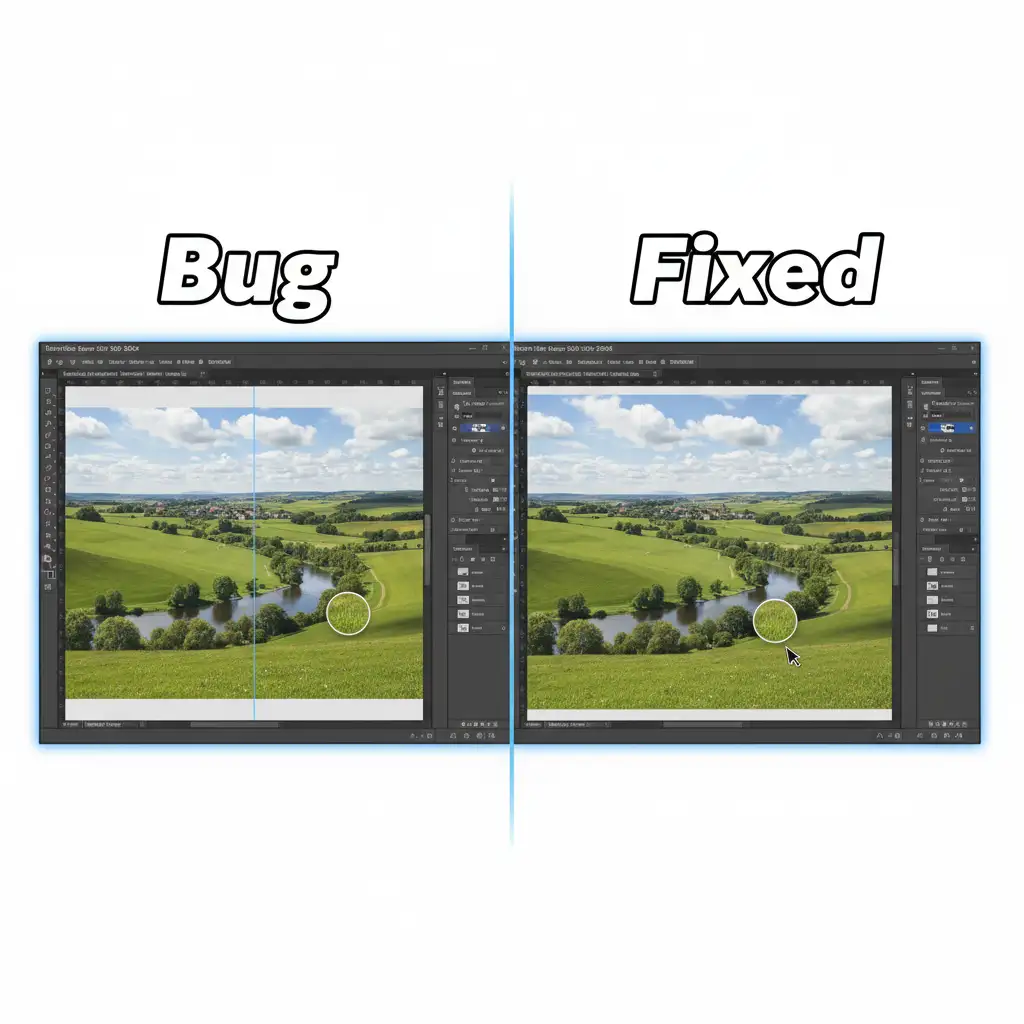
How to Fix the “Copying the Whole Image” Bug
Depending on whether your issue is a simple settings toggle or a deeper rendering bug, one of the following three methods will restore your workflow.
Method 1: The Quick Fix (Clone Source Panel Settings)
The most common culprit for the Healing Brush Tool or Clone Stamp Tool acting erratically is a misconfigured overlay setting.
- Navigate to the top menu and select Window > Clone Source to open the Clone Source panel.
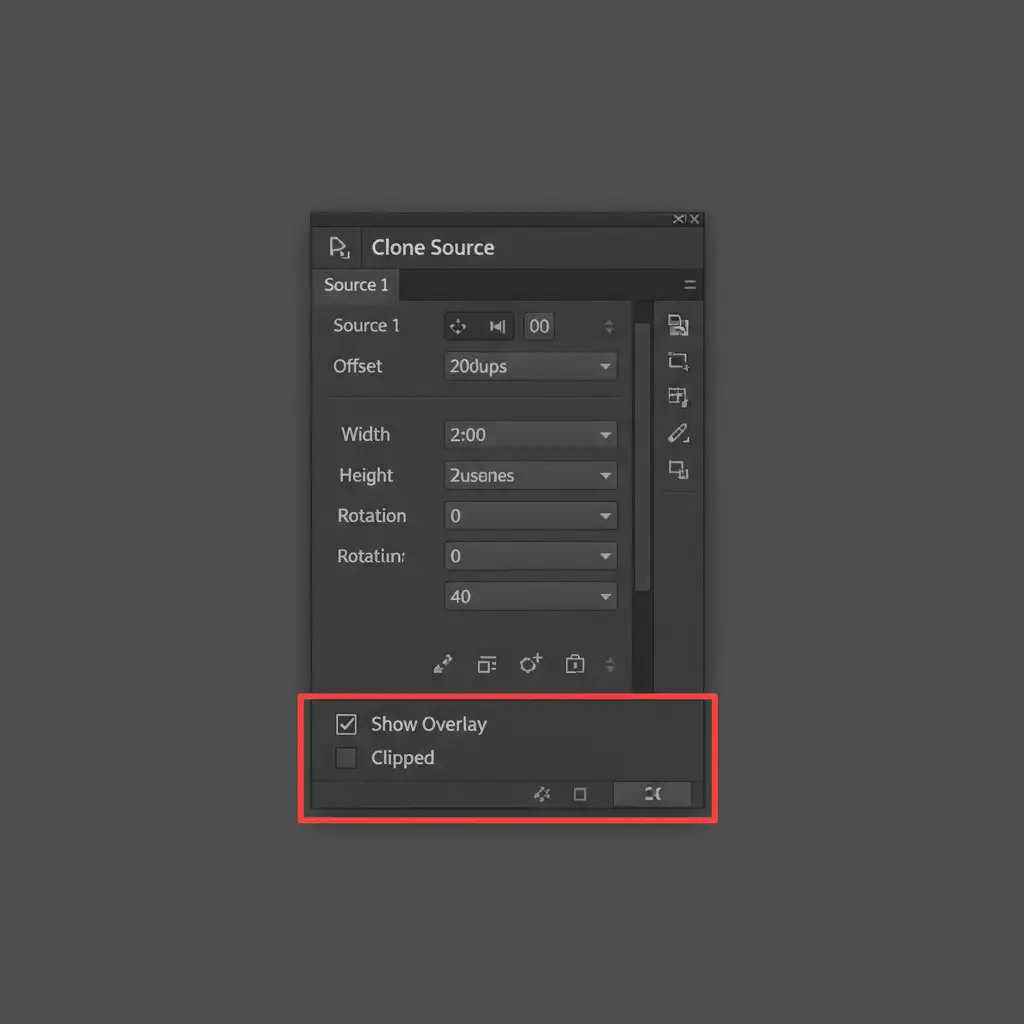
- Look at the bottom of the panel for the Show Overlay checkbox.
- Ensure the Clipped checkbox right next to it is checked.
- Alternative: If you don’t need a preview at all, simply uncheck Show Overlay to stop the image preview on your brush entirely. You can quickly toggle this using the keyboard shortcut Alt + Shift + O.
Method 2: The Pro Workaround (Non-Destructive Blank Layers)
If adjusting the Clone Source panel doesn’t immediately resolve the issue, you can bypass the glitch entirely by changing how your tool samples pixels. This method also enforces best practices for non-destructive editing.
- Create a new blank layer above your main image layer.
- Select the Clone Stamp or Healing Brush Tool.
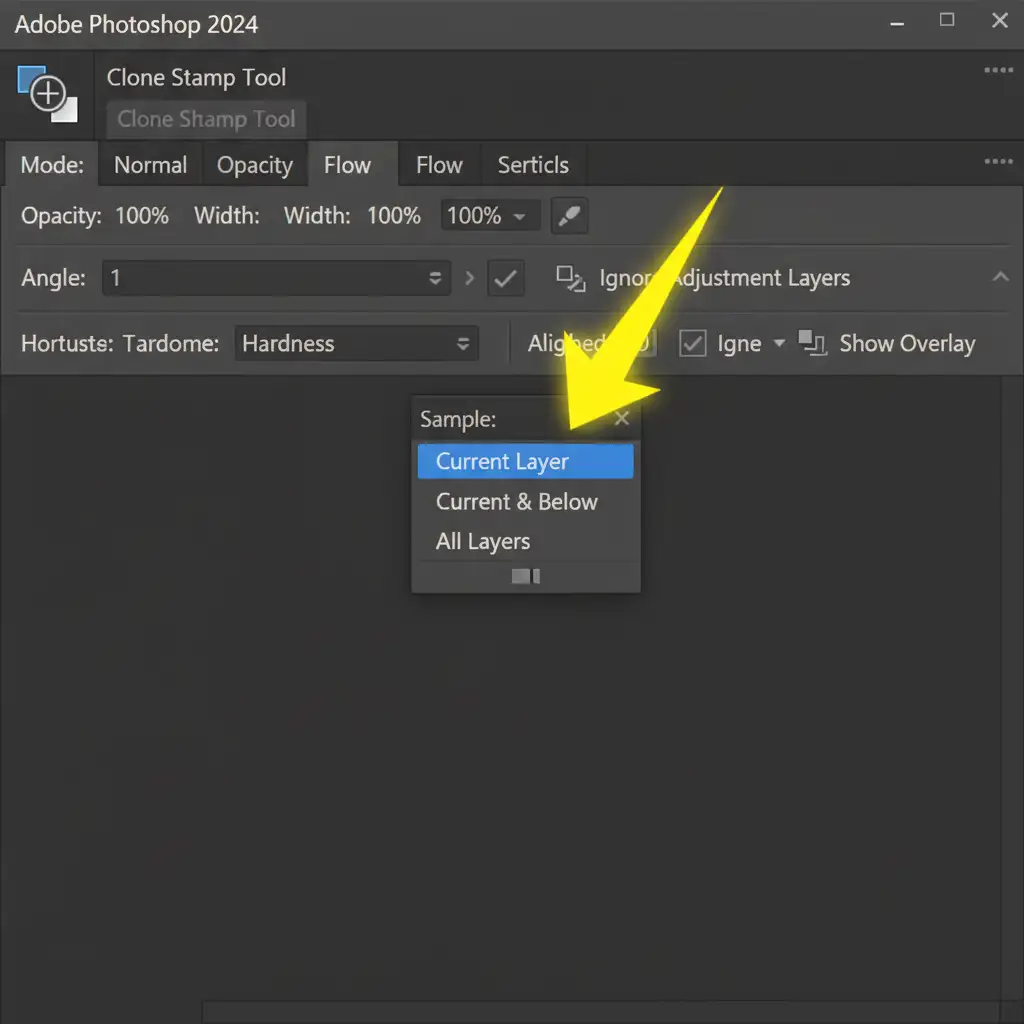
- Look at the top Options Bar. Locate the Sample dropdown menu.
- Change the setting from ‘Current Layer’ to Current & Below or All Layers.
- Perform your Alt-click sample on the image, then paint on the blank layer.
This forces Photoshop to sample raw pixels onto a fresh layer, preventing overlay glitches tied to specific layer data while keeping your original image untouched.
Method 3: The Technical Deep-Dive (Reset Tools & GPU Settings)
If the Photoshop 2024 retouching tool creates copy of image bug persists, you are likely dealing with a v25.x Native Canvas rendering error. Here is how to clear the UI rendering cache and reset your workspace.
Step A: Reset Tool Presets Right-click the tool icon (Clone Stamp or Healing Brush) in the far-left corner of the top Options Bar and select Reset Tool. This clears any corrupted hidden parameters.
Step B: Adjust GPU Acceleration
- Go to Edit > Preferences > Performance (Windows) or Photoshop > Settings > Performance (Mac).
- Uncheck Use Graphics Processor, click OK, and restart Photoshop to see if the issue resolves.
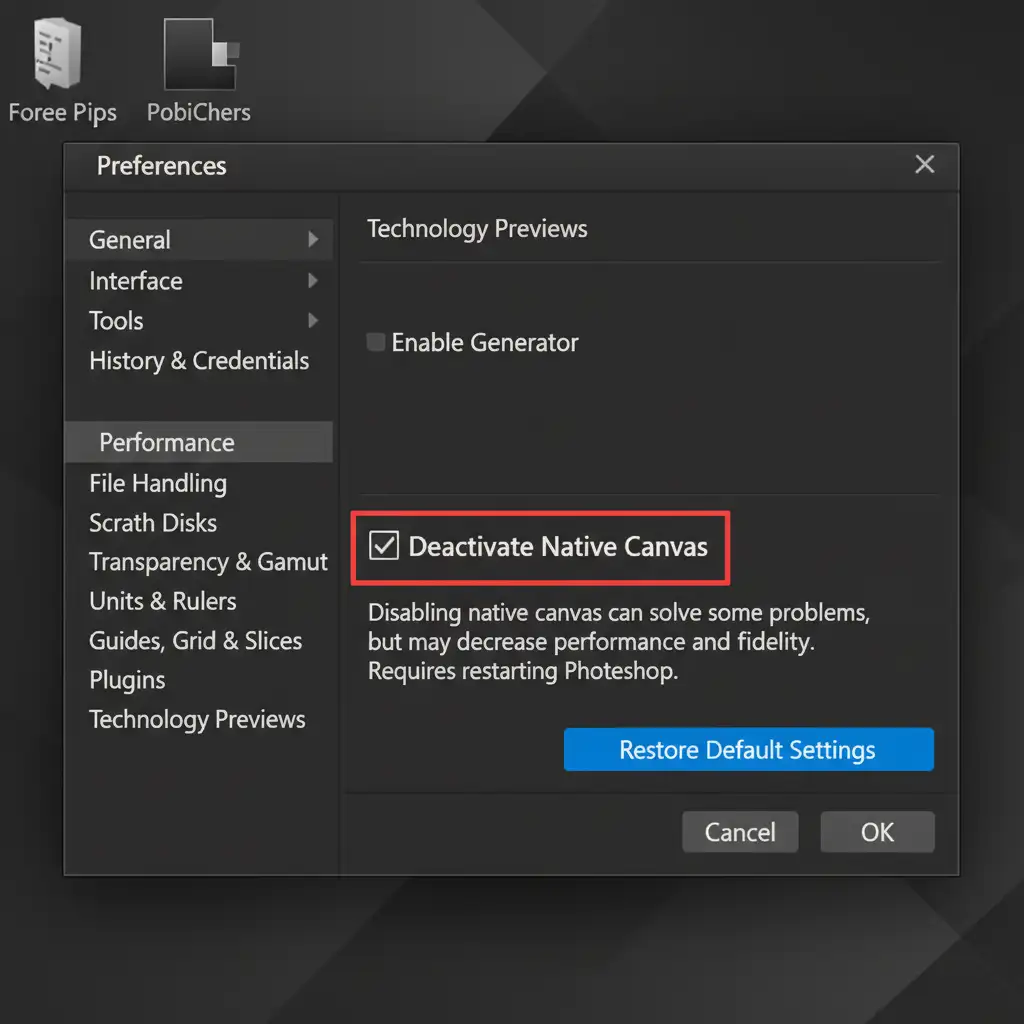
Step C: Deactivate Native Canvas If disabling the GPU is too detrimental to your workflow, turn it back on and try this instead:
- Go to Preferences > Technology Previews.
- Check the box for Deactivate Native Canvas.
- Restart Photoshop. This reverts the canvas rendering engine to an older, more stable version, instantly bypassing the v25.x overlay buffer freeze.
Stop Fighting Software Bugs. Start Scaling Your Business.
Troubleshooting the Photoshop 2024 retouching tool creates copy of image bug takes time away from what you do best: shooting and growing your creative business. When software glitches, GPU acceleration errors, and tedious pixel-pushing start causing you to fall behind on client deliveries, it is time to outsource.
Tired of troubleshooting Photoshop glitches? Let the experts at Image Work India and Cloud Retouch handle your high-volume post-production. From non-destructive high-end portrait retouching to complex clipping paths and color correction, our dedicated team delivers pixel-perfect, hassle-free results with rapid turnaround times.
Contact Image Work India and Cloud Retouch today to streamline your workflow and get back your most valuable asset: your time.