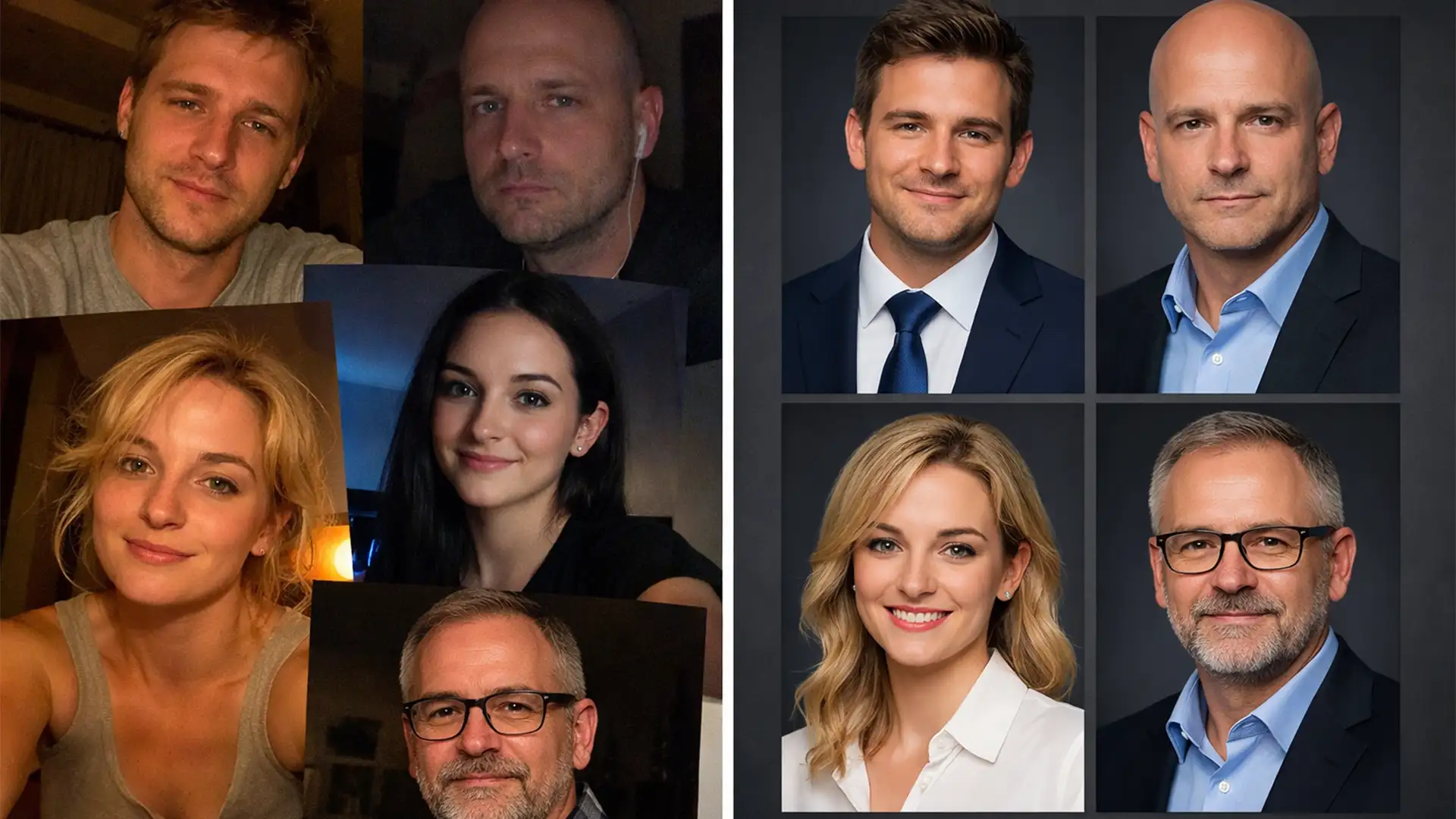

Look at your company’s “Meet the Team” page. Does it look like a cohesive, professional roster, or a chaotic collage of smartphone selfies taken in bedrooms, cars, and poorly lit home offices?
For modern distributed companies, achieving remote team headshot consistency is a massive operational headache. You lack a controlled studio environment. Instead, your raw assets are plagued by mixed color temperatures, wide-angle focal distortion from front-facing cameras, and erratic background noise. These visual discrepancies subconsciously signal a lack of polish to potential clients.
You don’t need to fly your entire global workforce to a physical photography studio. Using Adobe Photoshop v25.x, you can standardize high-variance image inputs into a unified corporate style. Here is the technical blueprint to make it happen.
The Core Challenge: High-Variance Image Inputs
When employees shoot their own photos, you are fighting three major technical discrepancies:
- Focal Distortion: Smartphone cameras use wide-angle lenses that distort facial proportions.
- Ambient Lighting Mismatch: Mixed ISO noise levels, incorrect white balances, and shadows falling on the wrong side of the face.
- Background Noise: Cluttered environments that require advanced extraction without leaving jagged edges around hair.
To fix this, your editing protocol must neutralize original lighting, enforce a standardized sRGB color profile for web delivery, and mathematically align the aesthetic across the board.
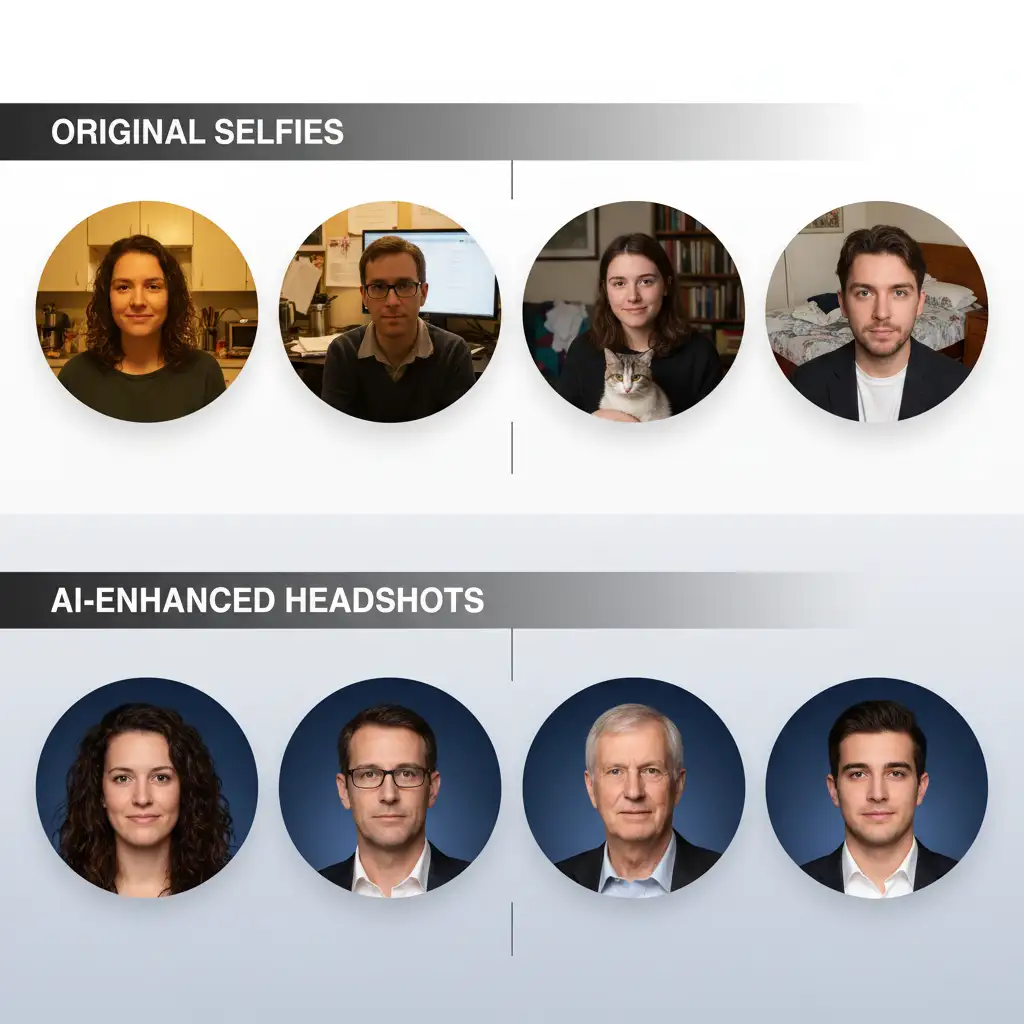
The Photoshop v25.x Workflow for Headshot Consistency
Depending on your time constraints and quality requirements, there are three tiers of professional intervention to solve this problem.
Method 1: The AI Quick Fix (For Rapid Deployment)
When you need to onboard a new hire quickly, Photoshop’s AI-driven tools provide a fast track to luminance matching and background replacement.
- Subject Masking: Open the image in Photoshop and use the Select Subject tool. Refine the edge using Select and Mask, paying special attention to hair details.
- Background Replacement: Drop in your company’s official branded background layer behind the masked subject.
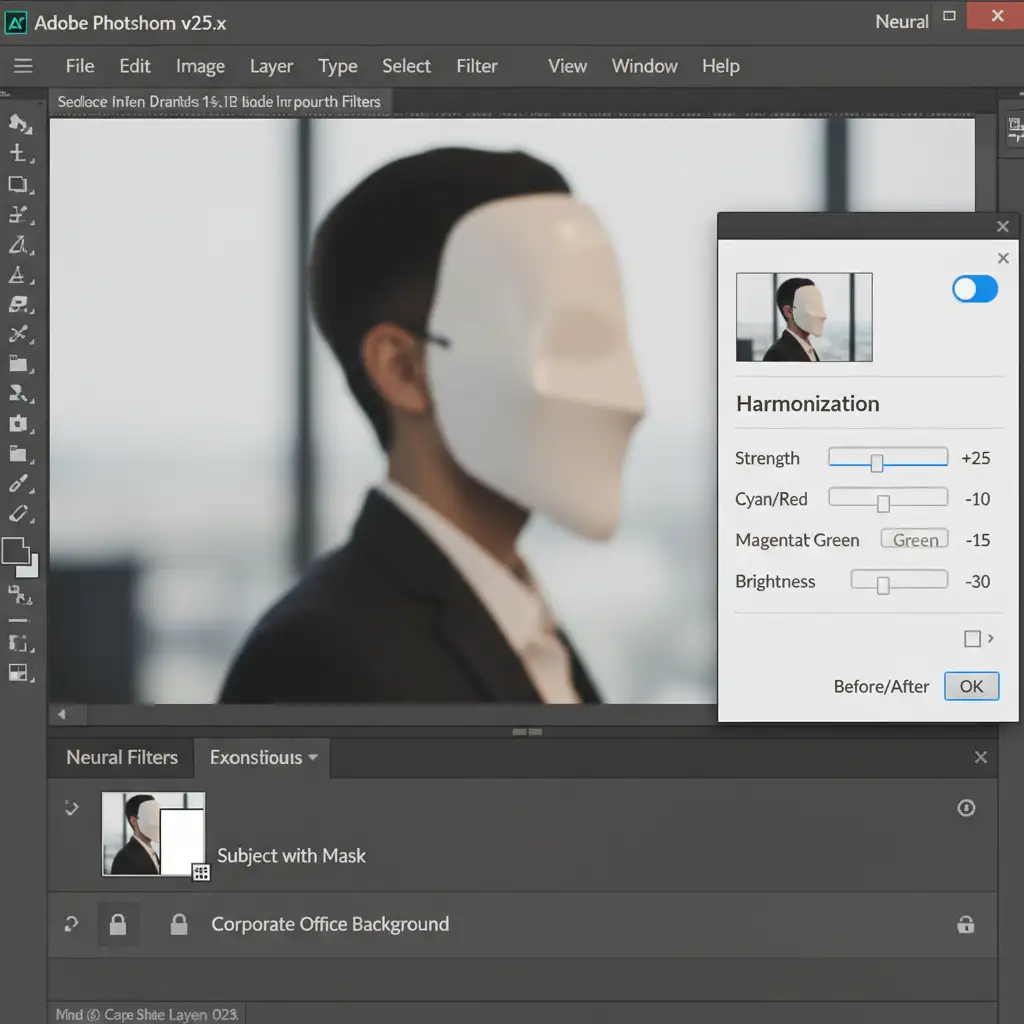
- Harmonization: The lighting will immediately look fake. To fix this, select the subject layer, navigate to Filter > Neural Filters, and toggle on the Harmonization Neural Filter. Select your corporate background as the reference layer. Photoshop will automatically adjust the subject’s midtones, shadows, and color temperature to match the new environment.
Method 2: The Pro Workaround (Skin Texture & Color Grading)
Smartphone cameras often apply aggressive, low-quality sharpening that ruins skin texture. To achieve a premium studio look, you must separate texture from color.
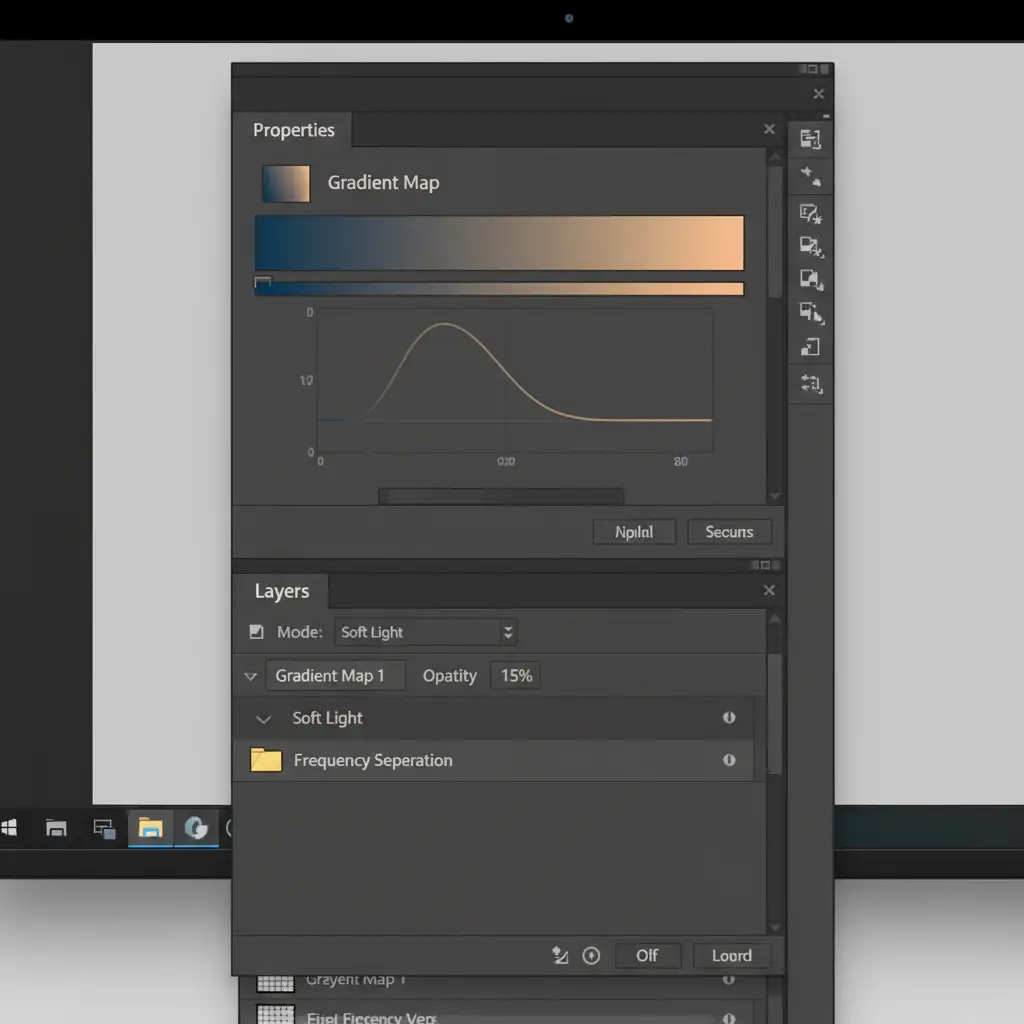
- Frequency Separation: Duplicate your subject layer twice. Apply a Gaussian Blur to the lower layer (Color/Tone) and an Apply Image calculation to the upper layer (Texture). This allows you to smooth out blotchy smartphone lighting and heavy ISO noise on the color layer without destroying the pores and sharp details on the texture layer.
- Unified Color Grading: Once the skin is smoothed, you need to unify the team’s aesthetic. Add a Gradient Map adjustment layer using your brand’s primary colors (e.g., deep navy to soft cream). Change the blend mode to Soft Light and drop the opacity to 10-15%. This acts as a global color wash, ensuring every remote employee shares the exact same color palette.
Method 3: The Technical Deep-Dive (Distortion & Custom LUTs)
For absolute perfection, you must address the physical limitations of the cameras your remote team used.
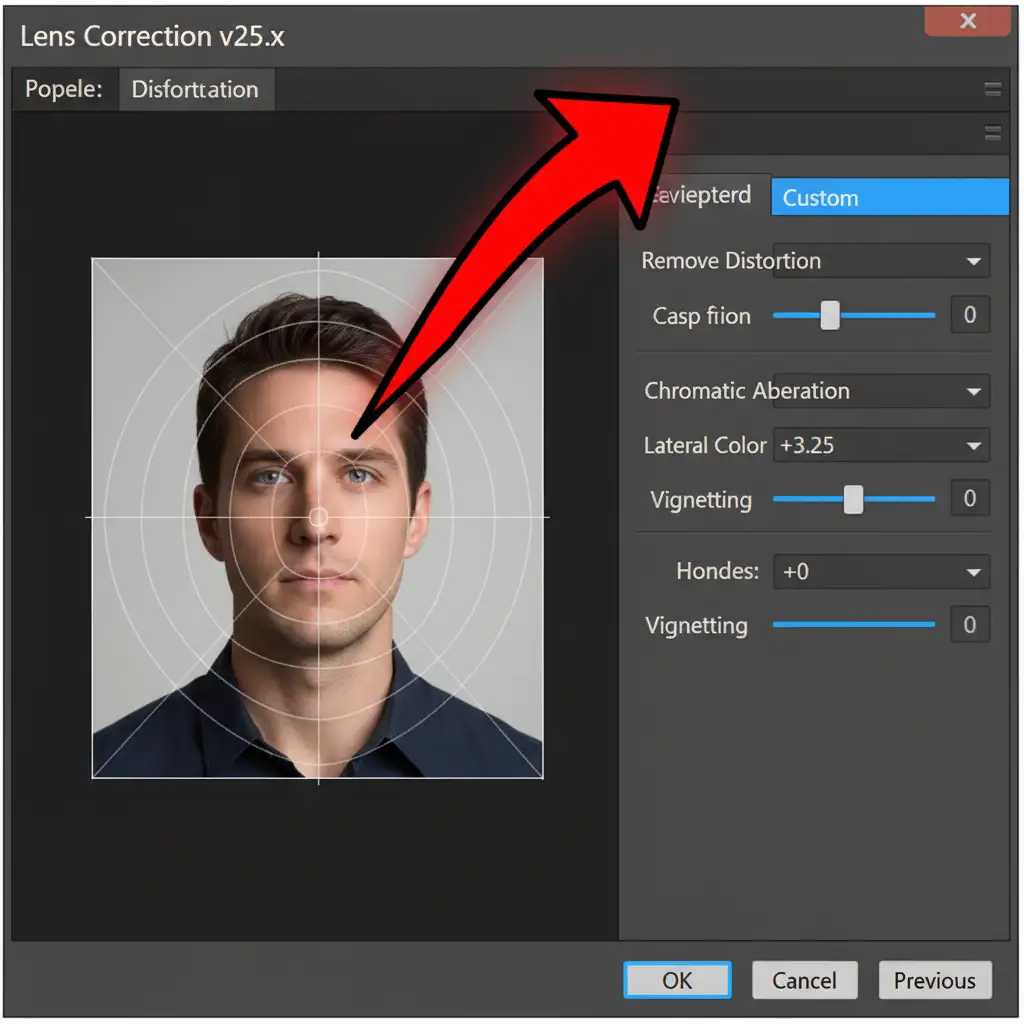
- Lens Distortion Correction: Selfies shot at arm’s length stretch the center of the face and narrow the ears. Navigate to Filter > Lens Correction. Under the Custom tab, use the Remove Distortion slider to gently push the center of the image back, mimicking the compression of an 85mm portrait lens.
- White Balance Correction: Convert the layer to a Smart Object and open the Camera Raw Filter. Use the White Balance eyedropper on a neutral gray or white area (like a collar or teeth) to instantly neutralize the erratic home-office lighting.
- Custom LUTs: To guarantee mathematical color consistency across hundreds of portraits, export a master 3D LUT (.cube file) based on your ideal corporate grade. You can apply this Custom LUT via a Color Lookup adjustment layer to every new employee photo, ensuring exact brand alignment.
Scaling Your Output with Batch Processing Actions
If you are updating an entire global roster of 50+ employees, doing this manually is inefficient.
Once you have established your ideal workflow-incorporating white balance correction, background swapping, and your custom LUT-record the entire sequence as an Action. You can then use Photoshop’s File > Automate > Batch function to apply these batch processing actions to an entire folder of raw employee submissions. While you will still need to manually tweak the subject masking for complex hair, automating the color and distortion corrections will cut your production time in half.
Stop Struggling with Selfies: Let the Experts Handle It
Achieving true remote team headshot consistency requires deep technical knowledge of color theory, frequency separation, and advanced masking. When you have a business to run, spending hours tweaking Neural Filters and correcting focal distortion simply isn’t a profitable use of your time.
Don’t let mismatched selfies ruin your corporate image. Partner with Image Work India and Cloud Retouch. Our team of expert retouchers specializes in high-volume, enterprise-level photo editing. We can take your remote team’s diverse, low-quality smartphone photos and professionally unify them to match your exact brand guidelines at scale.