
Are you trying to clean up a high-end product shot or real estate photo, only to find that Adobe Camera Raw (ACR) is ruining your image with bizarre rainbow artifacts? You are not alone.
In recent updates (specifically ACR v16.x and Photoshop v25.x+), professionals are experiencing severe color banding and smeared pixels when using AI-driven Generative Remove or automated reflection reduction tools. Instead of a clean surface, the AI leaves behind glaring glitches. This happens when the software struggles to interpret complex transparent substrates like window glass, water, or glossy product surfaces.
In this guide, we will break down exactly how to fix Photoshop Camera Raw remove reflection artifacts using hardware workarounds and professional manual masking techniques.
Why Does Adobe Camera Raw Produce Rainbow Artifacts?
The root cause of these visual glitches is twofold: AI hallucination and hardware conflicts.
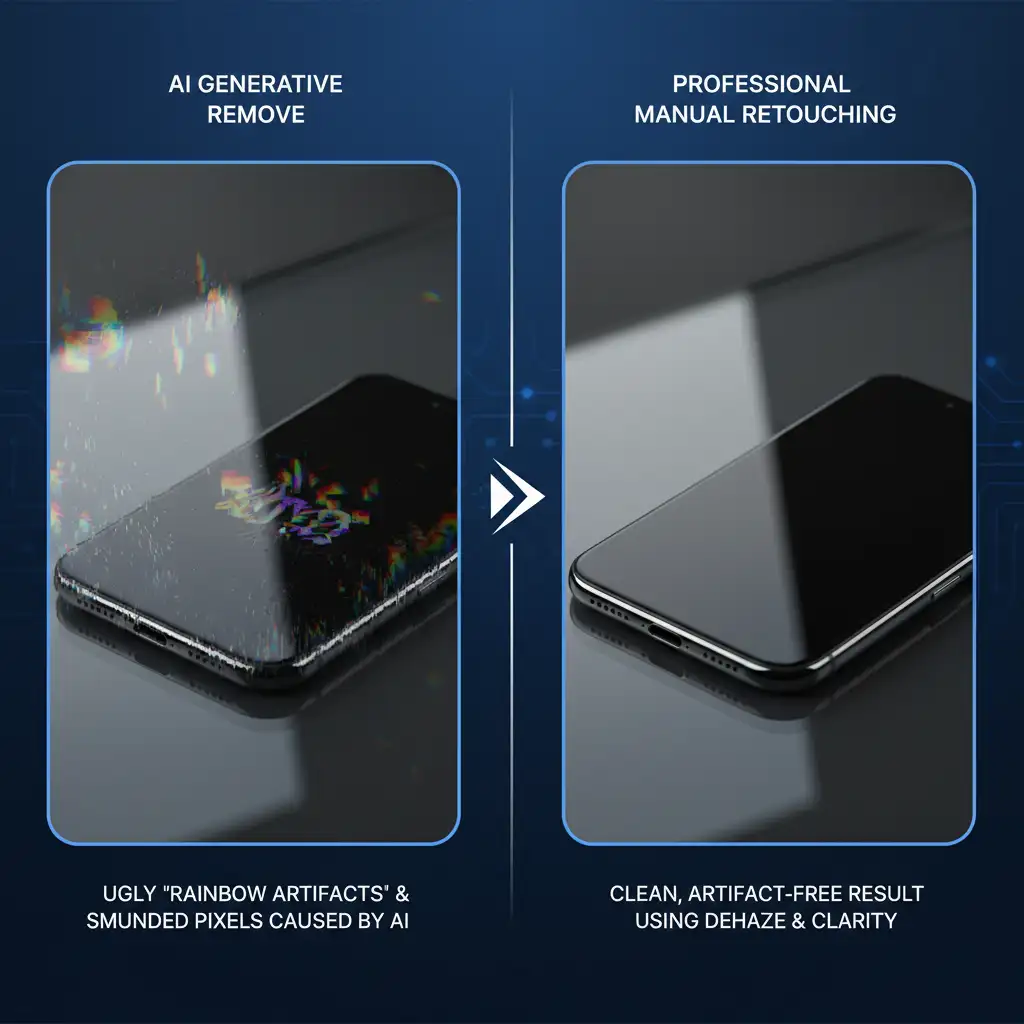
When you ask the Generative Remove tool to eliminate glare on a highly complex surface, the neural network sometimes fails to predict the underlying texture. Instead of seamlessly blending the area, it “hallucinates” incorrect color patterns, resulting in smudged pixels and rainbow artifacts.
Furthermore, this issue is heavily exacerbated by GPU acceleration conflicts. If your graphics card drivers (especially Game Ready drivers) are outdated or conflicting with the raw decoding phase in Photoshop, these rendering glitches become much more prominent.
How to Fix Camera Raw Reflection Removal Errors (3 Methods)
If the AI is failing you, here are three proven methods to restore your workflow and achieve artifact-free images.
Method 1: The Quick Fix – Disable GPU Acceleration
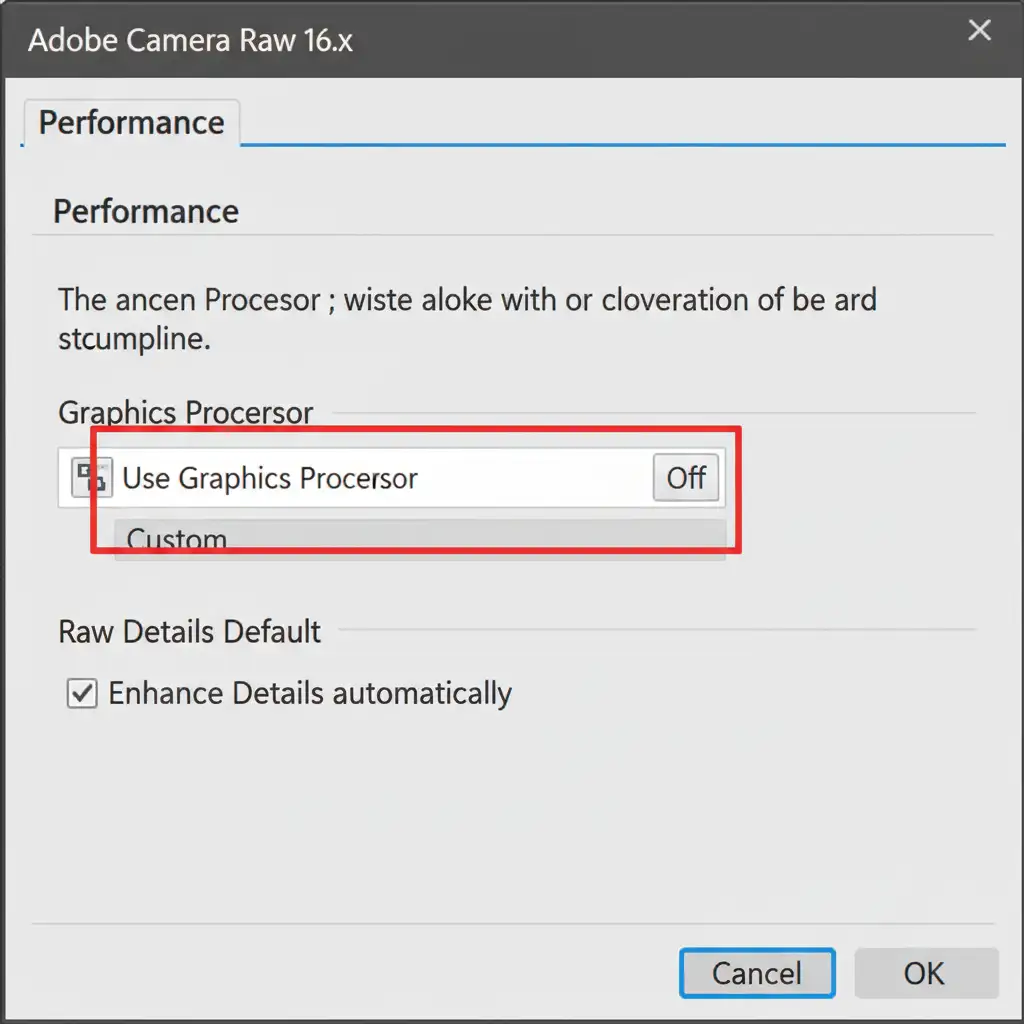
The fastest way to determine if your rainbow artifacts are hardware-related is to force Photoshop to use CPU rendering. This bypasses the visual glitches caused by driver conflicts.
- Open Adobe Camera Raw (ACR).
- Navigate to Preferences (Gear icon).
- Click on the Performance tab.
- Locate the Use Graphics Processor dropdown menu.
- Change the setting from “Auto” or “Custom” to Off.
- Restart Photoshop and attempt the reflection removal again.
Method 2: The Pro Workaround – Manual Masking Alternative
When Generative Remove fails on complex transparent substrates, professional retouchers abandon AI and return to selective masking. This technique organically cuts through the reflection without destroying the underlying pixels.
- Open your image in ACR and select the Masking tool.
- Create a Linear Gradient or Radial Mask directly over the area with the glare.
- Lower the Highlights slider to reduce the intensity of the reflection.
- Push the Dehaze slider slightly to the right to cut through the milky glare.
- Increase the Clarity to restore texture to the surface beneath the reflection.
Method 3: The Technical Deep-Dive – Cache Reset and Driver Optimization
Corrupted cache files and unoptimized drivers are notorious for causing rendering glitches in Photoshop’s neural filters.
First, clear out old data:
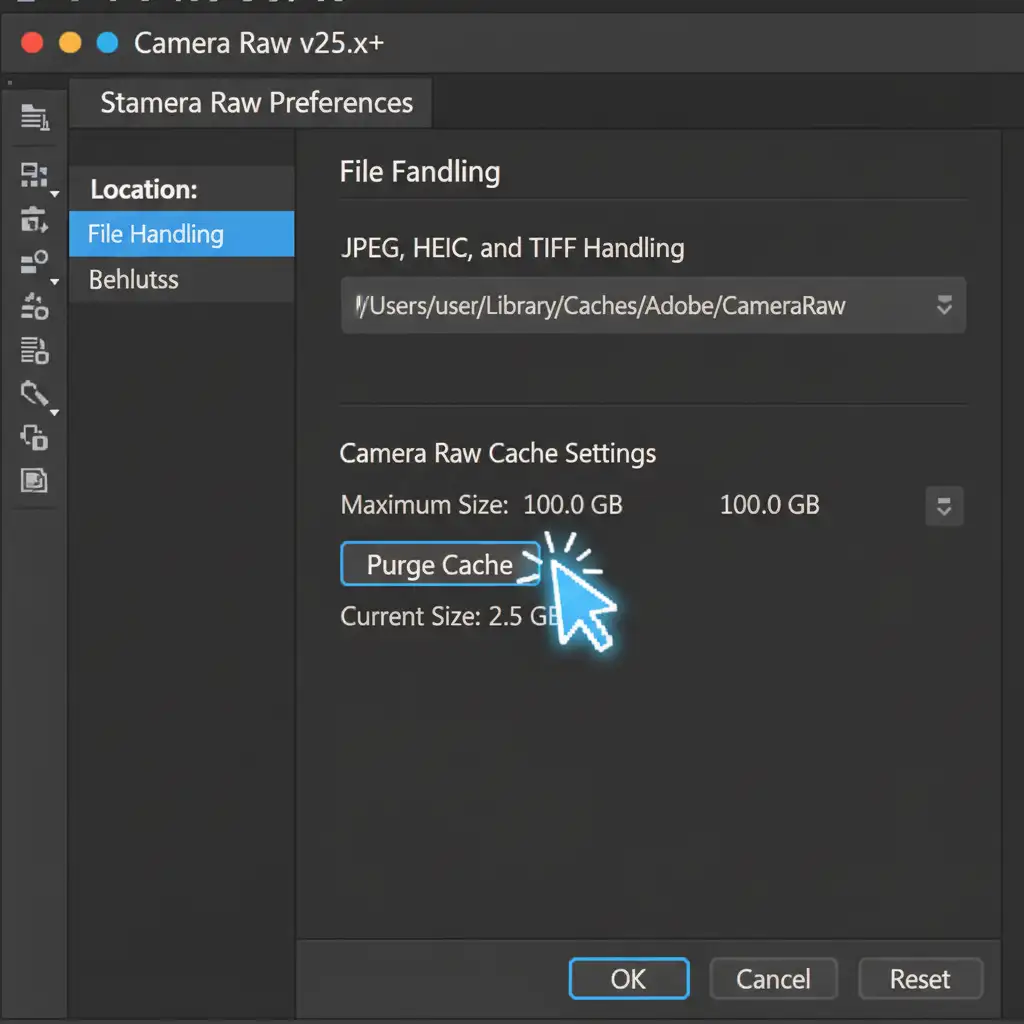
- Go to ACR Preferences -> File Handling.
- Locate the Camera Raw Cache Settings section.
- Click the Purge Cache button.
Next, perform a graphics driver update. If you are using an NVIDIA or AMD graphics card, switch from “Game Ready” drivers to NVIDIA Studio or AMD Pro drivers. These are specifically optimized for creative applications and heavily reduce the chances of AI hallucination during raw decoding.
Alternative Tool: The Classic Healing Brush
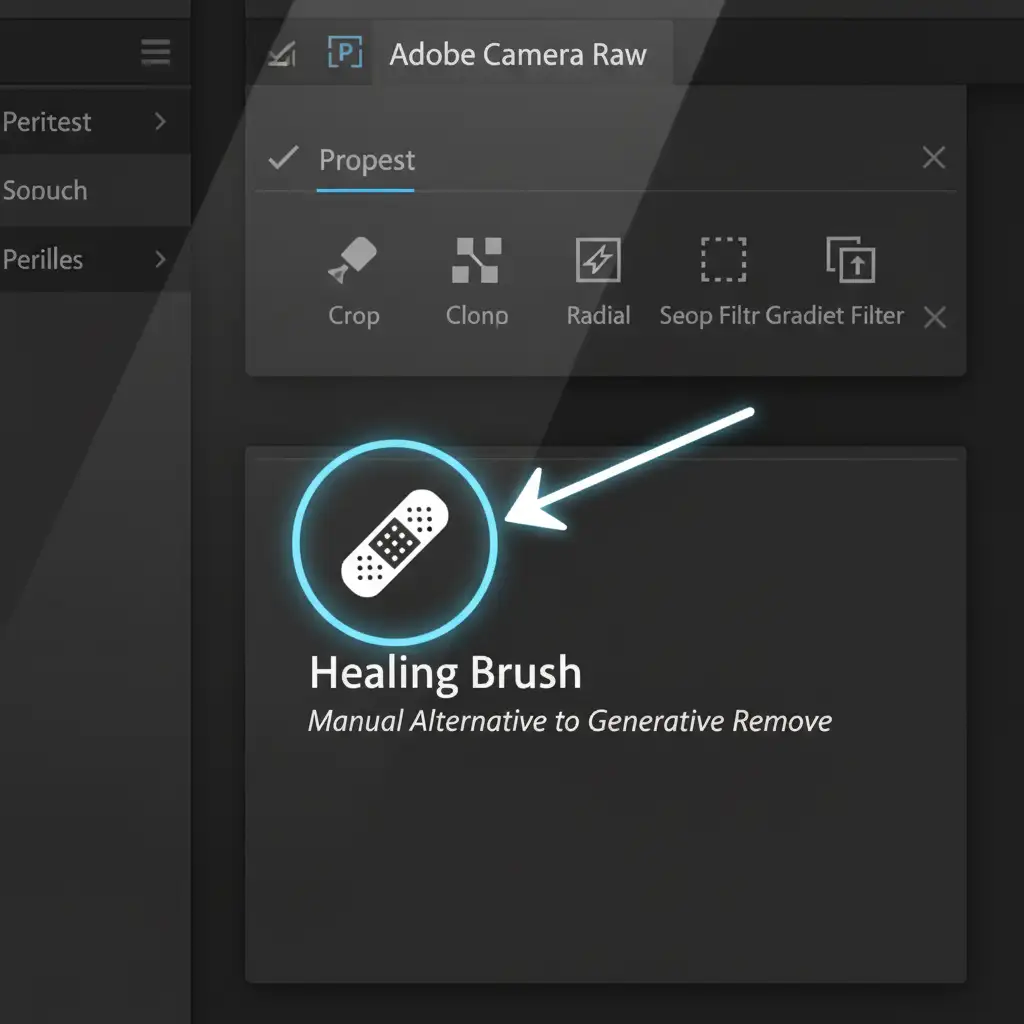
If you must remove a specific reflection entirely and the Dehaze method isn’t enough, avoid the Generative Remove tool on glossy surfaces. Instead, revert to the classic Healing Brush.
While it requires more manual input, the Healing Brush samples actual pixels from your image rather than relying on an AI model to invent them, completely eliminating the risk of rainbow artifacts.
Stop Fighting AI Artifacts—Let the Pros Handle It
Software updates and AI tools are supposed to make editing faster, but when you spend hours troubleshooting Photoshop Camera Raw remove reflection artifacts, you lose valuable time and money. Complex transparent substrates require a human touch that AI simply cannot replicate yet.
Need flawless reflection removal for commercial product photography, jewelry, or high-end real estate? Image Work India and Cloud Retouch are here to help.
Our team of expert retouchers specializes in pixel-perfect, artifact-free manual retouching. We don’t rely on glitchy AI—we use industry-standard techniques to deliver pristine images that impress your clients and elevate your brand.
[Contact Image Work India and Cloud Retouch Today] to get a custom quote and let us handle the heavy lifting while you focus on shooting!




