

You’re in the middle of a critical retouching project, you click to select the perfect skin tone, and suddenly—nothing. The photoshop color picker sliders not working 2024 bug has struck again. Whether the RGB sliders are completely unresponsive or lagging so badly that precision is impossible, this UI rendering glitch in Photoshop v25.x is a major workflow killer.
Don’t panic. You aren’t doing anything wrong, and your hardware isn’t necessarily failing. We’ve tested the top technical solutions to unfreeze your color picker, from a simple Preferences Reset to advanced graphics tweaks, so you can get back to creating without missing a deadline.
Why Are the Photoshop Color Picker Sliders Freezing in 2024?
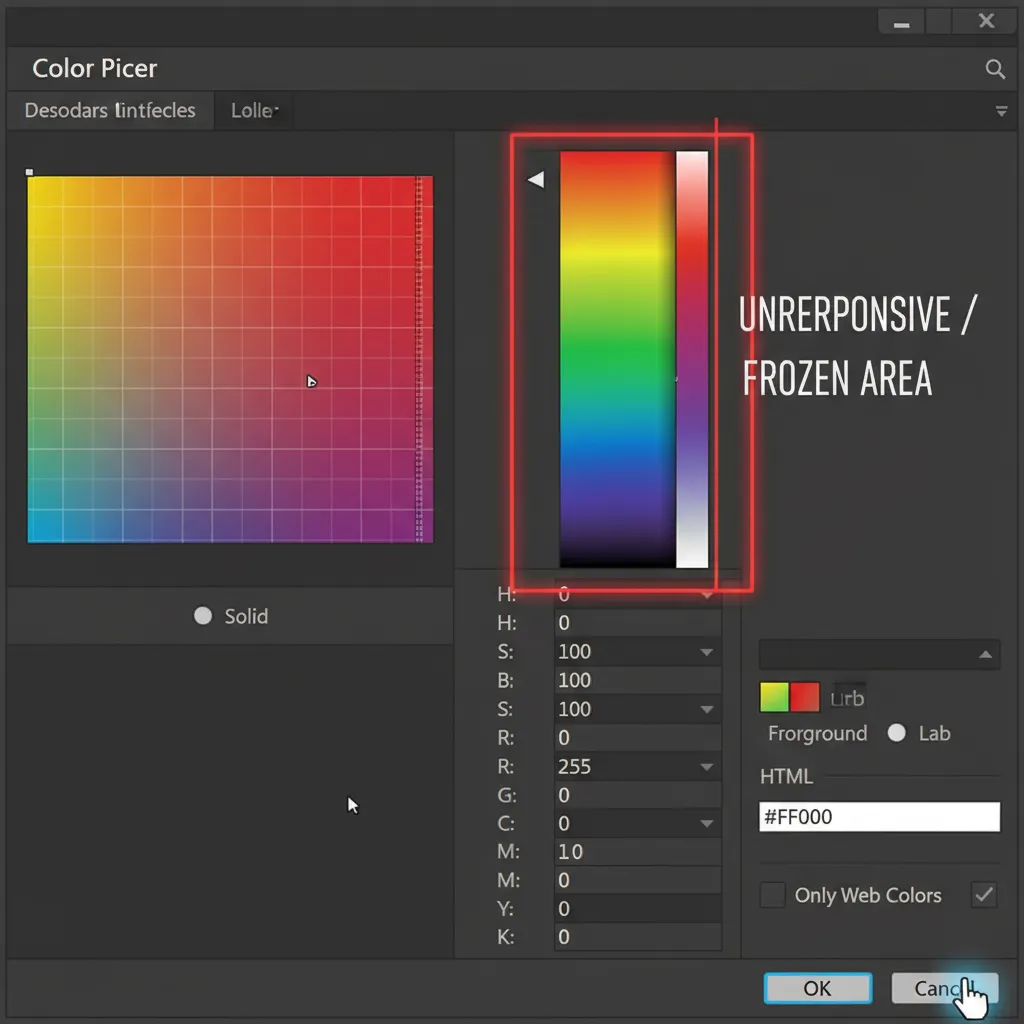
In Adobe Photoshop 2024 (v25.x), users frequently experience a bug where the Color Picker sliders (RGB, CMYK, and the HSB Model) become visually frozen or lag severely when dragged.
Based on our technical research, this UI rendering glitch is primarily caused by conflicts with the Native Canvas and GPU Compositing features introduced in recent Adobe updates. These features often clash with specific NVIDIA Studio and AMD Adrenalin driver versions, causing the interface to lock up. A secondary, yet common, trigger is corrupted workspace preference files that fail to load the UI cache properly.
Here are four proven methods to fix the issue.
How to Fix the Photoshop 2024 Slider Bug (Step-by-Step)
Method 1: The Quick Fix – Execute a Preferences Reset
Before tweaking your graphics card settings, start with the easiest solution. A corrupted UI cache can easily break your color space selection tools.
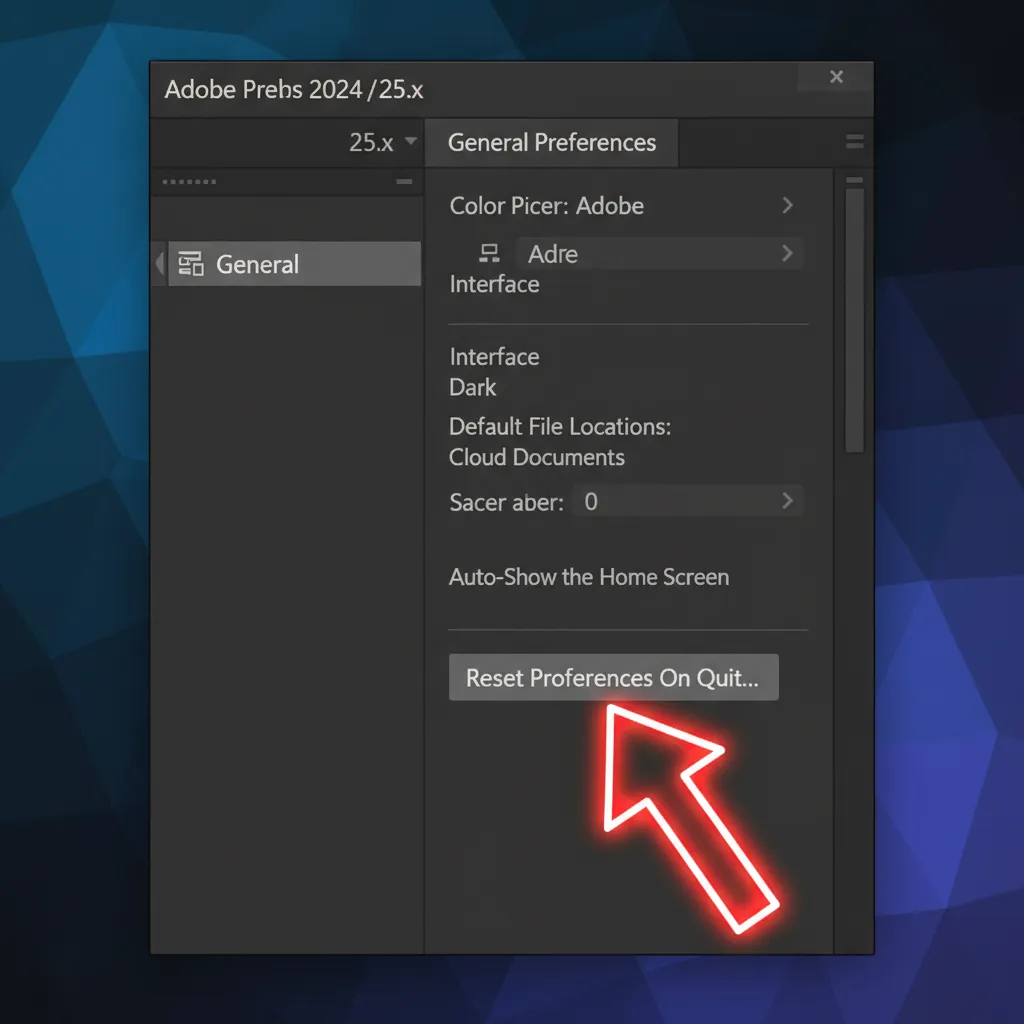
- Open Photoshop Preferences by pressing Ctrl+K (Windows) or Cmd+K (Mac).
- Navigate to the General tab.
- Click the Reset Preferences On Quit button.
- Click OK, then completely close and restart Photoshop.
Method 2: The Pro Workaround – Toggle the HUD Color Picker
If you don’t want to restart your software and lose your current flow, you can force the color engine to reset by temporarily switching your picker, or by bypassing the panel entirely.
- Go to Preferences > General.
- Locate the Color Picker drop-down menu.
- Change it from “Adobe” to “Windows” (or “Apple” on Mac).
- Click OK, test the OS color picker, and then switch it back to “Adobe”.
Alternatively, you can bypass the buggy panel entirely by utilizing the HUD Color Picker. Simply hold Alt+Shift+Right Click (Windows) or Option+Control+Command+Click (Mac) directly on your canvas to bring up the floating color wheel.
Method 3: The Technical Deep-Dive – Disable GPU Compositing
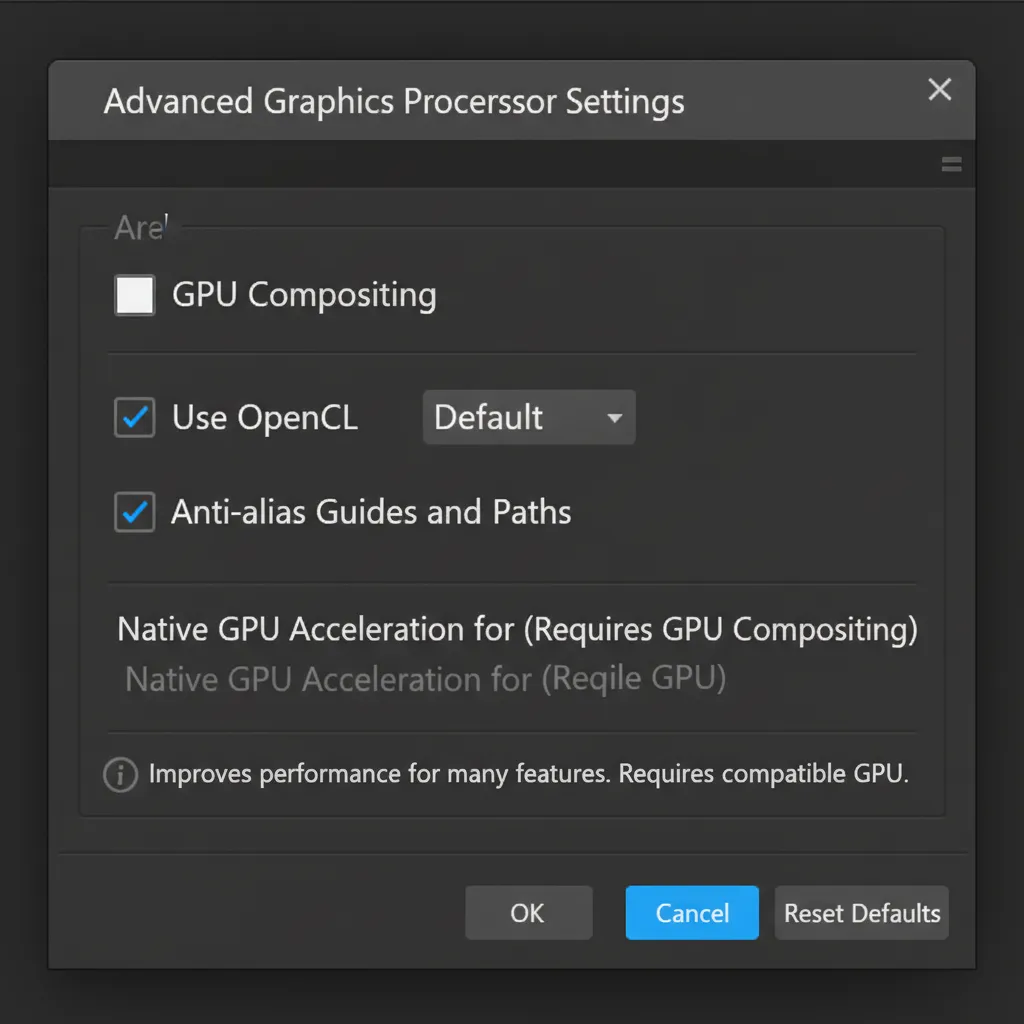
If the photoshop color picker sliders not working 2024 issue persists, the root cause is almost certainly a conflict with your Graphics Processor Acceleration. Disabling GPU Compositing stops Photoshop from using experimental rendering methods for the UI.
- Navigate to Preferences > Performance.
- Under the Graphics Processor Settings section, click on Advanced Settings.
- Uncheck the box labeled GPU Compositing.
- Click OK and restart Photoshop.
Method 4: Graphics Driver Rollback and VRAM Allocation
If disabling GPU Compositing restores slider functionality, you have confirmed a driver conflict. To fix this permanently so you can turn GPU Compositing back on (which helps with overall software speed):
- Driver Rollback: Open your NVIDIA GeForce Experience / NVIDIA App or AMD Adrenalin software. If you recently updated to a “Game Ready” driver, switch to the “Studio” driver. If you are already on a Studio driver, perform a Driver Rollback to the previous version from late 2023 or early 2024.
- VRAM Allocation: While in Preferences > Performance, ensure your memory usage (VRAM) is set to allow Photoshop to use at least 70-85% of your available RAM to prevent interface lag.
Stop Fighting Software Bugs. Let the Experts Handle Your Retouching.
Dealing with the photoshop color picker sliders not working 2024 bug is frustrating, especially when you have a massive batch of commercial images waiting for precise color grading. Technical glitches shouldn’t stand between you and flawless visual content.
Need perfect color accuracy for your commercial campaigns without the software headaches? Image Work India and Cloud Retouch are here to help.
Our team of expert photo editors and retouchers provides professional color correction, high-end commercial retouching, and bulk image processing. We utilize state-of-the-art, optimized workstations to ensure every pixel is perfect—bypassing glitches so you don’t have to.
Contact Image Work India and Cloud Retouch today to outsource your image editing and get back to focusing on what you do best: growing your business.




![Fix Photoshop 2024 HDR to SDR Color Shift Bug [Full Guide]](https://imageworkindia.com/wp-content/uploads/2026/05/photoshop-2024-hdr-sdr-color-shift-fix-Featured-Image.webp)