

You just used Generative Fill in Photoshop to place your e-commerce product on a stunning lifestyle background. The scene looks flawless, but there is a glaring problem: your product looks like it is hovering in mid-air.
This “floating” effect is a direct result of AI generative fill shadow mismatch, and it is a conversion killer in product photography. When buyers see unnatural lighting, they immediately lose trust in the image-and the product.
Fortunately, you do not have to abandon AI workflows. By understanding how to manually override these lighting errors, you can perfectly ground your items. Here is the technical breakdown of why this happens in Photoshop v25.0+ and exactly how to fix it.
Why Adobe Firefly Struggles with Product Shadows
Photoshop v25.0 and newer, powered by the Adobe Firefly Image Model 3, excels at generating background pixels but frequently fails at physics. Specifically, the AI miscalculates the Z-axis depth and directional lighting of imported raster objects.
When you place a 2D product cutout onto a generated background, the AI struggles to apply accurate ambient occlusion. This results in mismatched shadow angles, incorrect light falloff, and completely missing contact shadows.
To give the AI a better starting point, always specify the light source in your prompt.
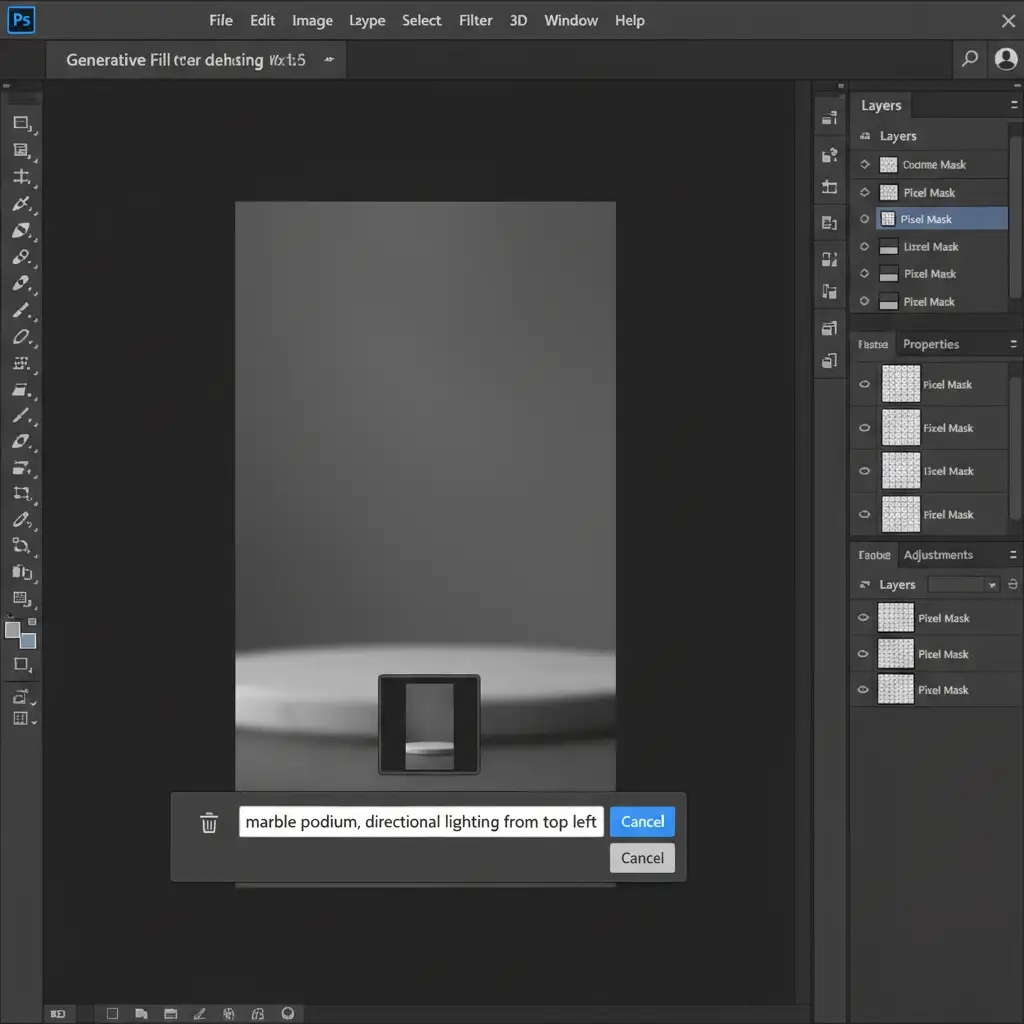
Even with perfect prompting, manual intervention is usually required. Here are three methods to fix the mismatch.
3 Ways to Fix AI Generative Fill Shadow Mismatch
Depending on your time constraints and the complexity of the background, you can use one of these three professional workflows to ground your product.
Method 1: The Quick Fix (For Simple Backgrounds)
If you need a fast solution for a flat surface, faking a contact shadow is the most efficient route.
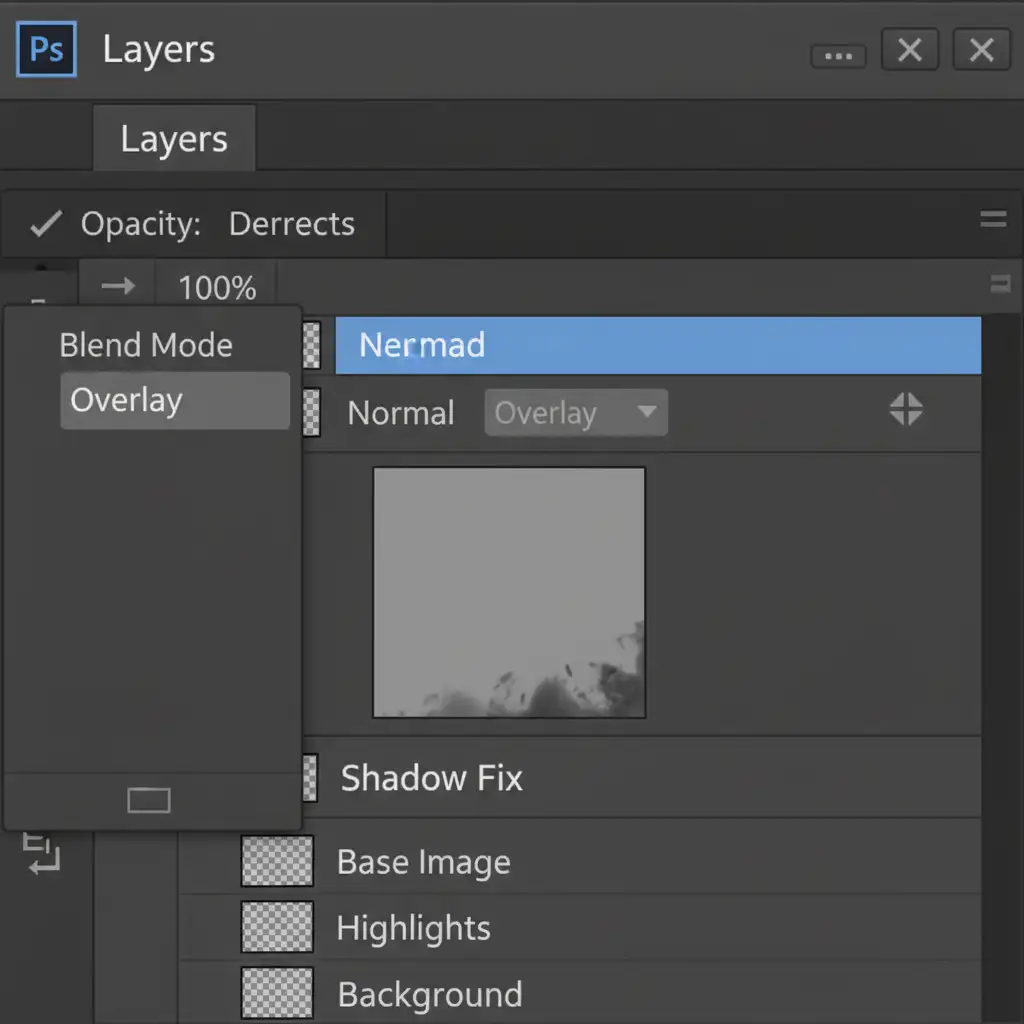
- Create a new layer beneath your product layer.
- Fill the layer with 50 percent gray (Shift + F5).
- Change the layer’s Blend Mode to Overlay.
- Select the Burn Tool, set the Range to Midtones, and Exposure to 20%.
- Carefully brush the area immediately underneath the product where it touches the surface.
This method darkens the underlying generated pixels without destroying their texture, creating a believable grounding effect.
Method 2: The Pro Workaround (For Directional Lighting)
When your AI-generated background features strong directional lighting, you need a cast shadow that matches the angle and intensity of the light source.
- Duplicate your isolated product layer (Ctrl/Cmd + J).
- Lock the transparent pixels on the duplicated layer and fill it entirely with black.
- Unlock the pixels, then flip the layer vertically (Edit > Transform > Flip Vertical).
- Use Free Transform (Ctrl/Cmd + T) to skew and distort the black shape so it aligns with the background’s light angle.
- Apply a Gaussian Blur (Filter > Blur > Gaussian Blur) to soften the edges. The further the shadow stretches, the softer it should be.
- Lower the layer opacity to 15-30% to blend it naturally with the background.
Method 3: The Technical Deep-Dive (Multi-Tiered Shadows)
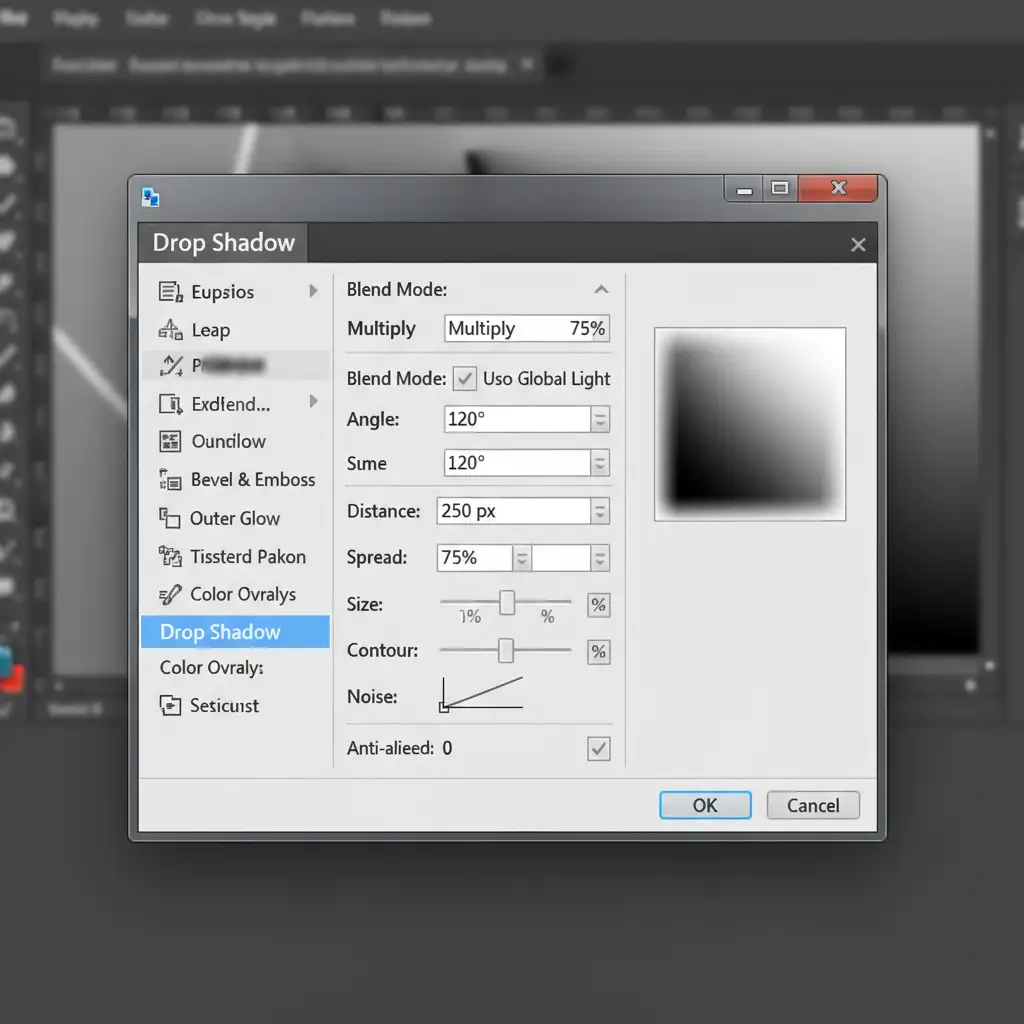
For high-end e-commerce imagery, a single shadow layer is never enough. Real shadows have multiple zones of density. To achieve true photorealism, build a multi-tiered shadow system using three separate layers, all set to the Multiply blend mode:
- Layer 1 (The Contact Shadow): A very dark, tight shadow directly where the product touches the floor. Use a hard brush at high opacity.
- Layer 2 (Ambient Occlusion): A mid-shadow representing the area where ambient light is blocked. Use a softer brush, spreading slightly wider than the product base.
- Layer 3 (The Cast Shadow): A broad, low-opacity shadow stretching away from the product, utilizing directional blurring to mimic light falloff.
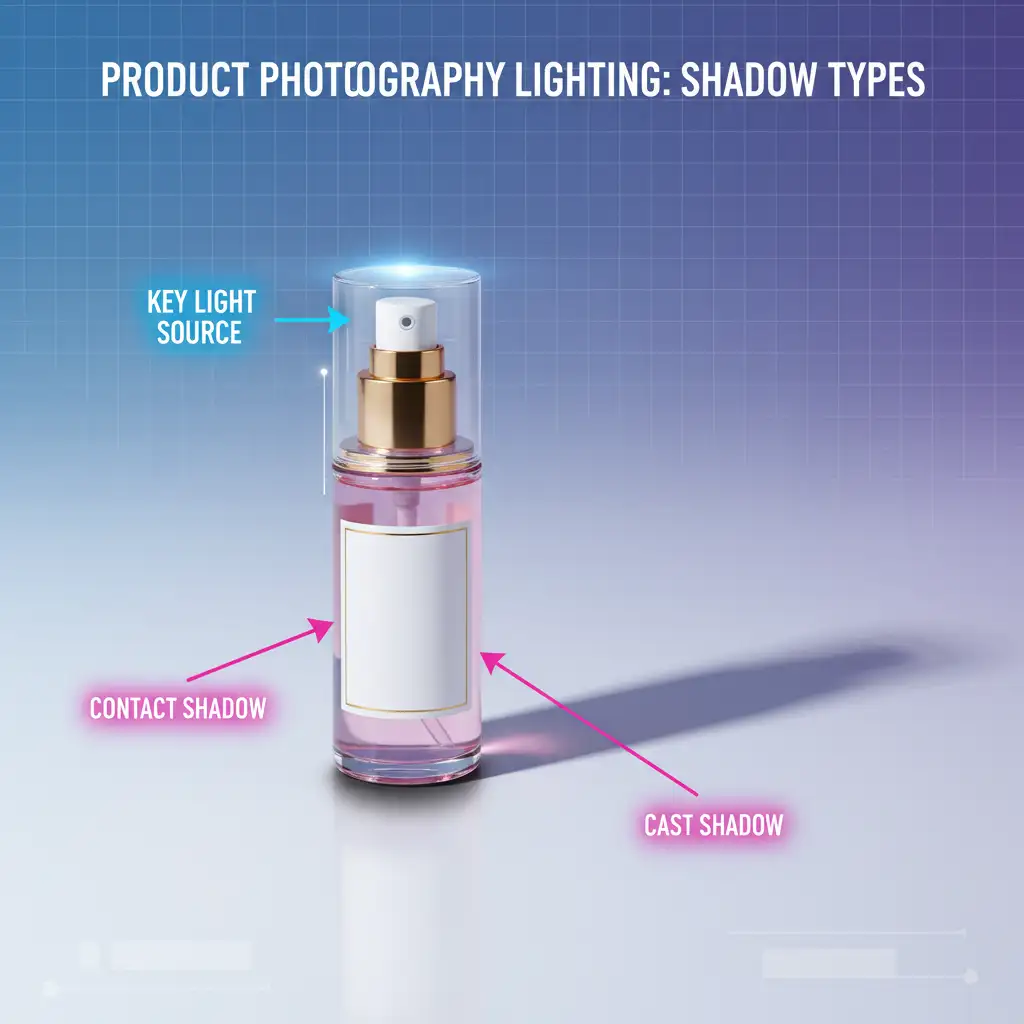
Visual Guide: Contact Shadows vs. Cast Shadows
Understanding the physical difference between these two shadow types is critical for correcting AI errors.
- Contact Shadow: The darkest point of occlusion where the object physically meets the surface. It is sharp and narrow.
- Cast Shadow: The shape projected onto the surface by the object blocking the main light source. It diffuses and softens as it moves further from the object.
Scale Your E-commerce Imagery with Image Work India
Fixing AI generative fill shadow mismatch on a single image takes a few minutes. Fixing it across a catalog of 5,000 SKUs takes weeks.
If you are struggling to scale your e-commerce imagery with AI, you don’t have to sacrifice quality for speed. Let the professional retouchers at Image Work India and Cloud Retouch handle the heavy lifting. Our team specializes in manually crafting pixel-perfect, realistic shadows, precise clipping paths, and high-end compositing for your entire product catalog.
Stop settling for floating products. Contact Image Work India today to ensure your product photography drives trust and conversions.




