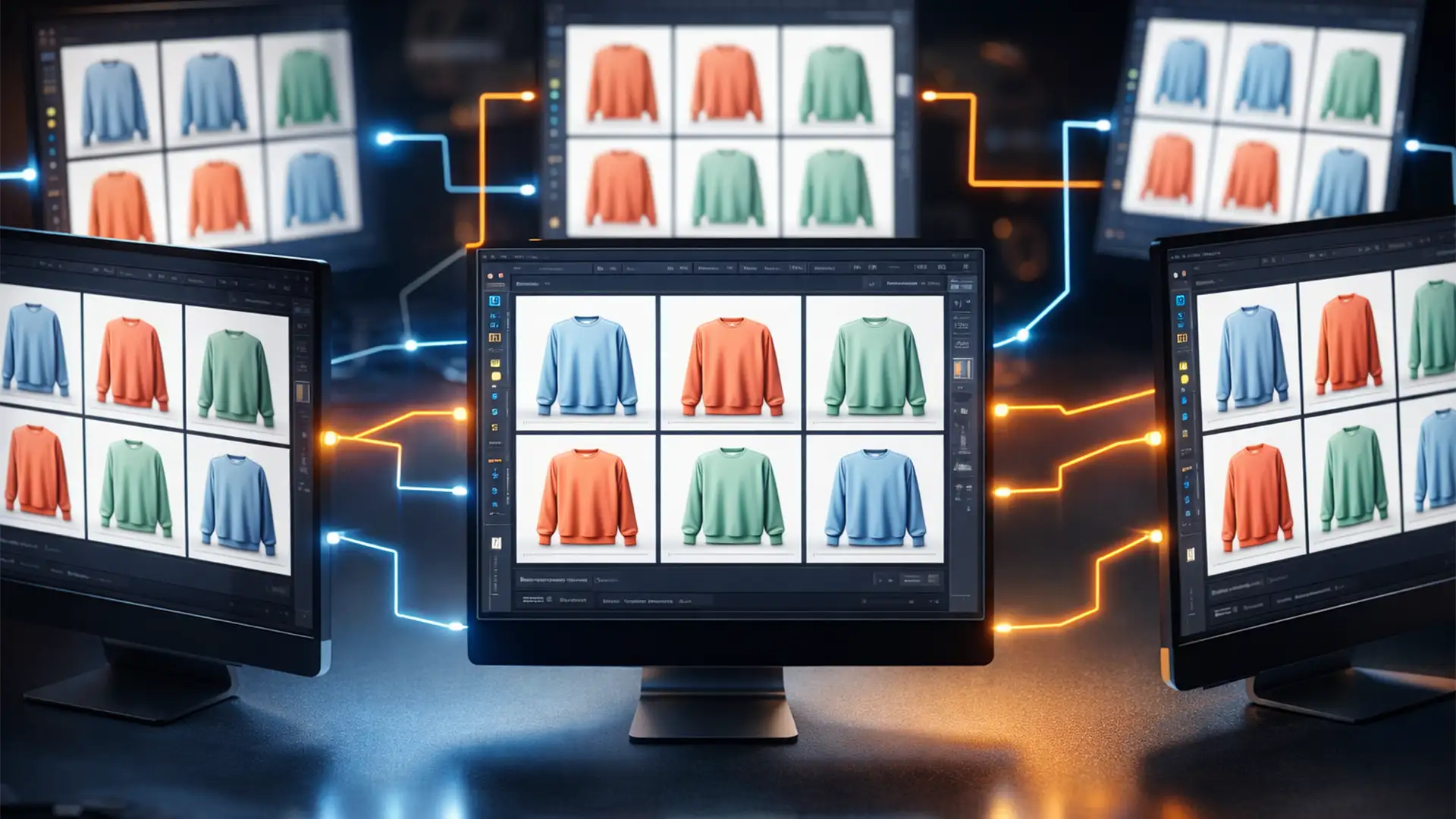

Imagine launching a highly anticipated seasonal collection on your e-commerce store, only to realize your flagship product looks navy blue in the hero shot, charcoal grey in the gallery, and washed out in the thumbnails. For high-volume retailers, achieving automated batch color consistency for ecommerce is a massive operational hurdle. Varying lighting conditions on set and human error during manual editing inevitably lead to color shifting.
When editors attempt to fix this in Photoshop CC v24.x and v25.x using simple, static Hue/Saturation or Curves action recordings, the results are disastrous. Static adjustments cannot dynamically account for the variable baseline exposures across different batches of photography.
Resolving this requires abandoning static layers in favor of standardized ICC profiles and dynamic color mapping techniques. Here is the definitive blueprint for maintaining 100% color consistency across thousands of SKUs.
Why Static Photoshop Actions Fail in High-Volume Editing
In a standard batch processing workflow, many editors rely on recording a basic Hue/Saturation adjustment layer. However, if Image A was shot slightly underexposed and Image B was overexposed, applying the exact same static adjustment will yield two entirely different colors.
Furthermore, mismatched embedded color profiles between files will cause uncalibrated actions to shift hues unpredictably. To fix this, your workflow must rely on absolute adherence to standardized color spaces (specifically sRGB for web delivery) and dynamic synchronization.
Here are the three best methods to build a flawless, automated color pipeline.
Method A: The Quick Fix Using the Match Color Tool
If you need to quickly align hues across a specific folder of products, combining Photoshop Actions with the Match Color tool provides a dynamic, automated solution. Unlike static adjustment layers, Match Color analyzes the source image and mathematically shifts the target image to match its precise color statistics.
Step-by-Step Workflow:
- Open a perfectly color-corrected master reference image in Photoshop.
- Open an uncorrected target image.
- Begin recording a new Action in the Actions panel.
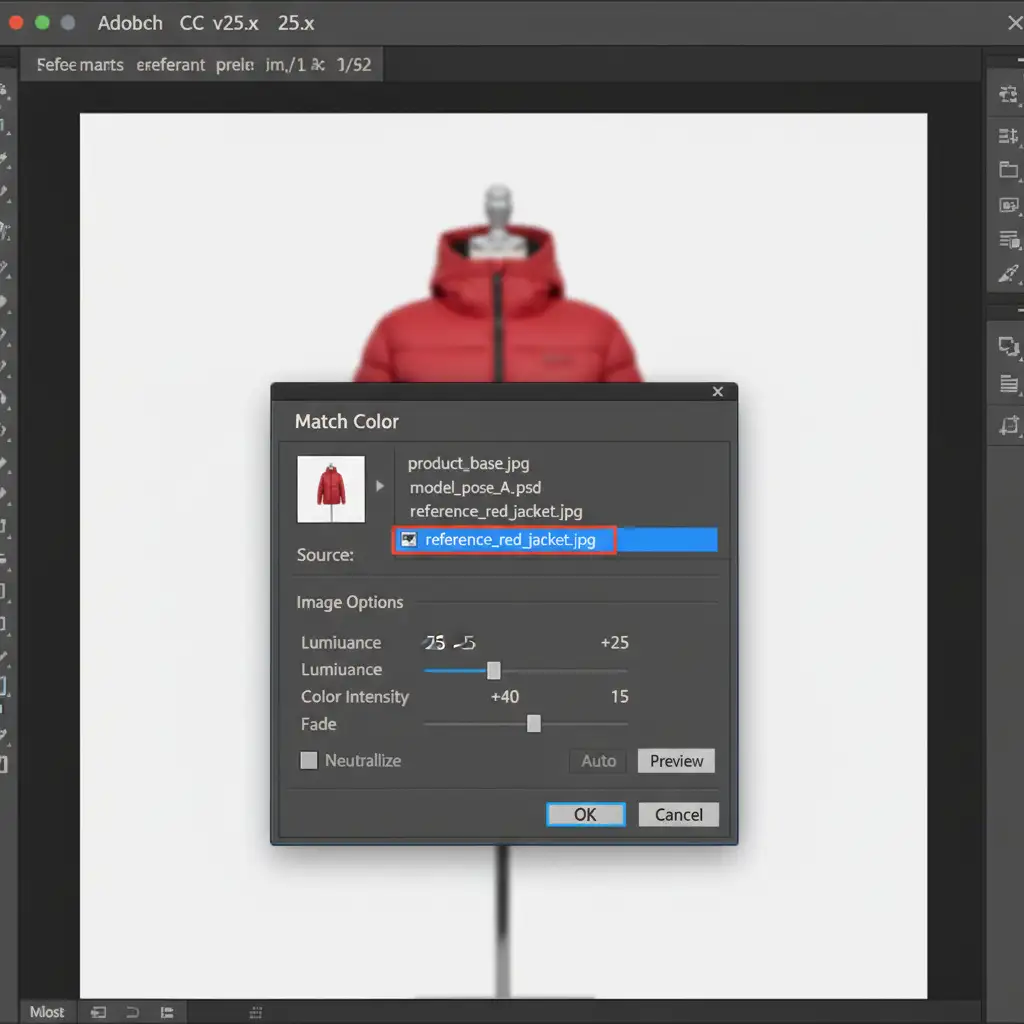
- Navigate to Image > Adjustments > Match Color.
- In the dialog box, select your master reference image from the “Source” dropdown menu. Adjust the Luminance and Color Intensity sliders if necessary, and click OK.
- Stop the recording.
- Navigate to File > Automate > Batch and run this action across your entire folder of uncorrected images.
Method B: The Pro Workaround via Adobe Camera Raw
For raw files or high-resolution JPEGs, managing color consistency before the pixels are even rasterized in Photoshop is the gold standard. Using Adobe Bridge to perform white balance synchronization via Adobe Camera Raw (ACR) allows you to push dynamic adjustments across thousands of files instantly.
Step-by-Step Workflow:
- Open Adobe Bridge and navigate to your product folder.
- Double-click your “hero” image to open it in Adobe Camera Raw.
- Apply your base adjustments: nail the white balance, tweak the color mixer, and set your calibration settings. Click “Done” (do not open into Photoshop).
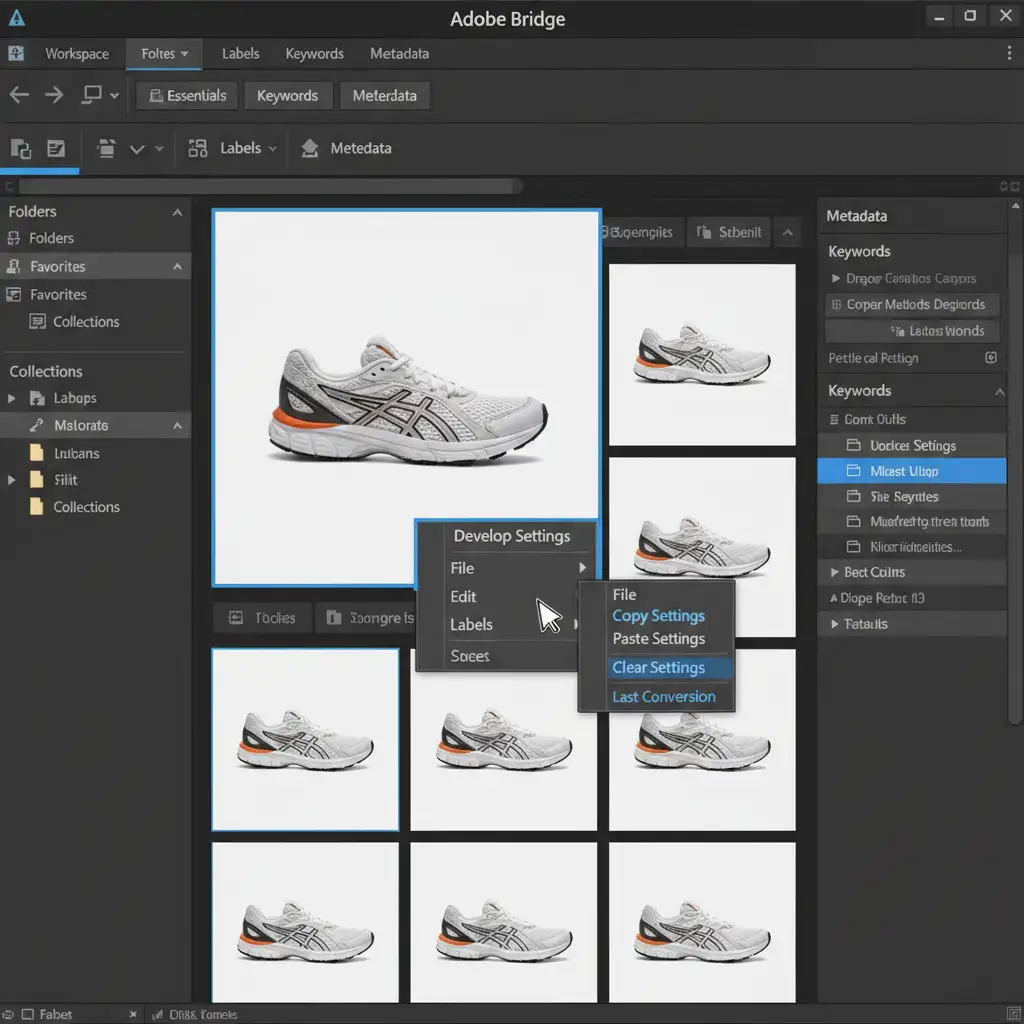
- Back in Adobe Bridge, select the corrected hero image, then select all similar images in the folder.
- Right-click the selection, navigate to Develop Settings > Paste Settings.
- Choose the specific color and white balance parameters you want to sync, and hit OK.
This method leverages Smart Objects and non-destructive raw data to instantly synchronize exact color parameters across thousands of files without opening them individually.
Method C: The Technical Deep-Dive (Droplets & Strict Color Management)
For enterprise-level e-commerce studios, manual intervention is too slow. The ultimate solution is building an OS-level Droplet that enforces strict color management policies and applies custom Color Lookup Tables (LUTs) automatically.
Step 1: Standardize Your ICC Profiles
Before running any batch processing, you must eliminate mismatched color profiles.
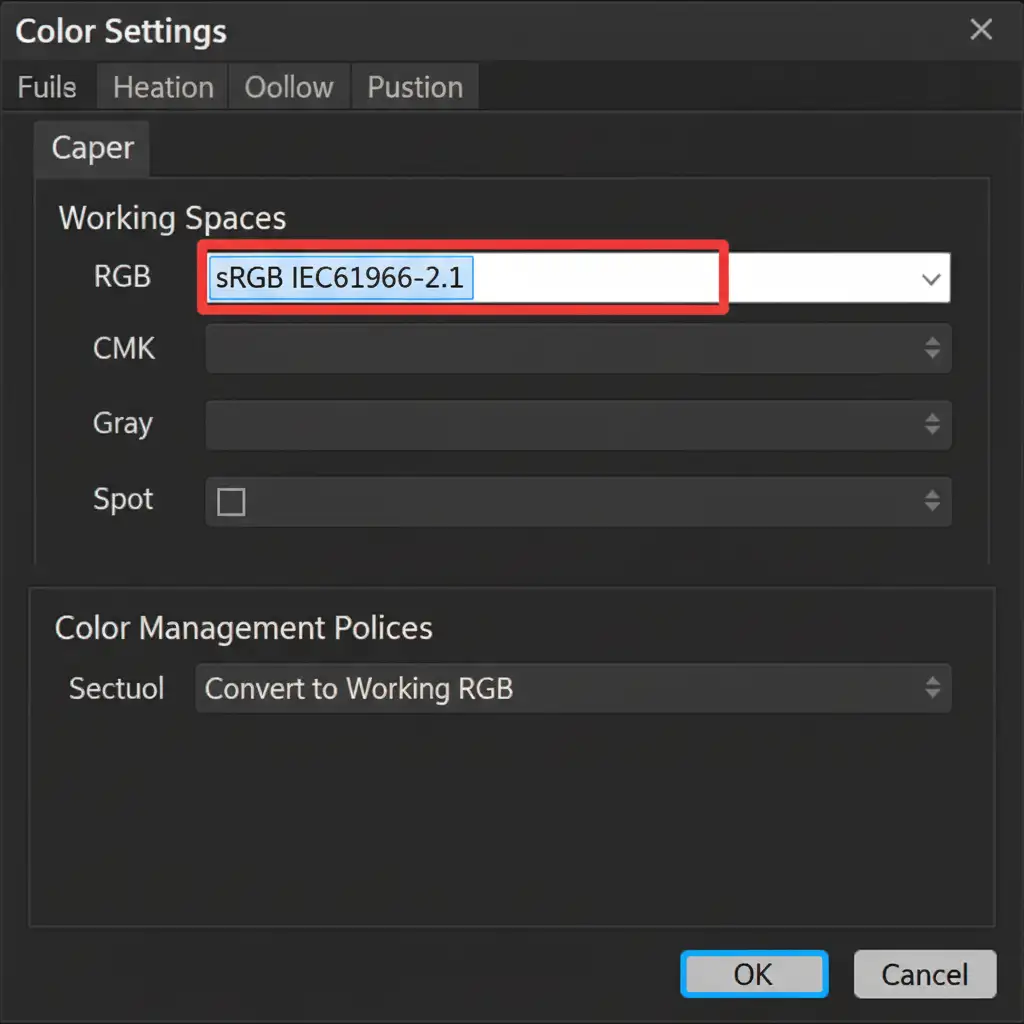
- Go to Edit > Color Settings.
- Set your RGB Working Space to sRGB IEC61966-2.1. This is the absolute standard for web delivery.
- Under Color Management Policies, ensure RGB is set to “Convert to Working RGB”.
Step 2: Build the Master Action
Create an Action that does the following:
- Edit > Assign Profile: Force the image into sRGB IEC61966-2.1 to standardize the color space.
- Apply a custom Color Lookup Table (LUT) adjustment layer to map specific brand colors perfectly.
- Flatten the image and save.
Step 3: Create the Droplet
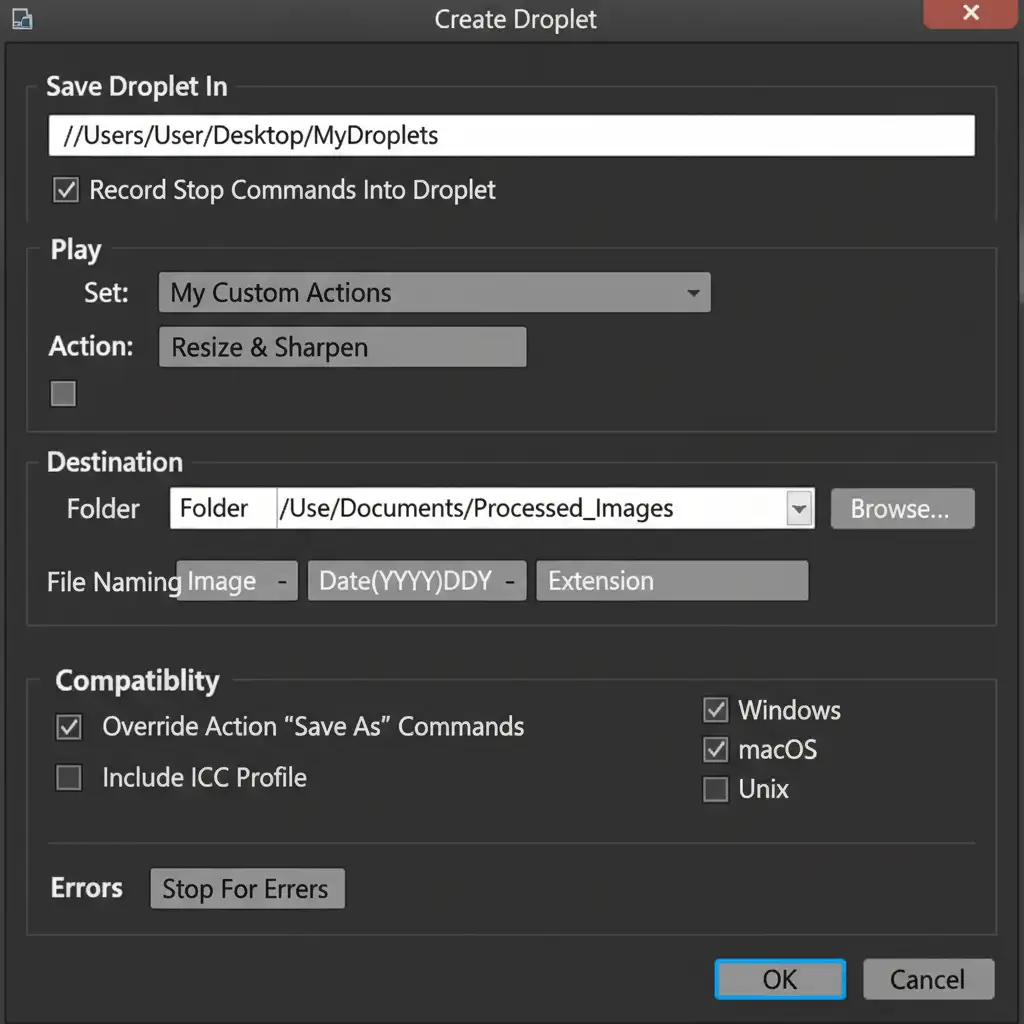
A Droplet turns your Photoshop Action into a standalone application on your desktop.
- Navigate to File > Automate > Create Droplet.
- Choose where to save the Droplet on your computer.
- Select the Master Action you just created.
- Set your Destination folder for the processed files.
- Check “Override Action ‘Save As’ Commands” to prevent the software from pausing.
Now, you can simply drag and drop folders of hundreds of images directly onto the Droplet icon on your desktop. Photoshop will launch in the background, assign the correct ICC profiles, apply the LUTs, and save the files—achieving automated batch color consistency for ecommerce without you having to open a single image manually.
Scale Your E-commerce Production with Image Work India
Mastering automated batch color consistency for ecommerce requires a deep understanding of color science, ICC profiles, and Photoshop automation. While setting up Droplets and syncing Adobe Camera Raw files can drastically reduce your processing time, handling tens of thousands of SKUs per season still requires dedicated infrastructure and quality assurance.
If you want to eliminate color shifting, reduce product return rates due to inaccurate web photos, and free up your internal team to focus on creative direction, we can help.
Image Work India and Cloud Retouch provide enterprise-level batch editing, flawless color correction, and automated pipeline management for global e-commerce brands. We ensure every fabric hue, skin tone, and brand color matches perfectly across your entire catalog.
[Contact Image Work India today] to discuss how we can streamline your post-production workflow and deliver pixel-perfect consistency at scale.




