
There is nothing worse than booting up Adobe Photoshop v26.x or v27.x on a tight deadline, only to find your workspace completely broken. Following the recent Windows 11 24H2 update, thousands of retouchers have been hit with massive, oversized panels, grayed-out menus, and heavily distorted color rendering.
If you are currently struggling with optimizing ecommerce images for 24H2 windows update UI issues, you already know how a simple software glitch can derail your entire production pipeline. High-volume retouching requires pixel-perfect accuracy, and these 24H2 update bugs make precise color matching impossible.
This guide will walk you through the exact technical steps to fix these display scaling and color profile rendering conflicts so you can get back to work.
Why the Windows 11 24H2 Update Breaks Photoshop 2025
The root cause of this frustrating issue lies in how the latest Windows update handles HDR compositing and advanced color profiles. Windows 24H2 introduced changes to its native display scaling engine that directly conflict with Photoshop’s internal GPU compositing.
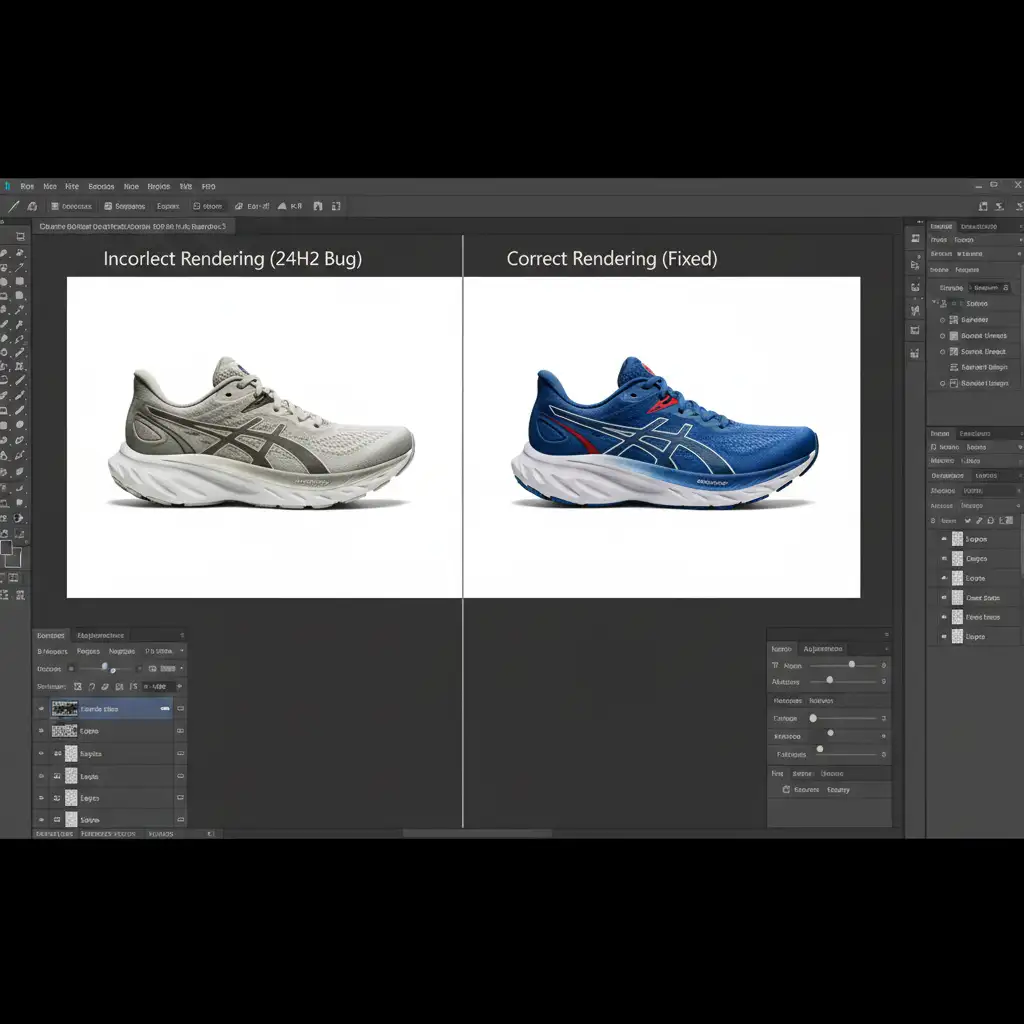
When you run Photoshop on a high-DPI display or an HDR-enabled monitor, Windows forces an incorrect scaling metric, resulting in bloated UI elements. Simultaneously, a mismatch between the Windows Advanced Color profile and Photoshop’s color management engine strips the vibrancy from your canvas, making standard sRGB IEC61966-2.1 images look washed out and flat.
Here are the three proven methods to resolve these conflicts.
Method 1: The Quick Fix – Override Windows High-DPI Scaling
If your primary issue is massive, unusable panels and menus, you need to force Windows to stop interfering with Photoshop’s native scaling.
- Close Adobe Photoshop completely.
- Locate your Photoshop shortcut or the main executable file (Photoshop.exe).
- Right-click the file and select Properties.
- Navigate to the Compatibility tab.
- Click on Change high DPI settings.
- Check the box at the bottom that says Override high DPI scaling behavior.
- In the dropdown menu beneath it, select System.
- Click Apply and OK.

Method 2: The Pro Workaround – Adjust Native UI Scaling
If overriding the Windows settings doesn’t completely fix the layout, or if your tools still look slightly pixelated, you need to adjust Photoshop’s internal preferences.
- Open Photoshop.
- Navigate to Edit > Preferences > Interface (Windows).
- Look for the Presentation section.
- Change the UI Scaling dropdown from Auto to exactly 100%.
- Click OK.
- Restart Photoshop to apply the changes, then perform a workspace reset (Window > Workspace > Reset [Your Workspace Name]) to snap all panels back to their correct proportions.

Method 3: The Technical Deep-Dive – Resolve Color Render & GPU Conflicts
Fixing the UI size is only half the battle. If your colors are rendering inaccurately or your menus are grayed out, you are experiencing a severe graphics driver compatibility and GPU acceleration failure.
Here is how to restore perfect color profile rendering:
- Update Your Graphics Drivers: Ensure you are running a 24H2-certified driver from NVIDIA, AMD, or Intel. Older drivers fail to correctly parse the new Windows color management handoffs.
- Disable Windows HDR: Right-click your desktop > Display Settings > toggle Use HDR to Off. This forces Windows back into standard SDR color management, which plays much nicer with standard ecommerce editing profiles.
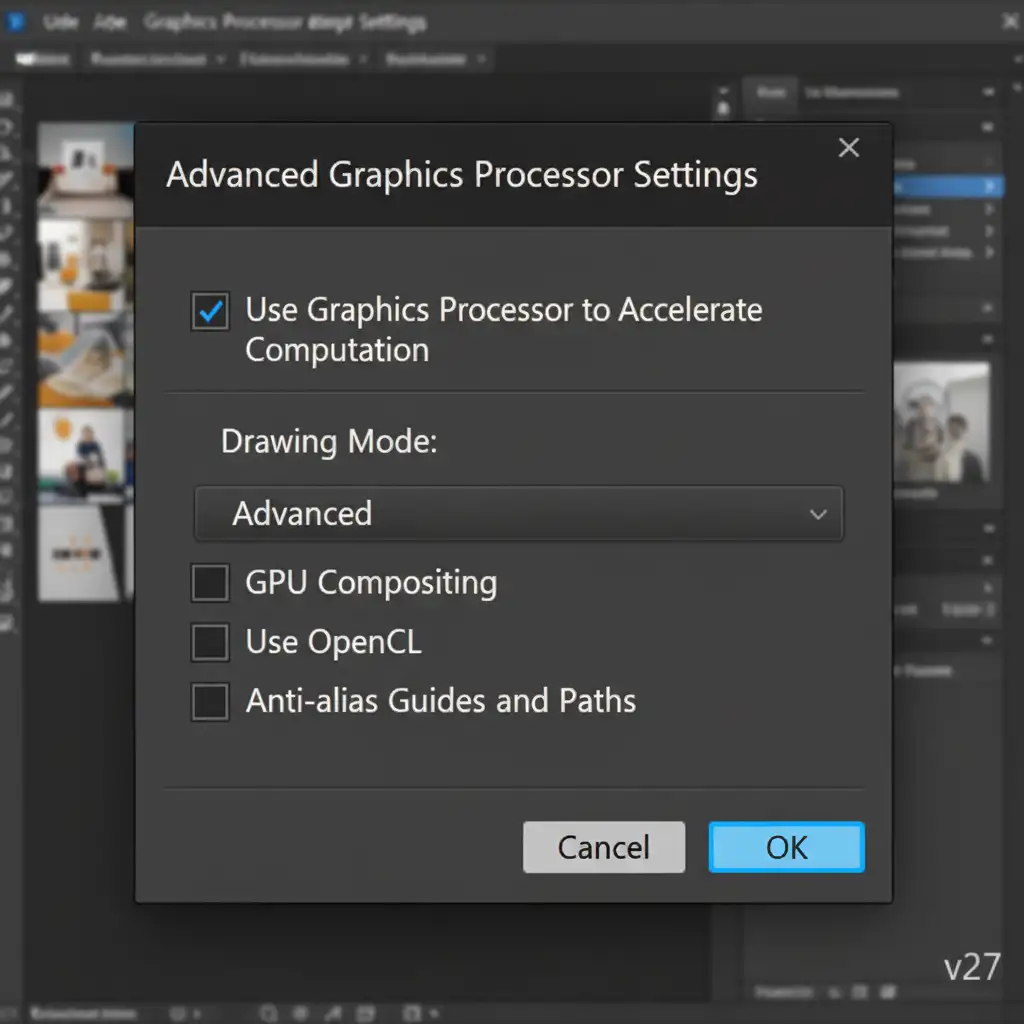
- Disable GPU Compositing in Photoshop:
- Go to Edit > Preferences > Performance.
- Under the Graphics Processor Settings block, click Advanced Settings.
- Uncheck the box for GPU Compositing. (Leave standard GPU acceleration enabled).
- Click OK and restart Photoshop.
Stop Fighting Software Bugs. Start Scaling Your Business.
Troubleshooting Windows updates, fixing color profiles, and managing software glitches drain hours of your time—time that should be spent growing your business and satisfying your clients.
If you are tired of losing productivity to technical errors, let the experts handle the heavy lifting. At Image Work India and Cloud Retouch, we specialize in high-volume, pixel-perfect ecommerce image editing. Our dedicated teams work on perfectly calibrated, bug-free workstations to guarantee flawless color accuracy and rapid turnaround times.
Don’t let the next software update slow you down. Contact Image Work India and Cloud Retouch today to outsource your image editing and ensure your ecommerce visuals are always flawless.




