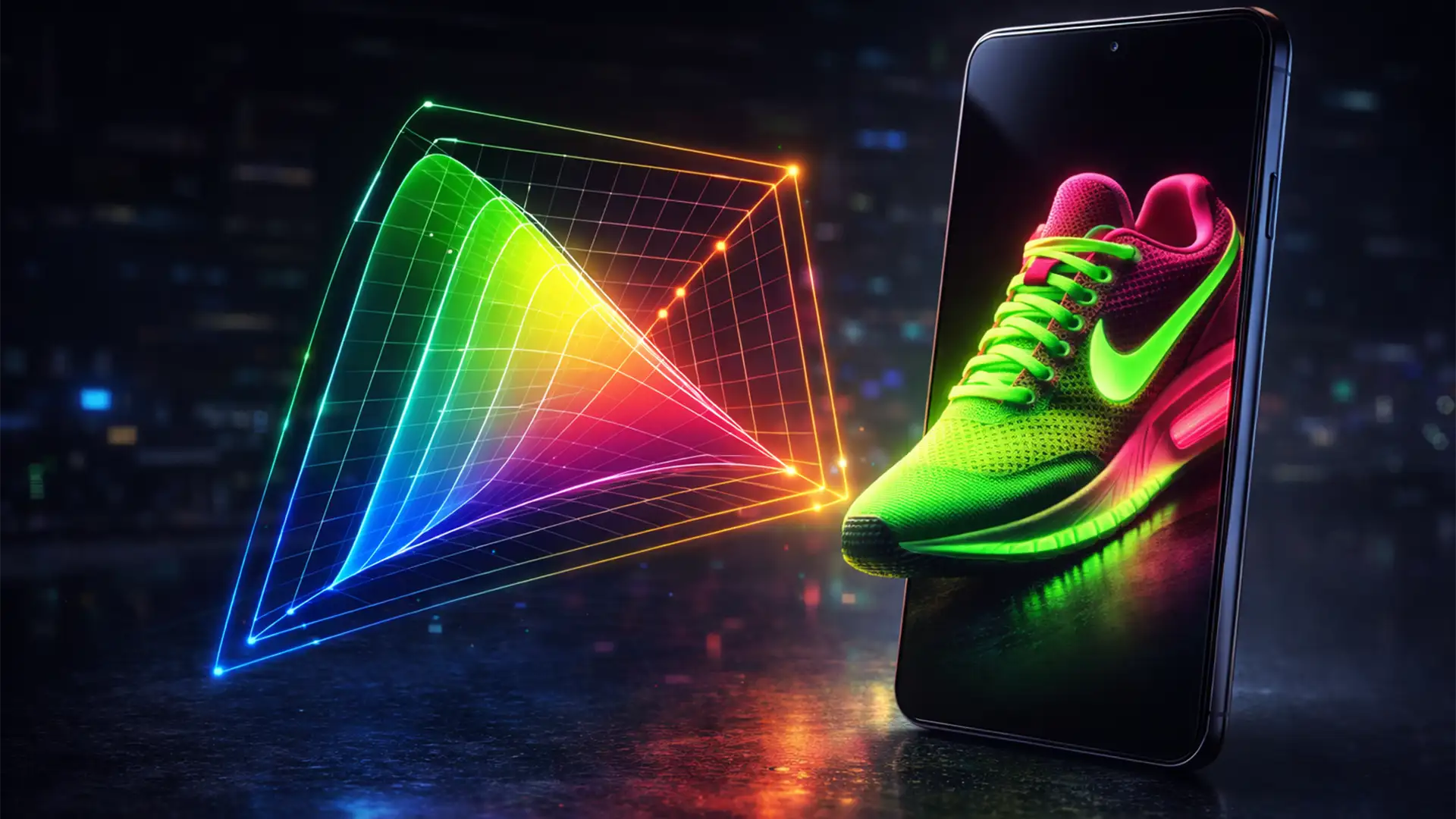

You just finalized the perfect edit for a neon product. On your calibrated monitor, the colors pop beautifully. But the moment you check the live listing on your iPhone, the vibrancy is gone. The bright reds look muddy, and the neon greens fall completely flat.
If this sounds familiar, you are experiencing the “Neon Problem.” Modern mobile devices from Apple and premium Android manufacturers use Display P3 screens, which capture 25 percent more color than standard displays. If your ecommerce workflow is still stuck in the sRGB era, you are actively dulling your products on the exact devices your customers use to shop.
Here is exactly how to upgrade your color management system and implement a P3 color profile for mobile ecommerce displays to prevent color clipping and lost sales.
Understanding the Neon Problem in Mobile Ecommerce
For over two decades, sRGB was the undisputed standard color space for the web. However, hardware has outpaced standard web protocols. Today’s high-end smartphones and tablets feature wide gamut monitors capable of displaying the Display P3 color gamut.
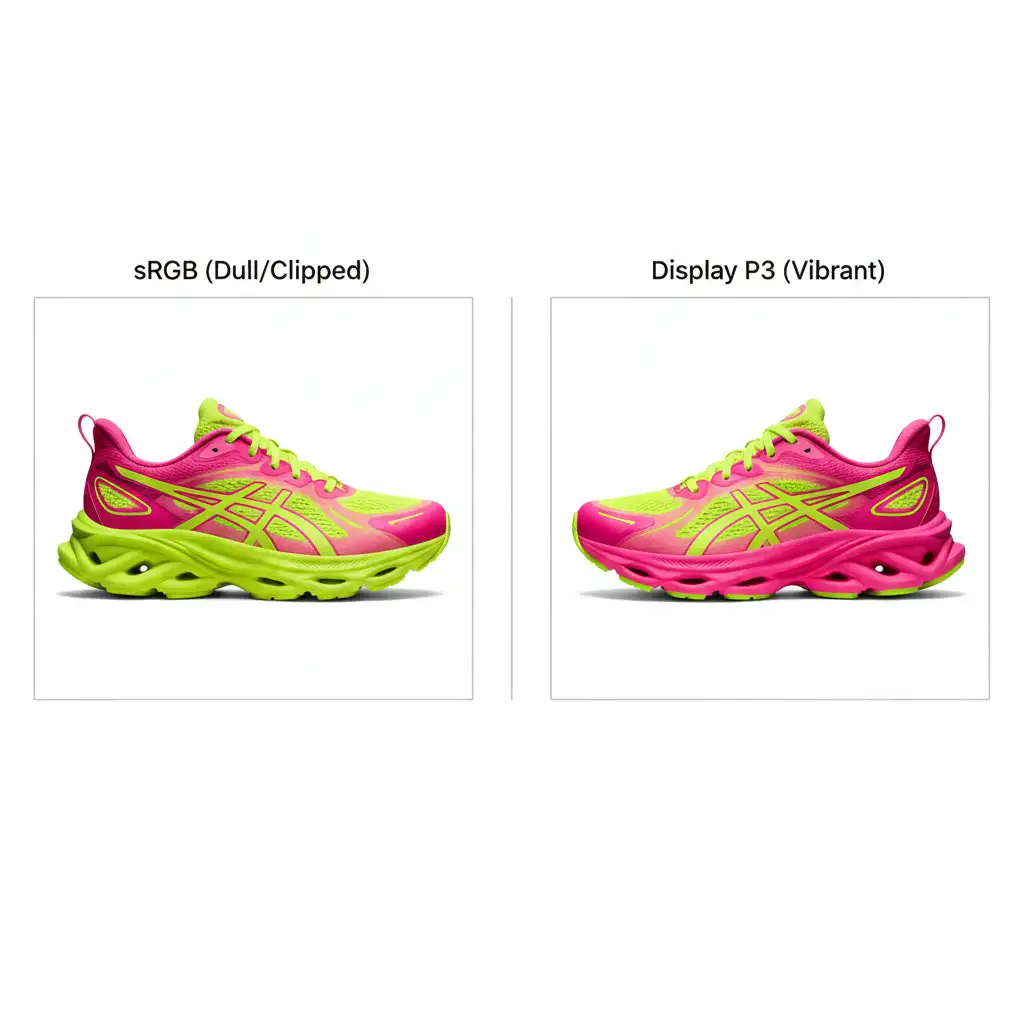
When you shoot highly saturated products—like neon apparel, bright red cosmetics, or rich green outdoor gear—those colors exist outside the sRGB color gamut. If you force these images into an sRGB workflow, the software simply cuts off the excess color data. This is known as color clipping.
By upgrading to a Display P3 end-to-end workflow in software like Adobe Photoshop v25.x and Lightroom Classic v13+, you can preserve these brilliant colors and map them accurately to modern high-end mobile displays.
How to Fix Color Clipping: 3 Professional Workflows
Fixing the Neon Problem requires strict adherence to a proper color management system. Depending on your volume and technical expertise, you can use one of three methods in Photoshop to ensure your product colors remain accurate.
Method 1: The Quick Fix (Convert and Embed)
If you already have a finished file and just need to ensure it exports correctly for modern devices, you can quickly convert the profile and embed it during export.
- Open your image in Photoshop v25.x.
- Navigate to Edit > Convert to Profile.
- Under the Destination Space, select Display P3.
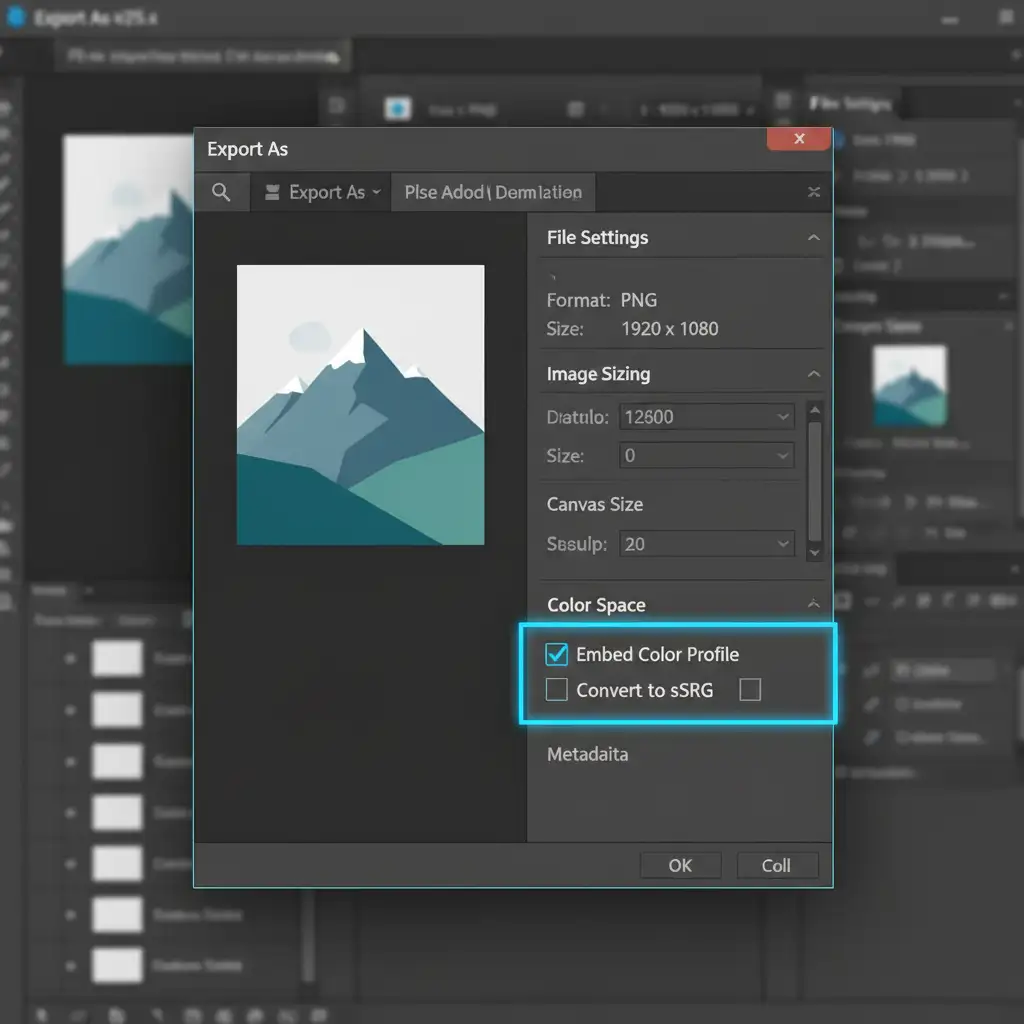
- When you are ready to save, go to File > Export > Export As.
- Crucial Step: In the right-hand panel, ensure Embed Color Profile is checked. If you leave this unchecked, browsers will assume the image is sRGB, ruining the colors.
Method 2: The Pro Workaround (Soft Proofing)
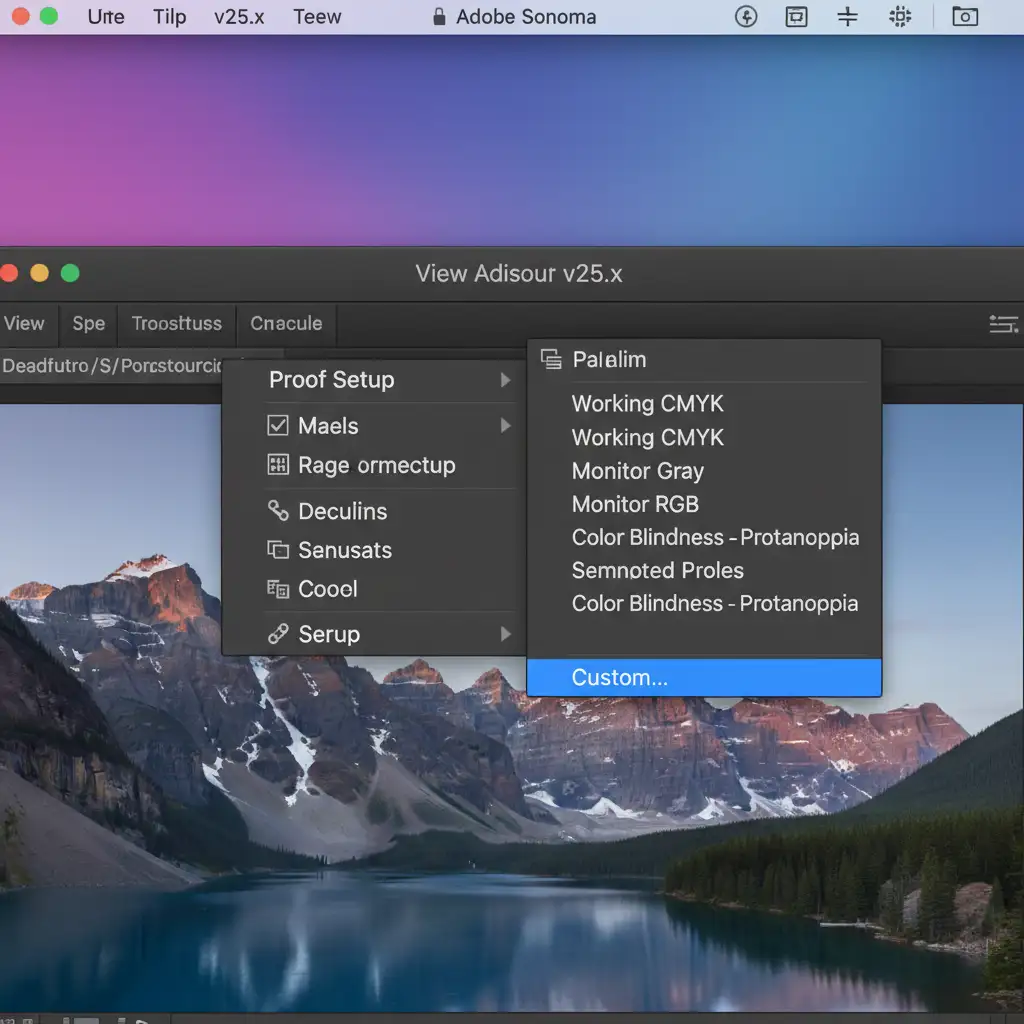
Sometimes, you need to know exactly which parts of your image will clip on older sRGB screens while editing in Display P3. This is where Soft Proofing becomes invaluable.
- Go to View > Proof Setup > Custom.
- Select Display P3 (or sRGB if you are testing backwards compatibility).
- Activate the Gamut Warning tool (View > Gamut Warning). This will overlay a gray mask on any pixels that are out-of-gamut.
- To fix these clipped areas without ruining the whole image, add a Hue/Saturation adjustment layer.
- Mask this layer only to the clipped areas, and gently reduce the saturation or shift the hue until the gamut warning disappears. This brings extreme colors into safe ranges while preserving global vibrancy.
Method 3: The Technical Deep-Dive (Color Settings Configuration)
For professional retouchers processing hundreds of ecommerce images, you need to configure your baseline workspace to handle Display P3 natively.
- First, ensure you are working on a wide gamut monitor calibrated to D65 (the standard daylight white point).
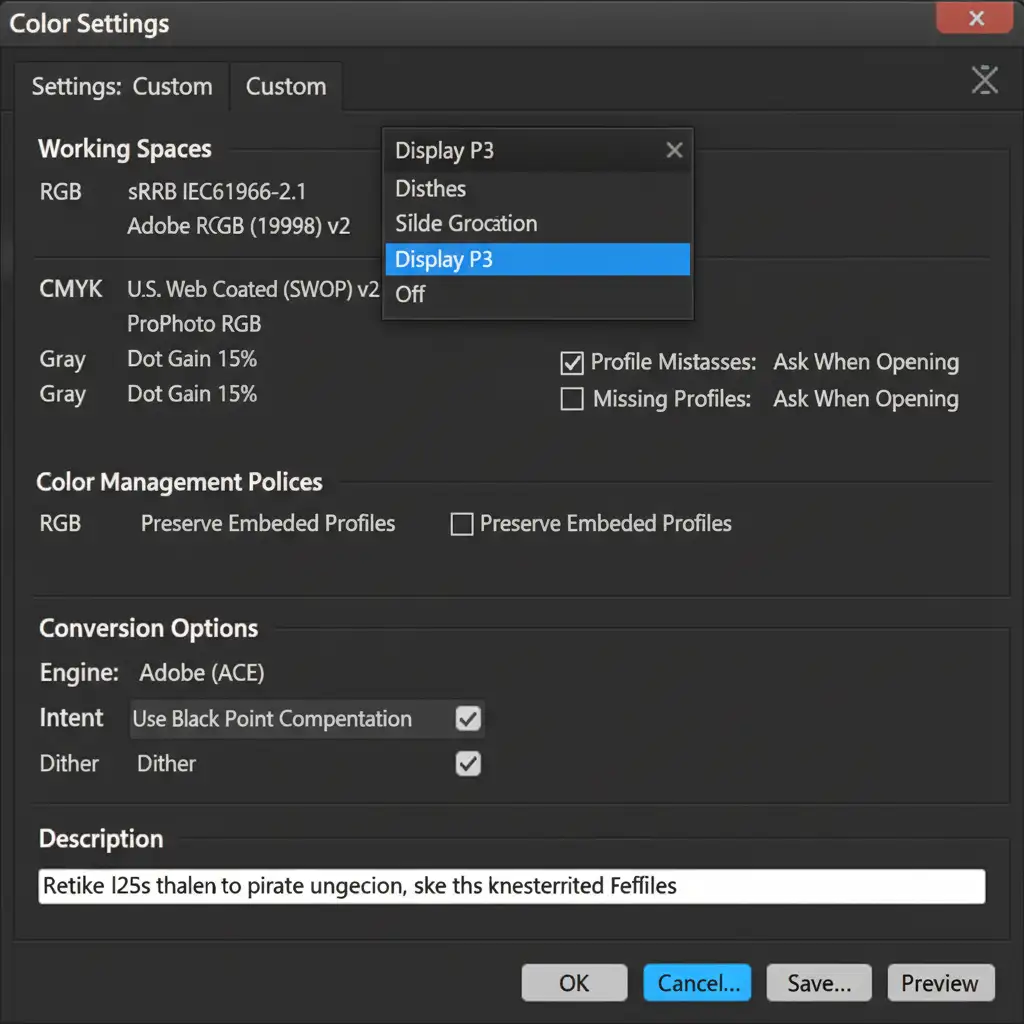
- In Photoshop, navigate to Edit > Color Settings.
- Under Working Spaces, change the RGB dropdown to Display P3.
- Under Conversion Options, set the Rendering Intent to Relative Colorimetric.
- Ensure Use Black Point Compensation is checked.
Why Relative Colorimetric? This specific rendering intent maps extreme out-of-gamut colors to the closest reproducible color safely, which is vital if the image needs a fallback for older browsers that don’t support P3.
Stop Losing Sales to Dull Product Photography
Implementing a P3 color profile for mobile ecommerce displays is no longer optional—it is a mandatory step for modern product photography. By mastering your ICC profile settings, utilizing soft proofing, and understanding how modern screens render color, you guarantee that your customers see the exact vibrant product they are paying for.
Let the Experts Handle Your Color Management
Struggling with inconsistent product colors across different devices? You don’t have to navigate complex color spaces alone.
At Image Work India and Cloud Retouch, our expert retouching teams specialize in end-to-end color-accurate product photo editing. We utilize advanced Display P3 workflows to ensure your inventory looks stunning, vibrant, and true-to-life on every modern mobile screen.
[Contact Image Work India today] to streamline your ecommerce editing workflow and boost your mobile conversion rates with flawless color management.




