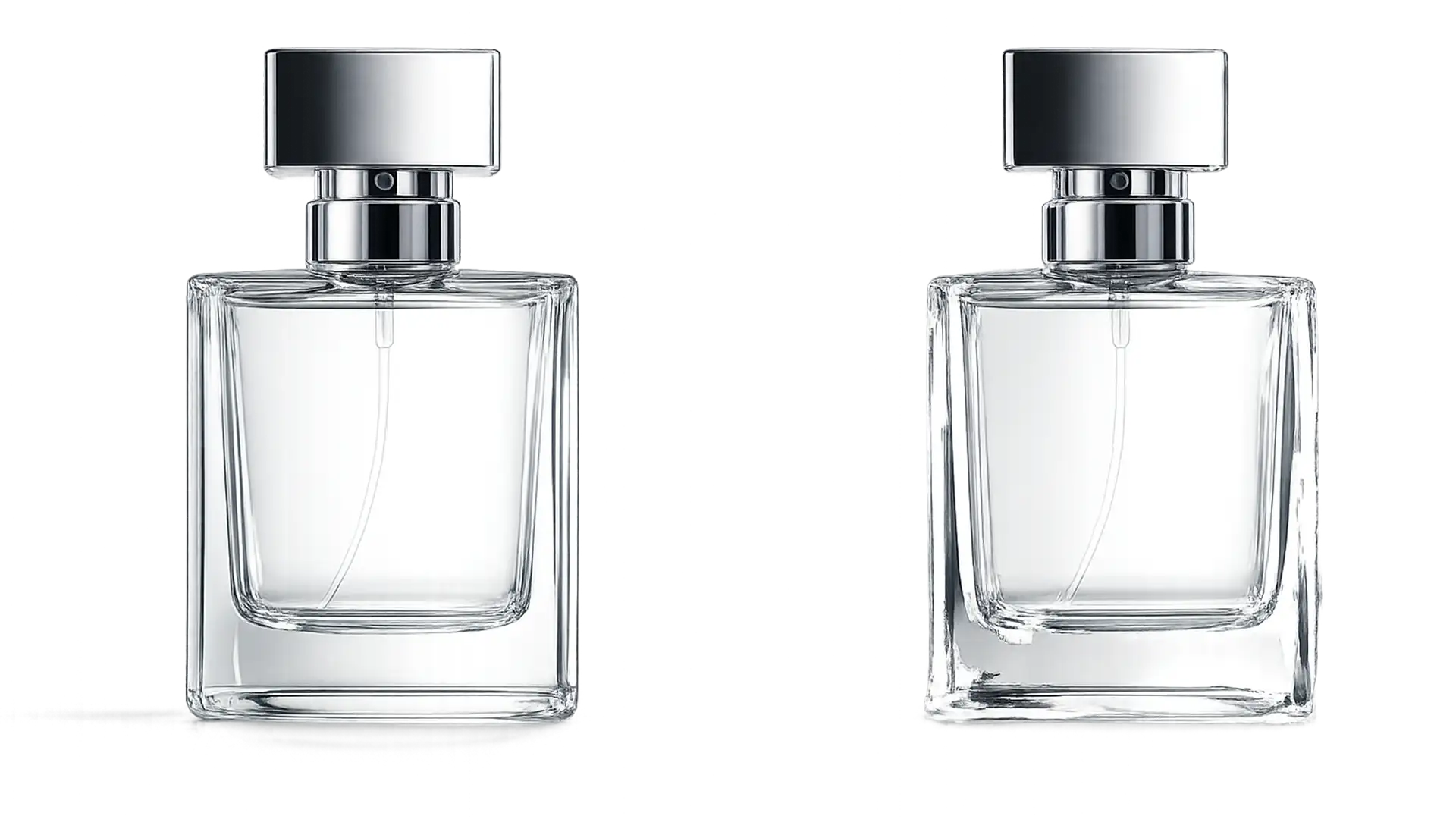

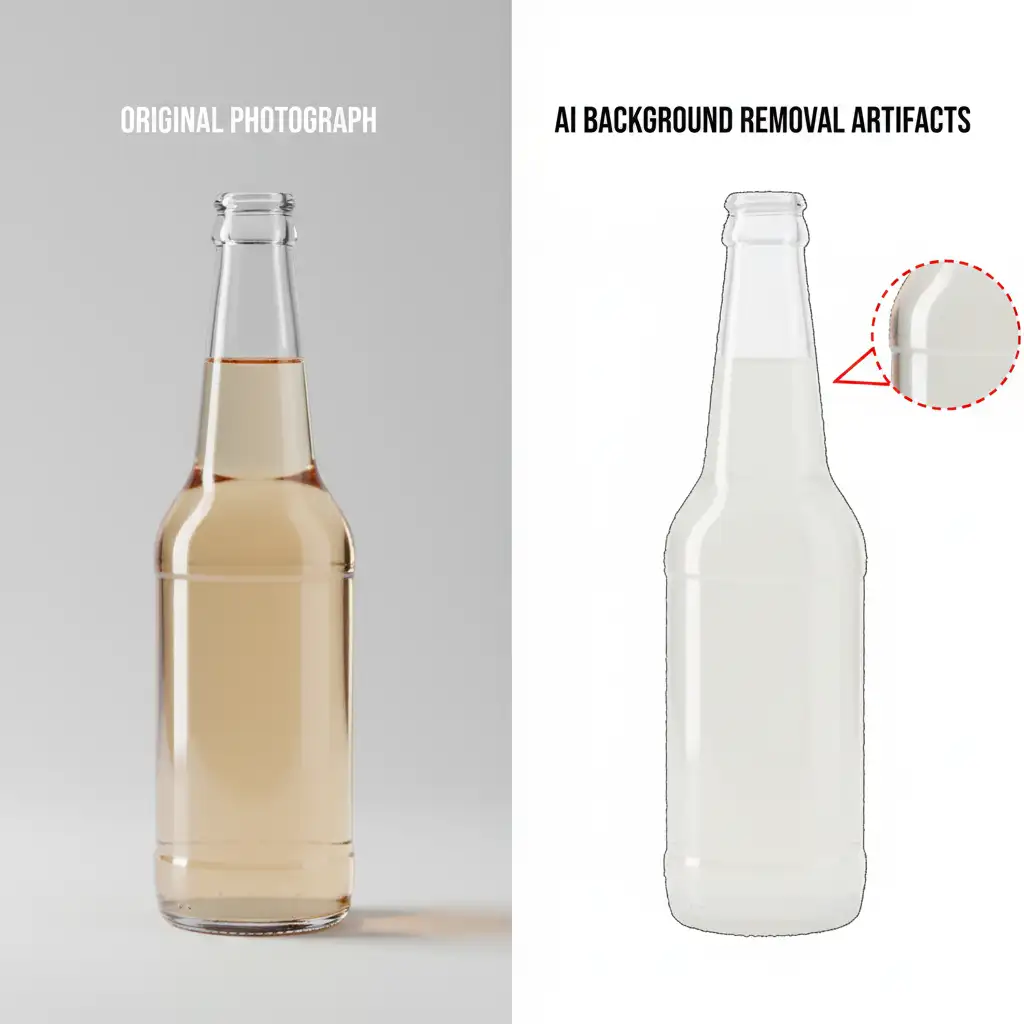
You click “Remove Background” in Photoshop, expecting a perfect cutout of your glass product. Instead, the AI leaves jagged, opaque edges or deletes the glass body entirely.
Automated AI background removal algorithms—even advanced tools in Photoshop v24.x and v25.x—frequently fail to accurately interpret the natural refraction and semi-transparency of glass. They treat delicate reflections as solid objects, leaving behind ugly AI artifacts that ruin the realism of your image. For e-commerce vendors needing pristine transparent product shots on pure white backgrounds, this is a critical pain point that kills conversion rates.
If you are struggling with fixing glass transparency after AI background removal, you are not alone. Here is the professional workflow to restore realistic transparency to your product photos.
Why AI Fails at Glass Transparency
AI tools like Photoshop’s Select Subject are trained to look for hard edges and high contrast. Glass products, however, rely on refraction—the bending of light—and partial transparency, which causes the object to blend visually with its background. Because the AI cannot distinguish between a reflection on the glass and the background itself, it either leaves opaque chunks attached to the rim or hollows out the product completely.
To fix this, you must rely on manual retouching techniques that isolate the object while preserving its lighting data.
Method 1: The Quick Fix Using Blending Modes
If you need a fast solution for an e-commerce catalog, utilizing blending modes is the most efficient way to rescue lost transparency. This method works by separating the light and dark data of the original glass.
Step-by-Step Blending Mode Workflow
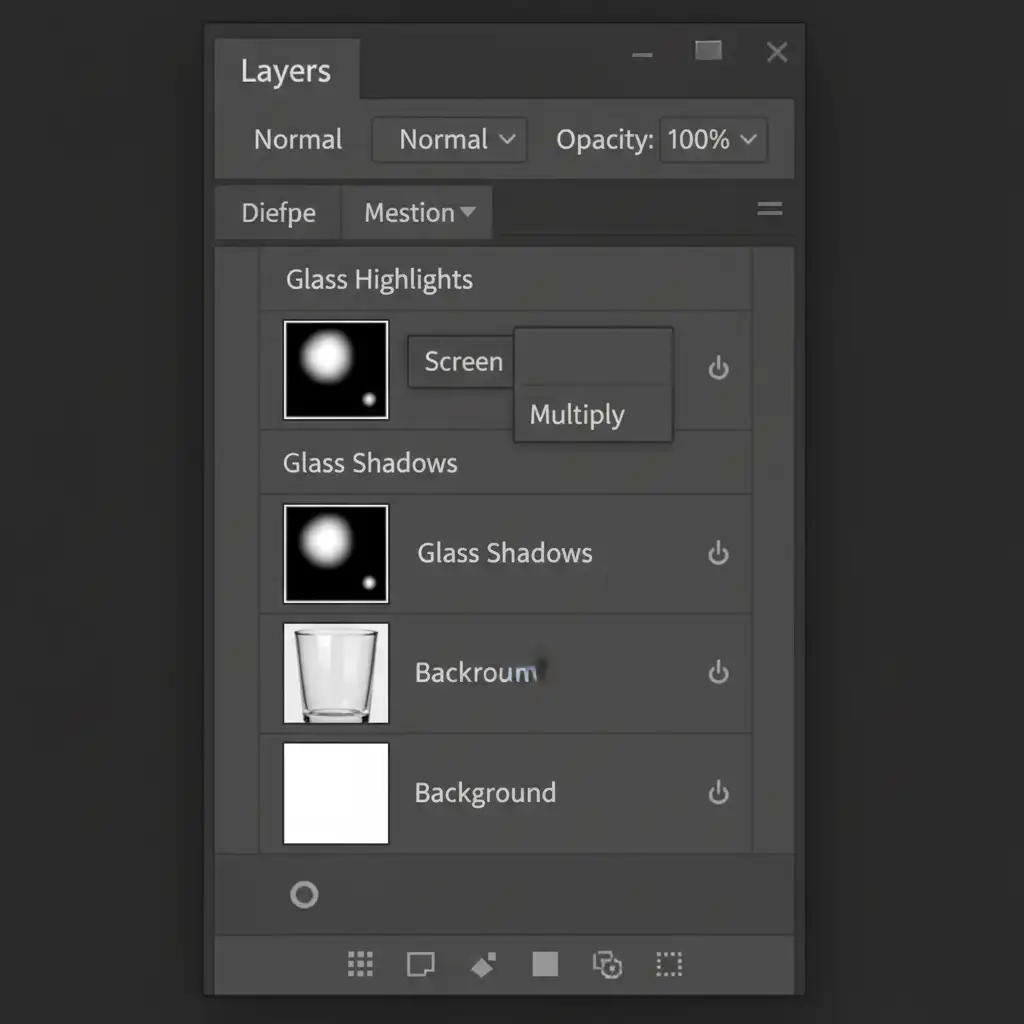
- Layer Duplication: Start by placing your badly masked AI cutout over your new desired background (e.g., pure white). Duplicate the original unmasked image layer twice and place these duplicates above your background.
- Preserving Shadows: Select the first duplicated layer and change its blending mode to Multiply mode. This drops out the white pixels and preserves the dark edges, shadows, and contours of the glass.
- Preserving Highlights: Select the second duplicated layer and change its blending mode to Screen mode. This drops out the dark pixels, restoring the bright reflections and specular highlights the AI erased.
- Fine-Tuning: Add a layer mask to both layers. Use a soft brush with slight feathering to mask out any remaining background elements outside the glass. Adjust the opacity of the Screen and Multiply layers until the glass looks perfectly natural against the new background.
Method 2: The Pro Workaround with Channel Masking
For complex backgrounds, blending modes might not be enough. Professional retouchers use channel masking to create mathematically accurate selections based on luminosity, effectively building custom alpha channels that preserve partial transparency.
Creating an Alpha Channel Mask
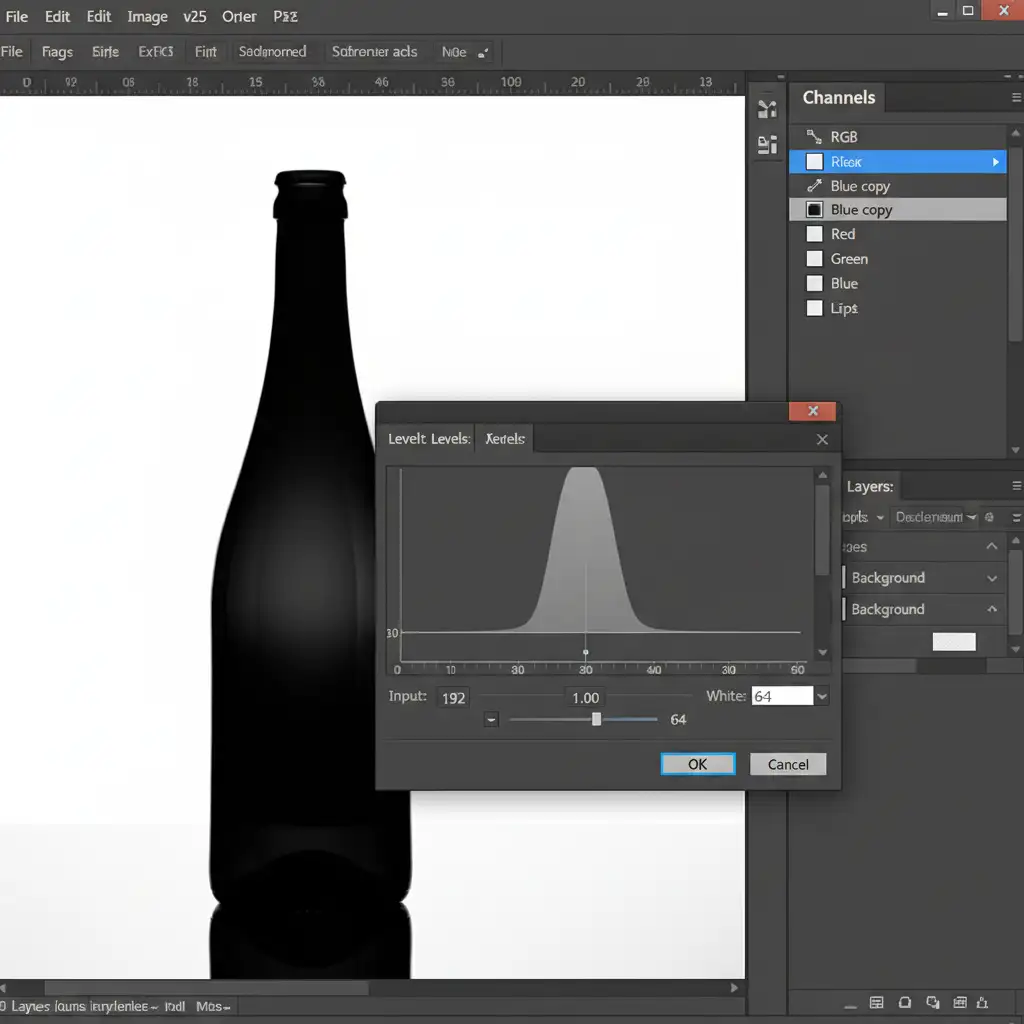
- Open the Channels panel in Photoshop.
- Click through the Red, Green, and Blue channels. Look for the channel that offers the highest contrast between the glass object and the background (this is usually the Blue or Red channel).
- Duplicate this high-contrast channel.
- Press Ctrl+L (or Cmd+L on Mac) to open the Levels adjustment. Push the black and white sliders inward to maximize the contrast—forcing the glass edges to turn solid black while the background turns pure white (or vice versa).
- Ctrl+Click (or Cmd+Click) the thumbnail of your duplicated channel to load it as a precise selection.
- Return to your Layers panel and apply this selection as a layer mask. This method beautifully preserves the subtle gradients and semi-transparent areas that automated tools destroy.
Method 3: The Technical Deep-Dive for Perfect Edges
When dealing with high-end commercial photography, you cannot rely on pixel-based selections. You must manually reconstruct the glass using a clipping path. This guarantees razor-sharp edges regardless of the background color.
Manual Reconstruction Workflow
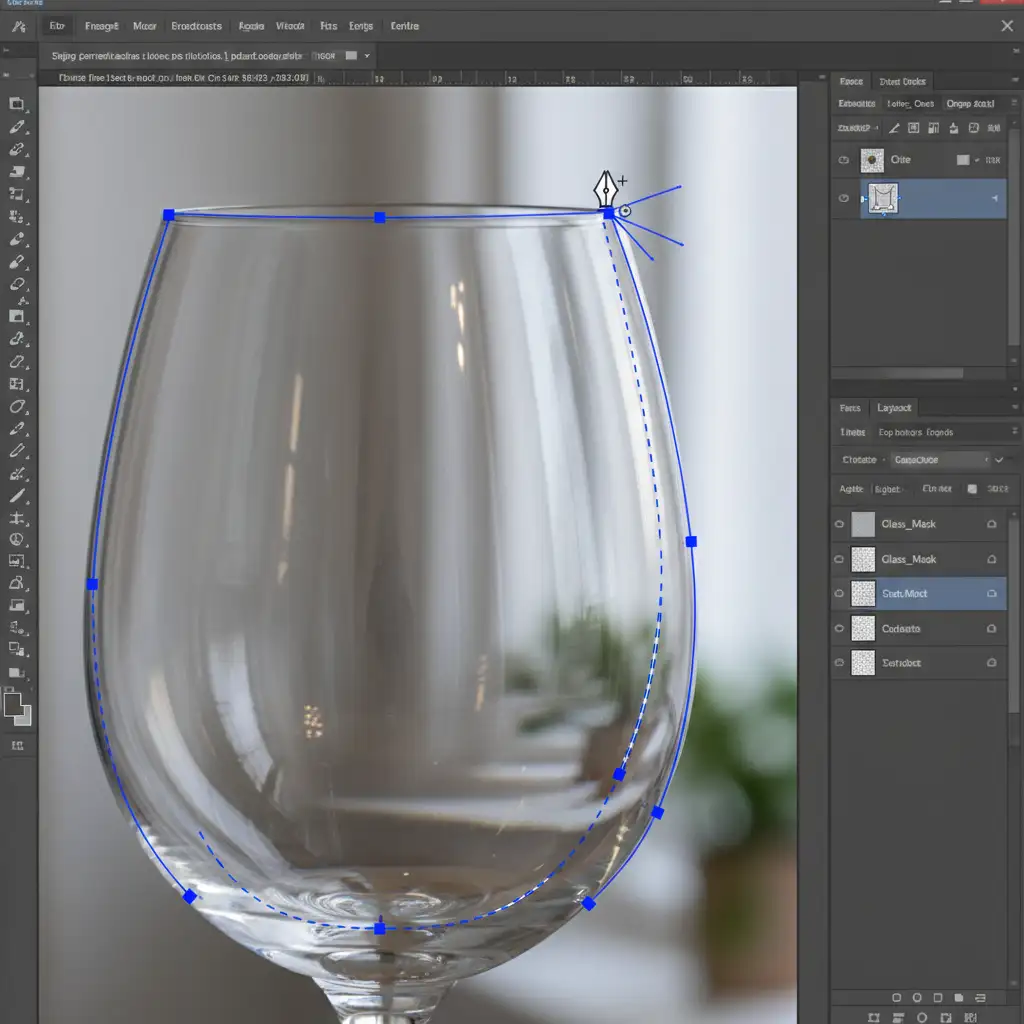
- Select the Pen Tool and trace a precise path around the outer rim of the glass product. Keep your anchor points minimal for smooth curves.
- Save the path and convert it into a selection.
- Create a solid shape layer from this selection and reduce its Fill to 0%. This gives you the exact vector outline of the glass without blocking the background.
- Use Layer Styles such as Inner Shadow or Gradient Overlay to manually recreate the dark refractive edges of the glass.
- Create a clipping mask over your vector shape. Use a soft white brush to manually paint in the specular highlights and reflections that give the glass its volume.
Stop Fighting AI—Let the Experts Handle Your E-Commerce Retouching
Fixing glass transparency after AI background removal is a tedious, time-consuming process. While blending modes and channel masking yield great results, executing these techniques across hundreds or thousands of product SKUs will drain your team’s resources.
If you are struggling with high-volume glass product photography, it is time to outsource the heavy lifting. Image Work India and Cloud Retouch specialize in pixel-perfect clipping paths and advanced e-commerce retouching that automated AI simply cannot match.
Our team of professional retouchers manually reconstructs missing highlights, preserves natural refraction, and guarantees flawless transparency for every single glass product in your catalog. Stop settling for jagged AI artifacts. Contact Image Work India and Cloud Retouch today to elevate your product imagery and boost your e-commerce conversion rates.




