

You record a Photoshop Action using Generative Fill, point it at a folder of 500 SKUs, and hit play. You come back an hour later expecting a perfectly cohesive catalog. Instead, every single product has a slightly different floor texture, mismatched shadows, and varied spatial depth. Your catalog looks chaotic, and you just burned through hundreds of Generative Credits for unusable results.
This randomized output is the biggest hurdle for high-volume studios trying to adopt AI. If you are struggling to achieve batch generative fill consistency for ecommerce, you are not alone. Because the Adobe Firefly API interprets each image’s unique pixel data to generate a net-new background, standard batching simply does not work for strict catalog standards.
Today, we will break down three advanced workflows to tame Photoshop v25.x and v26.x, allowing you to lock in pixel-perfect uniformity across your entire product line.
Why Standard Generative Fill Fails in Batch Processing
In an ecommerce setting, a product catalog requires 100% uniformity. Whether you are selling footwear, jewelry, or apparel, the background color, shadow density, and floor reflection must remain identical as the user clicks from SKU to SKU.
When you run a standard text prompt through Generative Fill inside a batch process, the AI treats each image as a completely isolated event. It recalculates the lighting and perspective based on the specific product shape. This destroys catalog consistency and wastes valuable Generative Credits. To solve this, we must bypass the per-image generation process and enforce a master template.
3 Workarounds for Batch Generative Fill Consistency for Ecommerce
Here are three proven methods to achieve absolute consistency, ranging from a quick UI fix to enterprise-grade automation.
Method A: The Quick Fix Using the Reference Image Feature
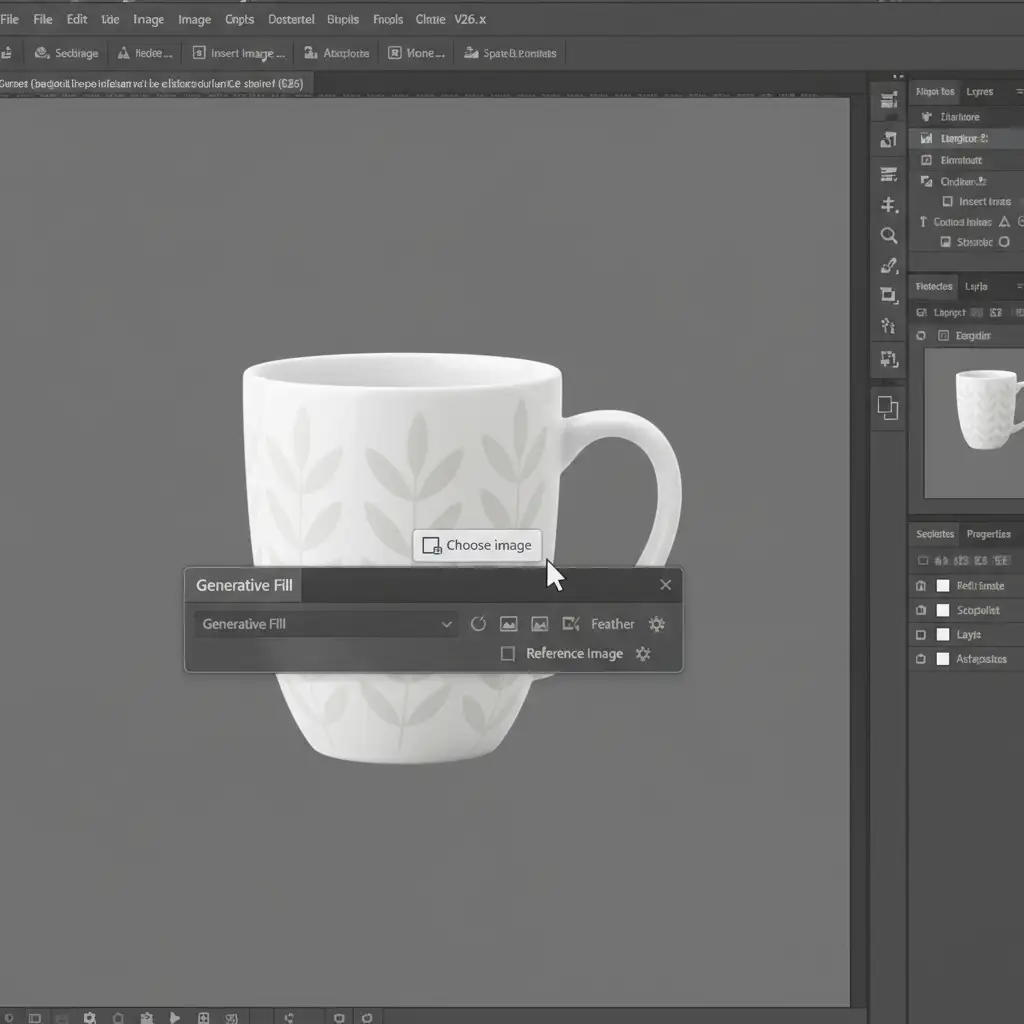
If you are using the latest versions of Photoshop Creative Cloud (v25.x and above), Adobe has quietly introduced a feature that drastically improves prompt consistency: the Reference Image tool.
- Open your first product image and make your selection.
- In the Contextual Task Bar, type your background generation prompt.
- Before hitting generate, click the Reference Image feature icon.
- Upload a master background image (your ideal studio setup).
- Record these exact steps into your Photoshop Actions.
By feeding the AI a reference image, you force the Adobe Firefly API to adhere strictly to your chosen lighting and spatial depth, drastically reducing random variations during batch runs.
Method B: The Pro Workaround with Smart Objects and Variables
For studios that cannot tolerate even a 1% variance in background generation, you must stop generating backgrounds for every single image. Instead, generate the perfect background once and swap the products out.
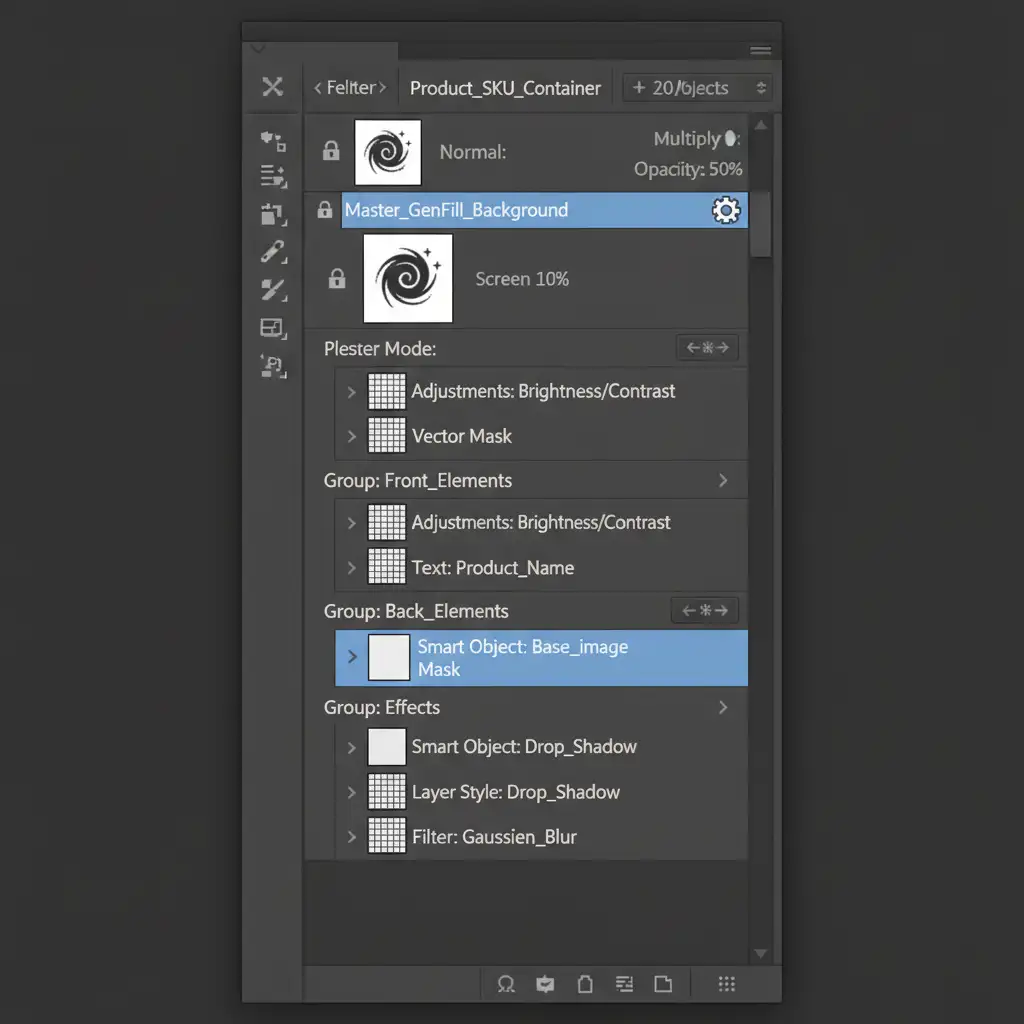
- Create a Master Template: Open a blank canvas and use Generative Fill to create your ultimate studio background.
- Set Up Smart Objects: Place your first product on a layer above the background and convert it into a Smart Object. Apply any necessary drop shadows or reflections to the Smart Object container itself.
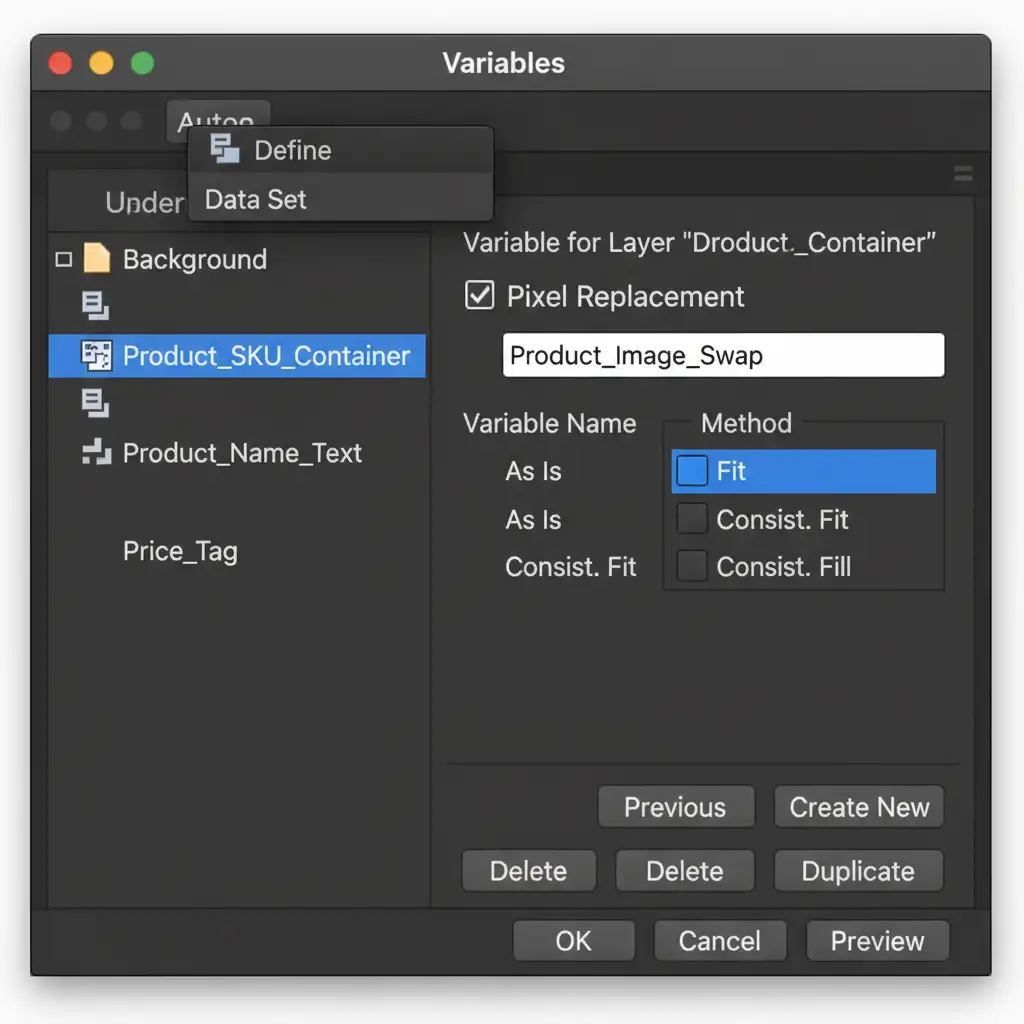
- Use Data-Driven Graphics: Navigate to Image > Variables > Define.
- Select your Smart Object layer and assign it a Pixel Replacement variable.
- Link this variable to a CSV data set containing the file paths of your isolated SKUs.
This method leaves the generated background untouched while Photoshop automatically swaps the product inside the Smart Object, exporting a perfectly consistent catalog.
Method C: The Enterprise Deep-Dive Using ExtendScript and Droplets
If you are processing thousands of images a day, you need a headless, high-speed approach that minimizes manual input and absolutely guarantees pixel consistency. This involves combining Non-destructive Masking, ExtendScript Automation, and Batch Processing Droplets.
- Pre-render your ideal Generative Fill background and save it to your CC Library.
- Record an action that uses the ‘Select Subject’ tool to isolate the product.
- Apply a layer mask to hide the original background (Non-destructive Masking).
- Have the action automatically pull your pre-rendered background from the CC Library and place it behind the masked product.
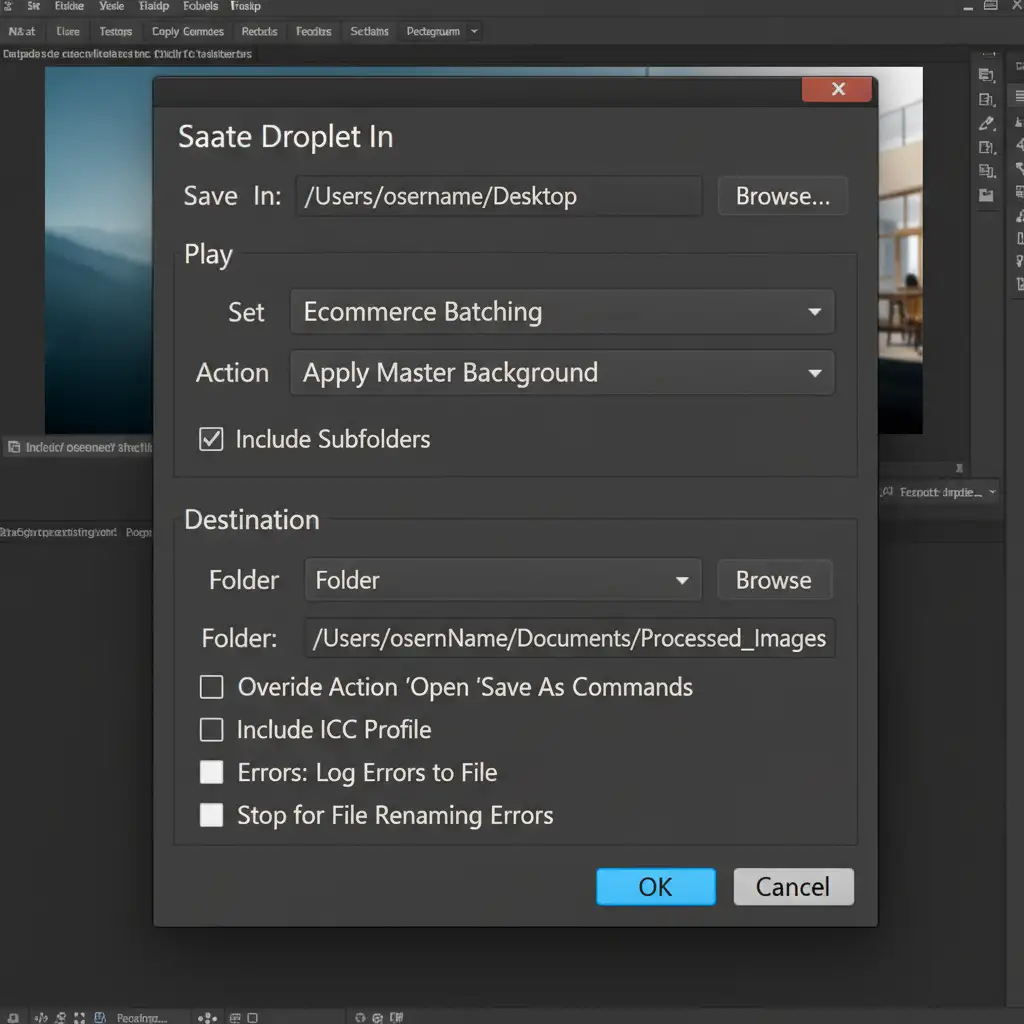
- Navigate to File > Automate > Create Droplet.
- Package this action into a standalone Droplet application.
Now, you can simply drag and drop folders of thousands of raw product photos onto the Droplet icon on your desktop. Photoshop will process them in the background, applying the exact same CC Library background to every single image without triggering the Firefly API, saving you thousands of Generative Credits and hours of rendering time.
Stop Wasting Generative Credits: Scale Your Catalog Production
Achieving batch generative fill consistency for ecommerce is entirely possible, but it requires moving away from basic text prompts and building robust, automated templates. While these workflows save immense amounts of time once set up, building the initial Smart Object templates, writing the Data-Driven CSVs, and configuring error-free Droplets can be a massive technical drain on your internal creative team.
You don’t have to build this infrastructure alone.
Image Work India and Cloud Retouch specialize in enterprise-grade batch processing and AI-assisted retouching workflows. Whether you need us to build custom Photoshop automation scripts for your in-house team, or you want to outsource the retouching of 10,000+ SKUs entirely, our experts deliver pixel-perfect catalog consistency at scale.
Stop fighting with randomized AI results. Contact Image Work India and Cloud Retouch today to streamline your ecommerce production pipeline.




