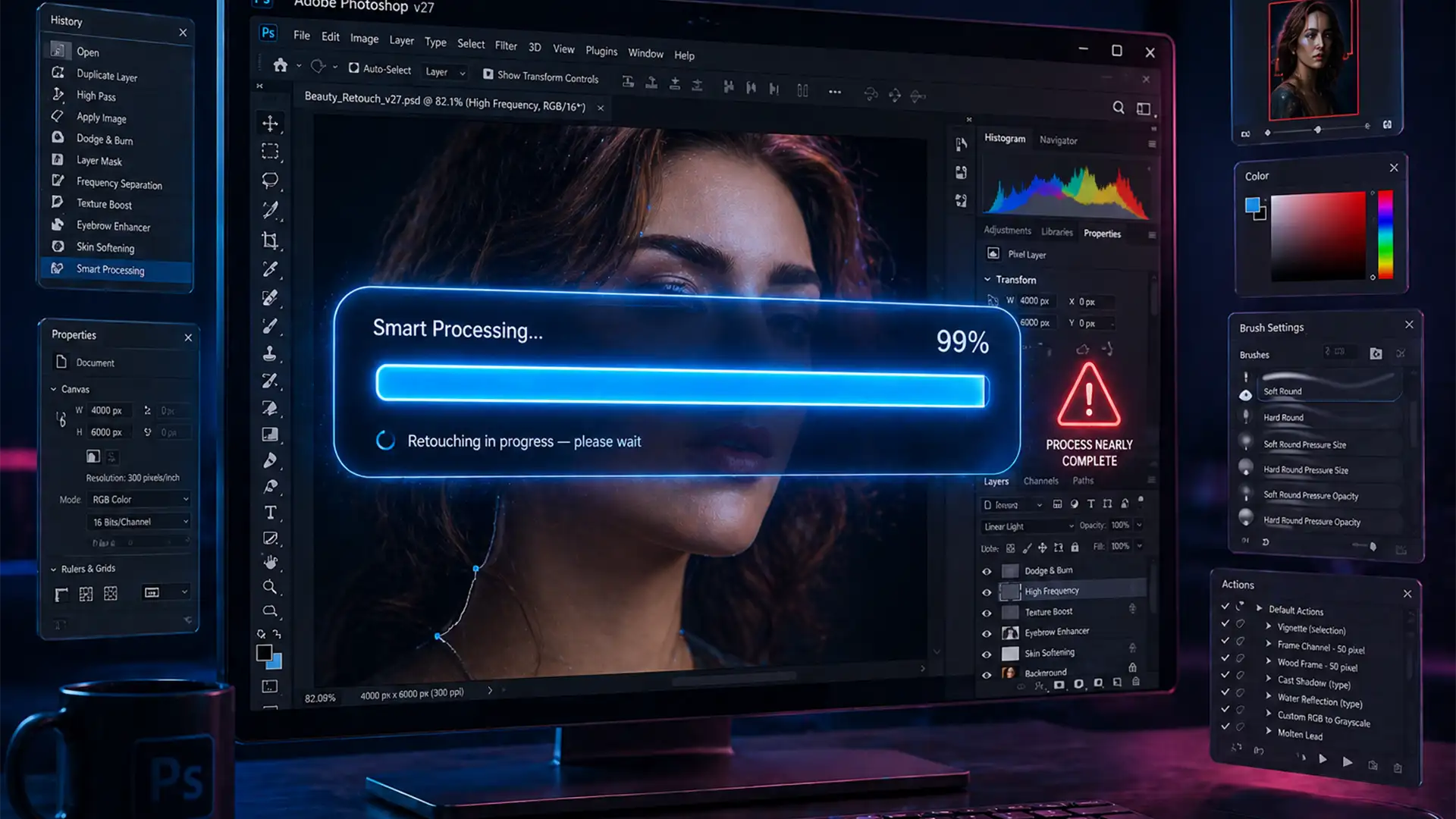

You are on a tight deadline, ready to clean up a client’s image. But when you select the AI-powered Remove Tool, Photoshop freezes. Instead of seamless edits, you are hit with a banner that refuses to disappear: “Required components are being downloaded.”
If you are trapped in this infinite download loop, you are not alone. This is a documented issue affecting Adobe Photoshop v25.0 through v27.x. Whether it is caused by a stalled Adobe Creative Cloud daemon, corrupted cache files, or background permission blocks, this guide will walk you through the exact steps to implement the Photoshop Remove Tool required components are being downloaded fix 2026.
Let’s get your workspace running smoothly again.
Why is the Remove Tool Stuck Downloading?
Unlike the traditional healing brush, the modern Remove Tool relies heavily on external machine learning models. To keep the core software lightweight, Adobe does not bundle these heavy AI models directly into the initial installation. Instead, Photoshop fetches them dynamically.
The download loop typically triggers when:
- Network timeouts or strict firewalls block the Adobe Creative Cloud daemon.
- Corrupted temp files clutter your UXP plugin directory.
- Permission issues prevent the Adobe Desktop Service from writing to your hard drive.
- Your Mac is running Photoshop via Rosetta emulation, which conflicts with native Apple Silicon requirements for AI processing.
Here are the four proven methods to fix the error and get back to editing.
Method 1: The Quick Session Refresh
Often, the connection between Photoshop and the Creative Cloud app simply times out, leaving your download hanging. Refreshing your session token forces the system to re-authenticate and resume the download.
- Close Photoshop entirely. Ensure no background processes are running.
- Open the Creative Cloud Desktop App.
- Click your profile icon, select Sign Out, and then log back in.
- Relaunch Photoshop as an Administrator (Right-click > Run as Administrator on Windows).
- Select the Remove Tool. The download prompt should now trigger cleanly and complete within seconds.
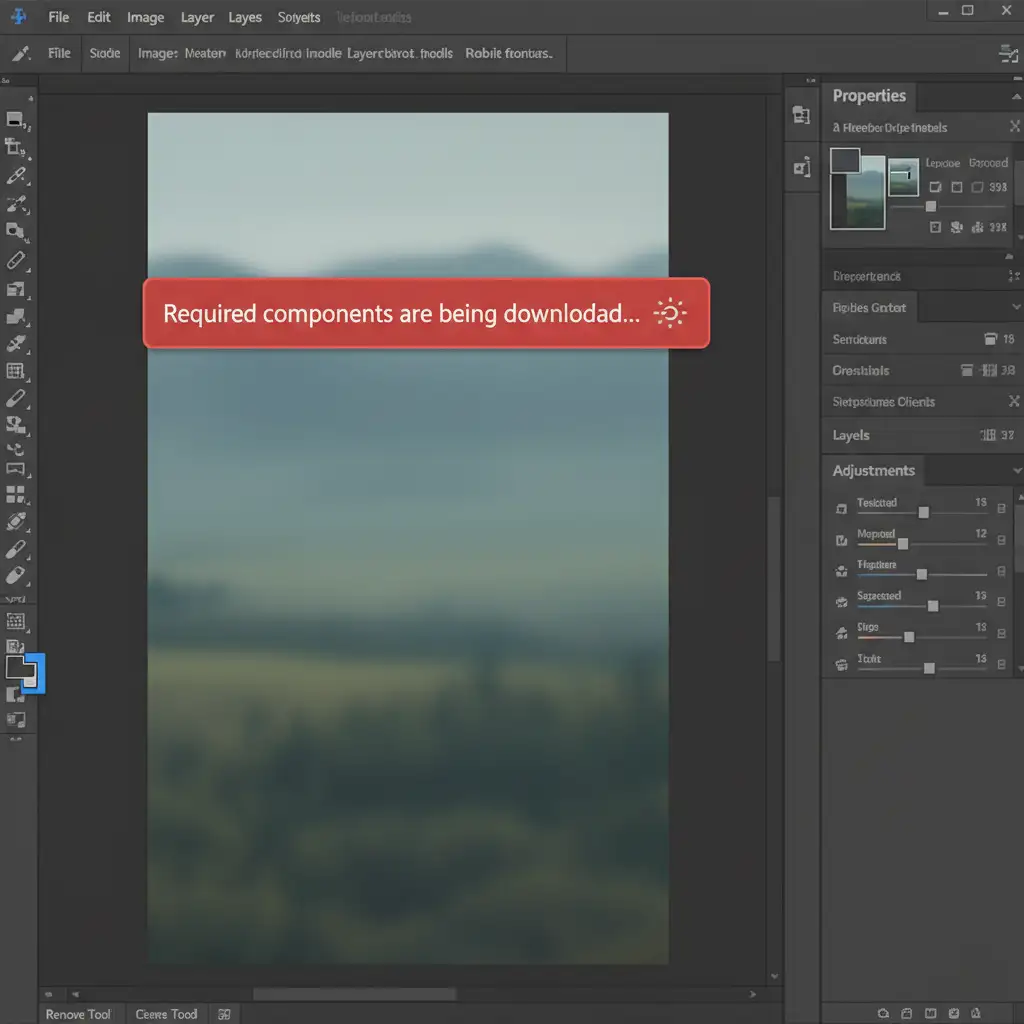
Method 2: Manually Install via Creative Cloud Add-ons
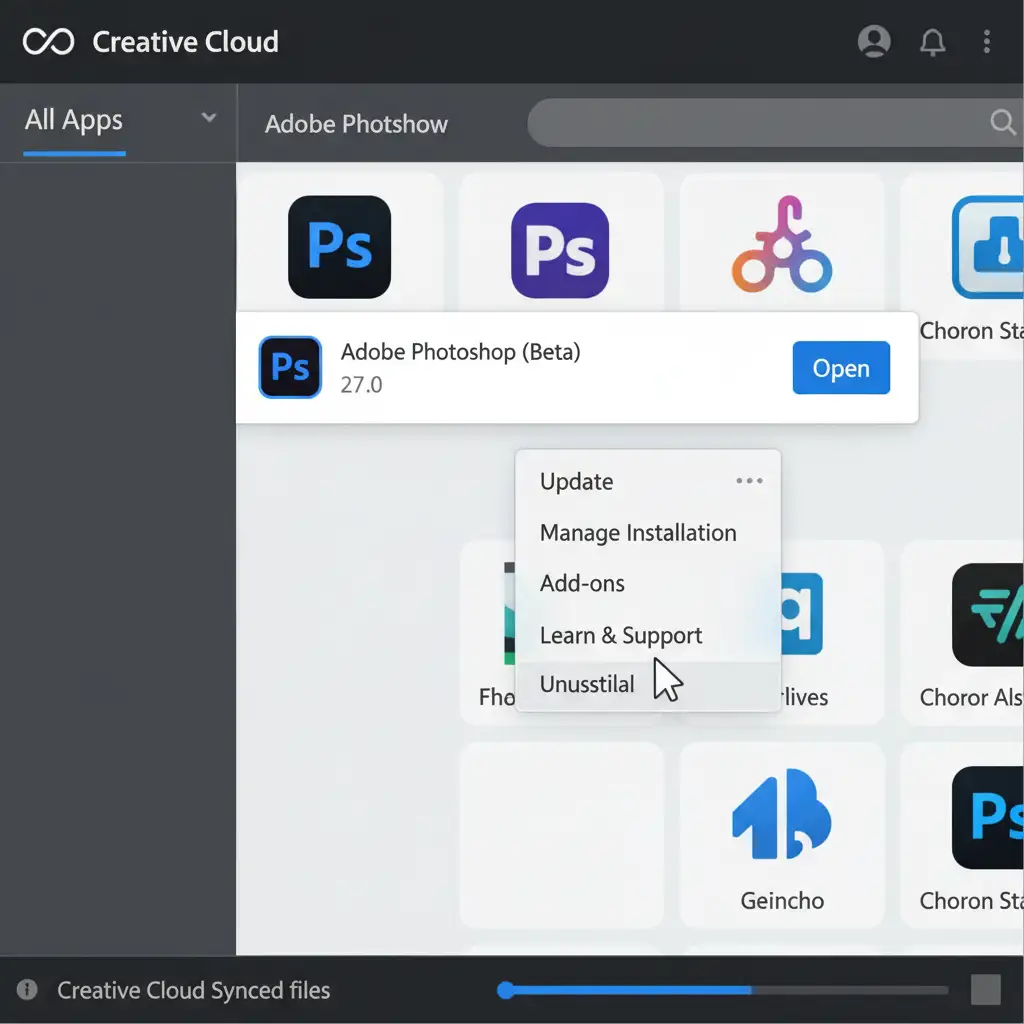
If the in-app download is failing, you can bypass Photoshop entirely and force the installation through the Creative Cloud Desktop application.
- Open the Creative Cloud Desktop app.
- Navigate to the All Apps section and locate Photoshop.
- Click the three-dot menu (…) next to the Open button.
- Select Add-ons from the dropdown menu.
- Scroll down to find the Remove Tool components package and click Install.
Method 3: Purge the Corrupted UXP Cache
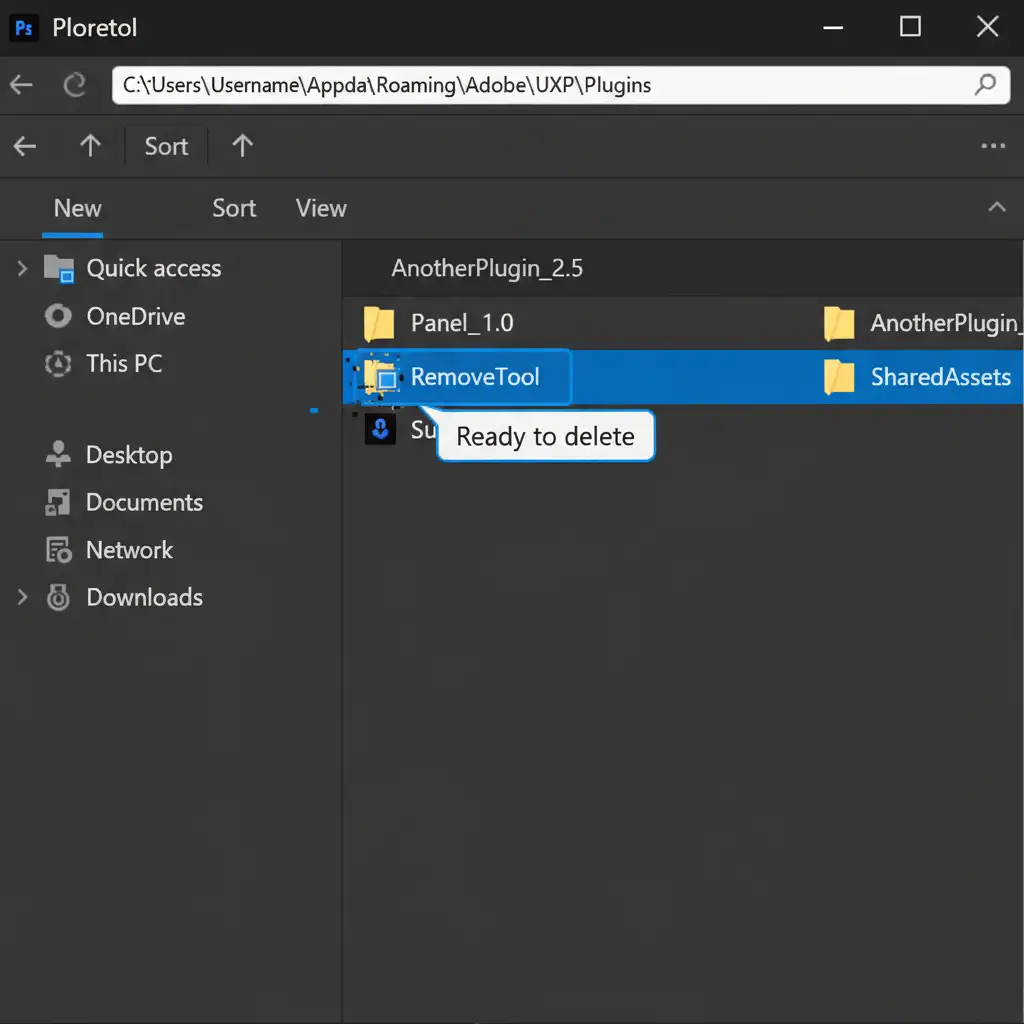
When failed downloads leave corrupted temporary files behind, Photoshop will continuously fail to install the AI generative fill and Remove Tool models. Clearing the appdata roaming cache forces a fresh download.
For Windows Users:
- Close Photoshop and Creative Cloud.
- Press Win + R, type %appdata%, and hit Enter.
- Navigate to: AppData\Roaming\Adobe\UXP\Plugins
- Locate the folder associated with the Remove Tool and delete it.
- Empty your Recycle Bin, restart your PC, and relaunch Photoshop.
(Note: While you are optimizing your system, ensure your scratch disk has ample free space and your GPU acceleration is enabled in your image processing preferences for the best AI tool performance).
Method 4: Disable Rosetta Emulation (Mac Users)
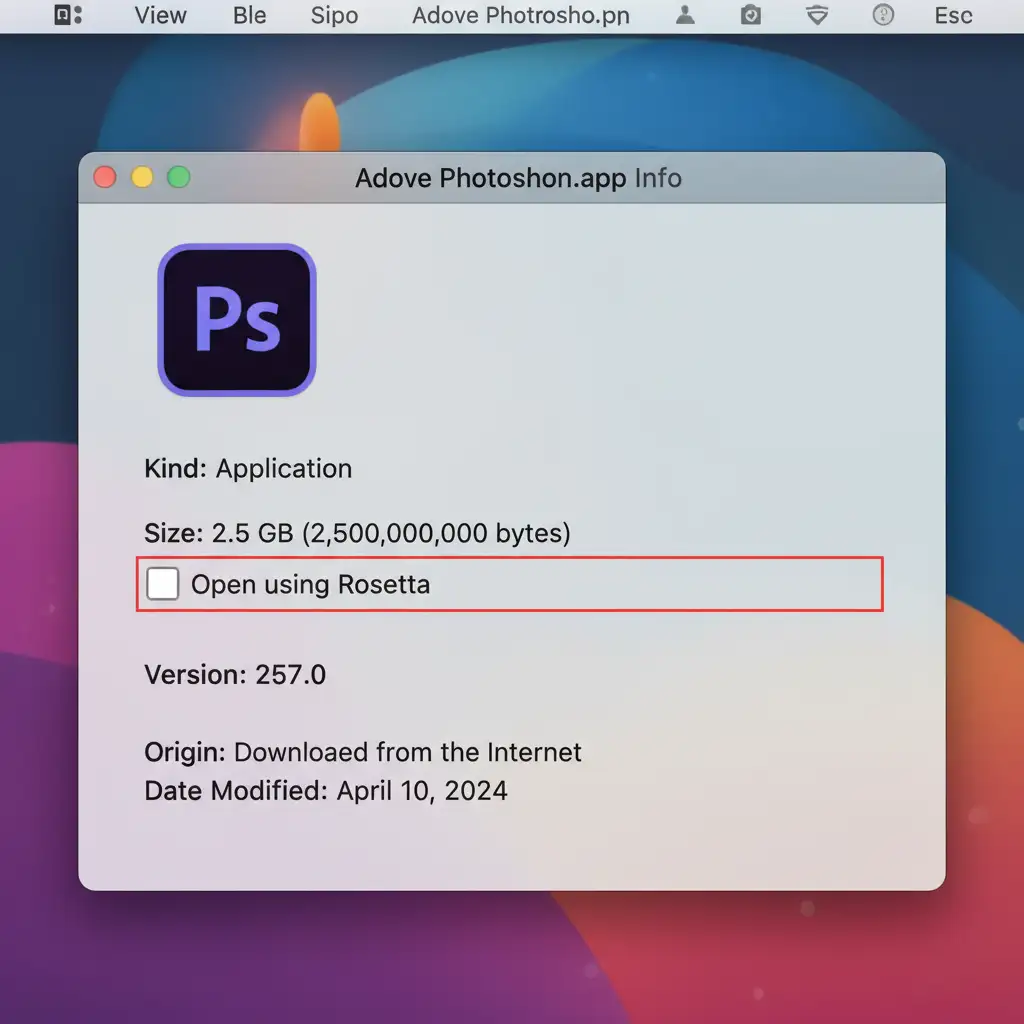
For Mac users on M1, M2, or M3 chips, running Photoshop through Rosetta emulation severely limits the software’s access to the Neural Engine. The Remove Tool and neural filters require native Apple Silicon execution to process AI components correctly.
- Close Photoshop.
- Open Finder and navigate to your Applications folder.
- Locate the Adobe Photoshop app icon.
- Right-click the icon and select Get Info (or press Cmd + I).
- Look under the General section for the “Open using Rosetta” checkbox.
- Ensure this box is unchecked.
- Relaunch Photoshop.
Stop Fighting Your Software. Let the Experts Handle It.
Troubleshooting the Photoshop Remove Tool required components are being downloaded fix 2026 can eat up hours of your valuable time. When you are managing high-volume commercial photography, real estate shoots, or e-commerce catalogs, a software glitch shouldn’t bring your entire production pipeline to a halt.
Struggling with buggy AI tools and tight deadlines? Leave the technical headaches behind.
At Image Work India and Cloud Retouch, our dedicated teams handle high-volume photo editing, complex masking, and high-end retouching with pixel-perfect accuracy. We utilize enterprise-grade hardware and software to ensure flawless results—no infinite loading screens required.
[Contact Image Work India and Cloud Retouch today] to streamline your workflow and get your final images delivered on time, every time.




