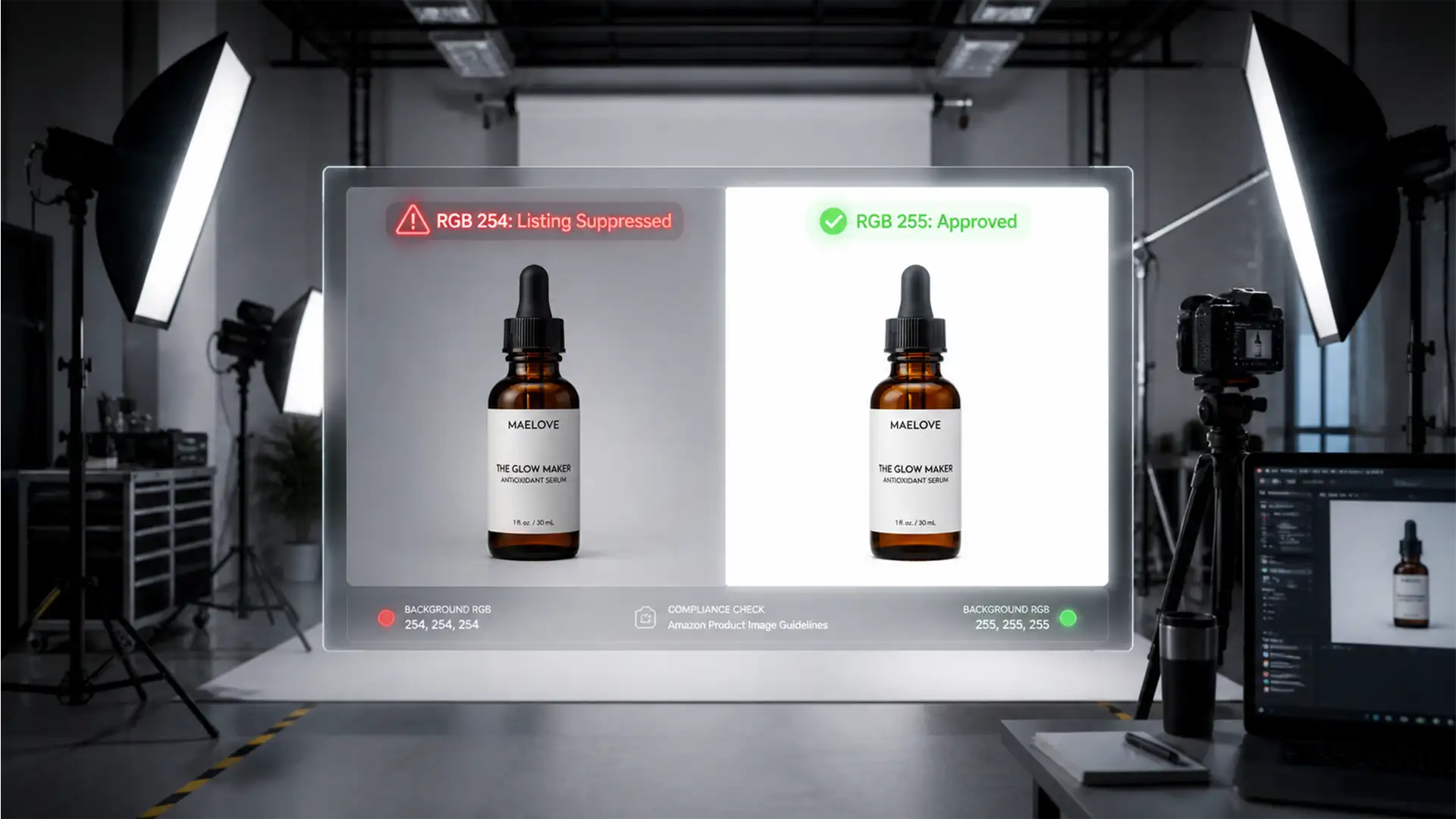

You spent hours perfecting your product photography, only to wake up to a nightmare: Amazon suppressed your listing. The culprit? Your white background isn’t actually white. Amazon’s automated quality control bots are ruthless, demanding strict Amazon RGB 255 white background compliance.
If your background is even slightly off—say, RGB 254 or 253 due to natural lighting falloff—your listing gets flagged and hidden from buyers. Even worse, improper export settings can ruin a perfectly edited PSD file. In this guide, we will show you exactly how to fix these microscopic color shifts in Adobe Photoshop CC 2024, ensuring your main images hit perfect Hex #FFFFFF every single time.
Why Amazon Rejects “Visually White” Backgrounds
Amazon’s main product image guidelines strictly mandate a pure white background. The exact technical requirement in the RGB color model is a value of exactly 255, 255, 255 (or Hex #FFFFFF).
Photographers shooting on white seamless paper rarely achieve true RGB 255 in-camera. Due to lighting falloff and lens vignetting, the background often registers at RGB values between 240 and 254. While this looks white to the human eye, Amazon’s algorithmic bots read the mathematical data. If they detect RGB 254, it triggers an automatic listing suppression.
A secondary technical pain point occurs during export. If a seller uses ‘Export As’ with the wrong color space conversion (e.g., converting from Adobe RGB to sRGB improperly), pure white pixels can mathematically shift to 254 or 253, triggering the error despite the Photoshop document being correct.
Step 1: Diagnose Your Background with the Info Panel
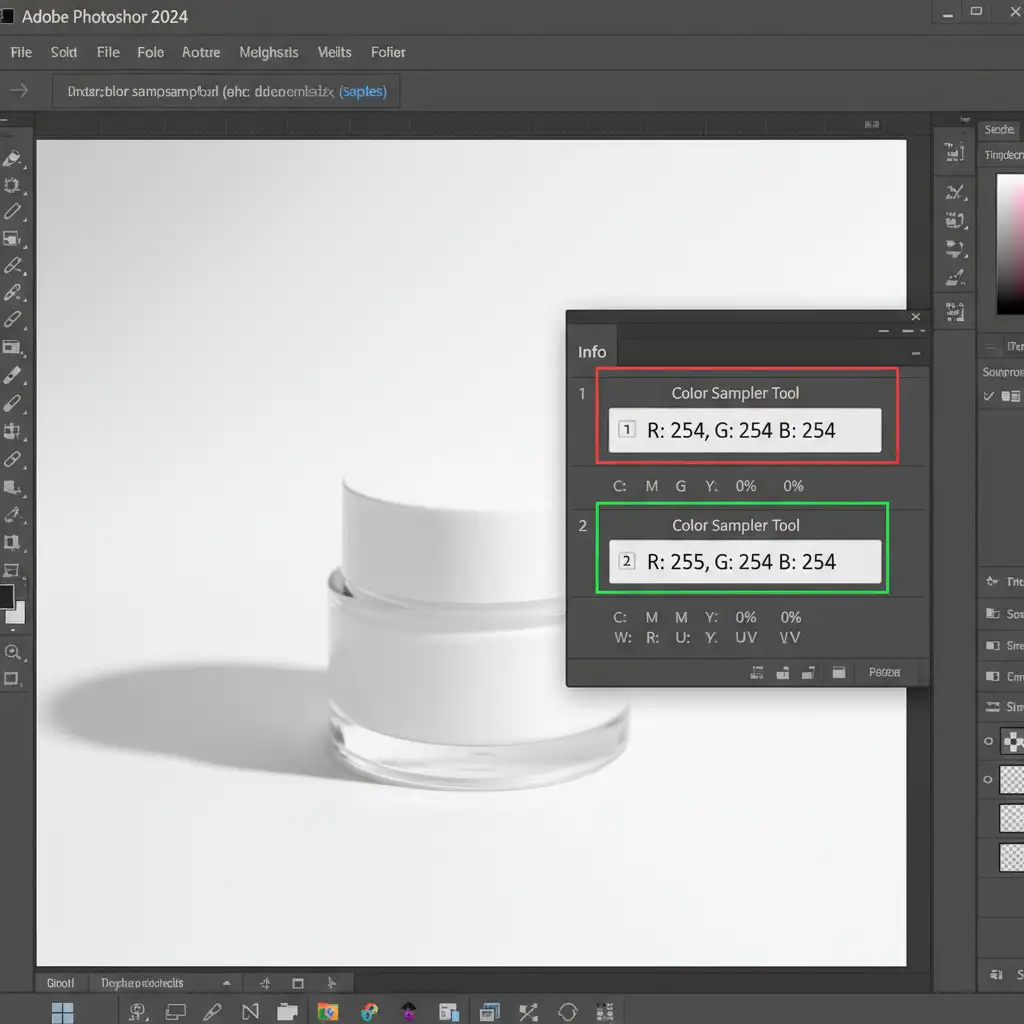
Before applying a fix, you need to verify your current RGB values mathematically. Do not rely on your monitor’s calibration.
- Open your image in Photoshop CC 2024.
- Press F8 to open the Info Panel (or go to Window > Info).
- Select the Color Sampler Tool (nested under the Eyedropper tool).
- Drop a marker on the brightest part of your background, and another on the darkest corner.
If any of those numbers read anything other than 255, you need to apply one of the following fixes.
3 Methods to Achieve Amazon RGB 255 White Background Compliance
Depending on the complexity of your product’s edges, choose the method that best fits your workflow.
Method A: The Quick Fix (Best for Hard Edges)
If your product has clean, solid edges without complex transparency, you can force the background to pure white quickly.
- Select the Magic Wand Tool and set the tolerance to 10.
- Click on your off-white background.
- Go to Select > Modify > Expand and expand by 1 pixel. This crucial step catches anti-aliasing edge pixels that cause gray halos.
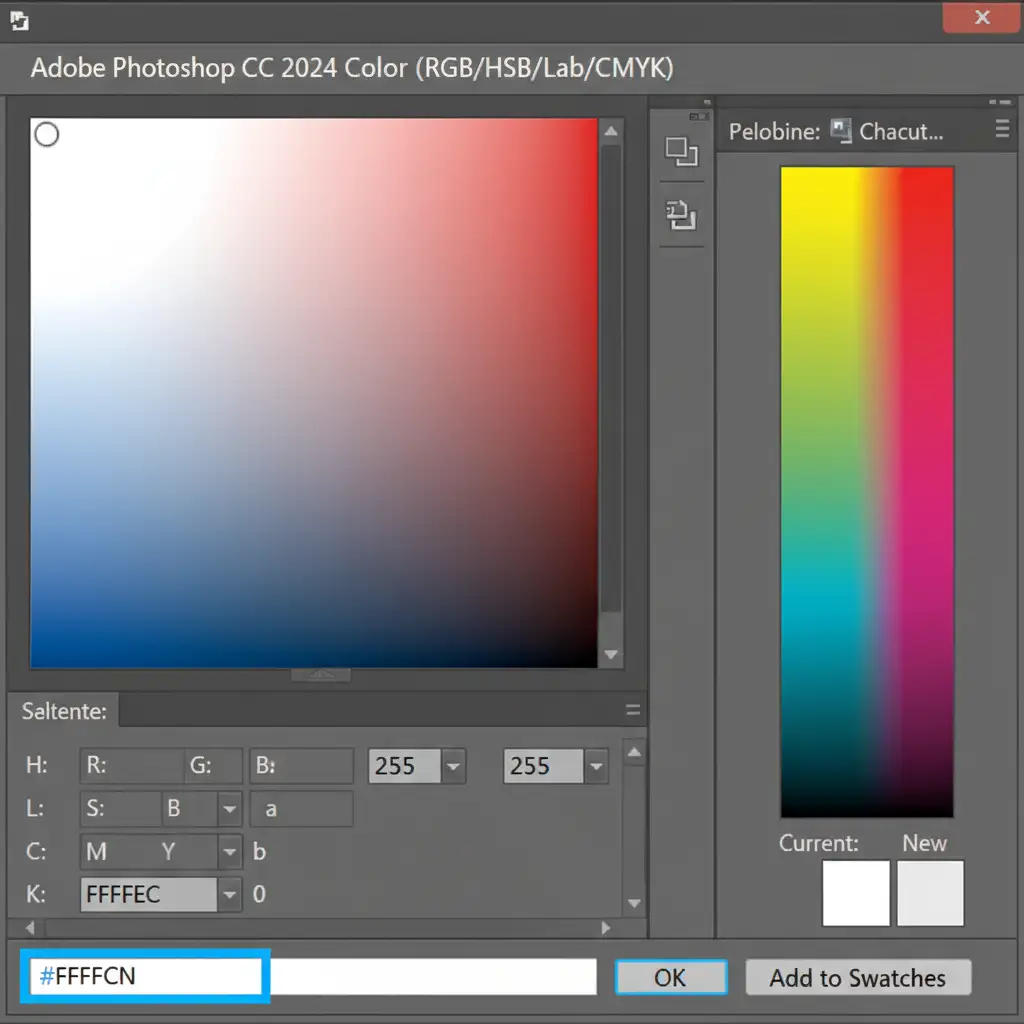
- Press Shift+F5 to open the Fill dialog.
- Choose “Color…” and input Hex #FFFFFF.
Method B: The Pro Workaround (Best for Lighting Adjustments)
If your background is very close to pure white but just needs a slight push, a Levels Adjustment is the safest non-destructive method.
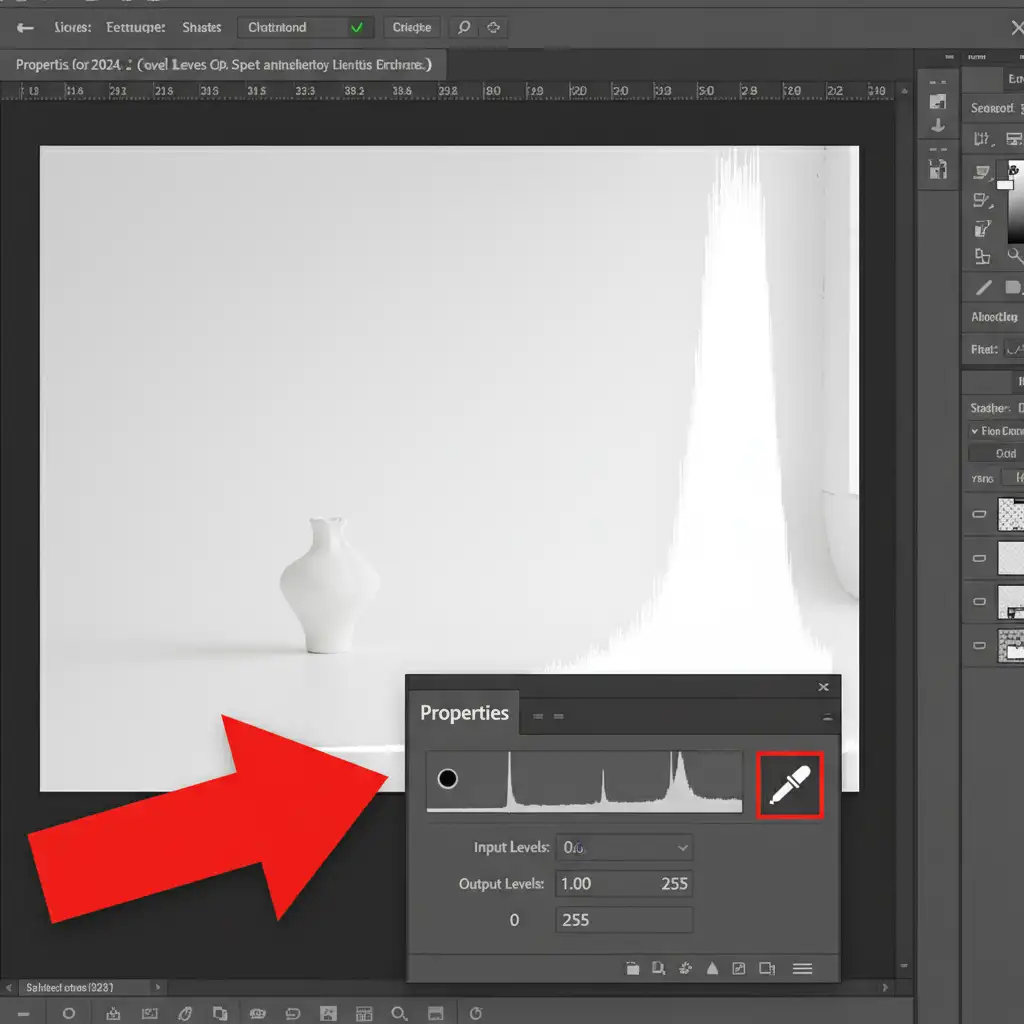
- Open the Layers panel and add a Levels Adjustment Layer.
- In the Properties panel, select the White Point Eyedropper tool.
- Click on the darkest part of your off-white background. This forces those specific pixels—and anything brighter—to pure 255 white.
- Caution: If this makes your product too bright, select the layer mask, grab a black brush, and utilize Layer Masking to paint over the product, protecting its original lighting.
Method C: The Technical Deep-Dive (Guaranteed Compliance)
For high-end e-commerce imagery, relying on automated selections or lighting adjustments is risky. The only way to guarantee 100% compliance without edge haloing is by isolating the product completely.
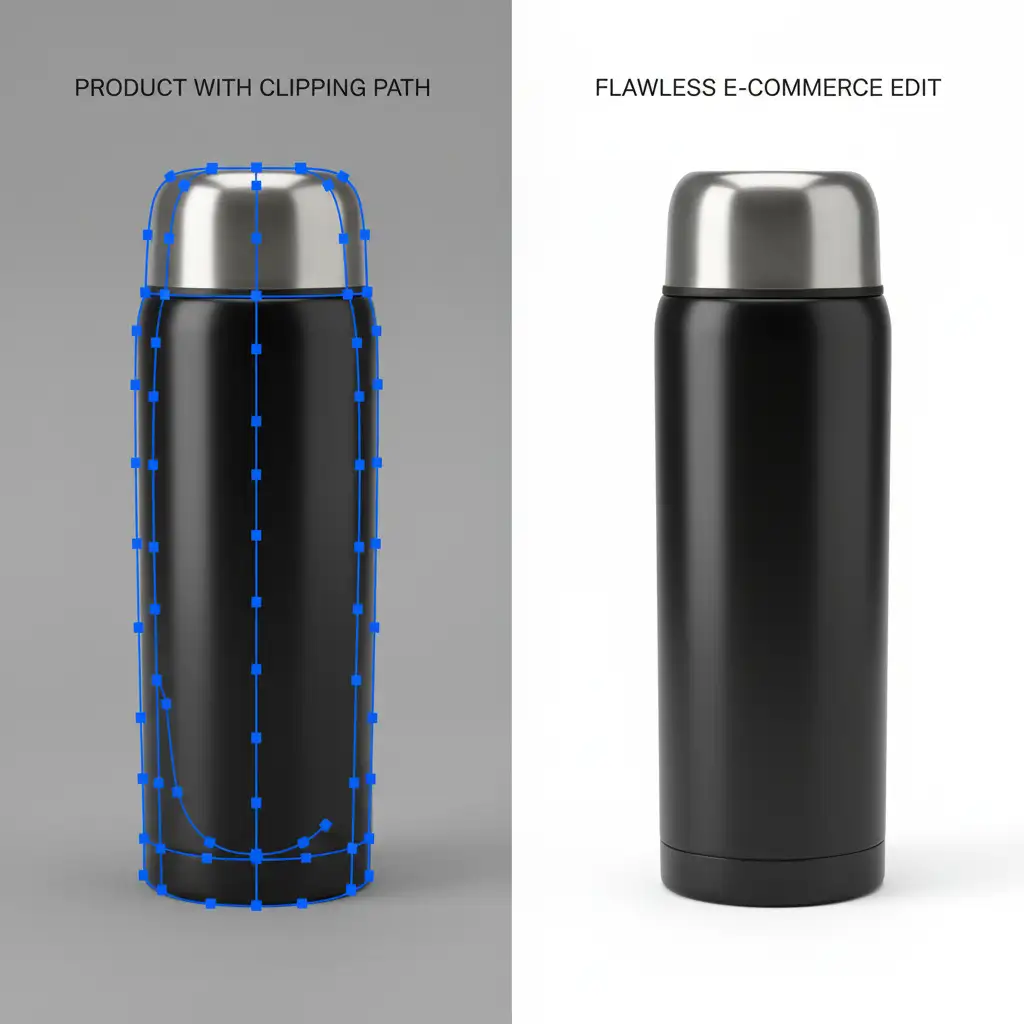
- Select the Pen Tool (P) and trace your product to create a precise Clipping Path.
- Right-click the path and choose “Make Selection” (feather radius: 0.5px).
- Apply a layer mask to extract the product from the original background.
- Create a Solid Color Fill Layer and place it underneath your product layer.
- Set the Solid Color Fill strictly to R:255, G:255, B:255.
Preventing Color Shifts During Export
Your PSD might be perfect, but your export settings can still trigger Amazon listing suppression. When saving your final image:
- Use File > Export > Export As…
- Select JPEG format at Maximum Quality.
- Crucial Step: Ensure “Embed Color Profile” is unchecked if you are experiencing mathematically shifting values on upload. Sometimes, browsers and Amazon’s compression algorithms misinterpret embedded Adobe RGB profiles, shifting a 255 white to a 254 gray.
Stop Risking Your Amazon Sales Over Off-White Pixels
Achieving strict Amazon RGB 255 white background compliance is tedious, especially when you have hundreds of product variants to process. A single mathematical error like an RGB 254 pixel or a faint drop shadow reaching the image border can result in immediate listing suppression, tanking your daily revenue.
Stop risking your Amazon rankings over a few off-white pixels. Let the experts handle the heavy lifting. Hire Image Work India and Cloud Retouch for pixel-perfect, Amazon-compliant product photo editing. Our professional retouchers specialize in flawless Pen Tool clipping paths and precise color verification, guaranteeing pure #FFFFFF white backgrounds on every single image.
Focus on growing your brand, and let us handle the technical compliance. Contact Image Work India today to get your product catalog Amazon-ready.




