

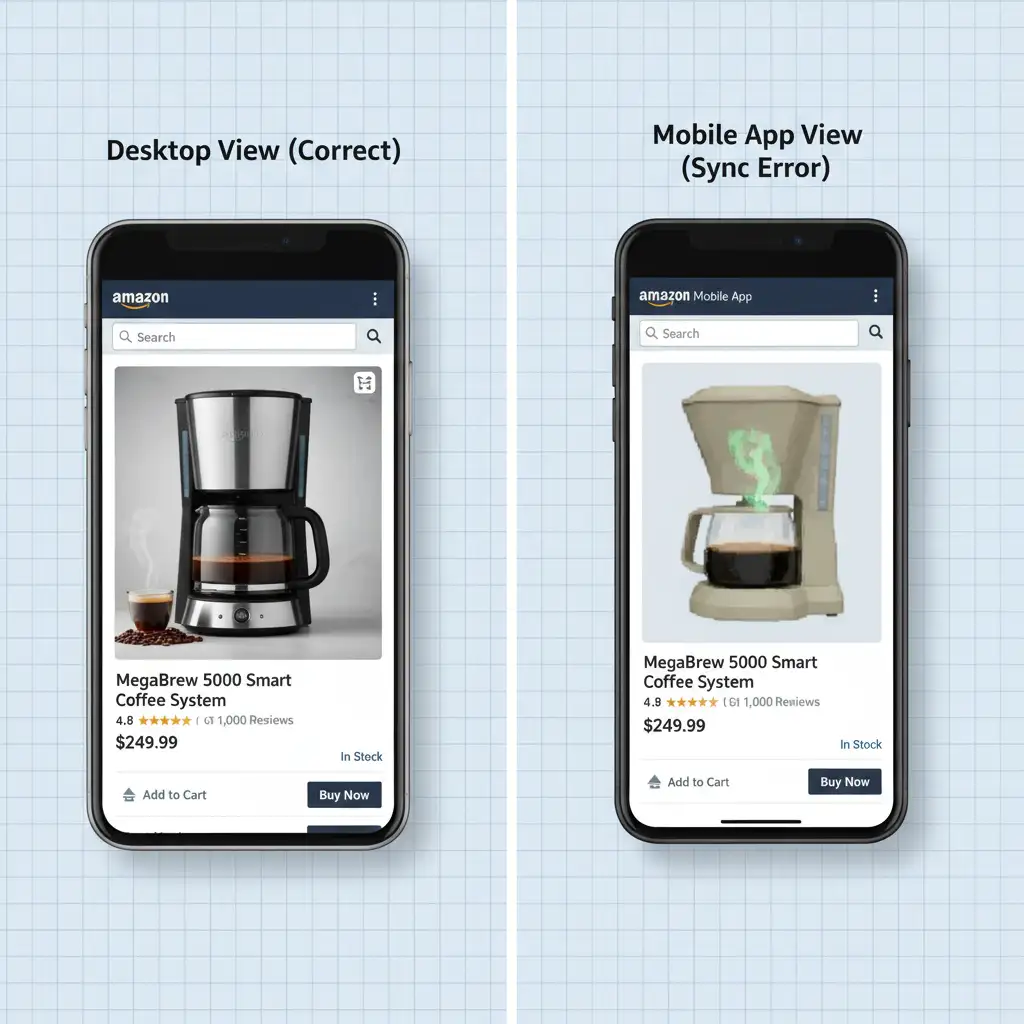
You check Seller Central, and your product images are perfectly formatted. You check your live listing on a desktop browser, and everything looks pristine. But the moment you open the Amazon mobile app, your heart sinks. Your images are outdated, distorted, or completely replaced by bizarre, unauthorized AI-generated versions.
If this sounds familiar, you are dealing with the highly frustrating Amazon mobile app image sync error 2024.
When mobile shoppers make up the vast majority of e-commerce traffic, a broken mobile listing directly tanks your conversion rates. This guide will explain exactly why Amazon’s servers are displaying the wrong images on mobile devices and provide three proven methods to force a catalog sync and reclaim control of your brand’s visual presentation.
Why Do Amazon Listings Look Different on the Mobile App?
The disconnect between your Seller Central backend and the live mobile app stems from a complex mix of server caching and automated catalog updates. In 2024, this issue is primarily driven by three factors:
- Mobile Endpoint API Desync: The Amazon mobile app queries a different API endpoint for media delivery than the desktop site. When the primary catalog node fails to propagate changes downwards, the mobile endpoint gets “stuck” on older data.
- Aggressive AWS Edge-Caching: To make the mobile app load faster, Amazon relies heavily on AWS edge-caching. Sometimes, the cache holding your old product images simply refuses to clear, even after you successfully update the desktop listing.
- AI Generative Listing Overrides: Amazon’s recent push for AI-generated listing optimizations has introduced a new headache. The system will sometimes automatically generate and apply “optimized” images to the mobile view without notifying the primary brand owner, overriding your manual image contributions.
To fix this, you need to force the Amazon A9 algorithm to recognize your Brand Registry override and push the correct data across all platforms.
Here are the three ways to fix it, ranging from a quick soft push to a technical hard refresh.
Method 1: The Quick Fix (Soft Push)
Before diving into complex spreadsheets, try forcing a micro-update. This method works by tricking the system into re-evaluating your entire listing, which often prompts the mobile endpoint API to fetch fresh image data.
How to do it:
- Log into Seller Central and navigate to Manage Inventory.
- Click Edit on the affected ASIN.
- Navigate to the Product Details or Description tab.
- Make a microscopic edit to your product title or bullet points (e.g., add a comma, change a word, or add an extra space at the end of a sentence).
- Click Save and Finish.
This action triggers an automated soft push across Amazon’s catalog nodes. Check your mobile app in 15 to 30 minutes; the cache will often flush, resolving the sync error.
Method 2: The Pro Workaround (Flat File Upload)
If the soft push fails, the AI generative listing overrides are likely clinging to your ASIN. You need to establish maximum catalog node dominance using a flat file upload. This method explicitly tells Amazon’s backend that your provided data takes absolute precedence.
How to do it:
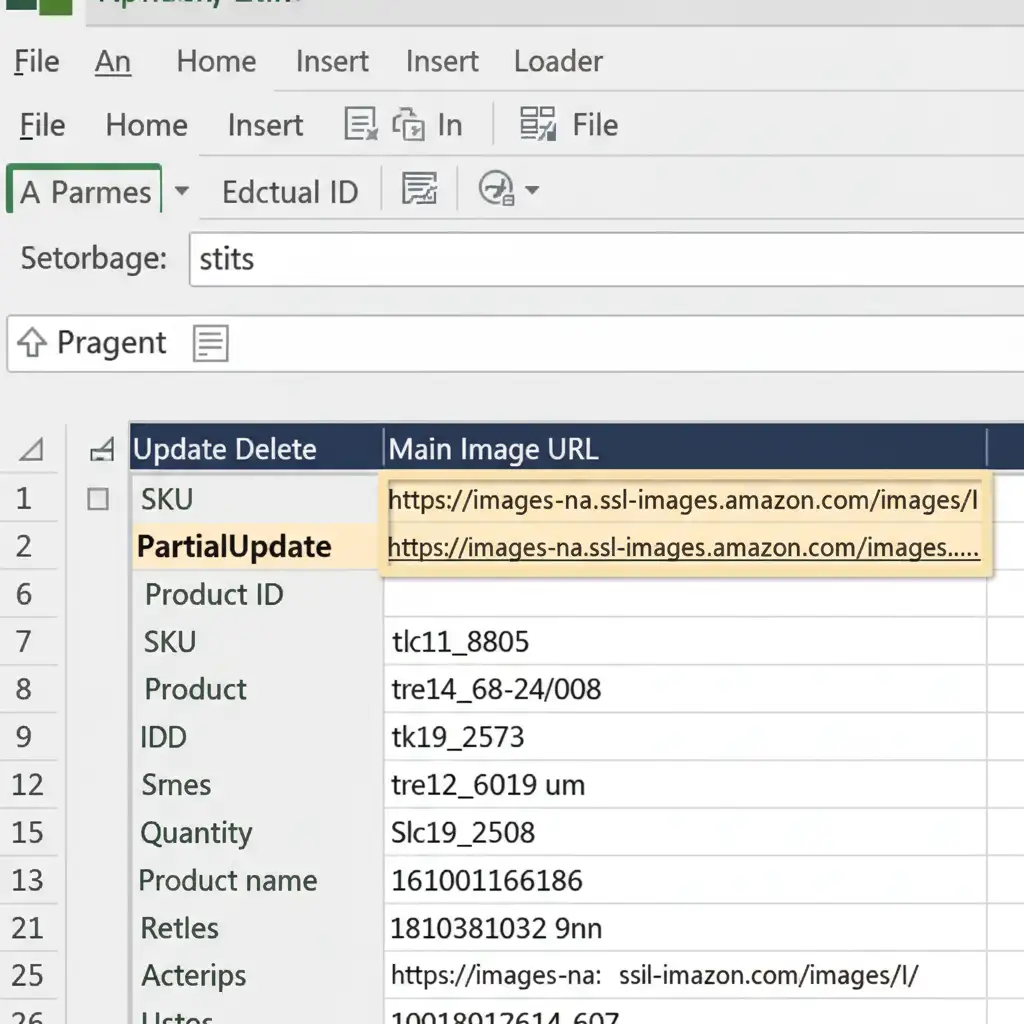
- Download an Inventory Loader flat file specific to your product category via the Add Products via Upload page.
- Open the spreadsheet and fill in your ASIN and SKU.
- Locate the Update Delete column and type exactly: PartialUpdate.
- Scroll to the Main Image URL and Other Image URL columns. Paste the direct, publicly hosted links to your correct, high-resolution product images.
- Save the file and upload it to Seller Central.
Using PartialUpdate ensures you don’t accidentally wipe out your other listing data, while the fresh image URLs force an ASIN mapping correction that overrides any unauthorized AI contributions.
Method 3: The Technical Deep-Dive (Hard Catalog Refresh)
If you have tried the first two methods and the mobile app is still showing the wrong images, your ASIN is locked in a corrupted cache state. You must open a highly specific case with Seller Support to request a hard refresh.
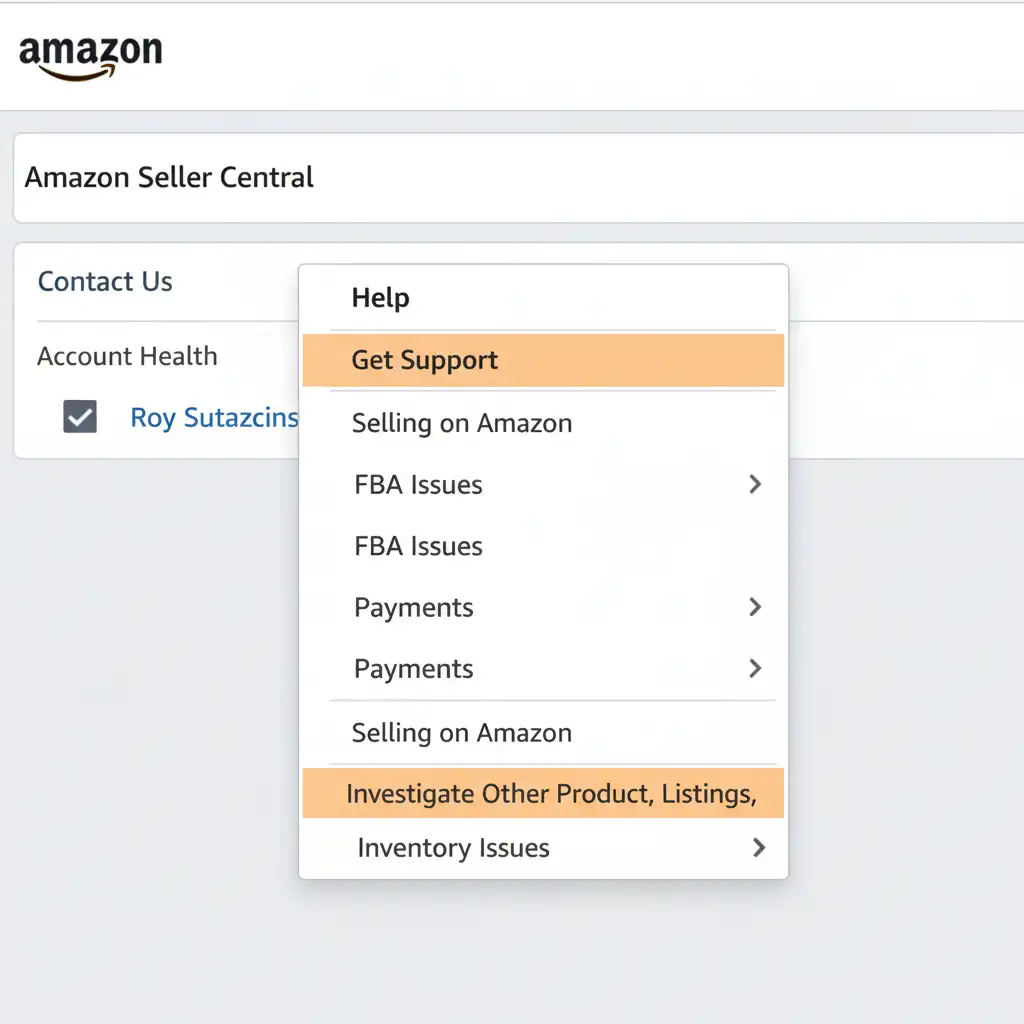
How to do it: Navigate through Seller Central using this precise path: Help > Get Support > Selling on Amazon > Investigate Other Product, Listings, Inventory Issues.
When opening the case, do not just say “my images are wrong.” You must use specific technical language so the front-line reps route your ticket to the Catalog Team.
Use this exact script for your support ticket:
“Hello Catalog Team, I am experiencing a severe mobile endpoint API desync on ASIN [Your ASIN]. The images display correctly in Seller Central and on desktop browsers, but unauthorized AI contributions are overriding my Brand-Registered images specifically on the Amazon Mobile App. Please perform a Hard Refresh on this ASIN, lock the image contributions to my specific Seller ID [Your ID], and flush the AWS edge cache so the mobile app reflects my correct Brand Registry contributions. Thank you.”
By explicitly mentioning the AWS edge cache and brand registry hierarchy, you signal to the catalog team exactly which backend tools they need to use to resolve the Amazon mobile app image sync error 2024.
Prevent Future Image Overrides with Professional Catalog Management
Dealing with Amazon’s strict image guidelines, API desyncs, and aggressive AI overrides is a full-time job. When your product images fail to load correctly, you lose buyer trust and, ultimately, sales.
You don’t have to fight the Amazon A9 algorithm alone.
Image Work India and Cloud Retouch specialize in high-end e-commerce image editing and comprehensive catalog management. Whether you need your product photography perfectly formatted to meet Amazon’s strict technical requirements, or you need experts to manage your flat file uploads and ensure your listings display flawlessly across every device, we have you covered.
Stop losing mobile sales to glitchy, outdated images. Contact Image Work India today and let our experts optimize your Amazon catalog for maximum conversions.




