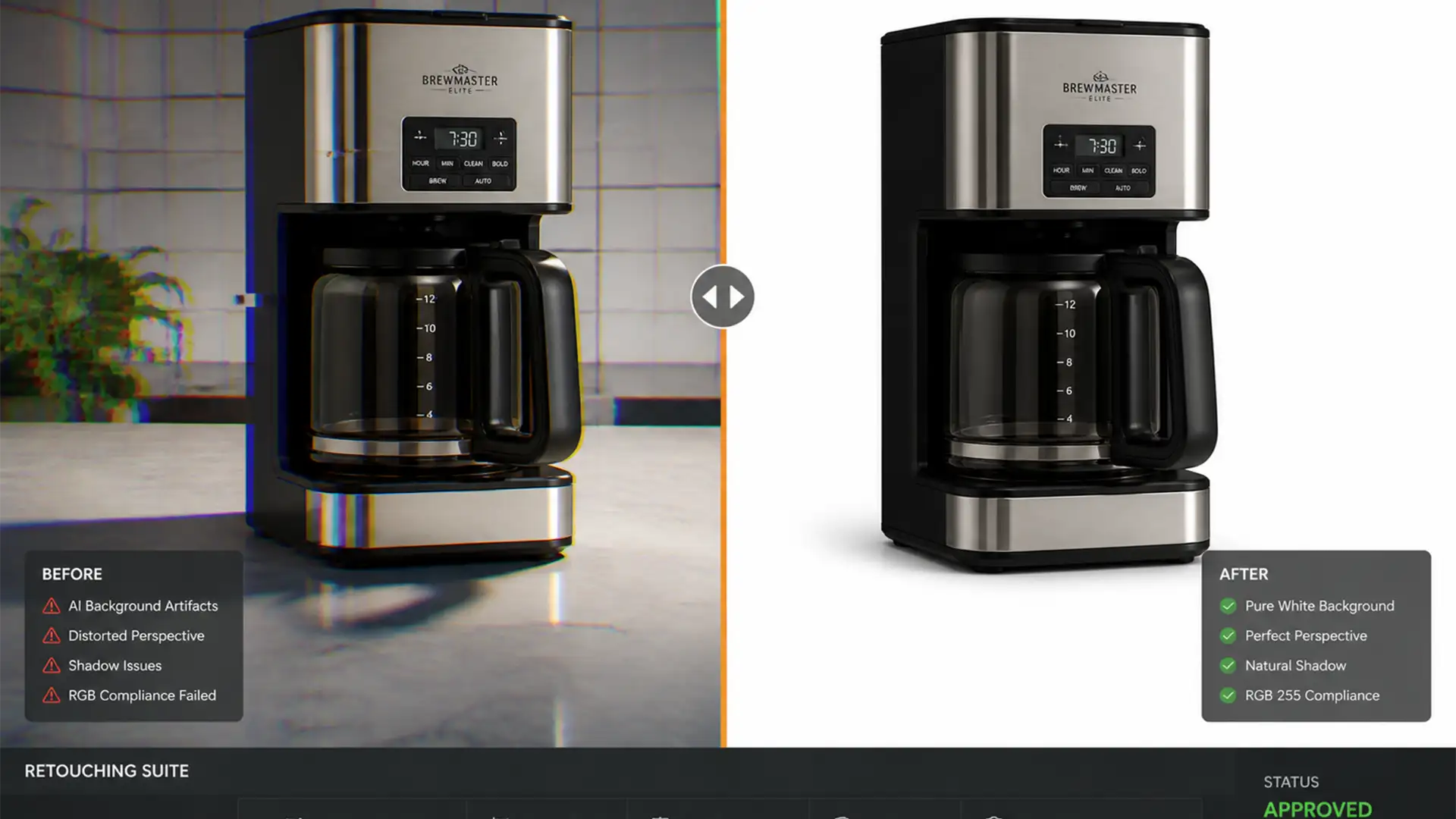

Amazon sellers are eagerly adopting native AI background generators to create lifestyle images, but there is a massive hidden risk: image hallucinations. Amazon’s AI tools frequently generate extra geometry, warped perspective lines, and bizarre textures near product boundaries. If you leave these distorted drop shadows and edge halos unchecked, you risk immediate listing suspensions for violating Amazon Image Compliance guidelines. Removing AI artifacts from product photos isn’t just about aesthetics; it is a critical step to keeping your storefront active.
Below, we break down three professional Photoshop workflows to clean up AI errors and ensure your product images are flawless.
Why Native AI Background Generators Fail
Generative AI is powerful, but it lacks contextual awareness. When you use automated tools to swap out a background, the AI often struggles to understand where the physical product ends and the environment begins. This confusion results in:
- Image Hallucinations: The AI rendering objects or shapes that do not exist.
- Edge Halos: Unnatural glowing or jagged outlines around the core product.
- Shadow Distortion: Drop shadows that defy real-world lighting physics.
To fix these issues and maintain Amazon Image Compliance (which demands realistic lifestyle compositions and pure white main images), you need to utilize the advanced toolsets found in Adobe Photoshop v25.x and v26.x.
3 Professional Workflows for Removing AI Artifacts from Product Photos
Whether you are dealing with minor glitches or complete background failures, these three non-destructive retouching techniques will restore your product photos.
Method 1: The Quick Fix Using the Remove Tool
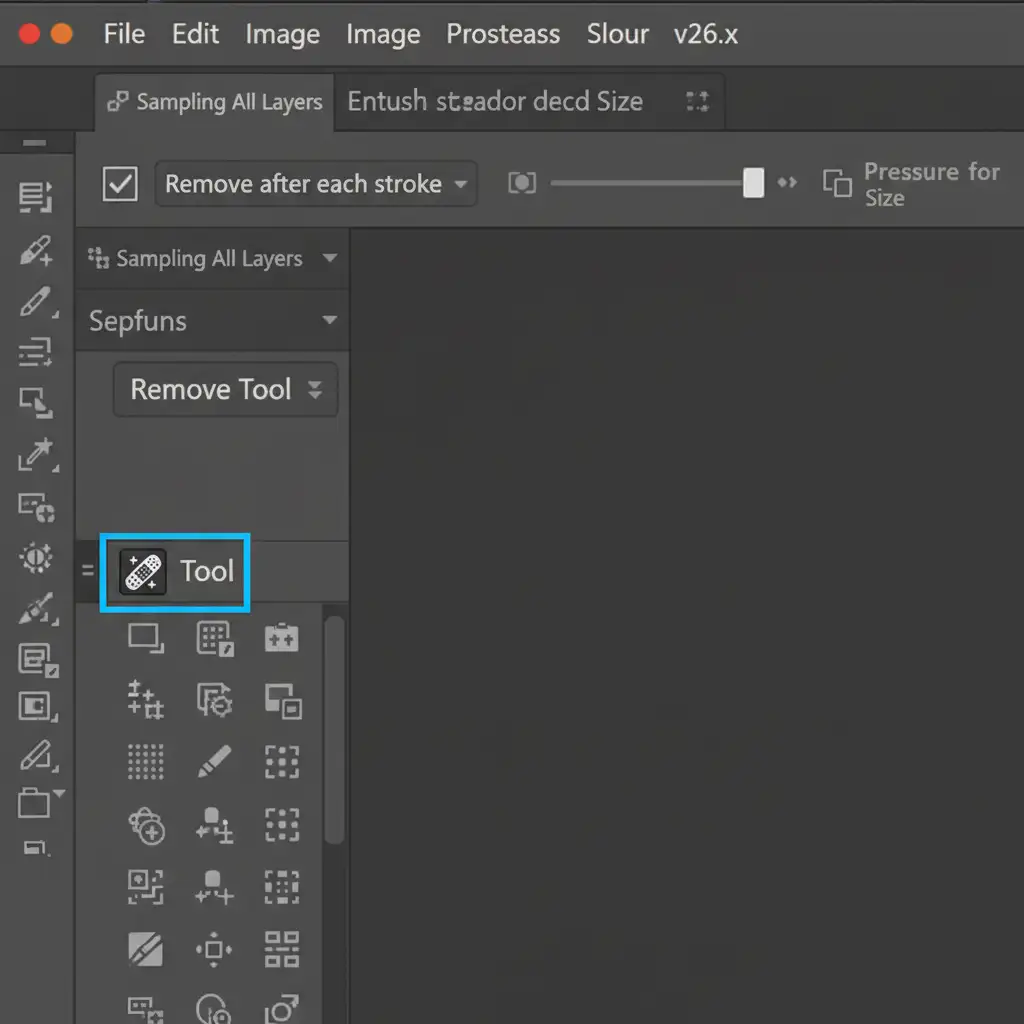
For minor, isolated image hallucinations—such as a weird texture on a table or an extra generated leaf in a lifestyle background—the Remove Tool is your fastest option. Introduced in recent Photoshop builds, this tool uses Adobe’s local AI to seamlessly blend and reconstruct the background.
How to execute:
- Press (J) on your keyboard to select the Remove Tool.
- Look at the top options bar and ensure “Remove after each stroke” is checked.
- Simply brush over the hallucinated artifact. The software will instantly analyze the surrounding pixels and patch the error.
Method 2: The Pro Workaround for Textures and Shadows
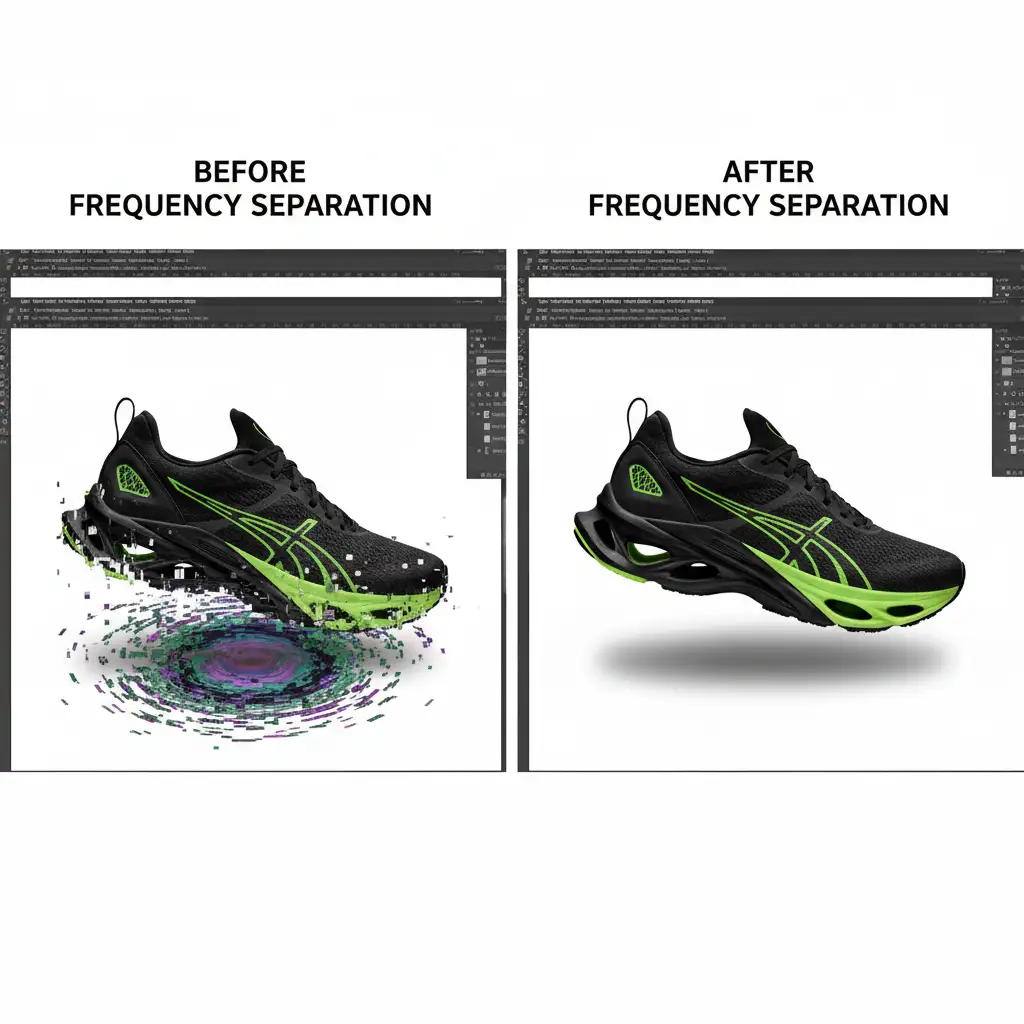
Sometimes, AI hallucinates bizarre textures directly underneath the product, ruining the drop shadow. Using Generative Fill here might just create new errors. Instead, rely on a manual Pro Workaround using the Clone Stamp Tool and Frequency Separation.
How to execute:
- Create a new blank layer and select the Clone Stamp Tool (S) or the Spot Healing Brush. Set the sample mode to Sample All Layers.
- Carefully stamp out hard structural errors.
- For surface anomalies (like a blotchy, distorted AI shadow), run a Frequency Separation action. This separates the texture of the image from its color and lighting gradients.
- Smooth out the weird AI color shifts on the low-frequency layer without destroying the underlying realistic lighting and gradients on the high-frequency layer.
Method 3: The Technical Deep-Dive (Complete Masking Override)
When an AI background generator severely degrades the edges of your product, patching the background won’t work. You must perform a Complete Masking Override to strip away the edge halos entirely and isolate the pristine product.
How to execute:
- Select the Object Selection Tool to automatically snap to the core product.
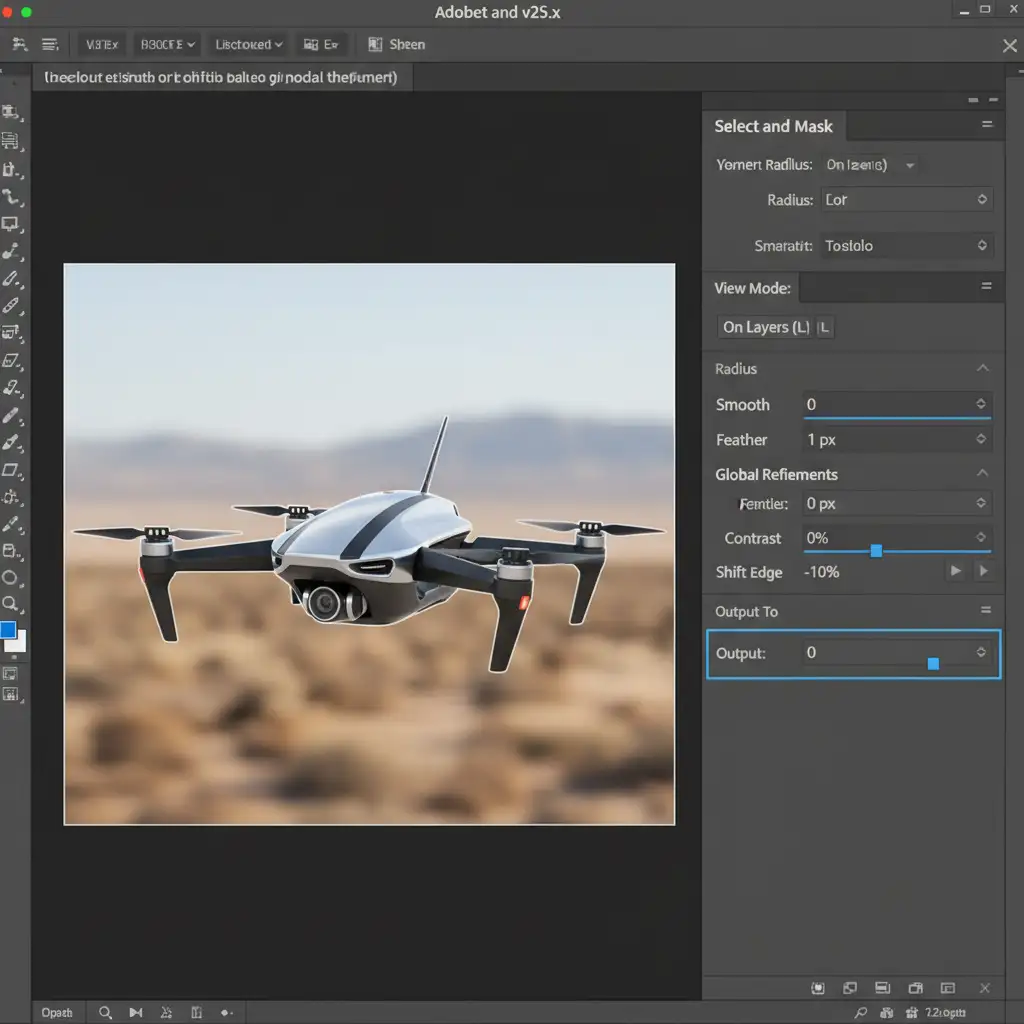
- Click Select and Mask in the top toolbar to open the refinement workspace.
- To eliminate AI-generated edge halos, adjust your Global Refinements: set Feather to 1px and Shift Edge to -10%. This slightly chokes the mask inward, cutting off the contaminated AI pixels.
- Set your Output Settings to New Layer with Layer Mask.
You now have total control. You can place the perfectly isolated product onto a compliant pure white background or composite it into a verified, artifact-free environment.
Stop Risking Your Amazon Listings
Removing AI artifacts from product photos is a meticulous, time-consuming process. While native AI tools promise speed, the resulting image hallucinations and edge halos require heavy manual layer masking and non-destructive retouching to fix. If you publish flawed images, you risk lowered conversion rates and immediate Amazon listing suspensions.
Struggling to clean up hundreds of AI-generated product photos? Don’t waste hours pixel-pushing in Photoshop. Save time, scale your operations, and ensure 100% Amazon compliance by outsourcing your image editing to the professional retouching team at Image Work India and Cloud Retouch. Our experts specialize in complex masking, shadow recreation, and artifact removal. Contact us today to get flawless, high-converting product photos delivered straight to your inbox.




