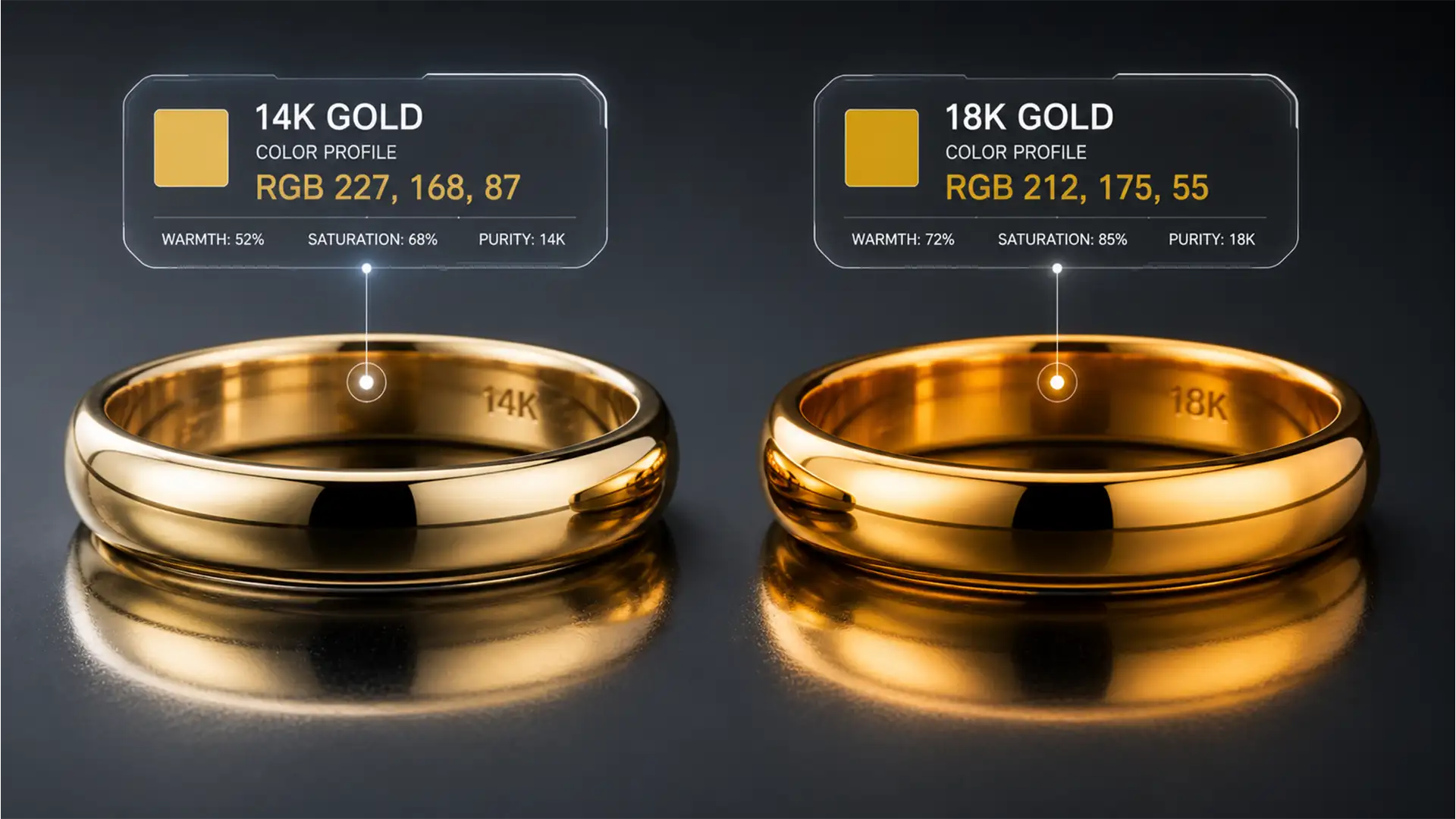

Are you tired of your jewelry catalog looking like a mismatched patchwork of metals? When editing hundreds of e-commerce photos, inconsistent lighting and mixed alloy batches are your worst enemies. Suddenly, your 14k pieces look artificially warm, and your premium 18k items look like brass. This lack of visual standardization destroys buyer trust and hurts conversion rates. If you are struggling with batch matching 14k vs 18k gold colors across massive catalogs without accidentally tinting gemstones or backgrounds, you need a mathematically precise workflow.
In this guide, we will break down how to use Photoshop CC 2024 (v25.x) to standardize your gold tones rapidly using targeted adjustments, custom LUTs, and Camera Raw batching.
The Mathematical Standards of Gold Alloys
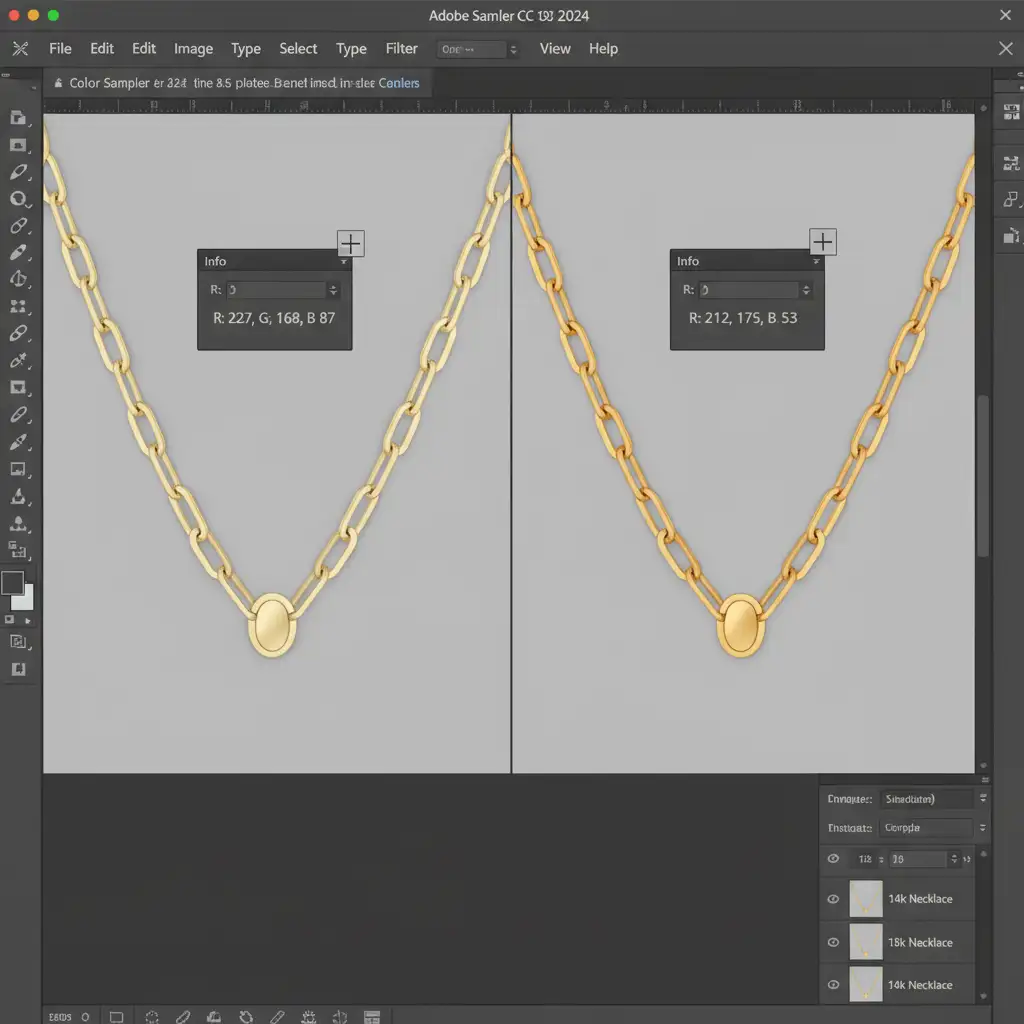
Before applying any adjustments, you must understand the target RGB Values for different karats. Relying on your naked eye across different monitors is a recipe for disaster.
- 14k Gold: Presents as a cooler, paler yellow. Your target is approximately RGB 227, 168, 87.
- 18k Gold: Exhibits a warmer, deeper yellow-orange hue. Your target is approximately RGB 212, 175, 55.
Method 1: The Quick Fix Using Hue/Saturation
For minor corrections on individual images, a simple Hue/Saturation adjustment layer is highly effective.
Step-by-Step Execution
- Isolate the Gold: Create a precise selection of the metal to ensure gemstones and backgrounds remain untouched. Apply this as a Clipping Mask to your adjustment layer.
- Adjusting for 18k: To achieve that rich, warm tone, shift the Master Hue slightly to the left (towards the reds/oranges).
- Adjusting for 14k: Shift the Master Hue slightly to the right for a paler tone, and drop the Saturation slider by -10 to -15 to remove excess warmth.
Method 2: The Pro Workaround with Selective Color and LUTs
When you need flawless, repeatable accuracy across a large batch, Selective Color provides the granular control required for high-end Color Grading.
Targeting the Yellows
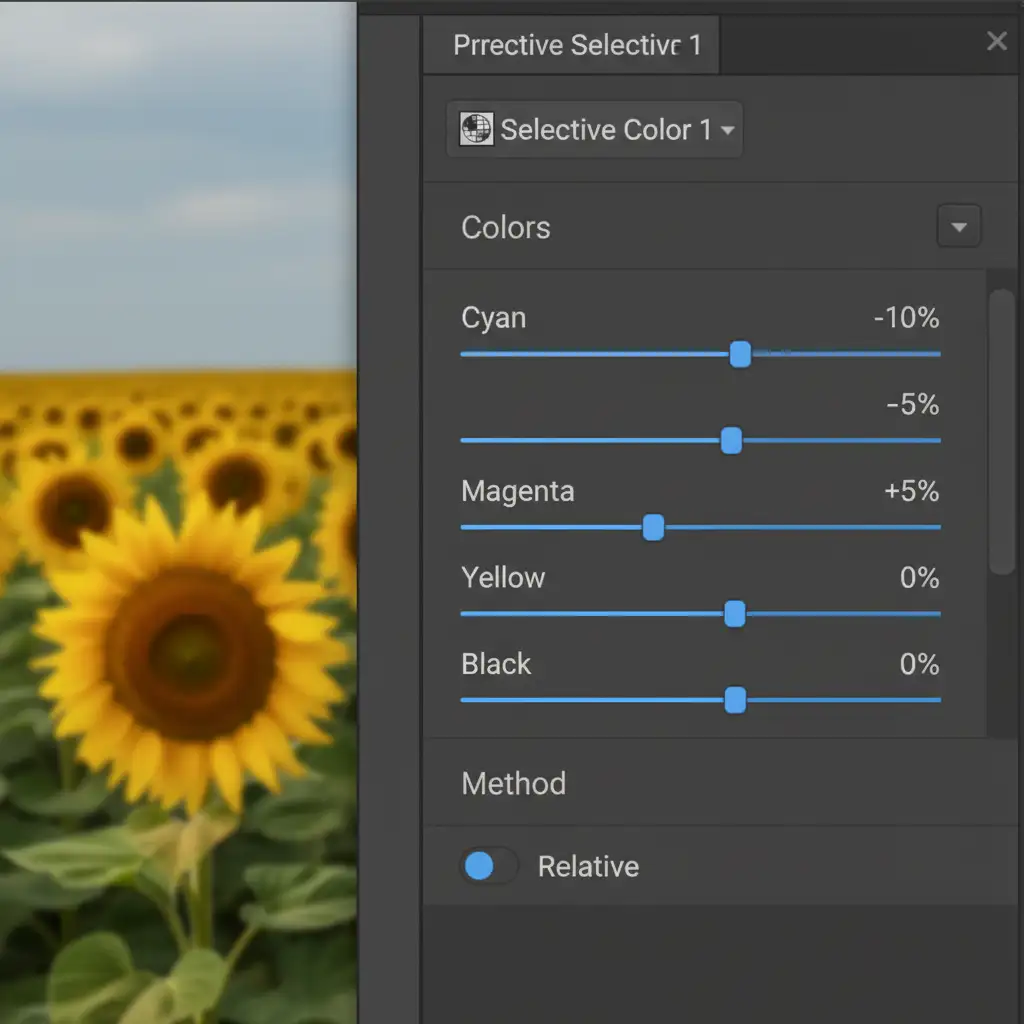
Instead of global adjustments, open a Selective Color adjustment layer and target the “Yellows” channel. To inject the specific richness required for 18k gold, set your Cyan slider to -10% (removing cool tones) and push the Magenta slider to +5% (adding warmth).
Automating with LUTs and Actions
Once you have dialed in the perfect selective color stack for your 14k or 18k gold, do not recreate it manually.
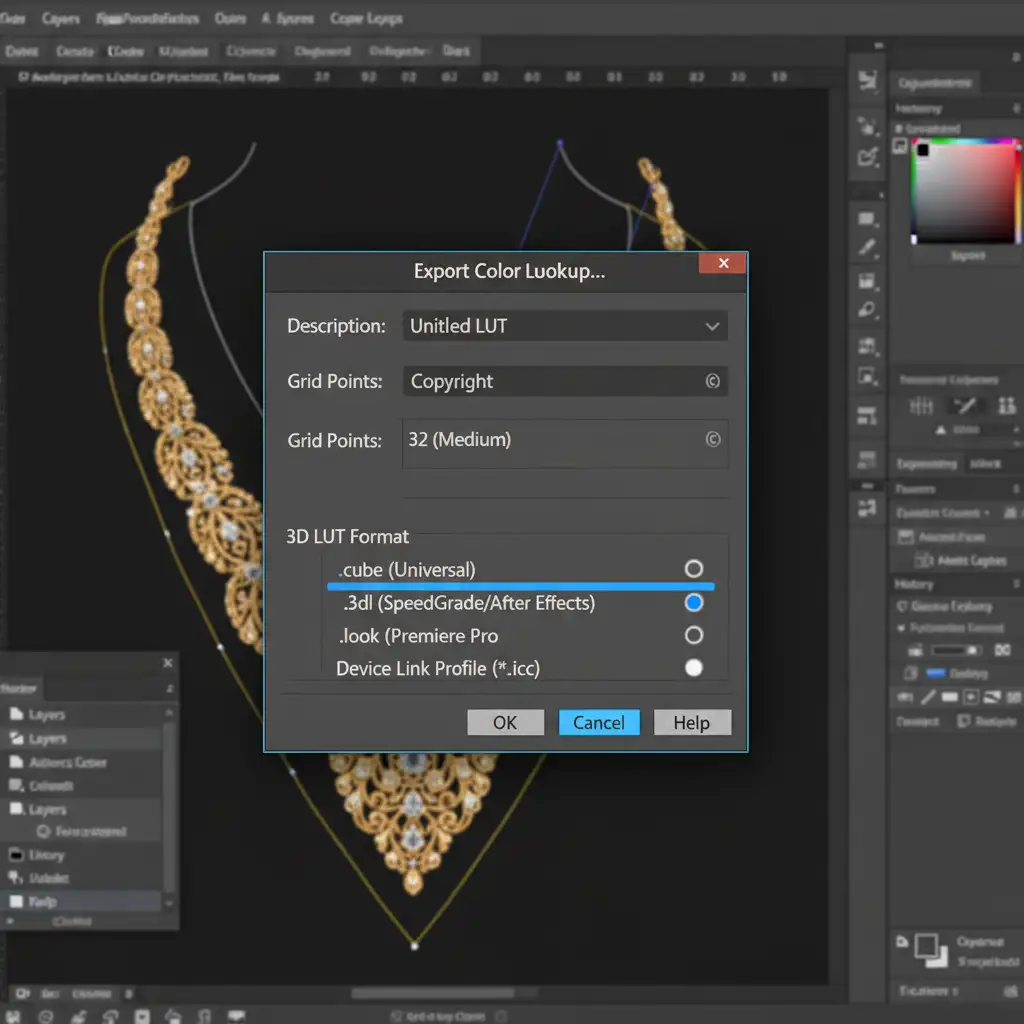
- Navigate to File > Export > Color Lookup Tables.
- Save your adjustment stack as a Color Lookup Table (LUT) in the .cube format.
You can now record a Photoshop Action that applies this specific LUT and save it as an Action Droplet. This allows for instantaneous Batch Processing of hundreds of images simply by dragging and dropping them onto the droplet icon.
Method 3: The Technical Deep-Dive via Adobe Camera Raw
For the highest quality, non-destructive workflow, utilizing the Camera Raw Filter and Adobe Bridge is the ultimate solution for standardizing mixed-lighting shoots.
HSL Color Mixer Targeting
Open your base image in Adobe Camera Raw. Navigate to the Color Mixer (HSL) panel. Use the Hue, Saturation, and Luminance sliders specifically on the Yellow and Orange channels until your color sampler hits the exact target RGB values (e.g., RGB 212, 175, 55 for 18k).
Batch Syncing Across the Catalog
- Open Adobe Bridge and select all raw catalog images that require the same karat adjustment.
- Open them together in Camera Raw.
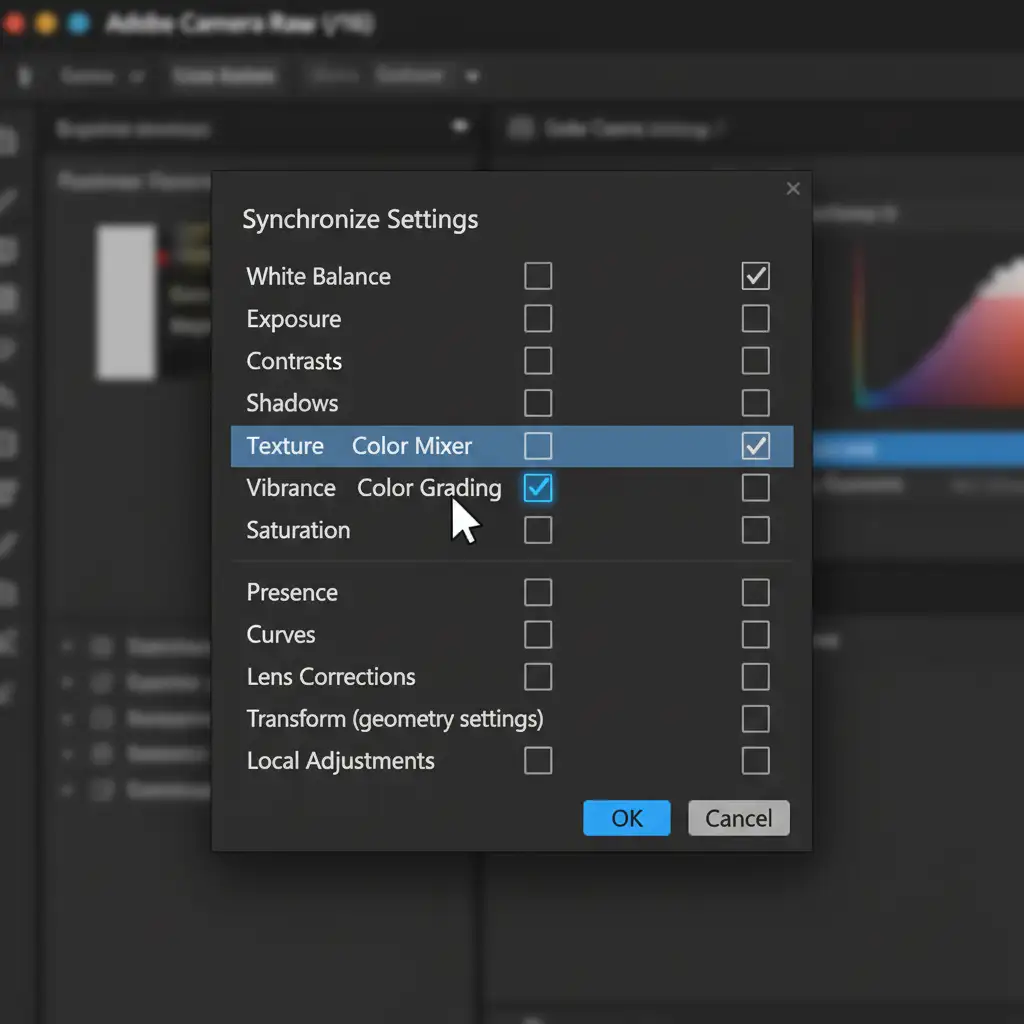
- Select the base image you just corrected and click the Sync Settings tool (similar to a White Balance Sync).
Crucial Step: When the Synchronize menu appears, ensure only the Color Mixer and Color Grading boxes are checked. If you leave exposure or contrast checked, you will ruin the global lighting of the other photos.
Scale Your E-commerce Retouching Flawlessly
Mastering the art of batch matching 14k vs 18k gold colors requires a deep understanding of color theory, precise RGB targeting, and advanced Photoshop automation. While these methods guarantee perfect consistency, executing them across thousands of catalog images takes an immense amount of time and technical resources.
Don’t have the time to meticulously color-grade every single piece of jewelry?
Let Image Work India and Cloud Retouch handle the heavy lifting. Our expert retouchers specialize in high-volume, mathematically precise jewelry editing. We utilize advanced LUTs, clipping masks, and macro-level color grading to ensure every karat of gold in your catalog is perfectly standardized, boosting your brand’s premium appeal.
Contact Image Work India and Cloud Retouch today for a free trial, and let us bring flawless karat consistency to your e-commerce store!




