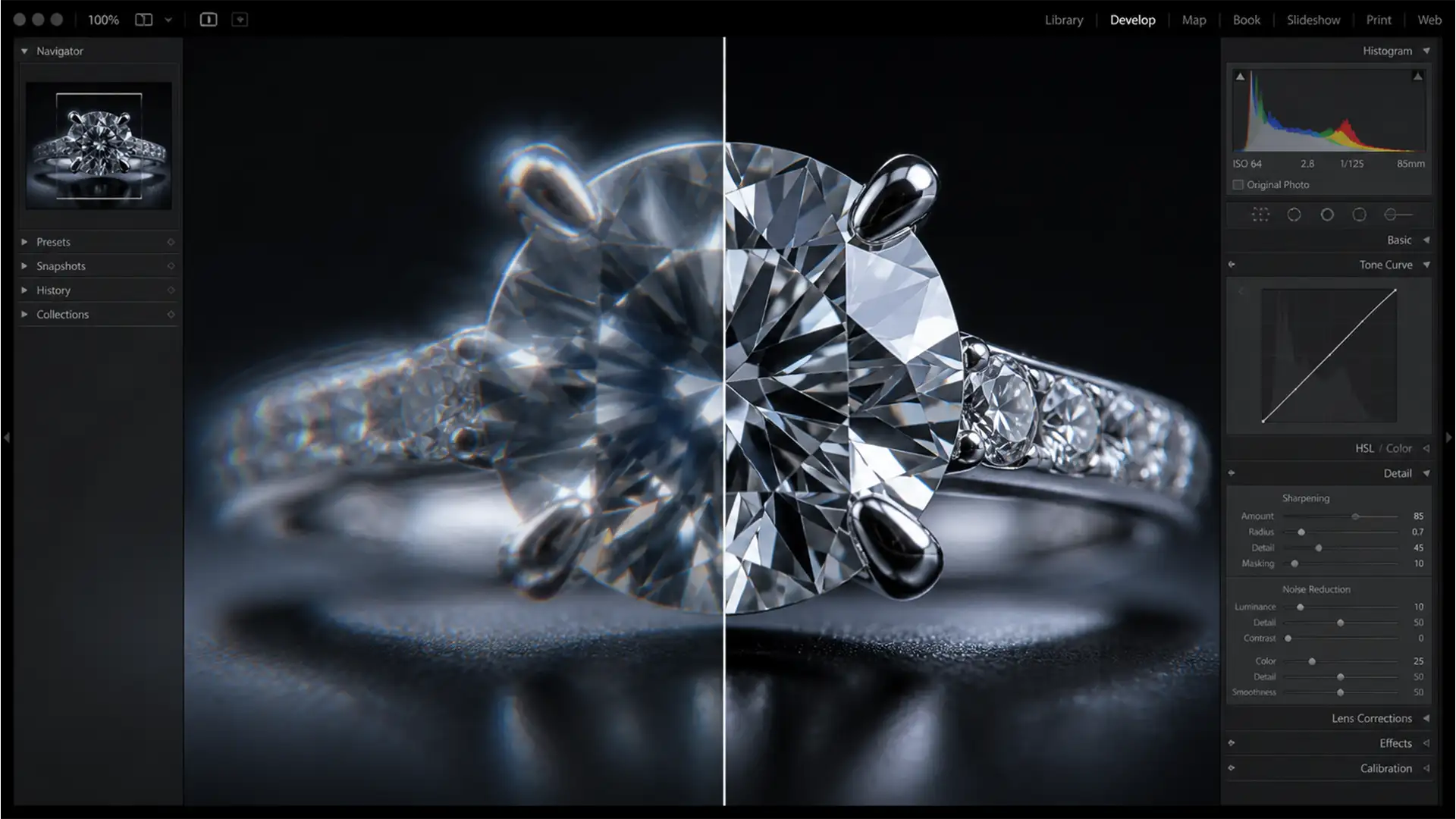

You’ve spent hours perfectly lighting a high-magnification diamond ring, capturing dozens of frames to achieve that impossible deep depth of field. But when you finally run those frames through Adobe Photoshop’s Auto-Blend Layers, disaster strikes. Instead of a razor-sharp masterpiece, you are left with blurry edge fringing, ghosting artifacts, and ugly halos around the shiny metal prongs.
Removing focus stacking halos in macro jewelry is one of the most frustrating bottlenecks for professional retouchers. These artifacts, caused by lens breathing and edge-pixel interpolation errors, can ruin a high-end product shot. Fortunately, there are proven, step-by-step methods to eliminate these flaws and achieve crisp, commercial-ready edges.
Why Do Focus Stacking Halos Occur in Macro Photography?
In high-magnification macro photography, focus stacking is an absolute necessity. However, when processing these stacks in Adobe Photoshop (specifically versions v24.x to v25.x), the native algorithms frequently fail at high-contrast edges—such as bright, shiny metal prongs set against dark backgrounds.
This failure manifests as a distinct halo effect or ghosting. The root causes include:
- Lens Breathing: Slight changes in focal length as the lens shifts focus from the front of the jewelry to the back.
- Micro-Movements: Imperceptible shifts in the camera or subject during the shooting sequence.
- Interpolation Errors: Photoshop’s blending engine miscalculating edge pixels during the alignment phase, causing the sharp edge of one layer to clash with the out-of-focus blur of another.
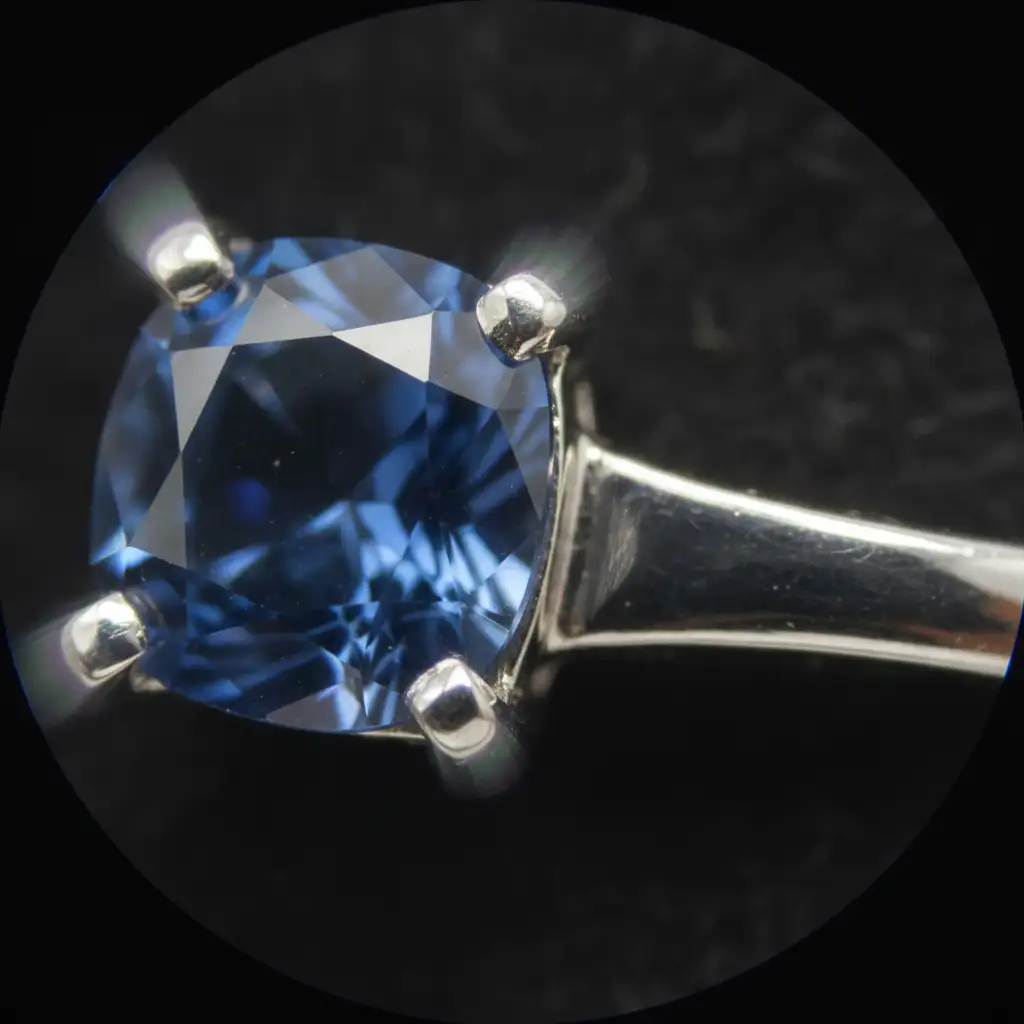
How to Fix Ghosting Artifacts and Halos (Step-by-Step)
Depending on the severity of the edge fringing, you can tackle this problem using three distinct approaches: tweaking your software settings, manually refining masks, or utilizing specialized stacking engines.
Method 1: The Quick Fix – Optimize Auto-Blend Settings
Sometimes, the quickest way to fix the issue is to prevent Photoshop from over-processing the color transitions between your layers.
- Load your aligned frames into the Layers panel.
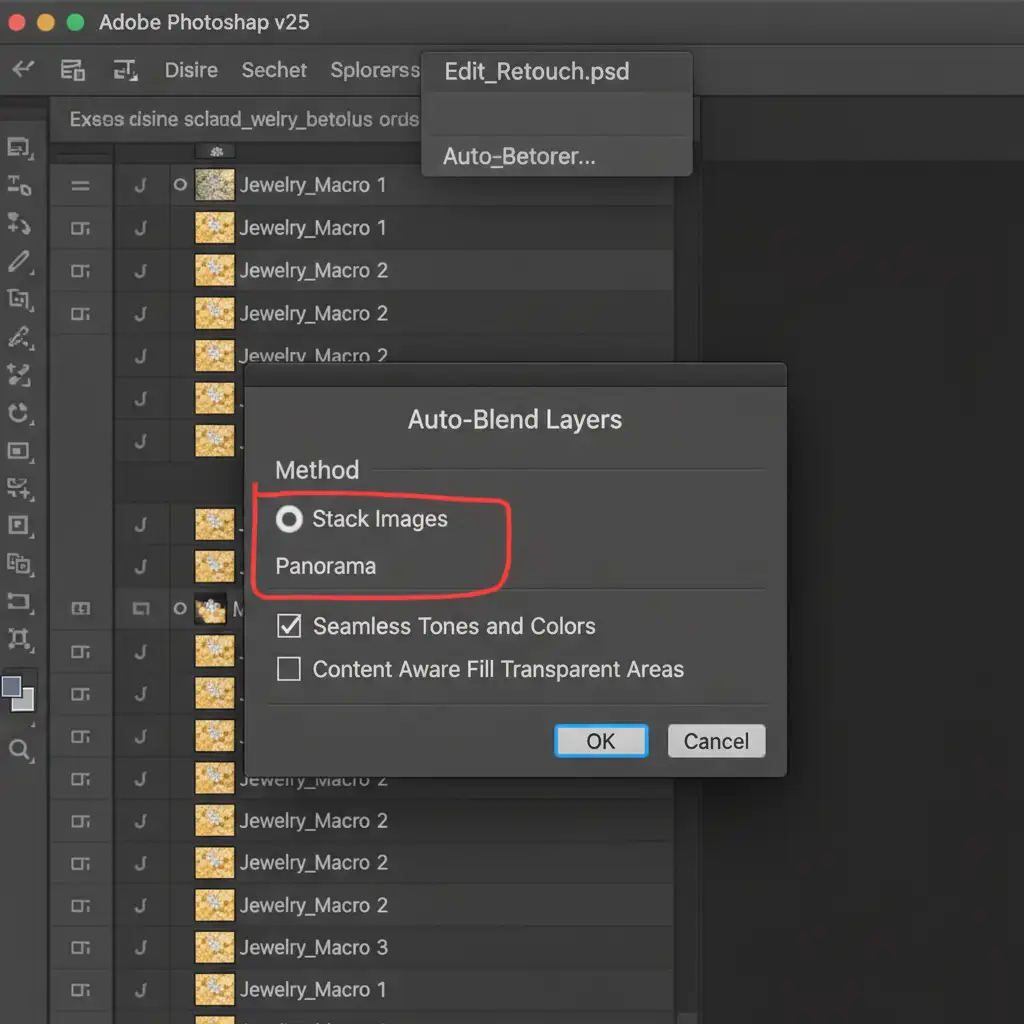
- Select all layers and navigate to Edit > Auto-Blend Layers.
- Ensure Stack Images is checked.
- The Critical Step: Experiment with unchecking the Seamless Tones and Colors box. In high-contrast macro jewelry, extreme color bleeding from out-of-focus layers often causes halos. Disabling this feature forces Photoshop to rely strictly on sharpness rather than color blending.
Method 2: The Pro Workaround – Manual Mask Refinement
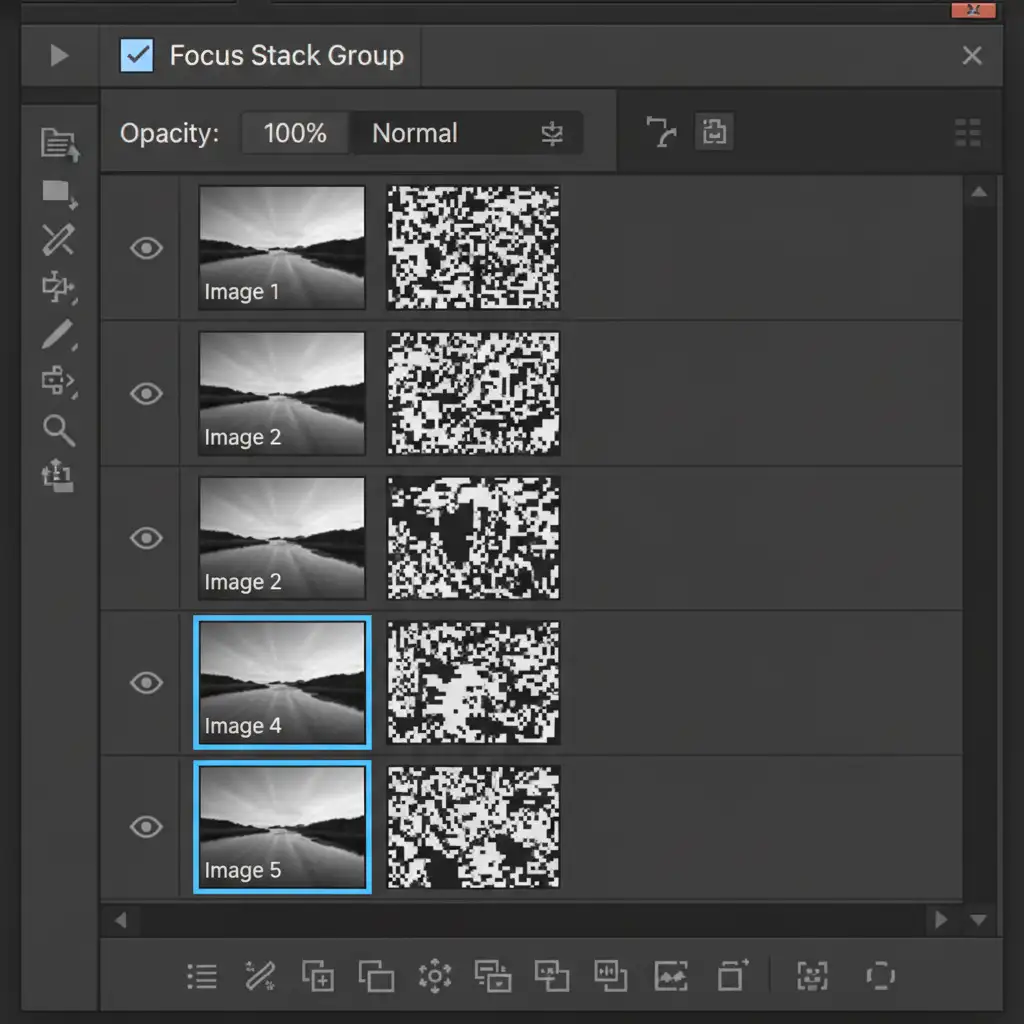
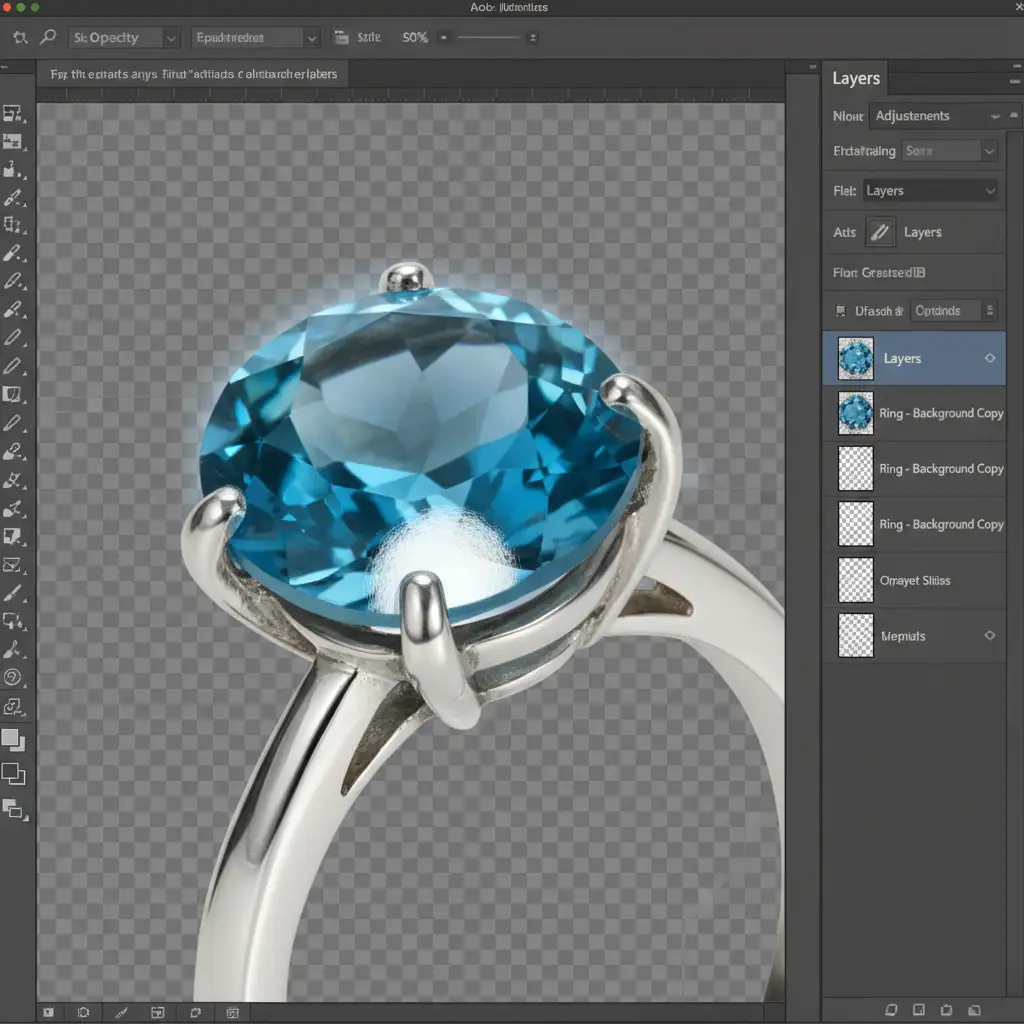
If Photoshop’s automated blending still leaves you with a halo effect, you will need to manually intervene. Because Photoshop generates individual layer masks for each frame during the blend process, you can manually reveal the sharpest edges.
- After generating the blended stack, look at your Layers Panel. You will see automatically generated black-and-white masks attached to each layer.
- Locate the specific frame where the problematic edge (like a diamond prong) is perfectly in focus.
- Alt-click (Windows) or Option-click (Mac) on that layer mask to view it directly on your canvas.
- Select a soft Brush Tool, set your paint color to white (or black, depending on the mask state), and lower your brush opacity to 50 percent.
- Carefully paint away the halo artifact, manually revealing the clean, razor-sharp edge from the correct focal layer.
Method 3: The Technical Deep-Dive – Pre-Stack Edge Correction
For extreme high-magnification jewelry, Photoshop’s native engine might simply not be enough.
First, pre-process your RAW files in Adobe Lightroom or Camera Raw. Aggressively reduce chromatic aberration and luminance noise before exporting. Both of these optical flaws exacerbate interpolation errors during the stacking process.
Next, export your sequence as DNG files and process them through dedicated stacking software. Programs like Helicon Focus (using Method B or C algorithms) or Zerene Stacker (using the PMax algorithm) are specifically engineered to handle complex lens breathing and edge intersections far better than Photoshop.
Flawless Jewelry Retouching at Scale
Removing focus stacking halos in macro jewelry requires precision, patience, and a deep understanding of layer masks. While these manual techniques guarantee crisp edges, they are incredibly time-consuming—especially if you are processing hundreds of product shots for an e-commerce catalog.
Struggling with tedious focus stacking halos on high-volume jewelry shoots? Let the experts at Image Work India and Cloud Retouch handle your macro photo editing. Our specialized retouching teams use advanced blending techniques to ensure flawless, crisp edges every single time, saving you hours of frustrating post-production work.
Contact Image Work India today for a free trial and see how we can elevate your jewelry photography workflow.




