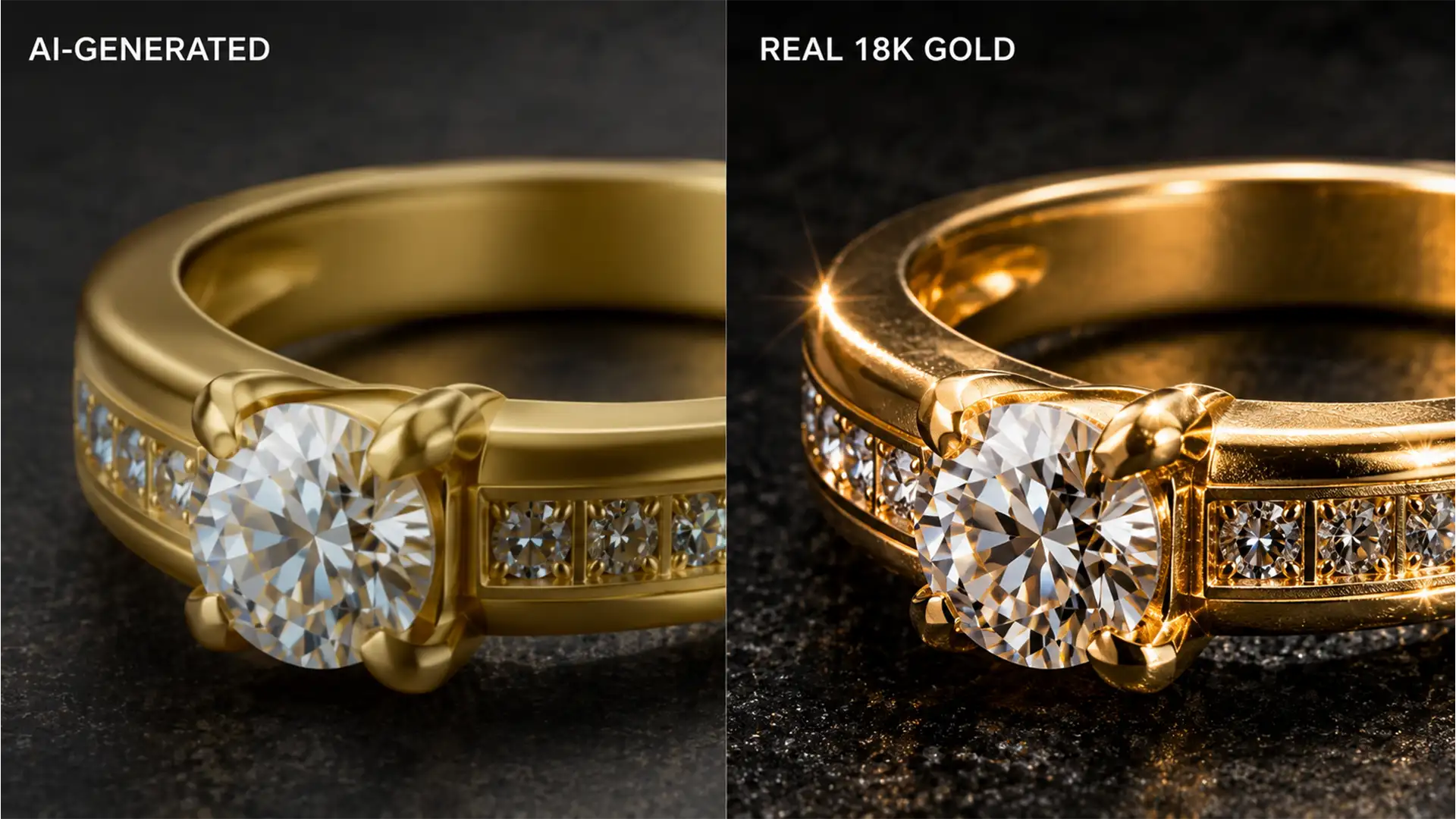

Have you ever tried to extend a ring band or remove an unwanted reflection in Photoshop, only to watch your expensive jewelry turn into cheap plastic? You are not alone. Since the introduction of Adobe Photoshop v25.0, high-end retouchers have faced a frustrating bottleneck: the Firefly AI model simply does not understand how light interacts with metal.
If you are tired of flat, matte gradients ruining your workflow, you need a reliable system for fixing Generative Fill metallic texture artifacts. In this technical guide, we will break down exactly why AI fails at rendering highly reflective surfaces, and provide three professional workflows to restore realistic luster, micro-contrast, and depth to your jewelry edits.
Why Photoshop Generative Fill Ruins Metallic Surfaces
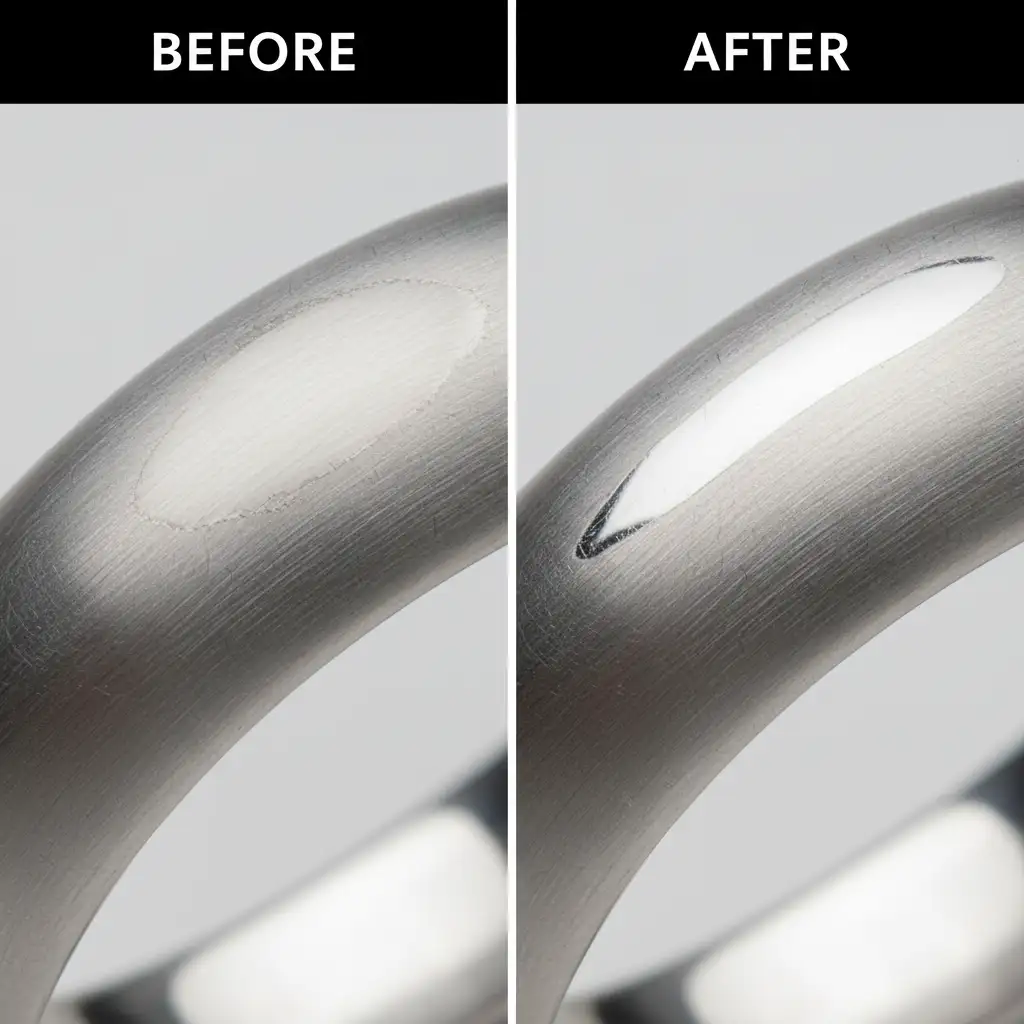
The core issue lies in how AI models interpret complex light falloff. Real jewelry—whether gold, silver, or platinum—is defined by its specular highlights and anisotropic reflections. Light bounces off microscopic grooves in the metal, creating sharp, high-contrast transitions between pure white highlights and deep, dark shadows.
Generative Fill, however, tends to average out these extreme contrast ratios. It interprets the metallic surface as a smooth, matte gradient. The result is a generated patch of pixels that lacks the micro-contrast, grain, and sharp light falloff inherent to real jewelry. This artifacting completely ruins the continuity of metallic bands or intricate gem settings, leaving you with a fake, plastic-looking edit.
3 Professional Methods for Fixing Generative Fill Metallic Texture Artifacts
To overcome these AI limitations, you need a combination of precise input commands and traditional retouching techniques. Here are three proven methods to seamlessly integrate AI generations into highly reflective jewelry surfaces.
Method 1: Advanced Prompt Engineering (The Quick Fix)
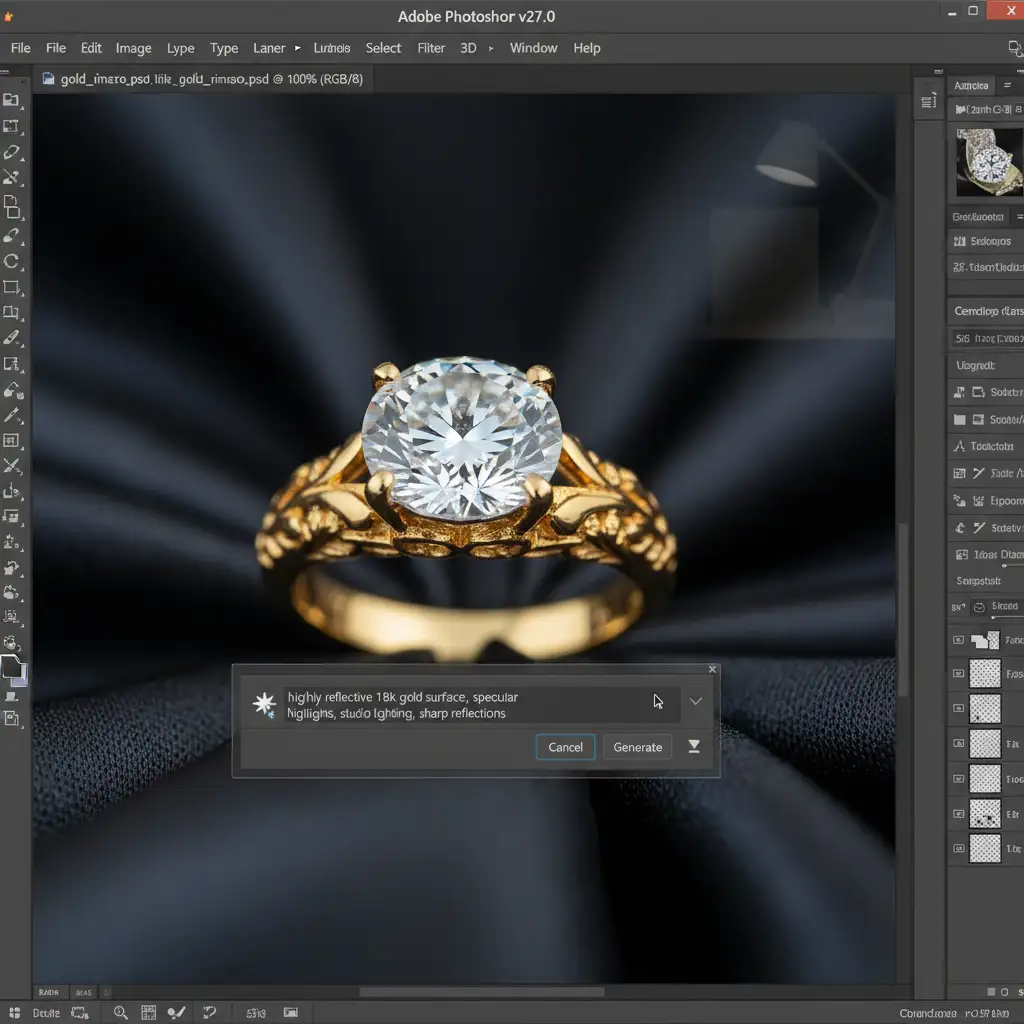
The simplest way to improve your results is to stop using vague prompts. If you just type “fix ring” or “extend band,” the AI defaults to its safest, smoothest texture generation. You must force the model to render complex lighting by using specific material identifiers.
Instead of basic commands, update your Generative Fill prompt string to explicitly demand realistic physics. Use descriptive keywords like: “highly reflective 18k gold surface, specular highlights, studio lighting, sharp reflections.”
Method 2: The Frequency Separation Workaround (The Pro Choice)
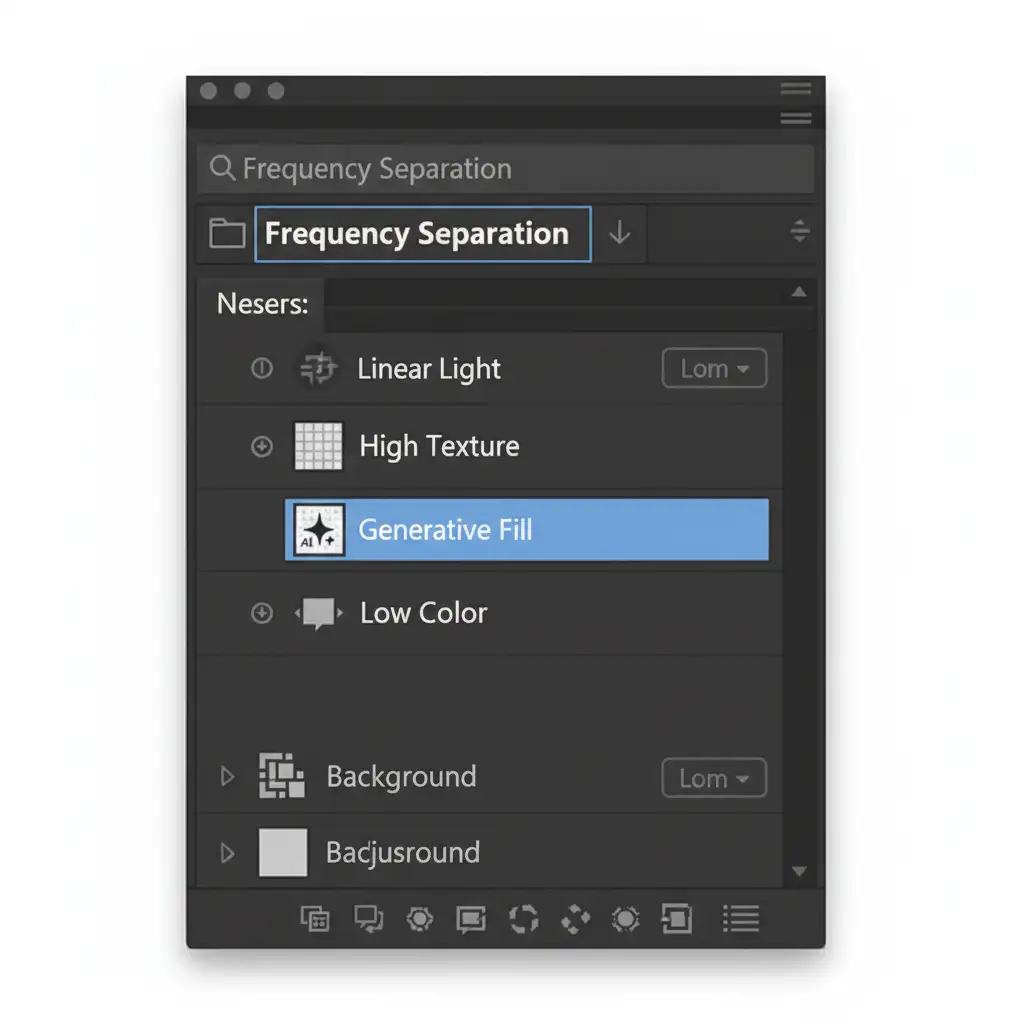
Even with perfect prompts, the AI might still miss the microscopic scratches and grain that make metal look real. The most effective way to retain this realism is to completely separate the AI generation from your image’s texture using frequency separation.
- Separate your original jewelry image into a color layer (Low-frequency) and a texture layer (High-frequency).
- Make your selection and run Generative Fill only beneath the High-frequency layer.
- Because the AI is only generating the underlying color and gradient, it is forced to adopt the original metallic grain and micro-scratches sitting above it on the High layer.
This instantly restores realism and bridges the gap between the original metal and the AI-generated patch.
Method 3: Post-AI Texture Reconstruction (The Technical Deep-Dive)
If you have already generated a patch and cannot use frequency separation, you must manually reconstruct the lost texture. Because AI often produces banding in gradients, you need to introduce noise and aggressively manipulate the contrast to mimic metallic bounce light.
- Add Grain: Create a new layer above your Generative Fill layer, fill it with 50% gray, and set the blend mode to Overlay.
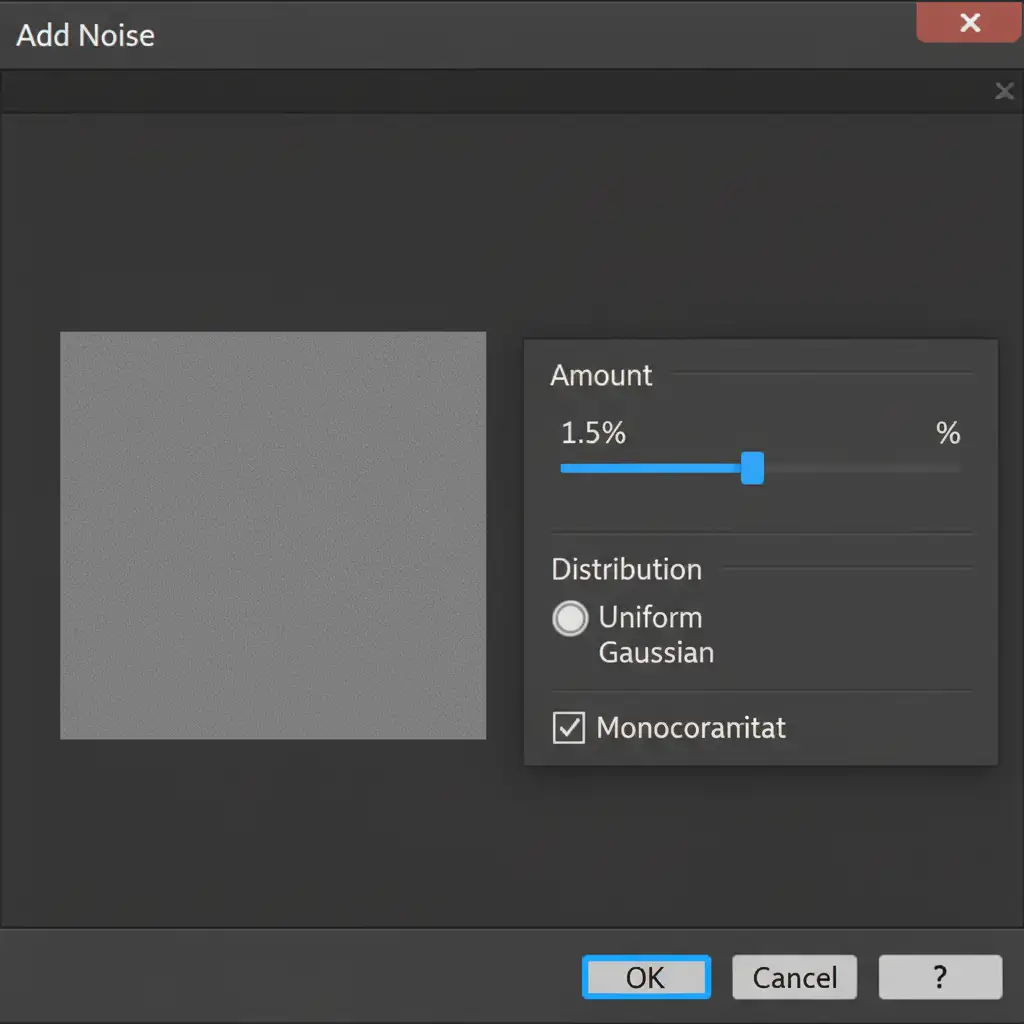
- Match the Sensor: Open the Add Noise dialog. Add Uniform Noise (Monochromatic, 1-2%) to perfectly match the original camera ISO grain.
- Rebuild the Bounce: Apply a Curves Adjustment Layer as a clipping mask to the generated area. Aggressively push the white point and black point inward. This recreates the high-contrast specular bounce of real metal.
- Refine: Use luminosity masking or traditional dodge and burn techniques on a new layer to manually paint in sharp, distinct highlights where the light would naturally hit the curve of the metal.
Stop Fighting the Software. Let the Experts Handle It.
Fixing Generative Fill metallic texture artifacts is a time-consuming process. When you are dealing with hundreds of e-commerce product shots or high-end editorial jewelry campaigns, you cannot afford to manually rasterize layers, tweak noise percentages, and rebuild highlights on every single image.
Struggling with high-volume jewelry retouching? Let the experts at Image Work India and Cloud Retouch handle your complex metallic edits with pixel-perfect precision. Our team of senior retouchers combines cutting-edge AI tools with decades of manual retouching expertise to deliver flawless, hyper-realistic jewelry imagery at scale.
[Contact Image Work India today to streamline your retouching workflow and get a free trial on your first batch of images!]




