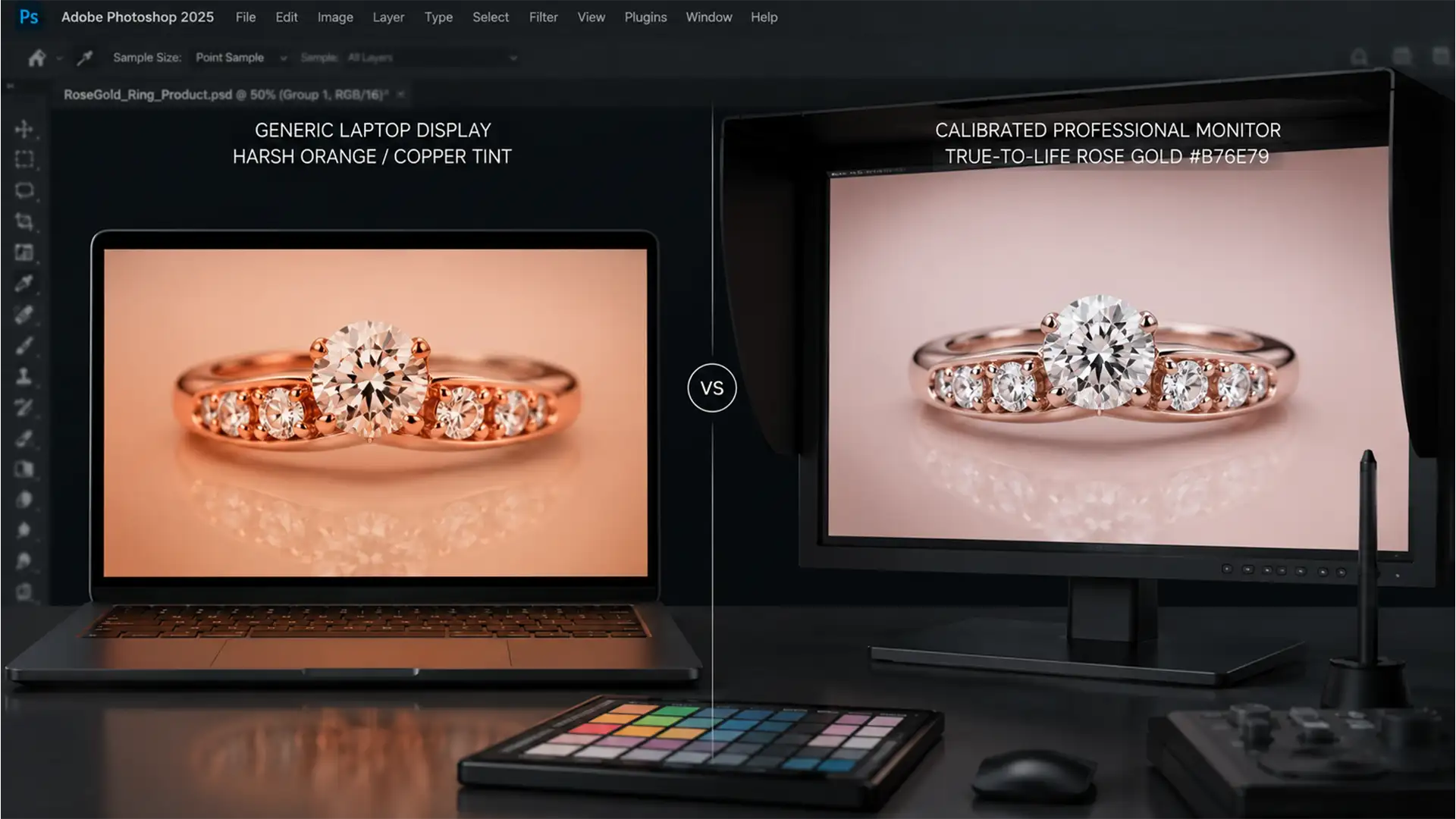

You’ve just uploaded a stunning batch of jewelry photos to your online store, but within weeks, the return requests start rolling in. The most common complaint? “The metal looked pink on my phone, but it’s copper in person.”
This is the e-commerce nightmare of rose gold. Because of device-dependent color shifting across uncalibrated screens and varying browser color management, rose gold easily renders either too yellow (copper dominance) or too magenta (flat pink).
If you want to minimize return rates and build customer trust, subjective visual tweaking is no longer enough. You need to anchor your retouching workflow to absolute data. In this guide, we will break down exactly how to master rose gold color matching for e-commerce using Adobe Photoshop v24.x through v25.x.
The E-Commerce Dilemma: Why Rose Gold Shifts Colors
Rose gold is notoriously difficult to capture and display accurately. Unlike pure yellow gold or silver, rose gold relies on a delicate balance of reds, yellows, and magentas. When a product image is exported without strict color calibration and proper ICC profiles, e-commerce platforms often strip the metadata to compress the image size.
When this happens, the customer’s browser is left guessing how to render the colors. On an iPhone with True Tone enabled, the ring might look like a warm brass. On a standard desktop monitor, it might look like bubblegum pink.
To fix this, we must abandon “eyeballing” the color and instead rely on strict Hex color codes (like #B76E79 or #C07C88) within an sRGB color space.
3 Methods for Perfect Rose Gold Color Matching in Photoshop
Here are three research-backed workflows to standardize your jewelry retouching, from quick adjustments to bulletproof technical exports.
Method 1: The Quick Fix Using Selective Color Adjustment
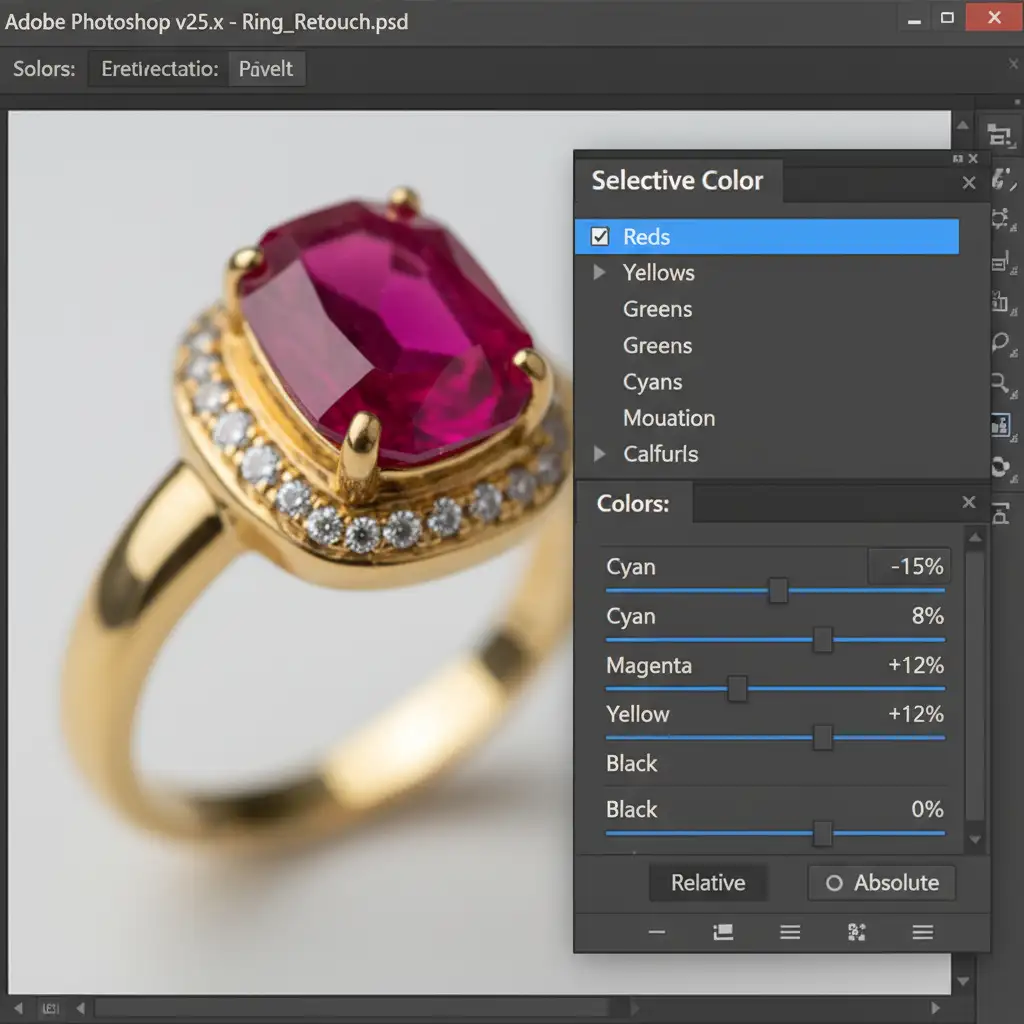
When dealing with minor color casts from studio strobes or incorrect white balance, a Selective Color adjustment layer is your fastest route to baseline accuracy.
- Create a Selective Color adjustment layer above your jewelry layer.
- Target the Reds and Yellows from the dropdown menu.
- To brighten the metal and remove the “muddy” copper look, slightly decrease the Cyan slider within the Reds.
- Adjust the Magenta and Yellow sliders until the tone matches a standard reference Hex code like #B76E79.
Method 2: The Pro Workaround with Gradient Maps
If the original studio lighting created harsh reflections or the metal color is entirely inconsistent across a product line, mapping the color is the most reliable professional workaround.
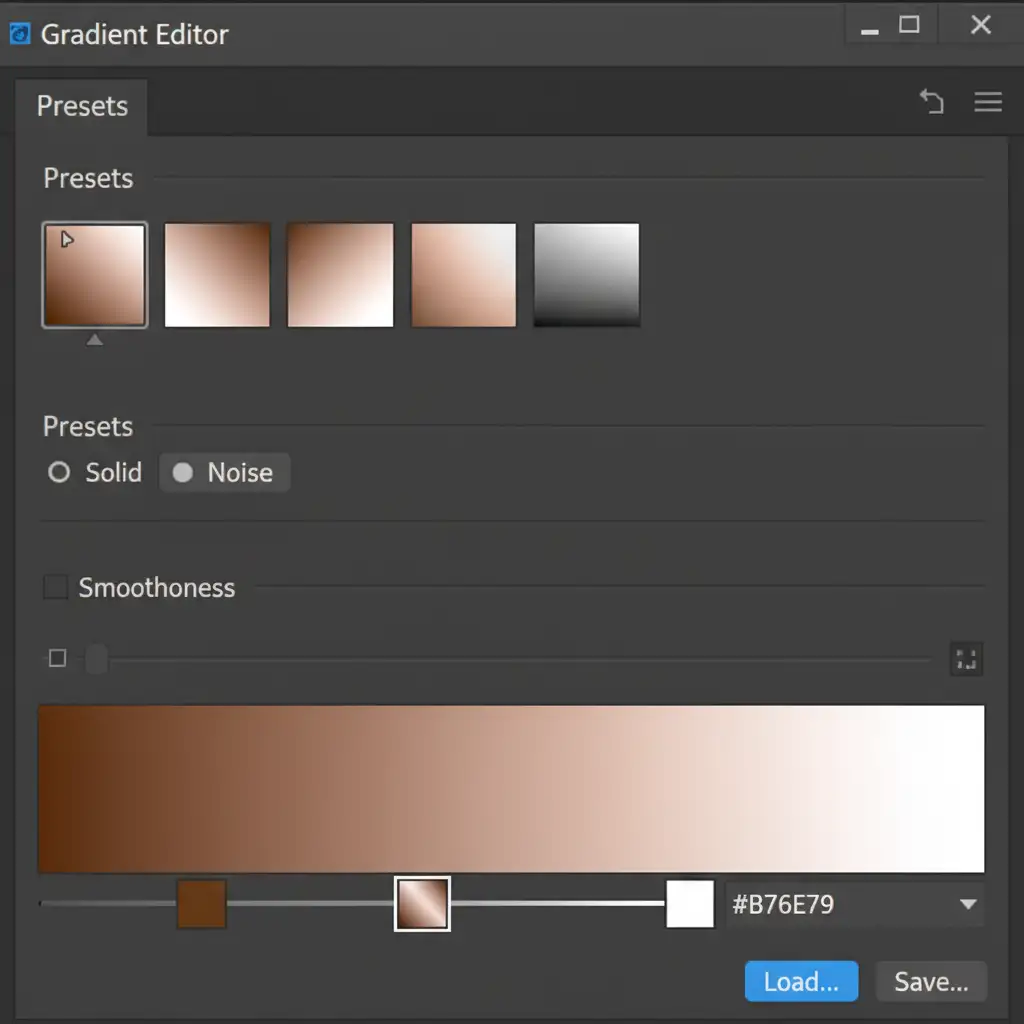
- Apply a Gradient Map adjustment layer and set its Blend mode to Color.
- Open the Gradient Editor. You will create a custom gradient to map the shadows, midtones, and highlights of the metal.
- Set the shadows (left side) to a dark warm brown.
- Set the midtone (center) to an exact rose gold Hex color code: #C07C88 or #B76E79.
- Set the highlights (right side) to bright white.
- Use luminosity masking or a standard layer mask to restrict this effect purely to the jewelry metal, ensuring gemstones remain unaffected.
Method 3: The Technical Deep-Dive into ICC Profiles and sRGB
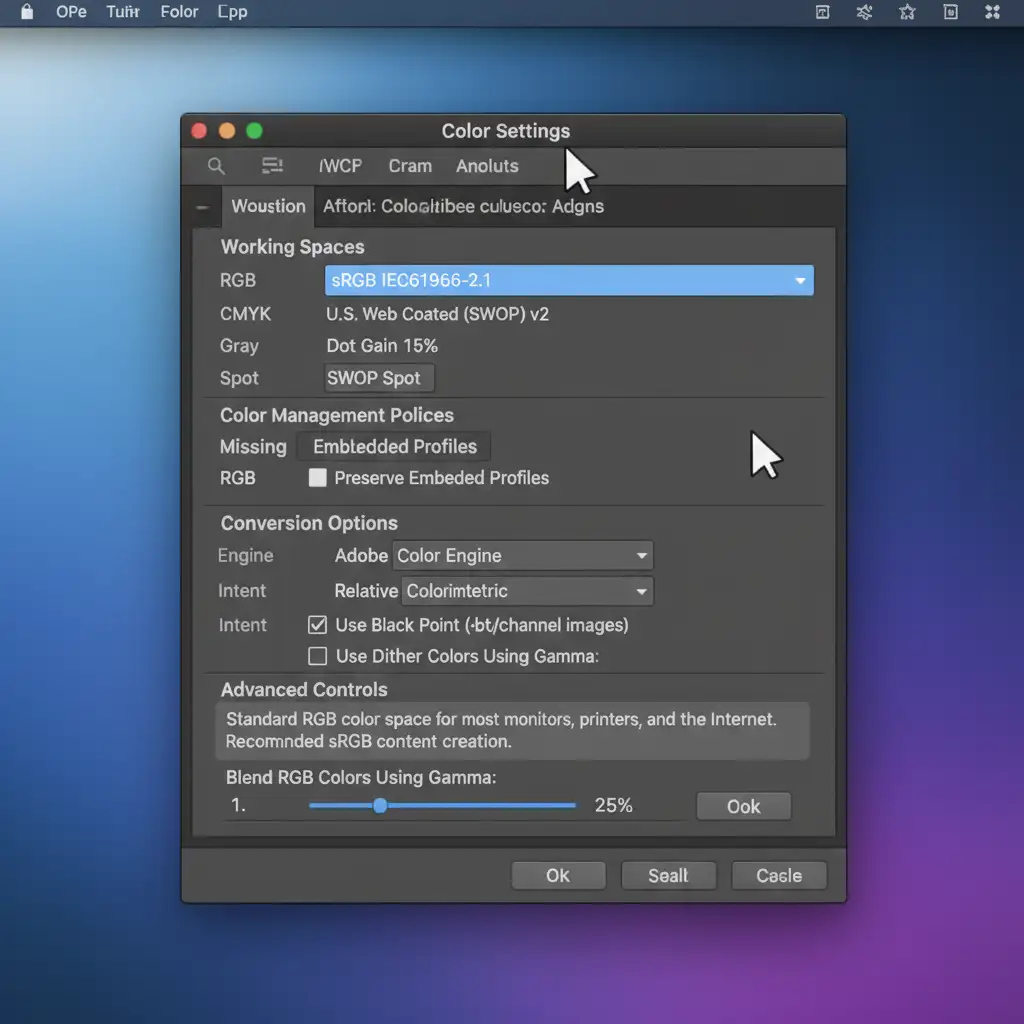
Even if your image looks perfect in Photoshop, it will shift online if your color settings are wrong. To prevent e-commerce platforms from ruining your rose gold tones, you must strictly manage your working space and export settings.
- Navigate to Edit > Color Settings and standardize your working space to sRGB IEC61966-2.1. Keep an eye out for any gamut warnings if you are converting from Adobe RGB.
- When saving the final file, use File > Export > Export As or Save for Web (Legacy).
- Crucial Step: Ensure both Embed Color Profile and Convert to sRGB are checked. This bakes the correct color data into the file.
- Finally, use View > Proof Setup > Monitor RGB to simulate how the image will look on uncalibrated mobile displays. If the hue remains stable, your file is ready for the web.
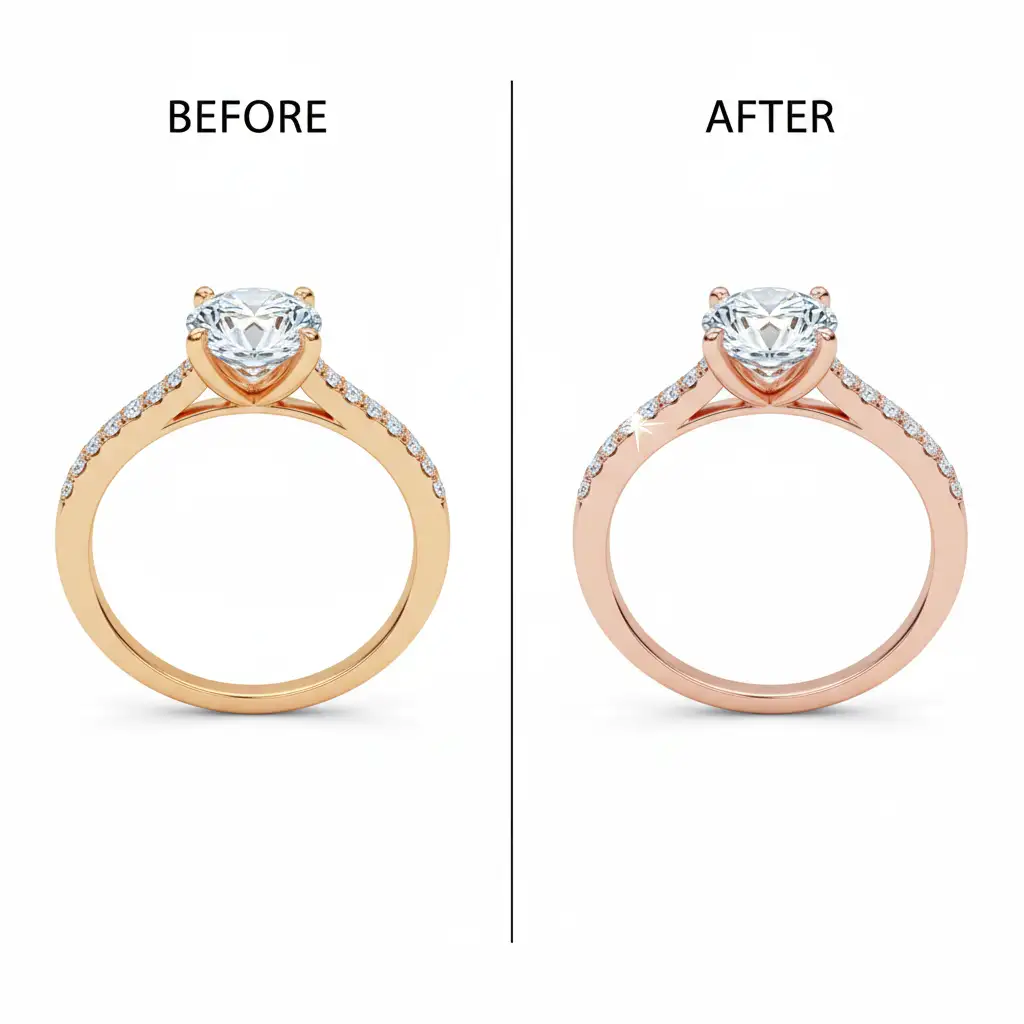
The Results: Flawless Rose Gold Reproduction
By abandoning guesswork and relying on absolute Hex values and embedded ICC profiles, you eliminate the frustrating magenta/copper color shifts. The result is a clean, luxurious rose gold that looks identical on an iPhone screen, a desktop monitor, and—most importantly—in the customer’s hands.
Stop Losing Sales to Inconsistent Color
Mastering rose gold color matching for e-commerce requires technical precision, an understanding of color spaces, and a meticulous eye for detail. If your team is spending hours tweaking Selective Color sliders and you are still seeing high return rates due to color discrepancies, it’s time to scale your workflow with the experts.
At Image Work India and Cloud Retouch, we specialize in high-end jewelry retouching. Our post-production teams utilize strictly calibrated monitors and standardized sRGB workflows to ensure your rose gold, yellow gold, and platinum pieces render flawlessly across every device.
Struggling with inconsistent jewelry colors? Let us handle the technical heavy lifting. Outsource your retouching to Image Work India & Cloud Retouch today for flawless, color-accurate product images that boost your sales and permanently reduce your return rates.




