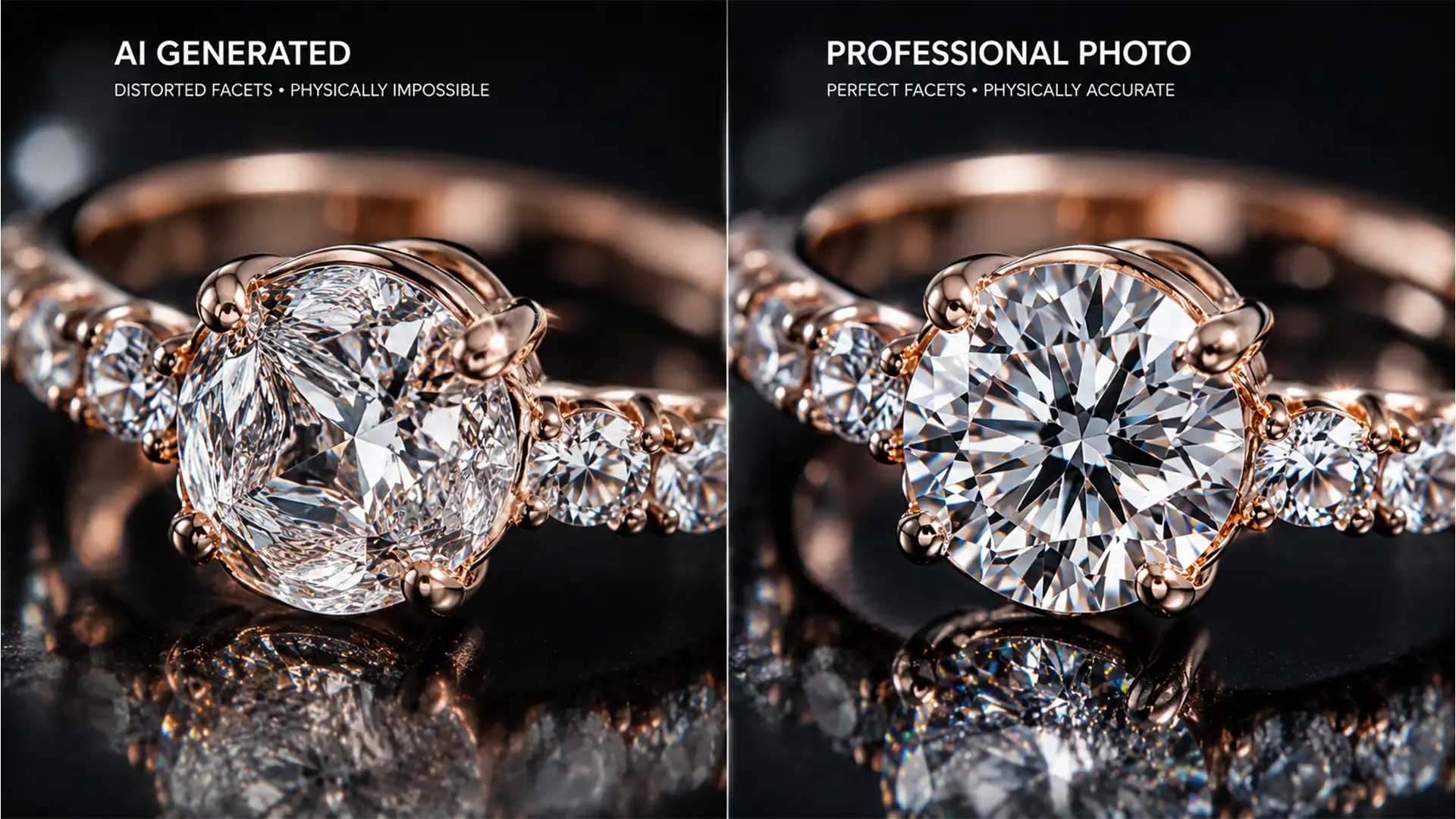

You just tried to remove a blemish or expand the canvas on a high-end diamond ring using Photoshop v25.x. Instead of a pristine edit, the AI turned your expensive diamond into a melted, cloudy mess.
These AI hallucinations happen because Adobe Firefly Image 3 processes 2D pixels, completely ignoring the complex optical physics of light refraction and caustics. If you are struggling with physically inaccurate gemstone facets ruining your jewelry retouching workflow, you are not alone. Here is exactly how to fix Generative Fill gemstone refraction errors and restore perfect realism to your product photos.
Why Adobe Firefly Struggles with Gemstone Physics
While Photoshop’s Generative Fill is a massive time-saver for general content generation, it falls short in high-end jewelry retouching. The Adobe Firefly Image 3 model lacks a fundamental understanding of 3D refractive objects.
When you ask the AI to generate or repair a diamond, sapphire, or emerald, it doesn’t calculate the refractive index or internal reflection. Instead, it attempts to guess the pattern based on surrounding pixels. This results in misaligned geometry, soft edges, and melted shapes that immediately flag the image as an amateur edit.
To achieve professional results, you must override the AI using a combination of targeted prompt engineering, layer masking, and manual compositing.
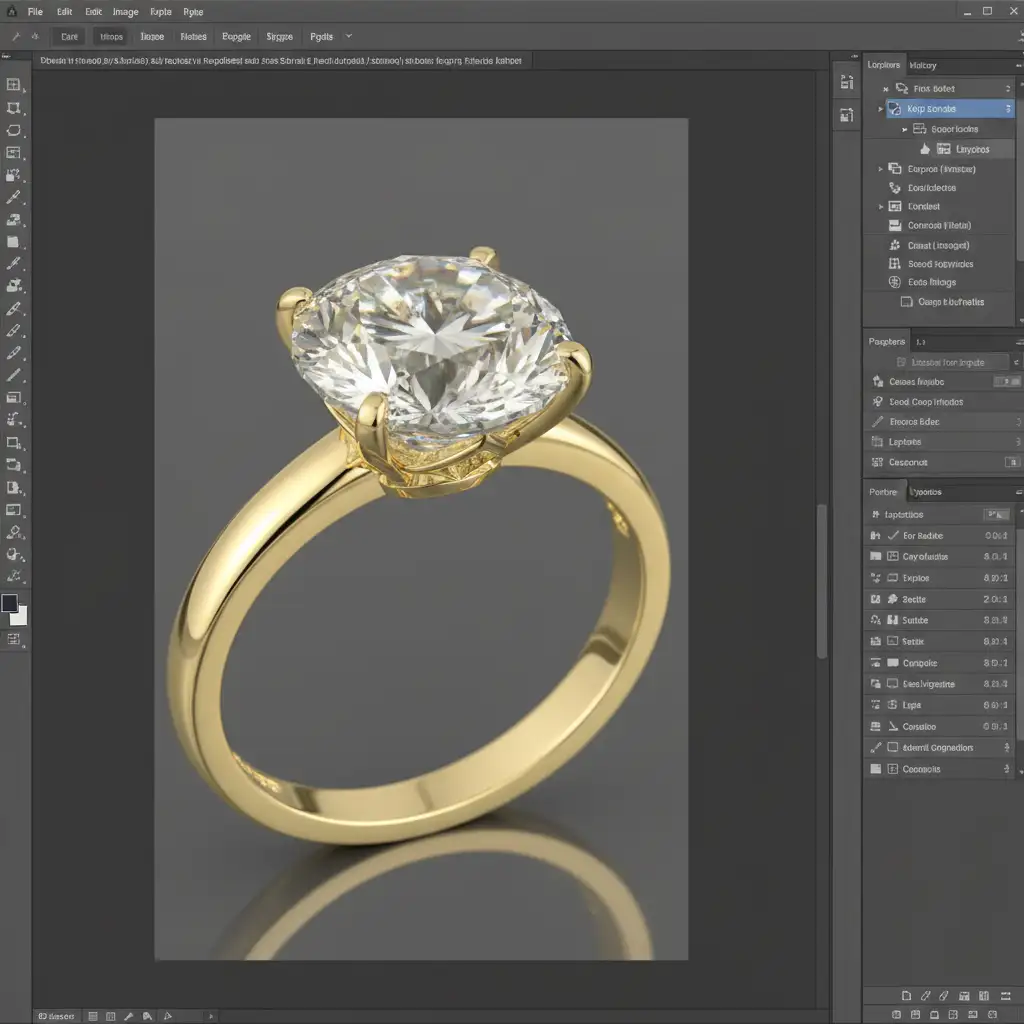
3 Ways to Fix Generative Fill Gemstone Refraction Errors
Depending on the severity of the AI hallucination and the complexity of the jewelry piece, you can use one of three methods to restore physical accuracy to your gemstones.
Method 1: The Quick Fix (Prompt Engineering)
If the damage is minimal, you can often guide the Adobe Firefly engine away from generating soft, melted shapes by updating your text prompt. By default, leaving the prompt blank allows the AI to guess the texture. You need to force it to render hard geometry.
- Select the affected area of the gemstone.
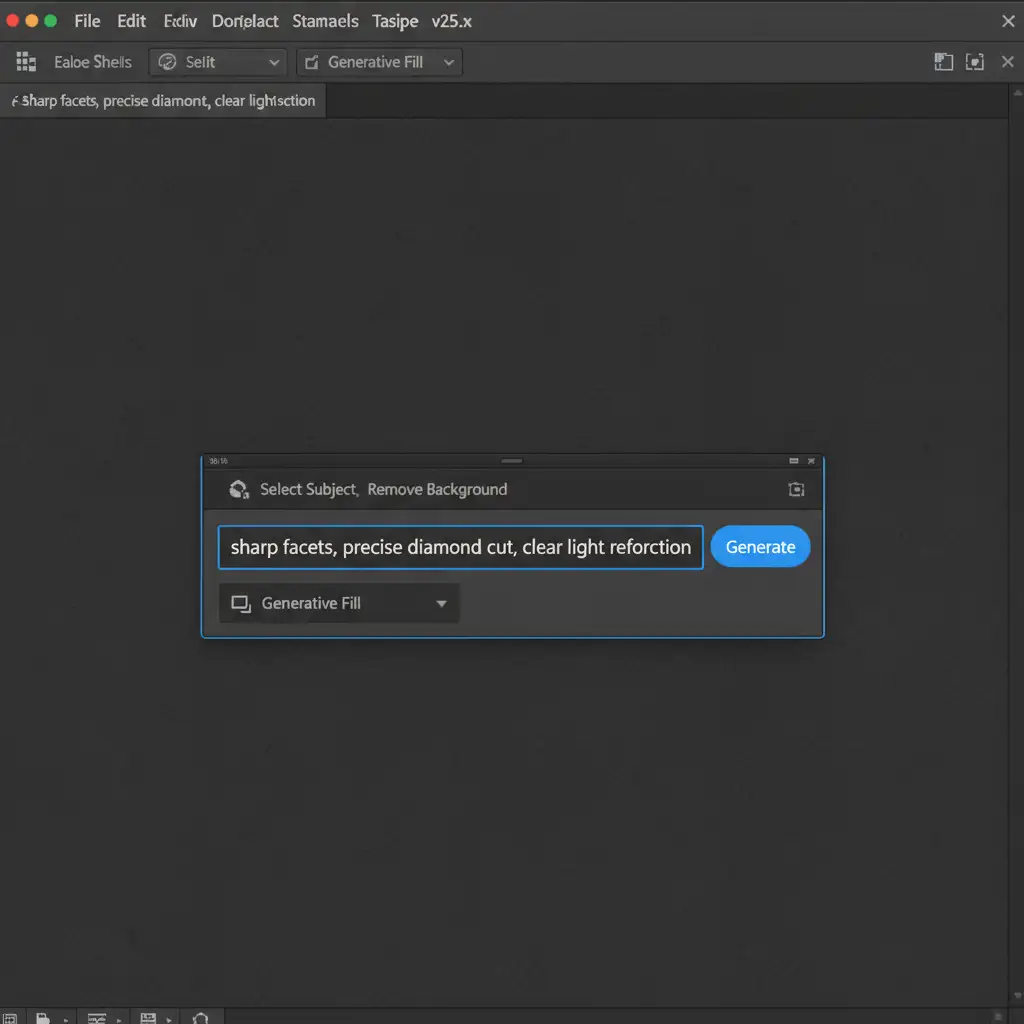
- Open the Contextual Task Bar.
- Instead of leaving the prompt empty, input strict physical descriptors: “sharp facets, precise diamond cut, clear light refraction, high contrast.”
- Generate and cycle through the variations.
Method 2: The Pro Workaround (Layer Masking)
When prompt engineering fails to produce accurate internal reflection, you must isolate the AI’s work to the metal setting and manually protect the gemstone.
- Run your Generative Fill to fix the ring band, prongs, or background canvas.
- Allow the AI to hallucinate the gemstone—ignore the melted look for now.
- Select the AI-generated layer in your Layers panel.
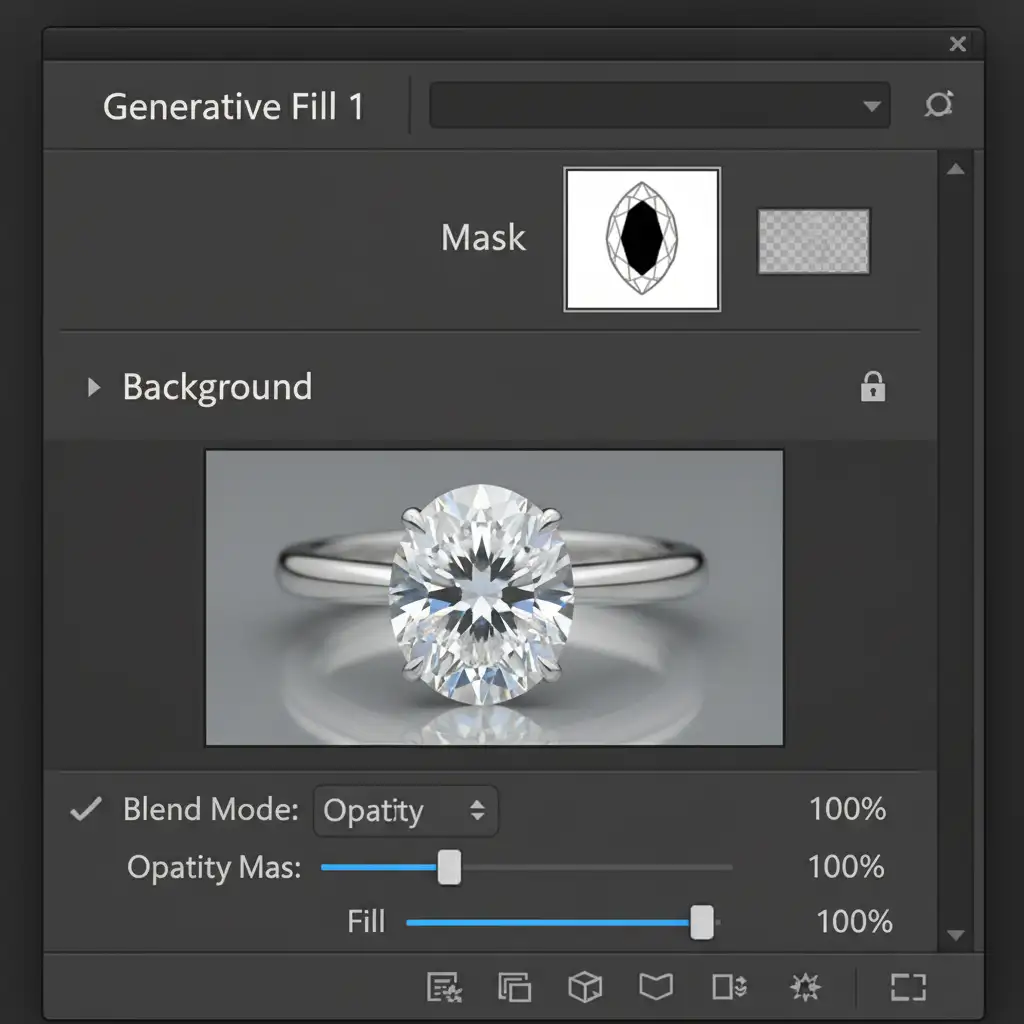
- Add a Layer Mask.
- Using a soft black brush, paint out the AI-generated gemstone to reveal the original, untouched raw image underneath.
- If the original stone had a blemish, manually reconstruct it by using the Clone Stamp tool to duplicate intact facets from the raw image, preserving genuine refraction.
Method 3: The Technical Deep-Dive (Symmetrical Blending)
For the highest level of jewelry retouching, you must completely bypass Generative Fill for refractive elements. If one side of a gemstone is ruined by a reflection or a bad AI generation, you can borrow optical physics from the stone itself.
- Use the Polygonal Lasso tool to select an intact, geometrically identical side of the gemstone.
- Press Ctrl+J (Windows) or Cmd+J (Mac) to duplicate the intact facets onto a new layer.
- Press Ctrl+T / Cmd+T and flip the copied facets horizontally to cover the hallucinated AI area.
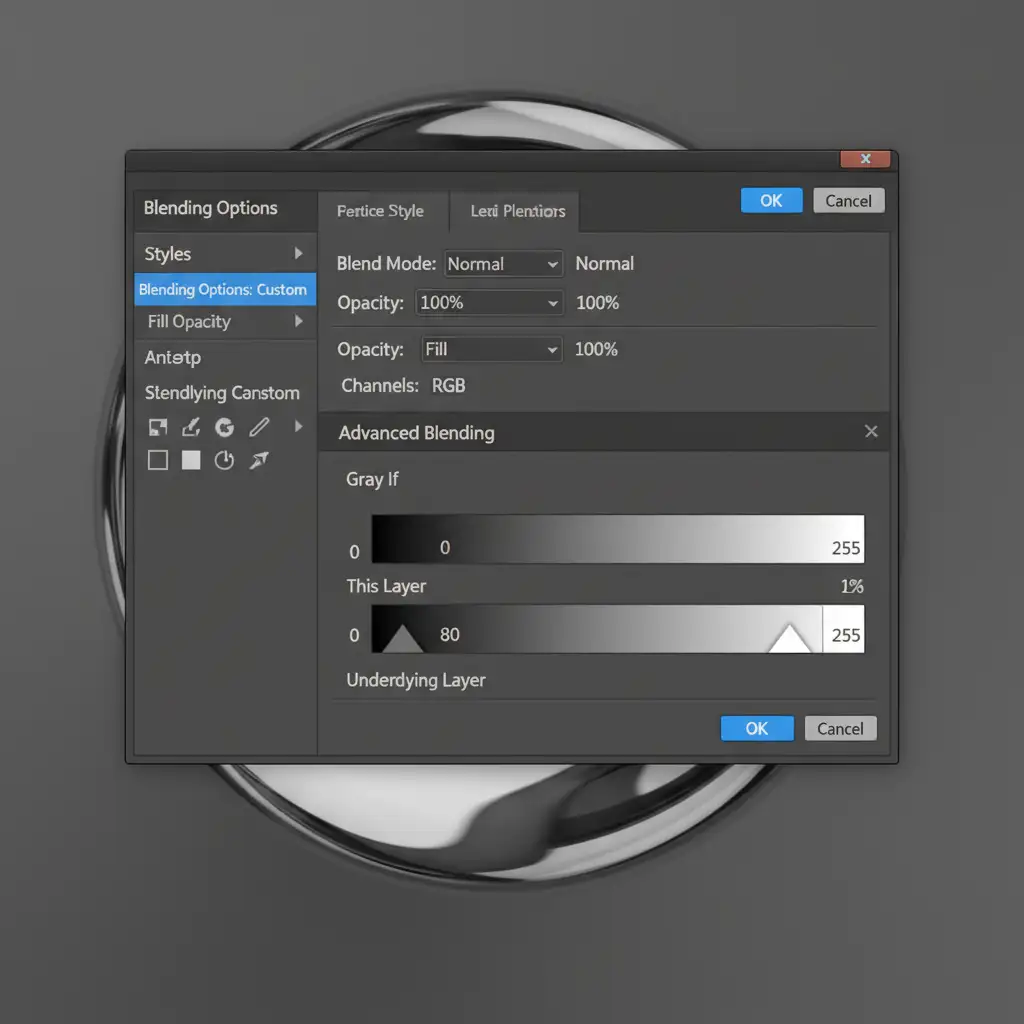
- Double-click the new layer to open the Layer Style dialog box.
- Navigate to the Blend If sliders at the bottom.
- Hold Alt / Option to split the underlying layer sliders. Adjust them to perfectly match the specular highlights and underlying shadows of the original stone, ensuring the caustics blend seamlessly.
Stop Wasting Time on AI Hallucinations
Fixing Generative Fill gemstone refraction errors requires a deep understanding of both Photoshop mechanics and the optical physics of jewelry. While layer masking, symmetrical duplication, and Blend If techniques yield flawless results, they are incredibly time-consuming—especially when processing hundreds of e-commerce product photos.
Need flawless, physically accurate jewelry edits without the headache? Skip the AI trial and error. Hire the expert retouchers at Image Work India and Cloud Retouch. Our professional team specializes in pixel-perfect high-end jewelry retouching, ensuring your diamonds, sapphires, and precious metals look brilliant, realistic, and ready to convert browsers into buyers. Contact us today to streamline your post-production workflow.




